
There are several ways to add products to your cart in the Sales Rep App (WizOrder), from browsing the product list to scanning a barcode. Use whichever method fits your workflow. This article explains how to add products to a cart in WizOrder, including single product add, multi-select with Order Mode, and adding directly from the product details page, on both mobile and web.
Platform: WizOrder | Who is this for: Sales Reps & Admins
To Get There: Select Customer > Products
Table of Contents
Before You Begin
- You must have access to WizOrder, on the mobile app or the web portal
- Select the customer before adding products, this ensures customer-specific pricing is applied to the cart
- You can run multiple carts for the same customer at the same time (see Section G)
A. Add Products from the Product List or Product Details Page
From the Product Listing Page (PLP):
- Browse or search for products on the product listing page.
- Click Add to Cart on any product card.
- Enter a quantity using the + icon, or tap the quantity field and type the number directly.
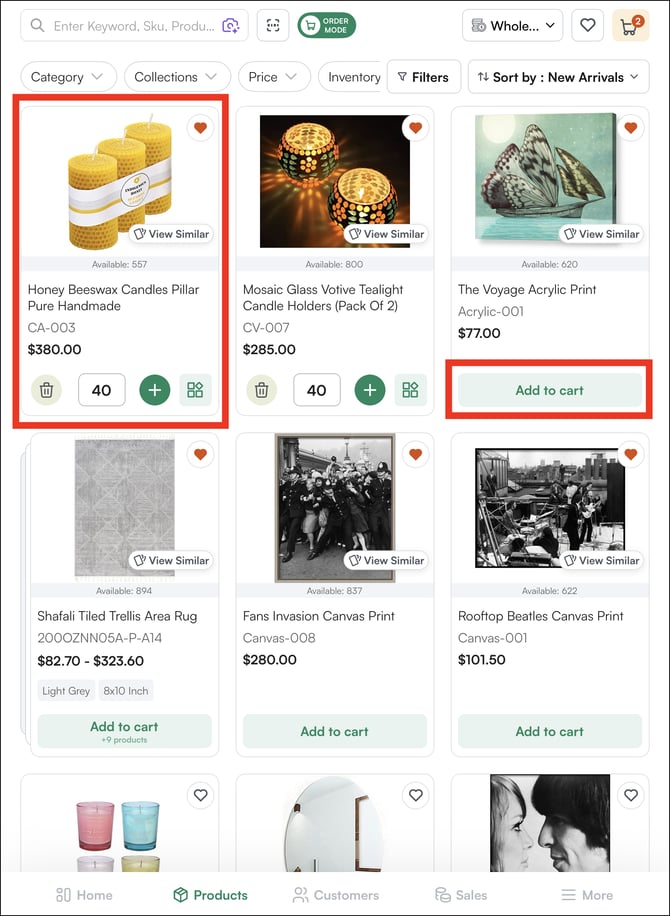
From the Product Detail Page (PDP):
- Click on a product to open its detail page.
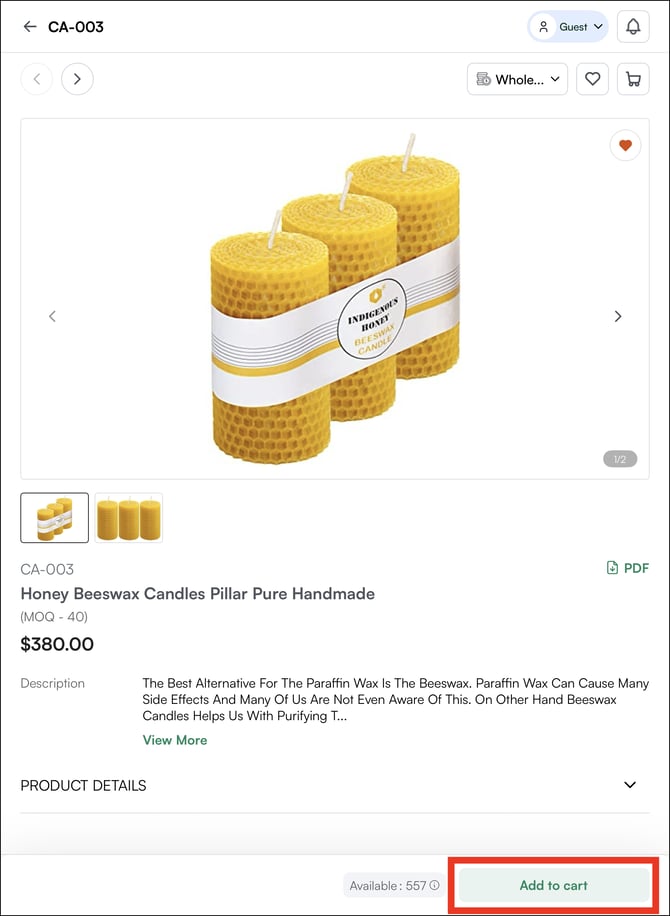
- Select variants (size, color, etc.) if applicable.
- Adjust the quantity and click Add to Cart.
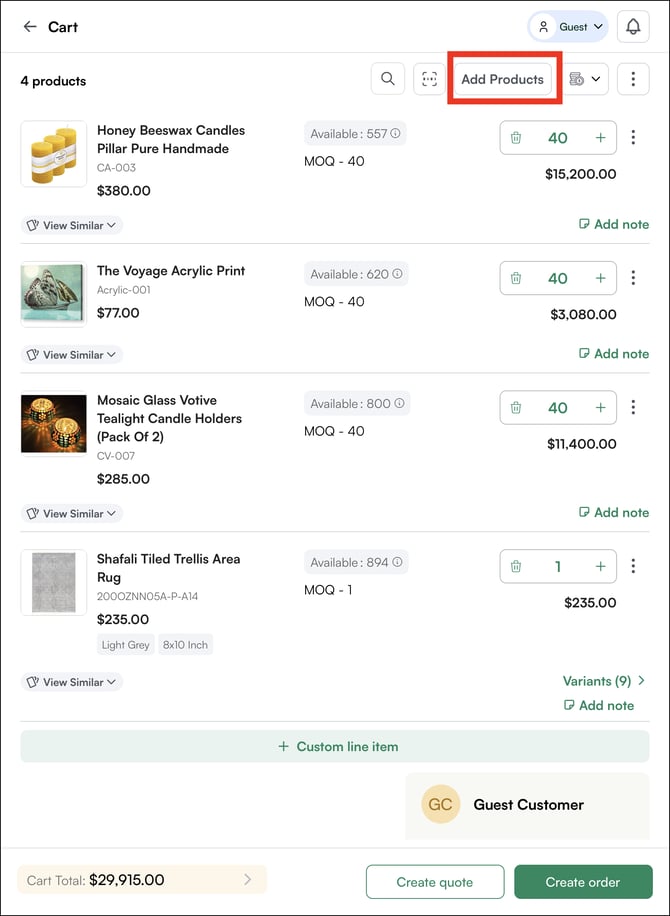
From the Cart View:
- Click Add Products and follow the steps for adding products from the PLP
B. Add Products with Variants
Each variant is added as a separate line item with its own SKU, price, and quantity.
- Open a product from the PLP or PDP. If the product has variants, the variants page opens automatically.
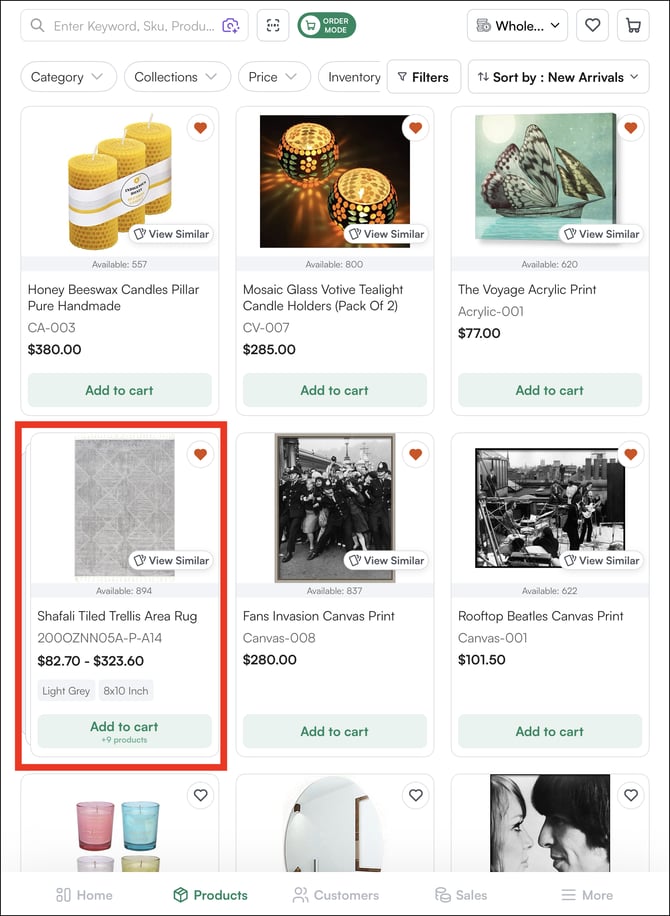
- Select the variant combination you need, shown as text chips or visual swatches.
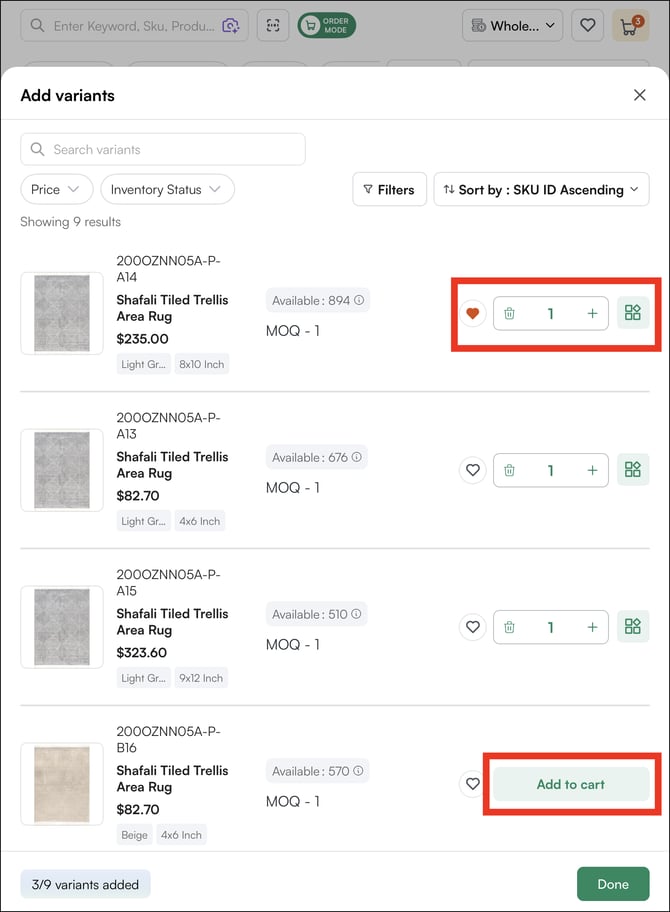
- Click Add to Cart and adjust the quantity.
Each variant is added as a separate line item with its own SKU, price, and quantity.
C. Add Multiple Products to Cart at Once
- Tap and switch to the Select Mode icon on the Product Listing Page to enable bulk selection.
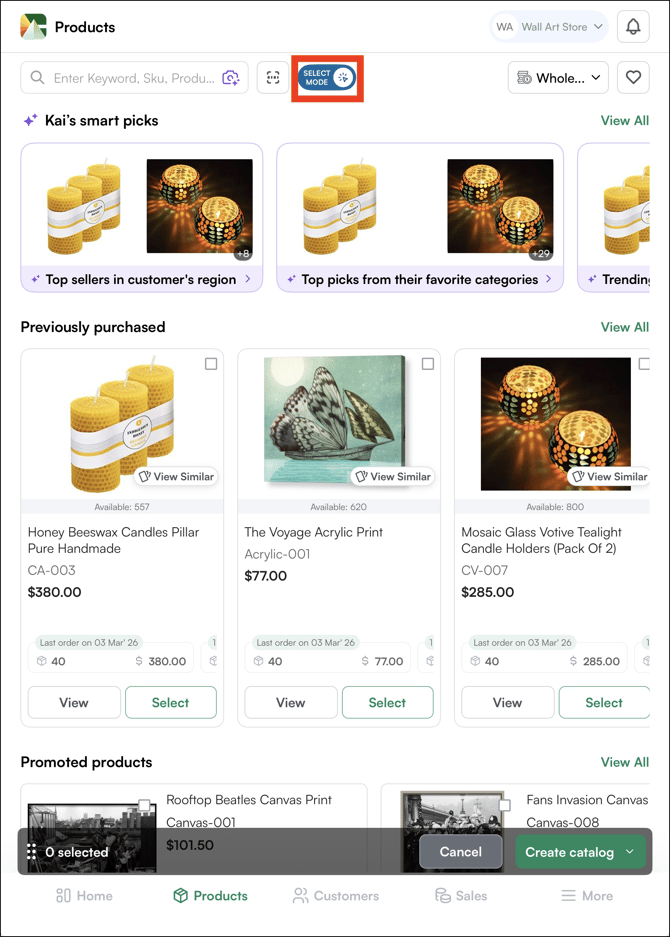
- Check the box on each product card you want to add.
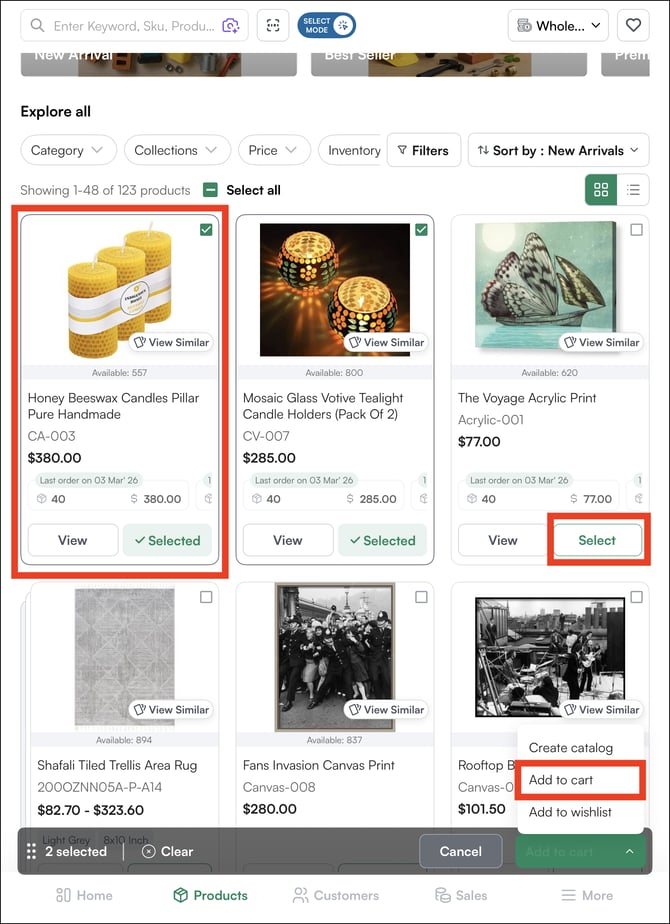
- Click Add to Cart.
All selected products are added to your active cart in one action.
D. Scan a Barcode to Add Products
- Click the camera scanner icon next to the search bar.
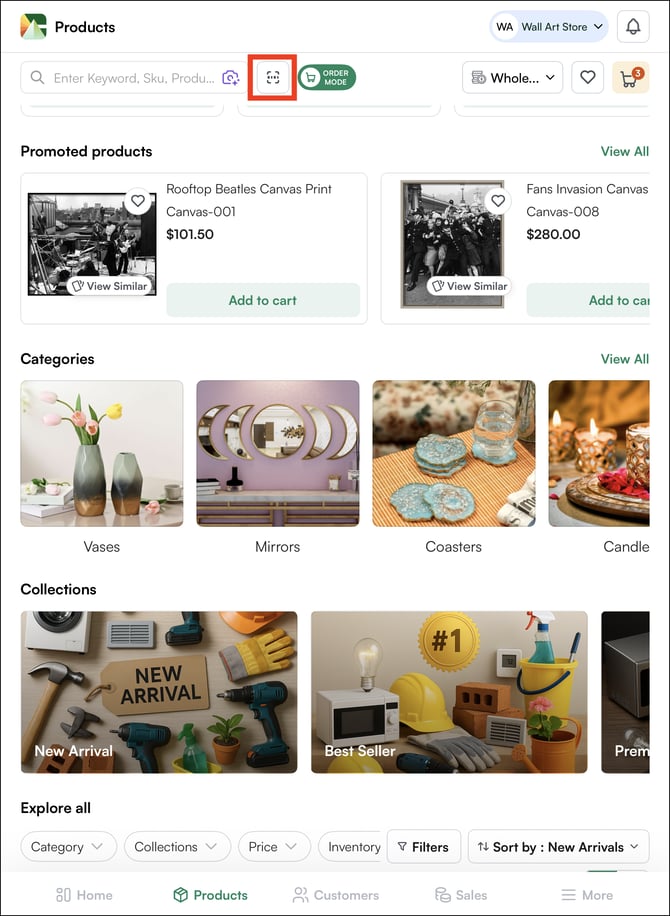
- You can either use your mobile camera or a barcode scanner. Point your device at the product barcode.
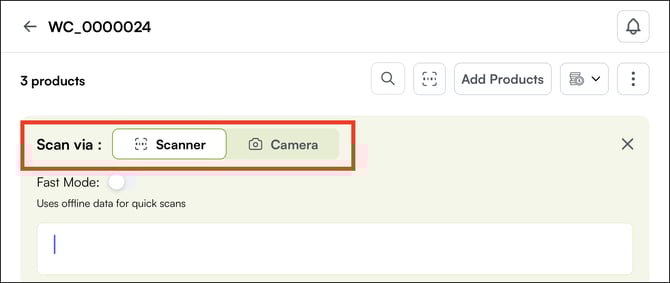
- The system identifies the product by its UPC or SKU and automatically adds it to your active cart.
- Adjust the quantity if needed.
Note: Make sure the barcode is legible and well-lit for the scan to work accurately.
E. Add Products from the Cart View
- Inside the cart, tap Add Products at the top of the cart.
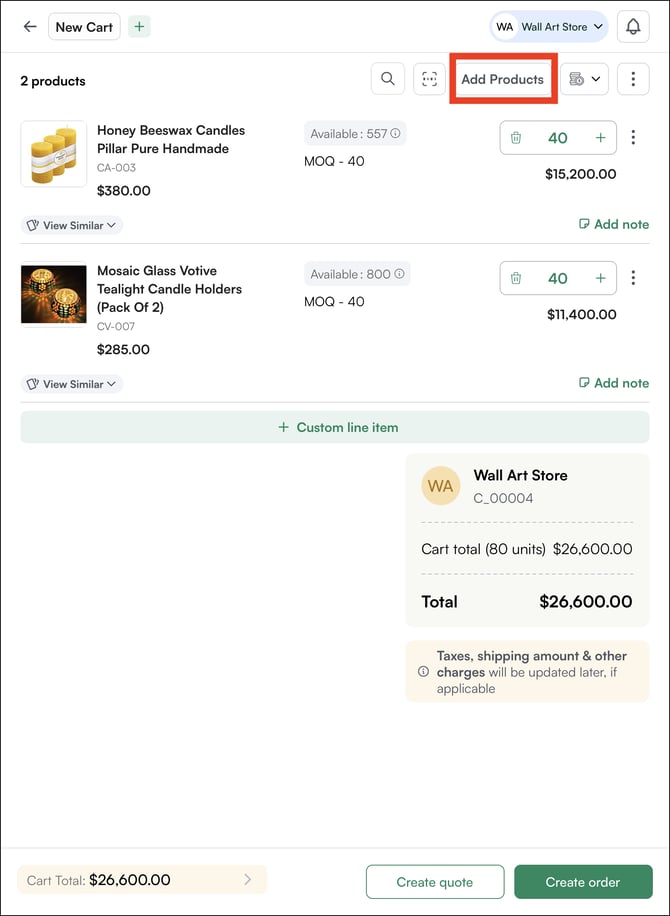
- Search for the product by name or SKU, or browse the product listing page.
- Select the product and set the quantity.
The product is added to your current cart without losing your place.
F. Copy or Duplicate a Cart
Copy Cart lets you duplicate the products and quantities from a confirmed order, draft order, or converted quote into a new cart. Use this when a customer wants a similar order to one that has already been placed, without rebuilding the cart from scratch.
- Open the confirmed order, draft order, or converted quote page.
- Click the three-dot menu, click Copy Cart.
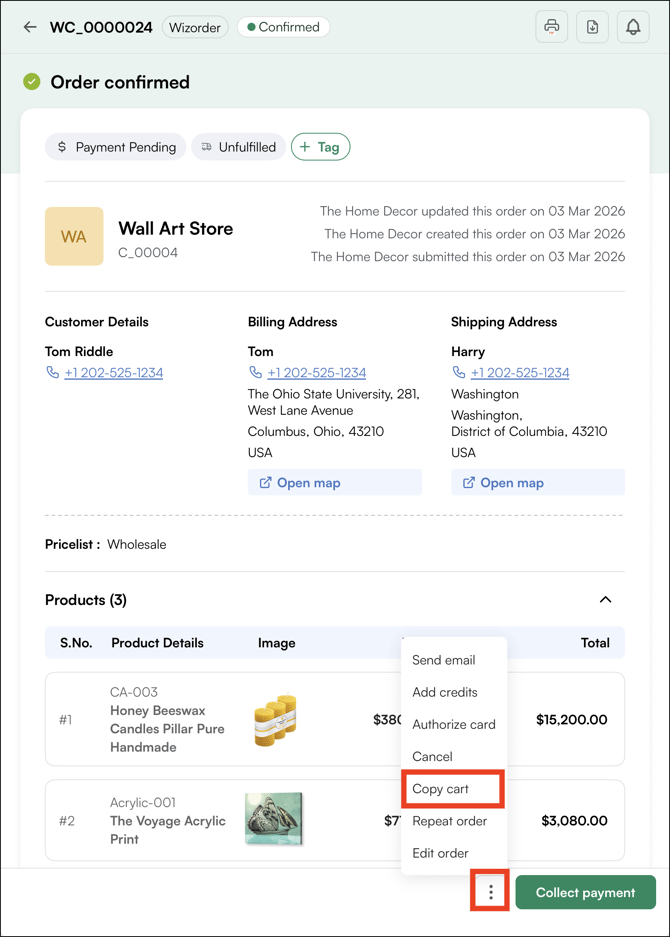
- Select the customer for the new cart.
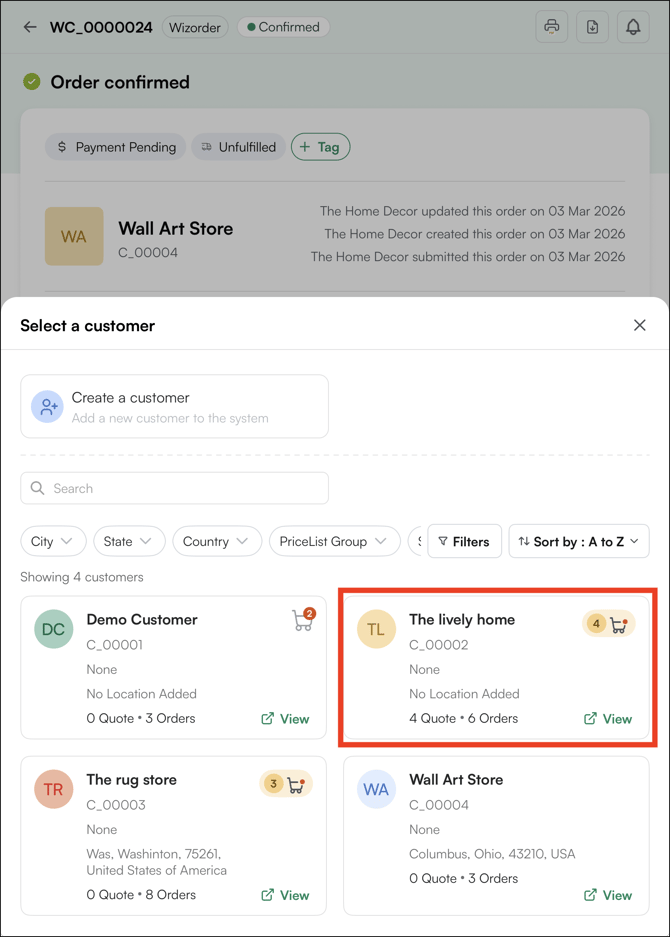
- A new cart is created with the same products and quantities.
- Adjust pricing, quantities, or products as needed before submitting.
Note: Make sure the new customer is assigned to the same price list as the original; the cart will show an error. To update a customer's price list, see Assigning and Updating Customer Price Lists.
G. Create and Use Multiple Carts
WizOrder lets you run multiple carts for the same customer at the same time. This is useful when you need to separate order types, for example, everyday items in one cart and seasonal orders in another, or when a customer has multiple shipping locations.
To create a new cart:
- Select the customer for whom you are creating multiple carts.
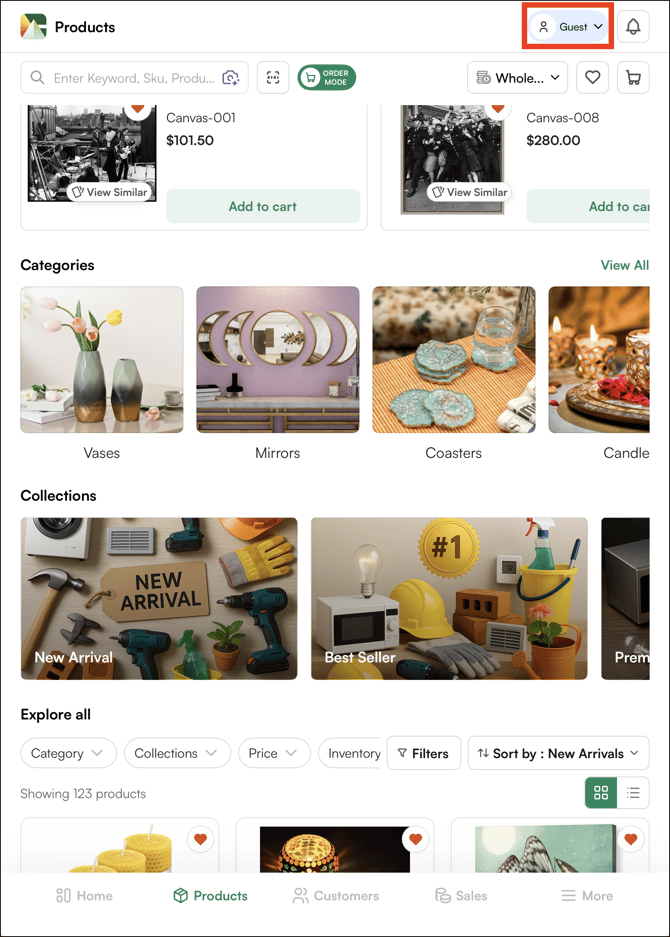
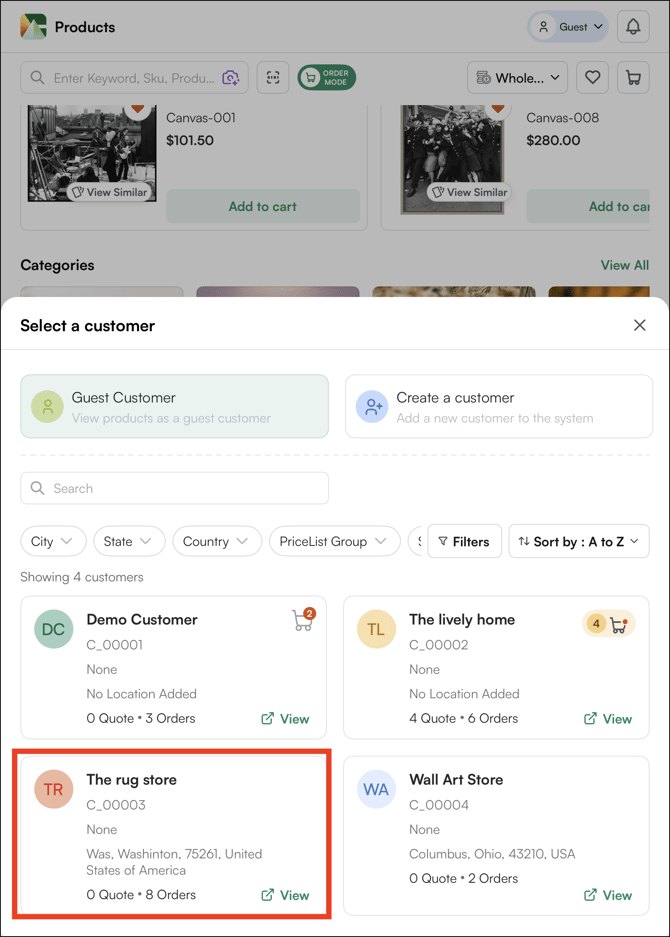
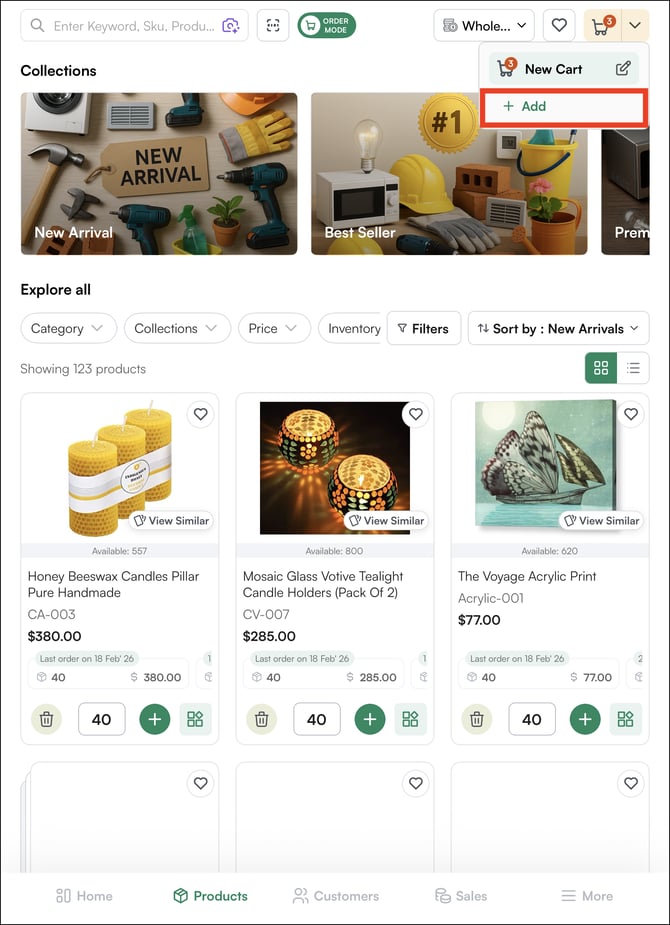
- Tap the cart icon and select Add New Cart.
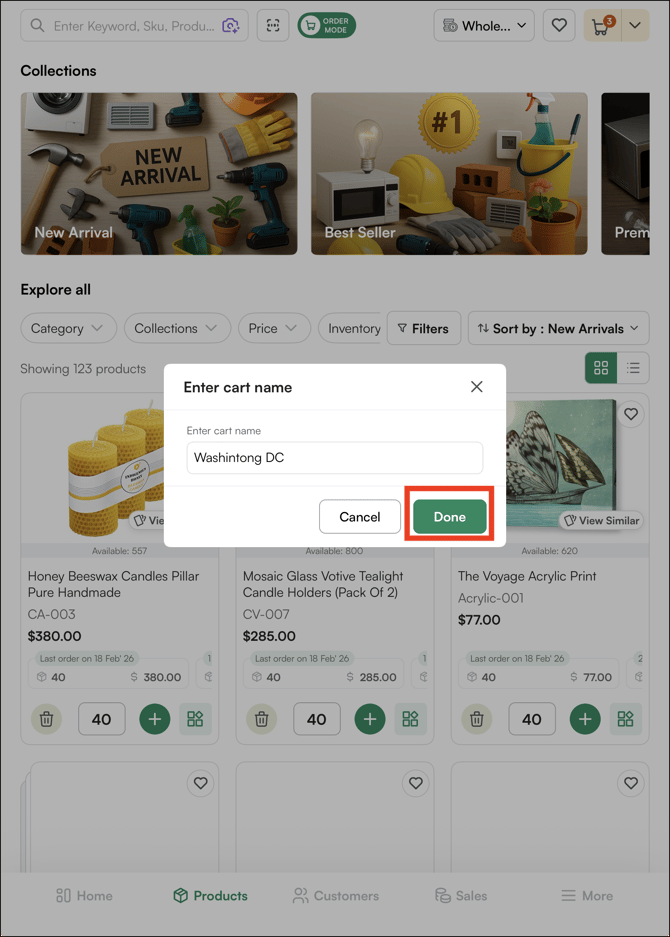
- Give the cart a name; use the shipping address or PO number as the cart name for easy identification.
- Start adding products as usual.
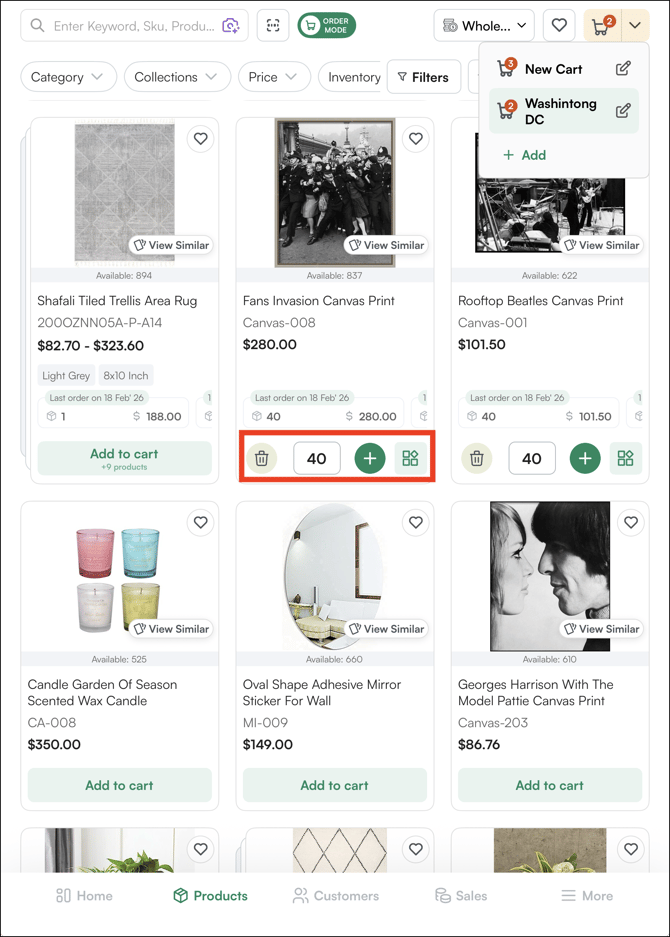
To switch between carts:
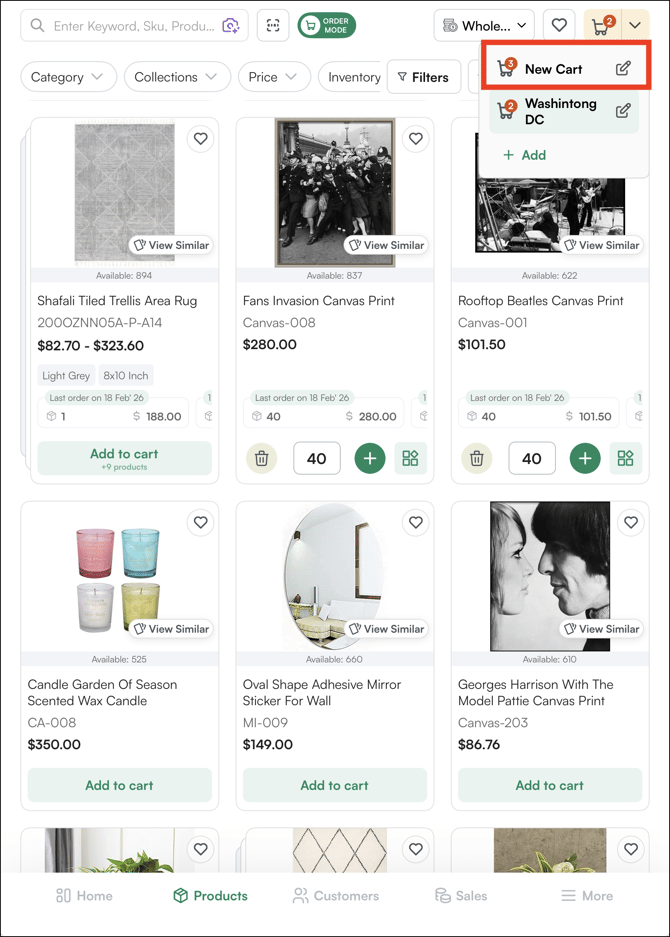
- Tap the cart drop down at the top of the screen from the PLP.
- Select the cart you want to work on.
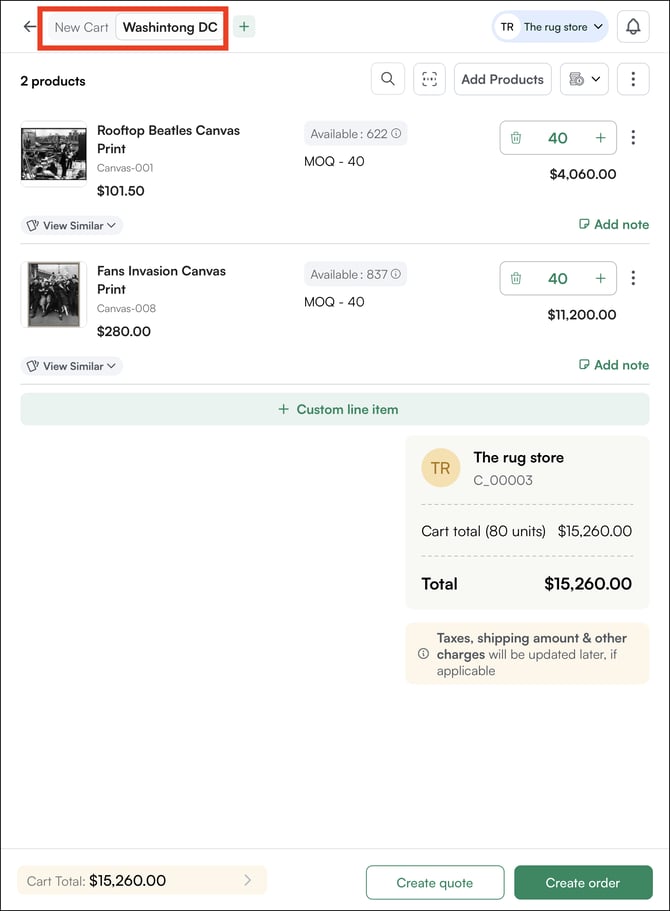
- You can also switch between carts in the Cart View.
- Additionally, from the Cart View, you can switch between existing carts or create a new one using the + icon, without leaving the cart.
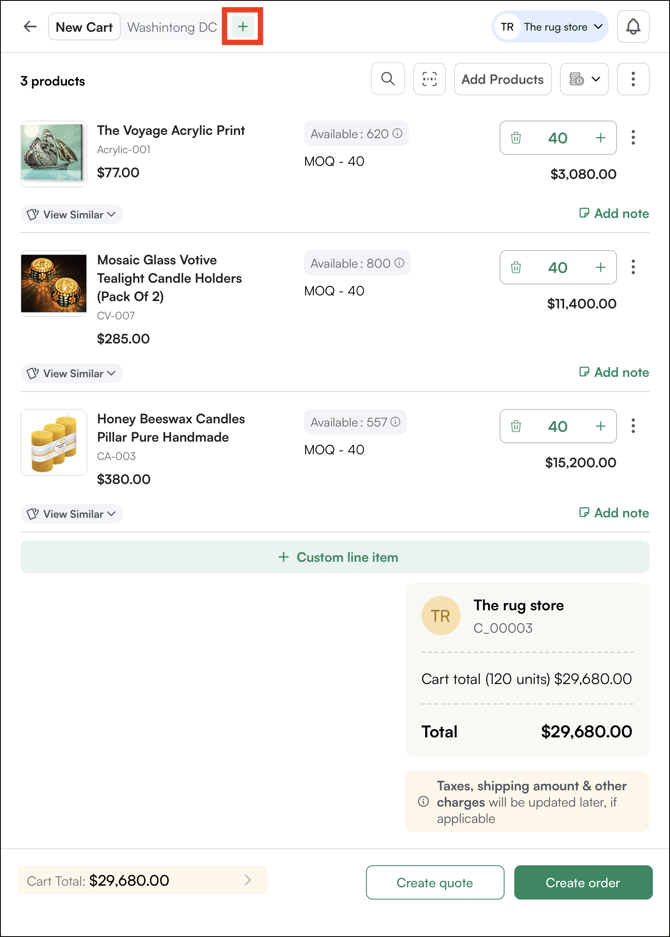
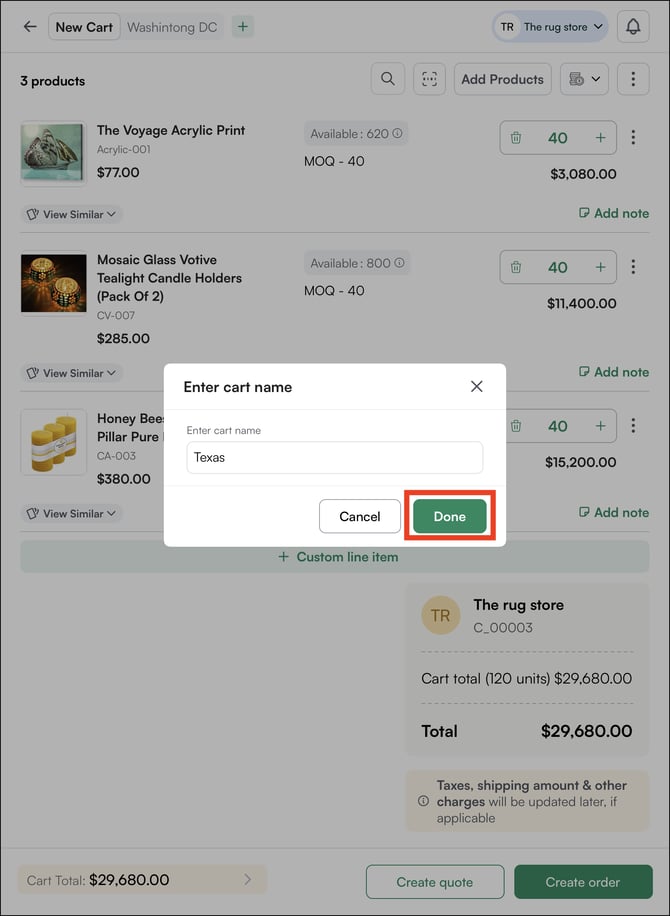
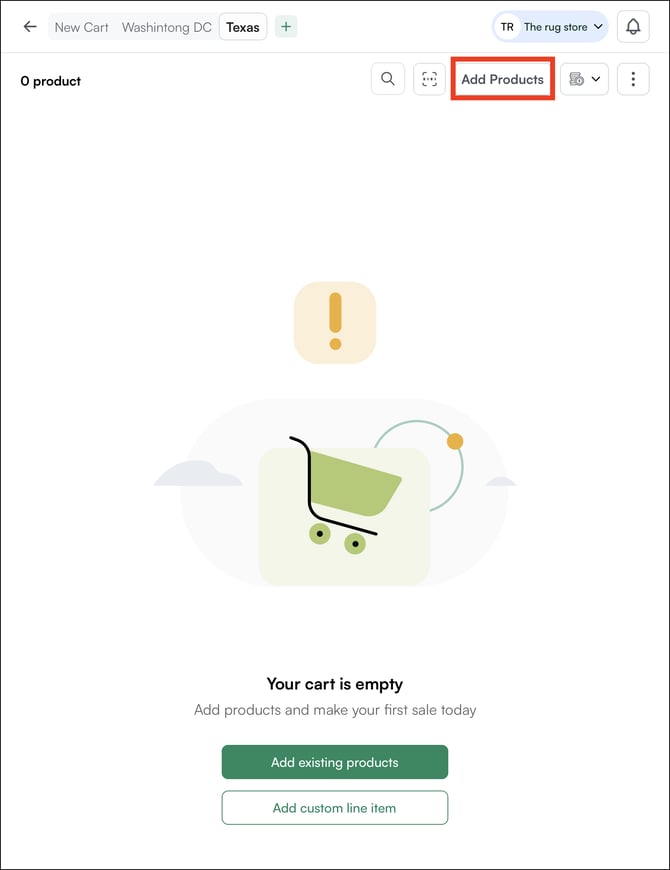
Each cart holds its own products, quantities, and order details independently.
H. Move Products Between Carts
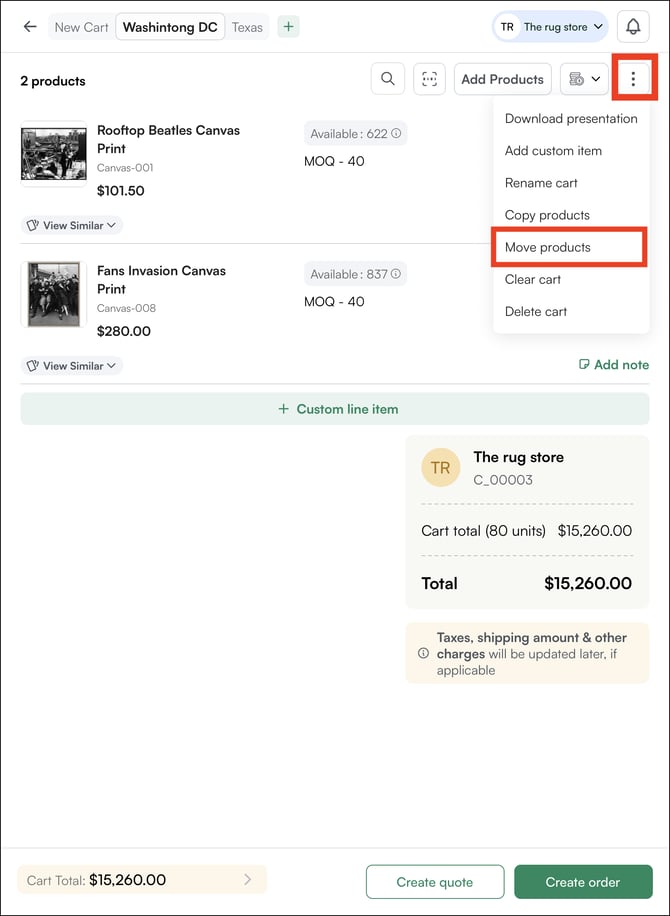
- From the cart view, click on the three-dot menu,, then click Move products
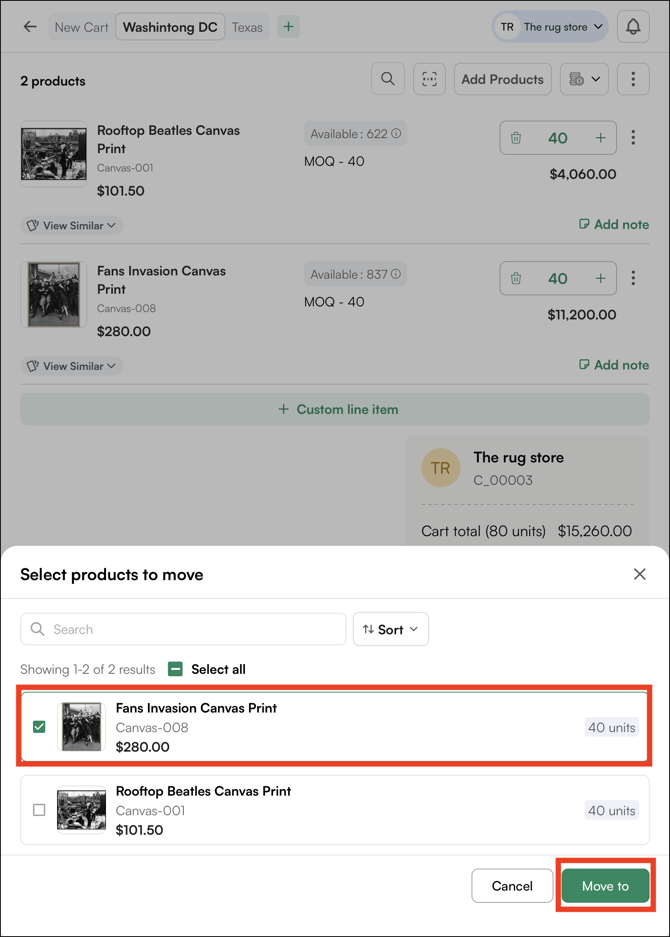
- Select the products you want to move, then click Move To.
- Select the destination cart and click Done
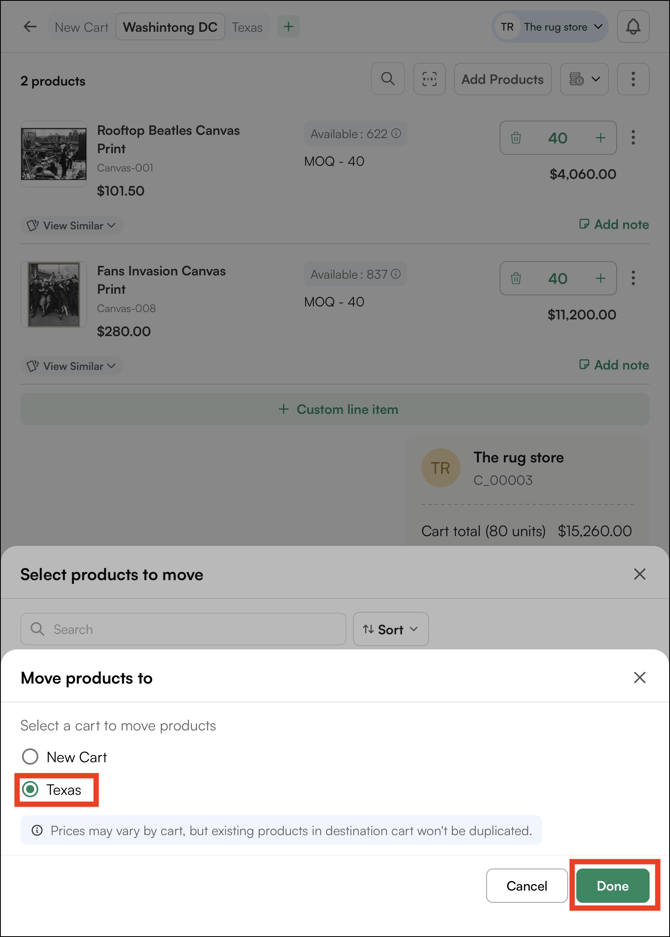
- The product will be moved to the selected cart.
Tip: You can also Copy Products from one cart to the other, select the copy products, then select the cart, and click done.
FAQs
1. Can I add products to a cart without selecting a customer first?
A. Yes, you can create a cart without selecting a customer, through Gest Mode, however, it is recommended to select a customer before adding products. This ensures customer-specific pricing, pricelist, and any applicable discounts are applied correctly to the cart from the start.
2. What happens if a product I scanned is not found in the system?
A. If the barcode scan does not return a match, check that the barcode is clean, well-lit, and fully in frame. If the product still does not appear, search for it manually by product name or SKU to confirm it exists in the catalog.
3. Can I move products from one customer's cart to another customer's cart?
A. No. Products can only be moved between carts belonging to the same customer. To build a similar cart for a different customer, use Copy Cart from an existing order and select the new customer.
Not finding what you need? Browse the WizCommerce Help Center, reach out to your Customer Success Manager, or contact our Support Team.