
Order entry is one of the biggest sources of manual effort and errors in wholesale. Purchase orders arrive in different formats, such as emails, PDFs, spreadsheets, and scanned documents, and someone has to re-key every detail into the system. The AI Order Entry Assistant removes that work entirely.
It reads incoming purchase orders in any format, extracts the details automatically, and maps them to your existing customer and product data, creating a clean, structured order ready for review and submission to your ERP.
How It Works
When you are set up with the AI Order Entry Assistant, you receive a dedicated email address (for example, ella-demo@wizcommerce.com). Any purchase order forwarded to that address is automatically picked up and processed.
The AI Order Entry Assistant extracts all key details from the purchase order, customer name, billing and shipping addresses, payment type, and product information, and maps them against your existing records in WizCommerce.
Once extraction is complete, you receive a verification email with a link to review the extracted details before anything is submitted.
How to Access
Access your AI Order Entry Assistant using this link and use your credentials to log in.
A. Processing a Purchase Order
Step 1: Forward the Purchase Order
When you receive a purchase order in your inbox, forward it to your AI Order Entry Assistant email address.
Step 2: Receive Acknowledgment
The AI Order Entry Assistant sends an acknowledgment email confirming receipt and that the purchase order is being processed.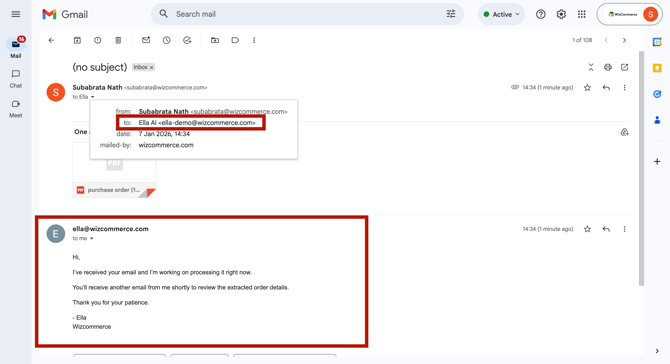
Step 3: Review the Extracted Details
Once processing is complete, you receive a follow-up email in the same thread with a link to review the extracted data. Click View Order to open the review page.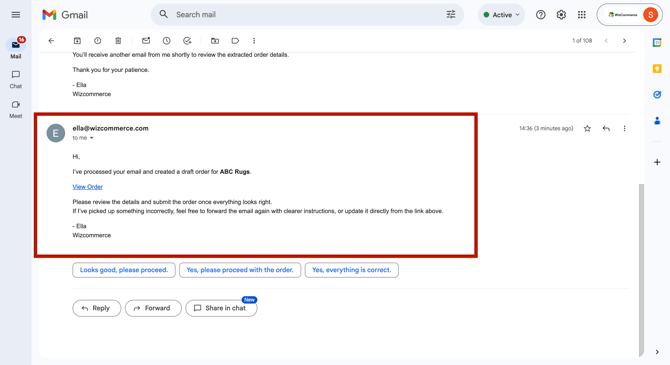
The review page shows the original purchase order alongside the data the AI has extracted. Verify all details, customer information, products, pricing, and PO number, and edit any field if needed.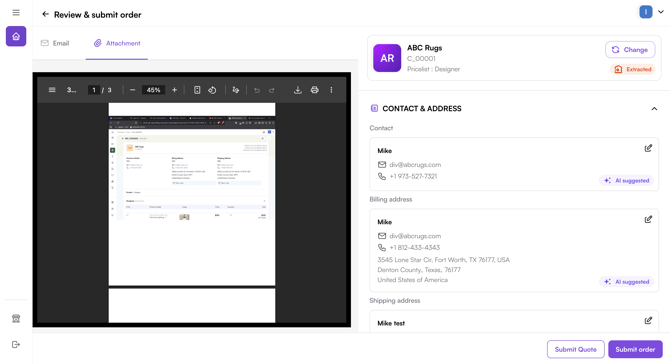
Step 4: Submit the Order
Once you have verified the details, click Submit Order. You will land on an order summary page with the full order details and an option to track the order in the Sales Rep App (WizOrder).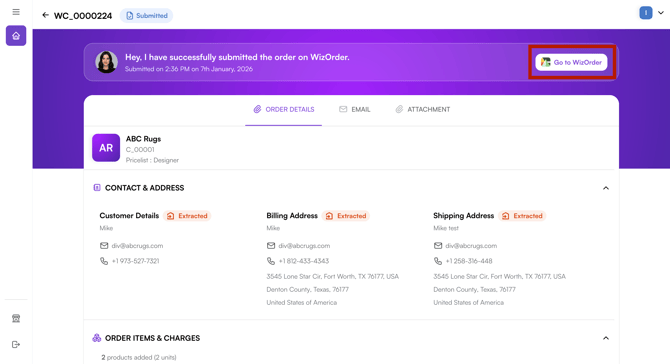
Note: By default, all orders processed by the AI Order Entry Assistant are saved as Draft Orders. A two-step verification is in place; you will need to review and submit the order again in WizOrder before it is confirmed. This can be disabled by your administrator if needed.
B. Processing Multiple Purchase Orders from a Single Email
The AI Order Entry Assistant can detect and process multiple purchase orders arriving in a single email, whether they are sent as separate file attachments or as multiple pages within a single PDF.
Both scenarios are handled automatically:
- Multiple POs as separate attachments: Each attached file is processed as an individual purchase order, and all are surfaced together for review
- Multiple POs within a single PDF: Each purchase order across multiple pages is detected and separated automatically, rather than processing only the first page
In both cases, all orders from the same email are grouped and accessible from a single review screen.
Reviewing Multiple Orders
- Forward the email with multiple POs to AI order assistance's (Ella's) email ID.
- Open your Inbox in AI Order Entry and select the relevant email.
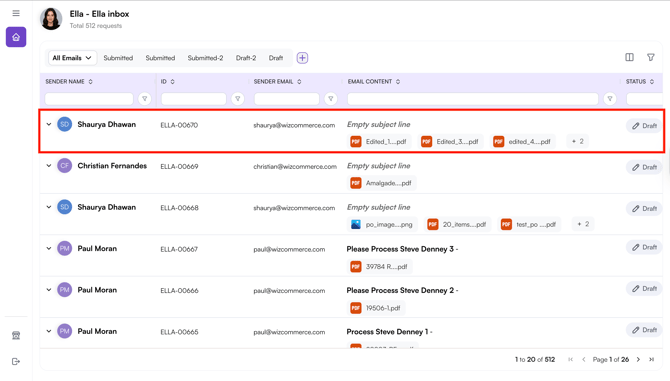
- Open any processed PO to begin reviewing. If the email contained multiple POs, for example, five separate attachments, all five are accessible from the review page. Use the tab at the top to switch between them without losing your place
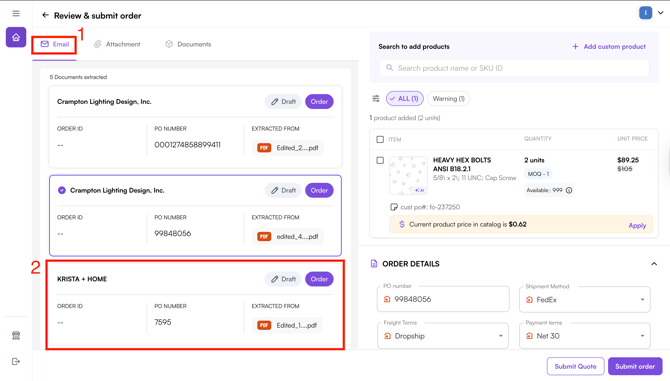
- Open any order to review its details, make adjustments, and submit it.
Filtering, Sorting, and Custom Views
When managing a large number of orders through the AI Order Entry Assistance, you can use filtering, sorting, and saved custom views to help you stay organized.
- Filters and sorting, Apply filters and sort on any field, such as status, customer, or order value, to quickly locate a specific order.
- Custom views: Save a custom view tailored to your workflow, for example, a view showing only draft orders assigned to specific users. Saved views apply the same filters automatically each time. You can reset to the default view at any time
Note: Filtering, sorting, and custom views work the same way here as they do across all other WizCommerce tables, including Orders, Quotes, Catalogs, and Customers. [link to orders table]
Bulk Actions on Line Items
Within any individual order, the line items section supports bulk selection and actions — making it faster to edit or clean up orders with many items.
- Select multiple items using the checkboxes in the items list.
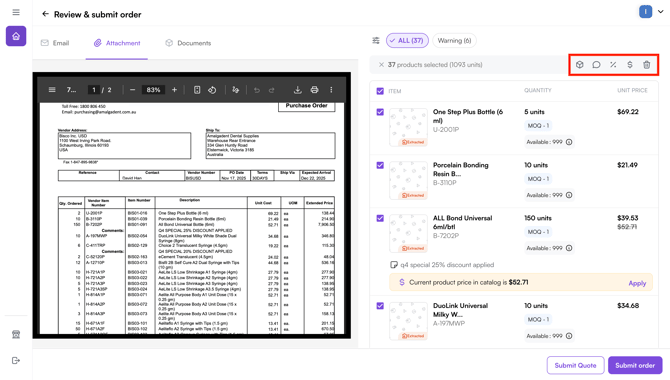
-
In bulk mode, you can select multiple line items and perform the following actions at once:
- Edit Quantity : Update the quantity across all selected items simultaneously
- Add a Note: Write a note against each selected line item
- Apply Discounts: Offer a discount across all selected products at once
- Edit Pricing: Update the price for all selected line items in one action
- Delete Items: Remove multiple products from the PO at once
C. Tracking AI-Processed Orders
Orders processed by the AI Order Entry Assistant can be tracked in two places:
- Orders tab in WizOrder: Find the order under the Sales page in the Orders tab
- AI Order Entry Assistant homepage: All processed orders appear in the right sidebar under the Home tab, giving you a full view of everything the AI has handled