
Browse your product catalog in WizOrder by category, collection, past purchases, or promoted items. Access full product details, download tear sheets, switch pricelists, and make quick product-level adjustments — all from the product list.
Platform: WizOrder | Who is this for: Sales Representatives, Administrators
To Get There: Products
Table of Contents
| Sections | Topics |
| A | Browse by Category and Collection |
| B | Find Past Purchases Quickly |
| C | Get Product Details, Specs, & Tear Sheets |
| D | Switch Pricelists |
| E | Add a Note, Offer Discount, or Edit Price |
| F | FAQs |
Before You Begin
- A customer must be selected in your session for past purchase data to appear on product cards.
- To use the Pricelist Switcher, at least two pricelists must be active on your account.
- Tear sheets are available for all products. If no image is set, it will appear blank on the PDF, and only the attributes configured in the backend will be displayed.
A. Browse by Category and Collection
Categories and collections let you navigate products by how they are organized. It is useful when a customer asks to see everything in a particular product group or range.
- Go to Products.
- Click the Category or Collection you want to browse.
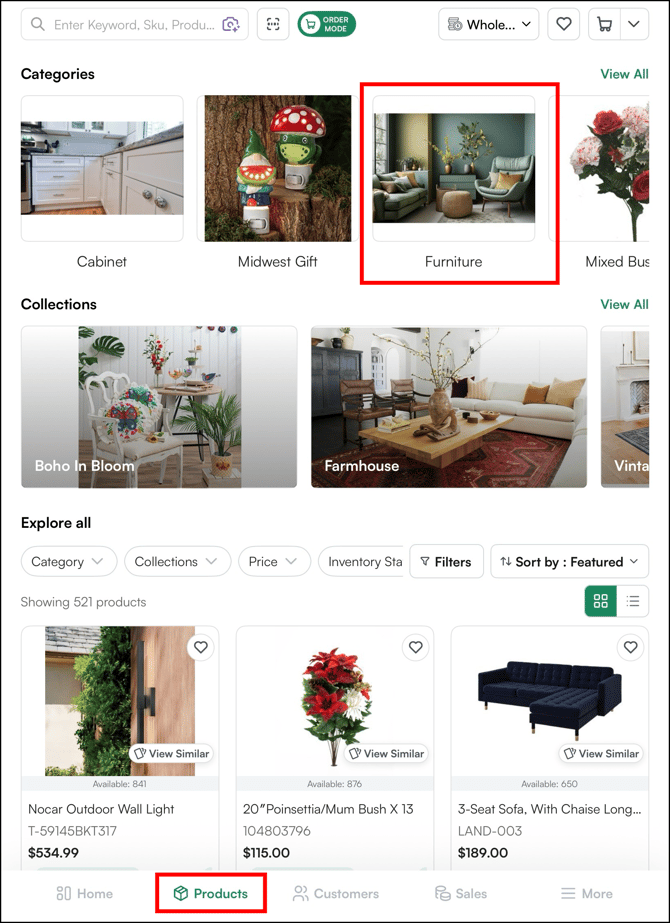
- Only products within the selected category or collection will be displayed.
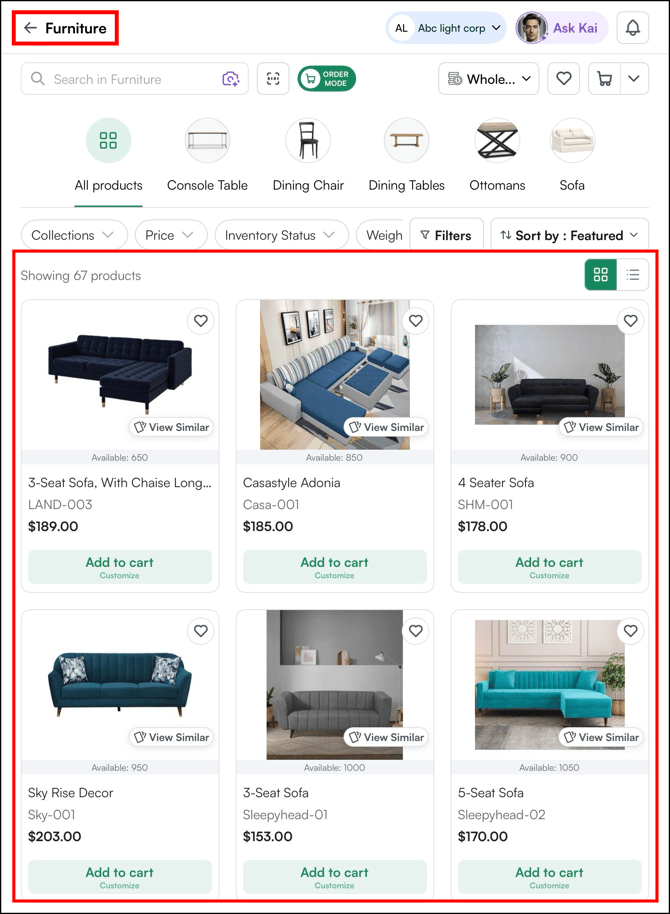
Note: Categories reflect your product structure as set up in WizCommerce. Collections are curated groupings configured by an Administrator. If a collection you expect is missing, contact your Administrator.
B. Find Past Purchases Quickly
Each product card in the product grid shows past purchase data for the selected customer directly inline. You can slide the card to toggle between two views, the customer's last order and their total order history for that product.
- Go to Products.
- Select the customer you are working with using the customer selector at the top of the page.
- On any product card, locate the purchase summary bar at the bottom of the card.
- Slide the bar to toggle between the two views:
- Last order on [date]: Shows the date of the most recent order, quantity ordered, and order amount
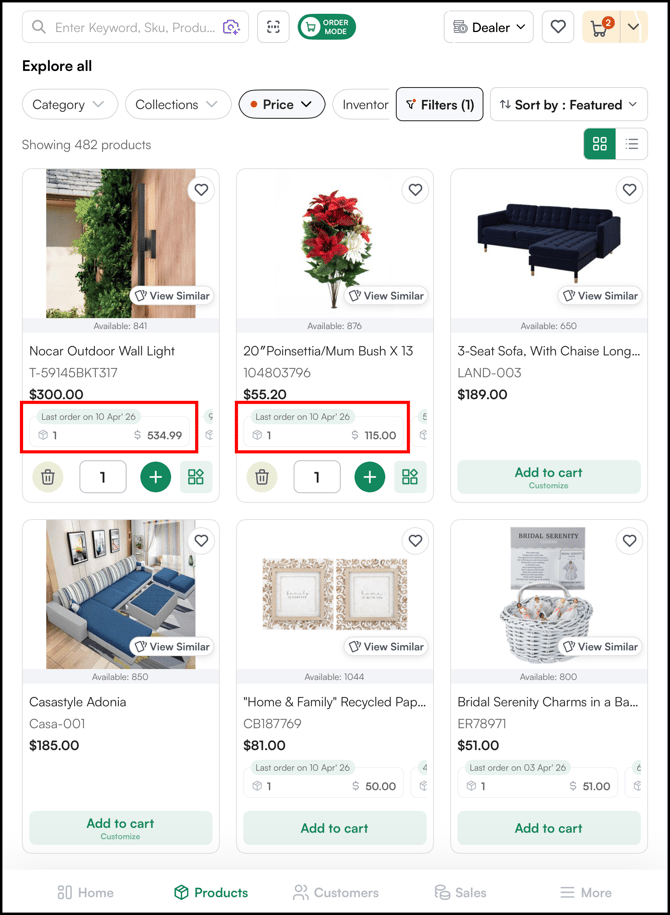
- [X] orders till date: Shows the total number of orders placed, cumulative quantity, and total spend
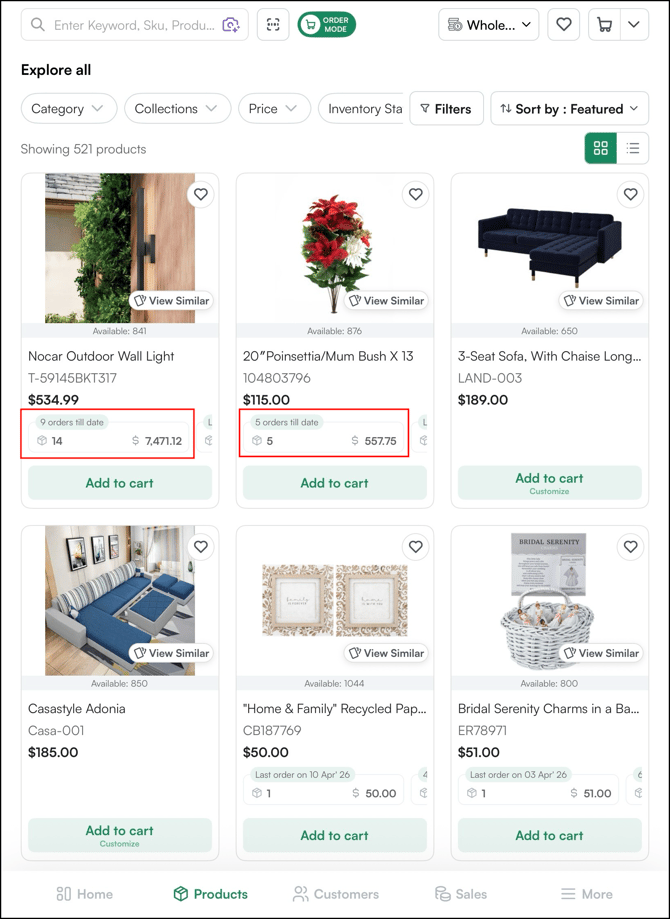
- Last order on [date]: Shows the date of the most recent order, quantity ordered, and order amount
Note: Past purchase data is tied to the customer selected in your current session. If no customer is selected, the purchase summary bar will not appear on product cards.
Moreover, the workflow is same for both - Web Portal and Mobile App.
C. Get Product Details, Specs, & Tear Sheets
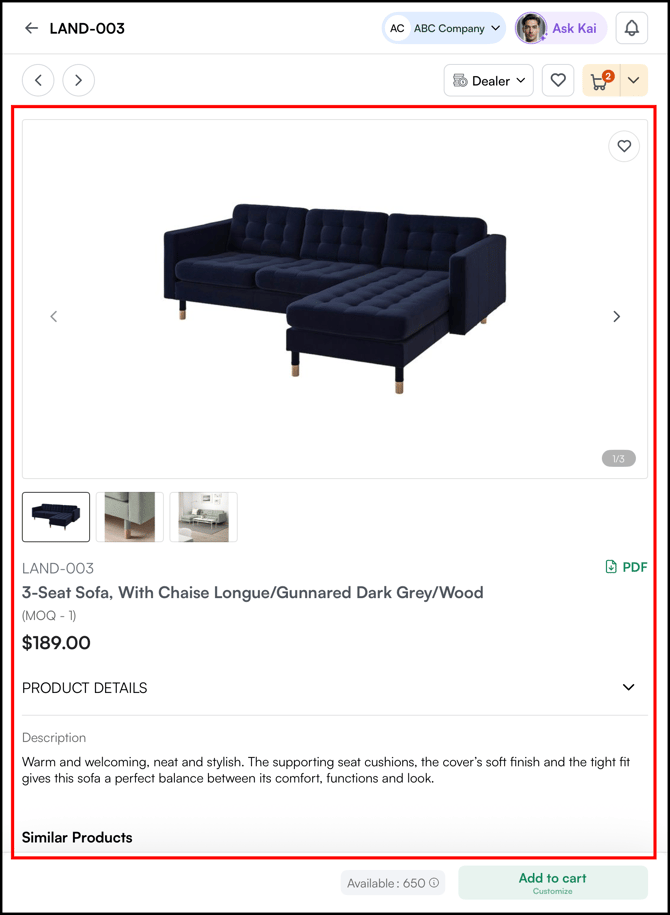
The product details page gives you everything you need to present a product confidently — full images, variants, attributes, pricing, and inventory availability. You can also download a tear sheet from here to share with your customer.
What is a Tear Sheet?
A tear sheet is a one-page PDF summary of a product. It includes the product image, name, SKU, key specifications, and pricing. Sales representatives use tear sheets to share product information with buyers during meetings, over email, or at trade shows, without needing to open WizOrder.
View Product Details:
- Go to Products.
- Click any product name or product image to open its details page.
- Review the available information:
- Product images and available variants
- SKU and product attributes
- Pricing and inventory availability
Download a Tear Sheet:
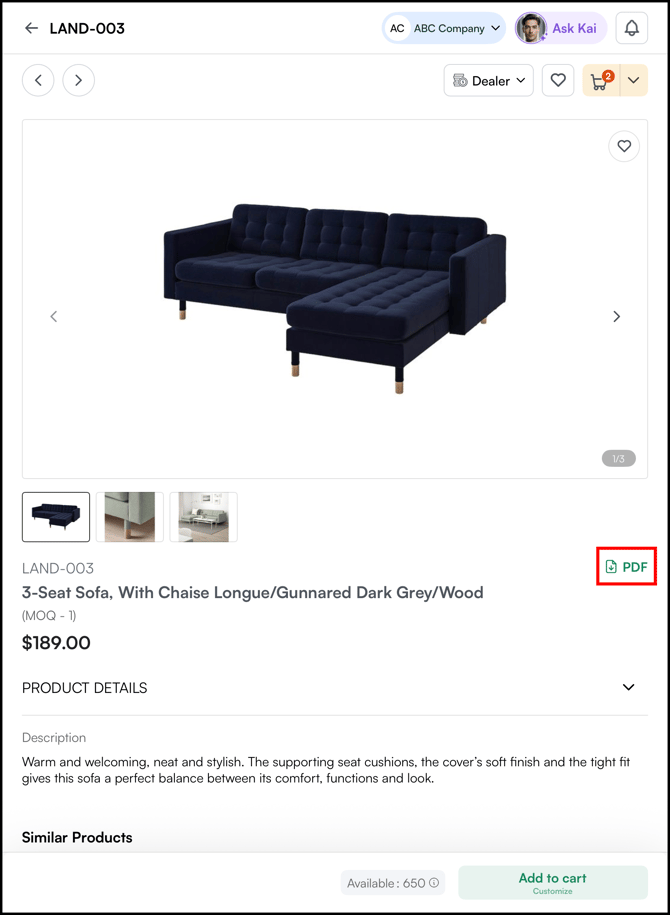
- On the product details page, click ↓PDF (Download Tear Sheet).
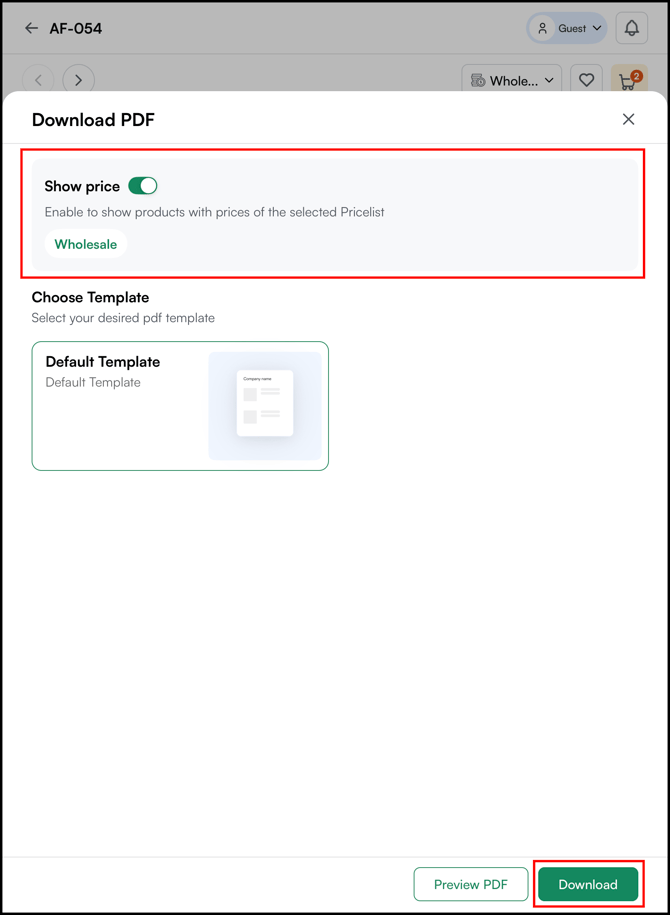
- Choose whether to include product pricing, then click Download.
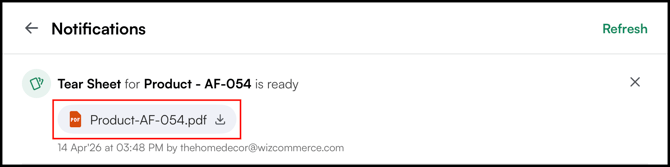
- Go to Notifications and download the generated PDF (Tear Sheet) to your device.
Note: The content and layout of the tear sheet are controlled at the platform level. To update what appears on a tear sheet, such as adding a logo or adjusting which fields display, contact your Administrator.
D. Switch Pricelists
The Pricelist Switcher lets you view product pricing under a different pricelist without leaving the product list. Use this when working with customers on different pricing tiers to make sure you are presenting the right prices.
- Go to Products.
- Click the Pricelist dropdown at the top of the product list.
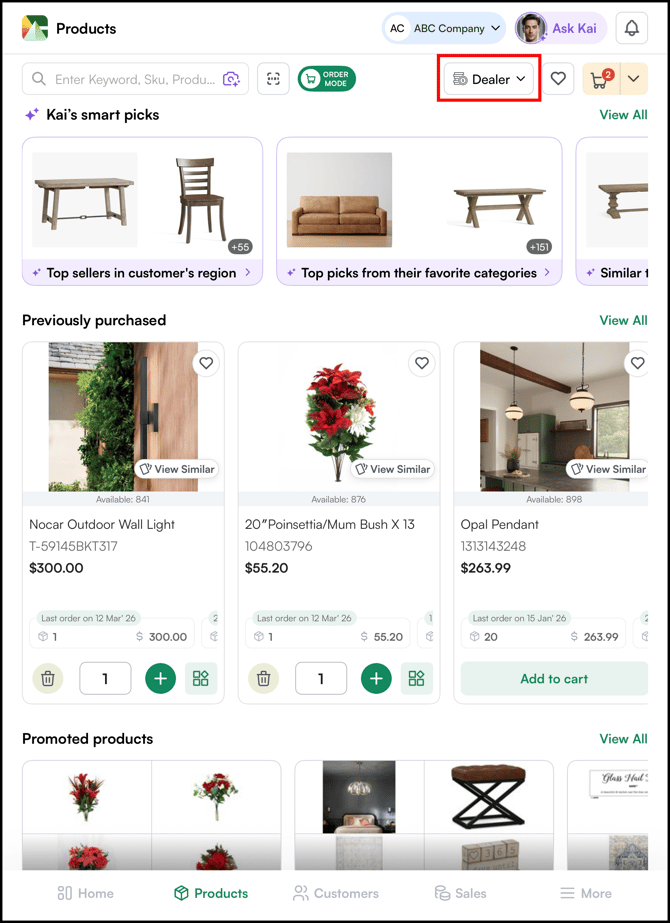
- Select the Pricelist you want to apply. For example, Wholesale Tier 2 or VIP Pricing.
- Product prices on the list update immediately to reflect the selected pricelist.
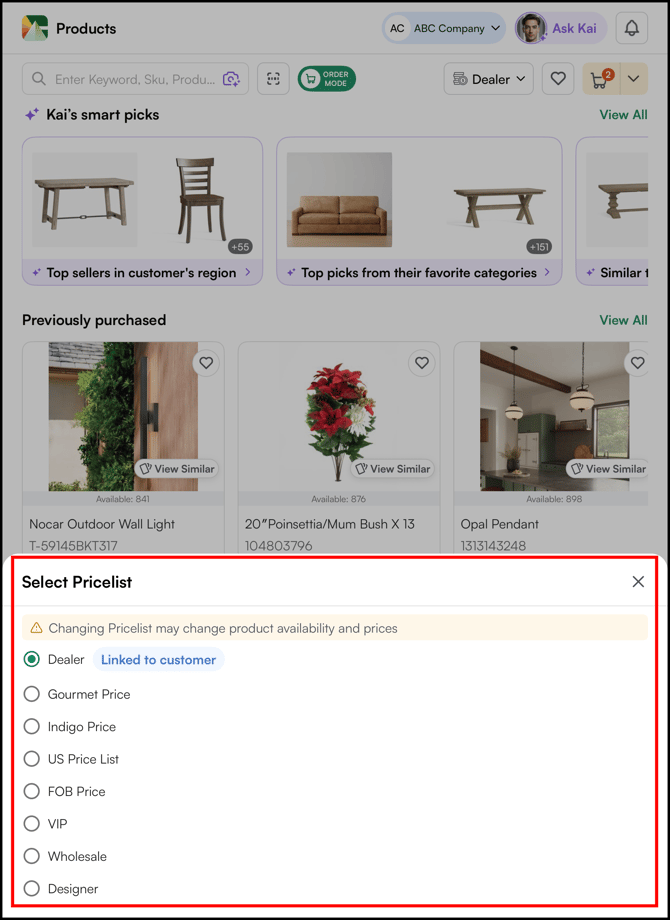
Note: You can only create an order under a pricelist if that pricelist is assigned to the selected customer. If it is not assigned, switch to a pricelist the customer has access to before proceeding.
E. Add a Note, Offer Discount, or Edit Price
Once you add a product to your cart, you can make product-level adjustments without opening the cart. Click the Action Menu on the product card to access three quick actions.
- Go to Products.
- Click Add to Cart on any product card.
- Click the Action Menu on the right side of the quantity selector.
- Select the action you want:
- Add Note: Add a product-level note visible on the order
- Offer Discount: Apply a discount to that specific product
- Edit Price: Manually override the unit price for that product
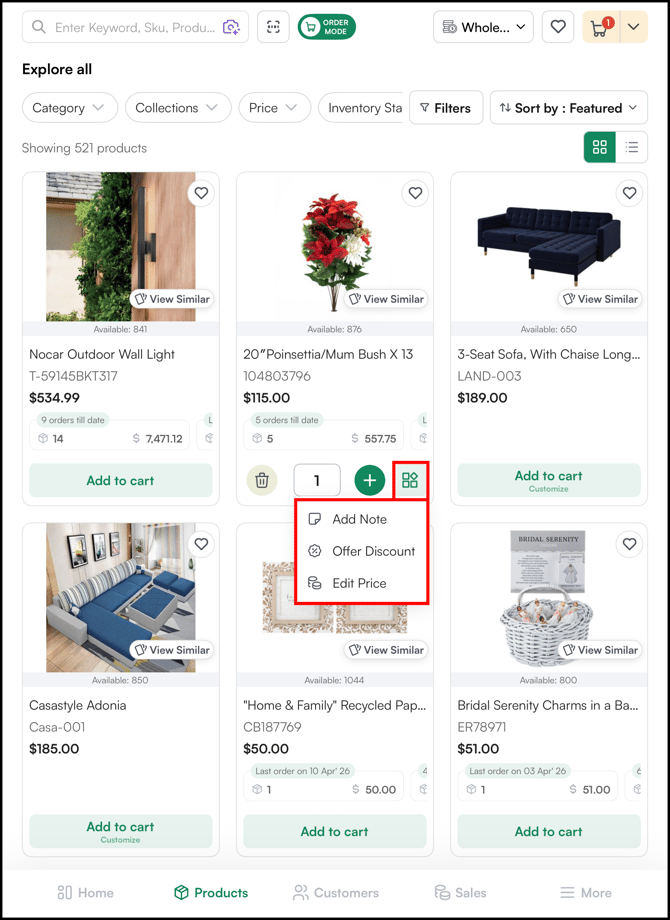
Note: Price edits and discounts applied from the action menu are product-level changes. They apply only to that product in the current cart and do not affect the pricelist or any other orders.
FAQs
1. The purchase summary bar is not showing on product cards - why?
A. The purchase summary bar appears only when a customer is selected in your session. Select a customer using the customer selector at the top of the Products page and the bar will appear on cards for products that customer has previously ordered.
2. The tear sheet button is not showing on a product - why?
A. The tear sheet button should appear for all products. If it is missing, please contact your Administrator to check the product configuration in the backend.
Not finding what you need? Browse the WizCommerce Help Center, reach out to your Customer Success Manager, or contact our Support Team.