---
title: Bulk Dimension Lines
description: Generate dimension drawings for up to 20 products at once in WizStudio—upload images, apply a template, add measurements via CSV, download.
---
[Skip to content](https://knowledge.wizcommerce.com/bulk-dimension-lines#main-content)
[](https://wizcommerce.com/)
Open main navigation
Close main navigation
- [Contact us](https://mail.google.com/mail/?view=cm&fs=1&to=help@wizcommerce.com)
[Contact us](https://mail.google.com/mail/?view=cm&fs=1&to=help@wizcommerce.com)
Hi, how can we help?
- There are no suggestions because the search field is empty.
1. [WizCommerce Help Centre](https://knowledge.wizcommerce.com/)
2. [WizStudio](https://knowledge.wizcommerce.com/wizstudio)
3. [Creating & Editing Images](https://knowledge.wizcommerce.com/wizstudio#creating-editing-images)
October 7, 2026
# Bulk Dimension Lines
Bulk Line Drawings lets you generate dimension drawings for up to 50 products at once. Upload your product images, apply a template that defines where dimension lines appear, and add measurements in bulk using a CSV, WizStudio handles the rest.
This article covers how to upload products, set up or create a template, add dimension numbers, generate drawings, and review and download your results.
**Platform:** WizStudio │ **Who is this for:** Designers & Admins
**To Get There:** *WizStudio* **\>** *Dimension Lines*
---
#### Table of Contents
| **Sections** | **Topics** |
| --- | --- |
| **A** | [Create Bulk Line Drawings](https://knowledge.wizcommerce.com/bulk-dimension-lines#section-a) |
| **B** | [Select or Create a Template](https://knowledge.wizcommerce.com/bulk-dimension-lines#section-b) |
| **C** | [Add Dimensions (Optional)](https://knowledge.wizcommerce.com/bulk-dimension-lines#section-c) |
| **D** | [Generate Line Drawings](https://knowledge.wizcommerce.com/bulk-dimension-lines#section-d) |
| **E** | [Review and Download](https://knowledge.wizcommerce.com/bulk-dimension-lines#section-e) |
| **F** | [FAQs](https://knowledge.wizcommerce.com/bulk-dimension-lines#faq) |
---
#### Before You Begin
- Bulk Dimension Lines is available on all WizStudio plans except the Starter plan.
- Prepare your product images before starting. Clear, well-lit images with a single product per image produce the best results.
- If you plan to add dimensions to your drawings, have each product's dimensions ready before you upload. For most products, use the format **Length × Width × Height**.
- You can upload up to 50 product images in one batch.
---
### A. **Upload Your Products**
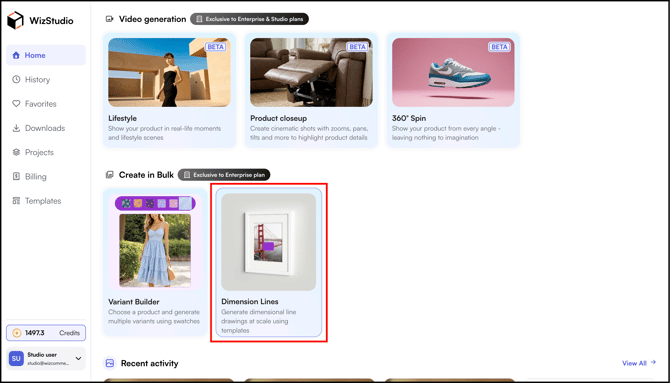
1. Click **Dimension Lines** in WizStudio Homepage.
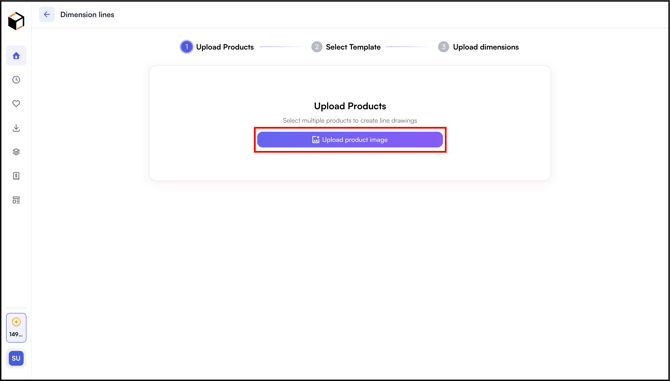
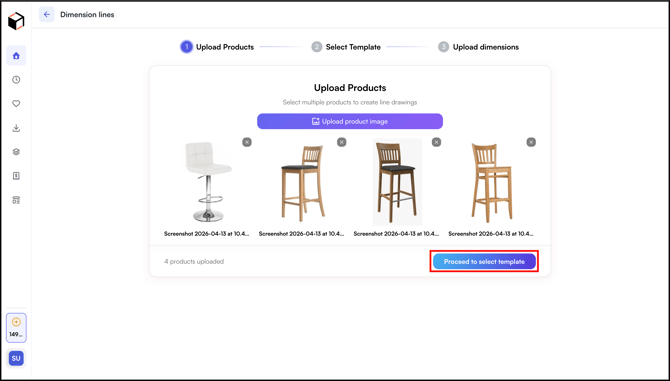
2. Click **Upload Products, and proceed to Choose a template.** You can select up to 50 product images from your system.
---
### B. Select or Create a Template
A template defines where the dimension lines appear and how they are formatted. Every product in your batch follows the same template.
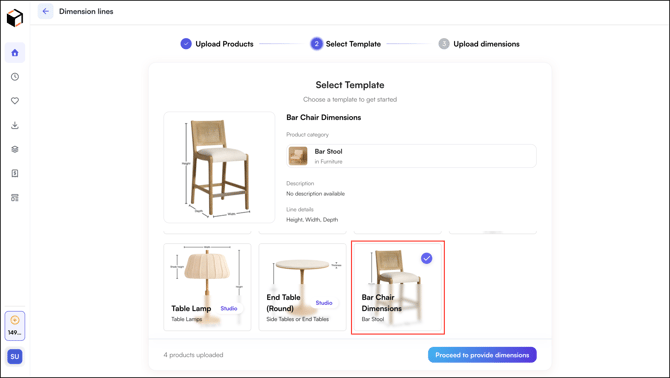
1. Review the pre-made templates displayed on screen.
2. Click a template to preview how lines will be applied to your product.
3. If a pre-made template fits, select it and move to Step 3. For our example,the ***chair*** template fits very well.
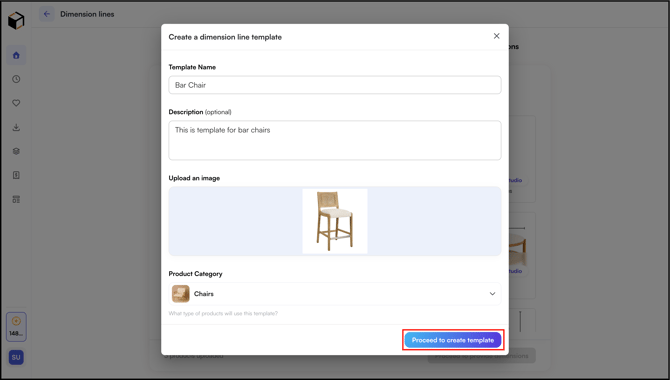
4. If no pre-made template fits, click **Create New Template**:
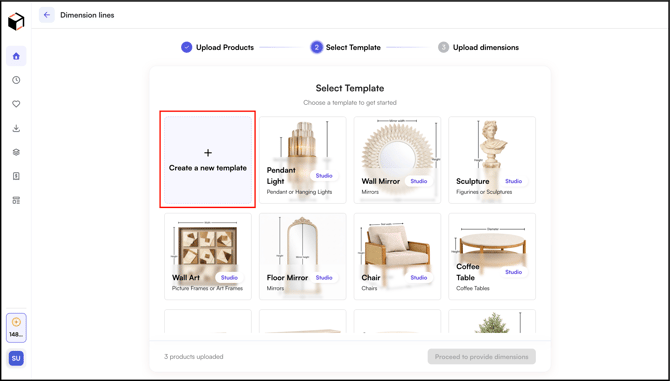
- Upload a single product image as your template base.
1. - Enable Grids and Add dimension lines manually on the canvas, for example, height, width, and depth.
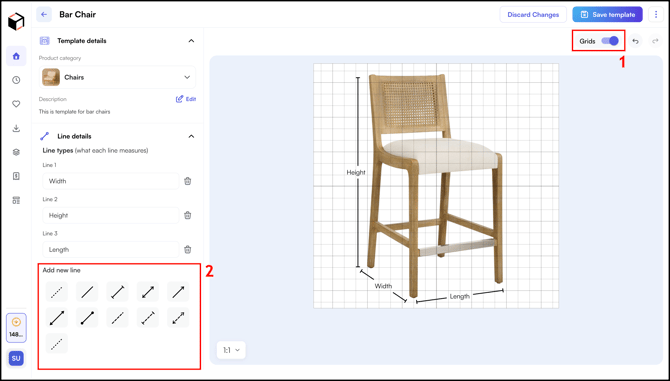
- Select your preferred **Canvas Size** before adding dimension lines. A larger canvas gives you more room to place and space out lines clearly, especially for products with several dimensions.

- Label each line (for example, H1, H2, W1).
- The line style, weight, and label placement you set here will apply to all images in the batch.
- Once done, click **Save Template.**
***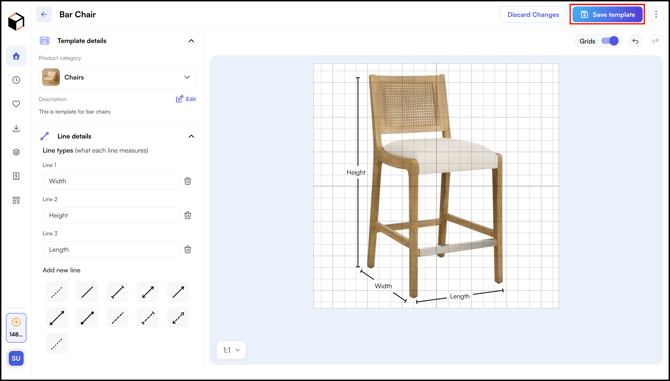***
---
### C. Add Dimensions (Optional)
If you want specific measurements displayed on the drawings, add them in bulk using a CSV file.
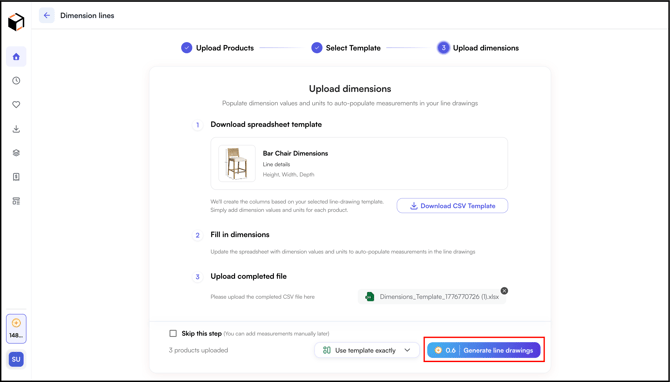
1. Click **Download CSV Template**. The file includes one row per product and one column per dimension line defined in your template.
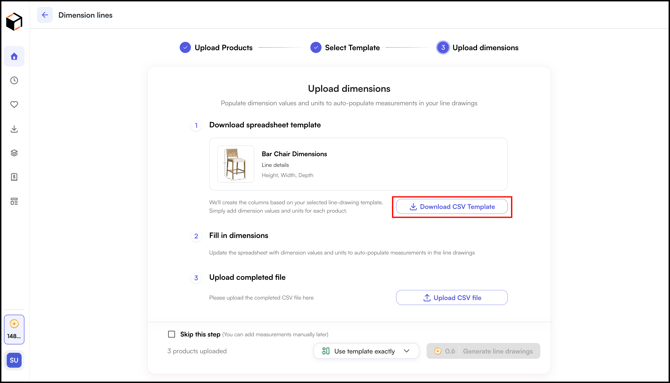
2. Open the file in Excel or Google Sheets.
3. Enter the measurement for each product and each dimension — for example, 30 in for height, 12 in for width.
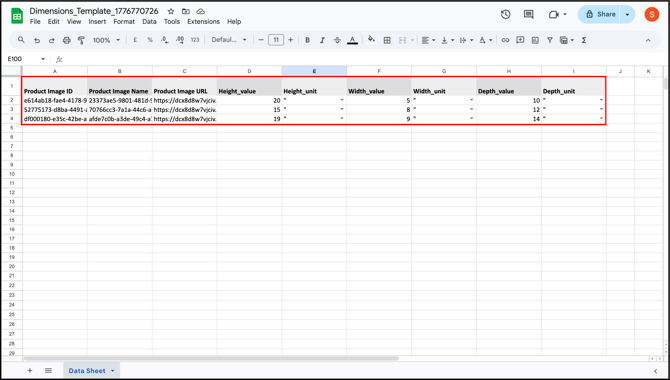
4. Save the file and click **Upload CSV**.
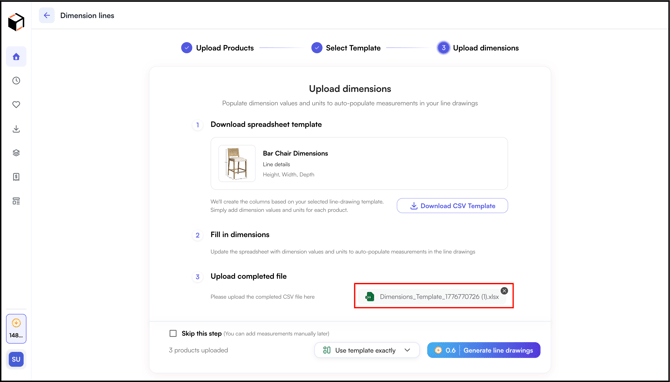
**Note:** This step is optional. If you skip it, dimension lines will still appear on the drawings without numbers. You can add or edit measurements manually in the editor after generation.
---
### D. Generate Line Drawings
1. Select one of the two generation options:
- Use Template Exactly: Places lines in the exact position and format as the template. Best when all products share the same shape and camera angle.
- Adapt Template with AI: Adjusts line placement to match each product's actual shape, size, and orientation. Best when products vary in shape or angle.
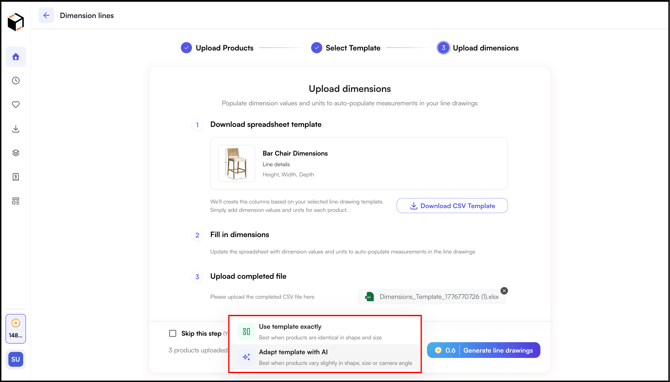
2. Click **Generate Line drawings**.
---
### E. Review and Download
1. Open any drawing to review it in the editor.
2. To adjust a drawing before downloading:
- Reposition individual lines by dragging them on the canvas.
- Edit dimension numbers directly on the image if they need correction.
- Update line style, weight, or label placement as needed.
3. Click **Download** to download a single drawing.
**
4. Or click **Download All Images** to download all drawings in the batch at once.
**
---
#### FAQs
**1. Can I create line drawings for products not in the standard category list?**
A. Yes. If your product category is not listed, type in a custom category before uploading.
**2. What happens if I skip the CSV step?**
A. Your drawings will still be generated with the correct lines and formatting from your template. Dimension numbers simply will not appear. You can add them manually in the editor after generation.
**3. Can I reuse a template across multiple batches?**
A. Yes. Any template you create is saved to your account and can be selected again in future batches.
**4. Can I increase the canvas size for my line drawings?**
**A.** Yes. On the Dimension Lines page, after uploading your product and selecting a template, you will reach the canvas setup step; select your preferred canvas size there before adding dimension lines. A larger canvas gives you more room for products with multiple dimensions.
**5. How many dimension drawings can I generate at once with Bulk Dimension Lines?**
**A.** With **Bulk Dimension Lines**, you can generate dimension drawings for up to **50 products** at once. If you have more than 50 products, split them into multiple batches. You can reuse the same template for each batch, so all your line drawings stay consistent.
**6. Can I download all my line drawings at once?**
**A.** Yes. Click **Download All Images** to download every drawing in the batch at once. To download a single drawing, open it and click **Download**.
---
**Still need help?** Reach out to our support team at [help@wizcommerce.com](https://mail.google.com/mail/u/0/?fs=1&to=help@wizcommerce.com&tf=cm).
- [Getting started](https://knowledge.wizcommerce.com/getting-started#main-content)
- [Product Overview](https://knowledge.wizcommerce.com/getting-started#product-overview)
- [Key Concepts You Should Know](https://knowledge.wizcommerce.com/getting-started#key-concepts-you-should-know)
- [Product Guides](https://knowledge.wizcommerce.com/getting-started#product-guides)
- [Trade Show Checklist](https://knowledge.wizcommerce.com/getting-started#trade-show-checklist)
- [Product Search & Discovery](https://knowledge.wizcommerce.com/product-search-discovery#main-content)
- [AI Product Recommendations](https://knowledge.wizcommerce.com/product-search-discovery#ai-product-recommendations)
- [Filter and Navigate](https://knowledge.wizcommerce.com/product-search-discovery#filter-and-navigate)
- [Catalog](https://knowledge.wizcommerce.com/product-search-discovery#catalog)
- [Product Selection & Ordering](https://knowledge.wizcommerce.com/product-selection-ordering#main-content)
- [Orders](https://knowledge.wizcommerce.com/product-selection-ordering#orders)
- [Quotes](https://knowledge.wizcommerce.com/product-selection-ordering#quotes)
- [Cart](https://knowledge.wizcommerce.com/product-selection-ordering#cart)
- [Presentations](https://knowledge.wizcommerce.com/product-selection-ordering#presentations)
- [Wishlist](https://knowledge.wizcommerce.com/product-selection-ordering#wishlist)
- [Item History](https://knowledge.wizcommerce.com/product-selection-ordering#item-history)
- [Invoices](https://knowledge.wizcommerce.com/product-selection-ordering#invoices)
- [Customers & Accounts](https://knowledge.wizcommerce.com/customers-accounts#main-content)
- [Customer Relationship Management (CRM)](https://knowledge.wizcommerce.com/customers-accounts#customer-relationship-management-crm)
- [Inventory & Warehousing](https://knowledge.wizcommerce.com/inventory-warehousing#main-content)
- [Inventory availability](https://knowledge.wizcommerce.com/inventory-warehousing#inventory-availability)
- [Payments](https://knowledge.wizcommerce.com/payments#main-content)
- [Payment Dashboard](https://knowledge.wizcommerce.com/payments#payment-dashboard)
- [Pricing & Commercials](https://knowledge.wizcommerce.com/pricing-commercials#main-content)
- [Pricelist](https://knowledge.wizcommerce.com/pricing-commercials#pricelist)
- [Discounts & Promotions](https://knowledge.wizcommerce.com/pricing-commercials#discounts-promotions)
- [Claims & Credits](https://knowledge.wizcommerce.com/pricing-commercials#claims-credits)
- [AI Co-Workers](https://knowledge.wizcommerce.com/ai-co-workers#main-content)
- [Ella - AI Order Entry Assistant](https://knowledge.wizcommerce.com/ai-co-workers#ella-ai-order-entry-assistant)
- [WizPilot - AI Assistant](https://knowledge.wizcommerce.com/ai-co-workers#wizpilot-ai-assistant)
- [WizStudio](https://knowledge.wizcommerce.com/wizstudio#main-content)
- [Creating & Editing Images](https://knowledge.wizcommerce.com/wizstudio#creating-editing-images)
- [Lifestyle Generator](https://knowledge.wizcommerce.com/wizstudio#lifestyle-generator)
- [Silo Editor](https://knowledge.wizcommerce.com/wizstudio#silo-editor)
- [Bulk Silo Editor](https://knowledge.wizcommerce.com/wizstudio#bulk-silo-editor)
- [Asset Library (Assets)](https://knowledge.wizcommerce.com/wizstudio#asset-library-assets)
- [AI Image Expander](https://knowledge.wizcommerce.com/wizstudio#ai-image-expander)
- [Reports & Analytics](https://knowledge.wizcommerce.com/reports-analytics#main-content)
- [Business Reports](https://knowledge.wizcommerce.com/reports-analytics#business-reports)
- [Manage your WizCommerce (Admin)](https://knowledge.wizcommerce.com/manage-your-wizcommerce-admin#main-content)
- [Import / Export](https://knowledge.wizcommerce.com/manage-your-wizcommerce-admin#import-export)
- [Organizational Settings](https://knowledge.wizcommerce.com/manage-your-wizcommerce-admin#organizational-settings)
- [Product Management](https://knowledge.wizcommerce.com/manage-your-wizcommerce-admin#product-management)
- [Managing Your WizShop Website](https://knowledge.wizcommerce.com/manage-your-wizcommerce-admin#managing-your-wizshop-website)
- [Integration & Apps](https://knowledge.wizcommerce.com/integration-apps#main-content)
- [Marketing Integration](https://knowledge.wizcommerce.com/integration-apps#marketing-integration)
- [Integration Dashboard](https://knowledge.wizcommerce.com/integration-apps#integration-dashboard)
- [Help & FAQs](https://knowledge.wizcommerce.com/help-faqs#main-content)
- [Help with Orders](https://knowledge.wizcommerce.com/help-faqs#help-with-orders)
- [Help with Quotes](https://knowledge.wizcommerce.com/help-faqs#help-with-quotes)
- [Help with Presentation](https://knowledge.wizcommerce.com/help-faqs#help-with-presentation)
- [Help with Inventory](https://knowledge.wizcommerce.com/help-faqs#help-with-inventory)
- [Help with User Management](https://knowledge.wizcommerce.com/help-faqs#help-with-user-management)
- [Help with Pricelist & Discounts](https://knowledge.wizcommerce.com/help-faqs#help-with-pricelist-discounts)
- [Help with WizStudio](https://knowledge.wizcommerce.com/help-faqs#help-with-wizstudio)
- [Help with Ella](https://knowledge.wizcommerce.com/help-faqs#help-with-ella)
- [Help with Org Settings (Admin)](https://knowledge.wizcommerce.com/help-faqs#help-with-org-settings-admin)
- [Help with Emails](https://knowledge.wizcommerce.com/help-faqs#help-with-emails)
- [Help with Products](https://knowledge.wizcommerce.com/help-faqs#help-with-products)
- [Help with Import/Export](https://knowledge.wizcommerce.com/help-faqs#help-with-import-export)
- [Help with WizShop](https://knowledge.wizcommerce.com/help-faqs#help-with-wizshop)
- [Help with Integration](https://knowledge.wizcommerce.com/help-faqs#help-with-integration)
- [Help with Categories and Collections](https://knowledge.wizcommerce.com/help-faqs#help-with-categories-and-collections)
- [Help With Customers](https://knowledge.wizcommerce.com/help-faqs#help-with-customers)
- [Help with Trade Show](https://knowledge.wizcommerce.com/help-faqs#help-with-trade-show)
[](https://wizcommerce.com/)
[mailto:help@wizcommerce.com](mailto:help@wizcommerce.com)
Copyright © 2025, WizCommerce
```json
{
"@context" : "https://schema.org",
"@type" : "VideoObject",
"caption" : {
"@type" : "MediaObject",
"contentUrl" : "https://knowledge.wizcommerce.com/media-transcripts/336659451580/en.vtt",
"inLanguage" : "en",
"name" : "en Captions"
},
"contentUrl" : "https://47455261.fs1.hubspotusercontent-na2.net/hubfs/47455261/video_assets/336659451580/inherited/web_optimized.mp4",
"dateModified" : "2026-04-21T13:52:08.950Z",
"duration" : "PT4M16S",
"height" : 1080,
"name" : "bulk dimension",
"thumbnailUrl" : "https://47455261.fs1.hubspotusercontent-na2.net/hubfs/47455261/bulk%20dimension.mp4/medium.jpg",
"uploadDate" : "2026-04-21T13:51:47.801Z",
"width" : 1920
}
```