---
title: Bulk Silo Image Editor
description: Turn raw factory product shots into clean silo images in one batch using WizStudio's Bulk Silo Editor. Upload up to 50 images, apply edits, and download
---
[Skip to content](https://knowledge.wizcommerce.com/bulk-silo-image-editor#main-content)
[](https://wizcommerce.com/)
Open main navigation
Close main navigation
- [Contact us](https://mail.google.com/mail/?view=cm&fs=1&to=help@wizcommerce.com)
[Contact us](https://mail.google.com/mail/?view=cm&fs=1&to=help@wizcommerce.com)
Hi, how can we help?
- There are no suggestions because the search field is empty.
1. [WizCommerce Help Centre](https://knowledge.wizcommerce.com/)
2. [WizStudio](https://knowledge.wizcommerce.com/wizstudio)
3. [Creating & Editing Images](https://knowledge.wizcommerce.com/wizstudio#creating-editing-images)
September 30, 2026
# Bulk Silo Image Editor
Turn raw factory product shots into clean, catalog-ready silo images in a single batch using the Bulk Silo Editor. Upload up to 50 images at once, let AI handle background removal and cleanup, then apply consistent padding, shadows, and backgrounds across the whole set before downloading.
**Platform:** WizStudio | **Who is this for:** Marketing & Catalog Teams
***To get there:*** *WizStudio **→** Bulk Silo Editor*
---
#### **Table of Contents**
| **Sections** | **Topics** |
| --- | --- |
| A | [What is the Bulk Silo Editor](https://knowledge.wizcommerce.com/bulk-silo-image-editor#section-a) |
| B | [Upload Images in a Batch](https://knowledge.wizcommerce.com/bulk-silo-image-editor#section-b) |
| C | [Edit Generated Images](https://knowledge.wizcommerce.com/bulk-silo-image-editor#section-c) |
| D | [Edit Your Images in Bulk](https://knowledge.wizcommerce.com/bulk-silo-image-editor#section-d) |
| E | [Download Bulk Silo Images](https://knowledge.wizcommerce.com/bulk-silo-image-editor#section-e) |
| F | [FAQs](https://knowledge.wizcommerce.com/bulk-silo-image-editor#faq) |
---
#### **Before You Begin**
- You must have access to **WizStudio.**
- Keep your raw product images ready in a single folder for upload.
- We recommend downloading **30-40 images at a time**, as larger batches may take significantly longer to complete.
---
### A. What is the Bulk Silo Editor
The Bulk Silo Editor takes raw factory product shots, often with cluttered backgrounds, harsh lighting, mirror reflections, and inconsistent framing, and turns them into clean silo images suitable for catalogs, websites, and sales materials.
A silo image is a product-only shot on a clean background, with consistent padding and a professional shadow. The ***Bulk Silo Editor produces*** the same result in minutes, in-house, with no design expertise required.
**Use it when:**
- Onboarding large numbers of new SKUs
- Refreshing catalogs for a seasonal launch
- Standardizing imagery across an existing product line
- Replacing existing silo image(s)
---
### B. Upload Images in a Batch
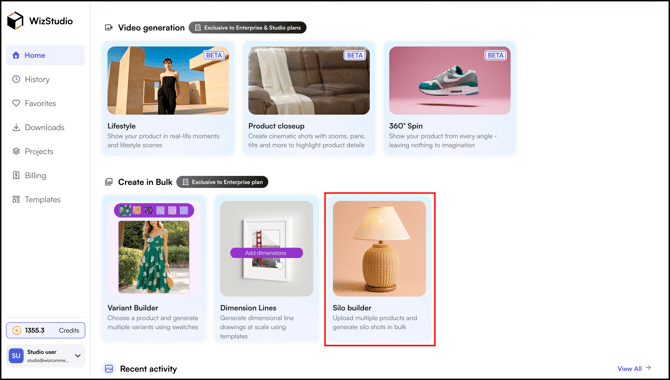
1. Open ***WizStudio*** and select ***Bulk Silo Editor*
**
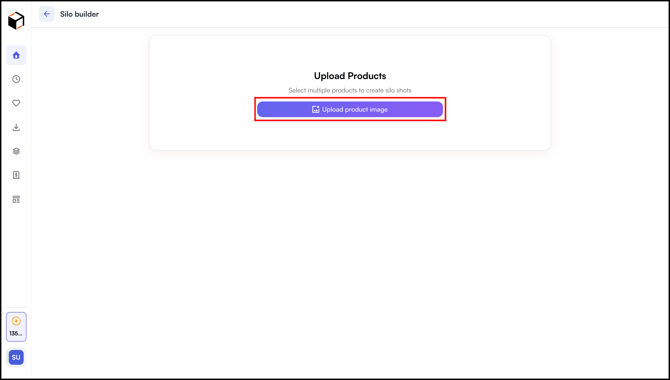
2. Click ***Upload Image*s** and select up to ***50 product images*** from your computer in one batch.
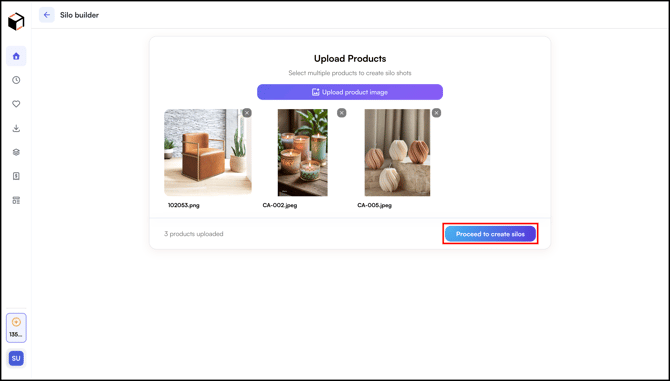
3. Click ***Proceed to Create Silos*** after uploading the images.
4. The system automatically:
- Removes the background from each image
- Cleans up mirror reflections
- Straightens and aligns the product
- Applies consistent padding
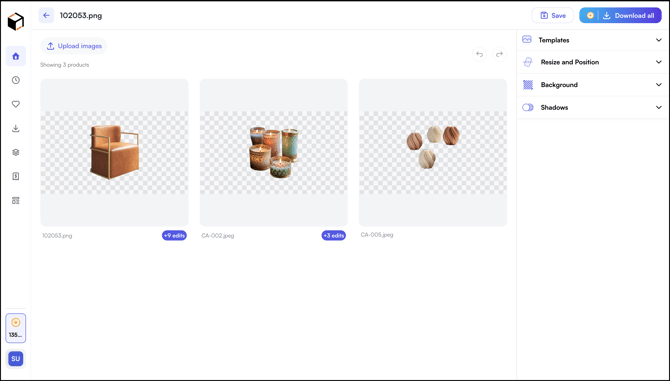
5. Wait for processing to complete. The processed images appear in the editor view, ready for bulk configuration.
---
### C. Edit Generated Images
Once your images are uploaded, the ***Bulk Silos Editor*** opens with your products in a grid. The right panel has four editing sections you can apply to the whole batch or to one image at a time.
Start with a single image to test templates, backgrounds, shadows, and framing before applying changes across the batch.
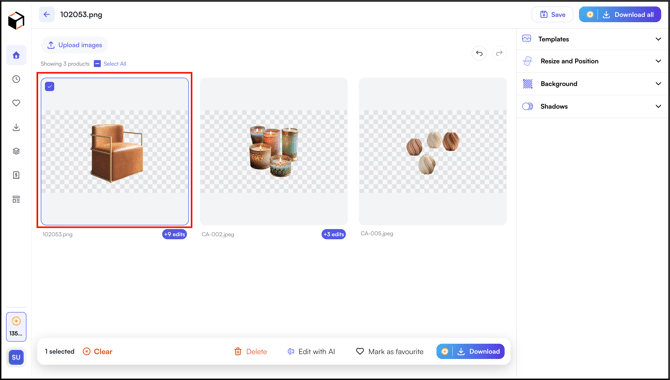
1. In the editor grid, click the **image card** you want to edit.
2. **Quick actions on hover:** when you hover over any image card, four icons appear in the top right:
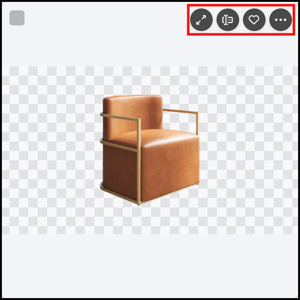
- ***Expand** (↔):* Open a larger preview of the image
- ***AI Edit:*** Apply [AI-driven edits](https://knowledge.wizcommerce.com/bulk-silo-image-editor#ai-edits)
1. - ***Mark as favourite (♡):*** Save this image to your favourites
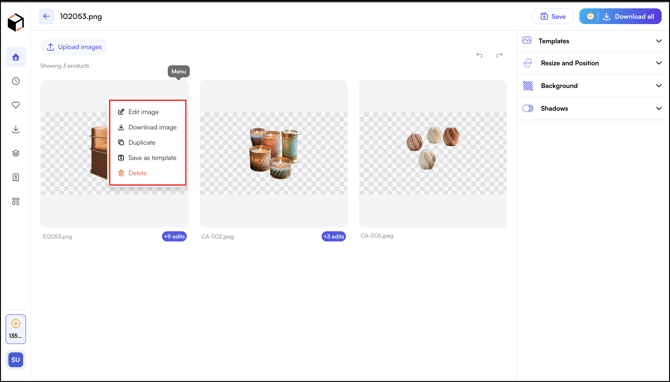
- ***Menu (⋮):*** Open a dropdown with ***Edit image**, **Download image**, **Duplicate**, **Save as template (*****appears under** ***your template*** **for future use*****)***, and ***Delete***
#### **» Edit With AI**
The Edit with AI feature lets you describe a new shot or scene in plain English, and the system generates AI-rendered versions of your product image. Use it for lifestyle scenes, alternative camera angles, or quick cleanup without manually configuring backgrounds and shadows.
1. Type a prompt describing the scene, setting, lighting, or mood you want the AI to render (for example, *"a cozy living room with warm lighting"*)
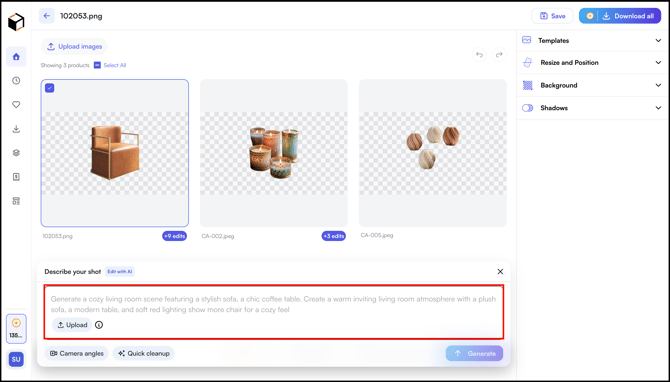
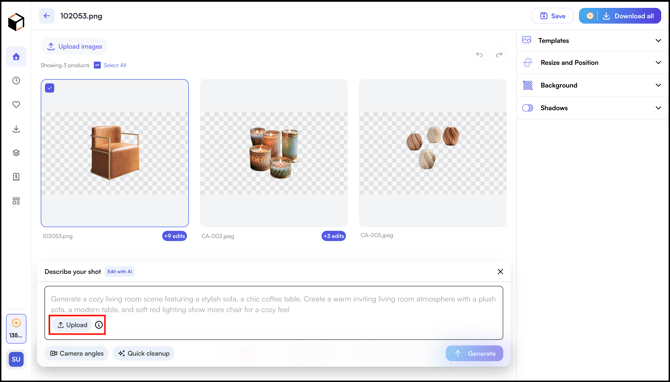
2. Click ***Upload*** to add a reference image for visual context.
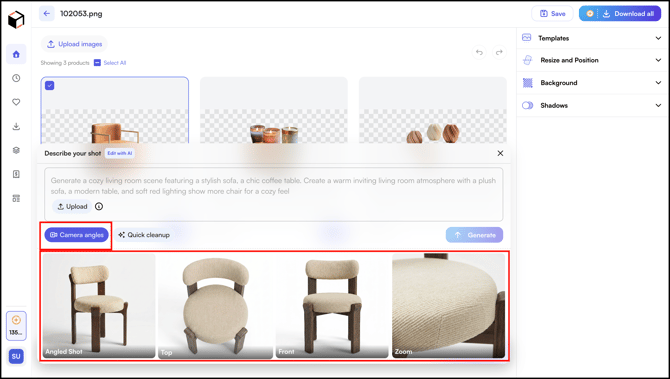
3. Click ***Camera angles*** to generate the product from preset perspectives (Angled Shot, Top, Front, Zoom) without writing a prompt
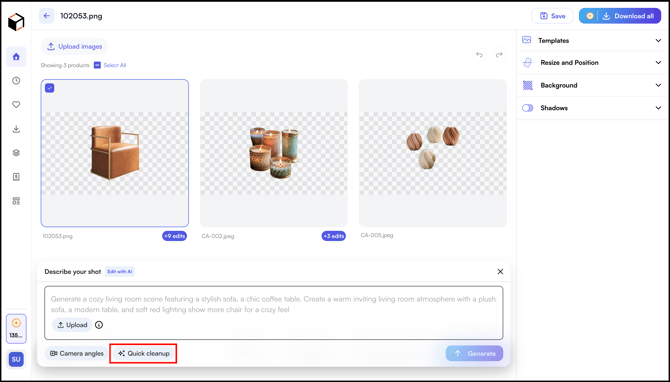
4. Click ***Quick cleanu***p to apply AI-driven cleanup for minor imperfections like scratches or reflections.
5. Click ***Generate*** to produce the AI-rendered output. Pick the one you want to keep, and it replaces the original image in your batch.
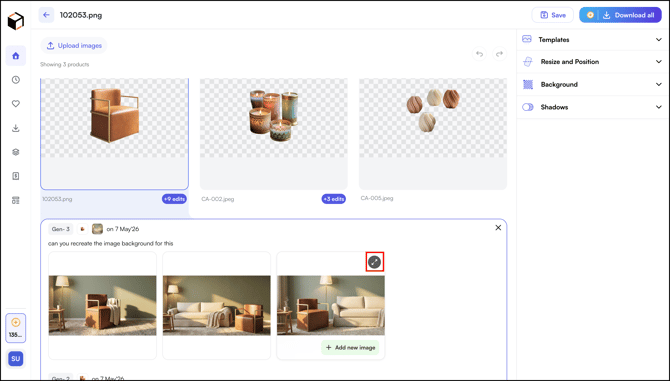
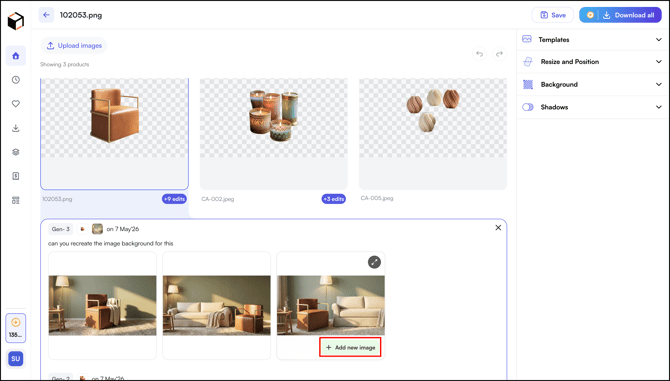
6. To view all AI-generated results for a specific image:
1. Click the blue button at the bottom right of the product card. The number on the button shows how many AI-generated results are available for that silo.
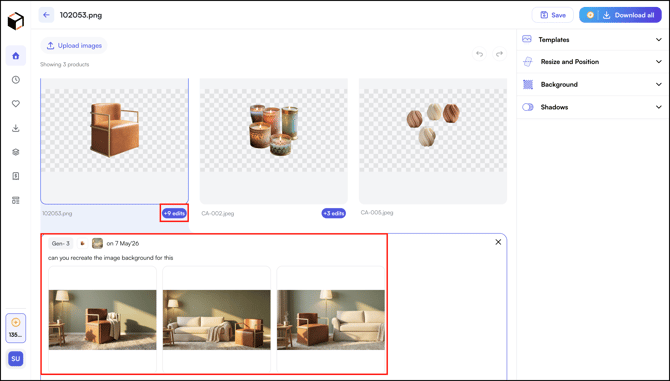
2. Expand the image to preview it in a larger view
3. Click ***+Add image*** to add it to the silo board
#### **» Apply a Template**
Templates are pre-built combinations of background, shadow, and positioning you can apply in one click.
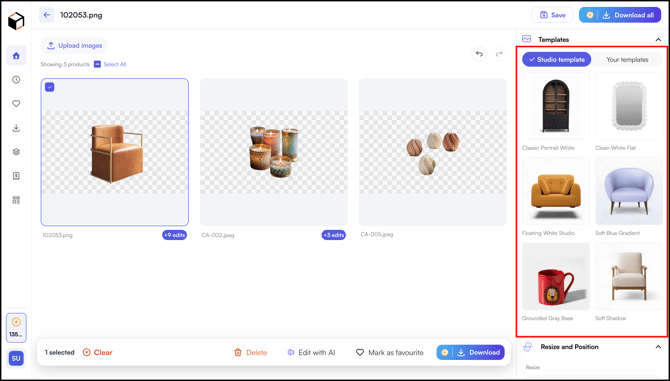
1. Open the ***Templates*** panel on the right.
2. Choose between two tabs:
1. **Studio template:** WizStudio's built-in presets, including *Classic Portrait White*, *Clean White Flat*, *Floating White Studio*, *Soft Blue Gradient*, *Grounded Gray Base*, and *Soft Shadow.
*
2. **Your templates:** Templates you have saved from previous edits.
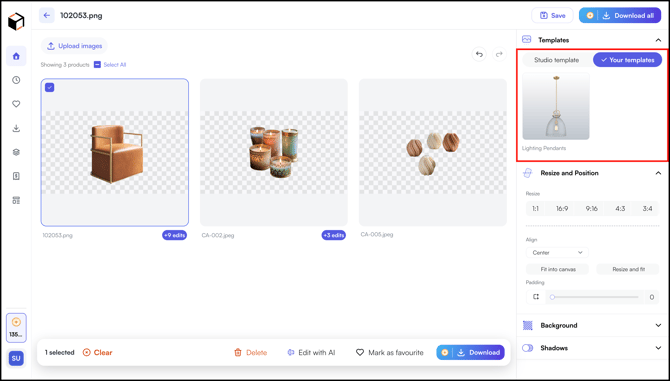
3. Click any template to apply it to the selected image or all images at once.
**Note:** Saved custom templates appear under ***Your templates*** and can be reused across future batches.
#### **» Resize and Position**
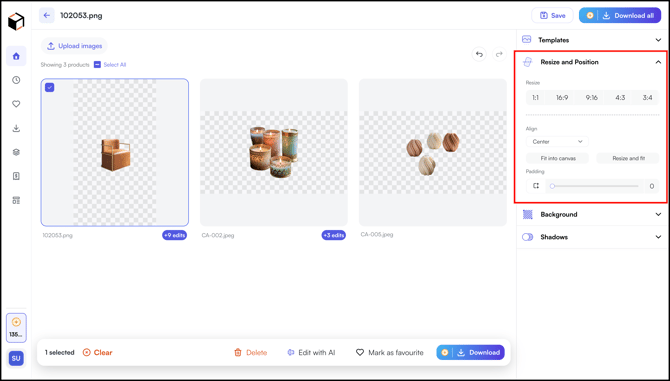
1. Open the ***Resize* *and* *Position*** panel
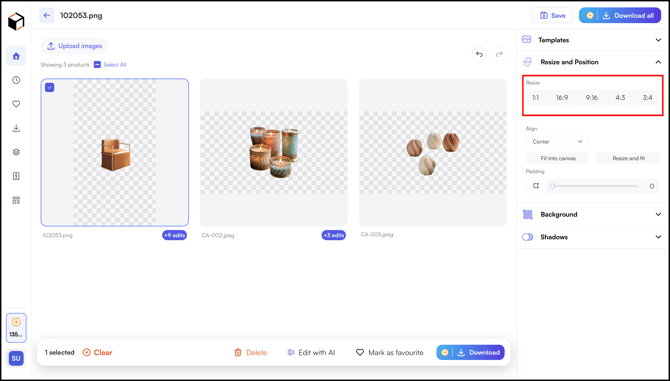
2. Select an aspect ratio: ***1:1**, **16:9**, **9:16**, **4:3**, or **3:4
***
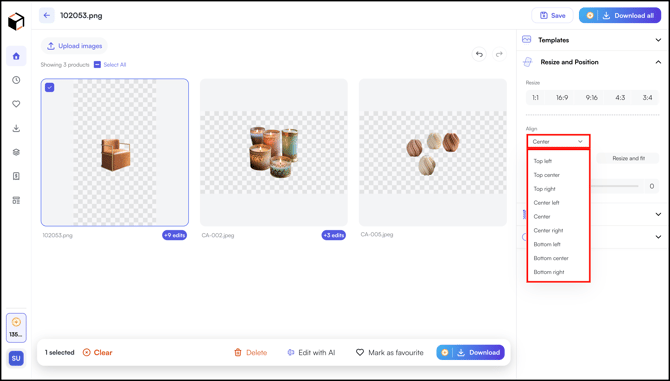
3. Set the ***Align*** dropdown to position the product within the canvas (default is ***Center***)
4. Choose how the product fits the canvas:
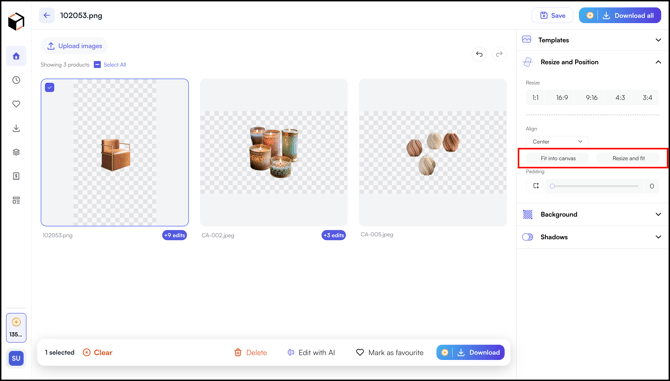
1. **Fit into canvas:** keeps the product's original proportions and fits it inside the frame
2. **Resize and fit**: scales the product to fill the frame
5. Adjust the ***Padding*** slider to control the spacing between the product and the canvas edge.
#### **» Set the Background**
1. Open the ***Background*** panel.
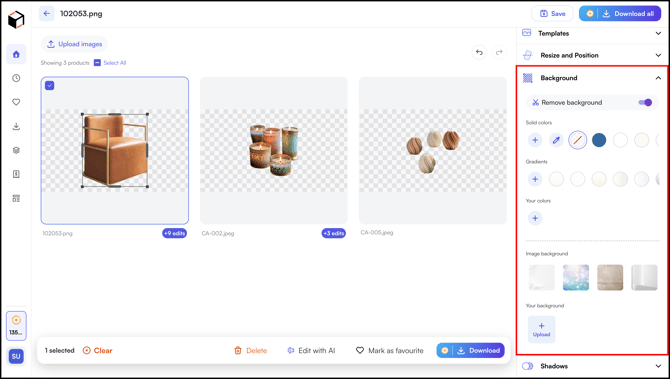
2. Confirm the ***Remove background*** toggle is on. The system removes the original background automatically when the image is uploaded.
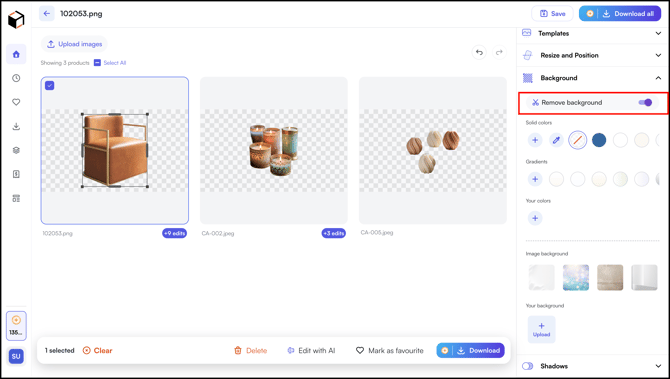
3. Choose colored backdrop:
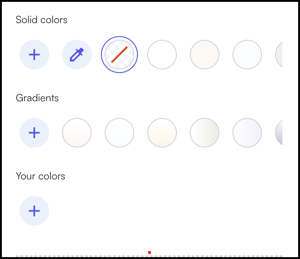
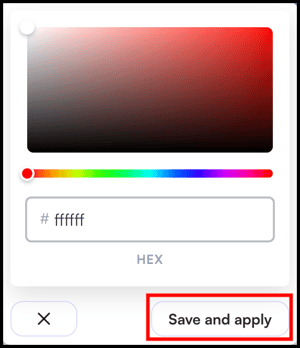
1. **Solid colors:** Pick a preset, or click ***+*** to open the color picker. Use the spectrum, hue slider, or HEX code field, then click ***Save*** ***and*** ***apply***.
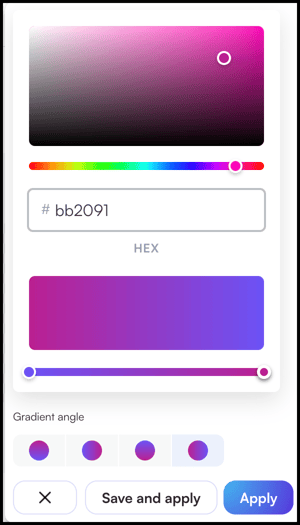
2. **Gradients:** Pick a preset, or click + to open the gradient picker. Choose a color from the spectrum or enter a HEX code, set the ***Gradient angle*** by selecting one of the four direction options, then click ***Save and apply*** to save the gradient for reuse, or ***Apply*** to use it without saving.
3. **Your colors:** Create a color and use it for the selected silo or across silos
4. Choose an image backdrop
1. 1. **Image background: Pi**ck from preset backdrop images
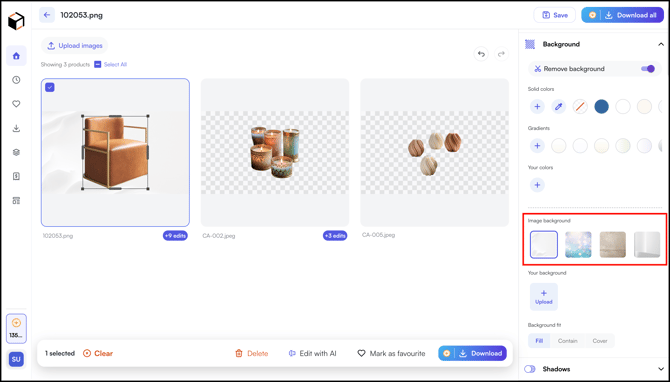
2. **Your background:** Click ***Upload*** to choose and add a custom background image from your device.
#### **» Add Shadows**
1. Open the ***Shadows*** panel
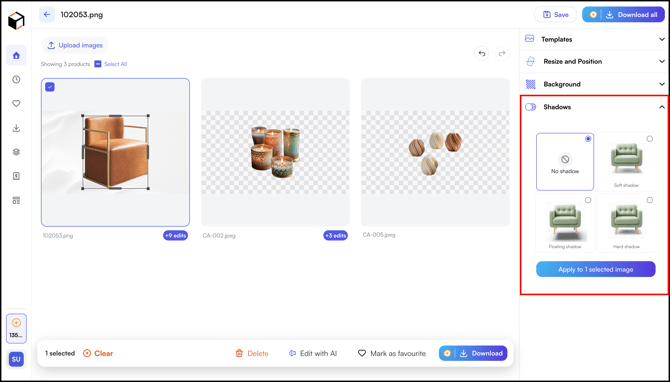
2. Choose one of the four presets:
1. No shadow: Keeps the product as it is, or removes any shadow presets if applied
2. Soft shadow: A subtle, diffused shadow beneath the product
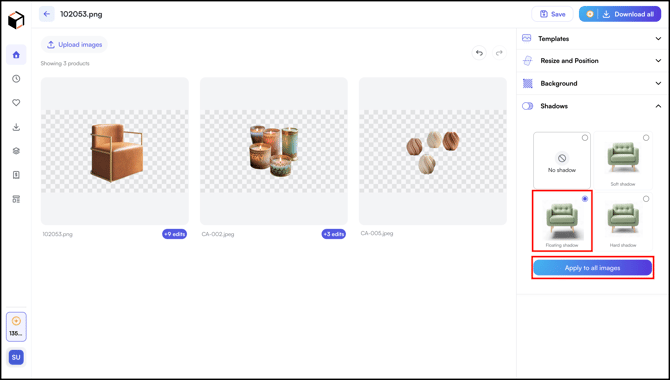
3. Floating shadow: A shadow that gives the product the appearance of floating above the surface
4. Hard shadow: A sharp, defined shadow with strong contrast
3. Click ***Apply to all images*** to apply the same shadow across the whole batch.
---
### D. Edit Your Images in Bulk
Once you are comfortable with the editing panels, apply changes across every image in the batch in one go.
1. Choose which images to edit:
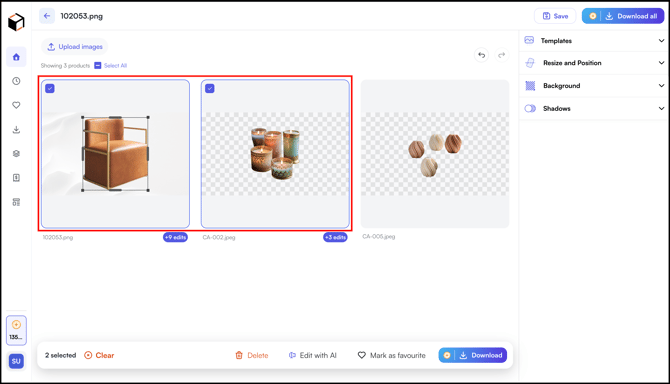
- *Edit specific images:* Check the box on each image card you want to apply changes to. The bottom action bar shows how many are selected (for example, **3 selected**).
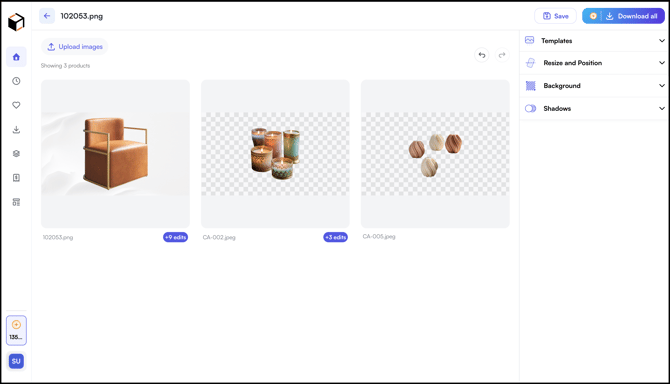
- *Edit the entire batch:* Leave every image unchecked
2. Open the panel for the change you want to apply (***Templates**, **Resize and Position**, **Background**, or **Shadows**)*, refer to *Section C* for what each panel controls
3. Make your selection (template, aspect ratio, background, or shadow preset)
4. The change applies to the selected images, or to the entire batch if no images are selected. The edit count badges on each affected card update accordingly.
5. Repeat for any other panel you want to apply.
**Note:** Check multiple image cards to perform any of the bottom action bar tasks in bulk:
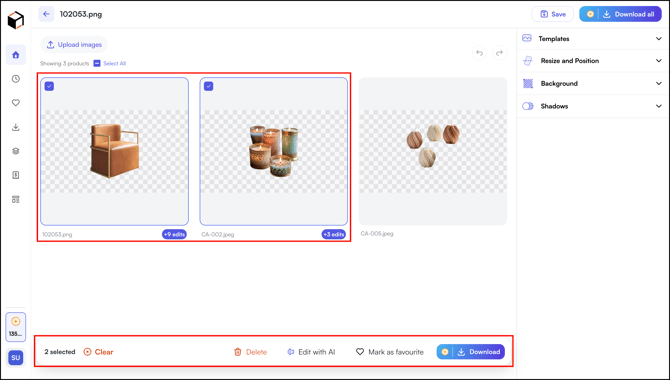
- **Delete:** Removes every selected image from the batch
- **Edit with AI:** Opens the **Describe your shot** panel and applies the prompt to all selected images
- **Mark as favourite:** Saves all selected images to your favourites
- **Download:** Exports just the selected images
---
### E. Download Bulk Silo Images
1. Click ***Download All*** to export every image in the batch.
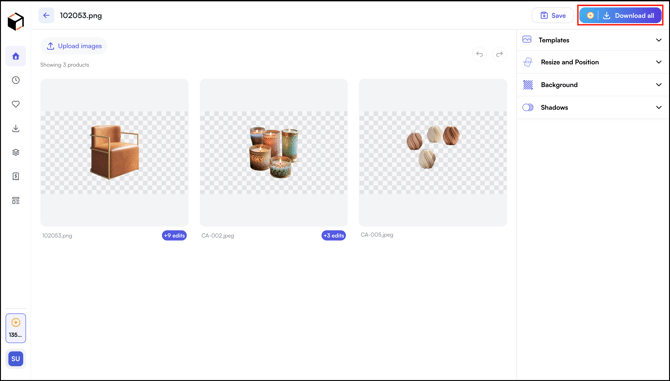
Files download to your computer in a standard image format, ready to upload to your catalog or share with your team.
**Tip:** When downloading a large batch of images, we recommend downloading 30-40 images at a time, as larger batches may take significantly longer to complete.
---
#### **FAQs**
**1. How many images can I upload in one batch?**
**A.** Up to **50 images per batch**. For larger catalogs, run multiple batches in sequence.
**2. How many images should I download at a time?**
**A.** We recommend downloading **30-40 images at a time**. Larger batches may take significantly longer to complete.
**3. Which plans support the Bulk Silo Editor?**
**A.** The Bulk Silo Editor is available on **all plans except the Starter plan**.
**4. Can I edit individual images after applying bulk settings?**
**A.** Yes. Check the box on the single image card you want to edit, then use the side panels (**Templates**, **Resize and Position**, **Background**, or **Shadows**) to apply changes. The edits affect only the selected image and override any earlier bulk settings on that image. The rest of the batch is not affected.
**5. What does the system clean up automatically?**
**A.** The system automatically removes the background, cleans up mirror reflections, straightens the product, and applies consistent padding to every image in the batch.
---
**Still need help?** Reach out to our [*support team*](https://mail.google.com/mail/?view=cm&fs=1&to=help@wizcommerce.com) *at help@wizcommerce.com.*
- [Getting started](https://knowledge.wizcommerce.com/getting-started#main-content)
- [Product Overview](https://knowledge.wizcommerce.com/getting-started#product-overview)
- [Key Concepts You Should Know](https://knowledge.wizcommerce.com/getting-started#key-concepts-you-should-know)
- [Product Guides](https://knowledge.wizcommerce.com/getting-started#product-guides)
- [Trade Show Checklist](https://knowledge.wizcommerce.com/getting-started#trade-show-checklist)
- [Product Search & Discovery](https://knowledge.wizcommerce.com/product-search-discovery#main-content)
- [AI Product Recommendations](https://knowledge.wizcommerce.com/product-search-discovery#ai-product-recommendations)
- [Filter and Navigate](https://knowledge.wizcommerce.com/product-search-discovery#filter-and-navigate)
- [Catalog](https://knowledge.wizcommerce.com/product-search-discovery#catalog)
- [Product Selection & Ordering](https://knowledge.wizcommerce.com/product-selection-ordering#main-content)
- [Orders](https://knowledge.wizcommerce.com/product-selection-ordering#orders)
- [Quotes](https://knowledge.wizcommerce.com/product-selection-ordering#quotes)
- [Cart](https://knowledge.wizcommerce.com/product-selection-ordering#cart)
- [Presentations](https://knowledge.wizcommerce.com/product-selection-ordering#presentations)
- [Wishlist](https://knowledge.wizcommerce.com/product-selection-ordering#wishlist)
- [Item History](https://knowledge.wizcommerce.com/product-selection-ordering#item-history)
- [Invoices](https://knowledge.wizcommerce.com/product-selection-ordering#invoices)
- [Customers & Accounts](https://knowledge.wizcommerce.com/customers-accounts#main-content)
- [Customer Relationship Management (CRM)](https://knowledge.wizcommerce.com/customers-accounts#customer-relationship-management-crm)
- [Inventory & Warehousing](https://knowledge.wizcommerce.com/inventory-warehousing#main-content)
- [Inventory availability](https://knowledge.wizcommerce.com/inventory-warehousing#inventory-availability)
- [Payments](https://knowledge.wizcommerce.com/payments#main-content)
- [Payment Dashboard](https://knowledge.wizcommerce.com/payments#payment-dashboard)
- [Pricing & Commercials](https://knowledge.wizcommerce.com/pricing-commercials#main-content)
- [Pricelist](https://knowledge.wizcommerce.com/pricing-commercials#pricelist)
- [Discounts & Promotions](https://knowledge.wizcommerce.com/pricing-commercials#discounts-promotions)
- [Claims & Credits](https://knowledge.wizcommerce.com/pricing-commercials#claims-credits)
- [AI Co-Workers](https://knowledge.wizcommerce.com/ai-co-workers#main-content)
- [Ella - AI Order Entry Assistant](https://knowledge.wizcommerce.com/ai-co-workers#ella-ai-order-entry-assistant)
- [WizPilot - AI Assistant](https://knowledge.wizcommerce.com/ai-co-workers#wizpilot-ai-assistant)
- [WizStudio](https://knowledge.wizcommerce.com/wizstudio#main-content)
- [Creating & Editing Images](https://knowledge.wizcommerce.com/wizstudio#creating-editing-images)
- [Lifestyle Generator](https://knowledge.wizcommerce.com/wizstudio#lifestyle-generator)
- [Silo Editor](https://knowledge.wizcommerce.com/wizstudio#silo-editor)
- [Bulk Silo Editor](https://knowledge.wizcommerce.com/wizstudio#bulk-silo-editor)
- [Asset Library (Assets)](https://knowledge.wizcommerce.com/wizstudio#asset-library-assets)
- [AI Image Expander](https://knowledge.wizcommerce.com/wizstudio#ai-image-expander)
- [Reports & Analytics](https://knowledge.wizcommerce.com/reports-analytics#main-content)
- [Business Reports](https://knowledge.wizcommerce.com/reports-analytics#business-reports)
- [Manage your WizCommerce (Admin)](https://knowledge.wizcommerce.com/manage-your-wizcommerce-admin#main-content)
- [Import / Export](https://knowledge.wizcommerce.com/manage-your-wizcommerce-admin#import-export)
- [Organizational Settings](https://knowledge.wizcommerce.com/manage-your-wizcommerce-admin#organizational-settings)
- [Product Management](https://knowledge.wizcommerce.com/manage-your-wizcommerce-admin#product-management)
- [Managing Your WizShop Website](https://knowledge.wizcommerce.com/manage-your-wizcommerce-admin#managing-your-wizshop-website)
- [Integration & Apps](https://knowledge.wizcommerce.com/integration-apps#main-content)
- [Marketing Integration](https://knowledge.wizcommerce.com/integration-apps#marketing-integration)
- [Integration Dashboard](https://knowledge.wizcommerce.com/integration-apps#integration-dashboard)
- [Help & FAQs](https://knowledge.wizcommerce.com/help-faqs#main-content)
- [Help with Orders](https://knowledge.wizcommerce.com/help-faqs#help-with-orders)
- [Help with Quotes](https://knowledge.wizcommerce.com/help-faqs#help-with-quotes)
- [Help with Presentation](https://knowledge.wizcommerce.com/help-faqs#help-with-presentation)
- [Help with Inventory](https://knowledge.wizcommerce.com/help-faqs#help-with-inventory)
- [Help with User Management](https://knowledge.wizcommerce.com/help-faqs#help-with-user-management)
- [Help with Pricelist & Discounts](https://knowledge.wizcommerce.com/help-faqs#help-with-pricelist-discounts)
- [Help with WizStudio](https://knowledge.wizcommerce.com/help-faqs#help-with-wizstudio)
- [Help with Ella](https://knowledge.wizcommerce.com/help-faqs#help-with-ella)
- [Help with Org Settings (Admin)](https://knowledge.wizcommerce.com/help-faqs#help-with-org-settings-admin)
- [Help with Emails](https://knowledge.wizcommerce.com/help-faqs#help-with-emails)
- [Help with Products](https://knowledge.wizcommerce.com/help-faqs#help-with-products)
- [Help with Import/Export](https://knowledge.wizcommerce.com/help-faqs#help-with-import-export)
- [Help with WizShop](https://knowledge.wizcommerce.com/help-faqs#help-with-wizshop)
- [Help with Integration](https://knowledge.wizcommerce.com/help-faqs#help-with-integration)
- [Help with Categories and Collections](https://knowledge.wizcommerce.com/help-faqs#help-with-categories-and-collections)
- [Help With Customers](https://knowledge.wizcommerce.com/help-faqs#help-with-customers)
- [Help with Trade Show](https://knowledge.wizcommerce.com/help-faqs#help-with-trade-show)
[](https://wizcommerce.com/)
[mailto:help@wizcommerce.com](mailto:help@wizcommerce.com)
Copyright © 2025, WizCommerce
```json
{
"@context" : "https://schema.org",
"@type" : "VideoObject",
"caption" : {
"@type" : "MediaObject",
"contentUrl" : "https://knowledge.wizcommerce.com/media-transcripts/370223996624/en.vtt",
"inLanguage" : "en",
"name" : "en Captions"
},
"contentUrl" : "https://47455261.fs1.hubspotusercontent-na2.net/hubfs/47455261/video_assets/370223996624/inherited/web_optimized.mp4",
"dateModified" : "2026-07-17T12:56:08.674Z",
"duration" : "PT2M33S",
"height" : 1080,
"name" : "Bulk Silo Image Creation in Viz Studio",
"thumbnailUrl" : "https://47455261.fs1.hubspotusercontent-na2.net/hubfs/47455261/Bulk%20Silo%20Image%20Creation%20in%20Viz%20Studio.mp4/medium.jpg",
"uploadDate" : "2026-07-17T12:55:49.032Z",
"width" : 1920
}
```
```json
{
"@context" : "https://schema.org",
"@type" : "VideoObject",
"contentUrl" : "https://47455261.fs1.hubspotusercontent-na2.net/hubfs/47455261/video_assets/342392616683/inherited/web_optimized.mp4",
"dateModified" : "2026-05-08T03:54:43.181Z",
"duration" : "PT13S",
"height" : 1634,
"name" : "Screen Recording 2026-05-08 at 9.15.17 AM",
"thumbnailUrl" : "https://47455261.fs1.hubspotusercontent-na2.net/hubfs/47455261/Screen%20Recording%202026-05-08%20at%209.15.17%20AM.mov/medium.jpg",
"uploadDate" : "2026-05-08T03:54:31.934Z",
"width" : 2876
}
```