
Update product images across your catalog in one go using the Bulk Update feature, ideal when refreshing seasonal visuals, replacing low-quality shots, or aligning images across a large SKU range. You map each image to the right product through a single upload, instead of editing products one by one.
Platform: WizOrder | Who this is for: Admin
To get there: Product tools > Bulk update > Bulk upload images
Table of Contents
| Sections | Topics |
| A | Prepare Your Image Files |
| B | Upload Images in Bulk |
| C | Review Matched and Unmatched Groups |
| D | Finish the Upload |
| E | Verify Updated Images on Products |
| F | FAQs |
Before You Begin
- You must have access to the Bulk Update feature. Your admin can grant this access by updating your role under User Management.
- Keep your image files ready in JPG or PNG format
- Make sure each image filename matches the SKU ID of the product it belongs to
- Confirm that individual image files do not exceed 50 MB
- Back up your existing product images before running a bulk update if you plan to replace them
A. Prepare Your Image Files
Name each image file using the product SKU ID as the filename prefix. The system reads the SKU ID in the filename to automatically match each image to the right product.
| File Name | Maps to SKU |
|---|---|
SKU123.jpg |
SKU123 |
|
|
SKU167 |
SKU456.jpg |
SKU456 |
To add multiple images to the same product, use the SKU ID followed by a hyphen and a sequence number as the filename. The system groups every file sharing the same SKU prefix under that product automatically.
| File name | Maps to SKU | Position |
|---|---|---|
| SKU123-1.jpg | SKU123 | First image |
| SKU123-2.jpg | SKU123 | Second image |
|
SKU123-3.jpg |
SKU123 | Third image |
Note:
- Use a hyphen (-), not an underscore (_), to separate the SKU from the sequence number. Filenames with underscores appear in the Unmatched Groups panel and are not applied to any product. If your files are already named with underscores, rename them using the hyphen format and re-upload.
-
Filenames are case-sensitive. A mismatch between the filename and the SKU in WizCommerce will result in that image appearing as an unmatched group, and it will not be applied to any product.
B. Upload Images in Bulk
Once your files are ready, use the Bulk Update tool to upload them as a single batch.
-
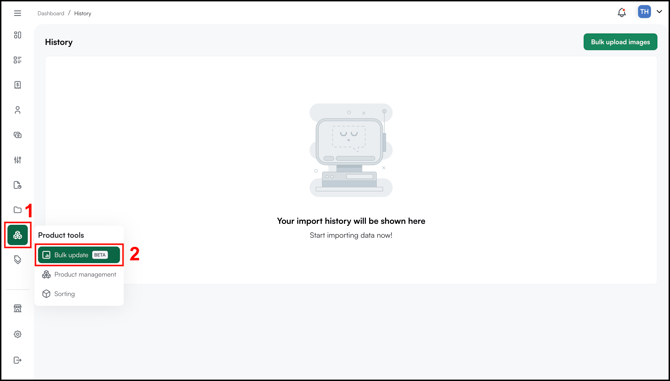
In the left sidebar, click the Product tools icon.
-
Select Bulk update from the menu. (The History page opens, showing your past upload activity.)
-
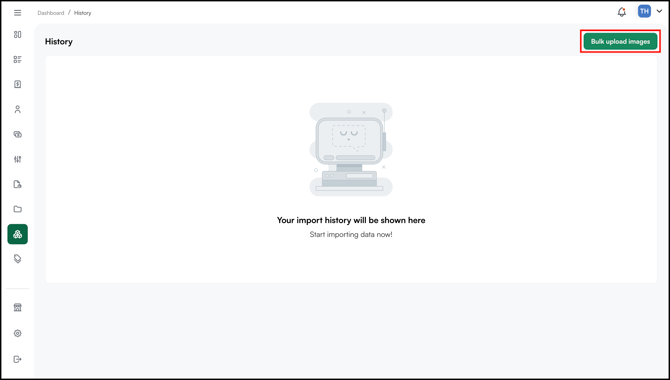
Click Bulk upload images in the top-right corner of the History page.
-
On the Bulk update images page, add your image files using one of two methods:
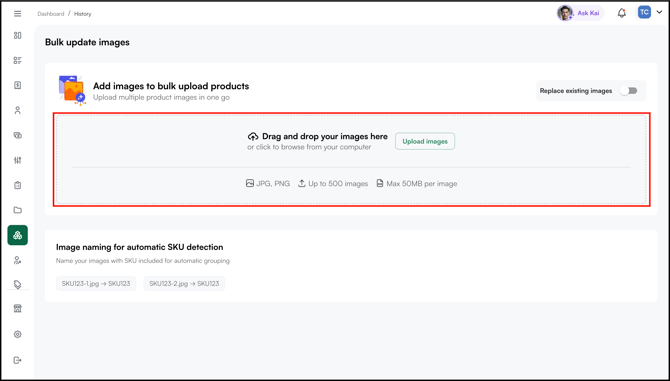
- Drag and drop files directly into the upload zone
- Click Upload images to browse and select files from your computer
The upload zone accepts JPG and PNG files, supports up to 500 images per batch, with a maximum of 50 MB per image.
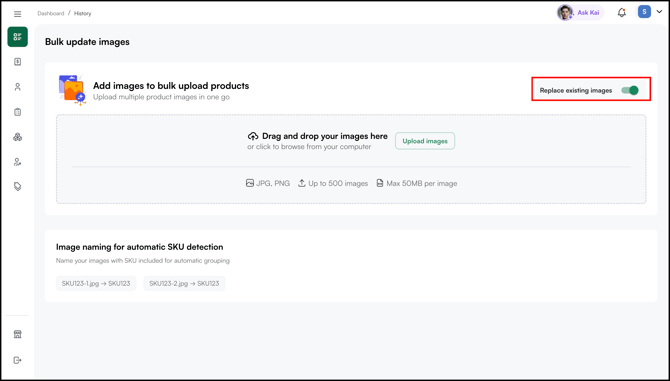
- Choose how you want the system to handle existing images using the Replace existing images toggle:
-
Toggle off (default): New images are added alongside existing ones, no current images are removed
-
Toggle on: Existing images are replaced with the newly uploaded set
-
-
Once files are selected, the system processes them automatically and opens the Smart image upload screen.
C. Review Matched and Unmatched Groups
After upload, the system groups your images by SKU and attempts to match each image or group to a product in your catalog. Review both panels before clicking Finish so every image is linked correctly.
- Review the Matched Groups panel on the left. Each card shows the product SKU, an Uploaded status badge, and thumbnail previews of the images in that group.
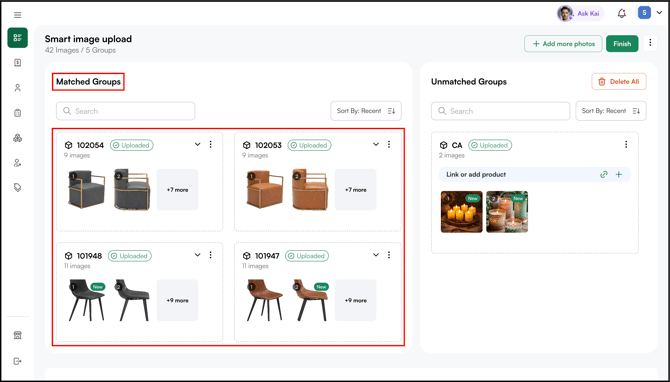
These images are successfully linked to a product and are ready to apply. To add more images to a
matched product:
- Click the three dot menu(⋮) on the group card
- Select Add more images
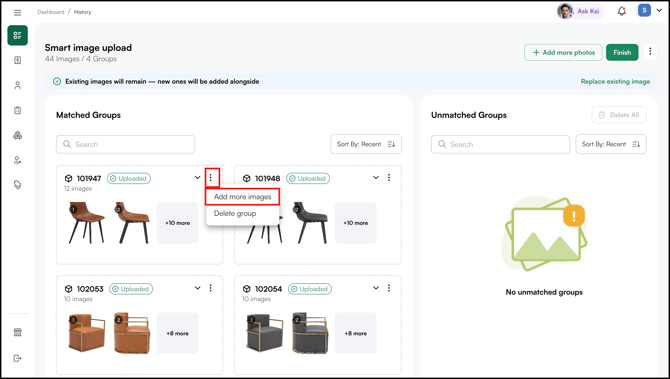
- Choose additional files from your computer to attach to that product
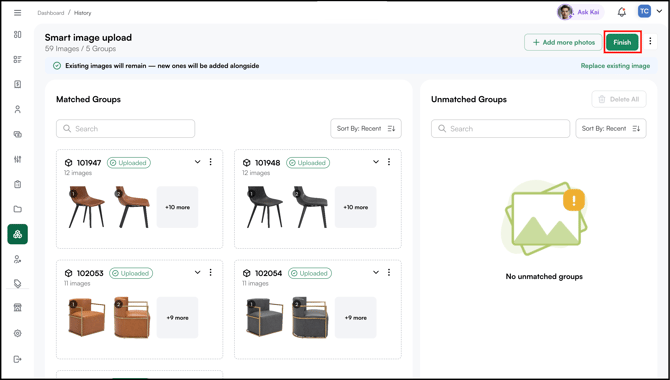
- If everything looks good, click Finish to apply the changes.
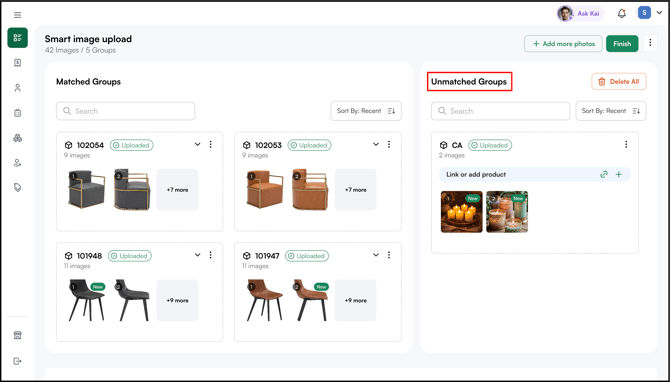
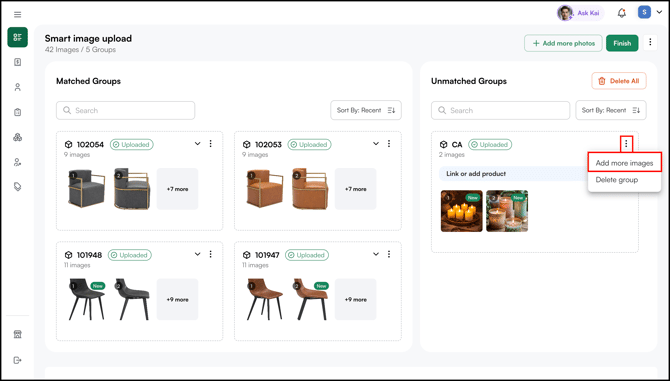
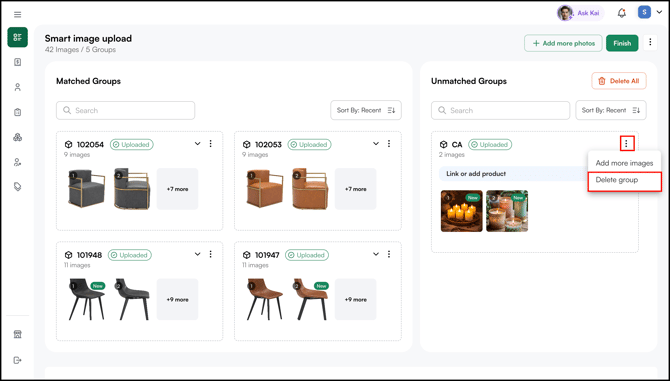
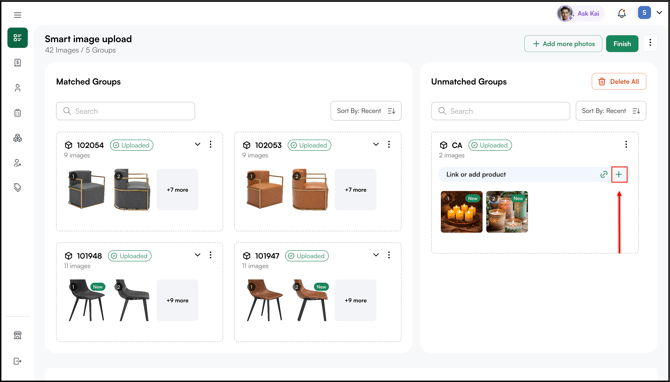
- Review the Unmatched Groups panel on the right. These are filenames the system could not link to any product SKU. For each unmatched group, choose one of the following:
-
- Check the filenames for typos or SKU mismatches
- Click Add more images to add more images into the group
- Click Delete Group to remove them from this batch
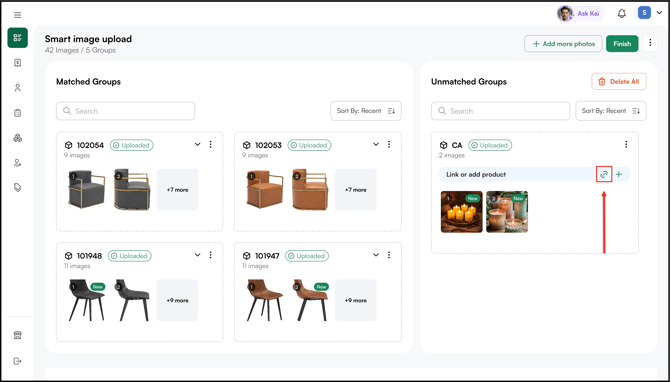
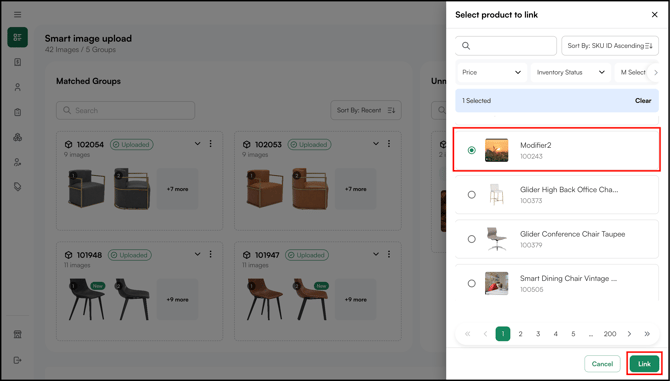
- Link to an existing product: Click the link icon to search your catalog and connect the images to a product that already exists.
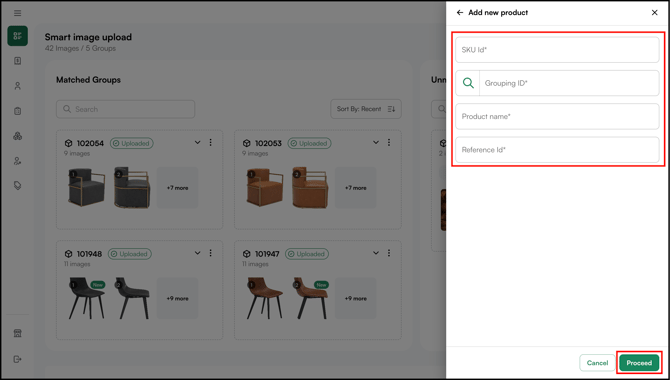
- Create a new product: Click the + icon to create a brand-new product in your catalog using the uploaded images.
- Fill in the product details, SKU ID, Grouping ID, Product Name, and Reference ID (only for integration accounts), then click Proceed.
Note: Resolve all unmatched groups before clicking Finish. Link them to a product, create a new product, or delete them. The system blocks the upload and shows an error if any unmatched groups remain.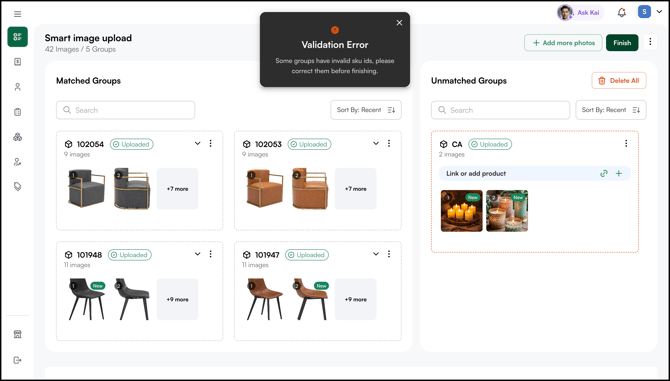
Other actions available on this screen:
- + Add more photos: Include additional images in the same batch without starting over.
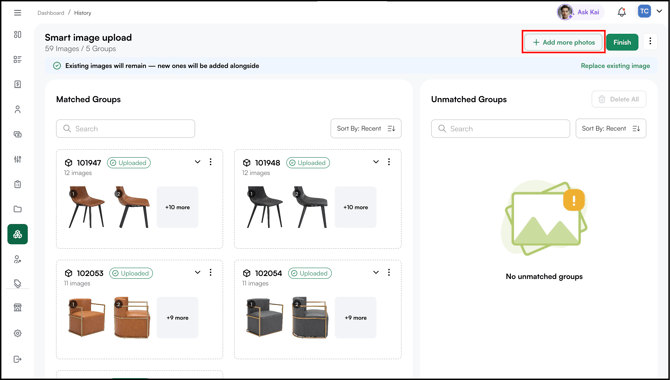
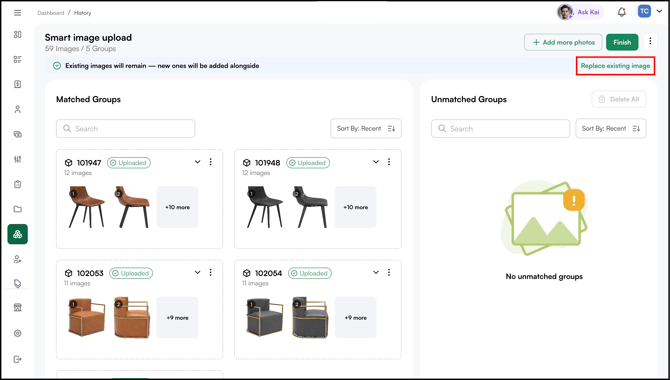
- Replace existing image (top-right link): Click Replace existing image in the top right to switch from adding new images alongside the old ones to replacing the old ones.
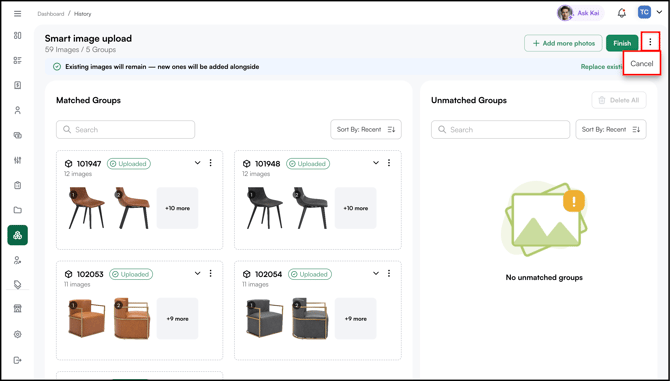
- ⋮ (three-dot menu) > Cancel: Discard the entire upload and return to the History page with no changes applied.
Note: To clear every unmatched group at once, click Delete All in the top right of the panel. 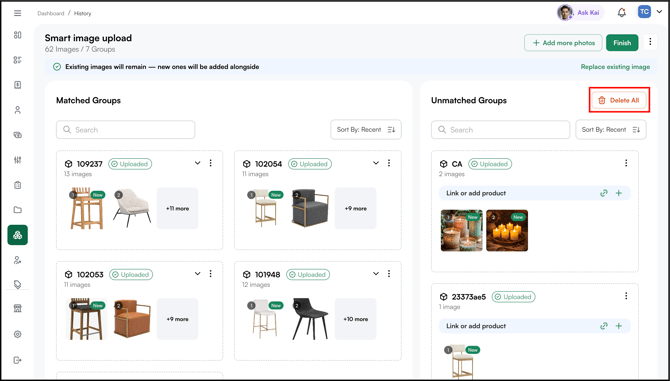
D. Finishing the Upload
Once you have reviewed the matched groups and resolved any unmatched ones:
-
Click Finish to apply the images to their matched products.
Image changes take effect immediately across WizOrder and WizShop. There is no separate publish step.
Note: You can drag and drop thumbnails within a matched group to reorder them. The order set here is the order buyers and reps see on the product details page, with the first image used as the primary image.
E. Verify Updated Images on Products
Spot-check a few products to confirm images are displaying as expected before reps and buyers see them.
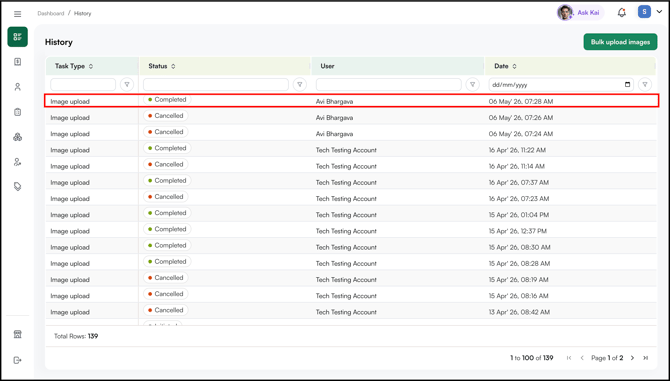
- Open the History page under Product tools > Bulk update to confirm your upload shows a Completed status.
- Go to the Products page
- Open any product included in your upload
- Confirm the new images appear and the correct primary image is set
FAQs
1. What happens if my filename doesn't match any SKU?
A. The image appears in the Unmatched Groups panel on the Smart image upload screen. It is not applied to any product. The product itself is not affected. You can delete the unmatched group or fix the filename and re-upload.
2. Can I undo a bulk image update?
A. Yes, you can cancel anytime before clicking Finish. Click the three dot menu⋮ in the top right of the Smart image upload screen and select Cancel to discard the entire upload with no changes applied. Once you click Finish, the changes apply immediately and replaced images cannot be restored, so always back up existing images before running a bulk update.
3. Can I add more images to a batch after uploading?
A. Yes. Use the + Add more photos button to include additional files before clicking Finish.
4. How do I add multiple images to one product?
A. During file prep, name each file using the SKU ID followed by a hyphen and a sequence number, for example SKU123-1.jpg, SKU123-2.jpg. The system groups all files sharing the same SKU prefix under that product automatically. If you have already uploaded, click the three-dot menu (⋮) on the matched group card on the Smart image upload screen, select Add more images, and choose additional files from your computer.
5. What is the maximum number of images I can upload at once?
A. Up to 500 images per batch, with a maximum of 50 MB per individual image.