
The Company Information section lets admins update the business details shown across the platform, including name, address, logo, and contact information. This article explains which fields are available and how changes affect what customers and reps see.
Platform: WizOrder | Who is this for: Admins
To Get There: Settings > Organizational Settings > General > Company Information
Table of Contents
Before You Begin
- You must have access to Organizational Settings to view or edit Company Information.
- Changes made here apply across WizOrder, so make sure your updates are accurate before saving.
A. How to Access Company Information
- Go to Settings from the left navigation.
- Under General, click Company Information.
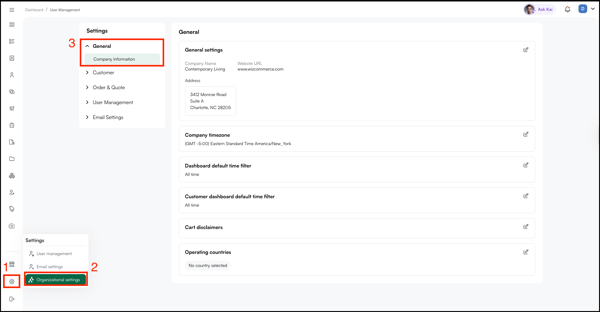
- The Company Information page opens, showing all your current company details.
B. Finding Your Way Around Company Information
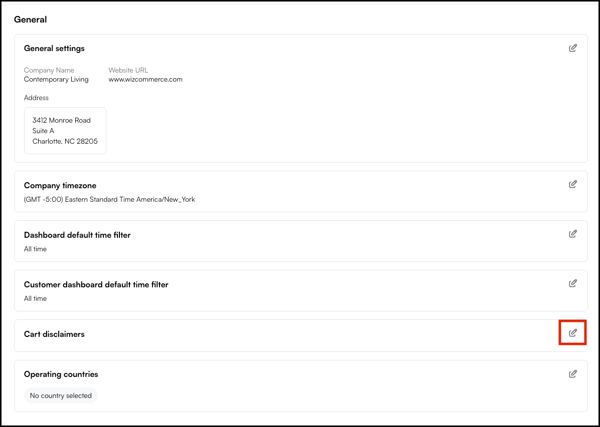
The page is divided into individual cards. Each card covers a specific setting:
- General Settings: Your company name, website URL, and business address
- Company Timezone: The timezone your WizOrder account runs on. This affects timestamps on orders, quotes, and reports
- Dashboard Default Time Filter: The default time range shown on your main dashboard when it loads
- Customer Dashboard Default Time Filter: The default time range shown on the customer dashboard
- Cart Disclaimers: Disclaimer text displayed on the cart before a rep submits an order
- Operating Countries: The countries your business operates in
To edit any card, click the Edit icon (pencil) on the top right of that card.
C. How to Update Your Company Details
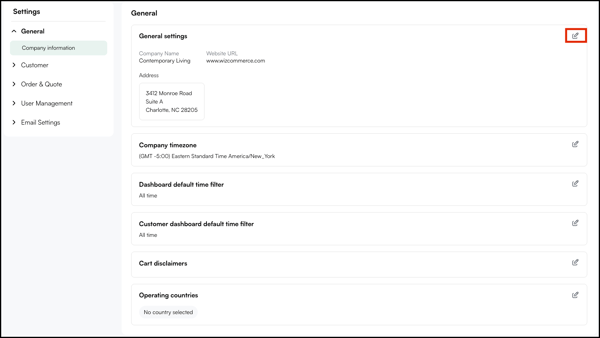
- On the Company Information page, find the General Settings card.
- Click the Edit icon on the top right of the card.
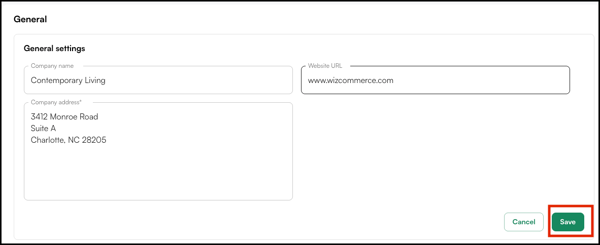
- Update your Company Name, Website URL, or Address.
- Click Save.
D. How to Change Your Company Timezone
Setting the right timezone ensures that timestamps on orders, quotes, and reports reflect the correct time for your business.
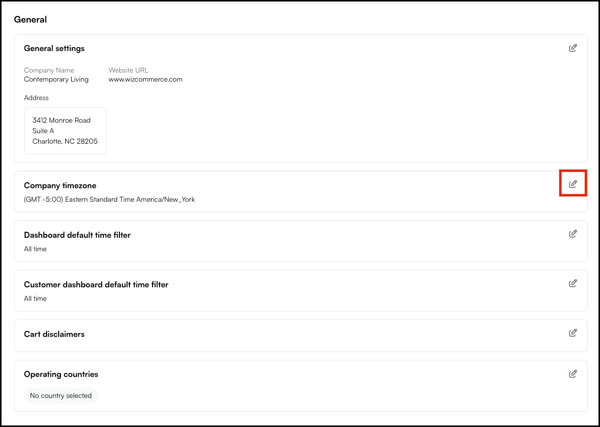
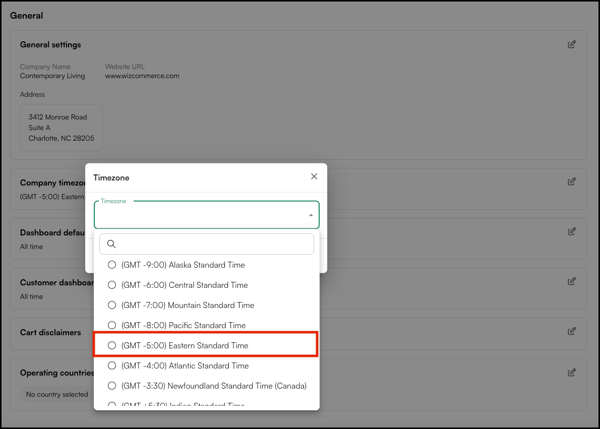
- On the Company Information page, find the Company Timezone card.
- Click the Edit icon on the right of the card.
- Select the correct timezone from the dropdown.
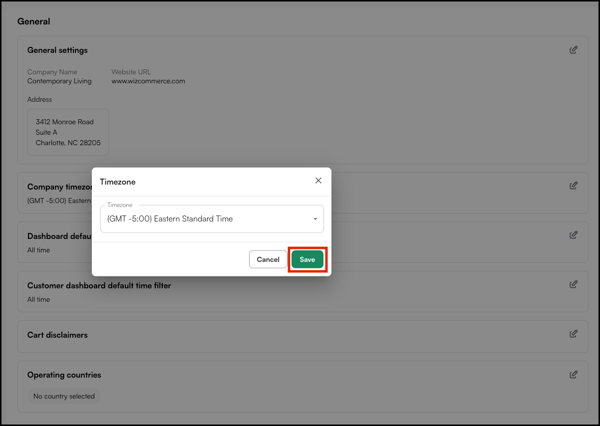
- Click Save.
E. How to Set Your Dashboard Default Time Filter
The Dashboard Default Time Filter sets the time range your dashboard loads with by default — so your team doesn't have to reset it manually every session.
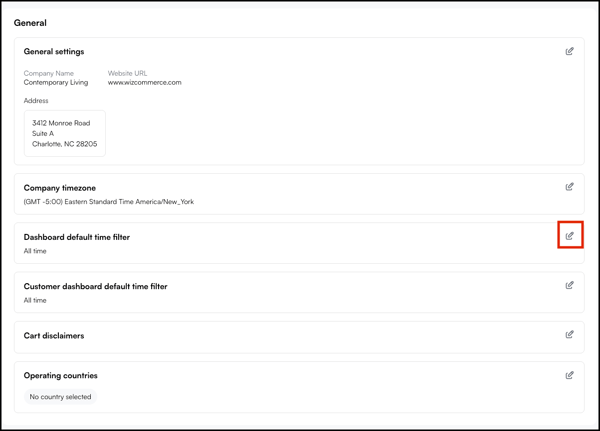
- On the Company Information page, find the Dashboard Default Time Filter card.
- Click the Edit icon on the right of the card.
- Select your preferred time range (for example, This Month, Last 30 Days, or All Time).
- Click Save.
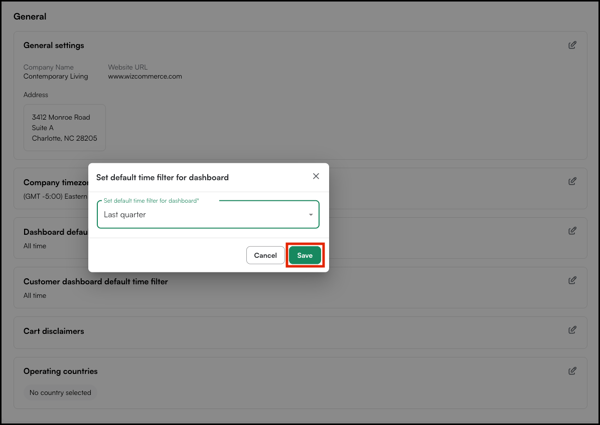
Note: The same steps apply for the Customer Dashboard Default Time Filter, which sets the default time range on the customer-specific dashboard.
F. How to Add a Cart Disclaimer
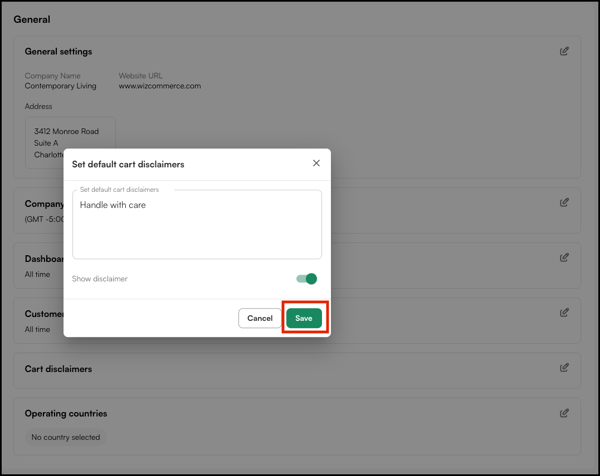
A cart disclaimer is a message your reps see on the cart screen before they submit an order. Use it to surface important terms, policies, or reminders at the point of order.
- On the Company Information page, find the Cart Disclaimers card.
- Click the Edit icon on the right of the card.
- Enter your disclaimer text in the field.
- Click Save.
FAQs
1. Does changing my company timezone affect past orders and reports?
A. The timezone setting affects how timestamps are displayed going forward. Existing records may show times based on the previously set timezone, so it's best to set this correctly from the start.
2. Where does the cart disclaimer appear for my reps?
A. The disclaimer appears on the cart screen in WizOrder, just before a sales rep submits an order.
Not finding what you need? Browse the WizCommerce Help Center, reach out to your Customer Success Manager, or contact our Support Team.