
Once your wishlist is ready, you can convert it into a cart for ordering or into a catalog to share with customers.
A. Convert to Cart
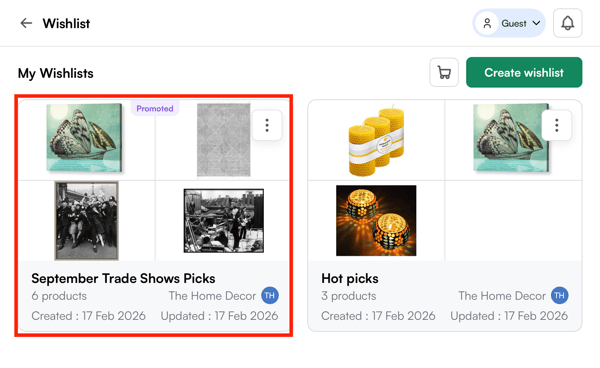
- From the Product's page, go to Wishlist.
-
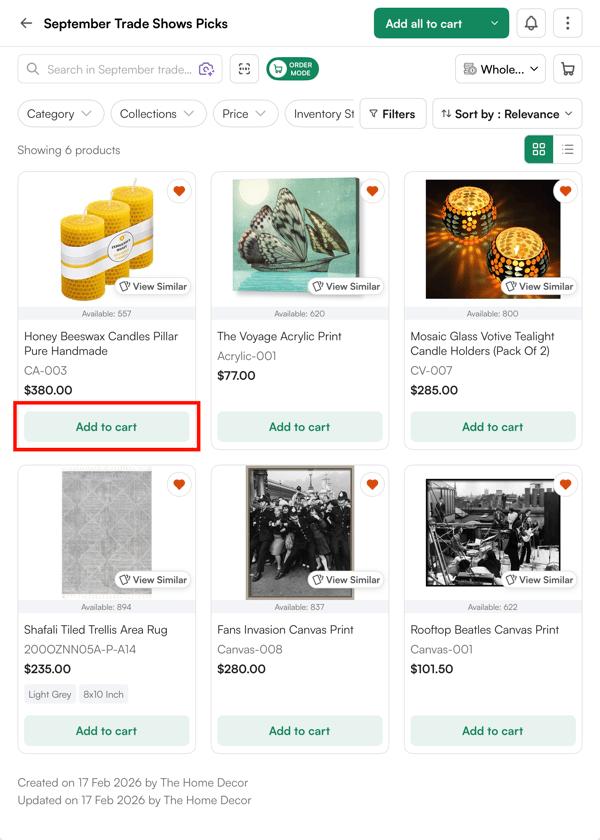
Open the wishlist (e.g., September Trade Show Picks), select products from a wishlist, and click “Add to Cart.”
-
Or click on “add all to cart” at the top of the page, and add the entire wishlist to the cart.
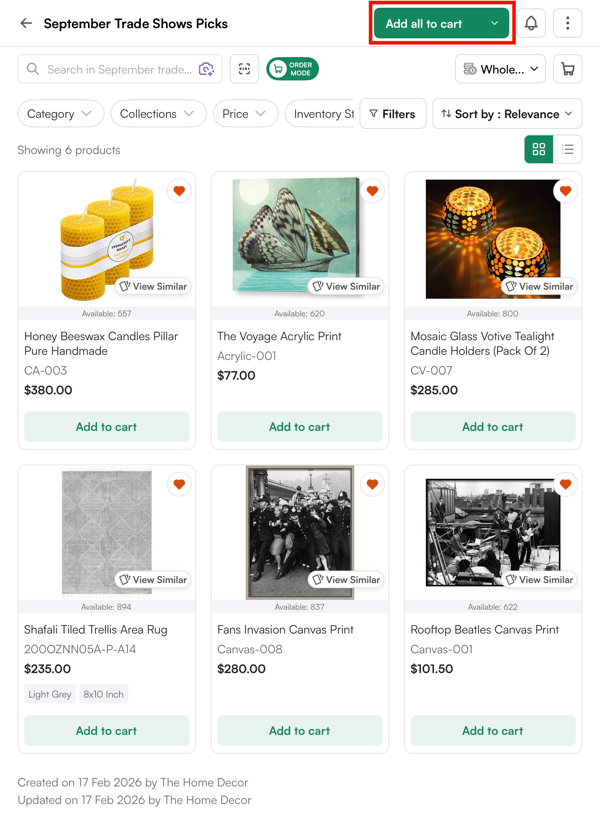
All selected products are added to your active shopping cart, ready for quantity adjustments and order placement.
B. Convert to Catalog
-
Open the wishlist (e.g., September Trade Show Picks).
-
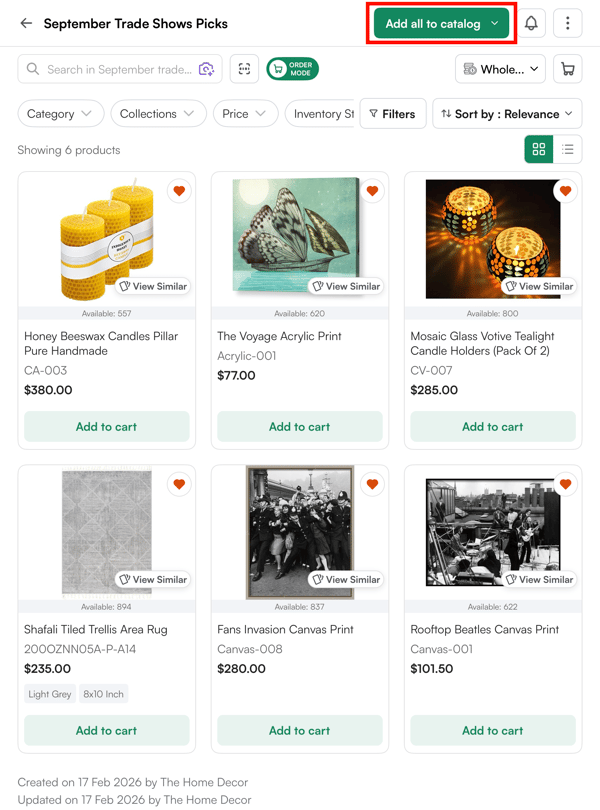
To add the entire wishlist, click Add all to catalog at the top of the wishlist.
-
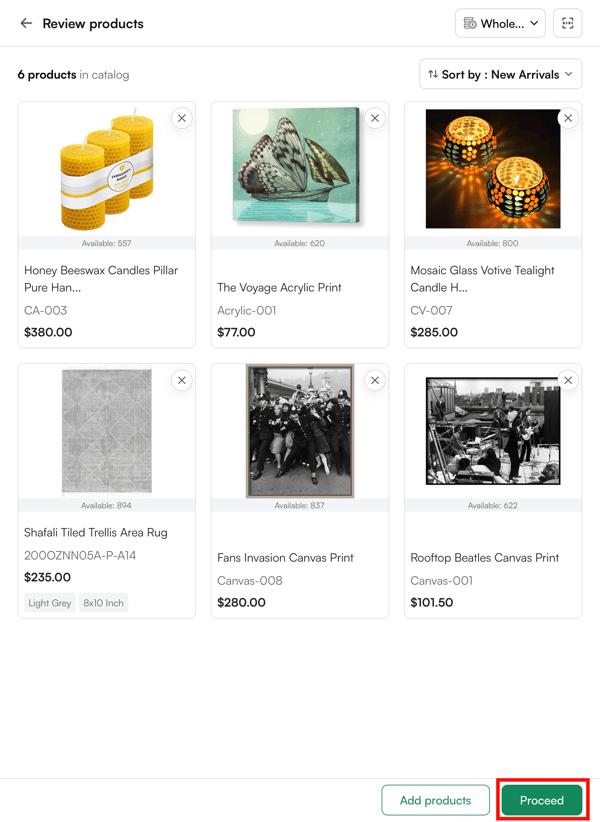
After reviewing the products, click Proceed to create the catalog.
-
You cannot remove individual products once catalog generation has started. Please remove any unwanted items before creating the catalog. To remove, click the “x” icon next to the product card.
Not finding what you need? Browse the WizCommerce Help Center, reach out to your Customer Success Manager, or email us at help@wizcommerce.com.