---
title: Create a Customer in WizOrder
description: Learn how to create a new customer in WizOrder on the web portal or mobile app, and add their account details, contacts, and addresses.
---
[Skip to content](https://knowledge.wizcommerce.com/create-a-customer-in-wizorder#main-content)
[](https://wizcommerce.com/)
Open main navigation
Close main navigation
- [Contact us](https://mail.google.com/mail/?view=cm&fs=1&to=help@wizcommerce.com)
[Contact us](https://mail.google.com/mail/?view=cm&fs=1&to=help@wizcommerce.com)
Hi, how can we help?
- There are no suggestions because the search field is empty.
1. [WizCommerce Help Centre](https://knowledge.wizcommerce.com/)
2. [Customers & Accounts](https://knowledge.wizcommerce.com/customers-accounts)
October 12, 2026
# Create a Customer in WizOrder
The **Customers** tab is where you add new customers in WizOrder and find the accounts you work with. Use **Create Customer** to add a customer quickly with **Quick Add** at a trade show, or set up a complete profile from the office. You can then search, filter, and open the **Customer Details Page** to review any customer’s account and activity.
This article covers how to create a customer, search, filter, and sort the customer list, and navigate the **Customer Details Page**.
**Platform:** WizOrder | **Who is this for:** Admins & Sales Rep
**To Get There:** *Customers \> Create Customer*
---
#### Table of Contents
| **Sections** | **Topics** |
| --- | --- |
| **A** | [Create a New Customer](https://knowledge.wizcommerce.com/create-a-customer-in-wizorder#section-a) |
| **B** | [Search a Customer](https://knowledge.wizcommerce.com/create-a-customer-in-wizorder#section-b) |
| **C** | [Filter & Sort Customer's List](https://knowledge.wizcommerce.com/create-a-customer-in-wizorder#section-c) |
| **D** | [Create a View](https://knowledge.wizcommerce.com/create-a-customer-in-wizorder#section-d) |
| **E** | [Customer Details Page](https://knowledge.wizcommerce.com/create-a-customer-in-wizorder#section-e) |
| **F** | [FAQs](https://knowledge.wizcommerce.com/create-a-customer-in-wizorder#faqs) |
---
#### Before You Begin
- Make sure your role has permission to create customers. If you can’t see **Create Customer**, contact your admin.
- Search the customer list before creating a new customer, to check that the account doesn’t already exist. This prevents duplicate records.
- Have the customer’s company name, primary contact (name, email, phone), pricelist, and billing and shipping address ready.
- If your account is connected to an ERP, check with your admin whether new customers should be created in the ERP instead. Customers created in WizCommerce may need to sync to the ERP, depending on your integration settings.
- To add many customers at once, use [Bulk Import customers into WizCommerce](https://knowledge.wizcommerce.com/bulk-import-customers-into-wizcommerce) instead.
---
### A. Create a New Customer
##### **» On the Mobile App**
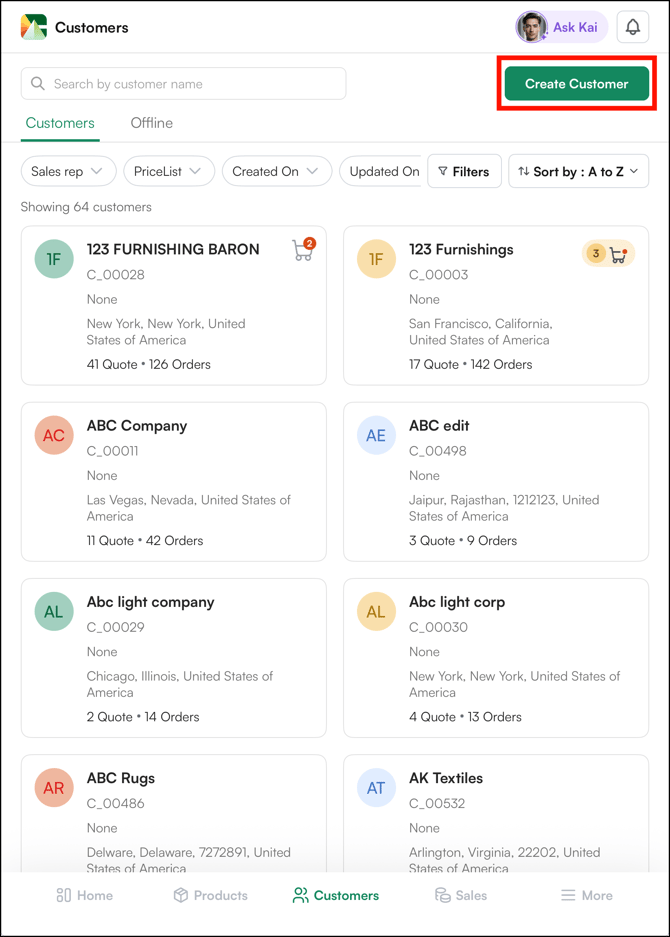
1. Go to the **Customers** tab.
2. Click **Create Customer** to open the customer creation form.
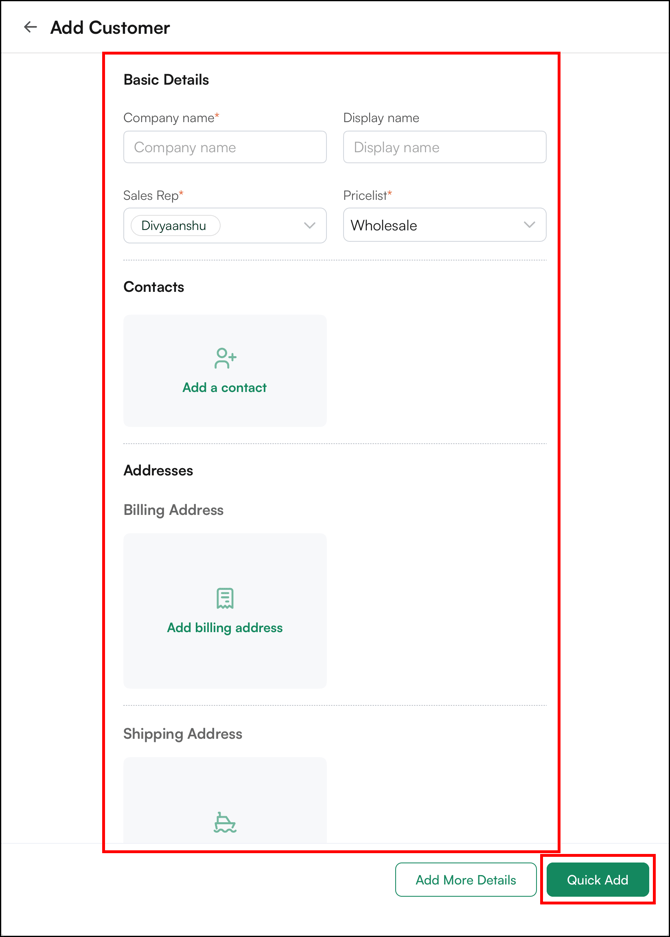
**Quick Add (the default customer form):** Lets you create a new customer immediately; ideal for trade shows where you need to capture an account quickly and fill in the remaining details later.
**Fill in the following fields:**
- **Company Name:** The business name that identifies this customer throughout the system
- **Display Name:** The name shown in lists, dropdowns, and search results
- **Primary Contact:** Name, email address, and phone number for the main point of contact
- **Price List:** Assign the customer to a pricing tier. Determines which prices they see.
- **Billing and Shipping Address:** The customer's official billing and shipping add
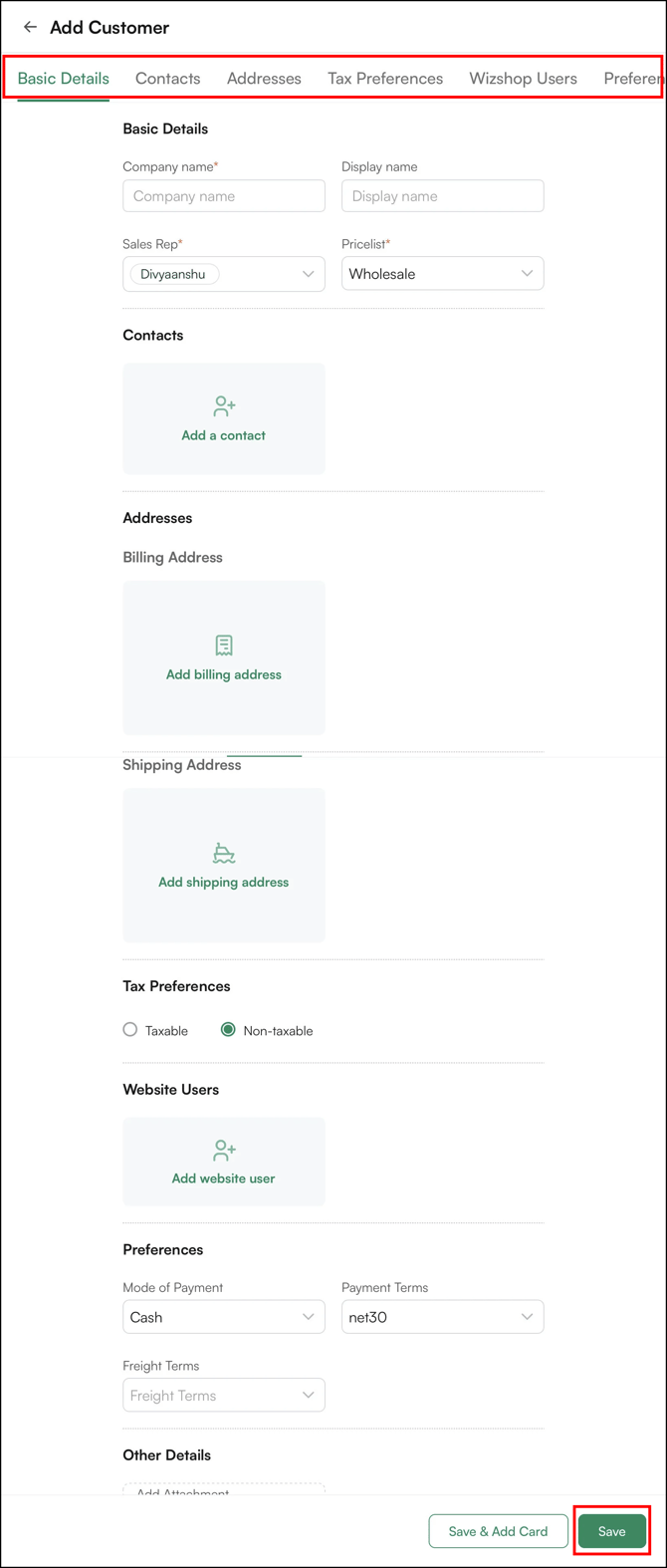
**Add Optional Details (Optional but recommended):**
- **Payment Terms:** Default terms for this account (e.g., Net 30, Net 60, COD, Prepaid)
- **Website User:** Give access to your Online Storefront by adding required details (name, email ID, phone number)
- **Mode of Payment:** Default payment method for this account
- **Other Details:** Upload any business cards, brochures, etc.
##### **» On the Web Portal**
1. Go to the **Customers** tab.
2. Click **Create Customer** to open the customer creation form.
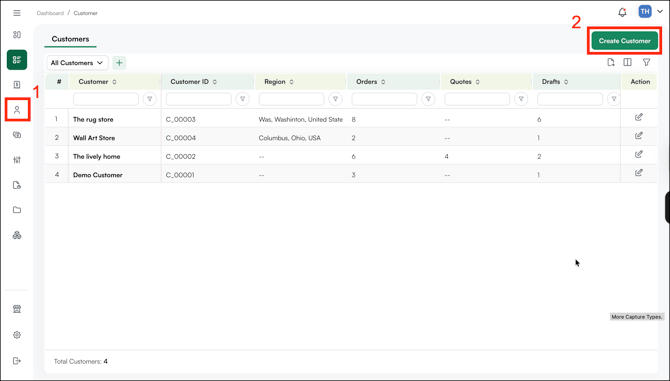
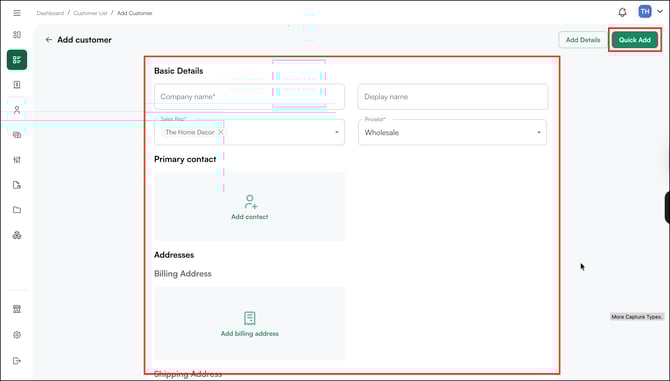
**Quick Add (the default customer form):** Lets you create a new customer on the spot; ideal for trade shows where you need to capture an account quickly and fill in the remaining details later.
**Fill in the following fields:**
- **Company Name:** The business name that identifies this customer throughout the system
- **Display Name:** The name shown in lists, dropdowns, and search results
- **Primary Contact:** Name, email address, and phone number for the main point of contact
- **Price List:** Assign the customer to a pricing tier. Determines which prices they see.
- **Billing and Shipping Address:** The customer's official billing and shipping address
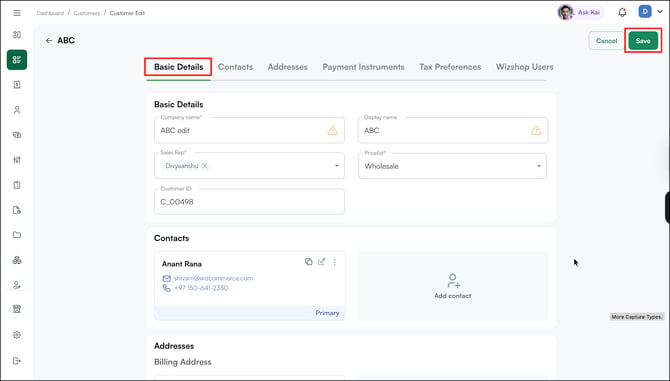
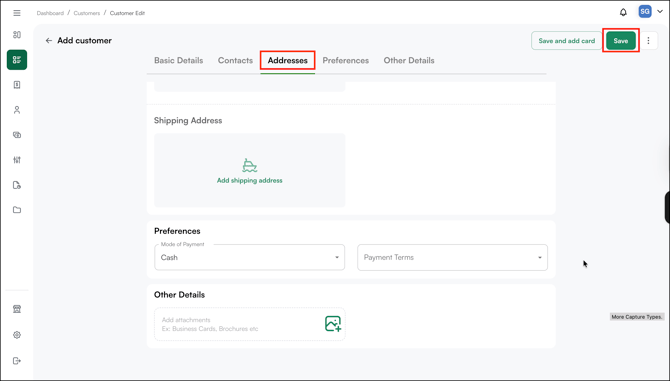
**Add Optional Details (Optional but recommended):**
- **Payment Terms:** Default terms for this account (e.g., Net 30, Net 60, COD, Prepaid)
- **Mode of Payment:** Default payment method for this account
- **Other Details:** Default carrier and shipping preference
**Where you can add customers:**
- **WizOrder:** Reps can create customers on the fly during trade shows, showroom visits, or field calls.
- **WizShop:** Customers can request an account through the storefront registration form, it enters an approval queue.
- **Bulk import:** Upload multiple customers at once via CSV file.
- **ERP sync:** Customers created in your ERP sync automatically.
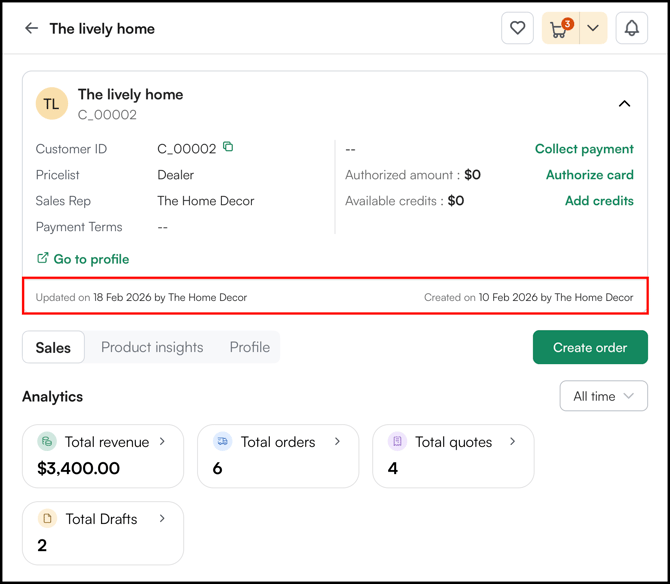
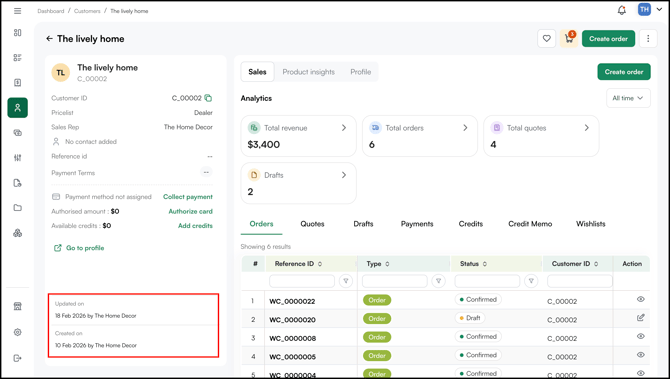
**Tip:** The customer details page shows who created the customer, when they were created, and when the details were last updated.
**» On the mobile app**
****
**» On the Web Portal**
****
---
### B. Search a Customer
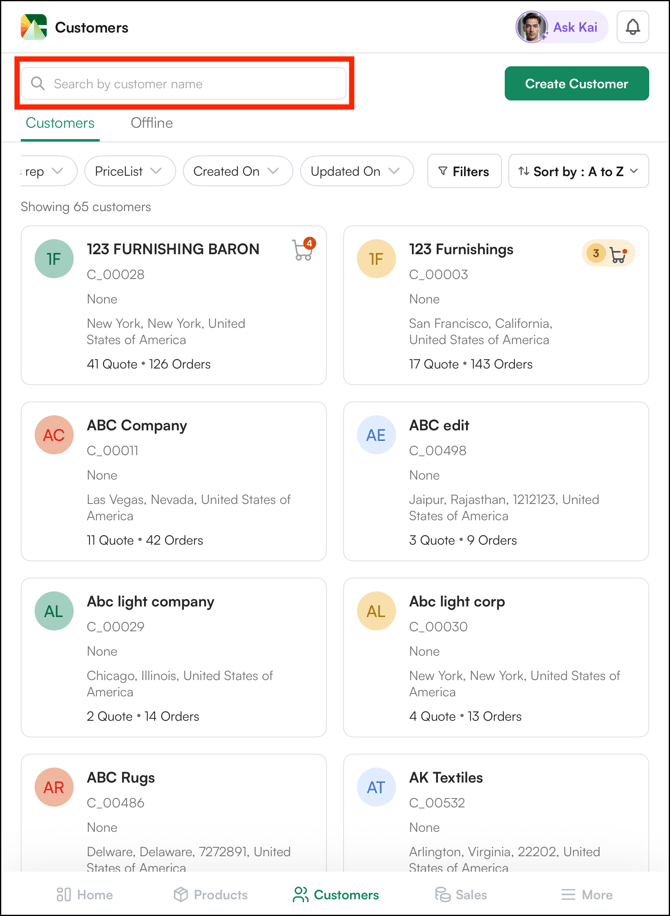
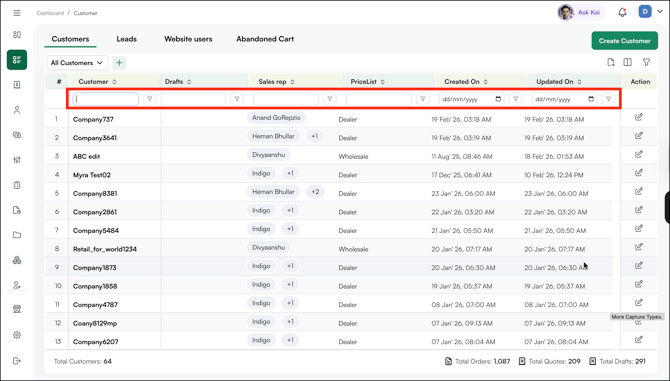
Use the search bar to find customers by company name, contact name, address, phone number, or customer ID.
The search bar in WizOrder is universal, it searches across all customer attributes including name, address, and phone number from a single field. On the web portal, each column has its own search bar, letting you search within a specific attribute directly.
##### **» On the Mobile App**
****
##### **» On the Web Portal**
---
### C. Filter & Sort Customer's List
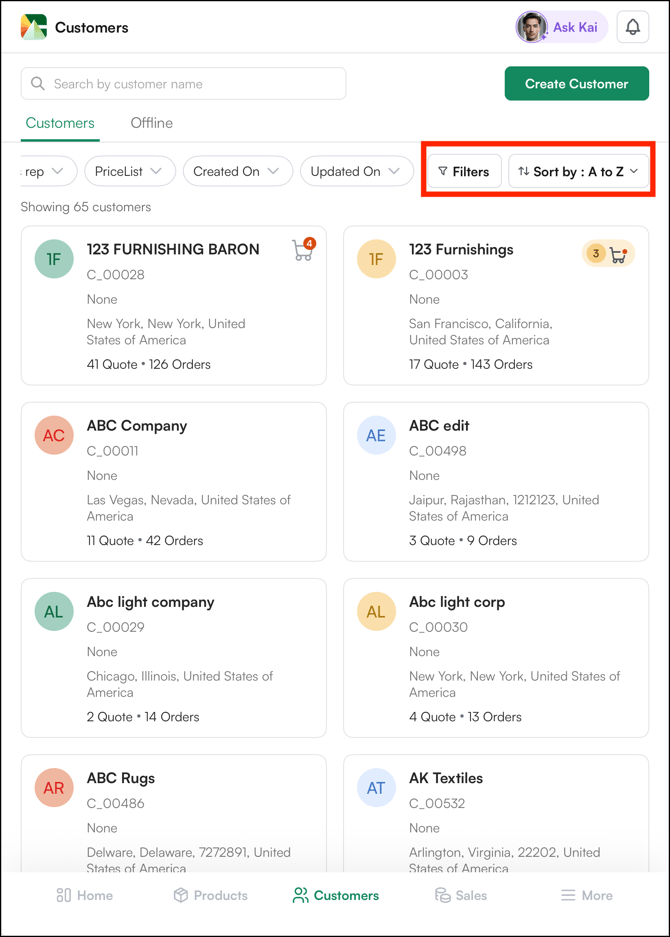
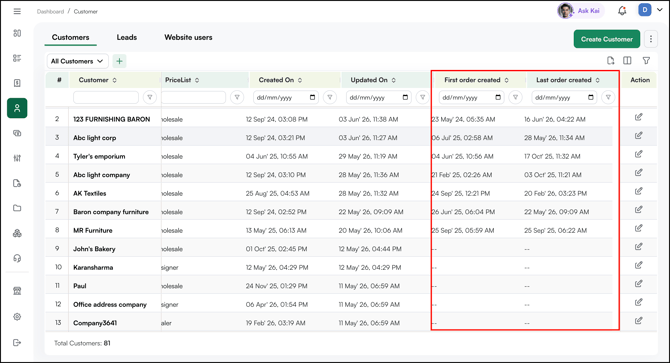
The Customers tab contains all customer accounts in WizCommerce, whether created by a rep in WizOrder or approved through WizShop. It is available on both the mobile app and web portal, with slight differences in layout and available columns.
##### **» On the Mobile App**
****
##### **» On the Web Portal**
**Tip:** The First order created and Last order created columns show the date and time of each customer's first and most recent order. A dash (--) means the customer has not placed any orders yet.
---
### D. Create a View
The default Customer list only shows a fixed set of columns. If you need to see or filter by a field that isn't included by default, you can create a **Filter View;** saved, custom view of the Customer list with the exact columns you choose.
###### **» To create a Filter View**
1. Go to the **Customers** tab and Click the **+** icon to **Create View**.

2. Enter a **Name** for your view (for example, Active Customer) and click **Save**.

3. Go to **Manage Columns**.

4. Select the **fields you want included** in this view and click **Save**.

5. Click **Save View** to finish.

6. Your **New View → Active Customer** now appears as a tab next to your other saved views at the top of the Customer list. Click it any time to switch to that view.

**Tip:** Use a Create View when you regularly need to check a field that isn't in the default table — like **Source** — without changing what everyone else sees on the default list.
---
### E. Customer Details Page
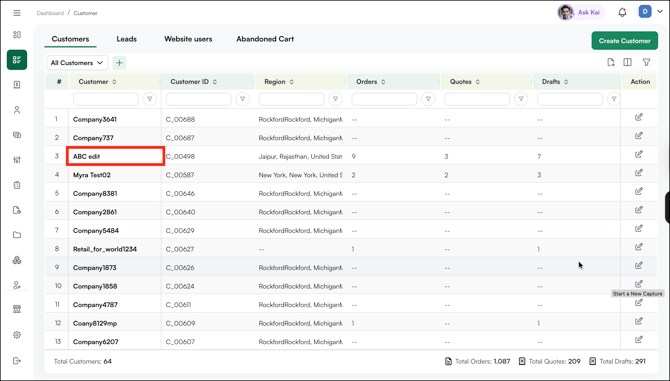
Click on any **customer name** to open their full profile. From here, review all account information, activity, and history in one place.
##### **» Left Panel: Account Information**
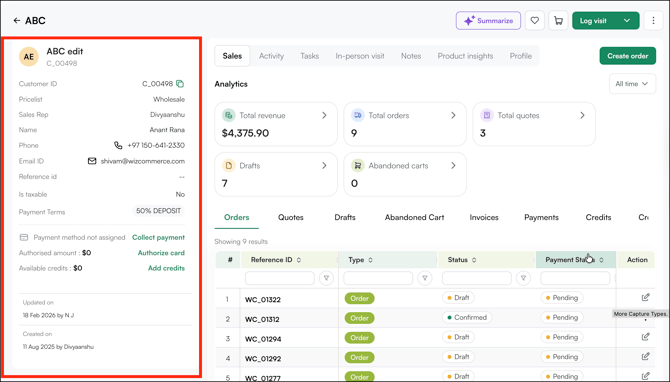
This panel shows all key details for the customer account at a glance:
- **Customer ID:** Unique system identifier for this account (e.g., C\_00498)
- **Pricelist:** The pricing tier assigned to this customer (e.g., Wholesale)
- **Sales Rep:** The rep assigned to manage this account
- **Name:** Primary contact name
- **Phone and Email:** Contact details for the account
- **Reference ID:** External reference ID if mapped to an ERP or third-party system
- **Is Taxable:** Indicates whether tax applies to this account
- **Payment Terms:** Default payment terms for this account (e.g., 50% Deposit)
- **Payment Method:** Shows the saved payment method or prompts to collect payment, authorise a card, or add credits
- **Updated On / Created On:** Timestamps showing when the record was last modified and when it was first created
##### **» Right Panel: Sales Activity**
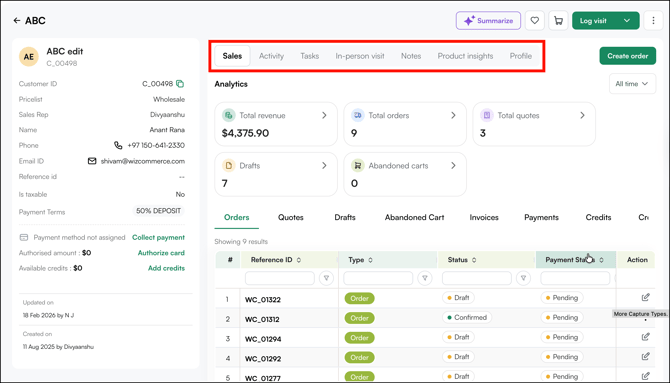
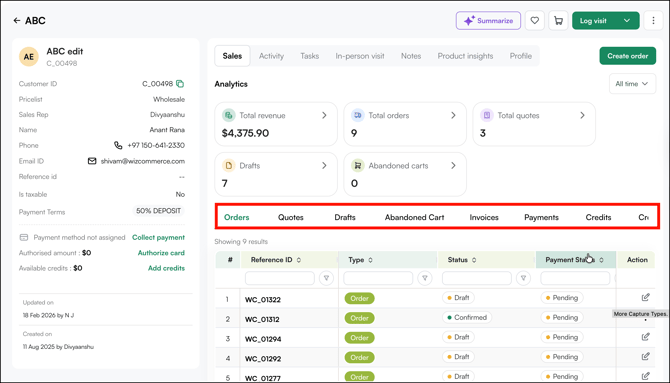
**Tabbed Navigation:**
- **Sales:** Orders, quotes, drafts, abandoned carts, invoices, payments, and credits
- **Activity:** Interaction history
- **Tasks:** Assigned tasks and follow-ups for this account
- **In-Person Visit:** Log and view visit history
- **Notes:** Internal notes attached to this account
- **Product Insights:** AI-powered insights on product performance and buying patterns for this customer
- **Profile:** Full account settings including pricing, payment terms, and rep assignment
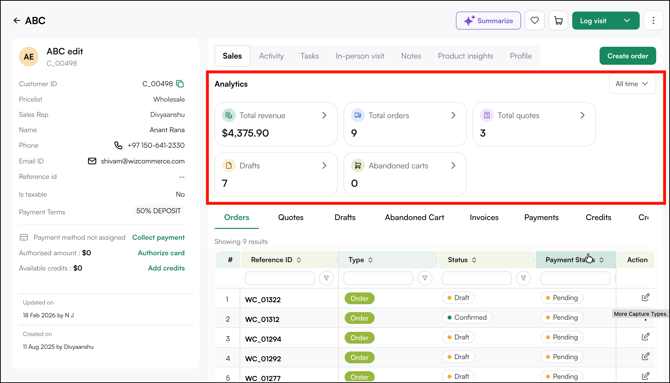
##### **» Analytics Section**
A quick snapshot of the customer's performance:
- **Total Revenue:** Lifetime revenue generated from this account
- **Total Orders:** Total number of orders placed
- **Total Quotes:** Total number of quotes created
- **Drafts:** Number of orders saved as drafts
- **Abandoned Carts:** Carts started but not converted to an order or quote
##### **» Recent Transactions**
Displays all transactions associated with this customer such as orders, quotes, drafts, invoices, payments, and credits. Each row shows the Reference ID, Type, Status, Payment Status, and available actions. Click any row to open the full detail page.
---
#### **FAQs**
**1. Can a sales rep create a customer, or is it admin only?**
**A.** Yes. Sales reps can create customers directly from WizOrder, on the mobile app or the web portal, during trade shows, showroom visits, or field calls.
**2. Can I create a customer while offline?**
**A.** Yes. Customers created in **Offline Mode** are saved on your device and sync to the customer list automatically once you’re back online. See [Offline Mode in WizOrder](https://knowledge.wizcommerce.com/offline-mode-in-wizorder).
**3. Can I create a customer at a trade show if they don’t exist in our ERP yet?**
**A.** Yes. Use **Quick Add** to create the customer and place the order straight away. Whether the new customer syncs to your ERP depends on your integration settings.
**4. Can customers create their own account?**
**A.** Yes. Buyers can request an account through the registration form on your Online Storefront (WizShop). Their request goes to **Leads** for approval before the account is created.
**5. Where can I see who created a customer and when?**
**A.** Open the **Customer Details Page**. The **Created On** and **Updated On** fields show when the customer was created and when their details were last changed.
---
**Still need help?** Reach out to our support team at [help@wizcommerce.com](https://mail.google.com/mail/u/0/?fs=1&to=help@wizcommerce.com&tf=cm).
- [Getting started](https://knowledge.wizcommerce.com/getting-started#main-content)
- [Product Overview](https://knowledge.wizcommerce.com/getting-started#product-overview)
- [Key Concepts You Should Know](https://knowledge.wizcommerce.com/getting-started#key-concepts-you-should-know)
- [Product Guides](https://knowledge.wizcommerce.com/getting-started#product-guides)
- [Trade Show Checklist](https://knowledge.wizcommerce.com/getting-started#trade-show-checklist)
- [Product Search & Discovery](https://knowledge.wizcommerce.com/product-search-discovery#main-content)
- [AI Product Recommendations](https://knowledge.wizcommerce.com/product-search-discovery#ai-product-recommendations)
- [Filter and Navigate](https://knowledge.wizcommerce.com/product-search-discovery#filter-and-navigate)
- [Catalog](https://knowledge.wizcommerce.com/product-search-discovery#catalog)
- [Product Selection & Ordering](https://knowledge.wizcommerce.com/product-selection-ordering#main-content)
- [Orders](https://knowledge.wizcommerce.com/product-selection-ordering#orders)
- [Quotes](https://knowledge.wizcommerce.com/product-selection-ordering#quotes)
- [Cart](https://knowledge.wizcommerce.com/product-selection-ordering#cart)
- [Presentations](https://knowledge.wizcommerce.com/product-selection-ordering#presentations)
- [Wishlist](https://knowledge.wizcommerce.com/product-selection-ordering#wishlist)
- [Item History](https://knowledge.wizcommerce.com/product-selection-ordering#item-history)
- [Invoices](https://knowledge.wizcommerce.com/product-selection-ordering#invoices)
- [Customers & Accounts](https://knowledge.wizcommerce.com/customers-accounts#main-content)
- [Customer Relationship Management (CRM)](https://knowledge.wizcommerce.com/customers-accounts#customer-relationship-management-crm)
- [Inventory & Warehousing](https://knowledge.wizcommerce.com/inventory-warehousing#main-content)
- [Inventory availability](https://knowledge.wizcommerce.com/inventory-warehousing#inventory-availability)
- [Payments](https://knowledge.wizcommerce.com/payments#main-content)
- [Payment Dashboard](https://knowledge.wizcommerce.com/payments#payment-dashboard)
- [Pricing & Commercials](https://knowledge.wizcommerce.com/pricing-commercials#main-content)
- [Pricelist](https://knowledge.wizcommerce.com/pricing-commercials#pricelist)
- [Discounts & Promotions](https://knowledge.wizcommerce.com/pricing-commercials#discounts-promotions)
- [Claims & Credits](https://knowledge.wizcommerce.com/pricing-commercials#claims-credits)
- [AI Co-Workers](https://knowledge.wizcommerce.com/ai-co-workers#main-content)
- [Ella - AI Order Entry Assistant](https://knowledge.wizcommerce.com/ai-co-workers#ella-ai-order-entry-assistant)
- [WizPilot - AI Assistant](https://knowledge.wizcommerce.com/ai-co-workers#wizpilot-ai-assistant)
- [WizStudio](https://knowledge.wizcommerce.com/wizstudio#main-content)
- [Creating & Editing Images](https://knowledge.wizcommerce.com/wizstudio#creating-editing-images)
- [Lifestyle Generator](https://knowledge.wizcommerce.com/wizstudio#lifestyle-generator)
- [Silo Editor](https://knowledge.wizcommerce.com/wizstudio#silo-editor)
- [Bulk Silo Editor](https://knowledge.wizcommerce.com/wizstudio#bulk-silo-editor)
- [Asset Library (Assets)](https://knowledge.wizcommerce.com/wizstudio#asset-library-assets)
- [AI Image Expander](https://knowledge.wizcommerce.com/wizstudio#ai-image-expander)
- [Reports & Analytics](https://knowledge.wizcommerce.com/reports-analytics#main-content)
- [Business Reports](https://knowledge.wizcommerce.com/reports-analytics#business-reports)
- [Manage your WizCommerce (Admin)](https://knowledge.wizcommerce.com/manage-your-wizcommerce-admin#main-content)
- [Import / Export](https://knowledge.wizcommerce.com/manage-your-wizcommerce-admin#import-export)
- [Organizational Settings](https://knowledge.wizcommerce.com/manage-your-wizcommerce-admin#organizational-settings)
- [Product Management](https://knowledge.wizcommerce.com/manage-your-wizcommerce-admin#product-management)
- [Managing Your WizShop Website](https://knowledge.wizcommerce.com/manage-your-wizcommerce-admin#managing-your-wizshop-website)
- [Integration & Apps](https://knowledge.wizcommerce.com/integration-apps#main-content)
- [Marketing Integration](https://knowledge.wizcommerce.com/integration-apps#marketing-integration)
- [Integration Dashboard](https://knowledge.wizcommerce.com/integration-apps#integration-dashboard)
- [Help & FAQs](https://knowledge.wizcommerce.com/help-faqs#main-content)
- [Help with Orders](https://knowledge.wizcommerce.com/help-faqs#help-with-orders)
- [Help with Quotes](https://knowledge.wizcommerce.com/help-faqs#help-with-quotes)
- [Help with Presentation](https://knowledge.wizcommerce.com/help-faqs#help-with-presentation)
- [Help with Inventory](https://knowledge.wizcommerce.com/help-faqs#help-with-inventory)
- [Help with User Management](https://knowledge.wizcommerce.com/help-faqs#help-with-user-management)
- [Help with Pricelist & Discounts](https://knowledge.wizcommerce.com/help-faqs#help-with-pricelist-discounts)
- [Help with WizStudio](https://knowledge.wizcommerce.com/help-faqs#help-with-wizstudio)
- [Help with Ella](https://knowledge.wizcommerce.com/help-faqs#help-with-ella)
- [Help with Org Settings (Admin)](https://knowledge.wizcommerce.com/help-faqs#help-with-org-settings-admin)
- [Help with Emails](https://knowledge.wizcommerce.com/help-faqs#help-with-emails)
- [Help with Products](https://knowledge.wizcommerce.com/help-faqs#help-with-products)
- [Help with Import/Export](https://knowledge.wizcommerce.com/help-faqs#help-with-import-export)
- [Help with WizShop](https://knowledge.wizcommerce.com/help-faqs#help-with-wizshop)
- [Help with Integration](https://knowledge.wizcommerce.com/help-faqs#help-with-integration)
- [Help with Categories and Collections](https://knowledge.wizcommerce.com/help-faqs#help-with-categories-and-collections)
- [Help With Customers](https://knowledge.wizcommerce.com/help-faqs#help-with-customers)
- [Help with Trade Show](https://knowledge.wizcommerce.com/help-faqs#help-with-trade-show)
[](https://wizcommerce.com/)
[mailto:help@wizcommerce.com](mailto:help@wizcommerce.com)
Copyright © 2025, WizCommerce
```json
{
"@context" : "https://schema.org",
"@type" : "VideoObject",
"contentUrl" : "https://47455261.fs1.hubspotusercontent-na2.net/hubfs/47455261/customer%20table%20video.mp4",
"dateModified" : "2026-02-26T17:57:58.449Z",
"duration" : "PT11S",
"height" : 818,
"name" : "customer table video",
"thumbnailUrl" : "https://47455261.fs1.hubspotusercontent-na2.net/hubfs/47455261/customer%20table%20video.mp4/medium.jpg",
"uploadDate" : "2026-02-26T17:57:49.182Z",
"width" : 1440
}
```