Cart discounts activate when an order hits a set value, useful for volume incentives, seasonal promotions, or pushing buyers toward a higher spend. Run a single fixed discount or stack multiple tiers that reward buyers the more they spend.
Platfrom: WizOrder, WizShop | Who is this for: Admins
To Get There: Discount Engine > Cart Discount
Before You Begin
- Ensure you have Admin access to WizOrder.
- If you plan to use customer or product segments, make sure these are already created before setting up the discount.
- Decide whether you want a fixed discount or a tiered structure before you begin.
A. Set Up Cart Discount
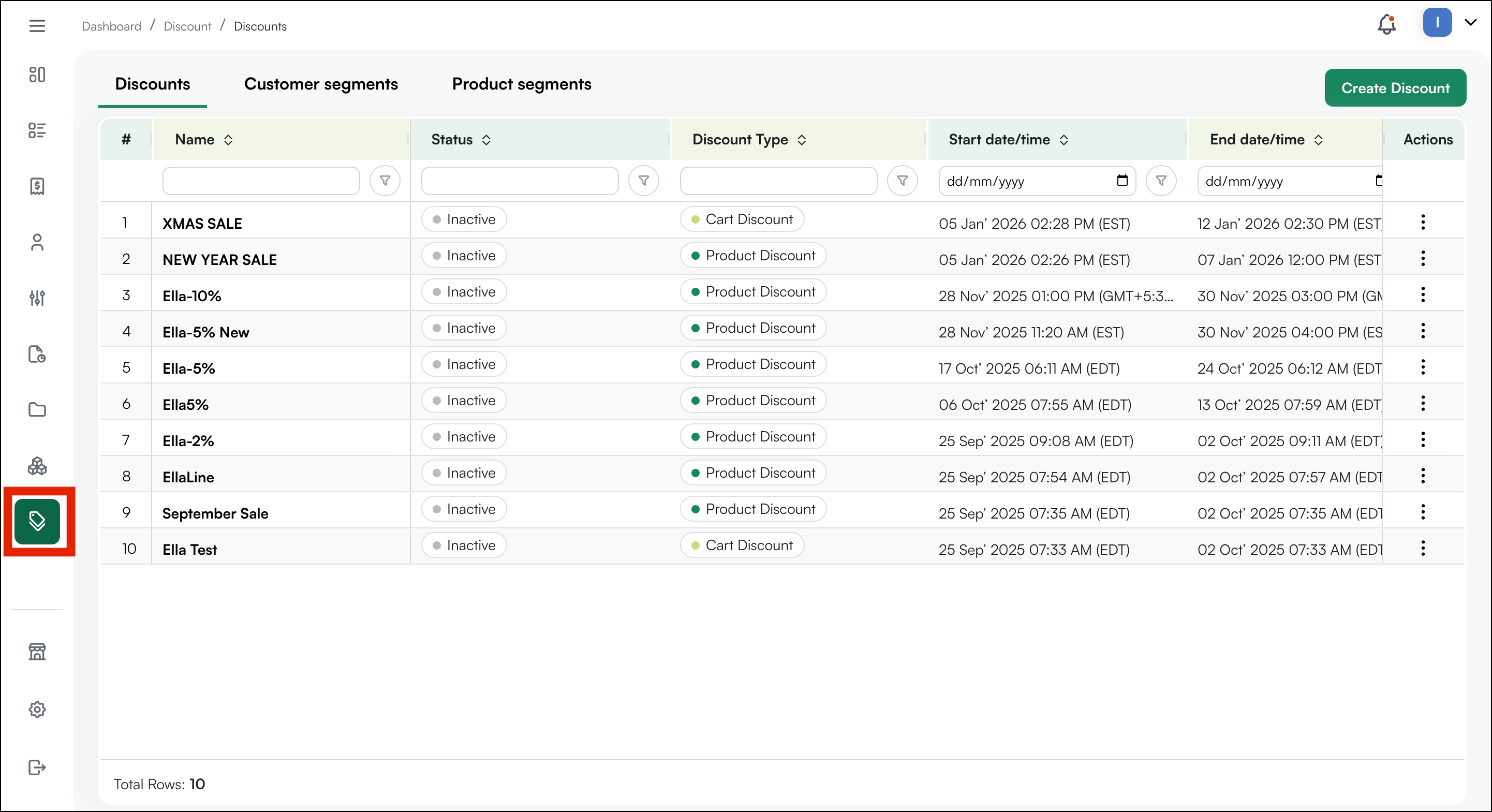
- Login to your WizOrder web portal and navigate to Discount Engine on the navigation bar.
-
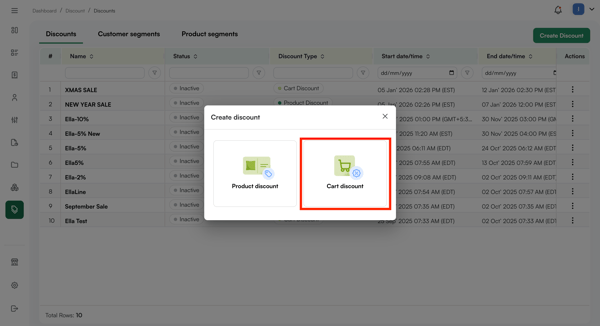
Click Create Discount and select Cart Discount from the pop-up window.
-
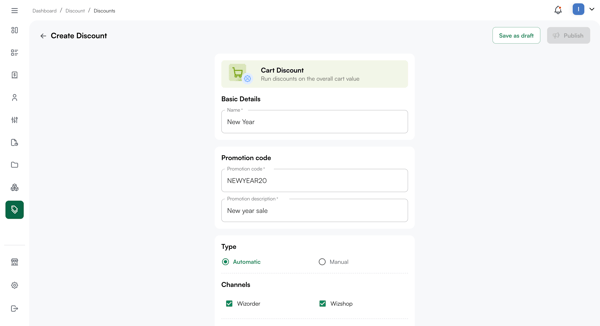
Fill in the Basic Details: name, description, and which channels the discount should appear on (WizOrder, WizShop, or both).
-
Set the Type to Automatic or Promotion Code.
- Under the Eligibility section, define who the discount applies to and which products it covers:
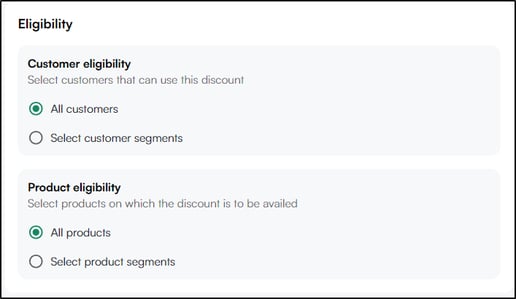
- Customer Eligibility: Select which customers can use this discount:
- All customers: The discount applies to every customer in your account.
- Select customer segments: Restrict the discount to specific customer groups. Select this option to choose the segments you want to include.
- Customer Eligibility: Select which customers can use this discount:
-
- Product Eligibility: Select which products the discount applies to:
- All products:The discount applies to every product in your catalog.
- Select product segments: Restrict the discount to specific product groups. Select this option to choose the segments you want to include.
- Product Eligibility: Select which products the discount applies to:
-
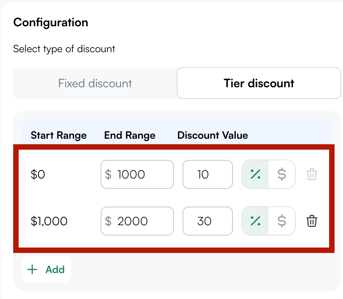
Choose the discount structure:
-
Fixed Discount: A single discount is applied when the cart threshold is met. Choose Percentage or Dollar Amount.
-
Tier Discount: Multiple discount tiers based on different cart value ranges. For example:
- $0 – $1,000 cart value → 10% discount
- $1,000 – $2,000 cart value → 30% discount
Any number of tiers can be added.
-
-
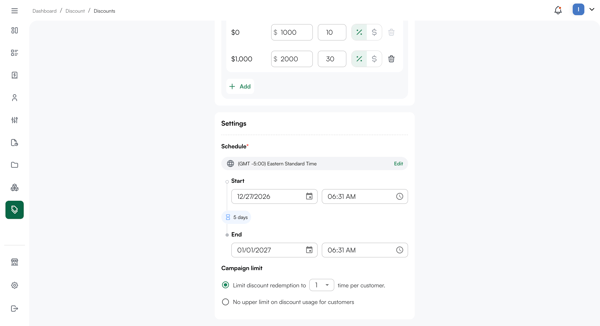
Set the discount period: the campaign's start and end dates.
-
Set the Campaign Limit: the maximum number of times a single customer can redeem the discount.
-
Click Publish.
The cart discount will appear in the Discount view table once published.
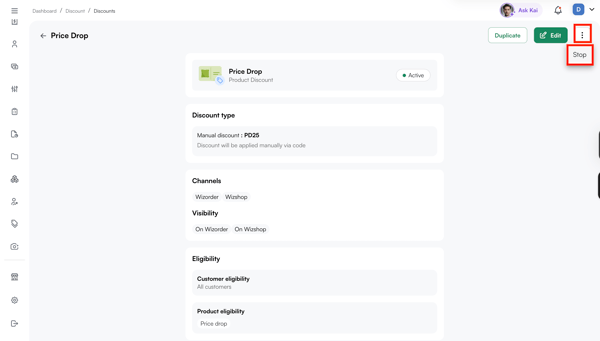
E. How to Stop a Discount
This applies to both Product and Cart discounts.
- Click on the discount name in the Name column to open it.
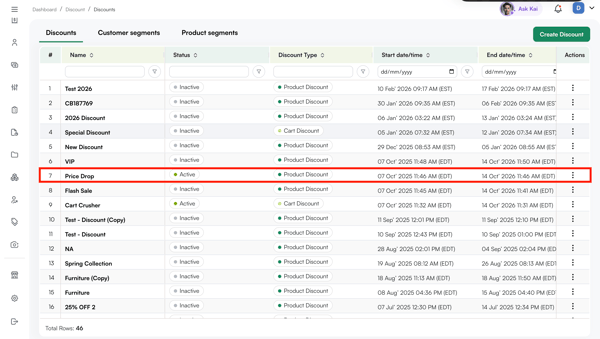
- Click the three-dot menu at the top left of the discount page.
- Select Stop.