
The Customer Form controls which fields appear when a rep creates a new customer in WizOrder. Admins can add, remove, and reorder fields to match their onboarding process. This article explains how to customise the form and which fields are required vs optional.
Any changes you make here apply across the Sales Rep App (WizOrder) and are visible to all reps instantly.
Platform: WizOrder | Who is this for: Admins
To Get There: Settings > Customer > Customer Form
Table of Contents
Before You Begin
- Ensure you have access to Organizational Settings.
- Changes apply to all reps immediately — review carefully before saving.
A. How to Access Customer Form Settings
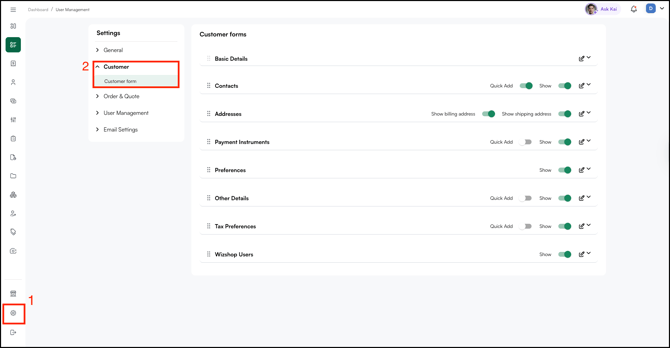
- Go to Settings from the left navigation.
- Under Customer, click Customer Form.
- The Customer Form settings page opens, showing all available sections.
B. Finding Your Way Around the Customer Form
The Customer Form settings page is organized into sections. Each section covers a specific group of customer information:
- Basic Details: Core information such as customer name, display name, and pricelist
- Contacts: Contact details for the customer
- Addresses: Billing and shipping address fields
- Payment Instruments: Payment methods associated with the customer
- Preferences: Customer-level preferences
- Other Details: Any additional custom fields
- Tax Preferences: Tax-related information for the customer
- WizShop Users: WizShop user information tied to the customer
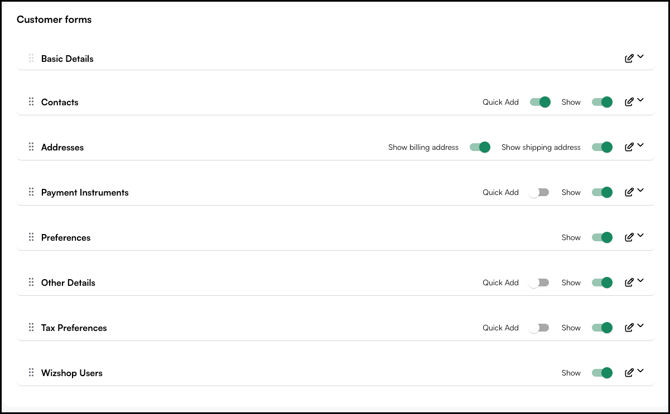
Each section has a set of controls on the right side. Use these to customize how each section behaves on the form:
- Show: Turn on to make the section visible on the form. Turn off to hide it.
- Quick Add: Turn on to include the section in the Quick Add form.
- Drag handle (six dots on the left): Drag up or down to reorder the section on the form.
- Edit icon: Click to customize the individual fields within that section.
- Expand arrow: Click to open a section and view the fields inside.
Note: Not all sections have a Quick Add toggle. Sections like Preferences and Addresses only have a Show toggle.
C. How to Show or Hide a Section in the Customer Form
By default, most sections are visible on the customer form. Hide any section that isn't relevant to your business.

- Find the section you want to hide (for example, Tax Preferences).
- Click the Show toggle on the right side of that section to turn it off.
- The section will no longer appear on the customer form for your reps.

- To make a hidden section visible again, click the Show toggle to turn it back on.
Note: Basic Details cannot be hidden as it contains the core fields required to create a customer.
D. How to Add a Section to Quick Add
Quick Add is a shorter version of the customer form built for fast customer onboarding. It's useful at trade shows or busy selling moments where reps need to add a customer quickly and fill in the remaining details later.
- Find the section you want to add to Quick Add (for example, Contacts).
- Click the Quick Add toggle on the right side of that section to turn it on.

- That section now appears in the Quick Add form.
To remove a section from Quick Add, click the Quick Add toggle to turn it off.
E. How to Reorder Sections on the Form
Change the order in which sections appear on the customer form by dragging them into position.
- Find the section you want to move.
- Click and hold the drag handle (six dots) on the left side of the section.
- Drag it up or down to your preferred position.
- Release to drop it in place.
The new order reflects on the customer form immediately.
F. How to Edit Fields Within a Section
Customize the individual fields inside any section to match your business needs.
- Find the section you want to edit (for example, Basic Details).
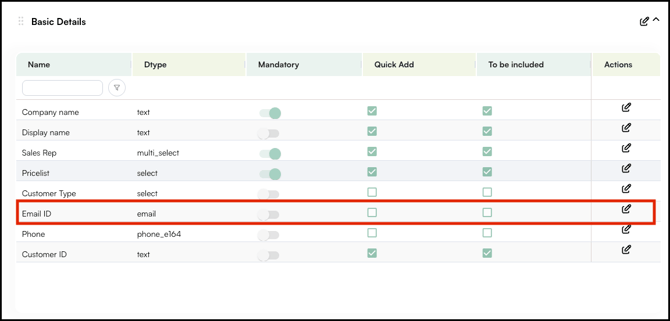
- Click the Edit icon on the right side of that section.
- Make your changes to the fields inside.
- Click Save.
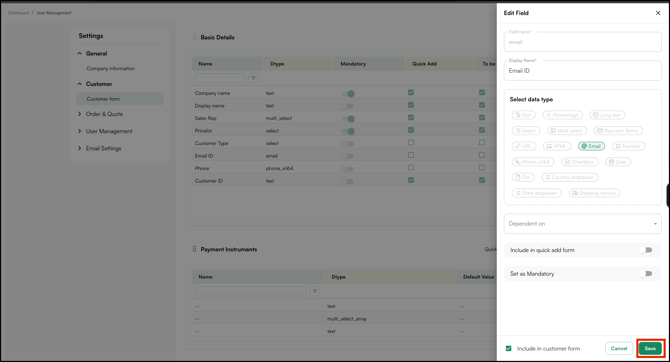
Note: Editing in this section is intentionally restricted to keep your system data accurate and consistent. If you need to make changes, reach out to your Customer Success Manager or email help@wizcommerce.com.
FAQs
1. Will hiding a section delete the data already saved in it?
A. No. Hiding a section only removes it from the form view for your reps. Any data already saved in that section remains intact in the system.
2. Can I add any section to Quick Add?
A. Not all sections support Quick Add. Sections like Preferences and Addresses only have a Show toggle and cannot be added to Quick Add.
3. Do changes to the Customer Form apply to all reps immediately?
A. Yes. Any changes you make — hiding sections, reordering, or editing fields — apply across WizOrder for all reps as soon as you save.
Not finding what you need? Browse the WizCommerce Help Center, reach out to your Customer Success Manager, or contact our Support Team.