---
title: Edit and Manage Published Catalog
description: Manage your Catalogs in WizCommerce and Publitas. Push products, edit content, swap PDFs, organize pages, and control user access.
---
[Skip to content](https://knowledge.wizcommerce.com/edit-and-manage-published-catalog#main-content)
[](https://wizcommerce.com/)
Open main navigation
Close main navigation
- [Contact us](https://mail.google.com/mail/?view=cm&fs=1&to=help@wizcommerce.com)
[Contact us](https://mail.google.com/mail/?view=cm&fs=1&to=help@wizcommerce.com)
Hi, how can we help?
- There are no suggestions because the search field is empty.
1. [WizCommerce Help Centre](https://knowledge.wizcommerce.com/)
2. [Product Search & Discovery](https://knowledge.wizcommerce.com/product-search-discovery)
3. [Catalog](https://knowledge.wizcommerce.com/product-search-discovery#catalog)
September 8, 2026
# Edit and Manage Published Catalog
Sync Catalogs from Publitas, push new products for tagging, edit existing Catalogs, and manage pages, all without re-uploading the entire presentation.
**Platform:** WizOrder │ **Who is this for:** Admin
**To Get There:** *Catalogs Management (WizOrder web portal) and Publitas dashboard*
---
#### Table of Contents
| **Sections** | **Topics** |
| --- | --- |
| A | [Manage a Catalog from Catalog Management](https://knowledge.wizcommerce.com/edit-and-manage-published-catalog#section-a) |
| B | [Push New Products From WizCommerce to Publitas](https://knowledge.wizcommerce.com/edit-and-manage-published-catalog#section-b) |
| C | [Edit and Manage a Published Catalog](https://knowledge.wizcommerce.com/edit-and-manage-published-catalog#section-c) |
| D | [Manage Pages with Page Manager](https://knowledge.wizcommerce.com/edit-and-manage-published-catalog#section-d) |
| E | [FAQs](https://knowledge.wizcommerce.com/edit-and-manage-published-catalog#faqs) |
---
#### Before You Begin
- You must have **Admin access** to WizCommerce.
- Your WizCommerce account must be connected to **Publitas**.
- The Catalog must already exist in Publitas or WizCommerce.
---
### A. Manage a Catalog from Catalog Management
The three-dot menu on the Catalog Management page gives you quick access to every Catalog action, editing, visibility, downloads, reports, and access control, without leaving WizCommerce.
1. Go to **Product Tools → Catalog Management**.

2. Click the **three-dot menu** next to the **Catalog** you want to manage.

3. Choose the action you need:
- **Edit in Publitas:** Opens the Catalog in the Publitas editor in a new tab. Use this to add hotspots, edit content, or update pages. See the [**Edit a Catalog in Publitas**](https://knowledge.wizcommerce.com/edit-catalog-in-publitas) article.
- **Change Visibility:** Set the Catalog as **Published** or **Unpublished** for sales representatives in WizOrder.
- **[Table of Contents](https://knowledge.wizcommerce.com/create-and-publish-lookbook#section-c):** Add or update the index for the Catalog so reps and buyers can jump to a specific page or section.
- **Download PDF:** Download the original presentation PDF used to create the Catalog. Useful when you need to share the static version or archive it.
- **Export Report:** Export a report showing how the Catalog has been used, views, clicks, and product interactions.
- **Unpublish:** Take the Catalog offline in WizCommerce. It is hidden from sales representatives but remains in your library and can be republished later.

1. - **Manage Access:** Control which user roles can view the Catalog. Use this to restrict a Catalog to specific teams or regions before making it visible.

- **All Users:** Everyone in your organization can access this Catalog.
- **Specific Users:** Only users you select can access this Catalog.
- **Roles:** Only users with the roles you select can access this Catalog.

---
### B. Push New Products to Publitas
If newly added SKUs do not show up when tagging hotspots in **Publitas**, push them across so they become available for tagging.
1. Go to **Catalog Management** in WizCommerce.

2. Click the **three-dot menu** at the top of the page.

3. Click **Push Products** at the top of the page.
**
4. Wait for the sync to complete. The Catalog is now visible in WizCommerce and on the iPad.
**Note:** Products sync to **Publitas** at set intervals. Click Push Products any time SKUs are missing from **Publitas** search after a recent product upload, instead of waiting for the next automatic sync.
---
### C. Edit and Manage a Published Catalog
Add, remove, or rearrange pages in a Catalog without re-uploading the entire presentation.
1. Click **Edit in Publitas** to open the Catalog in **Publitas.**
**
2. Click the **dropdown arrow next** to the Edit button on the right.
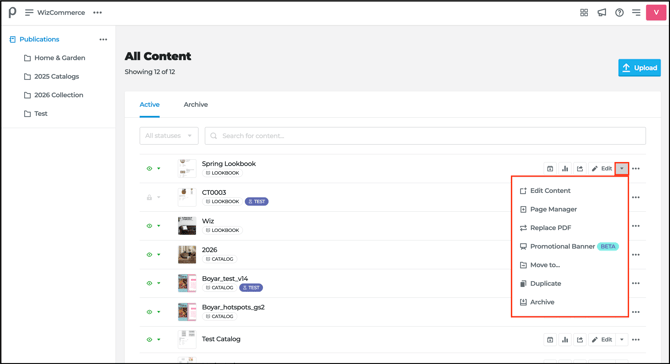
3. Choose the action you need:
- **Edit Content:** Opens the Catalog in the main Publitas editor where you can add hotspots, edit text and images, and preview changes.
- **[Page Manager](https://knowledge.wizcommerce.com/edit-and-manage-published-catalog#section-c):** Add new pages from another file, remove pages you no longer need, or rearrange the page order, all without re-uploading the presentation PDF.
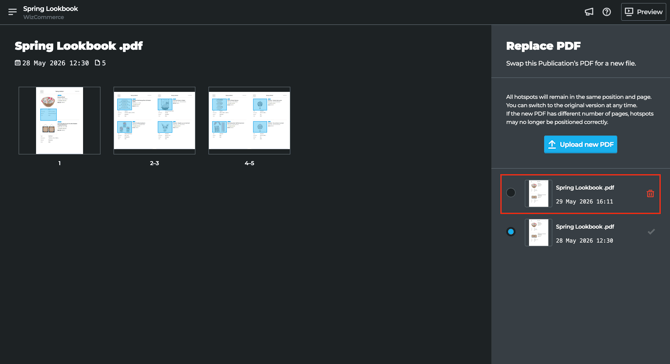
- **Replace PDF:** Swap the underlying presentation PDF without losing your hotspots and settings. Useful when you have an updated version of the same presentation.
- Upload the new PDF to replace the existing one.
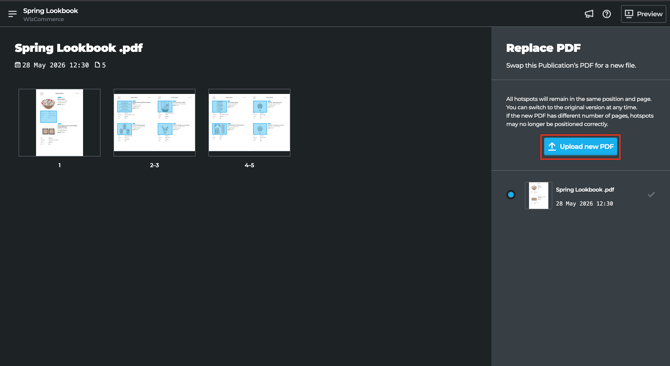
1. - - Swap this publication's PDF for a new file. You can upload a fresh version or choose from a previously uploaded PDF below.
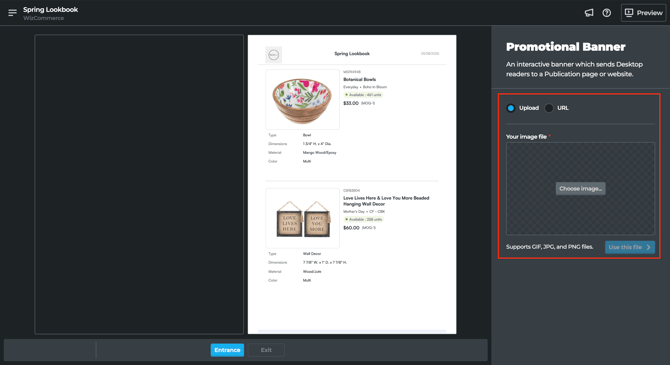
- **Promotional Banner (Beta):** Add a promotional banner panel where you can upload an image (or enter a URL) that links Desktop readers to a publication page or website..
- **Move to…:** Move the Catalog into a different folder (for example, 2026 Collection or Test) to keep your content organized.
- **Duplicate:** Create a copy of the Catalog. Use this when building a new Catalog based on an existing one.
- **Archive:** Move the Catalog to the **Archive** tab. Archived Catalogs are hidden from the Active list but remain in Publitas and can be restored later.
**Note:** **Replace PDF** preserves hotspots only if the new PDF has the same page structure as the original. If page layouts shift, you may need to redraw some hotspots after replacing the file.
---
### D. Manage Pages with Page Manager
Page Manager lets you add, remove, replace, or rearrange pages in a Catalog without re-uploading the entire presentation PDF.
1. Go to **All Content** in the Publitas dashboard.
2. Find your Catalog and click the **dropdown arrow** next to the **Edit** button.
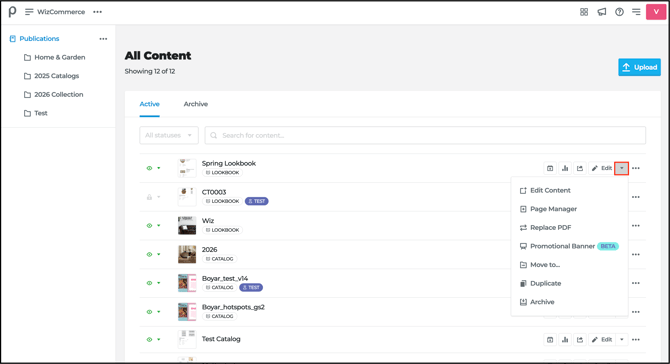
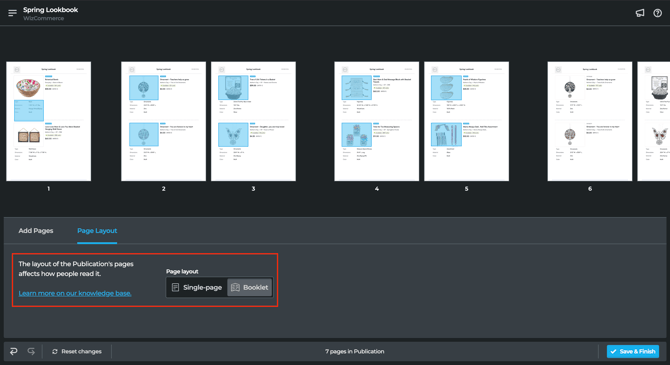
3. Select **Page Manager**. The page thumbnails open in a new view.
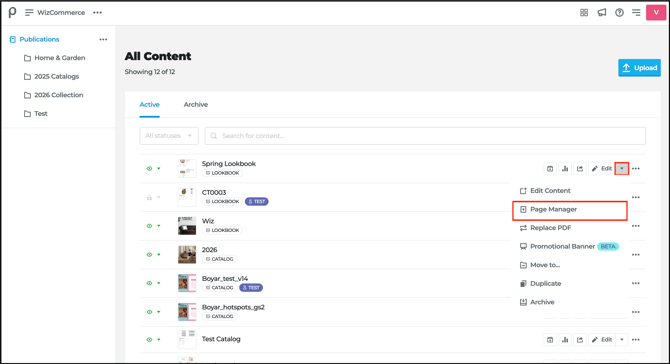
4. Choose the action you need:
- **Rearrange Pages**: Drag any page thumbnail to a new position. The page order updates immediately.
- **Delete a Page:** Click the page thumbnail, then click the **trash icon** at the top to remove it.
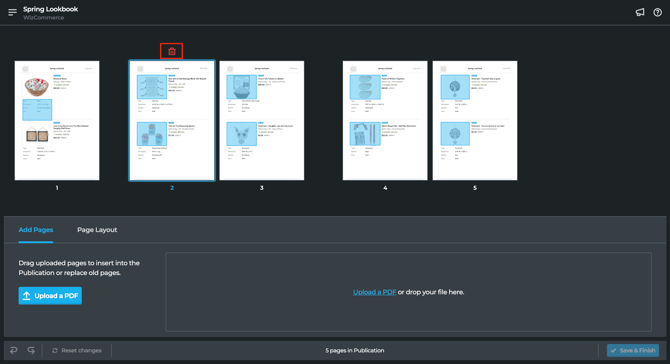
- **Add New Pages:** Under the **Add Pages** tab at the bottom, click **Upload a PDF** or drag a file into the upload area. The new pages appear in the panel and can be dragged into the Catalog at the position you want.
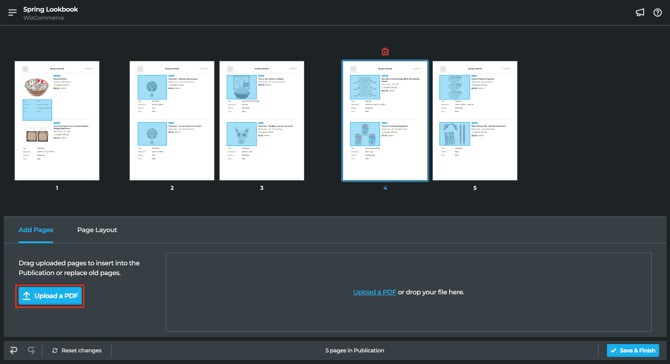
5. **Replace a Page:** Drag an uploaded page on top of an existing page to swap it out without changing the page order.
6. Switch to the **Page Layout** tab at the bottom to adjust how pages display in the Catalog, for example, changing single-page sections inside a Booklet layout.
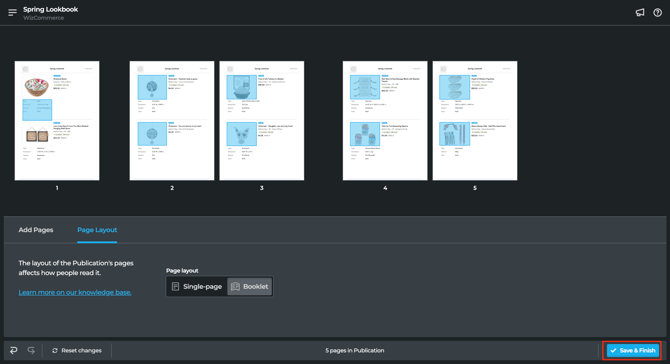
7. Click **Save & Finish** in the bottom right to apply your changes.
---
#### FAQs
**1. I added new products in WizCommerce but they are not showing up in Publitas. What do I do?**
A. Products sync to Publitas at set intervals. To make new SKUs available immediately, go to Catalog **Management** in WizCommerce and click **Push Products** at the top of the page.
**2. I need to update the presentation PDF for an existing Catalog. Do I need to start over?**
A. No. Use the **Replace PDF** option from the Edit dropdown in Publitas to swap the underlying PDF without losing your hotspots and settings. If the new PDF has a different page structure, you may need to redraw some hotspots.
**3. I archived a Catalog by mistake. Can I get it back?**
A. Yes. Archived Catalogs are hidden from the Active list but remain in Publitas. Go to the **Archive** tab in the Publitas dashboard to find and restore the Catalog.
---
**Still need help?** Reach out to our support team at [help@wizcommerce.com](https://mail.google.com/mail/u/0/?fs=1&to=help@wizcommerce.com&tf=cm).
- [Getting started](https://knowledge.wizcommerce.com/getting-started#main-content)
- [Product Overview](https://knowledge.wizcommerce.com/getting-started#product-overview)
- [Key Concepts You Should Know](https://knowledge.wizcommerce.com/getting-started#key-concepts-you-should-know)
- [Product Guides](https://knowledge.wizcommerce.com/getting-started#product-guides)
- [Trade Show Checklist](https://knowledge.wizcommerce.com/getting-started#trade-show-checklist)
- [Product Search & Discovery](https://knowledge.wizcommerce.com/product-search-discovery#main-content)
- [AI Product Recommendations](https://knowledge.wizcommerce.com/product-search-discovery#ai-product-recommendations)
- [Filter and Navigate](https://knowledge.wizcommerce.com/product-search-discovery#filter-and-navigate)
- [Catalog](https://knowledge.wizcommerce.com/product-search-discovery#catalog)
- [Product Selection & Ordering](https://knowledge.wizcommerce.com/product-selection-ordering#main-content)
- [Orders](https://knowledge.wizcommerce.com/product-selection-ordering#orders)
- [Quotes](https://knowledge.wizcommerce.com/product-selection-ordering#quotes)
- [Cart](https://knowledge.wizcommerce.com/product-selection-ordering#cart)
- [Presentations](https://knowledge.wizcommerce.com/product-selection-ordering#presentations)
- [Wishlist](https://knowledge.wizcommerce.com/product-selection-ordering#wishlist)
- [Item History](https://knowledge.wizcommerce.com/product-selection-ordering#item-history)
- [Invoices](https://knowledge.wizcommerce.com/product-selection-ordering#invoices)
- [Customers & Accounts](https://knowledge.wizcommerce.com/customers-accounts#main-content)
- [Customer Relationship Management (CRM)](https://knowledge.wizcommerce.com/customers-accounts#customer-relationship-management-crm)
- [Inventory & Warehousing](https://knowledge.wizcommerce.com/inventory-warehousing#main-content)
- [Inventory availability](https://knowledge.wizcommerce.com/inventory-warehousing#inventory-availability)
- [Payments](https://knowledge.wizcommerce.com/payments#main-content)
- [Payment Dashboard](https://knowledge.wizcommerce.com/payments#payment-dashboard)
- [Pricing & Commercials](https://knowledge.wizcommerce.com/pricing-commercials#main-content)
- [Pricelist](https://knowledge.wizcommerce.com/pricing-commercials#pricelist)
- [Discounts & Promotions](https://knowledge.wizcommerce.com/pricing-commercials#discounts-promotions)
- [Claims & Credits](https://knowledge.wizcommerce.com/pricing-commercials#claims-credits)
- [AI Co-Workers](https://knowledge.wizcommerce.com/ai-co-workers#main-content)
- [Ella - AI Order Entry Assistant](https://knowledge.wizcommerce.com/ai-co-workers#ella-ai-order-entry-assistant)
- [WizPilot - AI Assistant](https://knowledge.wizcommerce.com/ai-co-workers#wizpilot-ai-assistant)
- [WizStudio](https://knowledge.wizcommerce.com/wizstudio#main-content)
- [Creating & Editing Images](https://knowledge.wizcommerce.com/wizstudio#creating-editing-images)
- [Lifestyle Generator](https://knowledge.wizcommerce.com/wizstudio#lifestyle-generator)
- [Silo Editor](https://knowledge.wizcommerce.com/wizstudio#silo-editor)
- [Bulk Silo Editor](https://knowledge.wizcommerce.com/wizstudio#bulk-silo-editor)
- [Asset Library (Assets)](https://knowledge.wizcommerce.com/wizstudio#asset-library-assets)
- [AI Image Expander](https://knowledge.wizcommerce.com/wizstudio#ai-image-expander)
- [Reports & Analytics](https://knowledge.wizcommerce.com/reports-analytics#main-content)
- [Business Reports](https://knowledge.wizcommerce.com/reports-analytics#business-reports)
- [Manage your WizCommerce (Admin)](https://knowledge.wizcommerce.com/manage-your-wizcommerce-admin#main-content)
- [Import / Export](https://knowledge.wizcommerce.com/manage-your-wizcommerce-admin#import-export)
- [Organizational Settings](https://knowledge.wizcommerce.com/manage-your-wizcommerce-admin#organizational-settings)
- [Product Management](https://knowledge.wizcommerce.com/manage-your-wizcommerce-admin#product-management)
- [Managing Your WizShop Website](https://knowledge.wizcommerce.com/manage-your-wizcommerce-admin#managing-your-wizshop-website)
- [Integration & Apps](https://knowledge.wizcommerce.com/integration-apps#main-content)
- [Marketing Integration](https://knowledge.wizcommerce.com/integration-apps#marketing-integration)
- [Integration Dashboard](https://knowledge.wizcommerce.com/integration-apps#integration-dashboard)
- [Help & FAQs](https://knowledge.wizcommerce.com/help-faqs#main-content)
- [Help with Orders](https://knowledge.wizcommerce.com/help-faqs#help-with-orders)
- [Help with Quotes](https://knowledge.wizcommerce.com/help-faqs#help-with-quotes)
- [Help with Presentation](https://knowledge.wizcommerce.com/help-faqs#help-with-presentation)
- [Help with Inventory](https://knowledge.wizcommerce.com/help-faqs#help-with-inventory)
- [Help with User Management](https://knowledge.wizcommerce.com/help-faqs#help-with-user-management)
- [Help with Pricelist & Discounts](https://knowledge.wizcommerce.com/help-faqs#help-with-pricelist-discounts)
- [Help with WizStudio](https://knowledge.wizcommerce.com/help-faqs#help-with-wizstudio)
- [Help with Ella](https://knowledge.wizcommerce.com/help-faqs#help-with-ella)
- [Help with Org Settings (Admin)](https://knowledge.wizcommerce.com/help-faqs#help-with-org-settings-admin)
- [Help with Emails](https://knowledge.wizcommerce.com/help-faqs#help-with-emails)
- [Help with Products](https://knowledge.wizcommerce.com/help-faqs#help-with-products)
- [Help with Import/Export](https://knowledge.wizcommerce.com/help-faqs#help-with-import-export)
- [Help with WizShop](https://knowledge.wizcommerce.com/help-faqs#help-with-wizshop)
- [Help with Integration](https://knowledge.wizcommerce.com/help-faqs#help-with-integration)
- [Help with Categories and Collections](https://knowledge.wizcommerce.com/help-faqs#help-with-categories-and-collections)
- [Help With Customers](https://knowledge.wizcommerce.com/help-faqs#help-with-customers)
- [Help with Trade Show](https://knowledge.wizcommerce.com/help-faqs#help-with-trade-show)
[](https://wizcommerce.com/)
[mailto:help@wizcommerce.com](mailto:help@wizcommerce.com)
Copyright © 2025, WizCommerce
```json
{
"@context" : "https://schema.org",
"@type" : "VideoObject",
"contentUrl" : "https://47455261.fs1.hubspotusercontent-na2.net/hubfs/47455261/video_assets/350152132307/inherited/web_optimized.mp4",
"dateModified" : "2026-05-28T17:55:44.721Z",
"duration" : "PT10S",
"height" : 1568,
"name" : "Screen Recording 2026-05-28 at 11.24.27 PM",
"thumbnailUrl" : "https://47455261.fs1.hubspotusercontent-na2.net/hubfs/47455261/Screen%20Recording%202026-05-28%20at%2011.24.27%20PM.mov/medium.jpg",
"uploadDate" : "2026-05-28T17:55:35.181Z",
"width" : 2876
}
```
```json
{
"@context" : "https://schema.org",
"@type" : "VideoObject",
"contentUrl" : "https://47455261.fs1.hubspotusercontent-na2.net/hubfs/47455261/video_assets/350130211557/inherited/web_optimized.mp4",
"dateModified" : "2026-05-28T18:08:58.179Z",
"duration" : "PT4S",
"height" : 1568,
"name" : "Screen Recording 2026-05-28 at 11.37.30 PM",
"thumbnailUrl" : "https://47455261.fs1.hubspotusercontent-na2.net/hubfs/47455261/Screen%20Recording%202026-05-28%20at%2011.37.30%20PM.mov/medium.jpg",
"uploadDate" : "2026-05-28T18:08:42.874Z",
"width" : 2876
}
```