
Once you're comfortable with the editing panels, apply the same template, background, shadow, or framing changes across multiple images — or the entire batch — in one action.
Platform: WizStudio | Who is this for: Marketing & Catalog Teams
Before You Begin
- You should already be familiar with the editing panels (Templates, Resize and Position, Background, Shadows) from editing a single image.
- Select specific image cards to edit just those images, or leave every image unchecked to apply changes to the entire batch.
- Applying bulk edits doesn't use any credits. You are only charged when you download.
» Edit Your Images in Bulk
Once you are comfortable with the editing panels, apply changes across every image in the batch in one go.
- Choose which images to edit:
- Edit specific images: Check the box on each image card you want to apply changes to. The bottom action bar shows how many are selected (for example, 3 selected).
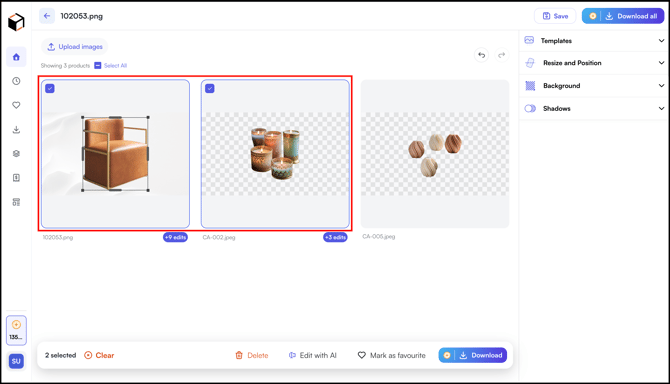
- Edit the entire batch: Leave every image unchecked
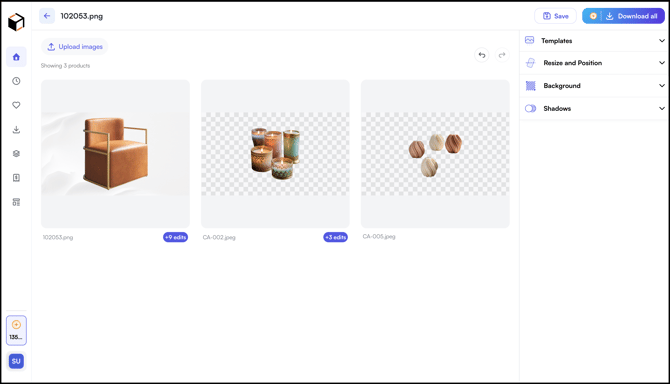
- Edit specific images: Check the box on each image card you want to apply changes to. The bottom action bar shows how many are selected (for example, 3 selected).
- Open the panel for the change you want to apply (Templates, Resize and Position, Background, or Shadows), refer to Section C for what each panel controls
- Make your selection (template, aspect ratio, background, or shadow preset)
- The change applies to the selected images, or to the entire batch if no images are selected. The edit count badges on each affected card update accordingly.
- Repeat for any other panel you want to apply.
Note: Check multiple image cards to perform any of the bottom action bar tasks in bulk: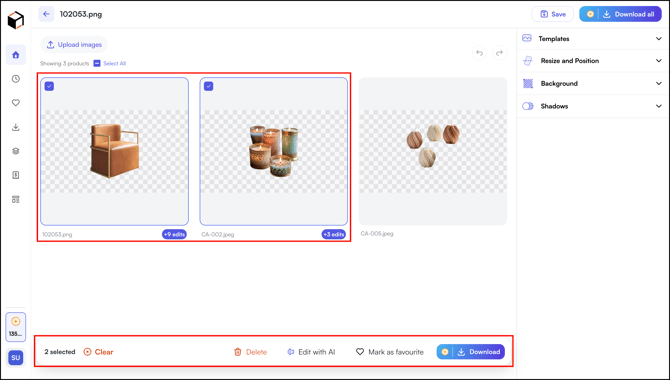
- Delete: Removes every selected image from the batch
- Edit with AI: Opens the Describe your shot panel and applies the prompt to all selected images
- Mark as favourite: Saves all selected images to your favourites
- Download: Exports just the selected images
» Related Article →
Still need help? Reach out to our support team at help@wizcommerce.com.