
Email Configuration lets admins set up the sender email address and templates used for order confirmations, quote emails, and payment notifications sent from WizCommerce. This article explains how to configure your domain, test email delivery, and manage templates.
Platform: WizOrder │ Who is this for: Admins
To Get There: Settings > Email Settings
Table of Contents
| Sections | Topics |
| A | How to Access Email Configuration |
| B | Finding Your Way Around |
| C | How to Set Up Your Email |
| D | FAQs |
Before You Begin
- Ensure you have access to Organizational Settings.
- Have your business email address ready (e.g., orders@yourcompany.com). Using a business email looks more professional to your customers and makes it easier to manage replies as a team.
Note: If you don't set up a custom email, all communications sent to your customers will come from noreply@wizcommerce.com by default.
A. How to Access Email Configuration
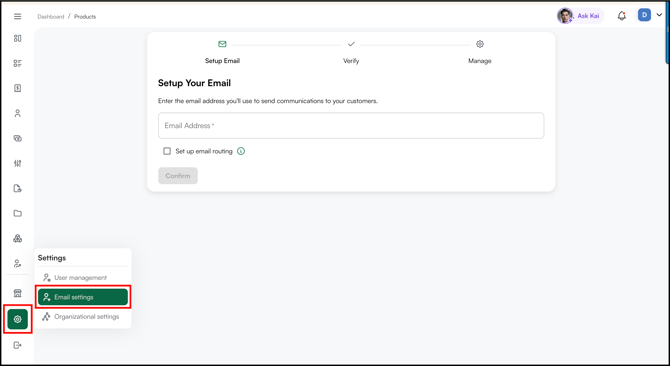
- Go to Settings from the left navigation.
- Under Settings, click Email Settings.
B. Finding Your Way Around
The setup process has three steps, shown at the top of the page:
- Setup Email: Enter the email address you want to use
- Verify: Confirm that you own the email address
- Manage: Review and manage your email configuration once it's live
C. How to Set Up Your Email
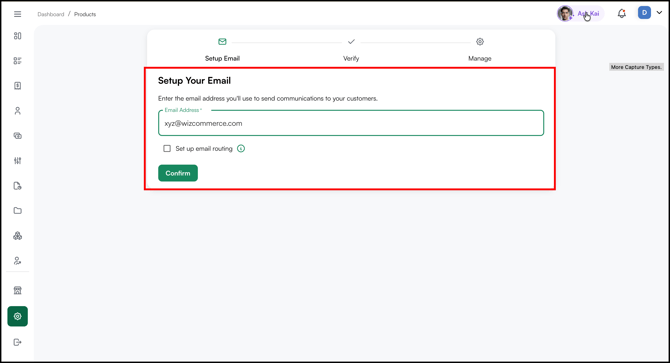
- On the Setup Email page, enter the email address you want to use in the Email Address field.
- Check the Set up email routing box if you want customer replies routed back to your inbox.
- Click Confirm to proceed.
- WizCommerce sends a verification request to the email address you entered. Open that email and follow the instructions to verify ownership.
- Once verified, you reach the Manage step. Here you can review your configuration, update the address, or adjust routing settings at any time.
Note: Use a business email address (e.g., orders@yourcompany.com) rather than a personal one. It looks more professional to your customers and makes it easier to manage replies as a team.
FAQs
1. What happens if I don't set up a custom email?
A. All customer communications — including order confirmations and quotes — will be sent from noreply@wizcommerce.com. Setting up a custom email makes your communications look more professional and trustworthy.
2. Can I change my email address after it's been verified?
A. Yes. Go to the Manage step in Email Configuration to update your address or adjust routing settings at any time.
3. What is email routing and do I need it?
A. Email routing ensures that any replies your customers send go directly to your inbox instead of being lost. It's recommended if you want to manage customer responses from your own email.
Not finding what you need? Browse the WizCommerce Help Center, reach out to your Customer Success Manager, or contact our Support Team.