
These are two separate actions in WizCommerce. Here's how to handle each one.
» To inactivate a user
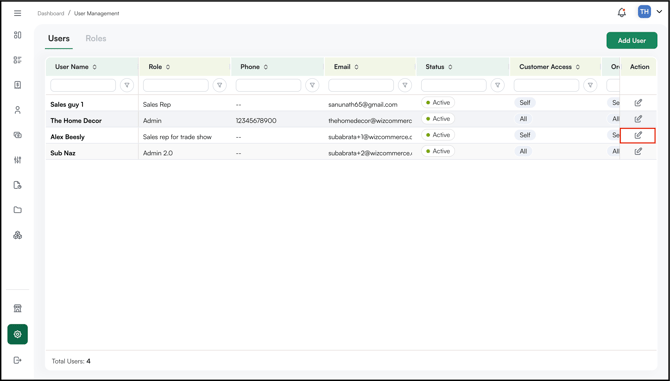
- Go to Settings → User Management in WizOrder.
- Find the user you want to inactivate.
- Click the Actions column on the far right and set their status to Inactive.
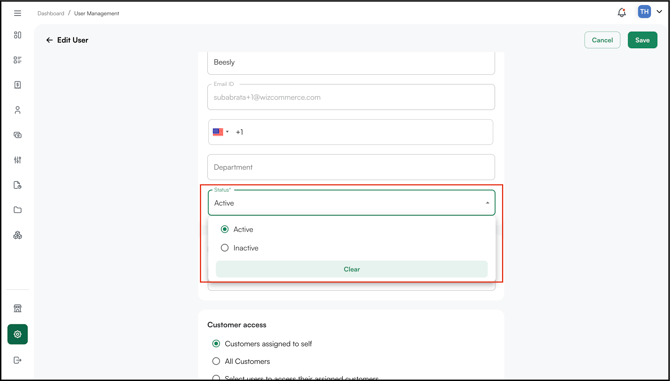
Inactivated users will not be able to log in to WizOrder. Their account and historical data remain intact, and they can be reactivated at any time by setting their status back to Active.
» To change your password
- On the WizOrder login page, click Forget Password?
- Enter your email address and you will receive a password reset link.
- Open the link, enter your new password, confirm it, and save.
Tip: For more on managing users and roles, see User Management in the WizCommerce Help Centre.
» A few things worth knowing
- Inactivating a user does not delete their account or historical data.
- Inactivated users can be reactivated at any time.
Still need help? Reach out to your Customer Success Manager or contact our Support Team.