
These are two separate things in WizCommerce. Here is how to do each one.
» To Inactivate the User / Sales Rep
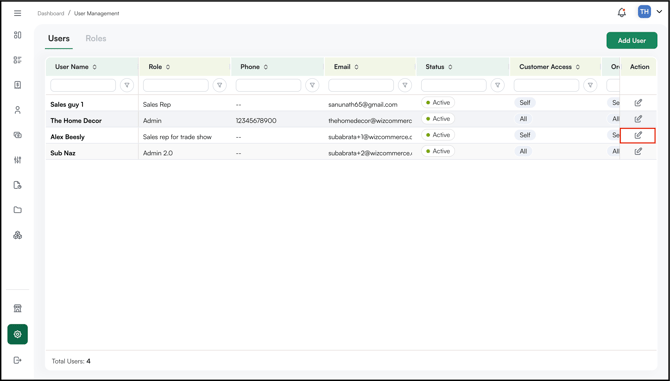
- Go to Settings → User Management in WizOrder.
- Find the user / sales rep you want to in-activate.
- Click the Actions column on the far right.
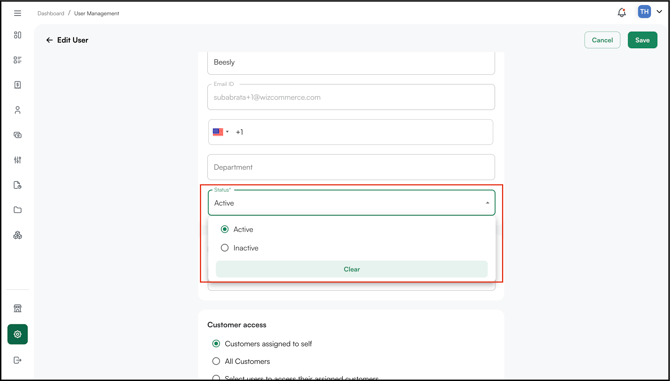
- Set their status to Inactive.
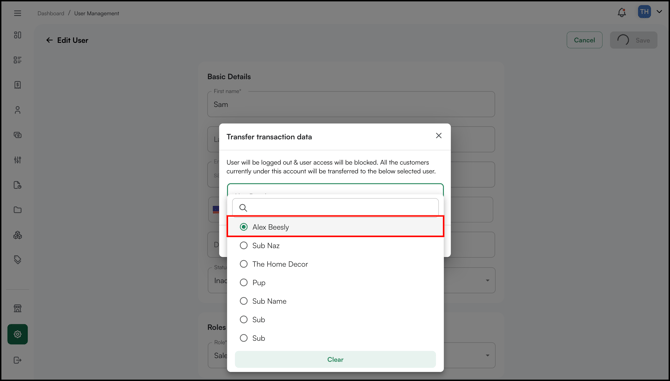
- Select the new user/sales rep with whom you want to merge the data (customers, orders, quotes, etc.) of the user/sales rep you want to inactivate.
- Click Done.
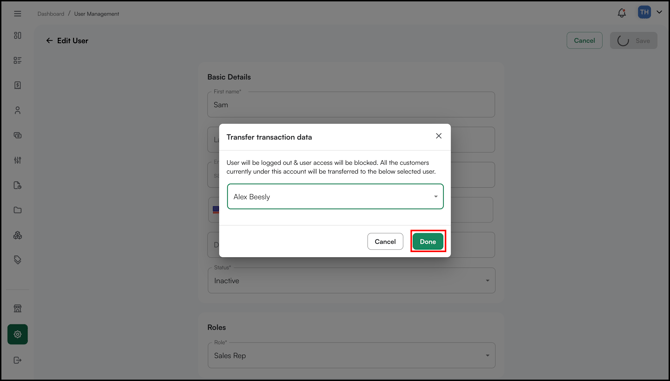
Note: When inactivating a user/sales rep, the Admin must assign their data (customers, orders, quotes, etc.) to another user/sales rep. If this is not done, the data will no longer be accessible.
» To change your password
- On the WizOrder login page, click Forget Password?
- Enter the email address linked to the account.
- You will receive an email with a link to reset the password.
- Open the link, enter a new password, confirm it, and save.
Tip: For more on managing users and roles, see User Management in the WizCommerce Help Centre.
» A few things worth knowing
- Inactivating a user does not delete their account or historical data.
- Inactivated users can be reactivated at any time.
Still need help? Reach out to our support team at help@wizcommerce.com.