
Ella (AI Order Entry Assistant) dashboard provides a central view of all processed, pending, and flagged orders. This article explains how to use the inbox view, filter by status, reprocess orders, and track order history over time.
Platform: AI Order Entry Assistance (Ella) | Who is this for: Admins
Table of Contents
| Sections | Topics |
| A | Use the Notifications Tab |
| B | Customer Specific Processing Rules |
| C | Filter, Sort, and Save Custom Views |
| D | Track AI-Processed Orders |
| E | FAQs |
Before You Begin
- Your AI Order Entry Assistant must already be set up and actively processing purchase orders. If it isn't, see Get Started with AI Order Entry Assistant.
- You will need Admin access to configure tenant-level or customer-level prompts in Prompt Management.
- Have at least one processed order on hand if you want to try filtering, sorting, or tracking while you read — see Process Orders with Ella to generate one.
-
Only draft orders can be deleted. Once an order has been submitted and confirmed, deletion is no longer possible.
A. Use the Notifications Tab
The Notifications tab is your single view of everything happening inside the Ella. As orders move through the processing pipeline, from arrival to ERP submission, the assistant posts a notification, so nothing slips through the cracks.
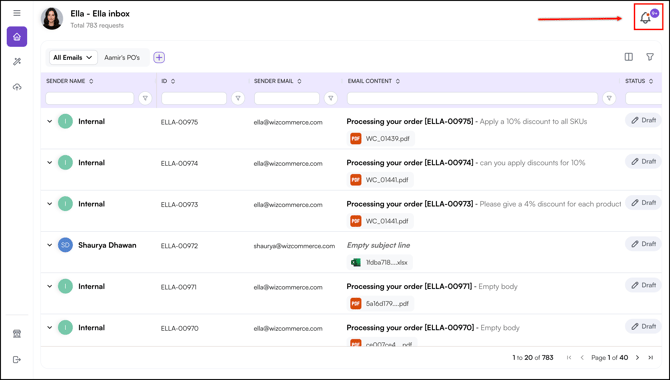
» Open the Notifications Tab
- Open the Notifications tab.
» Filter Notifications by Category
The Notifications tab is organized into three filterable categories:
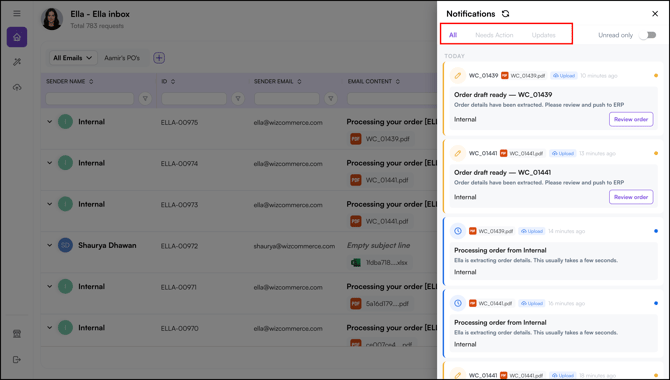
- Needs Action: Purchase orders that need your review, including drafts and items flagged during processing. This is your immediate to-do list.
- Updates: System activity, including purchase orders processed successfully, orders submitted to your ERP, and any failed ERP submissions.
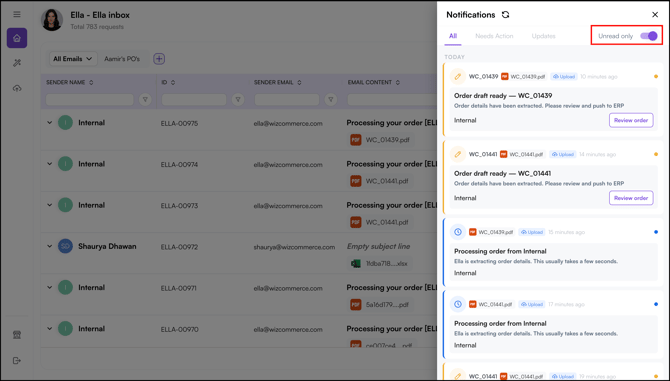
- Unread: Only new, unread notifications. Useful for catching up after being away.
» What Triggers a Notification
The assistant creates a notification when:
- A purchase order finishes processing.
- A purchase order is flagged for review.
- A purchase order is submitted to your ERP.
- An ERP submission fails.
Note: Notifications update in real time as orders progress through the pipeline. You do not need to refresh the page.
B. Customer Specific Processing Rules
Now you can add custom instructions at two levels, tenant level and customer level, so that purchase orders are processed accurately for every customer, regardless of how they submit their POs.
Adding prompts gives the AI the extra context it needs to process each PO correctly.
» Tenant-Level Prompt
A tenant-level prompt applies across all purchase orders processed through your account. Use this for instructions that apply universally, for example, how to handle SKUs that differ from your internal catalog.
- Navigate to Prompt Management.
- Under Tenant Level Prompt, select + Add New Prompt to add a new instruction, or select the edit icon next to an existing prompt to update it.
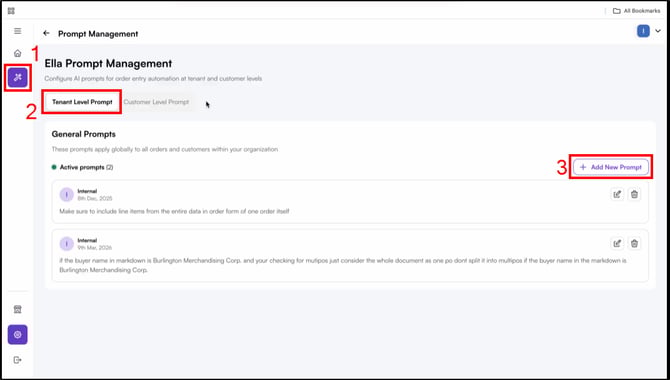
- Click Save.
» Customer-Level Prompt
A customer-level prompt applies only to purchase orders from a specific customer. Use this for instructions that are unique to that customer, for example, their pricing scheme or discounting process.
- Navigate to Prompt Management.
- Select Prompts.
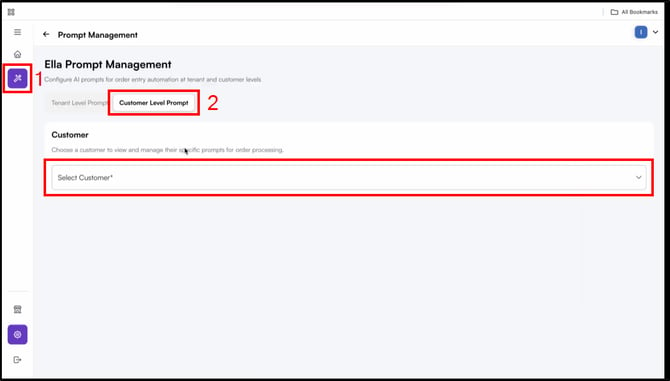
- Under Customer Level Prompt, select the customer you want to configure.
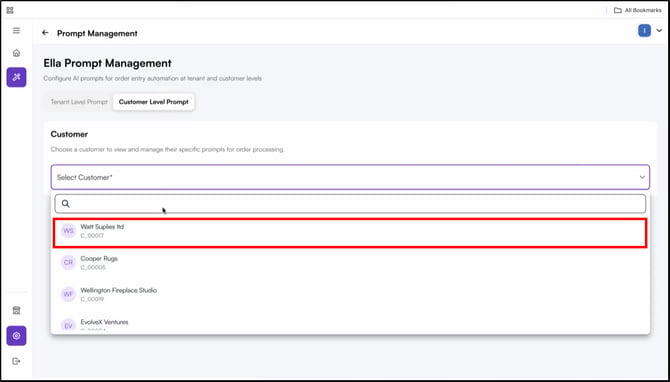
- Enter your instructions in the prompt field.
- Click Save.
Note: Tenant-level prompts apply to all customers. Customer-level prompts override or supplement the tenant-level prompt for that specific customer.
C. Filter, Sort, and Save Custom Views
When managing a large number of orders through the AI Order Entry Assistance, you can use filtering, sorting, and saved custom views to help you stay organized.
- Filters and sorting, Apply filters and sort on any field, such as status, customer, or order value, to quickly locate a specific order.
- Custom views: Save a custom view tailored to your workflow, for example, a view showing only draft orders assigned to specific users. Saved views apply the same filters automatically each time. You can reset to the default view at any time
Note: Filtering, sorting, and custom views work the same way here as they do across all other WizCommerce tables, including Orders, Quotes, Catalogs, and Customers.
D. Track AI-Processed Orders
Orders processed by the AI Order Entry Assistant can be tracked in two places:
- Go to Sales > Orders in WizOrder to find the processed order in your order list.
- On the AI Order Entry Assistant homepage, select the Home tab, all processed orders appear in home page, giving you a full view of everything the AI has handled.
Note: Draft orders still need a second review and submission in the Sales Rep App (WizOrder) before they are confirmed. Check the order status in the Orders tab to see whether an order is still pending confirmation.
FAQs
1. Where is the fastest place to check if an order has been processed?
A. The right sidebar on the AI Order Entry Assistant homepage shows all processed orders under the Home tab. It is the quickest way to get a full view without navigating to the Sales Rep App (WizOrder).
2. How do I know if an order is still a draft or has been confirmed?
A. Check the order status in the Orders tab in the Sales Rep App (WizOrder). Draft orders still need a second review and submission in WizOrder before they are confirmed.
3. Can I save different views for different team members?
A. Yes. You can create and save multiple custom views across all WizCommerce pages, including Orders, Quotes, Catalogs, Customers, and AI Order Entry Assistant. Each saved view retains its own filter and sort settings, so you can switch between them instantly without reconfiguring each time.
4. Does Ella support customer-specific contract pricing?
A. Yes. If a customer has contract pricing, Ella uses that first. If not, Ella falls back to the pricelist attached to the customer. When a SKU isn't on the customer's pricelist, Ella shows prices from other pricelists as options — so the rep always has a fallback. Customer-specific pricing rules are configured in Prompt Management. See the Customer Specific Processing Rules section above for how to set these up.
Still need help? Reach out to our support team at help@wizcommerce.com.