---
title: Manage Categories & Collections via Import-Export
description: Create and manage categories and collections in WizCommerce, organise your catalog, assign products individually, or update in bulk using import and export.
---
[Skip to content](https://knowledge.wizcommerce.com/manage-categories-collections-via-import-export#main-content)
[](https://wizcommerce.com/)
Open main navigation
Close main navigation
- [Contact us](https://mail.google.com/mail/?view=cm&fs=1&to=help@wizcommerce.com)
[Contact us](https://mail.google.com/mail/?view=cm&fs=1&to=help@wizcommerce.com)
Hi, how can we help?
- There are no suggestions because the search field is empty.
1. [WizCommerce Help Centre](https://knowledge.wizcommerce.com/)
2. [Manage your WizCommerce (Admin)](https://knowledge.wizcommerce.com/manage-your-wizcommerce-admin)
3. [Import / Export](https://knowledge.wizcommerce.com/manage-your-wizcommerce-admin#import-export)
August 14, 2026
# Manage Categories & Collections via Import-Export
Categories are the permanent navigation structure of your product catalog, while collections are flexible merchandising groups for seasonal or promotional use. This article explains how to create, edit, nest, and delete both categories and collections, and how they appear to buyers.
**Platform:** WizOrder & WizShop | **Who is this for:** Admins
**To Get There:** *Manage **\>** Import and Export **\>** Collection*
---
#### Table of Contents
| **Sections** | **Topics** |
| --- | --- |
| **A** | [Create a New Category or Collection](https://knowledge.wizcommerce.com/manage-categories-collections-via-import-export#section-a) |
| **B** | [Add Products to a Category or Collection](https://knowledge.wizcommerce.com/manage-categories-collections-via-import-export#section-b) |
| **C** | [Add a Thumbnail Image to the Category/Collection](https://knowledge.wizcommerce.com/manage-categories-collections-via-import-export#section-c) |
| **D** | [FAQs](https://knowledge.wizcommerce.com/manage-categories-collections-via-import-export#faq) |
---
#### Before You Begin
- Make sure you have Admin access before making any changes.
- A newly created category or collection will not appear on the Product Listing Page until at least one product has been assigned to it.
- If you are setting up categories or collections for the first time, review the Instructions tab in the exported sheet before making any edits.
**Note:** This article covers bulk upload only. To add or edit categories and collections, see [***Manage Categories and* *Collections***](https://knowledge.wizcommerce.com/manage-categories-and-collections).
---
### A. Create a New Category or Collection
The workflow for adding a new category or collection is the same — we'll demonstrate using Collection.
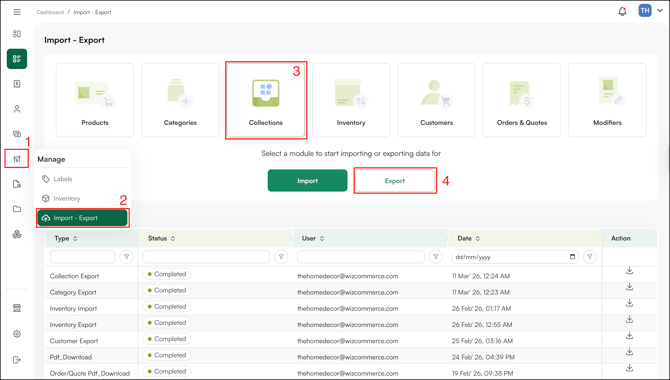
1. Go to ***Manage → Import and Export***.
2. Click on ***Collection***, then click ***Export***.
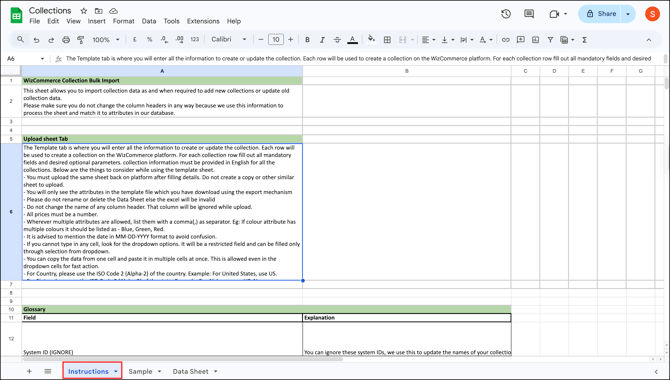
3. Open the exported sheet and review the ***Instructions*** tab. It explains what each column means and is especially helpful if you are setting up categories or collections for the first time.
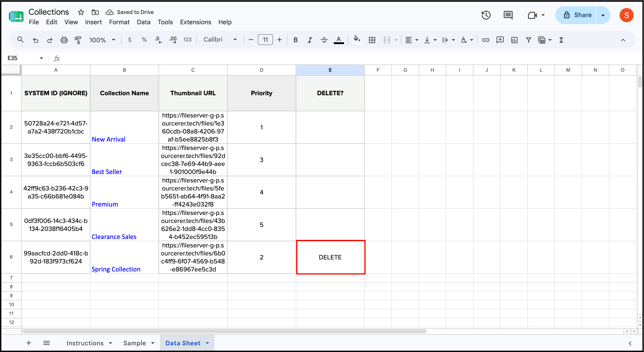
4. Go to the ***Data Sheet*** tab. Add a new row for each new collection and fill in the following columns:
- **Collection Name**
- **Public Image URL**
- **Hierarchy**
To delete a collection, type Delete in the **Delete?** column.
5. Save the completed sheet and upload it to apply your changes.
6. Deleting a category works the same way as deleting a collection. Go to *Data Sheet \> DELETE column*, then type *DELETE* (in all caps) in the row of the category you want to remove.
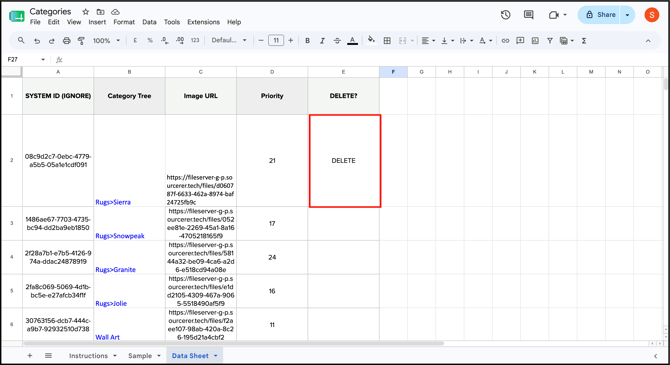
**Note:** To create sub-categories, use the **\>** symbol in the Category Name column — for example, *Clay Vase \> Ethnic* creates a sub-category under Clay Vases, and *Clay Vase \> Ethnic \> Indie* adds a third level beneath that. Use the priority column to control the display order on the Product Listing Page — lower numbers appear first, and priority can be set independently at every level of the hierarchy.
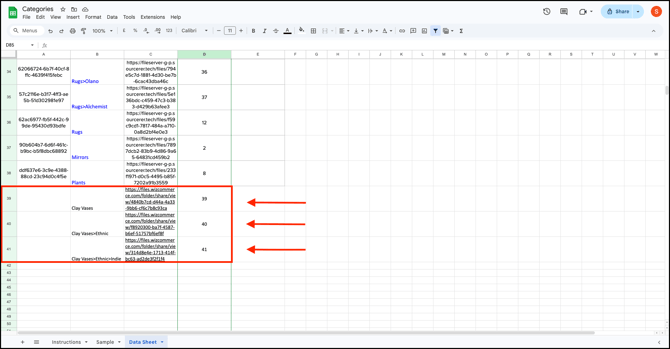
This is how it reflects after setting up the categories as described above.
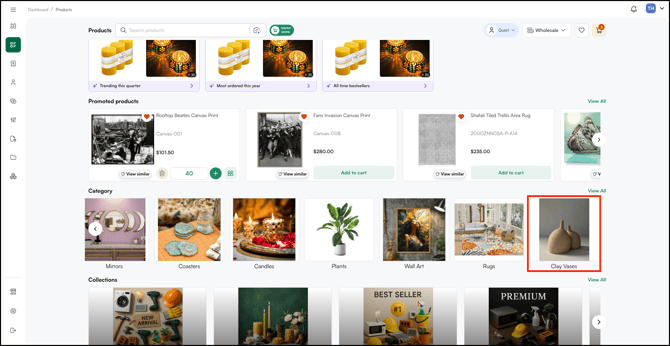
**Note:**
- Once at least one product is assigned to the category or collection, it appears on the Product Listing Page in *Sales Rep App (WizOrder)* and the *Online Storefront (WizShop)*.
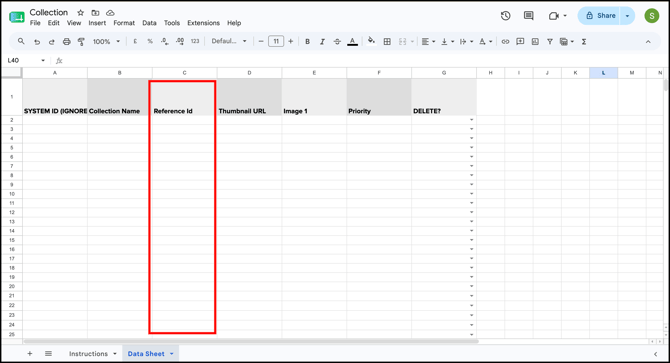
- If you have an **Integration** account, add a **Reference ID** as well**,** otherwise the data won't map correctly and won't sync or appear on WizOrder.
---
### B. Add Products to a Category or Collection
The process for assigning products to a category or collection is the same — both are managed from the Classification tab on the product management page. You can do this individually or in bulk via Import and Export.
#### Individually from Product Management
1. Go to ***Product Management***.
2. Find the product using the **SKU ID** or **Name** filter.
3. Click on the product to open its details page.
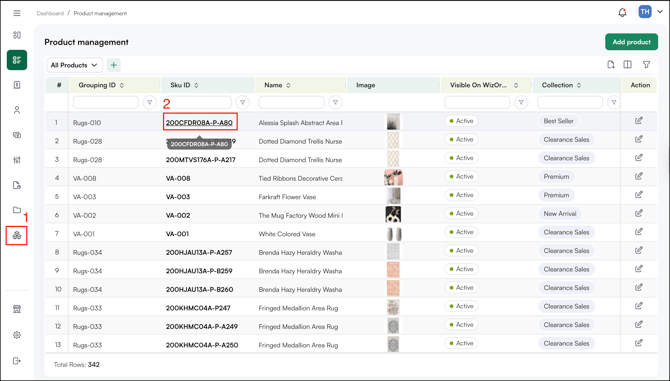
4. Go to the ***Classification*** tab and click ***Edit***.
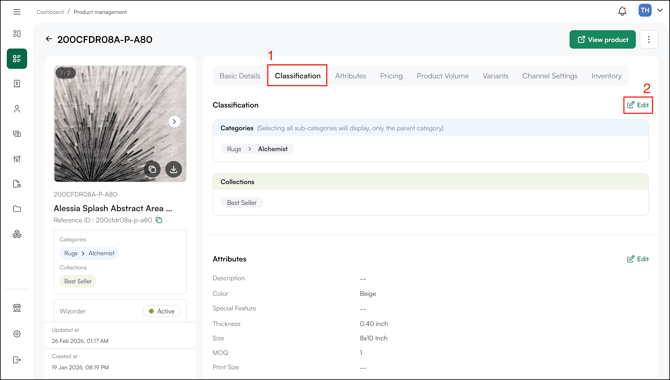
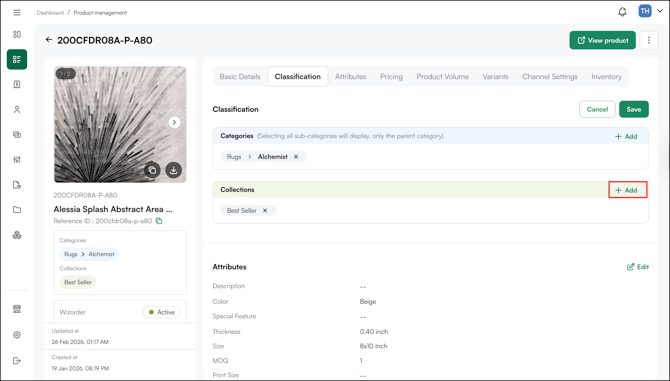
5. Click ***Add*** and select the collection you want to assign the product to.
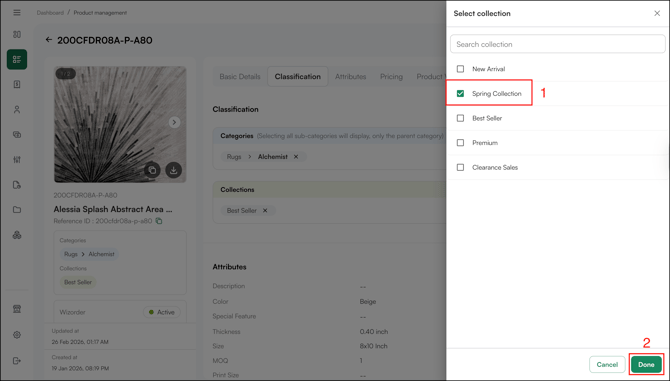
6. Under ***Collections***, select or remove the relevant collection.
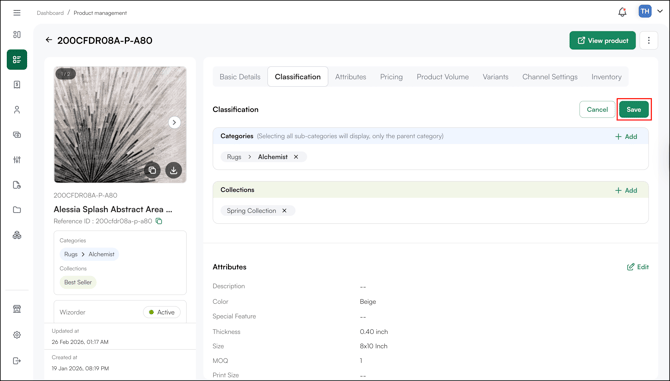
7. Click ***Save*** to confirm.
#### In Bulk via Import and Export
1. Go to ***Manage → Import and Export**.*
2. Click on ***Product***, then click ***Export***.
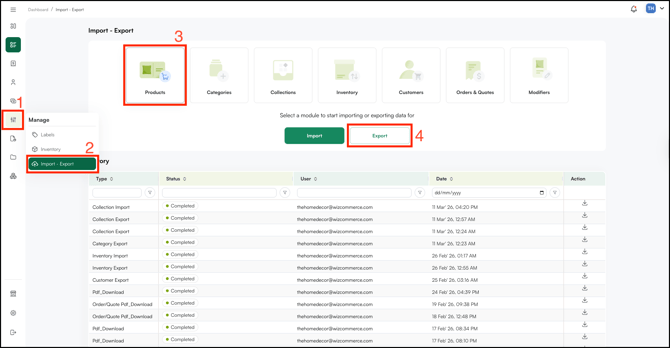
3. Under ***Export Fields***, click ***Select Fields to Export***. Tick ***Categories**, **Collections**,* or both — depending on what you need to update.
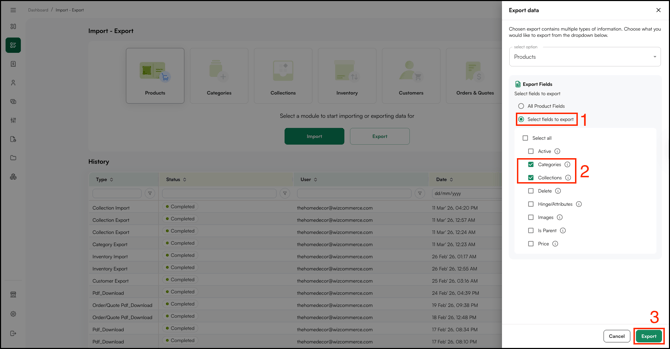
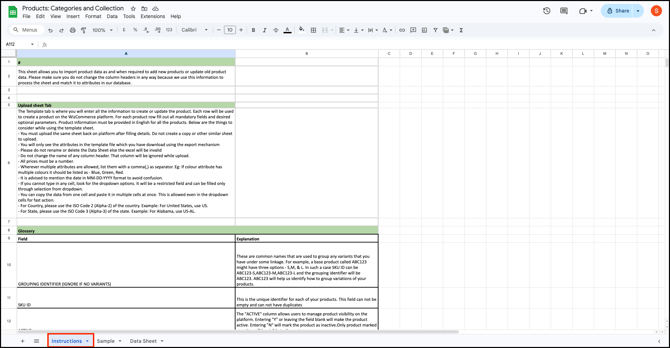
4. Open the exported sheet. If this is your first time using Import and Export, read the ***Instructions*** tab before making any changes.
5. In the **Data Sheet** tab, find the **Collection** column. Select the collection you want to assign to each product from the dropdown. To add a product to more than one collection, enter multiple collection names separated by a comma — for example, *Spring Collection, New Arrivals*.
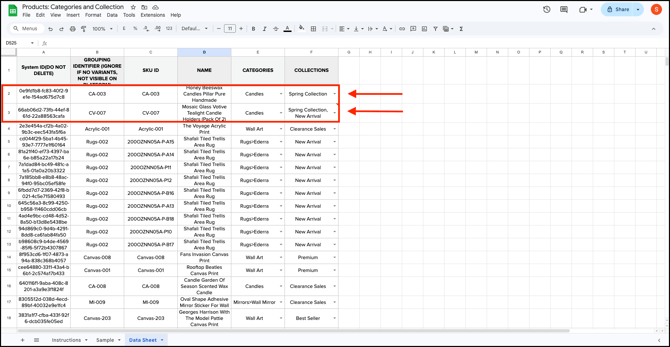
6. Save the completed sheet and upload it to apply your changes.
**Note:**
- Use Import and Export when updating categories or collections across a large number of products at once. It's faster than updating products individually.
- If you make changes to a product in Product Management and then update it again through bulk import-export, the latest changes will override the previous ones.
---
### C. Add a Thumbnail Image to the Category/Collection
Category and collection images are applied in bulk through the import sheet. The sheet needs a public URL for each image, so you first upload your images to [*Files*](https://knowledge.wizcommerce.com/files-and-asset-management#section_c) to generate those URLs, then map them to the correct rows on import.
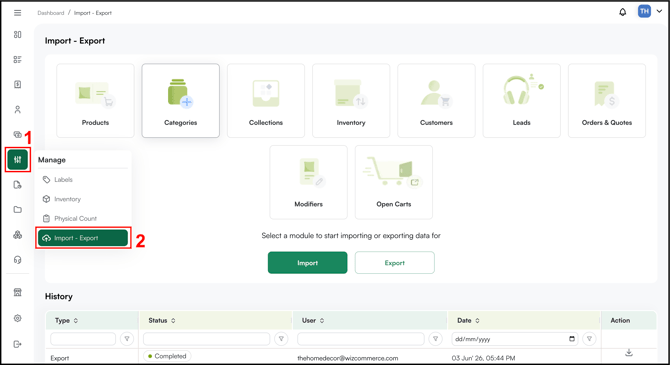
1. Go to *Manage → **Import / Export
***
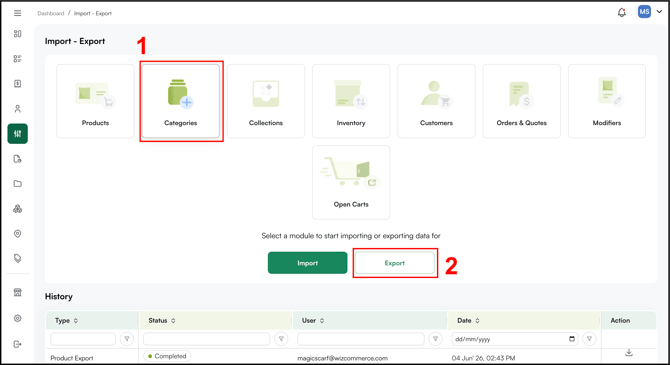
2. From there go to ***Categories/Collections*** and click **Export** to download the current file.
3. Open the exported file and go to the Data Sheet tab. Find the ***Image URL*** column (for categories) or the ***Thumbnail URL*** column (for collections).
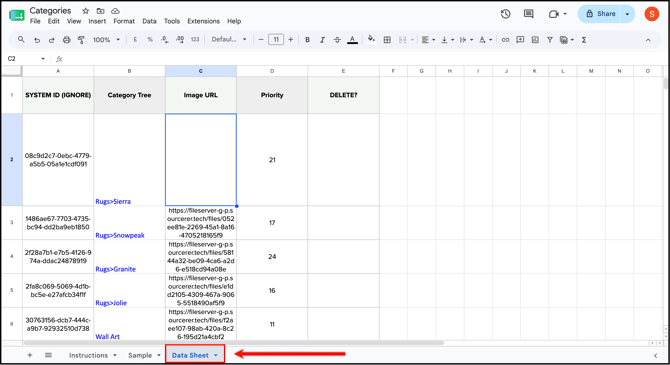
1. Category Sheet (Image URL )
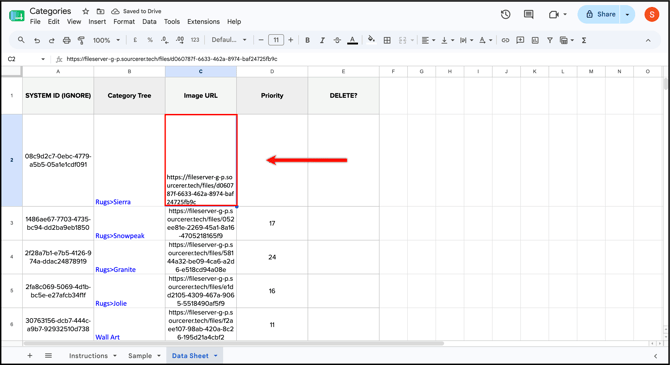
2. Collection Sheet (Thumbnail URL )
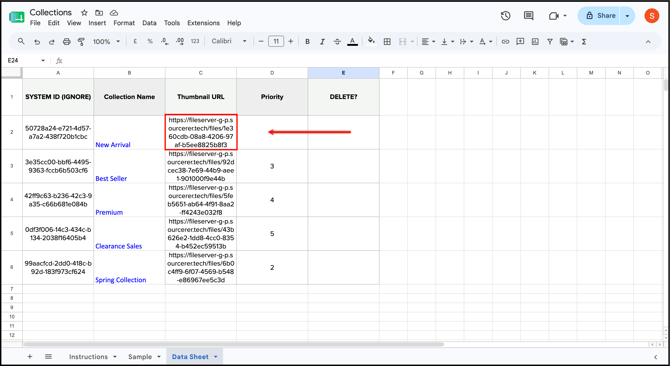
4. Save the updated file.
5. Return to ***Import / Export → Categories/Collection*** and **Import** the saved file.
**Note:** Once the import completes, category images update automatically across your storefront. Make sure each URL is copied exactly from **Files,** a broken or mistyped URL will leave that category without an image.
---
#### FAQs
**1. Why isn't my new category or collection showing up on the Product Listing Page?**
**A.** A newly created category or collection only appears on the Product Listing Page once at least one product has been assigned to it. Assign a product first and it will become visible.
**2. Can a product belong to more than one collection?**
**A.** Yes. When updating via Import and Export, enter multiple collection names in the Collection column separated by a comma — for example, *Spring Collection, New Arrivals*.
**3. How do I control the order in which categories appear on the Product Listing Page?**
**A.** Use the priority column in the Data Sheet. Lower numbers appear first. You can set priority independently at every level of the category hierarchy.
---
**Still need help?** Reach out to our support team at [help@wizcommerce.com](https://mail.google.com/mail/u/0/?fs=1&to=help@wizcommerce.com&tf=cm).
- [Getting started](https://knowledge.wizcommerce.com/getting-started#main-content)
- [Product Overview](https://knowledge.wizcommerce.com/getting-started#product-overview)
- [Key Concepts You Should Know](https://knowledge.wizcommerce.com/getting-started#key-concepts-you-should-know)
- [Product Guides](https://knowledge.wizcommerce.com/getting-started#product-guides)
- [Trade Show Checklist](https://knowledge.wizcommerce.com/getting-started#trade-show-checklist)
- [Product Search & Discovery](https://knowledge.wizcommerce.com/product-search-discovery#main-content)
- [AI Product Recommendations](https://knowledge.wizcommerce.com/product-search-discovery#ai-product-recommendations)
- [Filter and Navigate](https://knowledge.wizcommerce.com/product-search-discovery#filter-and-navigate)
- [Catalog](https://knowledge.wizcommerce.com/product-search-discovery#catalog)
- [Product Selection & Ordering](https://knowledge.wizcommerce.com/product-selection-ordering#main-content)
- [Orders](https://knowledge.wizcommerce.com/product-selection-ordering#orders)
- [Quotes](https://knowledge.wizcommerce.com/product-selection-ordering#quotes)
- [Cart](https://knowledge.wizcommerce.com/product-selection-ordering#cart)
- [Presentations](https://knowledge.wizcommerce.com/product-selection-ordering#presentations)
- [Wishlist](https://knowledge.wizcommerce.com/product-selection-ordering#wishlist)
- [Item History](https://knowledge.wizcommerce.com/product-selection-ordering#item-history)
- [Invoices](https://knowledge.wizcommerce.com/product-selection-ordering#invoices)
- [Customers & Accounts](https://knowledge.wizcommerce.com/customers-accounts#main-content)
- [Customer Relationship Management (CRM)](https://knowledge.wizcommerce.com/customers-accounts#customer-relationship-management-crm)
- [Inventory & Warehousing](https://knowledge.wizcommerce.com/inventory-warehousing#main-content)
- [Inventory availability](https://knowledge.wizcommerce.com/inventory-warehousing#inventory-availability)
- [Payments](https://knowledge.wizcommerce.com/payments#main-content)
- [Payment Dashboard](https://knowledge.wizcommerce.com/payments#payment-dashboard)
- [Pricing & Commercials](https://knowledge.wizcommerce.com/pricing-commercials#main-content)
- [Pricelist](https://knowledge.wizcommerce.com/pricing-commercials#pricelist)
- [Discounts & Promotions](https://knowledge.wizcommerce.com/pricing-commercials#discounts-promotions)
- [Claims & Credits](https://knowledge.wizcommerce.com/pricing-commercials#claims-credits)
- [AI Co-Workers](https://knowledge.wizcommerce.com/ai-co-workers#main-content)
- [Ella - AI Order Entry Assistant](https://knowledge.wizcommerce.com/ai-co-workers#ella-ai-order-entry-assistant)
- [WizPilot - AI Assistant](https://knowledge.wizcommerce.com/ai-co-workers#wizpilot-ai-assistant)
- [WizStudio](https://knowledge.wizcommerce.com/wizstudio#main-content)
- [Creating & Editing Images](https://knowledge.wizcommerce.com/wizstudio#creating-editing-images)
- [Lifestyle Generator](https://knowledge.wizcommerce.com/wizstudio#lifestyle-generator)
- [Silo Editor](https://knowledge.wizcommerce.com/wizstudio#silo-editor)
- [Bulk Silo Editor](https://knowledge.wizcommerce.com/wizstudio#bulk-silo-editor)
- [Asset Library (Assets)](https://knowledge.wizcommerce.com/wizstudio#asset-library-assets)
- [AI Image Expander](https://knowledge.wizcommerce.com/wizstudio#ai-image-expander)
- [Reports & Analytics](https://knowledge.wizcommerce.com/reports-analytics#main-content)
- [Business Reports](https://knowledge.wizcommerce.com/reports-analytics#business-reports)
- [Manage your WizCommerce (Admin)](https://knowledge.wizcommerce.com/manage-your-wizcommerce-admin#main-content)
- [Import / Export](https://knowledge.wizcommerce.com/manage-your-wizcommerce-admin#import-export)
- [Organizational Settings](https://knowledge.wizcommerce.com/manage-your-wizcommerce-admin#organizational-settings)
- [Product Management](https://knowledge.wizcommerce.com/manage-your-wizcommerce-admin#product-management)
- [Managing Your WizShop Website](https://knowledge.wizcommerce.com/manage-your-wizcommerce-admin#managing-your-wizshop-website)
- [Integration & Apps](https://knowledge.wizcommerce.com/integration-apps#main-content)
- [Marketing Integration](https://knowledge.wizcommerce.com/integration-apps#marketing-integration)
- [Integration Dashboard](https://knowledge.wizcommerce.com/integration-apps#integration-dashboard)
- [Help & FAQs](https://knowledge.wizcommerce.com/help-faqs#main-content)
- [Help with Orders](https://knowledge.wizcommerce.com/help-faqs#help-with-orders)
- [Help with Quotes](https://knowledge.wizcommerce.com/help-faqs#help-with-quotes)
- [Help with Presentation](https://knowledge.wizcommerce.com/help-faqs#help-with-presentation)
- [Help with Inventory](https://knowledge.wizcommerce.com/help-faqs#help-with-inventory)
- [Help with User Management](https://knowledge.wizcommerce.com/help-faqs#help-with-user-management)
- [Help with Pricelist & Discounts](https://knowledge.wizcommerce.com/help-faqs#help-with-pricelist-discounts)
- [Help with WizStudio](https://knowledge.wizcommerce.com/help-faqs#help-with-wizstudio)
- [Help with Ella](https://knowledge.wizcommerce.com/help-faqs#help-with-ella)
- [Help with Org Settings (Admin)](https://knowledge.wizcommerce.com/help-faqs#help-with-org-settings-admin)
- [Help with Emails](https://knowledge.wizcommerce.com/help-faqs#help-with-emails)
- [Help with Products](https://knowledge.wizcommerce.com/help-faqs#help-with-products)
- [Help with Import/Export](https://knowledge.wizcommerce.com/help-faqs#help-with-import-export)
- [Help with WizShop](https://knowledge.wizcommerce.com/help-faqs#help-with-wizshop)
- [Help with Integration](https://knowledge.wizcommerce.com/help-faqs#help-with-integration)
- [Help with Categories and Collections](https://knowledge.wizcommerce.com/help-faqs#help-with-categories-and-collections)
- [Help With Customers](https://knowledge.wizcommerce.com/help-faqs#help-with-customers)
- [Help with Trade Show](https://knowledge.wizcommerce.com/help-faqs#help-with-trade-show)
[](https://wizcommerce.com/)
[mailto:help@wizcommerce.com](mailto:help@wizcommerce.com)
Copyright © 2025, WizCommerce
```json
{
"@context" : "https://schema.org",
"@type" : "VideoObject",
"contentUrl" : "https://47455261.fs1.hubspotusercontent-na2.net/hubfs/47455261/Zenious%20video%20-%20Mar%2011%2c%202026.webm",
"dateModified" : "2026-03-11T10:51:13.637Z",
"duration" : "PT50S",
"height" : 1080,
"name" : "Zenious video - Mar 11, 2026",
"thumbnailUrl" : "https://47455261.fs1.hubspotusercontent-na2.net/hubfs/47455261/Zenious%20video%20-%20Mar%2011%2c%202026.webm/medium.jpg",
"uploadDate" : "2026-03-11T10:51:02.346Z",
"width" : 1920
}
```
```json
{
"@context" : "https://schema.org",
"@type" : "VideoObject",
"contentUrl" : "https://47455261.fs1.hubspotusercontent-na2.net/hubfs/47455261/Zenious%20video%20-%20Mar%2011%2c%202026%20(1).webm",
"dateModified" : "2026-03-11T13:29:45.206Z",
"duration" : "PT57S",
"height" : 1080,
"name" : "Zenious video - Mar 11, 2026 (1)",
"thumbnailUrl" : "https://47455261.fs1.hubspotusercontent-na2.net/hubfs/47455261/Zenious%20video%20-%20Mar%2011%2c%202026%20(1).webm/medium.jpg",
"uploadDate" : "2026-03-11T13:29:36.870Z",
"width" : 1920
}
```