
Once your cart is built, the Sales Rep App (WizOrder) provides several tools to keep things organized: rename carts for easy identification, download a product presentation to share with your buyer, or delete carts you no longer need.
Note: Whether you're working on the mobile app or the web portal, managing your cart works the same way in the Sales Rep App (WizOrder).
A. Rename Your Cart
Give your carts a descriptive name to stay organized.
a. From the Mobile App
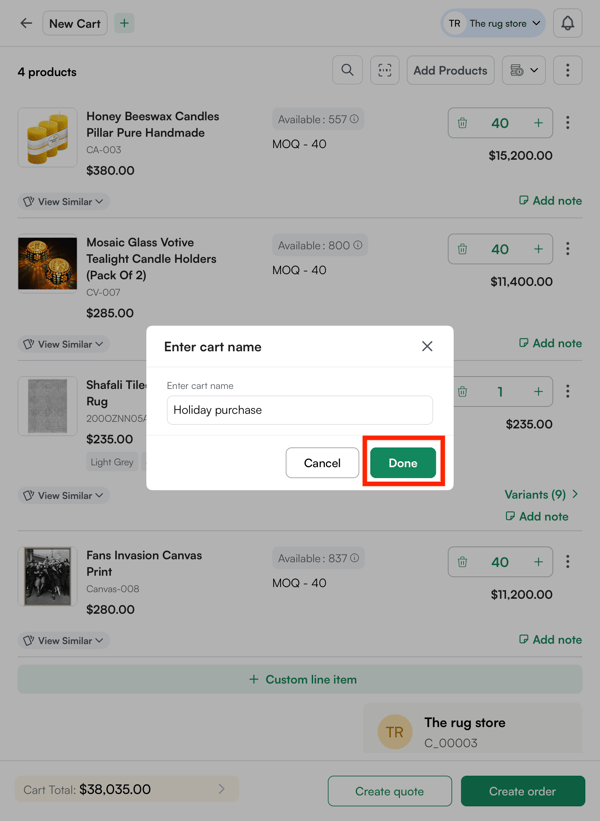
Inside the Cart, tap the three-dot menu and select Rename Cart. Type the new name and Save.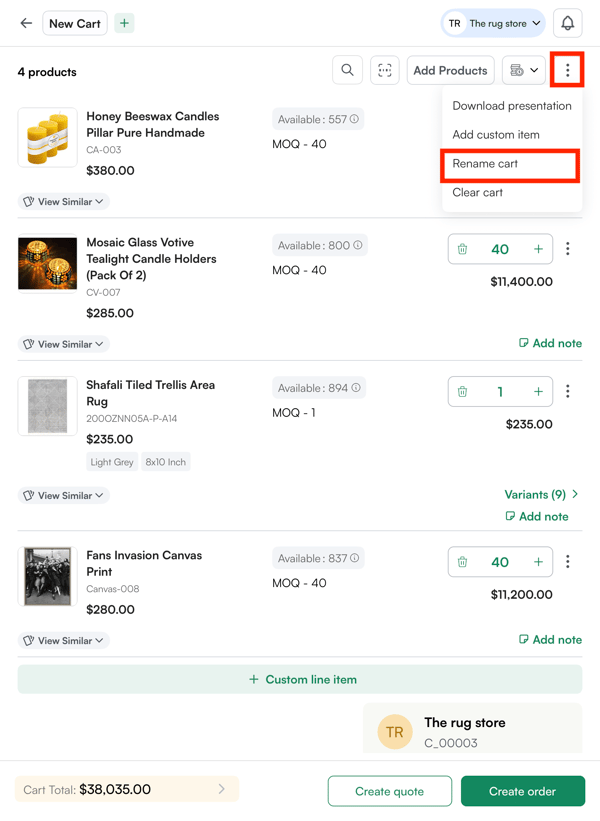
B. Download Product Presentation
From the cart, you can generate a product presentation PDF to share with your buyer before submitting the order.
On the Mobile App:
-
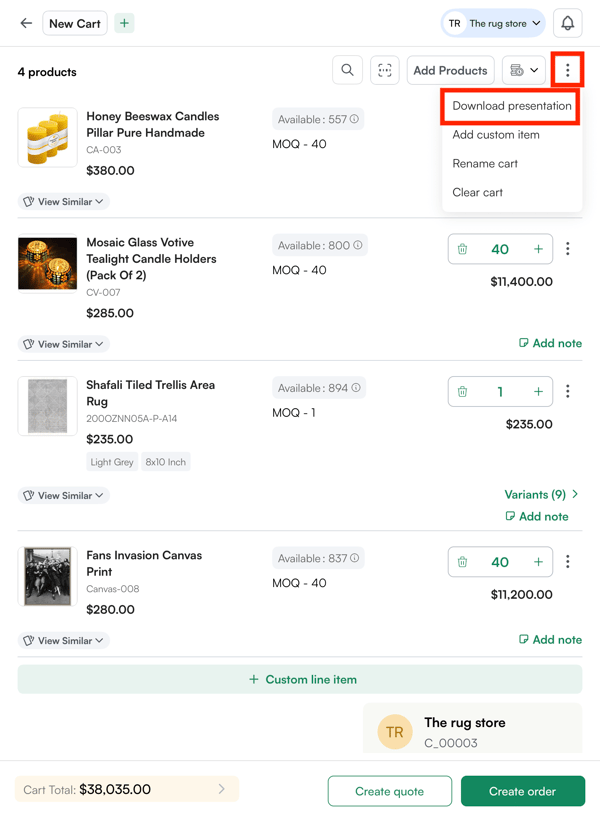
Inside the cart, tap the three-dot menu and select Download Presentation
-
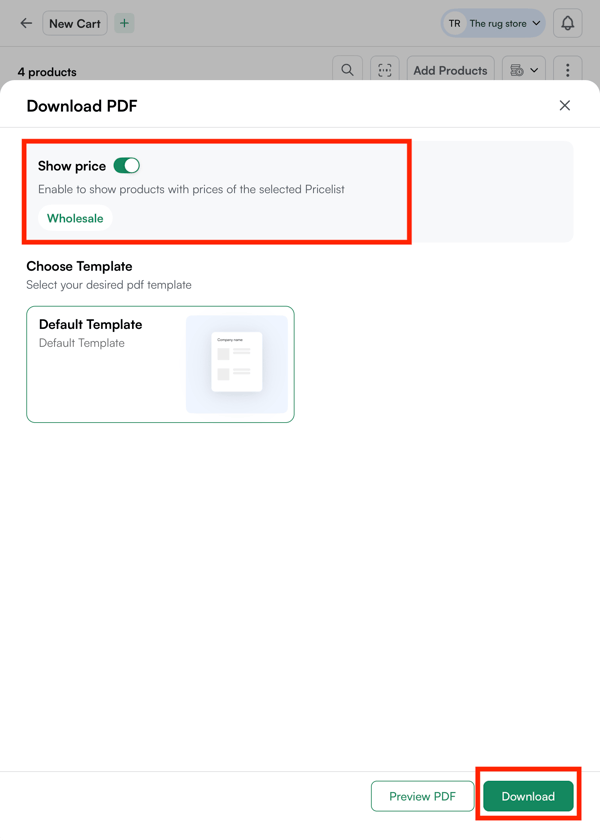
Configure your presentation:
-
Pricing visibility: choose whether to include or exclude pricing
-
Template: select from available presentation layouts
-
-
Tap Download. The PDF is generated and saved to your device
C. Delete a Cart
-
Inside the cart, tap the three-dot menu and select Clear Cart
On the Mobile App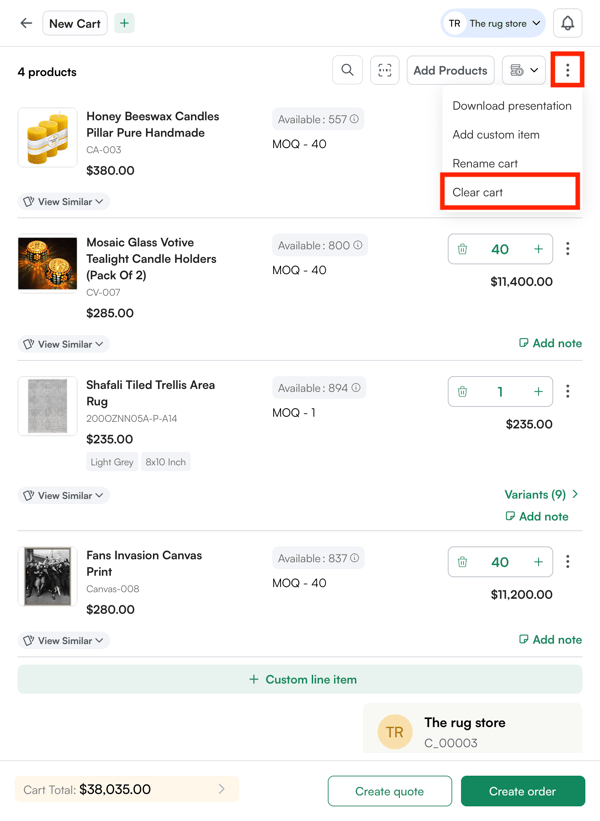
-
Confirm the action. All products are removed from the cart permanently
Note: Orders or quotes already created from this cart are not affected.
D. Adding Custom Line Item
A custom line item lets you add a product to the cart or order that is not in your catalog, useful for items not in your catalog, special requests, or products not yet set up in the system.
Inside the cart, tap the three-dot menu and select Add Custom Item, or tap + Custom Line Item at the bottom of the cart
-
Click + Custom Line Item
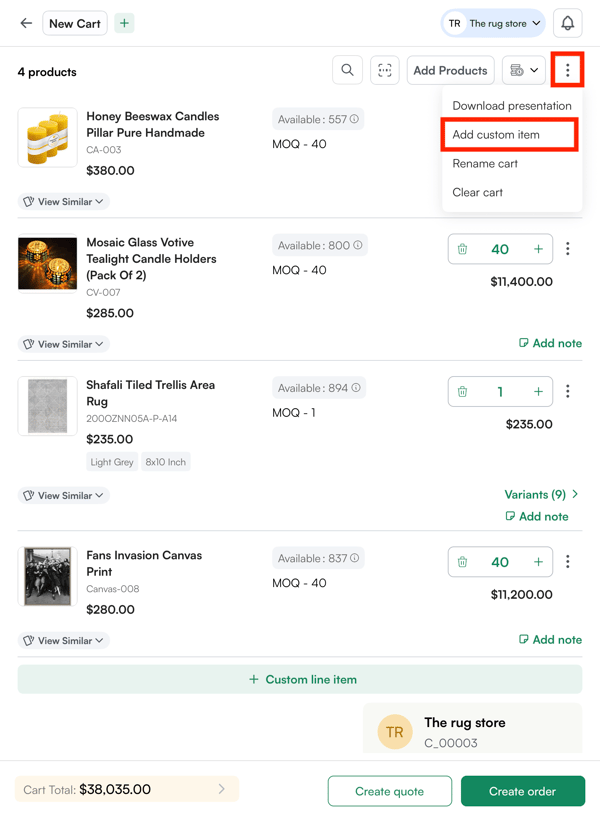
-
Fill in the required details:
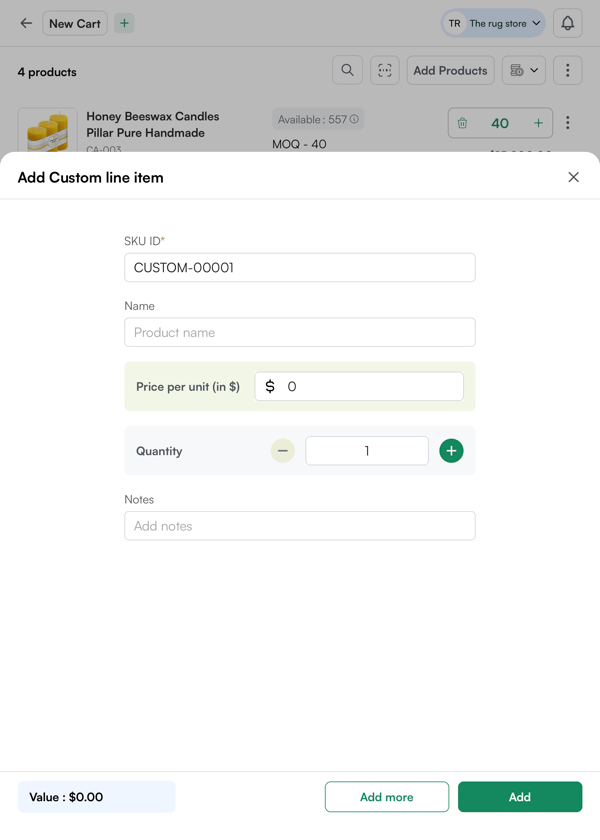
-
SKU ID: Enter the SKU ID of the product
-
Product Name: Enter a name or description for the item
-
Price: Enter the unit price
-
Quantity: Set the quantity
-
-
Click Add. The custom line item appears in the cart alongside your catalog products
-
Click Add more to add more custom items.
Not finding what you need? Browse the WizCommerce Help Center, reach out to your Customer Success Manager, or email us at help@wizcommerce.com.