
The Transaction History page gives you a complete record of every payment processed through WizCommerce, whether you need to track a specific payment, reconcile your books, or investigate a failed transaction, this is your starting point.
This article covers how to navigate and filter your transaction history, view transaction details, export data, and understand transaction types and amounts.
Platform: WizPay | Who is this for: Admins
To Get There: WizPay > Transactions
Table of Contents
Before You Begin
- Ensure you have Admin access to WizCommerce before managing transactions.
- Use the Finix Dashboard for detailed settlement and deposit tracking — access it from the top right of the WizPay tab.
A. How to Access Transaction History
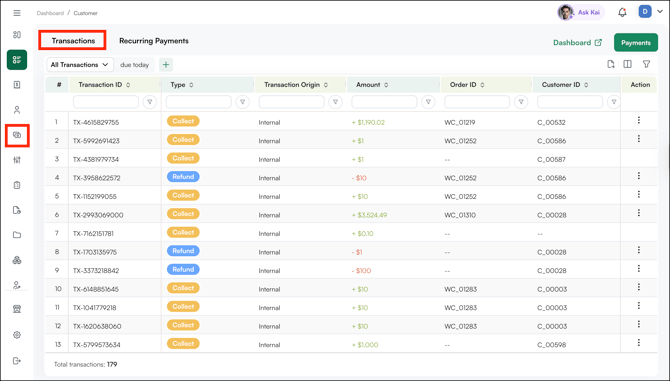
- Click WizPay in the left navigation.
- Click the Transactions tab.
B. Finding Your Way Around WizPay
The Transaction History page has two tabs at the top:
- Transactions: Your full payment history
- Recurring Payments: All active recurring payment schedules
In the top right, you'll find two shortcuts:
- Dashboard: Opens the Finix Dashboard in a new tab for settlement and deposit tracking
- Payments: Quick access to collect a new payment
The main table shows all transactions with the following columns:
- Transaction ID: Unique identifier for each transaction (e.g., TX-4615829755)
- Type: The transaction type, shown as a colour-coded badge:
- Collect (yellow): A payment collected from a customer
- Refund (blue): A refund issued to a customer
- Transaction Origin: Where the payment was initiated (e.g., Internal for payments collected within WizCommerce)
- Amount: The transaction value, colour-coded for quick scanning:
- Green with a + sign: Money collected
- Red with a – sign: Money refunded
- Order ID: The order the payment is linked to
- Customer ID: The customer the payment belongs to
- Action: Three-dot menu on the right for transaction-level actions
The total transaction count is shown at the bottom of the page.
C. Filter and Manage Transactions View
Filter Your Transactions
The Transaction History page gives you several ways to filter and find specific transactions quickly.
- Use the filter bar to filter by available options — such as transaction type, date range, customer, or status.
- Use column-level filters by clicking the filter icon in any column header to search within that specific column. For example, click the filter icon under Type and select Refund to view only refund transactions.
- Save a custom view with your preferred filters applied so you can access it quickly next time.
Manage and Reorder Columns
- Click the Manage Columns icon next to the filter icon in the top right.
- Drag and drop the columns into your preferred order.
Note: Column headers are sortable. Click any header to sort ascending or descending.
D. How to View a Transaction's Details
- Locate the transaction in the table.
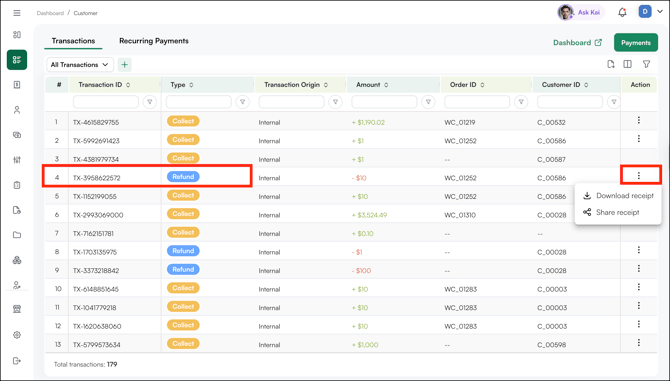
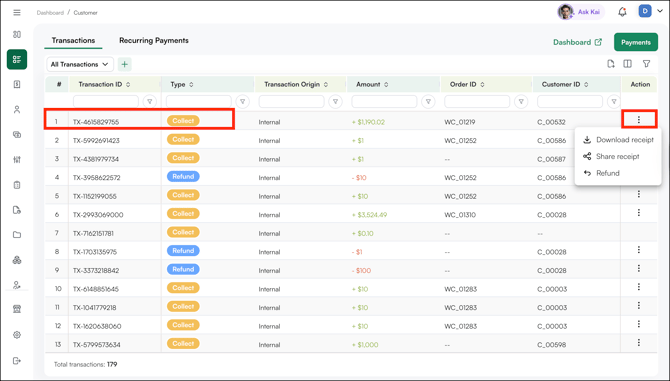
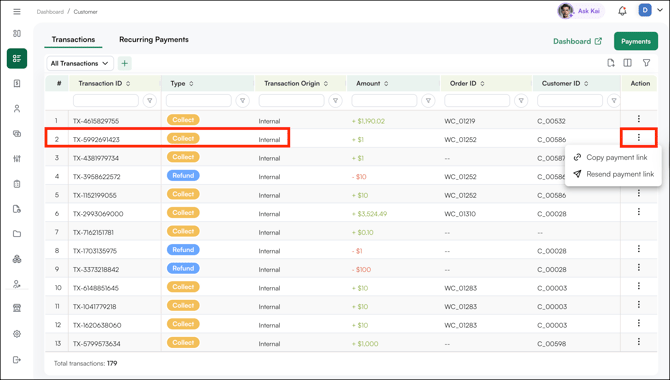
- Click the three-dot menu in the Action column on the right.
- The options available depend on the transaction type:
- Refund: Download or share receipt.
- Collection (Successful): Download a receipt, issue a refund, or share.
- Collection (Failed): Send a payment link to the customer's email address to retry the payment.
- Refund: Download or share receipt.
E. How to Export Transaction Data
- Click the export icon in the top right of the table.
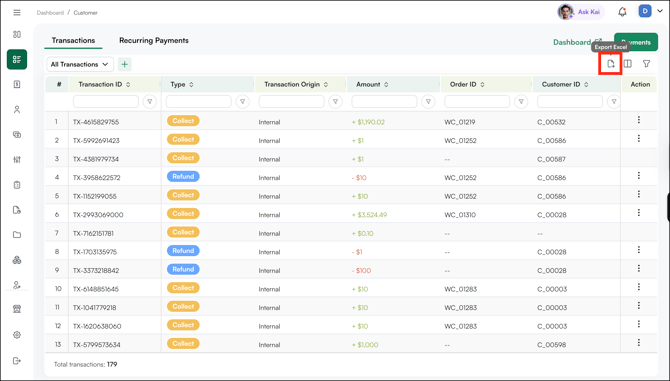
- The exported file includes all columns — Transaction ID, Type, Origin, Amount, Order ID, Customer ID, and more.
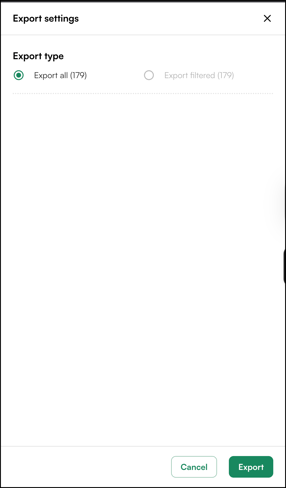
- Use this file for bank reconciliation or to share with your accounting team.
F. Understanding Transaction Amounts
| Amount Display | What it Means |
|---|---|
| + $1,190.02 (green) | Payment successfully collected |
| - $10.00 (red) | Payment failed or Refunded issued to customer |
FAQs
1. How do I find a specific transaction quickly?
A. Use the filter bar at the top of the Transactions table to filter by transaction type, date range, customer, or status. You can also click the filter icon in any column header to narrow results within that column.
2. What actions can I take on a failed transaction?
A. For a failed collection, click the three-dot menu in the Action column and select Send Payment Link. This sends a secure payment link to the customer's email so they can retry the payment.
3. Can I export my transaction data for reconciliation?
A. Yes. Click the export icon in the top right of the Transactions table. The exported file includes all columns — Transaction ID, Type, Origin, Amount, Order ID, Customer ID, and more — which you can use for bank reconciliation or share with your accounting team.
Not finding what you need? Browse the WizCommerce Help Center, reach out to your Customer Success Manager, or contact our Support Team.