
Admins can customise the fields and behaviour of the order and quote creation forms in WizOrder, including reference fields, notes, shipping preferences, and custom fields. This article covers all available configuration options.
Any changes you make here apply across WizOrder for all reps.
Platform: WizOrder | Who is this for: Admins
To Get There: Settings > Order & Quote > Order and Quote Form
Table of Contents
Before You Begin
- Ensure you have access to Organizational Settings.
- Changes apply to all reps immediately — review carefully before saving.
A. How to Access Order and Quote Form Settings
- Go to Settings from the left navigation.
- Under Order & Quote, click Order and Quote Form.
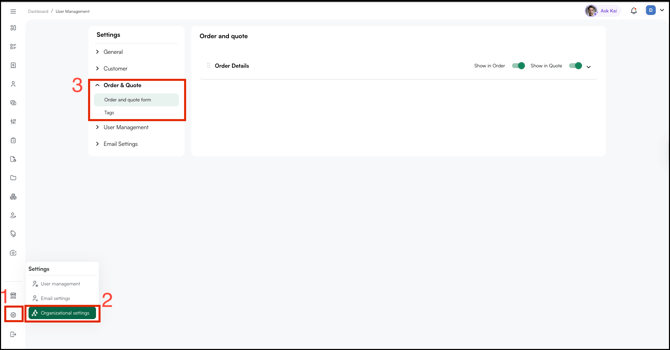
- The Order and Quote Form settings page opens.
B. Finding Your Way Around Order and Quote Form
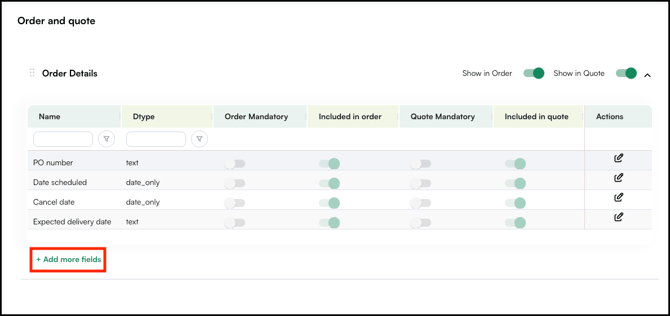
The page is organized into sections — the one visible here is Order Details. Each section contains a table of fields that appear on the order or quote form.
At the top right of each section, you'll find two toggles:
- Show in Order: Turn on to make the entire section visible when a rep is creating an order.
- Show in Quote: Turn on to make the entire section visible when a rep is creating a quote.
Within each section, fields are listed in a table with the following columns:
- Name: The name of the field (e.g., PO Number, Date Scheduled, Cancel Date, Expected Delivery Date)
- Dtype: The data type of the field (e.g., text or date_only) — determines what kind of input the field accepts
- Order Mandatory: Turn on to make this field required when submitting an order. Reps can't proceed without filling it in.
- Included in Order: Turn on to include this field on the order form. Turn off to hide it.
- Quote Mandatory: Turn on to make this field required when submitting a quote.
- Included in Quote: Turn on to include this field on the quote form. Turn off to hide it.
- Actions: Click the edit icon to modify the field's name or settings.
C. How to Make a Field Mandatory
If a field is critical for your business — like a PO Number — make it mandatory so reps can't submit an order or quote without filling it in.
- Find the field you want to make mandatory (for example, PO Number).
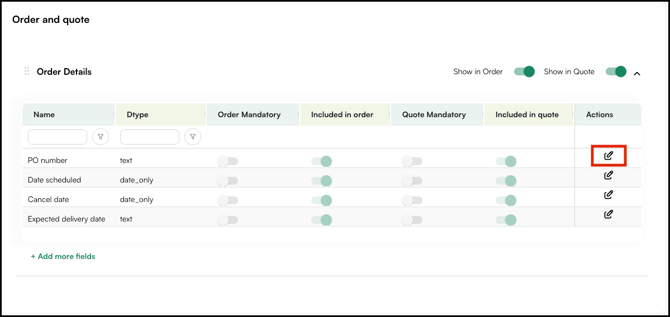
- Click the Order Mandatory or Quote Mandatory toggle for that field to turn it on.
- Click Save.
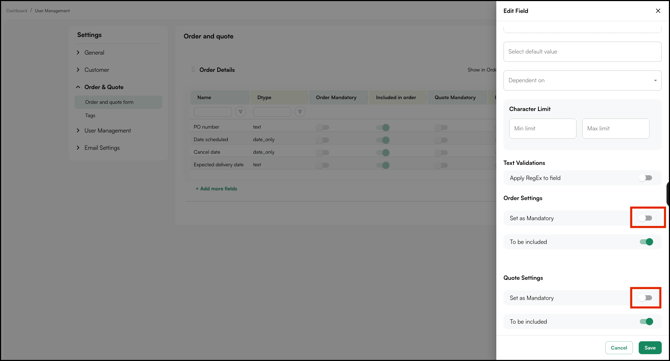
Reps will now see this field marked as required on the form.
D. How to Show or Hide a Field
Hide any field that isn't relevant to your workflow so reps don't see it on the form.
- Find the field you want to hide (for example, Cancel Date).
- Click the Included in Order or Included in Quote toggle for that field to turn it off.
- The field will no longer appear on the form for your reps.
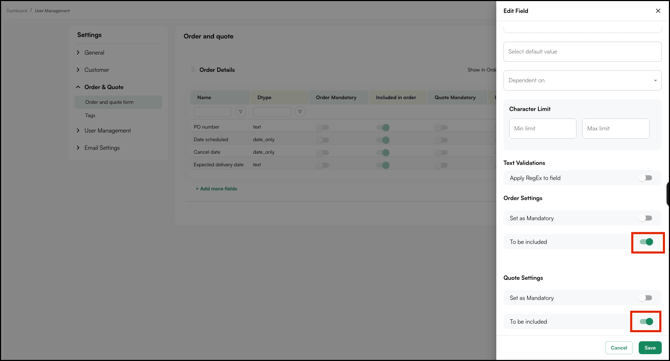
To make a hidden field visible again, click the same toggle to turn it back on.
E. How to Add a New Field
Add a new field if you need something that isn't already on the form.
- Scroll to the bottom of the section.
- Click + Add More Fields.
- Fill in the required details for the new field — name, data type, and visibility settings.
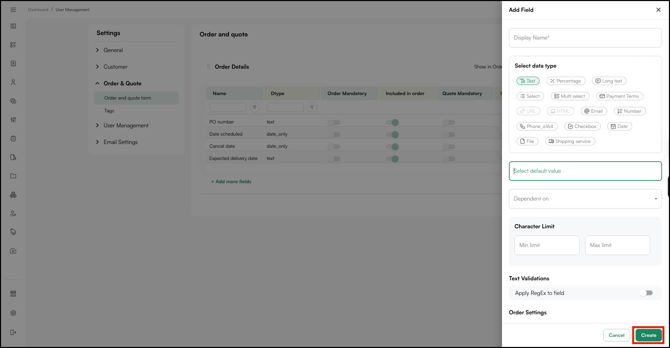
- Click Create.
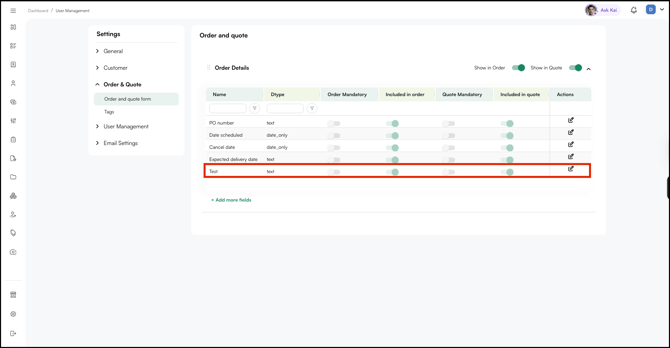
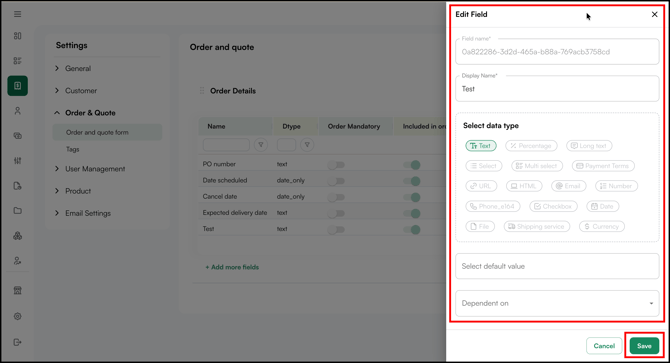
F. How to Edit an Existing Field
To update existing field:
- Find the field you want to edit.
- Click the Edit icon in the Actions column on the right.
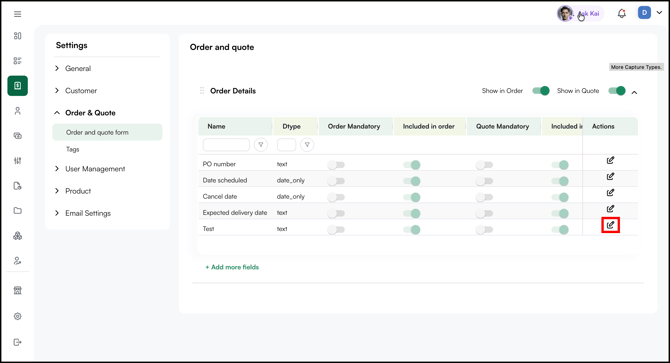
- Make your changes.
- Click Save.
FAQs
1. Can I make a field mandatory for quotes but not for orders?
A. Yes. The Order Mandatory and Quote Mandatory toggles work independently. You can turn one on without affecting the other.
2. If I hide a field, will the data already entered in it be lost?
A. No. Hiding a field only removes it from the form view. Any data already saved in that field stays intact in the system.
3. Can I add custom fields to the order and quote form?
A. Yes. Scroll to the bottom of the section and click + Add More Fields. Fill in the field name, data type, and visibility settings, then save.
Not finding what you need? Browse the WizCommerce Help Center, reach out to your Customer Success Manager, or contact our Support Team.