
Order tags are custom labels that can be applied to orders for internal categorisation, such as trade show orders, priority accounts, or specific campaigns. This article explains how to create, edit, and delete order tags, and how reps apply them during order entry.
Platform: WizOrder | Who is this for: Admins
To Get There: Settings > Organizational Settings > Order & Quote > Tags
Table of Contents
| Sections | Topics |
| A | How to Access Order Tags |
| B | Finding Your Way Around Order Tags |
| C | How to Add a New Order Tag |
| D | How to Edit an Existing Tag |
| E | How to Deactivate a Tag |
| F | FAQs |
Before You Begin
- Ensure you have access to Organizational Settings.
- Order Tags should be enabled and ready to use. If you don't see this feature in your settings, reach out to your Customer Success Manager or email help@wizcommerce.com.
A. How to Access Order Tags
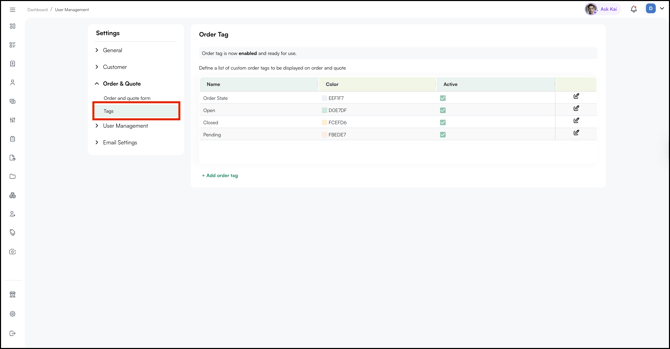
- Go to Settings from the left navigation.
- Under Order & Quote, click Tags.
- The Order Tags page opens, showing all existing tags.
B. Finding Your Way Around Order Tags
The page shows all your existing order tags in a table. Here's what each column means:
- Name: The label that appears on the order or quote (e.g., Open, Closed, Pending)
- Color: The color associated with the tag, shown as a colored swatch alongside its hex value
- Active: Shows whether the tag is currently in use. Active tags are available for reps to assign when creating or managing orders.
- Edit icon: Click to update the tag's name, color, or active status.
C. How to Add a New Order Tag
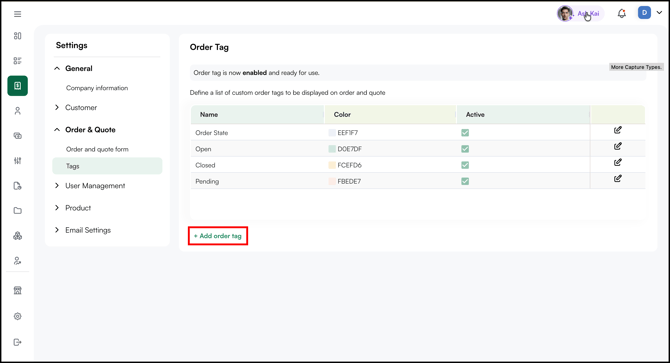
- Scroll to the bottom of the tags table.
- Click + Add Order Tag.
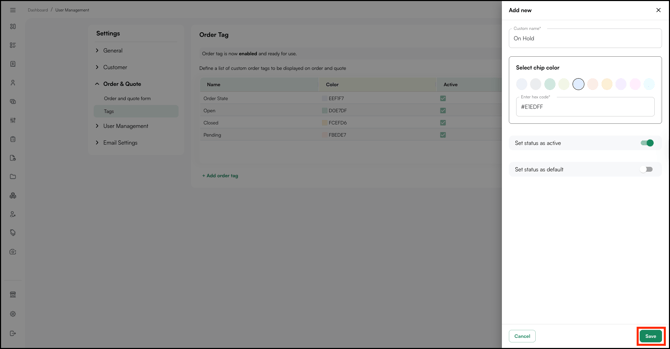
- Enter a name for the tag (for example, On Hold).
- Pick a color for the tag.
- Click Save.
The new tag appears in the table and is available on orders and quotes right away.
D. How to Edit an Existing Tag
- Find the tag you want to update.
- Click the Edit icon on the right side of that row.
- Update the name, color, or active status as needed.
- Click Save.
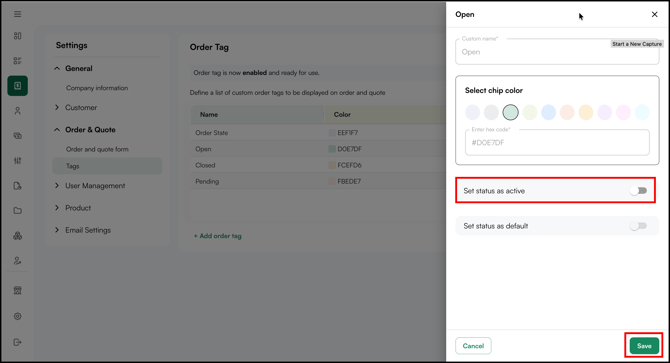
E. How to Deactivate a Tag
Deactivate a tag when it's no longer relevant but you want to keep it in the system. Deactivated tags don't appear as an option for reps when creating or managing orders.
- Find the tag you want to deactivate.
- Click the Edit icon on the right side of that row.
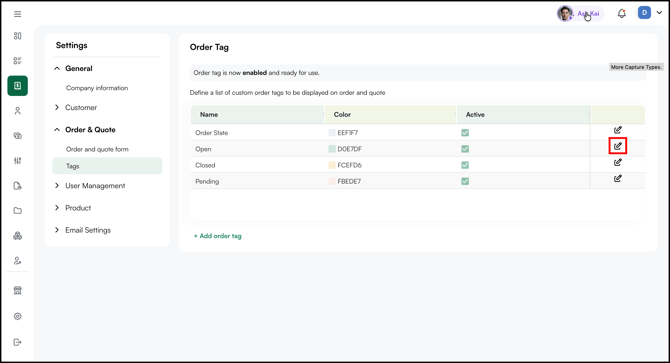
- Uncheck the Active checkbox.
- Click Save.
FAQs
1. Can I delete a tag instead of deactivating it?
A. Deactivating is the recommended approach — it keeps your tag history intact while removing it from active use. If you need a tag permanently removed, reach out to your Customer Success Manager.
2. Will deactivating a tag remove it from orders it's already been assigned to?
A. No. Deactivating a tag only stops it from appearing as an option for new orders. Any orders already tagged will retain that tag.
3. Can I assign more than one tag to an order?
A. Yes. Reps can assign multiple tags to a single order or quote, making it easy to categorize orders across different dimensions.
Not finding what you need? Browse the WizCommerce Help Center, reach out to your Customer Success Manager, or contact our Support Team.