---
title: Product Media (Images & Videos)
description: Upload and manage product images and videos, control display order, and keep your product pages visually complete across WizOrder and WizShop.
---
[Skip to content](https://knowledge.wizcommerce.com/product-media-images-videos#main-content)
[](https://wizcommerce.com/)
Open main navigation
Close main navigation
- [Contact us](https://mail.google.com/mail/?view=cm&fs=1&to=help@wizcommerce.com)
[Contact us](https://mail.google.com/mail/?view=cm&fs=1&to=help@wizcommerce.com)
Hi, how can we help?
- There are no suggestions because the search field is empty.
1. [WizCommerce Help Centre](https://knowledge.wizcommerce.com/)
2. [Manage your WizCommerce (Admin)](https://knowledge.wizcommerce.com/manage-your-wizcommerce-admin)
3. [Product Management](https://knowledge.wizcommerce.com/manage-your-wizcommerce-admin#product-management)
October 1, 2026
# Product Media (Images & Videos)
**Product media** covers the images and videos attached to each product, giving buyers richer visual context on the product detail page. This article covers how to upload, arrange, and manage product images and videos.
**Platform:** WizOrder & WizShop | **Who is this for:** Admins
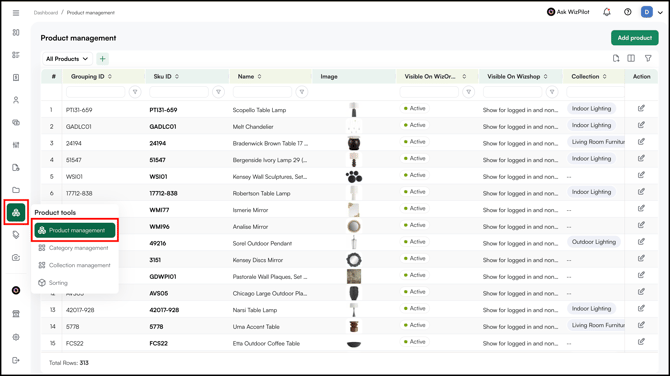
**To Get There:** *Product Tools → Product Management*
---
#### Table of Contents
| **Sections** | **Topics** |
| --- | --- |
| **A** | [Add Product Images](https://knowledge.wizcommerce.com/product-media-images-videos#section-a) |
| **B** | [Add Product Videos](https://knowledge.wizcommerce.com/product-media-images-videos#section-b) |
| **C** | [Product Media Export](https://knowledge.wizcommerce.com/product-media-images-videos#section-c) |
| **D** | [FAQs](https://knowledge.wizcommerce.com/product-media-images-videos#faqs) |
---
#### Before You Begin
- Ensure you have Admin access.
- Product Management is accessible to admins only from the web portal.
---
### A. Add Product Images
1. Go to **Product Tools** → **Product Management.**
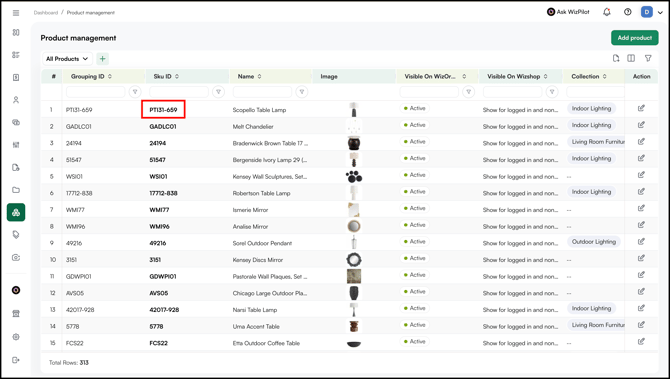
2. Click on the **SKU ID** and open the product's details page.
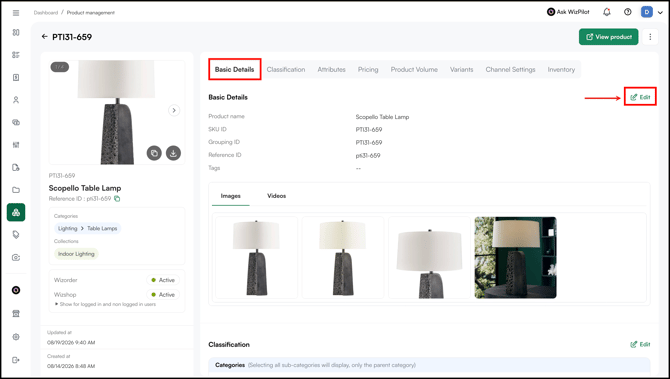
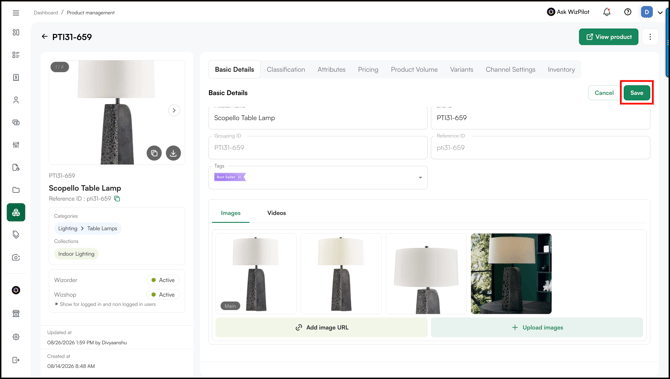
3. On the product's details page, click **Edit** under **Basic Details**.
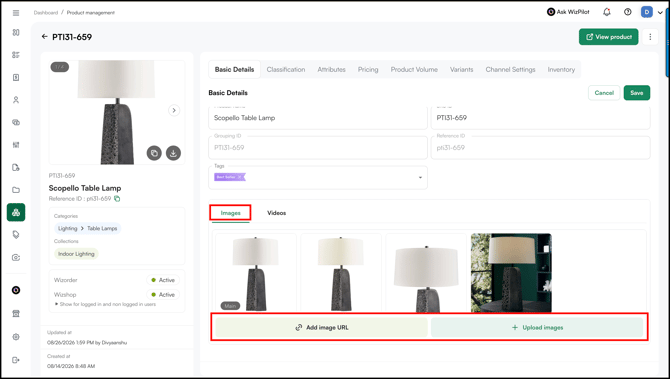
4. Click **Upload Images** and select your files. You can share a public URL or upload directly from your computer.
5. Click **Save**.
##### **» Edit Product Images**
1. Go to **Basic Details** and click **Edit**.

2. Hover over the image you want to change and click the **Edit** icon.

3. Make your changes and click **Save**.

4. Again click **Save** to save the updated product details.

##### **» Delete Product Images**
1. Go to **Basic Details** and click **Edit**.
2. Hover over the image you want to remove and click the **X** icon.

3. Again click **Save** to save the updated product details.

##### **» Download Product Images**
1. Click the **Download** **icon** to save the product image to your device.

2. Click the **Copy icon** to copy the image link (URL).

---
### B. Add Product Videos
1. On the same edit screen, switch to the **Video** section.
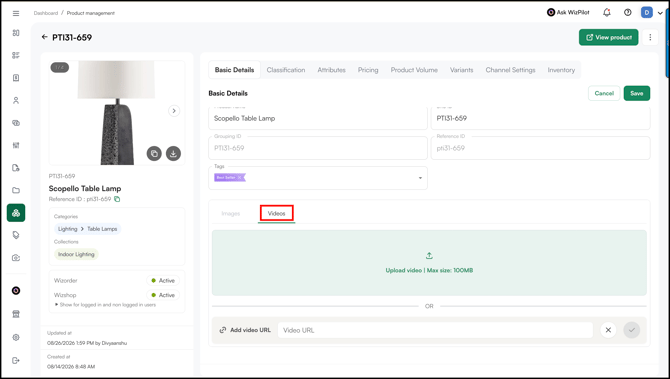
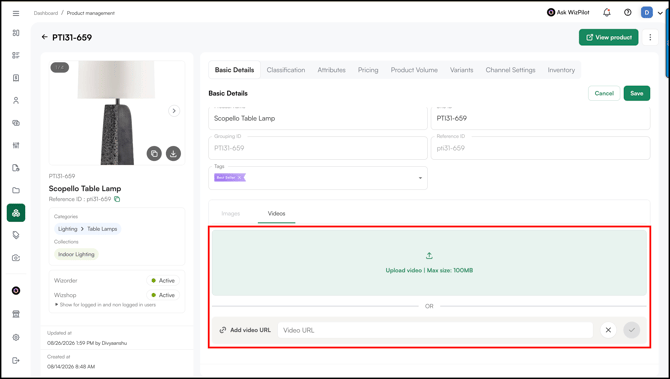
2. Paste a public video link or upload a file directly from your computer.
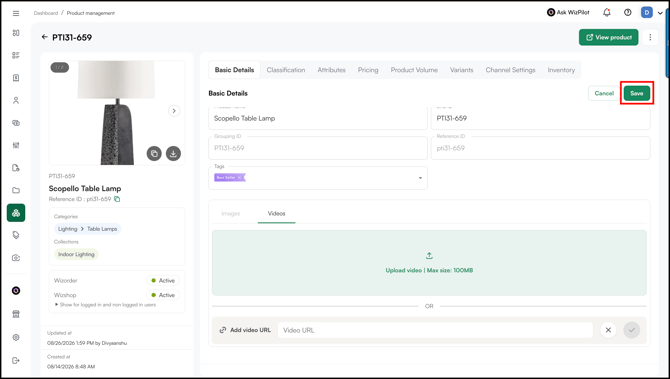
3. Click **Save**. Once saved, the video is visible on the product detail page.
**Note:** Uploaded videos must be under 100MB and no longer than one minute.
##### **» Change / Delete Product Videos**
1. Go to **Basic Details** and click **Edit**.

2. Navigate to **Videos** section.

3. To replace the product video, click the **three-dot menu** and select **Change Video**.

4. To remove the product video, click the **three-dot menu** and select **Delete Video**.

5. Click **Save** to save the updated product details.

6. To copy the video link (URL), click **Copy Video Link**.

---
### C. Product Media Export
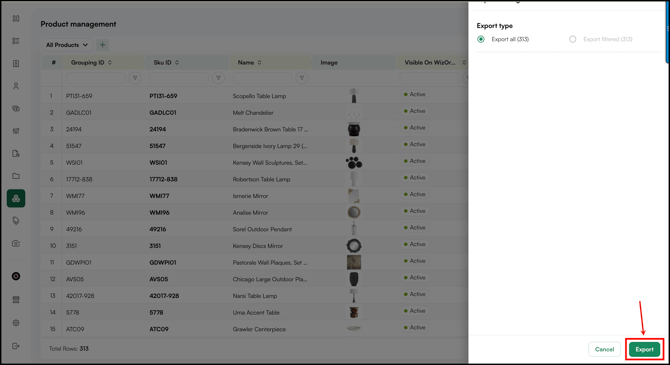
You can also export media in bulk.
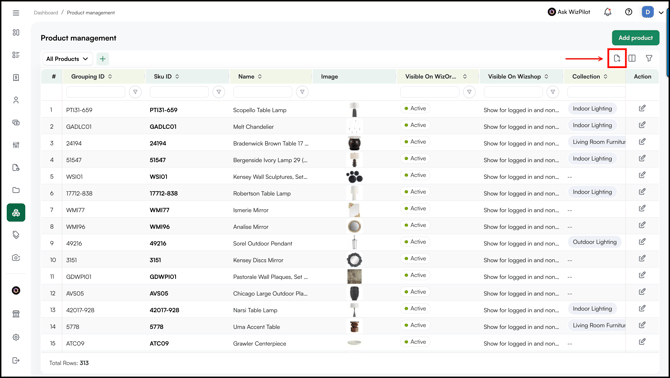
1. Go to **Product Tools → Product Management**.

2. Click on the **Export** icon.
3. Click **Export** to export media in bulk.
---
#### FAQs
**1. What video formats and file size limits are supported when uploading videos in WizCommerce?**
**A.** The WizCommerce internal video player supports the following file formats: .mp4, .webm, .mov, .avi, .mkv, .flv, .wmv, .m4v, .3gp, and .ogv. Uploaded videos must not exceed 100 MB in size or 1 minute in duration.
**2. Which image becomes the product's main thumbnail?**
**A.** The first image in your uploaded list is saved as the primary image and appears as the main thumbnail on the product card. Drag and drop to reorder images if you want a different one to lead.
---
**Still need help?** Reach out to our support team at [help@wizcommerce.com](https://mail.google.com/mail/u/0/?fs=1&to=help@wizcommerce.com&tf=cm).
- [Getting started](https://knowledge.wizcommerce.com/getting-started#main-content)
- [Product Overview](https://knowledge.wizcommerce.com/getting-started#product-overview)
- [Key Concepts You Should Know](https://knowledge.wizcommerce.com/getting-started#key-concepts-you-should-know)
- [Product Guides](https://knowledge.wizcommerce.com/getting-started#product-guides)
- [Trade Show Checklist](https://knowledge.wizcommerce.com/getting-started#trade-show-checklist)
- [Product Search & Discovery](https://knowledge.wizcommerce.com/product-search-discovery#main-content)
- [AI Product Recommendations](https://knowledge.wizcommerce.com/product-search-discovery#ai-product-recommendations)
- [Filter and Navigate](https://knowledge.wizcommerce.com/product-search-discovery#filter-and-navigate)
- [Catalog](https://knowledge.wizcommerce.com/product-search-discovery#catalog)
- [Product Selection & Ordering](https://knowledge.wizcommerce.com/product-selection-ordering#main-content)
- [Orders](https://knowledge.wizcommerce.com/product-selection-ordering#orders)
- [Quotes](https://knowledge.wizcommerce.com/product-selection-ordering#quotes)
- [Cart](https://knowledge.wizcommerce.com/product-selection-ordering#cart)
- [Presentations](https://knowledge.wizcommerce.com/product-selection-ordering#presentations)
- [Wishlist](https://knowledge.wizcommerce.com/product-selection-ordering#wishlist)
- [Item History](https://knowledge.wizcommerce.com/product-selection-ordering#item-history)
- [Invoices](https://knowledge.wizcommerce.com/product-selection-ordering#invoices)
- [Customers & Accounts](https://knowledge.wizcommerce.com/customers-accounts#main-content)
- [Customer Relationship Management (CRM)](https://knowledge.wizcommerce.com/customers-accounts#customer-relationship-management-crm)
- [Inventory & Warehousing](https://knowledge.wizcommerce.com/inventory-warehousing#main-content)
- [Inventory availability](https://knowledge.wizcommerce.com/inventory-warehousing#inventory-availability)
- [Payments](https://knowledge.wizcommerce.com/payments#main-content)
- [Payment Dashboard](https://knowledge.wizcommerce.com/payments#payment-dashboard)
- [Pricing & Commercials](https://knowledge.wizcommerce.com/pricing-commercials#main-content)
- [Pricelist](https://knowledge.wizcommerce.com/pricing-commercials#pricelist)
- [Discounts & Promotions](https://knowledge.wizcommerce.com/pricing-commercials#discounts-promotions)
- [Claims & Credits](https://knowledge.wizcommerce.com/pricing-commercials#claims-credits)
- [AI Co-Workers](https://knowledge.wizcommerce.com/ai-co-workers#main-content)
- [Ella - AI Order Entry Assistant](https://knowledge.wizcommerce.com/ai-co-workers#ella-ai-order-entry-assistant)
- [WizPilot - AI Assistant](https://knowledge.wizcommerce.com/ai-co-workers#wizpilot-ai-assistant)
- [WizStudio](https://knowledge.wizcommerce.com/wizstudio#main-content)
- [Creating & Editing Images](https://knowledge.wizcommerce.com/wizstudio#creating-editing-images)
- [Lifestyle Generator](https://knowledge.wizcommerce.com/wizstudio#lifestyle-generator)
- [Silo Editor](https://knowledge.wizcommerce.com/wizstudio#silo-editor)
- [Bulk Silo Editor](https://knowledge.wizcommerce.com/wizstudio#bulk-silo-editor)
- [Asset Library (Assets)](https://knowledge.wizcommerce.com/wizstudio#asset-library-assets)
- [AI Image Expander](https://knowledge.wizcommerce.com/wizstudio#ai-image-expander)
- [Reports & Analytics](https://knowledge.wizcommerce.com/reports-analytics#main-content)
- [Business Reports](https://knowledge.wizcommerce.com/reports-analytics#business-reports)
- [Manage your WizCommerce (Admin)](https://knowledge.wizcommerce.com/manage-your-wizcommerce-admin#main-content)
- [Import / Export](https://knowledge.wizcommerce.com/manage-your-wizcommerce-admin#import-export)
- [Organizational Settings](https://knowledge.wizcommerce.com/manage-your-wizcommerce-admin#organizational-settings)
- [Product Management](https://knowledge.wizcommerce.com/manage-your-wizcommerce-admin#product-management)
- [Managing Your WizShop Website](https://knowledge.wizcommerce.com/manage-your-wizcommerce-admin#managing-your-wizshop-website)
- [Integration & Apps](https://knowledge.wizcommerce.com/integration-apps#main-content)
- [Marketing Integration](https://knowledge.wizcommerce.com/integration-apps#marketing-integration)
- [Integration Dashboard](https://knowledge.wizcommerce.com/integration-apps#integration-dashboard)
- [Help & FAQs](https://knowledge.wizcommerce.com/help-faqs#main-content)
- [Help with Orders](https://knowledge.wizcommerce.com/help-faqs#help-with-orders)
- [Help with Quotes](https://knowledge.wizcommerce.com/help-faqs#help-with-quotes)
- [Help with Presentation](https://knowledge.wizcommerce.com/help-faqs#help-with-presentation)
- [Help with Inventory](https://knowledge.wizcommerce.com/help-faqs#help-with-inventory)
- [Help with User Management](https://knowledge.wizcommerce.com/help-faqs#help-with-user-management)
- [Help with Pricelist & Discounts](https://knowledge.wizcommerce.com/help-faqs#help-with-pricelist-discounts)
- [Help with WizStudio](https://knowledge.wizcommerce.com/help-faqs#help-with-wizstudio)
- [Help with Ella](https://knowledge.wizcommerce.com/help-faqs#help-with-ella)
- [Help with Org Settings (Admin)](https://knowledge.wizcommerce.com/help-faqs#help-with-org-settings-admin)
- [Help with Emails](https://knowledge.wizcommerce.com/help-faqs#help-with-emails)
- [Help with Products](https://knowledge.wizcommerce.com/help-faqs#help-with-products)
- [Help with Import/Export](https://knowledge.wizcommerce.com/help-faqs#help-with-import-export)
- [Help with WizShop](https://knowledge.wizcommerce.com/help-faqs#help-with-wizshop)
- [Help with Integration](https://knowledge.wizcommerce.com/help-faqs#help-with-integration)
- [Help with Categories and Collections](https://knowledge.wizcommerce.com/help-faqs#help-with-categories-and-collections)
- [Help With Customers](https://knowledge.wizcommerce.com/help-faqs#help-with-customers)
- [Help with Trade Show](https://knowledge.wizcommerce.com/help-faqs#help-with-trade-show)
[](https://wizcommerce.com/)
[mailto:help@wizcommerce.com](mailto:help@wizcommerce.com)
Copyright © 2025, WizCommerce
```json
{
"@context" : "https://schema.org",
"@type" : "VideoObject",
"caption" : {
"@type" : "MediaObject",
"contentUrl" : "https://knowledge.wizcommerce.com/media-transcripts/326519034605/en.vtt",
"inLanguage" : "en",
"name" : "en Captions"
},
"contentUrl" : "https://47455261.fs1.hubspotusercontent-na2.net/hubfs/47455261/video_assets/326519034605/inherited/web_optimized.mp4",
"dateModified" : "2026-08-26T15:29:16.252Z",
"duration" : "PT1M47.6S",
"height" : 1080,
"name" : "product media using pm",
"thumbnailUrl" : "https://47455261.fs1.hubspotusercontent-na2.net/hubfs/47455261/Add%20Product%20Media%20Using%20PM.mp4/medium.jpg",
"uploadDate" : "2026-03-21T08:23:08.813Z",
"width" : 1920
}
```