---
title: Product Tags
description: Create and assign product tags to organize your catalog, help buyers find products faster, and control what shows up on product cards.
---
[Skip to content](https://knowledge.wizcommerce.com/product-tags#main-content)
[](https://wizcommerce.com/)
Open main navigation
Close main navigation
- [Contact us](https://mail.google.com/mail/?view=cm&fs=1&to=help@wizcommerce.com)
[Contact us](https://mail.google.com/mail/?view=cm&fs=1&to=help@wizcommerce.com)
Hi, how can we help?
- There are no suggestions because the search field is empty.
1. [WizCommerce Help Centre](https://knowledge.wizcommerce.com/)
2. [Manage your WizCommerce (Admin)](https://knowledge.wizcommerce.com/manage-your-wizcommerce-admin)
3. [Product Management](https://knowledge.wizcommerce.com/manage-your-wizcommerce-admin#product-management)
September 29, 2026
# Product Tags
**Product tags** are labels used to categorize and surface products in search and filters, helping buyers and sales reps quickly identify highlighted products across your catalog. This article covers how to create tags, assign them to products, and manage them in bulk.
**Platform:** WizOrder & WizShop | **Who is this for:** Admins
**To Get There:** *Settings → Organizational Settings* | *Product Tools → Product Management*
---
#### Table of Contents
| **Sections** | **Topics** |
| --- | --- |
| **A** | [Create Product Tags](https://knowledge.wizcommerce.com/product-tags#section-a) |
| **B** | [Assign Product Tags](https://knowledge.wizcommerce.com/product-tags#section-b) |
| **C** | [Assign Tags in Bulk](https://knowledge.wizcommerce.com/product-tags#section-c) |
| **D** | [FAQs](https://knowledge.wizcommerce.com/product-tags#faqs) |
---
#### Before You Begin
- Ensure you have Admin access.
- Product Management is accessible to admins only from the web portal.
- To use Product Tags, first enable the Tags feature in Organizational Settings. If you don't see this option, contact our [Support Team](https://mail.google.com/mail/u/0/?fs=1&to=help@wizcommerce.com&tf=cm).
---
### A. Create Product Tags
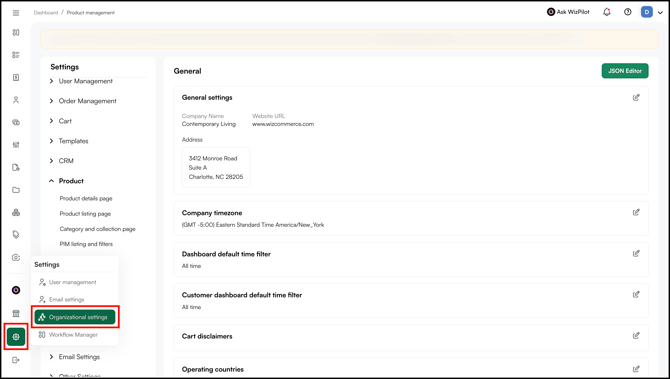
1. Go to **Settings → Organizational Settings.**
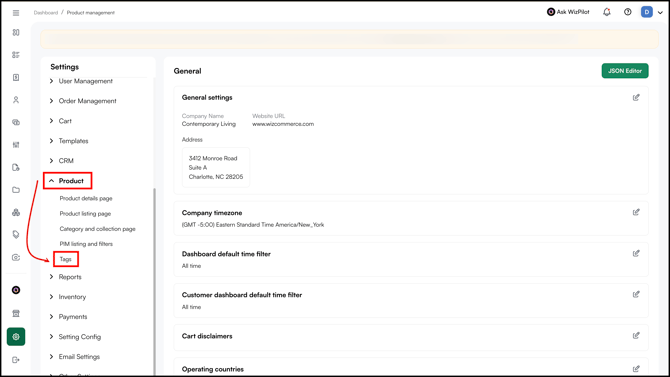
2. Then go to **Products → Tags**.
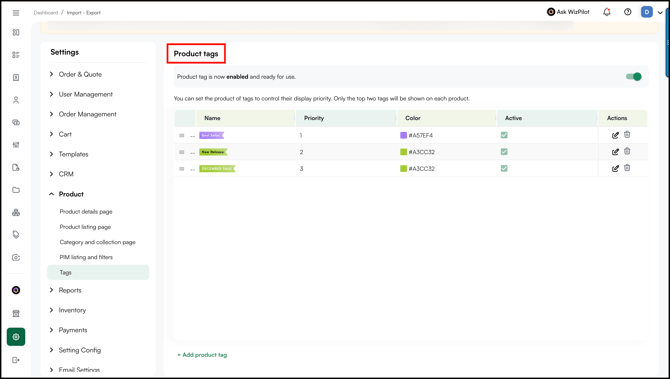
3. Open the **Product** **Tags** page.
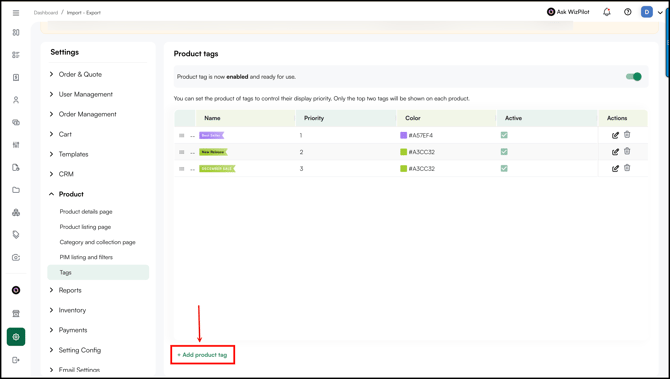
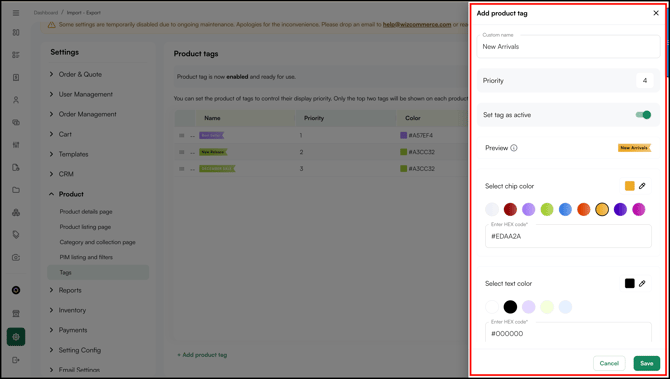
4. Click **+ Add Product Tag**.
5. Enter a name and other details for the tag (e.g., "Clearance", "Showroom Exclusive", "Eco-Friendly", "New Release").
6. Click **Save**.
---
### B. Assign Product Tags
1. Go to **Product Tools → Product Management.**
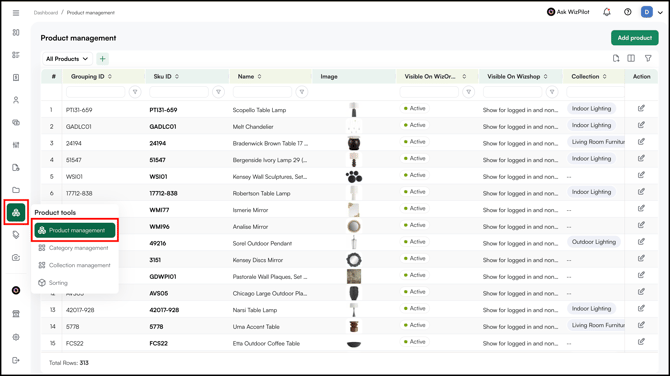
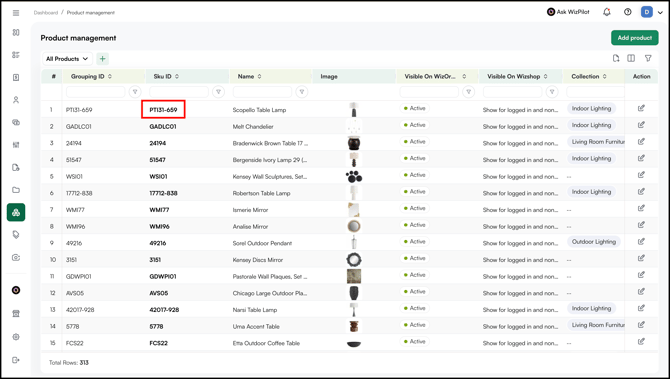
2. Open the product you want to tag.
3. Click **Edit** to open the product's general settings.
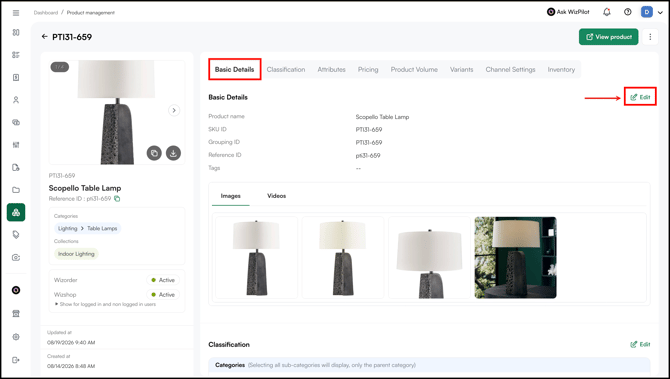
4. In the **Tags** field, select the product tags from the dropdown.
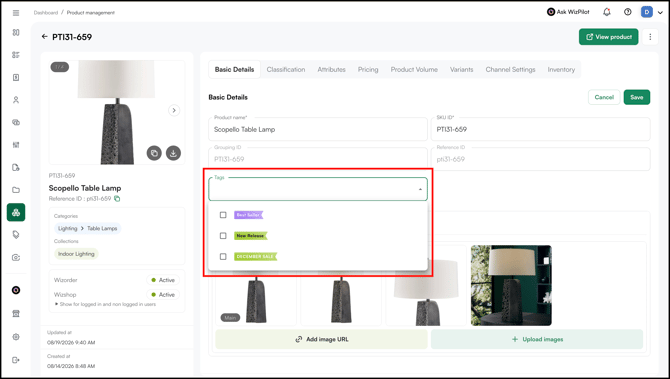
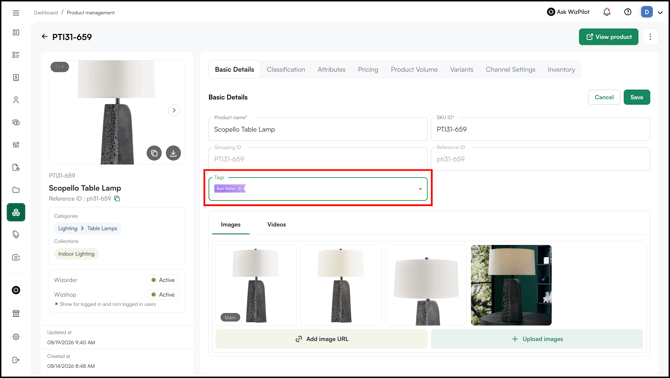
5. **For Example, Best Sellers**. You can add a maximum of three tags per product.
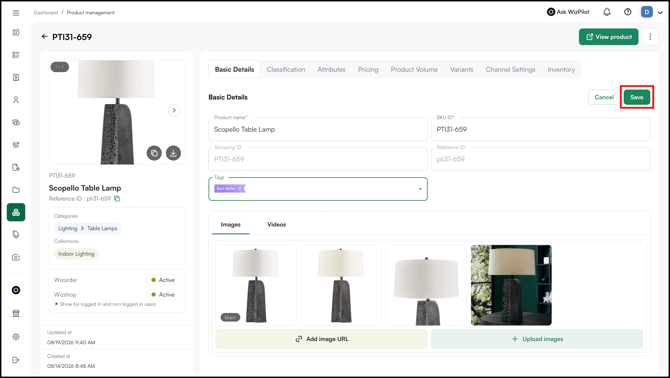
6. Click **Save**.
7. The assigned tags appear on the product card across both WizOrder and WizShop.
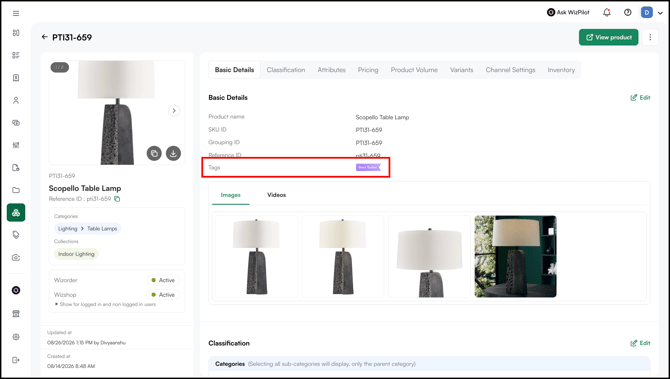
**Note:** Only the top two tags are visible on the product card, even if a product has three tags assigned.
---
### C. Assign Tags in Bulk
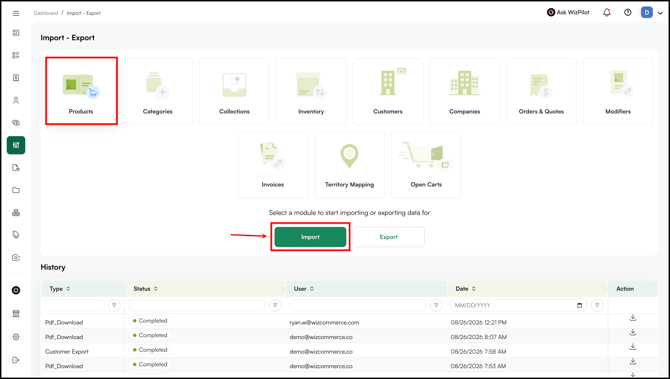
To assign tags to multiple products at once, use the import/export function.
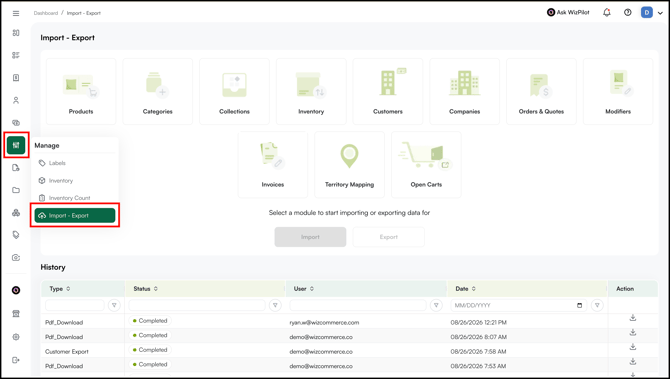
1. Go to **Manage → Import - Export.**
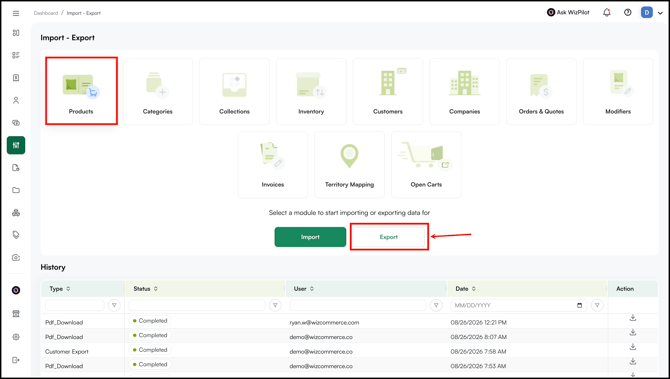
2. Select the **Product** and **Export** your product data sheet.
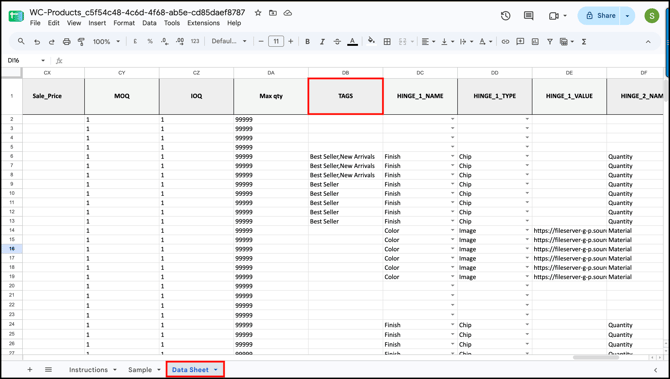
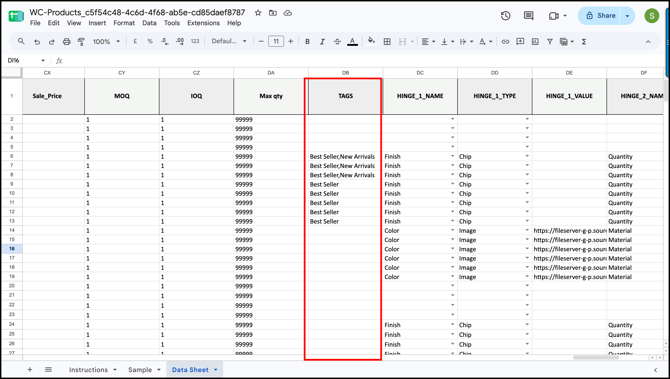
3. Open the exported sheet and go to the **Tags** column in the **Data Sheet**.
4. Enter tag names against each product, separating multiple tags with a comma.
5. Once the changes are done, **Import** the sheet.
---
#### FAQs
**1. How many tags can I assign to a single product?**
**A.** You can assign a maximum of three tags per product. However, only the top two tags are visible on the product card in WizOrder and WizShop.
**2. Can I assign tags to multiple products at once?**
**A.** Yes. Use the import/export function to assign tags in bulk. In the exported Data Sheet, enter tag names in the Tags column against each product and separate multiple tags with a comma.
---
**Still need help?** Reach out to our support team at [help@wizcommerce.com](https://mail.google.com/mail/u/0/?fs=1&to=help@wizcommerce.com&tf=cm).
- [Getting started](https://knowledge.wizcommerce.com/getting-started#main-content)
- [Product Overview](https://knowledge.wizcommerce.com/getting-started#product-overview)
- [Key Concepts You Should Know](https://knowledge.wizcommerce.com/getting-started#key-concepts-you-should-know)
- [Product Guides](https://knowledge.wizcommerce.com/getting-started#product-guides)
- [Trade Show Checklist](https://knowledge.wizcommerce.com/getting-started#trade-show-checklist)
- [Product Search & Discovery](https://knowledge.wizcommerce.com/product-search-discovery#main-content)
- [AI Product Recommendations](https://knowledge.wizcommerce.com/product-search-discovery#ai-product-recommendations)
- [Filter and Navigate](https://knowledge.wizcommerce.com/product-search-discovery#filter-and-navigate)
- [Catalog](https://knowledge.wizcommerce.com/product-search-discovery#catalog)
- [Product Selection & Ordering](https://knowledge.wizcommerce.com/product-selection-ordering#main-content)
- [Orders](https://knowledge.wizcommerce.com/product-selection-ordering#orders)
- [Quotes](https://knowledge.wizcommerce.com/product-selection-ordering#quotes)
- [Cart](https://knowledge.wizcommerce.com/product-selection-ordering#cart)
- [Presentations](https://knowledge.wizcommerce.com/product-selection-ordering#presentations)
- [Wishlist](https://knowledge.wizcommerce.com/product-selection-ordering#wishlist)
- [Item History](https://knowledge.wizcommerce.com/product-selection-ordering#item-history)
- [Invoices](https://knowledge.wizcommerce.com/product-selection-ordering#invoices)
- [Customers & Accounts](https://knowledge.wizcommerce.com/customers-accounts#main-content)
- [Customer Relationship Management (CRM)](https://knowledge.wizcommerce.com/customers-accounts#customer-relationship-management-crm)
- [Inventory & Warehousing](https://knowledge.wizcommerce.com/inventory-warehousing#main-content)
- [Inventory availability](https://knowledge.wizcommerce.com/inventory-warehousing#inventory-availability)
- [Payments](https://knowledge.wizcommerce.com/payments#main-content)
- [Payment Dashboard](https://knowledge.wizcommerce.com/payments#payment-dashboard)
- [Pricing & Commercials](https://knowledge.wizcommerce.com/pricing-commercials#main-content)
- [Pricelist](https://knowledge.wizcommerce.com/pricing-commercials#pricelist)
- [Discounts & Promotions](https://knowledge.wizcommerce.com/pricing-commercials#discounts-promotions)
- [Claims & Credits](https://knowledge.wizcommerce.com/pricing-commercials#claims-credits)
- [AI Co-Workers](https://knowledge.wizcommerce.com/ai-co-workers#main-content)
- [Ella - AI Order Entry Assistant](https://knowledge.wizcommerce.com/ai-co-workers#ella-ai-order-entry-assistant)
- [WizPilot - AI Assistant](https://knowledge.wizcommerce.com/ai-co-workers#wizpilot-ai-assistant)
- [WizStudio](https://knowledge.wizcommerce.com/wizstudio#main-content)
- [Creating & Editing Images](https://knowledge.wizcommerce.com/wizstudio#creating-editing-images)
- [Lifestyle Generator](https://knowledge.wizcommerce.com/wizstudio#lifestyle-generator)
- [Silo Editor](https://knowledge.wizcommerce.com/wizstudio#silo-editor)
- [Bulk Silo Editor](https://knowledge.wizcommerce.com/wizstudio#bulk-silo-editor)
- [Asset Library (Assets)](https://knowledge.wizcommerce.com/wizstudio#asset-library-assets)
- [AI Image Expander](https://knowledge.wizcommerce.com/wizstudio#ai-image-expander)
- [Reports & Analytics](https://knowledge.wizcommerce.com/reports-analytics#main-content)
- [Business Reports](https://knowledge.wizcommerce.com/reports-analytics#business-reports)
- [Manage your WizCommerce (Admin)](https://knowledge.wizcommerce.com/manage-your-wizcommerce-admin#main-content)
- [Import / Export](https://knowledge.wizcommerce.com/manage-your-wizcommerce-admin#import-export)
- [Organizational Settings](https://knowledge.wizcommerce.com/manage-your-wizcommerce-admin#organizational-settings)
- [Product Management](https://knowledge.wizcommerce.com/manage-your-wizcommerce-admin#product-management)
- [Managing Your WizShop Website](https://knowledge.wizcommerce.com/manage-your-wizcommerce-admin#managing-your-wizshop-website)
- [Integration & Apps](https://knowledge.wizcommerce.com/integration-apps#main-content)
- [Marketing Integration](https://knowledge.wizcommerce.com/integration-apps#marketing-integration)
- [Integration Dashboard](https://knowledge.wizcommerce.com/integration-apps#integration-dashboard)
- [Help & FAQs](https://knowledge.wizcommerce.com/help-faqs#main-content)
- [Help with Orders](https://knowledge.wizcommerce.com/help-faqs#help-with-orders)
- [Help with Quotes](https://knowledge.wizcommerce.com/help-faqs#help-with-quotes)
- [Help with Presentation](https://knowledge.wizcommerce.com/help-faqs#help-with-presentation)
- [Help with Inventory](https://knowledge.wizcommerce.com/help-faqs#help-with-inventory)
- [Help with User Management](https://knowledge.wizcommerce.com/help-faqs#help-with-user-management)
- [Help with Pricelist & Discounts](https://knowledge.wizcommerce.com/help-faqs#help-with-pricelist-discounts)
- [Help with WizStudio](https://knowledge.wizcommerce.com/help-faqs#help-with-wizstudio)
- [Help with Ella](https://knowledge.wizcommerce.com/help-faqs#help-with-ella)
- [Help with Org Settings (Admin)](https://knowledge.wizcommerce.com/help-faqs#help-with-org-settings-admin)
- [Help with Emails](https://knowledge.wizcommerce.com/help-faqs#help-with-emails)
- [Help with Products](https://knowledge.wizcommerce.com/help-faqs#help-with-products)
- [Help with Import/Export](https://knowledge.wizcommerce.com/help-faqs#help-with-import-export)
- [Help with WizShop](https://knowledge.wizcommerce.com/help-faqs#help-with-wizshop)
- [Help with Integration](https://knowledge.wizcommerce.com/help-faqs#help-with-integration)
- [Help with Categories and Collections](https://knowledge.wizcommerce.com/help-faqs#help-with-categories-and-collections)
- [Help With Customers](https://knowledge.wizcommerce.com/help-faqs#help-with-customers)
- [Help with Trade Show](https://knowledge.wizcommerce.com/help-faqs#help-with-trade-show)
[](https://wizcommerce.com/)
[mailto:help@wizcommerce.com](mailto:help@wizcommerce.com)
Copyright © 2025, WizCommerce
```json
{
"@context" : "https://schema.org",
"@type" : "VideoObject",
"caption" : {
"@type" : "MediaObject",
"contentUrl" : "https://knowledge.wizcommerce.com/media-transcripts/326519016124/en.vtt",
"inLanguage" : "en",
"name" : "en Captions"
},
"contentUrl" : "https://47455261.fs1.hubspotusercontent-na2.net/hubfs/47455261/video_assets/326519016124/inherited/web_optimized.mp4",
"dateModified" : "2026-03-21T07:53:03.080Z",
"duration" : "PT6M36S",
"height" : 1080,
"name" : "product tags video",
"thumbnailUrl" : "https://47455261.fs1.hubspotusercontent-na2.net/hubfs/47455261/product%20tags%20video.mp4/medium.jpg",
"uploadDate" : "2026-03-21T07:49:36.122Z",
"width" : 1920
}
```