
Product tags are labels used to categorize and surface products in search and filters, helping buyers and sales reps quickly identify highlighted products across your catalog. This article covers how to create tags, assign them to products, and manage them in bulk.
Platform: WizOrder & WizShop | Who is this for: Admins
To Get There: Settings → Organizational Settings | Product Tools → Product Management
Before You Begin
- Ensure you have Admin access.
- Product Management is accessible to admins only from the web portal.
- To use Product Tags, first enable the Tags feature in Organizational Settings. If you don't see this option, contact our Support Team.
A. Create Product Tags
- Go to Settings → Organizational Settings.
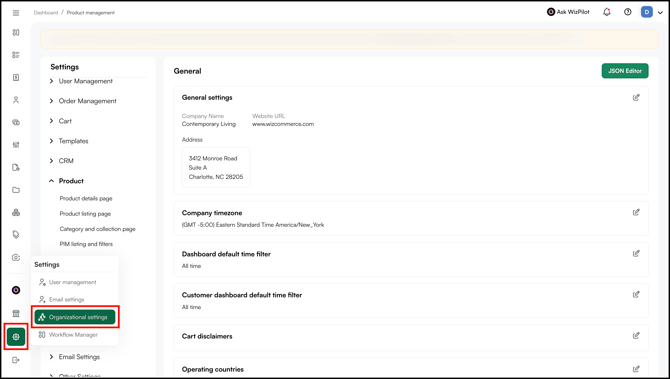
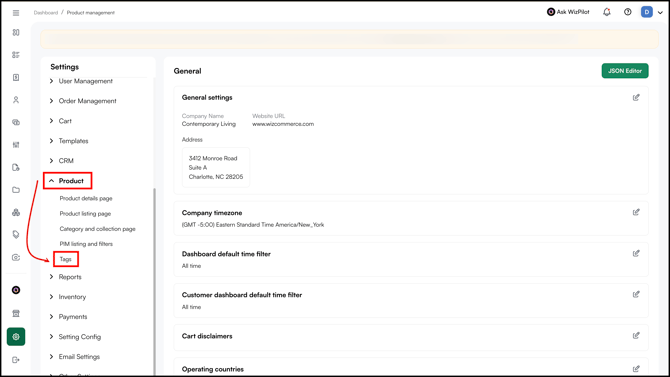
- Then go to Products → Tags.
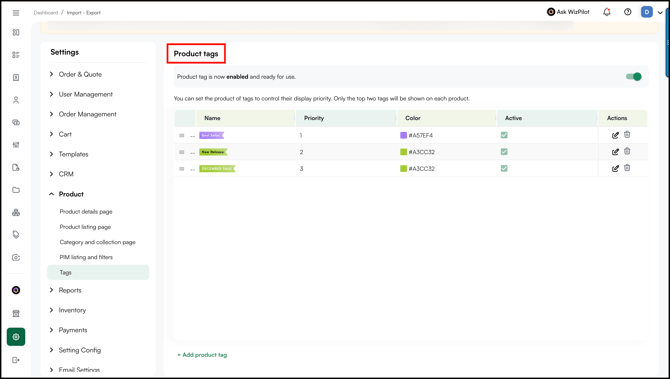
- Open the Product Tags page.
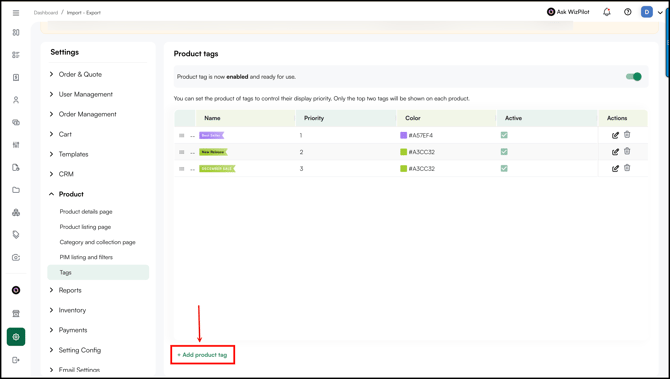
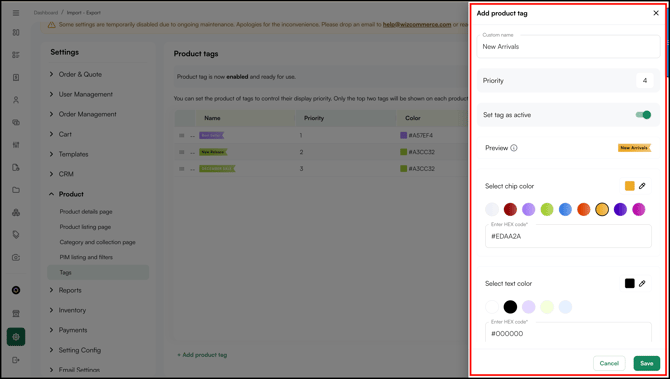
- Click + Add Product Tag.
- Enter a name and other details for the tag (e.g., "Clearance", "Showroom Exclusive", "Eco-Friendly", "New Release").
- Click Save.
B. Assign Product Tags
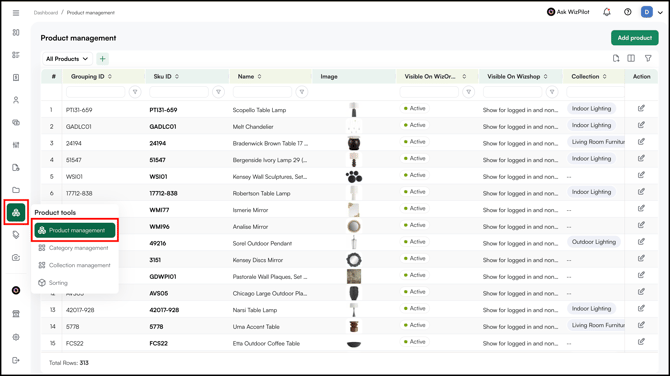
- Go to Product Tools → Product Management.
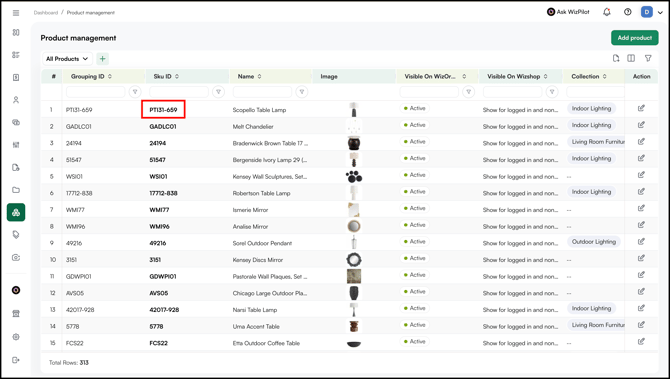
- Open the product you want to tag.
- Click Edit to open the product's general settings.
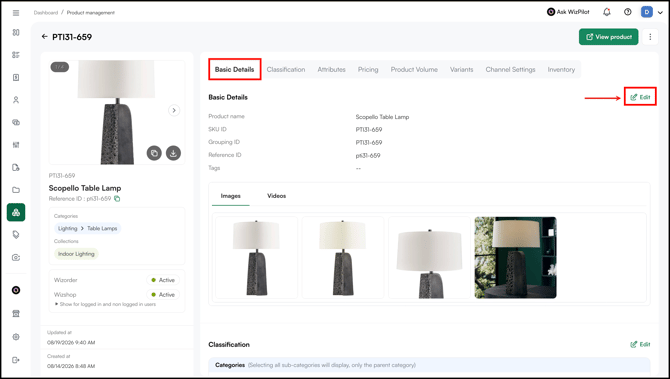
- In the Tags field, select the product tags from the dropdown.
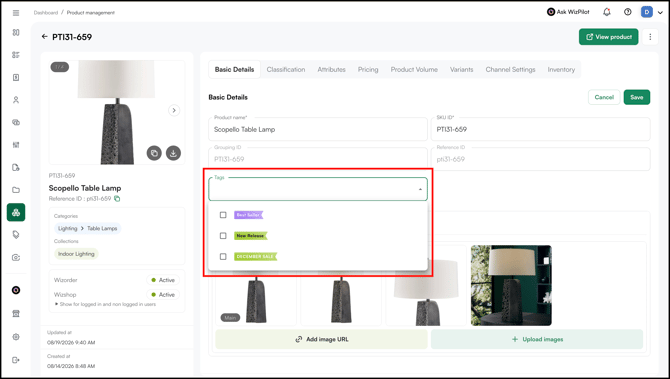
- For Example, Best Sellers. You can add a maximum of three tags per product.
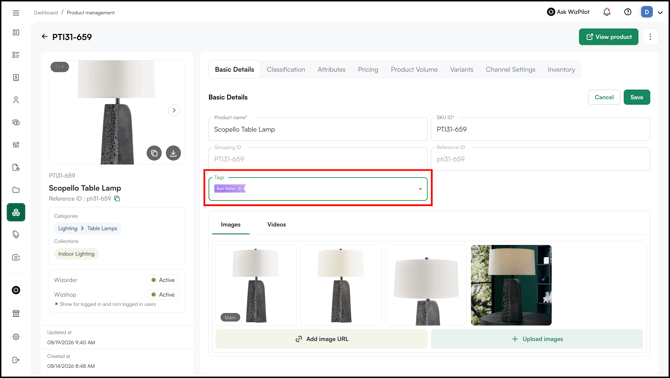
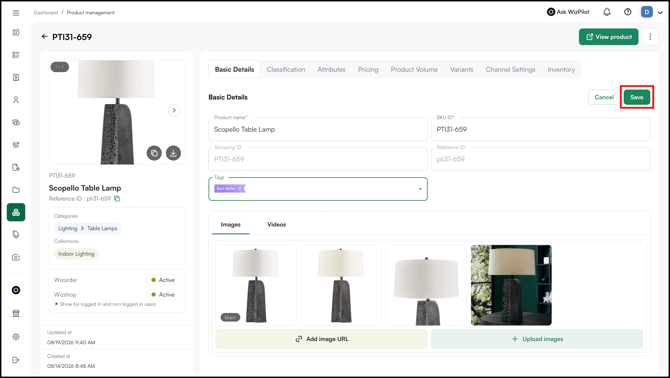
- Click Save.
- The assigned tags appear on the product card across both WizOrder and WizShop.
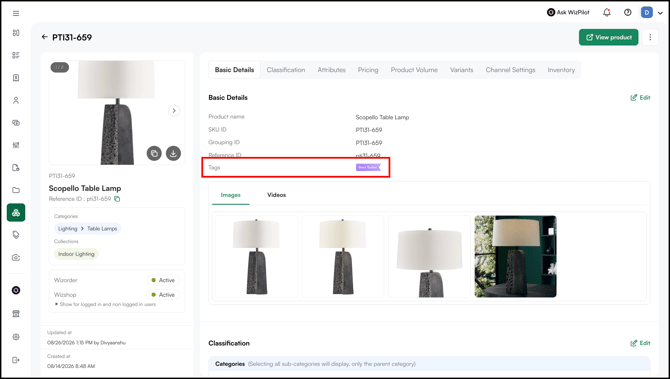
Note: Only the top two tags are visible on the product card, even if a product has three tags assigned.
C. Assign Tags in Bulk
To assign tags to multiple products at once, use the import/export function.
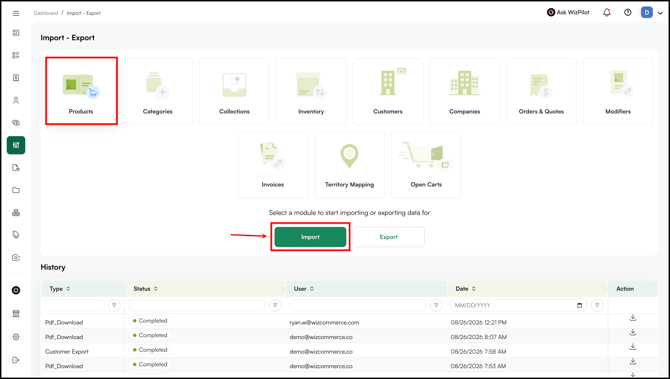
- Go to Manage → Import - Export.
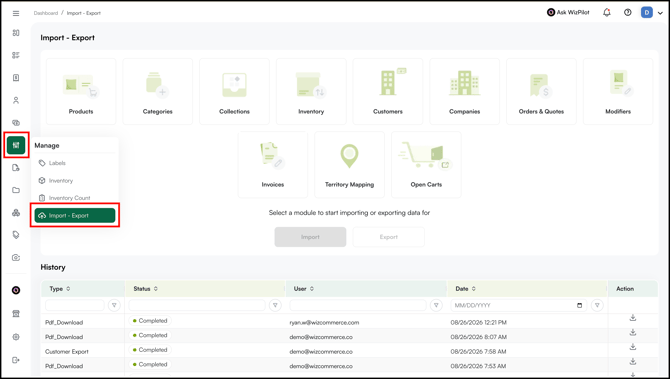
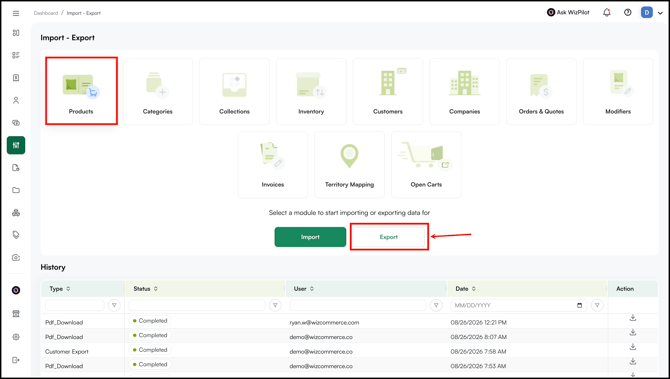
- Select the Product and Export your product data sheet.
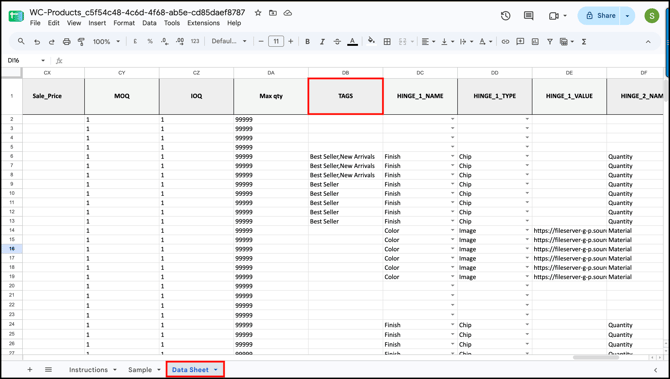
- Open the exported sheet and go to the Tags column in the Data Sheet.
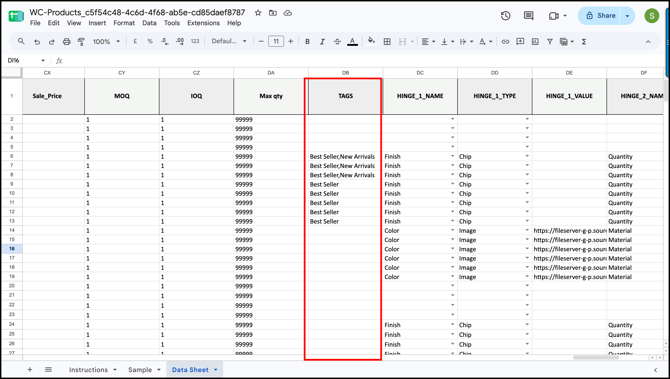
- Enter tag names against each product, separating multiple tags with a comma.
- Once the changes are done, Import the sheet.
FAQs
1. How many tags can I assign to a single product?
A. You can assign a maximum of three tags per product. However, only the top two tags are visible on the product card in WizOrder and WizShop.
2. Can I assign tags to multiple products at once?
A. Yes. Use the import/export function to assign tags in bulk. In the exported Data Sheet, enter tag names in the Tags column against each product and separate multiple tags with a comma.
Still need help? Reach out to our support team at help@wizcommerce.com.