
The Reports section in WizOrder provides a unified analytics dashboard covering Sales, Customer, Product, and Team performance. This article explains how to access reports on mobile and web, navigate between report types, apply and clear filters including date range and rep, download reports in CSV, XLSX, or JSON, and understand what each summary card shows.
Platform: WizOrder | Who is this for: Admins & Sales Reps
To Get There: Reports tab in the left navigation (Web Portal) or More > Report (Mobile App)
Table of Contents
| Sections | Topics |
| A | Accessing Reports |
| B | Reports Page Overview |
| C | Available Report Types |
| D | Filters, Date Ranges, and Saved Views |
| E | Downloading Reports |
| F | FAQs |
Before You Begin
- Ensure you have access to WizOrder before viewing reports.
- Data updates in real time as you apply filters — no need to navigate away from the page.
A. Accessing Reports
The Reports section is accessible from both the mobile app and the web portal of WizOrder.
On the Mobile App
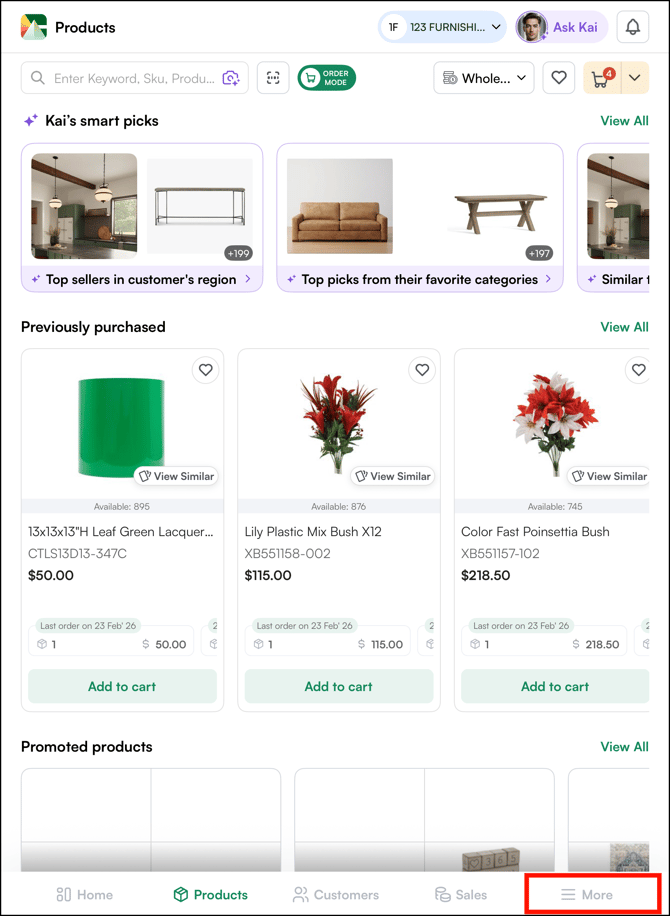
- Go to the More.
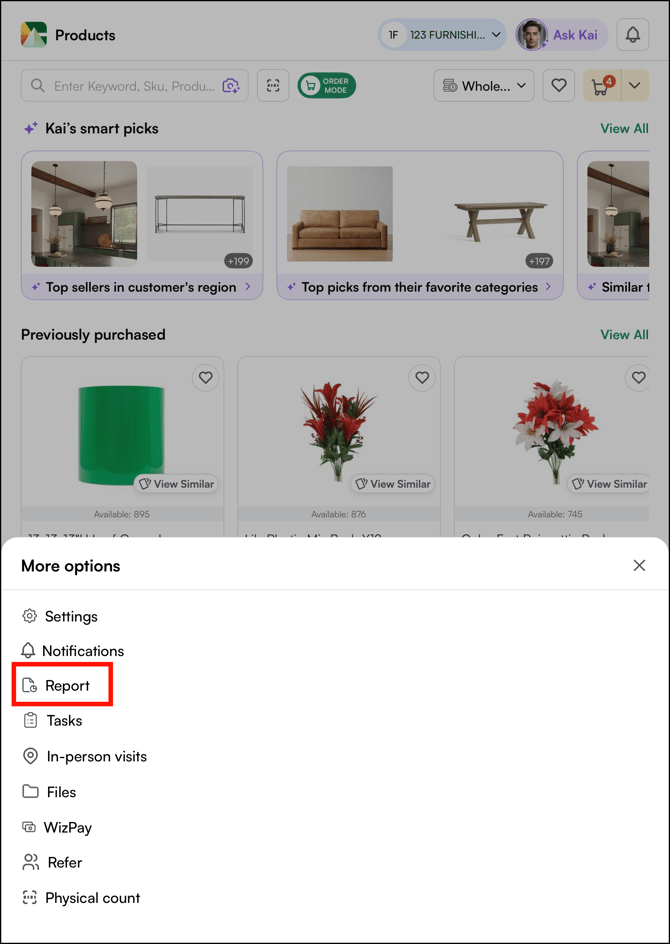
- Click Report.
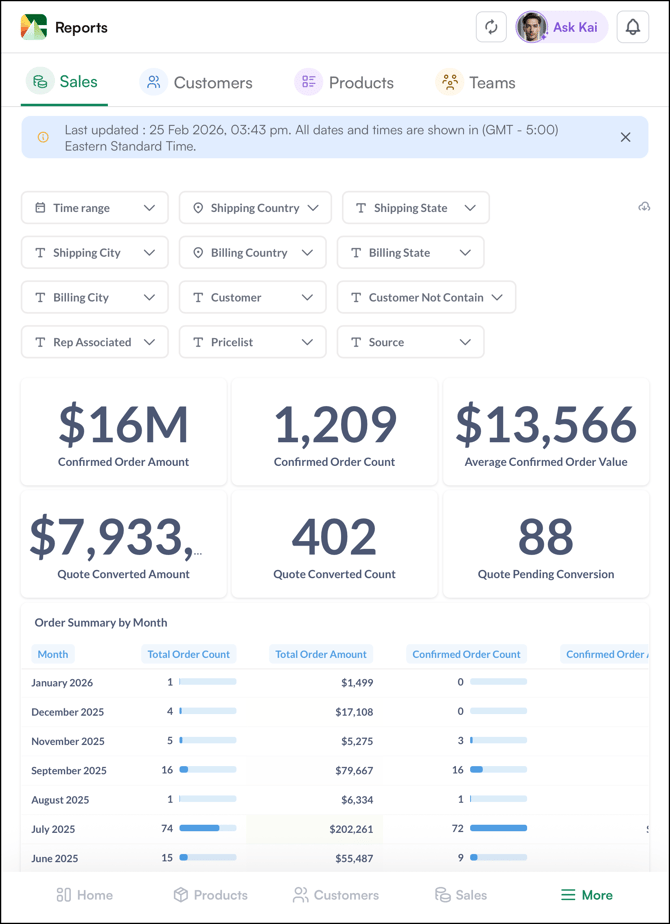
- Reports Page.
On the Web Portal
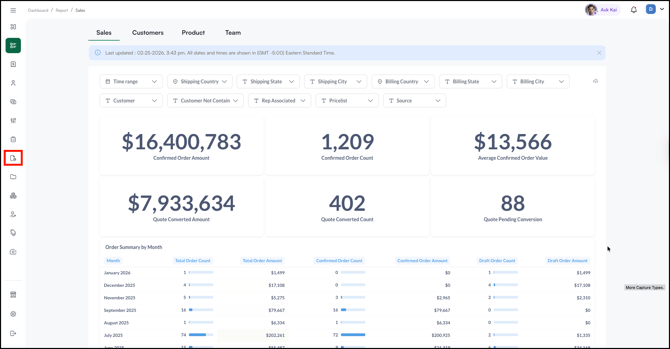
- Click the Reports tab in the left navigation bar.
B. Reports Page Overview
The Reports page gives you four report types to work with: Sales, Customer, Products, and Team. Each page shows the following:
- Summary metric cards: Total revenue, total orders, total quotes, and average order value for the selected time period
- Pre-built visualisations: Charts and graphs showing month-over-month order totals, revenue trends, and comparative data
- Navigation tabs: Sales, Customers, Products, and Team
- Global filters: Date range, customer, sales rep, and other filters that apply across all report views
Note: Data updates in real time as you apply filters. Drill into specific time periods, customer segments, or territories without navigating away from the page.
C. Available Report Types
WizCommerce organises analytics into four report categories, each accessible from the navigation tabs on the Reports page.
1. Sales Report
Gives you a comprehensive view of revenue and order activity across your business. It shows total confirmed order amounts, regional sales distribution via a geographic heatmap, order timelines, trending data, and average order values.
Best for: Business leaders evaluating overall business performance, tracking revenue trends, and calculating trade show ROI.
2. Customer Report
Helps you understand your buyer base — your top customers, who is at risk of churning, and where growth opportunities exist. It includes a customer leaderboard, revenue and frequency breakdowns, and time-since-last-order tracking.
Best for: Sales reps prioritising outreach, managers identifying at-risk accounts, and leadership reviewing customer health.
3. Product Report
Tracks how individual products, categories, and collections are performing. It shows revenue per product, quantity sold, bestseller rankings, and weekly sales breakdowns.
Best for: Merchandising decisions, inventory planning, and identifying products that need attention.
4. Team Report
Gives sales managers visibility into individual rep performance and overall team productivity. It covers revenue per rep, order counts, territory trends, and activity tracking.
Best for: Performance reviews, territory balancing, coaching, and trade show ROI analysis.
D. Filters, Date Ranges, and Saved Views
Applying Filters
All four report types share a consistent filtering interface. Filters appear at the top of the Reports page and update all data in real time.
Available filters:
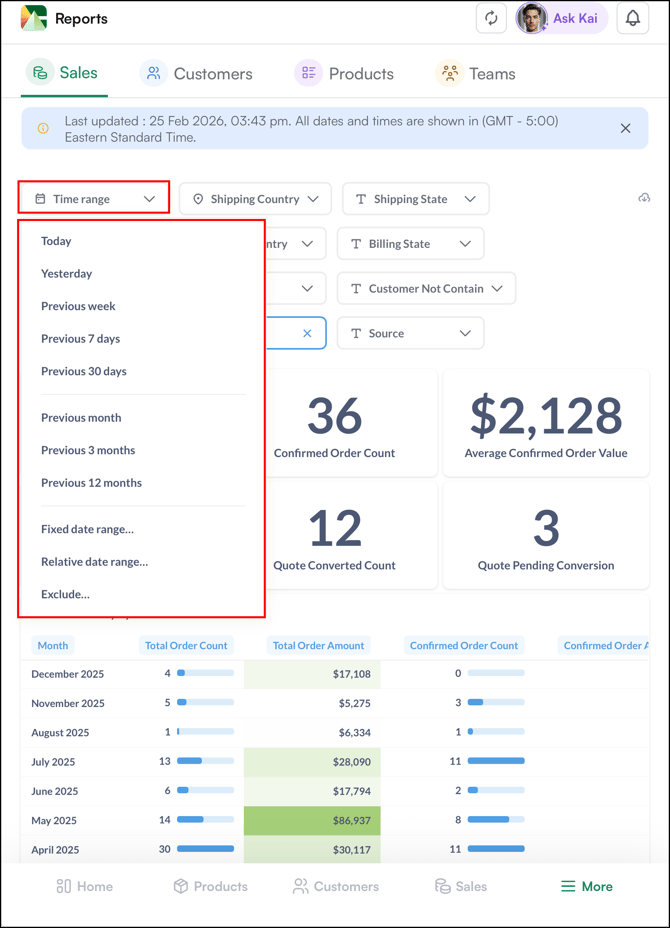
- Time Range: Select a predefined period or set a custom date range. All charts, tables, and metrics adjust to reflect the selected period.
- Region / Territory: Narrow data by geographic area (country, state, city)
- Customer: Filter reports to show data for specific customers. Supports multi-select.
- Sales Representative: Filter data by the rep who placed the order
- Source: Filter between WizOrder and WizShop
Using Filters
To understand how filters work, here's an example using the time range filter on the Sales Report page — the most frequently used filter.
Common patterns include:
- Week: A quick check of the last 7 days' performance
- Month: Check performance of last month, last quarter (3 months), or last year (12 months)
- Custom Range: Select specific start and end dates for event-based analysis (e.g., January 12–16 for a trade show)
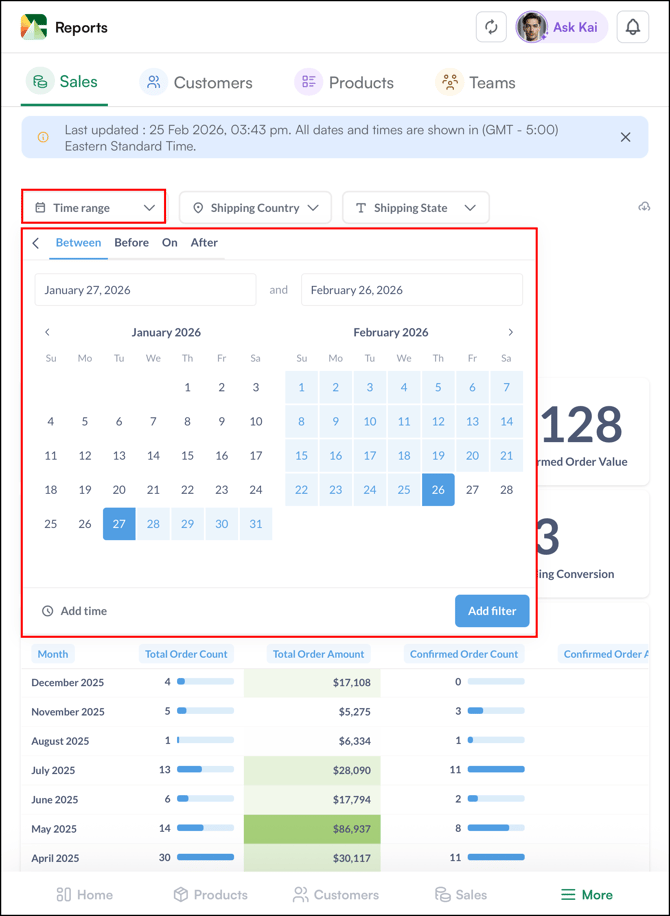
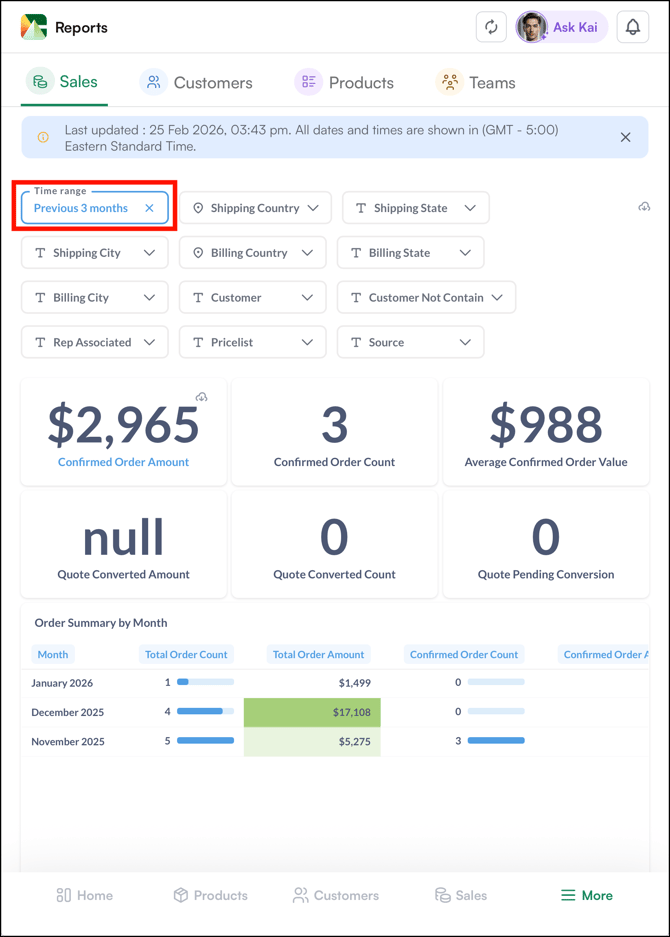
When you change the date range, every metric, chart, and table on the page recalculates immediately.
Clearing Filters
- To remove a single filter, click the X next to the filter tag.
E. Downloading Reports
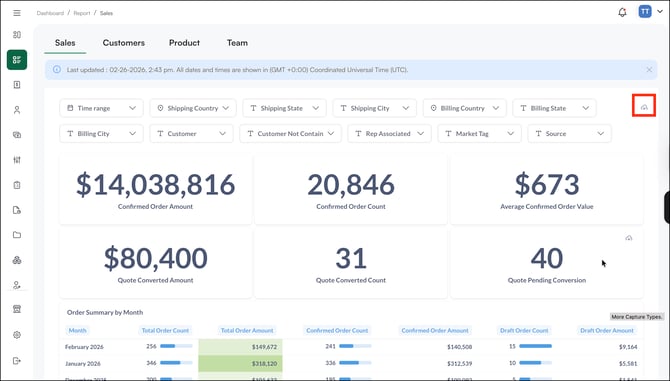
Download any report page by clicking the Download icon just below the summary cards. Reports are available in .CSV, .XLSX, or .JSON format.
On the Mobile App
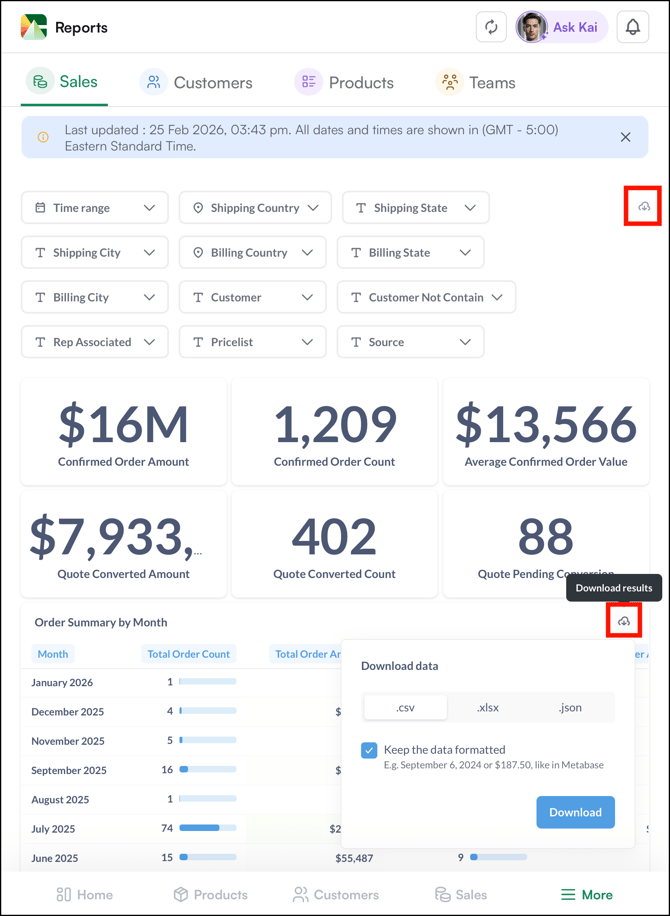
On the Web Portal
FAQs
1. Who can access the Reports section in WizCommerce?
A. The Reports section is accessible to both admins and sales reps from the WizOrder mobile app and web portal. However, what each user sees may vary depending on their role and access permissions.
2. Can I filter reports by a specific sales rep or customer?
A. Yes. Use the global filters at the top of the Reports page to filter by sales rep, customer, date range, region, or source. All four report types share the same filtering interface and update in real time.
3. What file formats are available when downloading a report?
A. You can download any report as a .CSV, .XLSX, or .JSON file. Click the Download icon just below the summary cards on any report page.
Not finding what you need? Browse the WizCommerce Help Center, reach out to your Customer Success Manager, or contact our Support Team.