
Once your variations are generated, preview them, make further edits if needed, and download the one that fits your layout.
Platform: WizStudio | Who is this for: Designer
Before You Begin
- You need at least one expanded variation already generated from AI Expand.
- The image opens with the product kept as the focal point, each variation only changes the surrounding space, not the product itself.
- If you want to adjust the background, lighting, or make prompt-based changes, you can send the result to Lifestyle Generator instead of downloading directly.
» Review and Download Your Images
Each variation extends the image frame and fills in the added space while keeping the product as the focal point.
- Click any variation to view it at full size.
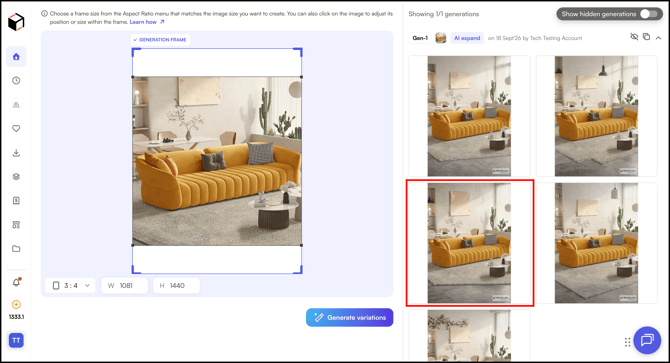
-
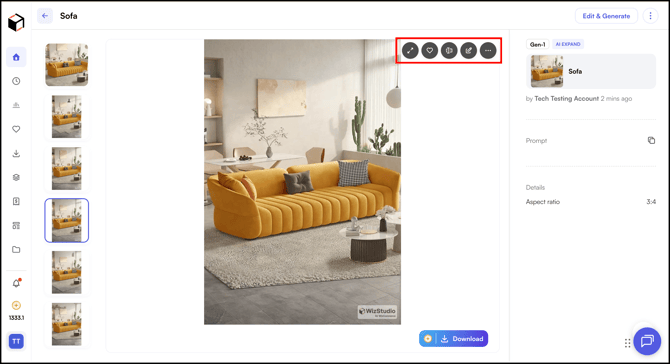
Once the variations are generated, hover over the image to access the following actions:
- Expand: View the image in full size.
- Favorite: Save the image to your Favorites.
- AI Edit: Make AI-powered edits to the image.
- Edit Image: Open the image in the editor to make manual changes.
- Three-dot menu: Access additional options like creating a lifestyle image, generating a video, saving as a theme, or hiding the image.
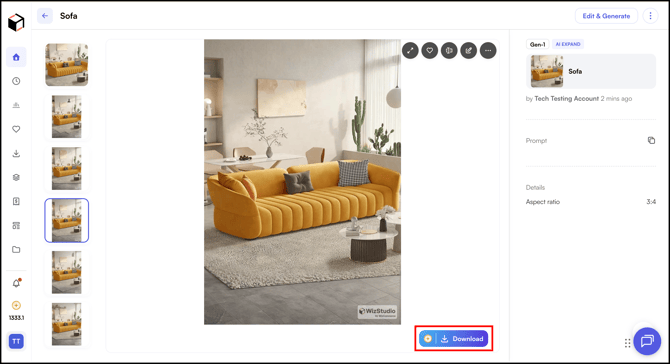
- Click Download to save the image.
Still need help? Reach out to our support team at help@wizcommerce.com.