---
title: Sales Report
description: Track revenue and order activity in WizCommerce—view confirmed totals, monitor monthly performance, analyze regions, and export sales data.
---
[Skip to content](https://knowledge.wizcommerce.com/sales-report#main-content)
[](https://wizcommerce.com/)
Open main navigation
Close main navigation
- [Contact us](https://mail.google.com/mail/?view=cm&fs=1&to=help@wizcommerce.com)
[Contact us](https://mail.google.com/mail/?view=cm&fs=1&to=help@wizcommerce.com)
Hi, how can we help?
- There are no suggestions because the search field is empty.
1. [WizCommerce Help Centre](https://knowledge.wizcommerce.com/)
2. [Reports & Analytics](https://knowledge.wizcommerce.com/reports-analytics)
3. [Business Reports](https://knowledge.wizcommerce.com/reports-analytics#business-reports)
June 5, 2026
# Sales Report
The Sales Report provides a complete view of revenue and order activity; from confirmed order totals and quote conversion rates to month-by-month breakdowns, regional heatmaps, and order status distributions. This article explains every metric, chart, and table available on the Sales Report page and how to use them.
**Platform:** WizOrder | **Who is this for:** Admins & Sales Reps
**To Get There:** *Reports **\>** Sales*
---
#### Table of Contents
| **Sections** | **Topics** |
| --- | --- |
| **A** | [View Total Revenue and Order Activity](https://knowledge.wizcommerce.com/sales-report#section-a) |
| **B** | [Track Monthly Trends](https://knowledge.wizcommerce.com/sales-report#section-b) |
| **C** | [Regional Sales and Order Trends](https://knowledge.wizcommerce.com/sales-report#section-c) |
| **D** | [Export the Sales Report](https://knowledge.wizcommerce.com/sales-report#section-d) |
| **E** | [FAQs](https://knowledge.wizcommerce.com/sales-report#faq) |
---
#### Before You Begin
- Ensure you have access to the Reports section in WizOrder.
- All metrics update in real time as you apply filters — changing the time range, customer, or rep filter immediately recalculates all data on the page.
---
### A. View Total Revenue and Order Activity
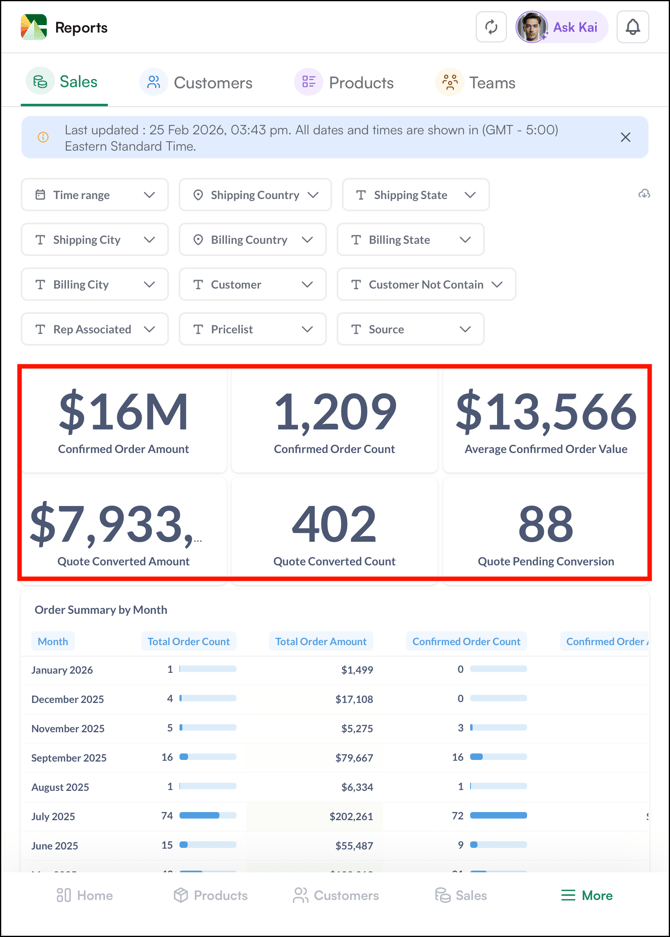
The top of the Sales Report shows six summary metric cards that give you an instant snapshot of your business performance.
**Here's what each card shows:**
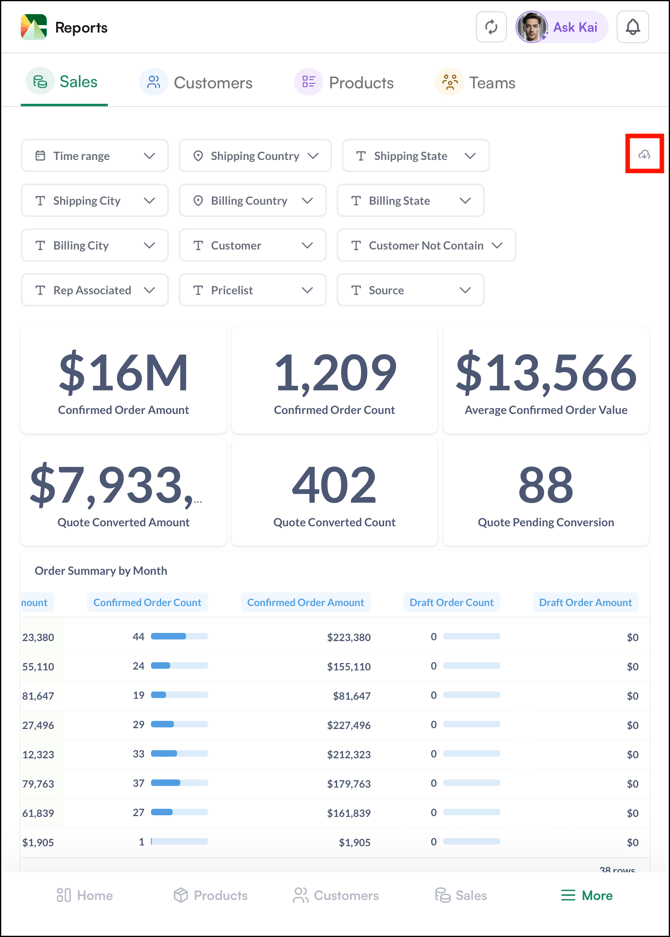
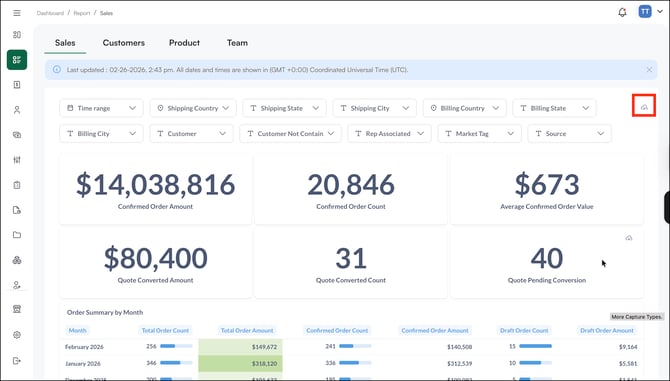
- **Confirmed Order Amount:** Total revenue from all confirmed orders (e.g., $16M)
- **Confirmed Order Count:** Total number of confirmed orders placed (e.g., 1,209 orders)
- **Average Confirmed Order Value:** The average value of each confirmed order (e.g., $13,566)
- **Quote Converted Amount:** Total revenue generated from quotes successfully converted into confirmed orders (e.g., $7,933)
- **Quote Converted Count:** Total number of quotes converted into confirmed orders (e.g., 402 quotes)
- **Quote Pending Conversion:** Number of quotes still open and not yet converted into an order (e.g., 88 quotes)
##### On the Mobile App
##### On the Web Portal
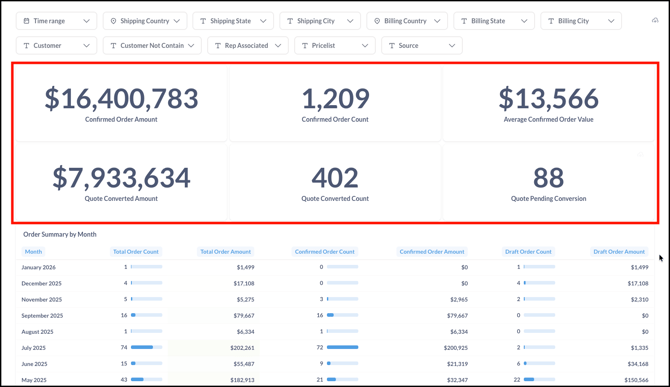
**Note:** These metrics update in real time as you apply filters. Changing the time range, customer, or rep filter immediately recalculates all six cards.
---
### B. Track Monthly Trends
#### Order Summary by Month
A month-by-month breakdown of all order activity. Each row shows:
- **Month:** The calendar month
- **Total Order Count:** Total number of orders placed that month (confirmed + draft)
- **Total Order Amount:** Total value of all orders placed that month
- **Confirmed Order Count:** Number of orders confirmed that month
- **Confirmed Order Amount:** Revenue from confirmed orders only
- **Draft Order Count:** Number of orders still in draft status
- **Draft Order Amount:** Value of orders still in draft status
#### Quote Summary by Month
A month-by-month breakdown of all quote activity. Each row shows:
- **Total Quote Count:** Total number of quotes created that month
- **Total Quote Amount:** Total value of all quotes created
- **Quote Converted Count:** Number of quotes converted into confirmed orders
- **Quote Converted Amount:** Revenue from converted quotes
- **Quote Pending Count:** Number of quotes still awaiting conversion
- **Quote Pending Amount:** Value of quotes still pending conversion
- **Draft Quote Count:** Number of quotes still in draft status
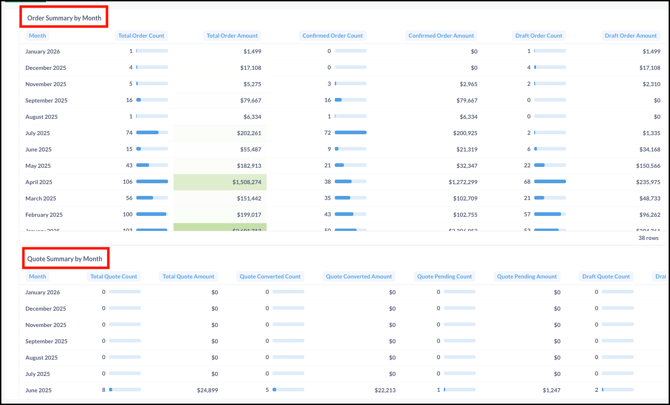
**Note:** This tables helps you track month-over-month trends, identify your strongest trading periods, and monitor how effectively quotes are being converted into confirmed orders.
---
### C. Regional Sales and Order Trends
This section gives you a visual breakdown of where your orders are coming from and how your order volume and revenue are trending over time.
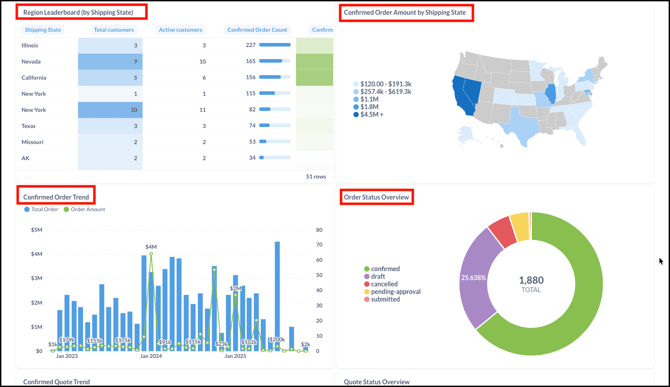
#### Region Leaderboard (by Shipping State)
A ranked table showing performance by shipping state. Each row shows:
- **Shipping State:** The state orders are being shipped to
- **Total Customers:** Total number of customer accounts in that state
- **Active Customers:** Customers who placed at least one confirmed order in the selected period
- **Confirmed Order Count:** Number of confirmed orders shipped to that state
#### Confirmed Order Amount by Shipping State
A geographic heatmap of the United States showing revenue concentration by state. Darker shades indicate higher confirmed order amounts — making it easy to identify your strongest and weakest territories at a glance.
#### Confirmed Order Trend
A combined bar and line chart showing order volume and revenue over time. The blue bars represent total order count and the green line represents order amount. Use this to spot seasonal peaks, identify slow periods, and track growth over time.
#### Order Status Overview
A donut chart breaking down all total orders by their current status:
- **Confirmed:** Orders that have been approved and processed
- **Draft:** Orders saved but not yet confirmed
- **Cancelled:** Orders that were cancelled
- **Pending Approval:** Orders awaiting admin approval
- **Submitted:** Orders submitted but not yet confirmed
---
### D. Export the Sales Report
Click the **download icon** to get a PDF with all current metrics, charts, applied filters, and the selected date range.
##### On the Mobile App
##### On the Web Portal
**Note:** You can also download individual data sets by clicking the download icon next to each section.
---
#### FAQs
**1. Do the Sales Report metrics include draft orders?**
**A.** Yes, but they are tracked separately. The Order Summary by Month table shows both confirmed orders and draft orders as distinct rows, so you can see exactly what has been confirmed versus what is still pending.
**2. Can I filter the Sales Report by a specific sales rep or customer?**
**A.** Yes. Use the global filters at the top of the Reports page to filter by sales rep, customer, date range, region, or source. All metrics, charts, and tables recalculate immediately when you change a filter.
**3. What does the geographic heatmap show?**
**A.** The heatmap shows confirmed order amounts by shipping state across the United States. Darker shades indicate higher revenue — making it easy to spot your strongest and weakest territories at a glance.
---
Not finding what you need? Browse the [*WizCommerce Help Center*](https://knowledge.wizcommerce.com/?hsLang=en-us), reach out to your Customer Success Manager, or contact our [*Support Team*](mailto:help@wizcommerce.com).
- [Getting started](https://knowledge.wizcommerce.com/getting-started#main-content)
- [Product Overview](https://knowledge.wizcommerce.com/getting-started#product-overview)
- [Key Concepts You Should Know](https://knowledge.wizcommerce.com/getting-started#key-concepts-you-should-know)
- [Product Guides](https://knowledge.wizcommerce.com/getting-started#product-guides)
- [Trade Show Checklist](https://knowledge.wizcommerce.com/getting-started#trade-show-checklist)
- [Product Search & Discovery](https://knowledge.wizcommerce.com/product-search-discovery#main-content)
- [AI Product Recommendations](https://knowledge.wizcommerce.com/product-search-discovery#ai-product-recommendations)
- [Filter and Navigate](https://knowledge.wizcommerce.com/product-search-discovery#filter-and-navigate)
- [Catalog](https://knowledge.wizcommerce.com/product-search-discovery#catalog)
- [Product Selection & Ordering](https://knowledge.wizcommerce.com/product-selection-ordering#main-content)
- [Orders](https://knowledge.wizcommerce.com/product-selection-ordering#orders)
- [Quotes](https://knowledge.wizcommerce.com/product-selection-ordering#quotes)
- [Cart](https://knowledge.wizcommerce.com/product-selection-ordering#cart)
- [Presentations](https://knowledge.wizcommerce.com/product-selection-ordering#presentations)
- [Wishlist](https://knowledge.wizcommerce.com/product-selection-ordering#wishlist)
- [Item History](https://knowledge.wizcommerce.com/product-selection-ordering#item-history)
- [Invoices](https://knowledge.wizcommerce.com/product-selection-ordering#invoices)
- [Customers & Accounts](https://knowledge.wizcommerce.com/customers-accounts#main-content)
- [Customer Relationship Management (CRM)](https://knowledge.wizcommerce.com/customers-accounts#customer-relationship-management-crm)
- [Inventory & Warehousing](https://knowledge.wizcommerce.com/inventory-warehousing#main-content)
- [Inventory availability](https://knowledge.wizcommerce.com/inventory-warehousing#inventory-availability)
- [Payments](https://knowledge.wizcommerce.com/payments#main-content)
- [Payment Dashboard](https://knowledge.wizcommerce.com/payments#payment-dashboard)
- [Pricing & Commercials](https://knowledge.wizcommerce.com/pricing-commercials#main-content)
- [Pricelist](https://knowledge.wizcommerce.com/pricing-commercials#pricelist)
- [Discounts & Promotions](https://knowledge.wizcommerce.com/pricing-commercials#discounts-promotions)
- [Claims & Credits](https://knowledge.wizcommerce.com/pricing-commercials#claims-credits)
- [AI Co-Workers](https://knowledge.wizcommerce.com/ai-co-workers#main-content)
- [Ella - AI Order Entry Assistant](https://knowledge.wizcommerce.com/ai-co-workers#ella-ai-order-entry-assistant)
- [WizPilot - AI Assistant](https://knowledge.wizcommerce.com/ai-co-workers#wizpilot-ai-assistant)
- [WizStudio](https://knowledge.wizcommerce.com/wizstudio#main-content)
- [Creating & Editing Images](https://knowledge.wizcommerce.com/wizstudio#creating-editing-images)
- [Lifestyle Generator](https://knowledge.wizcommerce.com/wizstudio#lifestyle-generator)
- [Silo Editor](https://knowledge.wizcommerce.com/wizstudio#silo-editor)
- [Bulk Silo Editor](https://knowledge.wizcommerce.com/wizstudio#bulk-silo-editor)
- [Asset Library (Assets)](https://knowledge.wizcommerce.com/wizstudio#asset-library-assets)
- [AI Image Expander](https://knowledge.wizcommerce.com/wizstudio#ai-image-expander)
- [Reports & Analytics](https://knowledge.wizcommerce.com/reports-analytics#main-content)
- [Business Reports](https://knowledge.wizcommerce.com/reports-analytics#business-reports)
- [Manage your WizCommerce (Admin)](https://knowledge.wizcommerce.com/manage-your-wizcommerce-admin#main-content)
- [Import / Export](https://knowledge.wizcommerce.com/manage-your-wizcommerce-admin#import-export)
- [Organizational Settings](https://knowledge.wizcommerce.com/manage-your-wizcommerce-admin#organizational-settings)
- [Product Management](https://knowledge.wizcommerce.com/manage-your-wizcommerce-admin#product-management)
- [Managing Your WizShop Website](https://knowledge.wizcommerce.com/manage-your-wizcommerce-admin#managing-your-wizshop-website)
- [Integration & Apps](https://knowledge.wizcommerce.com/integration-apps#main-content)
- [Marketing Integration](https://knowledge.wizcommerce.com/integration-apps#marketing-integration)
- [Integration Dashboard](https://knowledge.wizcommerce.com/integration-apps#integration-dashboard)
- [Help & FAQs](https://knowledge.wizcommerce.com/help-faqs#main-content)
- [Help with Orders](https://knowledge.wizcommerce.com/help-faqs#help-with-orders)
- [Help with Quotes](https://knowledge.wizcommerce.com/help-faqs#help-with-quotes)
- [Help with Presentation](https://knowledge.wizcommerce.com/help-faqs#help-with-presentation)
- [Help with Inventory](https://knowledge.wizcommerce.com/help-faqs#help-with-inventory)
- [Help with User Management](https://knowledge.wizcommerce.com/help-faqs#help-with-user-management)
- [Help with Pricelist & Discounts](https://knowledge.wizcommerce.com/help-faqs#help-with-pricelist-discounts)
- [Help with WizStudio](https://knowledge.wizcommerce.com/help-faqs#help-with-wizstudio)
- [Help with Ella](https://knowledge.wizcommerce.com/help-faqs#help-with-ella)
- [Help with Org Settings (Admin)](https://knowledge.wizcommerce.com/help-faqs#help-with-org-settings-admin)
- [Help with Emails](https://knowledge.wizcommerce.com/help-faqs#help-with-emails)
- [Help with Products](https://knowledge.wizcommerce.com/help-faqs#help-with-products)
- [Help with Import/Export](https://knowledge.wizcommerce.com/help-faqs#help-with-import-export)
- [Help with WizShop](https://knowledge.wizcommerce.com/help-faqs#help-with-wizshop)
- [Help with Integration](https://knowledge.wizcommerce.com/help-faqs#help-with-integration)
- [Help with Categories and Collections](https://knowledge.wizcommerce.com/help-faqs#help-with-categories-and-collections)
- [Help With Customers](https://knowledge.wizcommerce.com/help-faqs#help-with-customers)
- [Help with Trade Show](https://knowledge.wizcommerce.com/help-faqs#help-with-trade-show)
[](https://wizcommerce.com/)
[mailto:help@wizcommerce.com](mailto:help@wizcommerce.com)
Copyright © 2025, WizCommerce
```json
{
"@context" : "https://schema.org",
"@type" : "VideoObject",
"contentUrl" : "https://47455261.fs1.hubspotusercontent-na2.net/hubfs/47455261/sales%20report%20every%20report.mp4",
"dateModified" : "2026-02-26T15:14:26.750Z",
"duration" : "PT29S",
"height" : 858,
"name" : "sales report every report",
"thumbnailUrl" : "https://47455261.fs1.hubspotusercontent-na2.net/hubfs/47455261/sales%20report%20every%20report.mp4/medium.jpg",
"uploadDate" : "2026-02-26T15:14:04.060Z",
"width" : 1488
}
```