
The Sales Rep App (WizOrder) and the Online Storefront (WizShop) offer multiple ways to find products, whether you know the exact SKU or only have a visual reference. These tools help sales representatives locate products, identify alternatives, and access accurate product information without slowing down customer conversations. This article covers how to use each search mode, text, image, and barcode, and how results are ranked and filtered.
Platform: WizOrder & WizShop | Who is this for: Sales Reps, Admins & Retail Buyers
To Get There: Products > Search Bar
Table Of Contents
| Sections | Topics |
| A | |
| B | |
| C | Scan a product's barcode |
| D | Search for Products on WizShop |
| E | Search by Name, SKU, or Attribute |
| F | FAQs |
Before You Begin
- You must have access to Sales Rep App (WizOrder) and the Online Storefront (WizShop)
- For image search, have a photo ready to upload, or be prepared to take one directly from your device camera (WizOrder only).
- For barcode scanning, ensure your device camera is enabled.
A. Search with a Photo
Use AI image search when you do not have a product name or SKU — upload a photo to find matching products in your catalog.
This is useful when:
- You have a physical sample in hand
- You spot a product in a customer's store
- You need to identify alternatives quickly
Steps to Search for Products Using an Image
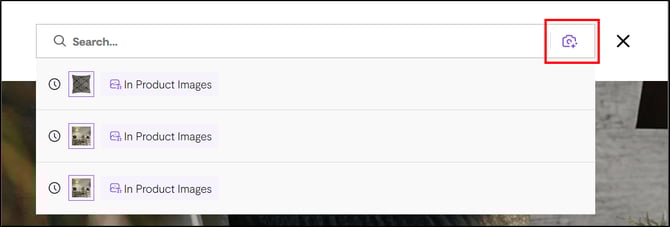
- Select the camera icon in the search bar on the Products page.

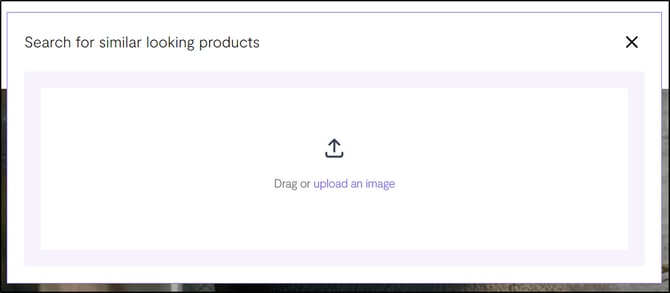
- Take a photo or upload an image of the product.

- The system analyzes the image and returns visually and categorically relevant results from your catalog.
The system analyzes the image and returns visually and categorically relevant results from your catalog.
Note: Photo capture is available on in the Sales Rep App (WizOrder). The web portal supports image upload, but does not allow taking photos directly from the device camera.
B. Search Inside Product Images with Keywords
Describe what you see in a product to locate it. The system scans product images and attributes to return relevant matches, even if the words you use do not appear in the product name.
- Select the Search bar at the top of the Products page.
- Type a descriptive phrase. For example:
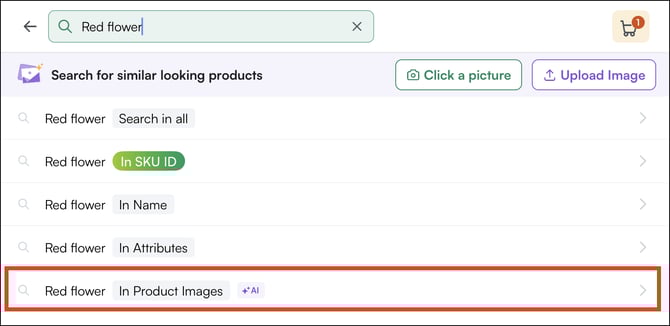
- "Red floral pattern"
- "Matte black finish"
- "Round wooden table with metal legs"
- Select the result that matches your product.
Note: Universal Search is currently available in WizOrder. It will be coming to WizOrder soon, your search experience across the platform will stay consistent once it rolls out.
C. Scan a product's barcode
Use your device camera to scan a barcode or UPC label and pull up that exact product instantly.
- Select the barcode icon on the Products page.

- Point your device camera at the barcode or UPC label.
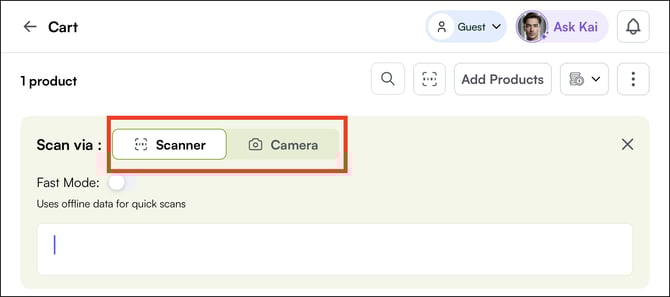
- The product appears instantly with access to:
- Product details
- Customer-specific pricing
- Available inventory
This is especially useful during warehouse walks, trade shows, and in-person customer visits.
Note: By default, a scanned product goes straight into your cart. If you'd rather choose a variant first, you can set scanning to open the product's page instead, just go to Settings > Organisational Settings > General > Barcode Settings and enable Scanning Should PDP.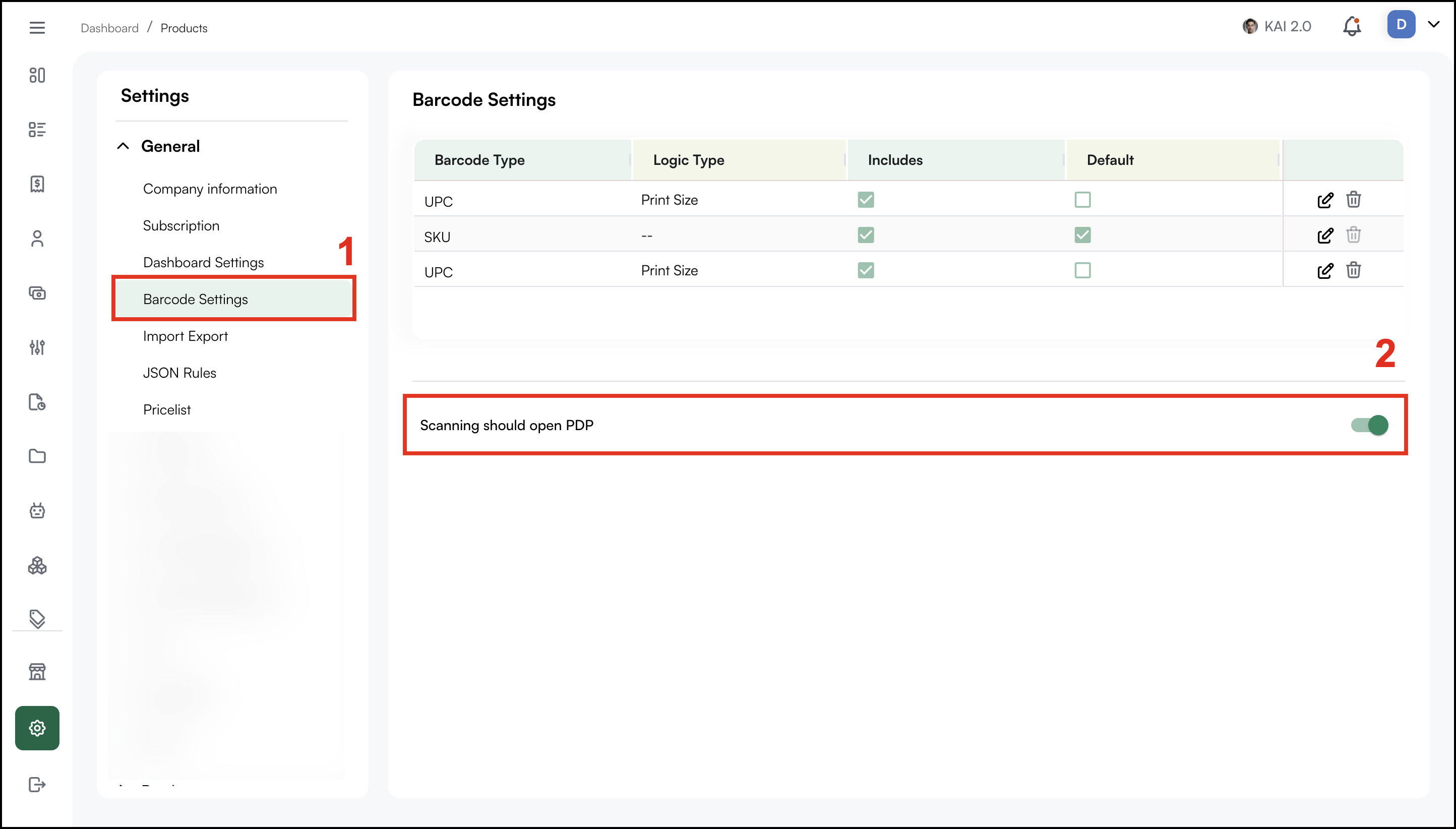
If you can't access Organisational Settings, email help@wizcommerce.com and support will change it for you.
D. Search for Products on WizShop
WizShop's AI-powered search helps buyers find products quickly; by keyword, product name, SKU, or image, directly on the storefront.
Search by Keyword, Name, or SKU
- On the WizShop storefront, select the Search bar at the top of the page.
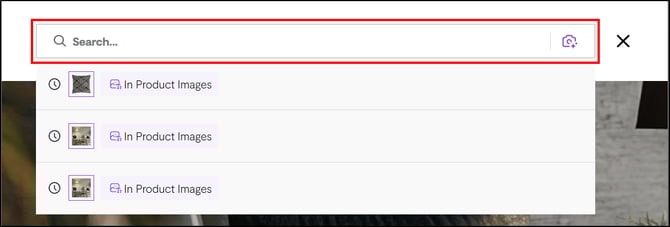
- Type a keyword, product name, or SKU.
- Results appear instantly as you type. Select a product to open its details page.
Search by Image
- Select the camera icon inside the search bar.
- Upload an image of the product you are looking for.
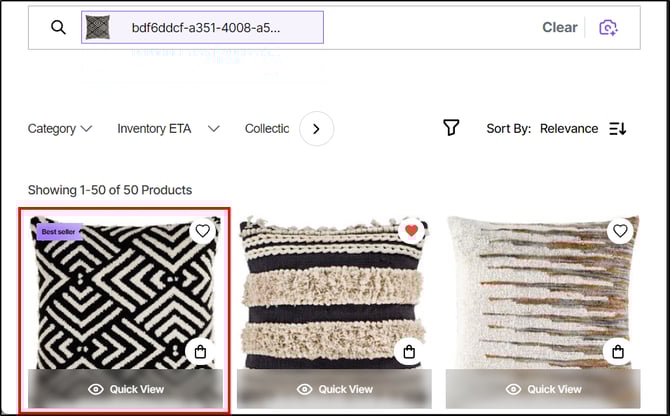
- The Online Storefront (WizShop) returns visually similar products from the catalog.
The search bar on WizShop works the same way, type a keyword, product name, SKU, or attribute and select from Search in all, In SKU ID, In Name, In Attributes, or In Product Images to narrow your results.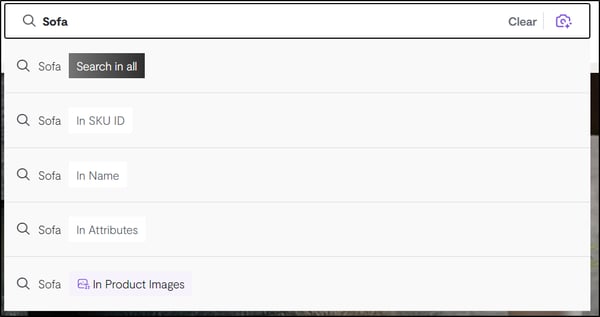
Note: AI search scans across product names, SKUs, attributes, and images simultaneously, buyers do not need to know the exact product name or SKU to find what they are looking for. And they also get a suggestive searches along with their search.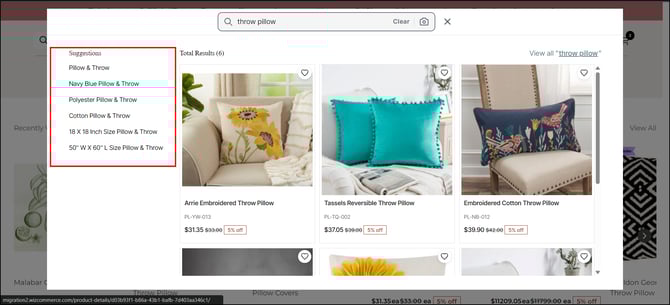
E. Search by Name, SKU, or Attribute
Use the search bar at the top of the Products page to find products by typing:
- The full or partial product name (e.g., "heavy duty cleaner")
- The exact SKU or item number
- A key attribute, material, or descriptor (e.g., "stainless steel", "5 gallon")
- Select the Search bar at the top of the Products page.

- Type your search term.
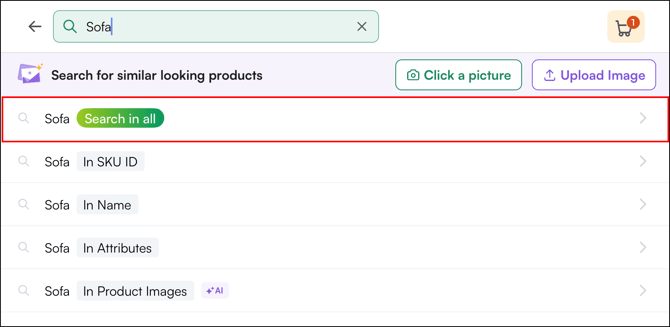
- Results appear across all product data fields at once, name, SKU, attributes, descriptions, and images, so you do not need to know exactly where the information is stored
Note: The search bar is typo-tolerant; minor spelling errors will still return relevant results.
FAQ
1. Can I search by image on WizShop?
A. Yes. WizShop supports image upload for AI search. However, unlike WizOrder, WizShop does not allow taking photos directly from the device camera, you'll need to upload an existing image.
2. What happens when I scan a barcode?
A. By default, the product is added directly to the cart. If you'd prefer scanning to open the Product Details page instead, contact your CSM or email help@wizcommerce.com.
3. Does the search work across all product fields at once?
A. Yes. A single search scans product names, SKUs, attributes, descriptions, and images simultaneously — you don't need to search each field separately.
Still need help? Reach out to our support team at help@wizcommerce.com.