---
title: Track and Manage Invoices
description: See where WizCommerce invoices come from, what each payment status means, and how reps and buyers view, download, and pay them across WizOrder and WizShop
---
[Skip to content](https://knowledge.wizcommerce.com/track-and-manage-invoices#main-content)
[](https://wizcommerce.com/)
Open main navigation
Close main navigation
- [Contact us](https://mail.google.com/mail/?view=cm&fs=1&to=help@wizcommerce.com)
[Contact us](https://mail.google.com/mail/?view=cm&fs=1&to=help@wizcommerce.com)
Hi, how can we help?
- There are no suggestions because the search field is empty.
1. [WizCommerce Help Centre](https://knowledge.wizcommerce.com/)
2. [Product Selection & Ordering](https://knowledge.wizcommerce.com/product-selection-ordering)
3. [Invoices](https://knowledge.wizcommerce.com/product-selection-ordering#invoices)
September 22, 2026
# Track and Manage Invoices
Invoices in WizCommerce come from your accounting system, not from WizCommerce itself. Once your ERP creates an invoice from an order, WizCommerce pulls it in and shows it against the matching order, along with its payment status.
This gives reps and admins a read-only view of what's been billed and what's still owed, and lets you export that data to a spreadsheet when you need it.
**Platform:** WizOrder │ **Who is this for:** Sales Reps / Admins
---
#### **Table of Contents**
| **Section** | **Topics** |
| --- | --- |
| A | [Orders vs. Invoices](https://knowledge.wizcommerce.com/track-and-manage-invoices#section-a) |
| B | [How Payment Status is Set](https://knowledge.wizcommerce.com/track-and-manage-invoices#section-b) |
| C | [View and Open Invoices in WizOrder](https://knowledge.wizcommerce.com/track-and-manage-invoices#section-c) |
| D | [Invoice Details Page](https://knowledge.wizcommerce.com/track-and-manage-invoices#section-d) |
| E | [View Invoices in the Online Storefront (WizShop)](https://knowledge.wizcommerce.com/track-and-manage-invoices#Section-e) |
| F | [Bulk Invoice Payment](https://knowledge.wizcommerce.com/track-and-manage-invoices#section-f) |
| G | [Import-Export Invoices in Bulk](https://knowledge.wizcommerce.com/track-and-manage-invoices#section-g) |
| H | [FAQs](https://knowledge.wizcommerce.com/track-and-manage-invoices#FAQs) |
---
#### **Before You Begin**
- Your account must be connected to your accounting system (ERP). Invoices are pulled from that integration, so only invoices that have synced will appear.
- Invoice visibility must be turned on for your account. If you don't see invoices, contact the WizCommerce support team.
- You need access to an order to see its invoices (see [Section D](https://knowledge.wizcommerce.com/track-and-manage-invoices#section-d)). The same access rules apply to what you can export.
- Only invoices associated with a Sales Order in your ERP will sync into WizCommerce. A standalone invoice with no linked Sales Order will not appear in WizCommerce and cannot be pulled in through the current invoice sync.
---
### A. Orders vs. Invoices
These are two different workflow in WizCommerce, created in two different places, and it's worth being clear on the difference before you start.
- An **order** is created in WizCommerce and sent to your ERP. WizCommerce owns it.
- An **invoice** is created in your **ERP** and pulled back into WizCommerce. Your accounting system owns it.
WizCommerce never creates an invoice. The PDF WizCommerce generates from an order is an order acknowledgement, not an invoice, the invoice is the billing document your accounting system produces.
**Note:** One order can have more than one invoice. Because invoices are often billed per shipment, an order that ships in parts can produce several invoices.
---
### B. How Payment Status is Set
WizCommerce shows one of four payment statuses on each invoice. For most statuses, it works out the status itself by comparing the invoice amount against the amount paid. it does not take the status directly from your accounting system.
- **Paid:** The amount paid matches the invoice amount. The invoice is fully settled and nothing is owed.
- **Partially Paid:** Some payment has been recorded, but less than the full amount, so a balance is still owed. This is common when a customer pays a deposit, or pays for one shipment of a multi-shipment order while the rest is outstanding.
- **Pending:** No payment has been recorded or confirmed yet, so the full amount is still owed. This is the starting state for most invoices once they sync in.
- **Refunded:** A refund has been issued against the invoice, returning money the customer already paid. Unlike the other three, this reflects that a refund happened, not the paid-versus-owed comparison.
**Note:** Payment Status is separate from **Invoice Status** (Open or Closed), which appears in its own column. Payment Status tells you what has been paid; Invoice Status tells you whether the invoice is still active or has been closed out
---
### C. View and Open Invoices in WizOrder
The Invoices page lists every invoice pulled from your accounting system, with its status, total, and how much has been paid. From here you can open, download, or raise a claim on any invoice.
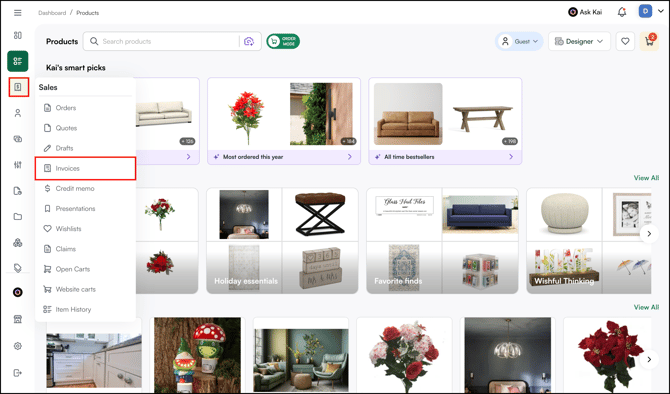
1. From the left menu, go to **Sales \> Invoices**. (You can also select the **Invoices** tab from the top of any Sales page.)
2. Review the invoice list. Each row shows the **Invoice ID**, **Customer name**, **Invoice Status** (Open or Closed), **Payment Status**, **Total Amount**, and **Paid Amount**.
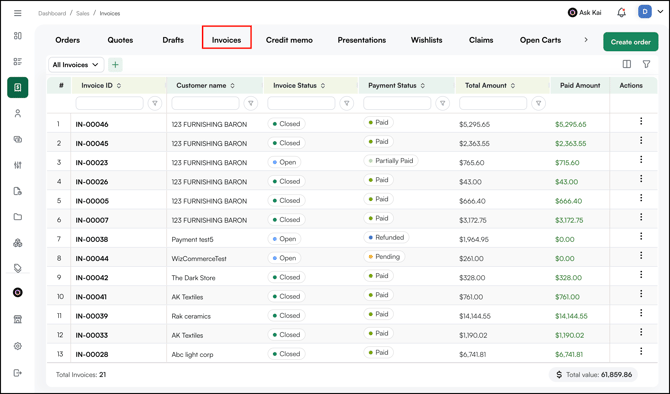
3. To [narrow the list](https://knowledge.wizcommerce.com/view-and-manage-orders#section4), type in the filter box below any column heading, for example, filter by **Payment Status** to see only Partially Paid invoices. You can also save a custom view using the **All Invoices** dropdown, or create a new one with the **+** button.
4. To act on an invoice, click the **three-dot menu** in the **Actions** column on the right. You can:
- *View* : Open the invoice to see its details
- *Download:* Save a copy of the invoice
- *Raise a claim:* Start a claim against the invoice
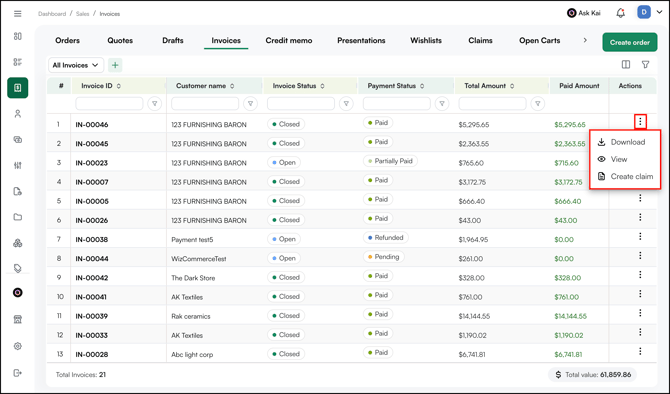
**Note:** Raise a claim only when a customer reports a problem with the product, for example, an item that arrived damaged, broken, expired, or wrong. For the full process, see [Claims](https://knowledge.wizcommerce.com/claims-for-admins-reps-buyers).
---
### D. Invoice Details Page
When you open an invoice (from the list, choose **View** in the three-dot menu), the detail page shows the full billing picture:
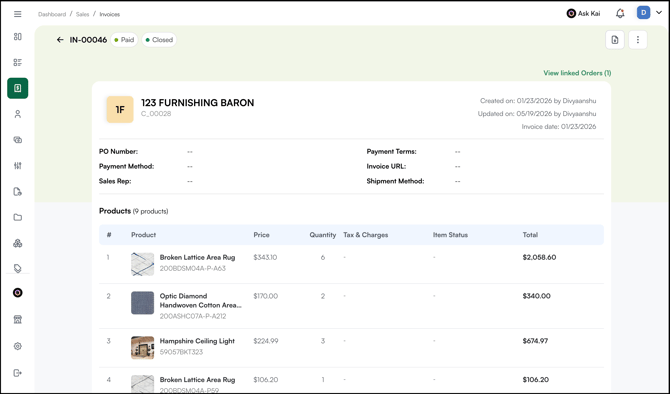
- **Summary:** Total Ordered, Total Open, and Total Shipped at the top, then Cart total, Total, Paid by customer, and Balance due.
- **Notes** and **Terms and Conditions** attached to the invoice.
- **Payments:** A table of every transaction against the invoice, showing **Transaction ID**, **Type**, **Transaction Status**, **Amount**, **Payment method**, and **Time and Date**.
To act on a specific payment, click the***three-dot menu on that payment row***. You can:
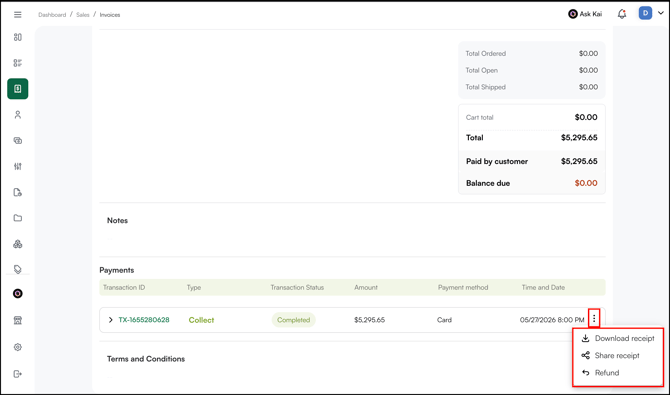
- *Download receipt:* Save a PDF receipt for that transaction
- *Share receipt* : Send the receipt to the customer or another recipient
- *[Refund](https://knowledge.wizcommerce.com/payment-workflows#section-g):* Return the payment to the customer
---
### E. View Invoices in the Online Storefront (WizShop)
Buyers can see the invoices billed to their account directly in the online storefront, view or download each one, and pay without asking a rep.
1. Sign in to the online storefront and open your account.
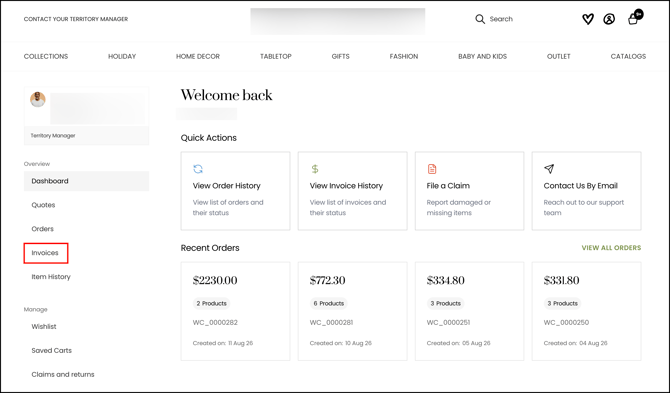
2. In the sidebar, under ***Overview***, click ***Invoices***. The **I*nvoices and Payments*** page opens.
3. Review your invoices in the list. Each invoice appears as a row you can sort and filter by colum, for example,***Invoice ID**, **Customer name**, **Invoice Status**,* ***Order numbe*r**, and ***Invoice Date**.*
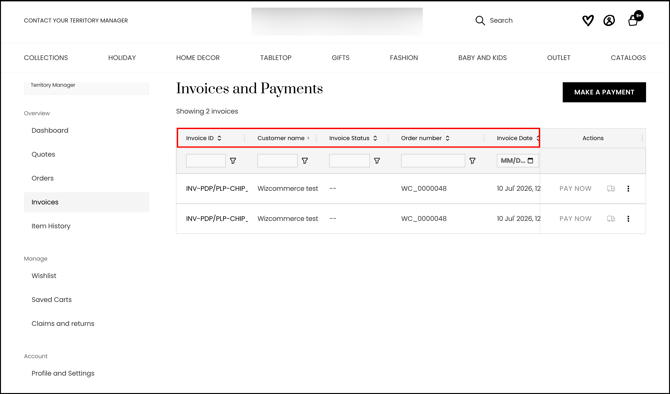
4. Sort any column using the arrows in its header, or type in the filter field below a header to narrow the list.
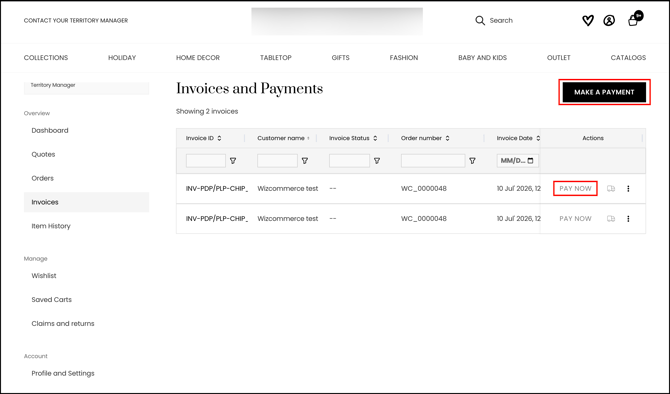
5. Pay an invoice using ***Pay Now*** in its row, or use ***Make a Payment*** at the top of the page.
6. Track the shipment for an invoice by clicking the shipment icon (truck) in the ***Actions column***.
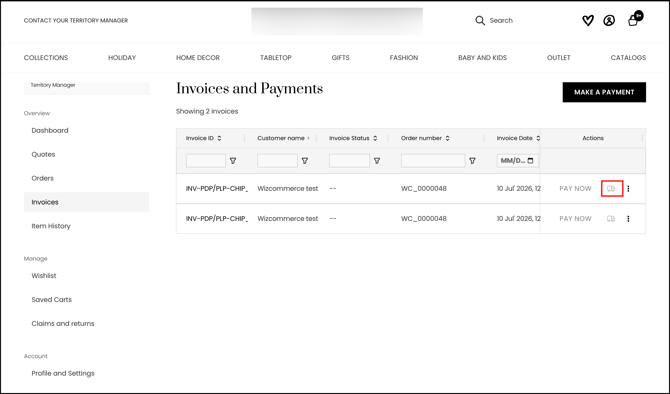
7. For everything else, open the three-dot menu in the **Actions** column:
1. **View invoice:** Open the invoice to see its full detail.
2. **Download:** Save a copy of the invoice.
3. **Raise Claim:** Start a claim against the invoice (see the buyer-facing *File a Claim* article).
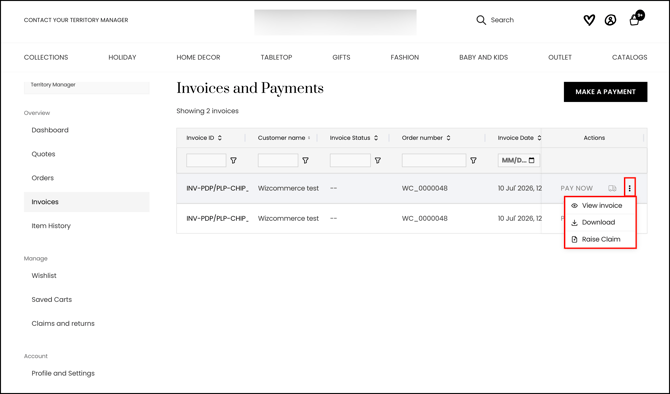
8. Click the I**nvoice ID** or select **View Invoice** from **three-dot menu** to open that invoice.

9. From the Invoice, you can:
1. **Payment Status:** View the current payment status of the invoice (for example, Paid).
2. **Shipment:** View the shipment details linked to the invoice.
3. **Download Media:** Download the media files associated with the invoice.
4. **Download Invoice:** Download the invoice as a PDF.
5. **Raise Claim (three-dot menu):** Raise a claim against the invoice.

**Note:**
- The three-dot menu options, ***View invoice*, *Download*, and** ***Raise Claim,*** are the same ones on the WizOrder invoice list, so the actions match whether a rep opens an invoice in WizOrder or a buyer opens it in the storefront.
- If no invoices match your filters, the page shows "We haven't found any results for your search." Clear the filters to see the full list.
---
### F. Bulk Invoice Payment
Instead of paying invoices one at a time, you can settle several open invoices for the same customer in a single payment. Select the invoices you want to include, up to 20 at a time, and pay them together, whether you are in **WizOrder or WizShop**. All the invoices included in the payment appear under one transaction record.
→ See **[Bulk Invoice Payment](https://knowledge.wizcommerce.com/bulk-invoice-payment)** for the full step-by-step process.
---
### G. Import-Export Invoices in Bulk
Bulk import and export use one shared spreadsheet. You export your invoices to get a template already matched to your setup, edit or add rows, and upload the same file back. Use export on its own for reconciliation and reporting, or edit and re-upload to create or update invoices in bulk.
**Before you start**
- You need admin access to perform import/export
- Export first: The template only contains the columns that apply to your account.
##### **» Export Invoices**
1. Go to Manage\> Import/Export
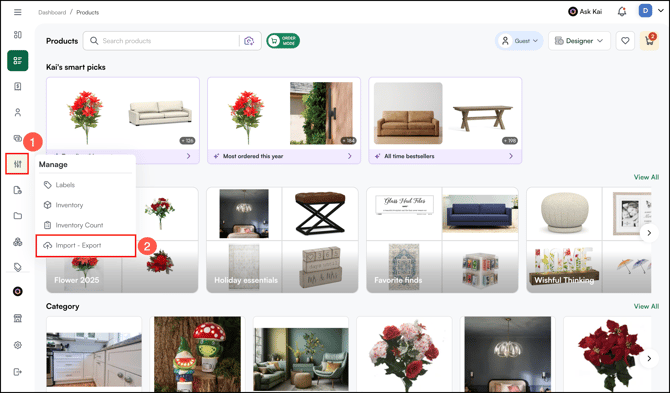
2. Select the the **Invoices** tile, click on *Export.
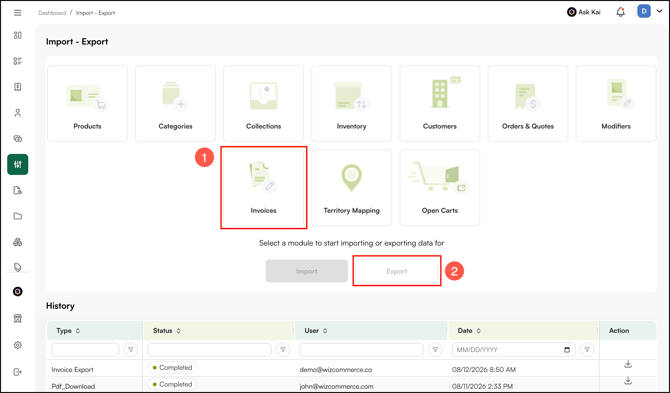*
3. Open the file and go to the ***Data Sheet** tab*. Each invoice appears as one **Invoice** row followed by one **Item** row per product on that invoice, all sharing the same **I*nvoice ID***.
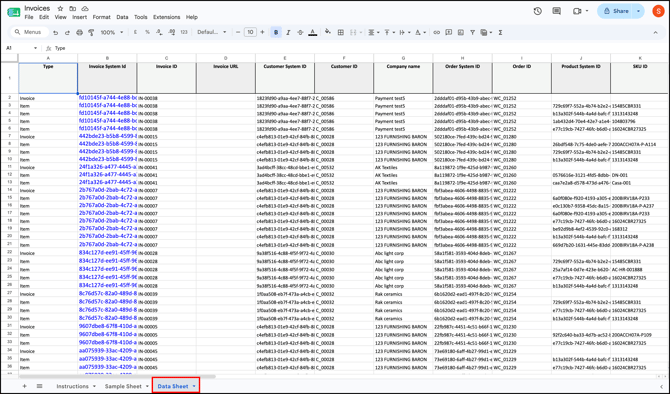
**Note:** An exported file is ready to read as-is for reconciliation. You only need the steps below if you intend to edit and re-upload it.
##### » Import (create or update invoices)
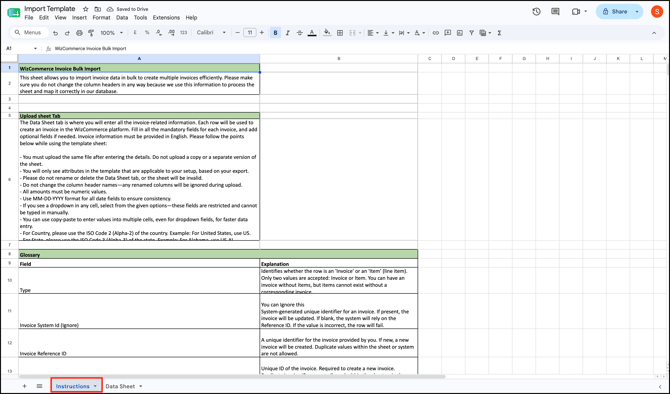
1. If this is your first time importing or exporting invoices, read the Instructions tab in the sheet before you begin.
2. In the **Data Sheet** tab, set each row's **Type** to *Invoice* or *Item*. An invoice can exist without items, but an item cannot exist without its invoice.
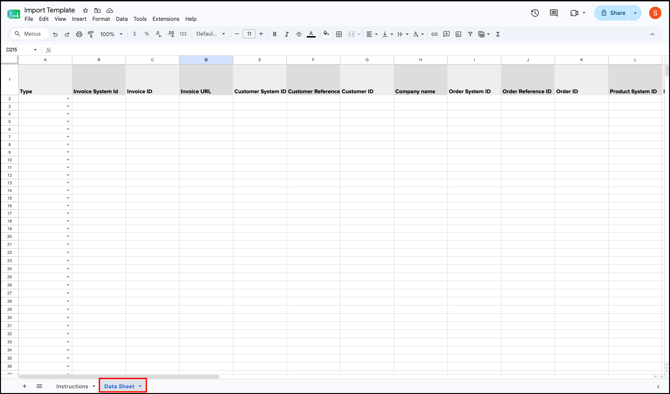
3. Fill in the required fields (see the field reference below).
4. Save the file and upload the **same file** back, not a copy or a renamed version.
**Note:** Do not rename or delete the **Data Sheet** tab, and do not change any column header. The platform maps your data by the exact header names, and renamed columns are ignored on upload.
#### » Rules for filling the sheet
- Amounts must be numbers only.
- Enter dates as MM/DD/YYYY (add HH:MM:SS for the ***Created At*** and ***Updated At*** fields).
- Where a cell has a dropdown, select a value, those cells cannot be typed into. Copy-paste works, including into dropdowns.
- Enter all information in English.
- For **Country**, use the two-letter code (for example, *US*). For **State**, use the subdivision code (for example, *US-AL*).
#### » Field reference
Only the fields that need explanation are listed below. The remaining columns are self-explanatory and can be filled in as labeled.
| Column | What it is / what to enter |
| --- | --- |
| **Type** | Whether the row is the *Invoice* (invoice-level details) or an *Item* (one product line). Only *Invoice* or *Item* is accepted. |
| **Invoice System Id** | Leave blank to create a new invoice; a value updates that invoice. Populated automatically on export. |
| **Invoice ID** | Required to create an invoice. No duplicates in the sheet or system. |
| **Customer System ID** | Same behavior as Invoice System Id; leave blank to match on Customer ID. |
| **Customer Reference ID** | Your own reference for the customer, used to match when System ID is blank. Appears only if your account uses reference IDs. |
| **Customer ID** | Missing or invalid fails the row; a valid value maps the invoice to that customer. |
| **Order System ID** | Same behavior as Invoice System Id; leave blank to match on Order ID. |
| **Order Reference ID** | Your own reference for the order. Appears only if used. |
| **Order ID** | Links the invoice to its order. If all order *and* customer fields are empty, the row fails. |
| **Product Reference Id** | Your own reference for the product. Appears only if used. |
| **Invoice Item Total** | Sum of all item totals on the invoice. |
| **Discount Type** | *Percentage* or *Value*. |
| **Additional Charge 1 Name** | Name of an extra charge such as packaging or handling. Treated as a tax-type charge. |
| **Total Amount** | Final amount after charges, tax, and discount. |
| **Payment Status** | Enter one of the accepted values (see Section B). |
| **Created At** | Format MM/DD/YYYY HH:MM:SS. |
| **Updated At** | Format MM/DD/YYYY HH:MM:SS. |
| **Due Date** | Format MM/DD/YYYY. |
**Note:** In the **Payment Status** column, enter the value that matches the invoice's status in Section B, *paid, partially paid, pending, or refunded.*
---
#### **FAQs**
**1. Why does an invoice still show a balance after the customer has already paid?**
A. Payment Status compares the invoice total against the amount recorded as paid *against that invoice*, so an invoice only shows as Paid once the full payment is recorded on the invoice itself. If the payment was taken against the order, applied to a different invoice or a deposit, or a charge like shipping or a surcharge was added after payment, the invoice can still show a balance until it is reconciled in your accounting system.
**2. My invoice shows the wrong balance. Can I fix it in WizCommerce?**
A. No. Invoices are owned by your ERP system, so the balance cannot be edited directly in WizCommerce. Correct the payment against the invoice in your accounting system, and the updated status flows back into WizCommerce.
**3. Can customers pay their invoices online?**
A. Yes. From the **Invoices and Payments** page in the online storefront, a buyer can pay a single invoice using **Pay Now** in its row, or use **Make a Payment** at the top of the page.
**4. An invoice exists in my ERP but isn't showing in WizCommerce, what should I check?**
**A.** If an invoice exists in your ERP but isn't appearing in WizCommerce:
- **Check it's linked to a Sales Order** in your ERP. Invoices without a linked Sales Order don't sync. This is expected behavior, not a sync failure.
- **Confirm your ERP integration is connected** and running.
- If the invoice has a linked Sales Order and still isn't appearing, contact [help@wizcommerce.com](mailto:help@wizcommerce.com) with the invoice ID(s).
---
**Still need help?** Reach out to our support team at [help@wizcommerce.com](https://mail.google.com/mail/u/0/?fs=1&to=help@wizcommerce.com&tf=cm).
- [Getting started](https://knowledge.wizcommerce.com/getting-started#main-content)
- [Product Overview](https://knowledge.wizcommerce.com/getting-started#product-overview)
- [Key Concepts You Should Know](https://knowledge.wizcommerce.com/getting-started#key-concepts-you-should-know)
- [Product Guides](https://knowledge.wizcommerce.com/getting-started#product-guides)
- [Trade Show Checklist](https://knowledge.wizcommerce.com/getting-started#trade-show-checklist)
- [Product Search & Discovery](https://knowledge.wizcommerce.com/product-search-discovery#main-content)
- [AI Product Recommendations](https://knowledge.wizcommerce.com/product-search-discovery#ai-product-recommendations)
- [Filter and Navigate](https://knowledge.wizcommerce.com/product-search-discovery#filter-and-navigate)
- [Catalog](https://knowledge.wizcommerce.com/product-search-discovery#catalog)
- [Product Selection & Ordering](https://knowledge.wizcommerce.com/product-selection-ordering#main-content)
- [Orders](https://knowledge.wizcommerce.com/product-selection-ordering#orders)
- [Quotes](https://knowledge.wizcommerce.com/product-selection-ordering#quotes)
- [Cart](https://knowledge.wizcommerce.com/product-selection-ordering#cart)
- [Presentations](https://knowledge.wizcommerce.com/product-selection-ordering#presentations)
- [Wishlist](https://knowledge.wizcommerce.com/product-selection-ordering#wishlist)
- [Item History](https://knowledge.wizcommerce.com/product-selection-ordering#item-history)
- [Invoices](https://knowledge.wizcommerce.com/product-selection-ordering#invoices)
- [Customers & Accounts](https://knowledge.wizcommerce.com/customers-accounts#main-content)
- [Customer Relationship Management (CRM)](https://knowledge.wizcommerce.com/customers-accounts#customer-relationship-management-crm)
- [Inventory & Warehousing](https://knowledge.wizcommerce.com/inventory-warehousing#main-content)
- [Inventory availability](https://knowledge.wizcommerce.com/inventory-warehousing#inventory-availability)
- [Payments](https://knowledge.wizcommerce.com/payments#main-content)
- [Payment Dashboard](https://knowledge.wizcommerce.com/payments#payment-dashboard)
- [Pricing & Commercials](https://knowledge.wizcommerce.com/pricing-commercials#main-content)
- [Pricelist](https://knowledge.wizcommerce.com/pricing-commercials#pricelist)
- [Discounts & Promotions](https://knowledge.wizcommerce.com/pricing-commercials#discounts-promotions)
- [Claims & Credits](https://knowledge.wizcommerce.com/pricing-commercials#claims-credits)
- [AI Co-Workers](https://knowledge.wizcommerce.com/ai-co-workers#main-content)
- [Ella - AI Order Entry Assistant](https://knowledge.wizcommerce.com/ai-co-workers#ella-ai-order-entry-assistant)
- [WizPilot - AI Assistant](https://knowledge.wizcommerce.com/ai-co-workers#wizpilot-ai-assistant)
- [WizStudio](https://knowledge.wizcommerce.com/wizstudio#main-content)
- [Creating & Editing Images](https://knowledge.wizcommerce.com/wizstudio#creating-editing-images)
- [Lifestyle Generator](https://knowledge.wizcommerce.com/wizstudio#lifestyle-generator)
- [Silo Editor](https://knowledge.wizcommerce.com/wizstudio#silo-editor)
- [Bulk Silo Editor](https://knowledge.wizcommerce.com/wizstudio#bulk-silo-editor)
- [Asset Library (Assets)](https://knowledge.wizcommerce.com/wizstudio#asset-library-assets)
- [AI Image Expander](https://knowledge.wizcommerce.com/wizstudio#ai-image-expander)
- [Reports & Analytics](https://knowledge.wizcommerce.com/reports-analytics#main-content)
- [Business Reports](https://knowledge.wizcommerce.com/reports-analytics#business-reports)
- [Manage your WizCommerce (Admin)](https://knowledge.wizcommerce.com/manage-your-wizcommerce-admin#main-content)
- [Import / Export](https://knowledge.wizcommerce.com/manage-your-wizcommerce-admin#import-export)
- [Organizational Settings](https://knowledge.wizcommerce.com/manage-your-wizcommerce-admin#organizational-settings)
- [Product Management](https://knowledge.wizcommerce.com/manage-your-wizcommerce-admin#product-management)
- [Managing Your WizShop Website](https://knowledge.wizcommerce.com/manage-your-wizcommerce-admin#managing-your-wizshop-website)
- [Integration & Apps](https://knowledge.wizcommerce.com/integration-apps#main-content)
- [Marketing Integration](https://knowledge.wizcommerce.com/integration-apps#marketing-integration)
- [Integration Dashboard](https://knowledge.wizcommerce.com/integration-apps#integration-dashboard)
- [Help & FAQs](https://knowledge.wizcommerce.com/help-faqs#main-content)
- [Help with Orders](https://knowledge.wizcommerce.com/help-faqs#help-with-orders)
- [Help with Quotes](https://knowledge.wizcommerce.com/help-faqs#help-with-quotes)
- [Help with Presentation](https://knowledge.wizcommerce.com/help-faqs#help-with-presentation)
- [Help with Inventory](https://knowledge.wizcommerce.com/help-faqs#help-with-inventory)
- [Help with User Management](https://knowledge.wizcommerce.com/help-faqs#help-with-user-management)
- [Help with Pricelist & Discounts](https://knowledge.wizcommerce.com/help-faqs#help-with-pricelist-discounts)
- [Help with WizStudio](https://knowledge.wizcommerce.com/help-faqs#help-with-wizstudio)
- [Help with Ella](https://knowledge.wizcommerce.com/help-faqs#help-with-ella)
- [Help with Org Settings (Admin)](https://knowledge.wizcommerce.com/help-faqs#help-with-org-settings-admin)
- [Help with Emails](https://knowledge.wizcommerce.com/help-faqs#help-with-emails)
- [Help with Products](https://knowledge.wizcommerce.com/help-faqs#help-with-products)
- [Help with Import/Export](https://knowledge.wizcommerce.com/help-faqs#help-with-import-export)
- [Help with WizShop](https://knowledge.wizcommerce.com/help-faqs#help-with-wizshop)
- [Help with Integration](https://knowledge.wizcommerce.com/help-faqs#help-with-integration)
- [Help with Categories and Collections](https://knowledge.wizcommerce.com/help-faqs#help-with-categories-and-collections)
- [Help With Customers](https://knowledge.wizcommerce.com/help-faqs#help-with-customers)
- [Help with Trade Show](https://knowledge.wizcommerce.com/help-faqs#help-with-trade-show)
[](https://wizcommerce.com/)
[mailto:help@wizcommerce.com](mailto:help@wizcommerce.com)
Copyright © 2025, WizCommerce
```json
{
"@context" : "https://schema.org",
"@type" : "VideoObject",
"contentUrl" : "https://47455261.fs1.hubspotusercontent-na2.net/hubfs/47455261/video_assets/381010111175/inherited/web_optimized.mp4",
"dateModified" : "2026-08-12T16:32:00.057Z",
"duration" : "PT18S",
"height" : 1638,
"name" : "Screen Recording 2026-08-12 at 9.54.39 PM",
"thumbnailUrl" : "https://47455261.fs1.hubspotusercontent-na2.net/hubfs/47455261/Screen%20Recording%202026-08-12%20at%209.54.39%20PM.mov/medium.jpg",
"uploadDate" : "2026-08-12T16:32:00.055Z",
"width" : 2880
}
```
```json
{
"@context" : "https://schema.org",
"@type" : "VideoObject",
"contentUrl" : "https://47455261.fs1.hubspotusercontent-na2.net/hubfs/47455261/video_assets/381010238148/inherited/web_optimized.mp4",
"dateModified" : "2026-08-12T16:52:07.360Z",
"duration" : "PT29S",
"height" : 1638,
"name" : "Screen Recording 2026-08-12 at 10.20.00 PM",
"thumbnailUrl" : "https://47455261.fs1.hubspotusercontent-na2.net/hubfs/47455261/Screen%20Recording%202026-08-12%20at%2010.20.00%20PM.mov/medium.jpg",
"uploadDate" : "2026-08-12T16:52:07.358Z",
"width" : 2880
}
```