---
title: Variant Builder
description: Generate variant images in WizStudio—upload swatches or pick Pantone shades, add a prompt, and get three AI variations per swatch instantly.
---
[Skip to content](https://knowledge.wizcommerce.com/variant-builder#main-content)
[](https://wizcommerce.com/)
Open main navigation
Close main navigation
- [Contact us](https://mail.google.com/mail/?view=cm&fs=1&to=help@wizcommerce.com)
[Contact us](https://mail.google.com/mail/?view=cm&fs=1&to=help@wizcommerce.com)
Hi, how can we help?
- There are no suggestions because the search field is empty.
1. [WizCommerce Help Centre](https://knowledge.wizcommerce.com/)
2. [WizStudio](https://knowledge.wizcommerce.com/wizstudio)
3. [Creating & Editing Images](https://knowledge.wizcommerce.com/wizstudio#creating-editing-images)
August 17, 2026
# Variant Builder
The Variant Builder generates visual images for multiple product variants, different colors, finishes, or materials, at scale from a single reference image. This article explains how to set up a variant generation workflow and export consistent imagery across a full product range.
**Platform:** WizStudio | **Who is this for:** Designers
---
#### Table of Contents
| **Sections** | **Topics** |
| --- | --- |
| **A** | [Build Your Product Variant](https://knowledge.wizcommerce.com/variant-builder#section1) |
| **B** | [Review and Refine Generated Images](https://knowledge.wizcommerce.com/variant-builder#section2) |
| **C** | [FAQs](https://knowledge.wizcommerce.com/variant-builder#section3) |
---
#### Before You Begin
- You must have access to ***WizStudio***
- Have the product image you want to generate variants for ready to upload
- Prepare your swatch images (fabric samples, textures, material photos) or have your Pantone hex codes ready before starting
- You can use swatch images and Pantone shades together in the same generation
---
#### A. Build Your Product Variant
The Variant Builder follows a three-step process: upload your product, add swatches, and generate images.
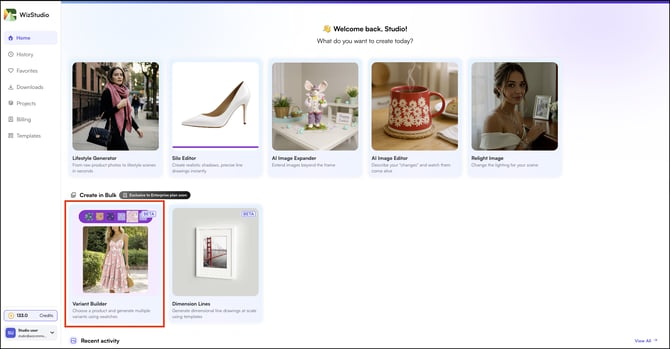
1. Click ***Variant Builder*** from the left navigation panel on the *WizStudio* homepage.
2. Upload the product image you want to generate variants for.
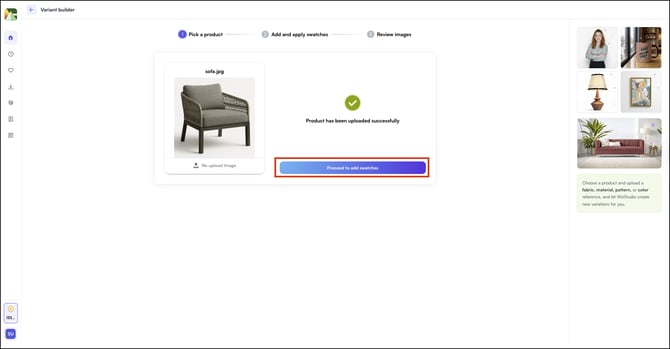
3. Click **Add Swatches** to continue.
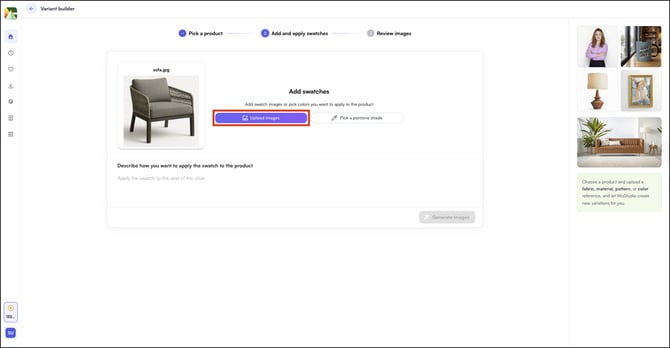
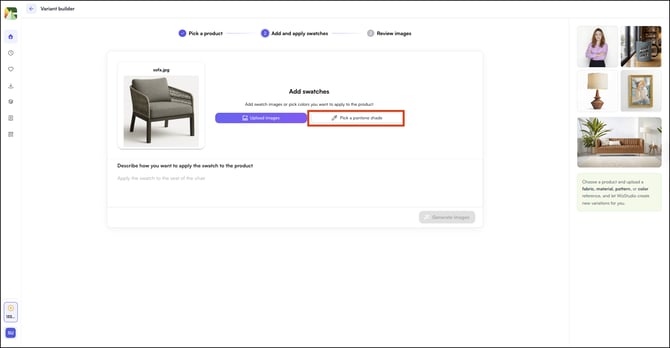
4. Add swatches to define the colors, materials, or finishes you want applied to the product. You have two options:
- ***Upload Images:*** Upload a photo of your swatch, fabric, material, or pattern (for example, a leather texture or a fabric sample)
- **Pick a Pantone Shade:** Open the color picker, select a shade from the palette or enter a hex code, and click Add Color:
- Repeat either option to add as many swatches as needed. The total swatch count is shown at the bottom of the screen.
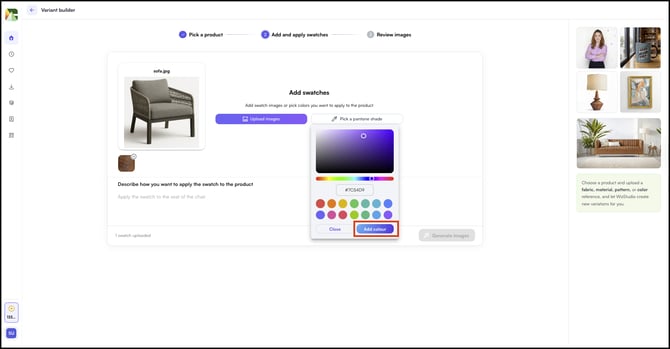
5. In the prompt field, describe how you want the swatch applied to the product. For example:
- "Make one variant using each swatch"
- "Apply the swatch to the seat of the chair"
6. Click ***Generate Images
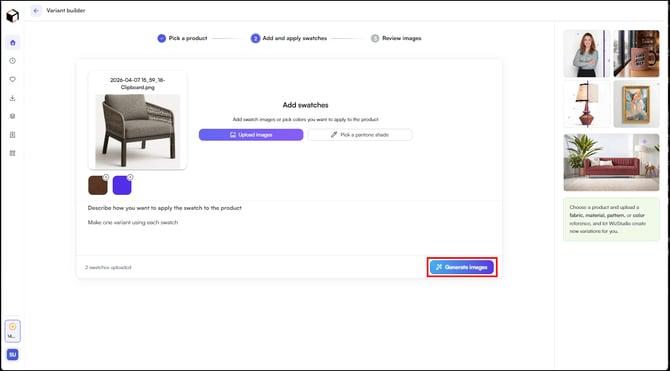***
---
### B. Review and Refine Generated Images
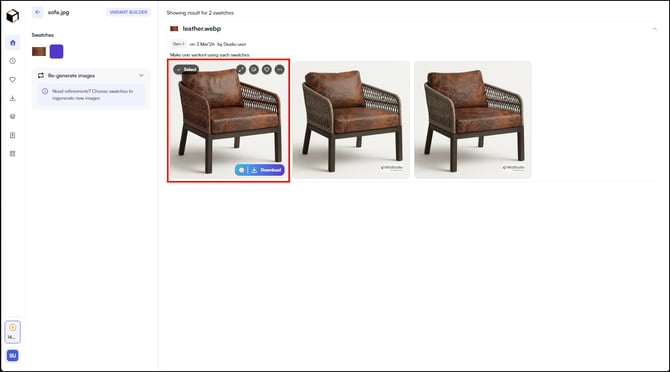
Results are grouped by swatch. Each group shows the swatch reference, the prompt used, and three generated images side by side.
1. Review the generated images for each swatch group
2. To edit an image further, click on it, you will be taken directly to the [Lifestyle Generator](https://knowledge.wizcommerce.com/wizstudio#lifestyle-generator) to continue editing.
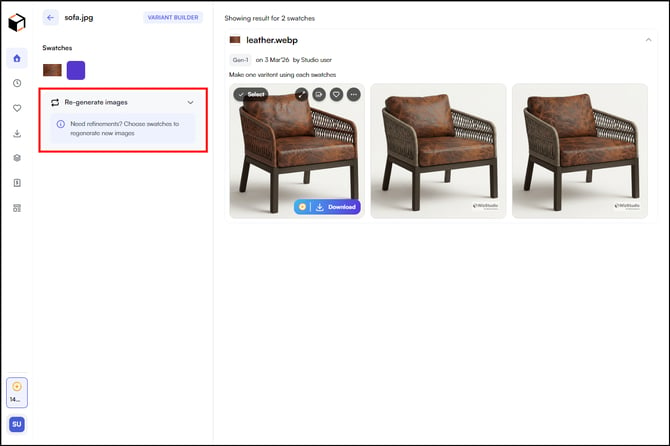
3. If the results need refinement, click ***Re-generate Images*** on the left panel, adjust your swatches or prompt, and generate again.
---
#### FAQs
**1. How many images does the Variant Builder generate per swatch?**
**A.** The Variant Builder generates three images for each swatch you add. If none of the results match your intent, adjust your prompt to be more specific about where and how the swatch should be applied, then regenerate.
**2. Can I use both swatch images and Pantone shades in the same generation?**
**A.** Yes. You can add swatch images and Pantone shades together in a single generation run. Each swatch — regardless of type, produces its own set of three variants.
**3. What happens if I want to edit one of the generated variants further?**
**A.** Click on any generated image to open it in the Lifestyle Generator, where you can apply additional edits including background changes, lighting adjustments, and prompt-based edits.
4\. How many swatches can I add to an image in WizStudio?
A. You can add up to 15 swatches to a single image in WizStudio.
---
**Still need help?** Reach out to our [*support team*](https://mail.google.com/mail/?view=cm&fs=1&to=help@wizcommerce.com) *at help@wizcommerce.com.*
- [Getting started](https://knowledge.wizcommerce.com/getting-started#main-content)
- [Product Overview](https://knowledge.wizcommerce.com/getting-started#product-overview)
- [Key Concepts You Should Know](https://knowledge.wizcommerce.com/getting-started#key-concepts-you-should-know)
- [Product Guides](https://knowledge.wizcommerce.com/getting-started#product-guides)
- [Trade Show Checklist](https://knowledge.wizcommerce.com/getting-started#trade-show-checklist)
- [Product Search & Discovery](https://knowledge.wizcommerce.com/product-search-discovery#main-content)
- [AI Product Recommendations](https://knowledge.wizcommerce.com/product-search-discovery#ai-product-recommendations)
- [Filter and Navigate](https://knowledge.wizcommerce.com/product-search-discovery#filter-and-navigate)
- [Catalog](https://knowledge.wizcommerce.com/product-search-discovery#catalog)
- [Product Selection & Ordering](https://knowledge.wizcommerce.com/product-selection-ordering#main-content)
- [Orders](https://knowledge.wizcommerce.com/product-selection-ordering#orders)
- [Quotes](https://knowledge.wizcommerce.com/product-selection-ordering#quotes)
- [Cart](https://knowledge.wizcommerce.com/product-selection-ordering#cart)
- [Presentations](https://knowledge.wizcommerce.com/product-selection-ordering#presentations)
- [Wishlist](https://knowledge.wizcommerce.com/product-selection-ordering#wishlist)
- [Item History](https://knowledge.wizcommerce.com/product-selection-ordering#item-history)
- [Invoices](https://knowledge.wizcommerce.com/product-selection-ordering#invoices)
- [Customers & Accounts](https://knowledge.wizcommerce.com/customers-accounts#main-content)
- [Customer Relationship Management (CRM)](https://knowledge.wizcommerce.com/customers-accounts#customer-relationship-management-crm)
- [Inventory & Warehousing](https://knowledge.wizcommerce.com/inventory-warehousing#main-content)
- [Inventory availability](https://knowledge.wizcommerce.com/inventory-warehousing#inventory-availability)
- [Payments](https://knowledge.wizcommerce.com/payments#main-content)
- [Payment Dashboard](https://knowledge.wizcommerce.com/payments#payment-dashboard)
- [Pricing & Commercials](https://knowledge.wizcommerce.com/pricing-commercials#main-content)
- [Pricelist](https://knowledge.wizcommerce.com/pricing-commercials#pricelist)
- [Discounts & Promotions](https://knowledge.wizcommerce.com/pricing-commercials#discounts-promotions)
- [Claims & Credits](https://knowledge.wizcommerce.com/pricing-commercials#claims-credits)
- [AI Co-Workers](https://knowledge.wizcommerce.com/ai-co-workers#main-content)
- [Ella - AI Order Entry Assistant](https://knowledge.wizcommerce.com/ai-co-workers#ella-ai-order-entry-assistant)
- [WizPilot - AI Assistant](https://knowledge.wizcommerce.com/ai-co-workers#wizpilot-ai-assistant)
- [WizStudio](https://knowledge.wizcommerce.com/wizstudio#main-content)
- [Creating & Editing Images](https://knowledge.wizcommerce.com/wizstudio#creating-editing-images)
- [Lifestyle Generator](https://knowledge.wizcommerce.com/wizstudio#lifestyle-generator)
- [Silo Editor](https://knowledge.wizcommerce.com/wizstudio#silo-editor)
- [Bulk Silo Editor](https://knowledge.wizcommerce.com/wizstudio#bulk-silo-editor)
- [Asset Library (Assets)](https://knowledge.wizcommerce.com/wizstudio#asset-library-assets)
- [AI Image Expander](https://knowledge.wizcommerce.com/wizstudio#ai-image-expander)
- [Reports & Analytics](https://knowledge.wizcommerce.com/reports-analytics#main-content)
- [Business Reports](https://knowledge.wizcommerce.com/reports-analytics#business-reports)
- [Manage your WizCommerce (Admin)](https://knowledge.wizcommerce.com/manage-your-wizcommerce-admin#main-content)
- [Import / Export](https://knowledge.wizcommerce.com/manage-your-wizcommerce-admin#import-export)
- [Organizational Settings](https://knowledge.wizcommerce.com/manage-your-wizcommerce-admin#organizational-settings)
- [Product Management](https://knowledge.wizcommerce.com/manage-your-wizcommerce-admin#product-management)
- [Managing Your WizShop Website](https://knowledge.wizcommerce.com/manage-your-wizcommerce-admin#managing-your-wizshop-website)
- [Integration & Apps](https://knowledge.wizcommerce.com/integration-apps#main-content)
- [Marketing Integration](https://knowledge.wizcommerce.com/integration-apps#marketing-integration)
- [Integration Dashboard](https://knowledge.wizcommerce.com/integration-apps#integration-dashboard)
- [Help & FAQs](https://knowledge.wizcommerce.com/help-faqs#main-content)
- [Help with Orders](https://knowledge.wizcommerce.com/help-faqs#help-with-orders)
- [Help with Quotes](https://knowledge.wizcommerce.com/help-faqs#help-with-quotes)
- [Help with Presentation](https://knowledge.wizcommerce.com/help-faqs#help-with-presentation)
- [Help with Inventory](https://knowledge.wizcommerce.com/help-faqs#help-with-inventory)
- [Help with User Management](https://knowledge.wizcommerce.com/help-faqs#help-with-user-management)
- [Help with Pricelist & Discounts](https://knowledge.wizcommerce.com/help-faqs#help-with-pricelist-discounts)
- [Help with WizStudio](https://knowledge.wizcommerce.com/help-faqs#help-with-wizstudio)
- [Help with Ella](https://knowledge.wizcommerce.com/help-faqs#help-with-ella)
- [Help with Org Settings (Admin)](https://knowledge.wizcommerce.com/help-faqs#help-with-org-settings-admin)
- [Help with Emails](https://knowledge.wizcommerce.com/help-faqs#help-with-emails)
- [Help with Products](https://knowledge.wizcommerce.com/help-faqs#help-with-products)
- [Help with Import/Export](https://knowledge.wizcommerce.com/help-faqs#help-with-import-export)
- [Help with WizShop](https://knowledge.wizcommerce.com/help-faqs#help-with-wizshop)
- [Help with Integration](https://knowledge.wizcommerce.com/help-faqs#help-with-integration)
- [Help with Categories and Collections](https://knowledge.wizcommerce.com/help-faqs#help-with-categories-and-collections)
- [Help With Customers](https://knowledge.wizcommerce.com/help-faqs#help-with-customers)
- [Help with Trade Show](https://knowledge.wizcommerce.com/help-faqs#help-with-trade-show)
[](https://wizcommerce.com/)
[mailto:help@wizcommerce.com](mailto:help@wizcommerce.com)
Copyright © 2025, WizCommerce
```json
{
"@context" : "https://schema.org",
"@type" : "VideoObject",
"caption" : {
"@type" : "MediaObject",
"contentUrl" : "https://knowledge.wizcommerce.com/media-transcripts/370224023248/en.vtt",
"inLanguage" : "en",
"name" : "en Captions"
},
"contentUrl" : "https://47455261.fs1.hubspotusercontent-na2.net/hubfs/47455261/video_assets/370224023248/inherited/web_optimized.mp4",
"dateModified" : "2026-07-17T12:54:13.564Z",
"duration" : "PT2M24S",
"height" : 978,
"name" : "Bulk Variant Builder",
"thumbnailUrl" : "https://47455261.fs1.hubspotusercontent-na2.net/hubfs/47455261/Bulk%20Variant%20Builder.mp4/medium.jpg",
"uploadDate" : "2026-07-17T12:53:56.396Z",
"width" : 1920
}
```