---
title: View and Manage Quotes
description: Track, edit, and manage quotes in WizOrder, understand quote statuses, review quote details, filter your quotes list, and convert approved quotes to orders.
---
[Skip to content](https://knowledge.wizcommerce.com/view-and-manage-quotes#main-content)
[](https://wizcommerce.com/)
Open main navigation
Close main navigation
- [Contact us](https://mail.google.com/mail/?view=cm&fs=1&to=help@wizcommerce.com)
[Contact us](https://mail.google.com/mail/?view=cm&fs=1&to=help@wizcommerce.com)
Hi, how can we help?
- There are no suggestions because the search field is empty.
1. [WizCommerce Help Centre](https://knowledge.wizcommerce.com/)
2. [Product Selection & Ordering](https://knowledge.wizcommerce.com/product-selection-ordering)
3. [Quotes](https://knowledge.wizcommerce.com/product-selection-ordering#quotes)
October 7, 2026
# View and Manage Quotes
Once a quote is submitted, you can track its status, review its details, edit it, and convert it to an order. All of these actions are available from the Quotes page in the *Sales Rep App (WizOrder)*. This article covers everything you need to manage quotes after they have been created.
**Platform:** WizOrder | **Who is this for:** Sales Reps & Admins
**To Get There:** *Sales **\>** Quotes*
---
#### Table of Contents
| **Section** | **Topics** |
| --- | --- |
| **A** | [Understand Quote Statuses](https://knowledge.wizcommerce.com/view-and-manage-quotes#section_a) |
| **B** | [View a Quote Summary](https://knowledge.wizcommerce.com/view-and-manage-quotes#Section_b) |
| **C** | [View Quotes From a Customer Profile](https://knowledge.wizcommerce.com/view-and-manage-quotes#section_c) |
| **D** | [View Quote History](https://knowledge.wizcommerce.com/view-and-manage-quotes#section_d) |
| **E** | [Filter, Sort, and Save Your Quotes View](https://knowledge.wizcommerce.com/view-and-manage-quotes#section_e) |
| **F** | [Edit a Quote After Submission](https://knowledge.wizcommerce.com/view-and-manage-quotes#section_f) |
| **G** | [FAQs](https://knowledge.wizcommerce.com/view-and-manage-quotes#faq) |
---
#### Before You Begin
- You must have access to *WizOrder***,** on the mobile app or the web portal
- To convert a quote to an order, the quote must be in ***Submitted*** status
- To edit a quote, it must not yet have been converted to an order, once converted, it is locked
---
### A. Understand Quote Statuses
Every quote has a status that tells you where it is in the sales process.
| **Status** | **What It Means** |
| --- | --- |
| **Submitted** | The quote has been created and is available for the buyer to review. This is the starting status for every new quote. |
| **Draft** | Saved but not yet submitted. No notification is sent to the buyer until the quote is submitted. |
| **Order in Progress** | An order has been started from this quote but not yet submitted. The quote stays in this status until the order is confirmed, at which point it changes to *Converted to Order*. |
| **Converted to Order** | The buyer approved the quote, and it has been converted to a confirmed order and synced to your ERP. |
---
### B. View Quote Summary Page
A quote moves through several states, and what you can do changes as it progresses. You build it on the **draft page**, submit it, and can keep editing after that until it's converted into an order. The lifecycle runs:
**» Draft → Submitted → Order in progress → Converted to Order**
While it's a draft, everything is editable. Once submitted, you can still open and edit the quote, adjust products, pricing, and terms, right up until it's converted to order. This section covers the draft page and the submitted quote page.
##### **» The Quote Draft Page**
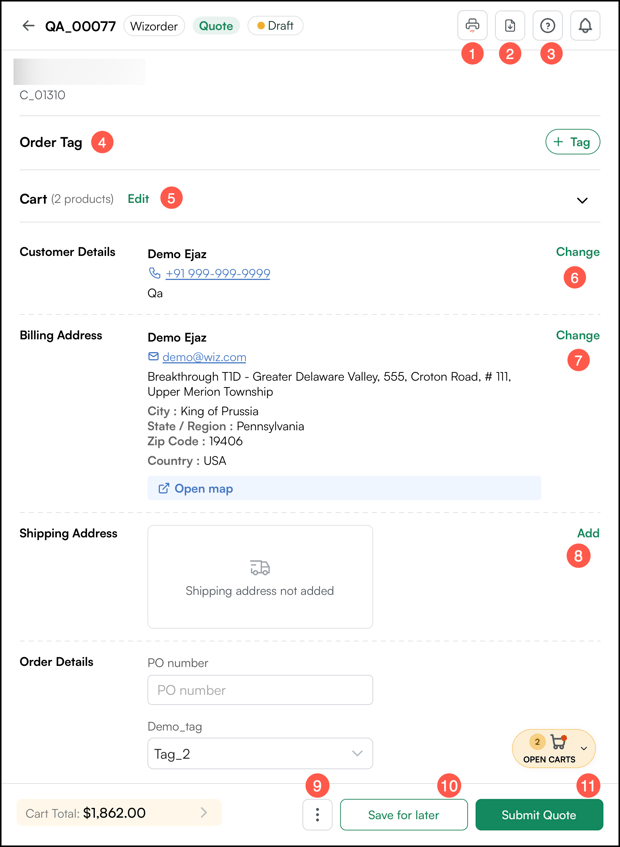
The draft page is where you build and edit a quote before submitting it. Customer, cart, addresses, and order details are all editable here. When the quote is ready, you can **Save for later** to keep working on it, or **Submit Quote** to send it through.
1. **Print:** Print the quote.
2. **Download:** Download the quote.
3. **Help:** Opens the Help Center where you can browse KB articles and raise a support ticket.
4. **Order Tag:** Optional label for the quote. Click **+ Tag** to add or update.
5. **Cart:** Shows the product count on the quote. Click **Edit** to add or remove products, change quantities, or adjust pricing. Click the chevron to expand the cart.
6. **Customer Details:** Contact information for the quote. Click **Change** to select a different customer.
7. **Billing Address:** Billing contact and address. Click **Change** to edit or **Open Map** to view the location.
8. **Shipping Address:** Shipping address for the quote. Shows **Shipping address not added** when empty. Click **Add** to add one.
9. **Three-dot menu:** Additional actions for the quote: Copy cart, Repeat quote, Delete quote, Cancel, and Reassign customer/company.
10. **Save for Later:** Saves the quote as a draft so you can finish it later.
11. **Submit Quote:** Submits the completed draft quote.
##### **» The Submitted Quote Page**
Click any ***submitted*** quote in the *Quotes page* to open its summary. The summary page gives you a complete picture of the quote in one place.
The summary page shows a complete picture of the quote in one place:
1. **Print and Download:** Print the quote or download it as a PDF or Excel file.
2. **WizPilot:** Your AI assistance.
3. **Help and Notifications:** Browse KB articles, raise a support ticket, or view notifications related to this quote.
4. **Order Tag:** Optional label to categorize the quote: Open, Pending, or Closed. Click **+ Tag** to add or update.
5. **Customer Details:** Contact information, billing address, and shipping address pulled from the customer profile.
6. **Pricelist:** The pricelist applied to this quote.
7. **Products:** Line item breakdown showing SKU, product name, image, price, quantity, and line total.
8. **Order Details:** PO number and other order-specific information associated with the quote.
9. **Freight Term:** The freight terms applicable for this quote.
10. **Payment Terms:** The payment terms selected for this quote.
11. **Three-dot menu:** Additional actions — Send Email, Copy Cart, Repeat Quote, Cancel, or Delete Quote.
12. **Edit Quote:** Opens the quote for editing. Available until the quote is converted to an order.
13. **Convert to Order:** Converts the approved quote into a confirmed order with all details carried across automatically.

###### **» Three-dot menu**
Click the **⋮** icon to access additional actions for the quote:
- **Send Email:** Send the quote directly to the customer via email.
- **Copy Cart:** Duplicate the cart associated with this quote.
- **Repeat Quote:** Create a new quote with the same products and details.
- **Cancel:** Cancel the quote.
- **Delete Quote:** Permanently delete the quote. Only quotes in **Draft** or **Submitted** status can be deleted.

---
### C. View Quotes From a Customer Profile
When you need to reference a customer's pending quotes quickly, you can access them directly from their profile without searching the full quotes list.
1. Go to the **Customers** tab and open the customer's profile.
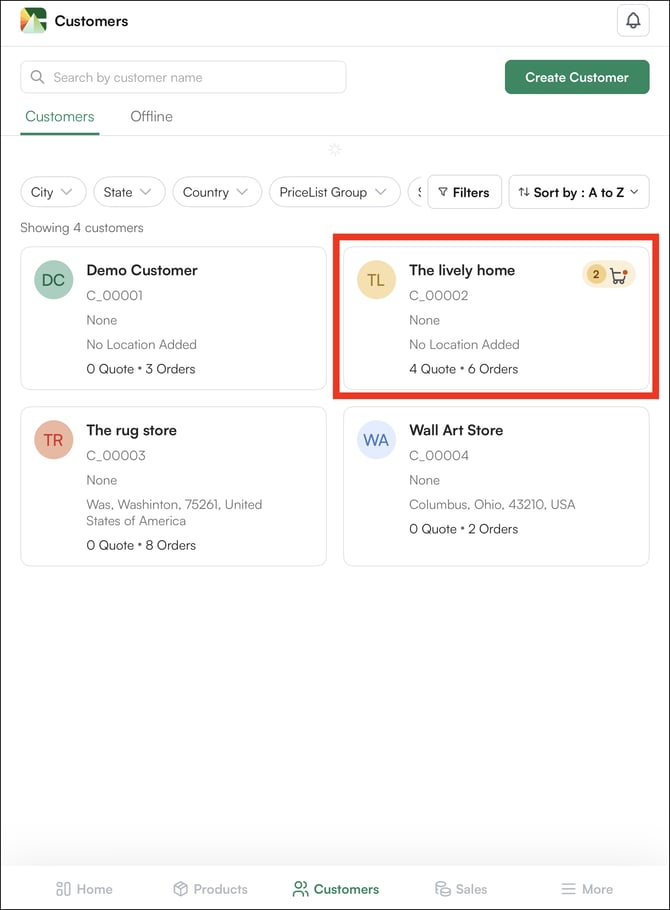
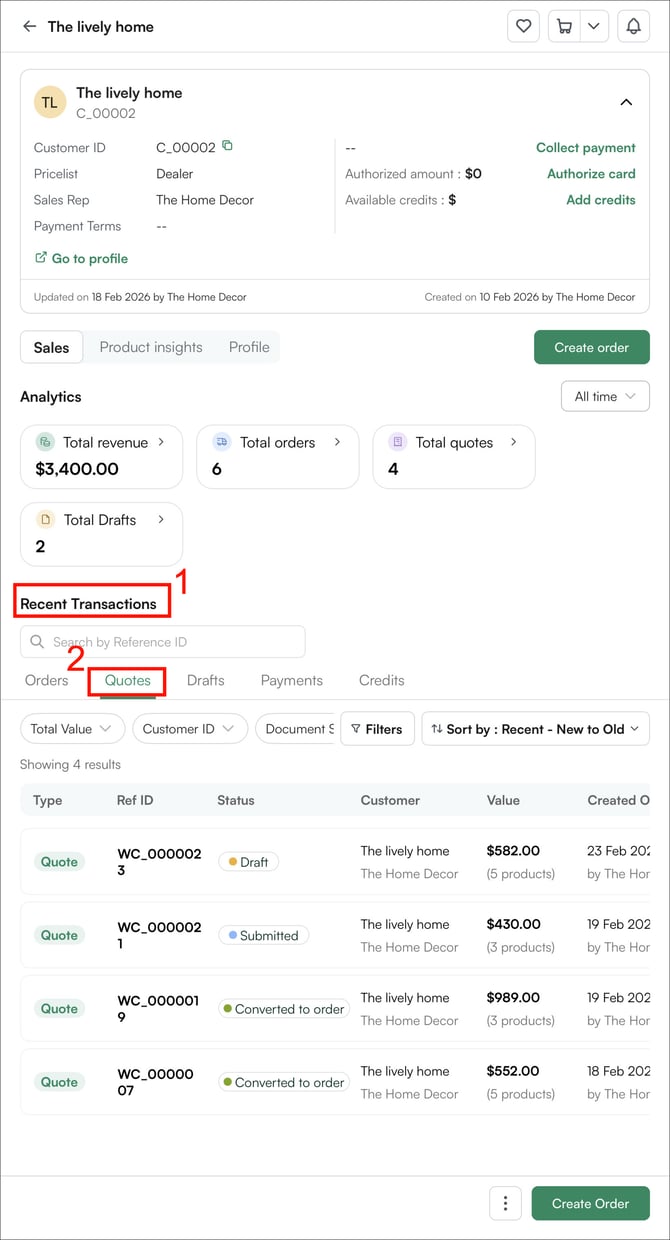
2. Scroll to the***Recent Transactions*** section.
3. Each entry shows the type, reference ID, date, total, and status — so you can quickly see which quotes are still open and which have been converted.
---
### D. View Quote History
The *Quotes* page contains all quotes created in WizOrder and is available in both the mobile app and the web portal. The columns visible differ slightly between the two.
**On the Mobile App**, each quote shows:
- Type and Reference ID
- Quote status
- Customer name
- Total order value
- Created On and Updated On dates
**On the Web Portal**, the Quotes table gives a broader view with additional columns:
- Type, Status, Customer ID, Customer Name
- Created By, PO Number, Order Value
- Updated On, Price List
On the web portal, you can sort by any column, apply filters across the full list, and save the filtered list for later.
---
### E. Filter, Sort, and Save Your Quotes View
Use filters and sorting to narrow down your quotes list. On the web portal, you can also save filter selections as a custom view for reuse.
##### **» Filters**
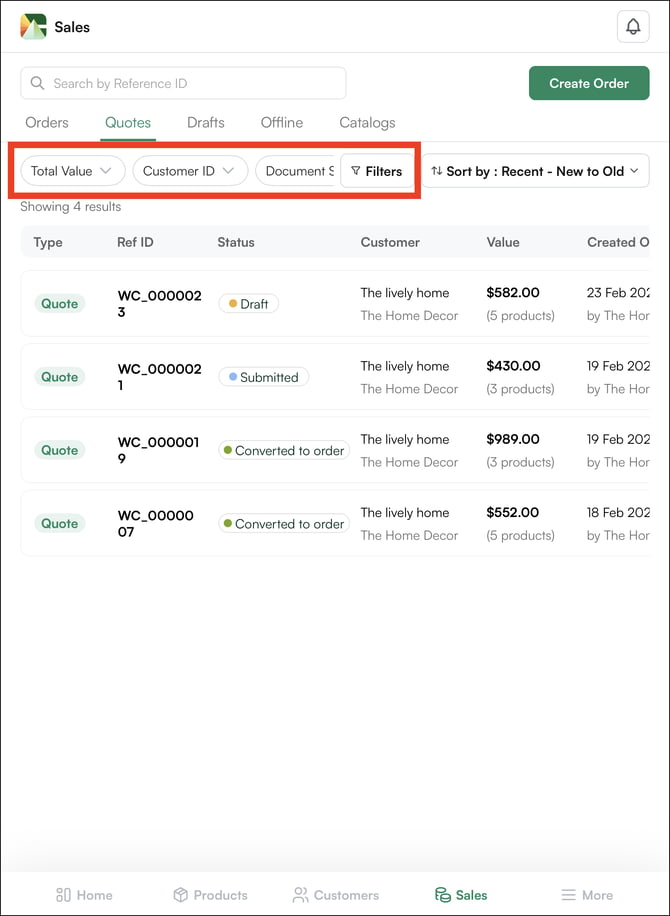
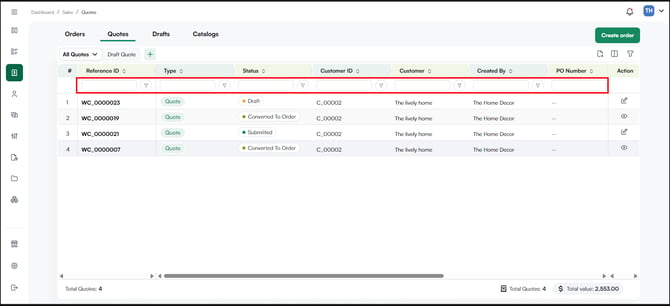
Available filters are based on the columns in the Quotes table and include date range, customer, sales rep, status, and region or territory. Since the mobile app and web portal use different column layouts, available filters differ accordingly.
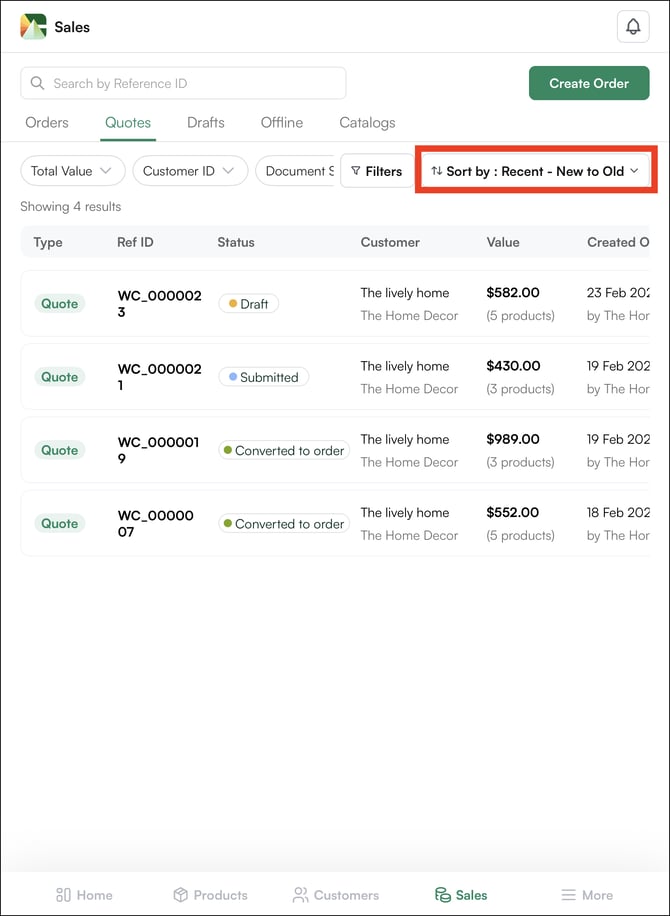
- On the Mobile App:
- On the Web Portal:
##### **» Sort**
- On the **mobile app:** use the dedicated ***Sort*** button.
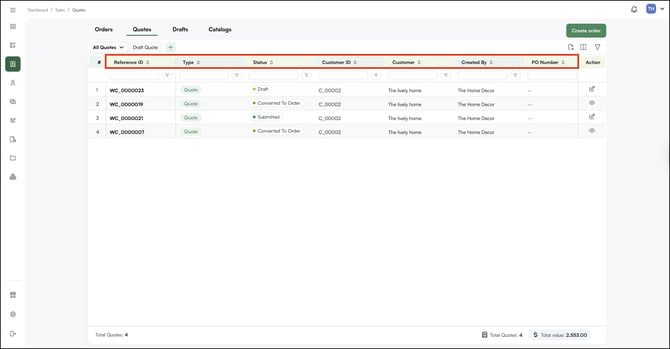
- On the **web portal:** click the arrows in any column header to sort.
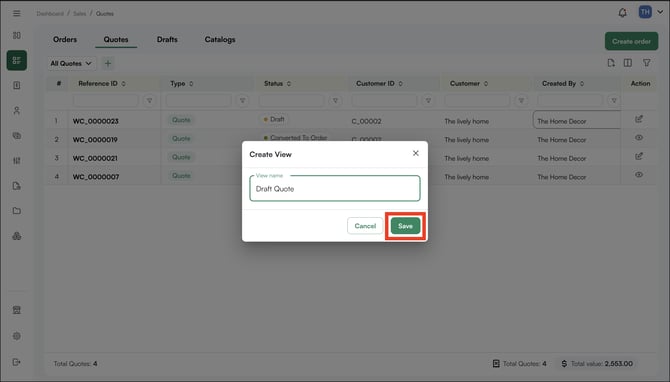
##### **» Save a Custom View (Web Portal Only)**
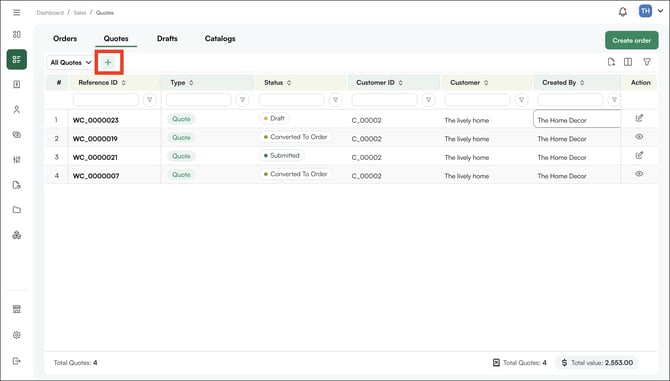
1. Click the ***+*** icon and name your view. For example, "***Draft Quotes."
***
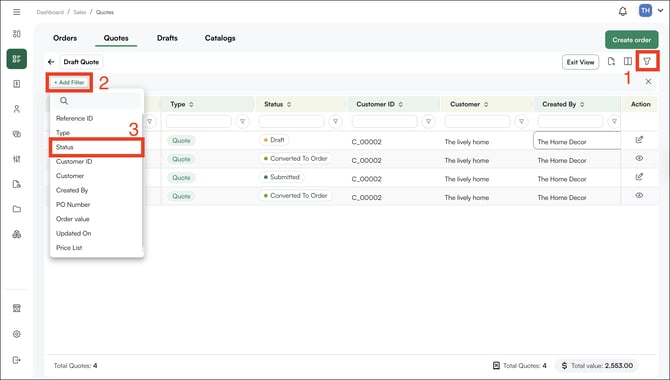
2. Click the filter icon and select *Add Filters*. Choose your criteria, such as status, customer, or date range, and click *Apply* to narrow down the list.
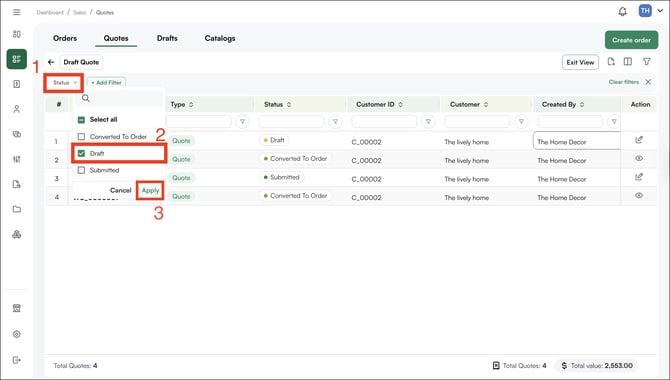
3. Apply the filters and click ***Save***.
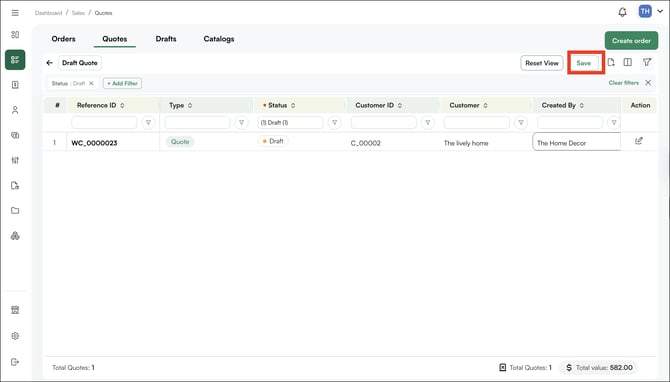
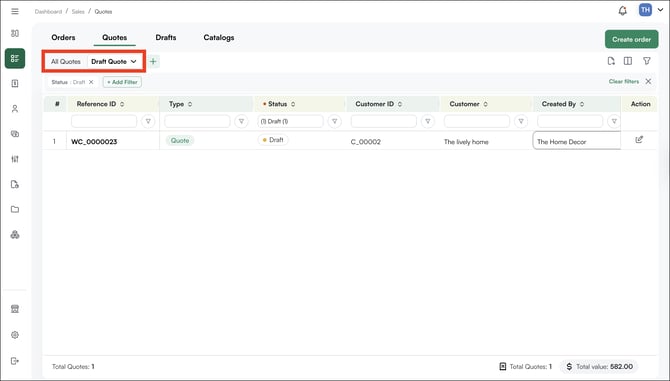
**Tip:** From the dropdown in the view header, you can delete, duplicate, edit, rename, or set any custom view as your default. Start your day by filtering to Submitted quotes from the last 30 days assigned to you, this becomes your daily follow-up list.
---
### F. Edit a Quote After Submission
A quote can be updated at any point before it is converted to an order. You can edit a quote at any point before it is converted to an order.
1. Open the quote from the ***Quotes*** page or from the *Sales* tab.
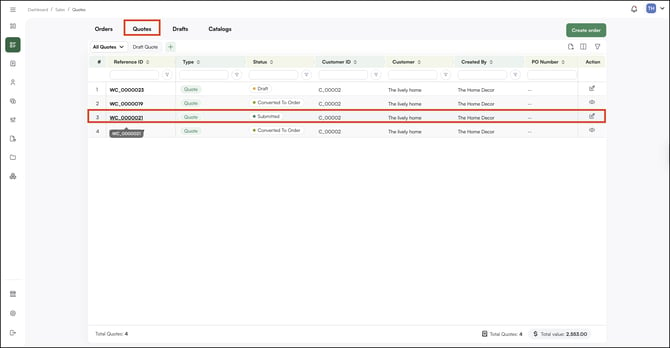
2. Click ***Edit Quote***.
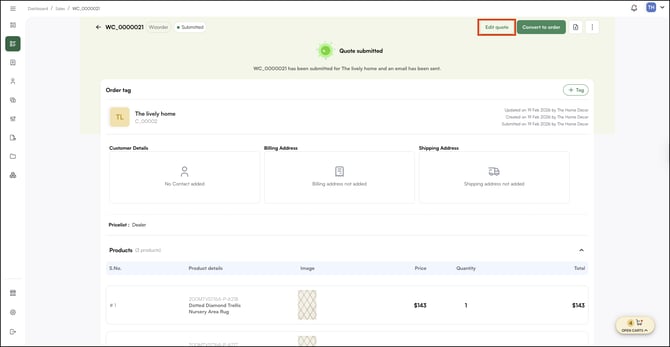
3. Make your [changes to your quote](https://knowledge.wizcommerce.com/creating-and-managing-quotes-in-wizorder): add or remove products, adjust quantities, update pricing, or change payment terms, PO number, or notes.
4. Save your changes. The quote updates and remains in its current status.
**Note:** A quote can be edited as many times as needed. It only locks when you click Convert to Order.
---
#### FAQs
**1. Can I edit a quote after it has been converted to an order?**
**A.** No. Once a quote is converted to an order, it is locked and cannot be edited from the Quotes page. To make changes, you will need to edit the order directly from the Orders page — subject to the permissions your administrator has set.
**2. What happens to the quote once I convert it to an order?**
**A.** The quote status changes to ***Converted to Ord*er** and all details, products, quantities, pricing, customer information, payment terms, and notes, transfer automatically to the new order. The original quote remains visible in the Quotes page for reference.
**3. Can I cancel a quote I no longer need?**
**A.** Yes. Open the quote, click the***three-dot menu***, and select ***Cancel***. Cancelled quotes are no longer active but remain visible in your Quotes history.
**4. Why is my quote stuck in "Order in Progress"?**
A. This means an order was started from the quote but is yet to get converted to an order. The quote will stay in *Order in Progress* until that order is completed. Open the *Order in Progress* quote and either submit it, which moves the quote to *Converted to Order,* or cancel it, which returns the quote so you can act on it again. If you can't locate or action the linked order, reach out to our support team (help@wizcommerce.com).
**5. How do I update the draft quote if some products are missing?**
A. See [Updating a Quote After Adding New Products to Cart](https://knowledge.wizcommerce.com/how-to-update-the-draft-quote) for the steps to fetch the updated cart and refresh the quote.
**6. Can I delete a Quote?**
**A.** You can delete only quotes in **Draft** or **Submitted** status. Quotes in **Order in Progress** or **Converted to Order** status cannot be deleted. To delete a quote, open it, click the **three-dot menu**, and select **Delete Quote**. Deleting a quote is permanent and cannot be undone.
**7. Why are my notes not showing on the quote PDF or email?**
**A.** Notes, including customer notes, are included in the quote PDF only if the **Share note** checkbox next to them is ticked. See [**Why are my notes not showing on the order or quote PDF?**](https://knowledge.wizcommerce.com/why-are-my-notes-not-showing-on-the-order-or-quote-pdf)
---
**Still need help?** Reach out to our [*support team*](https://mail.google.com/mail/?view=cm&fs=1&to=help@wizcommerce.com) *at help@wizcommerce.com.*
- [Getting started](https://knowledge.wizcommerce.com/getting-started#main-content)
- [Product Overview](https://knowledge.wizcommerce.com/getting-started#product-overview)
- [Key Concepts You Should Know](https://knowledge.wizcommerce.com/getting-started#key-concepts-you-should-know)
- [Product Guides](https://knowledge.wizcommerce.com/getting-started#product-guides)
- [Trade Show Checklist](https://knowledge.wizcommerce.com/getting-started#trade-show-checklist)
- [Product Search & Discovery](https://knowledge.wizcommerce.com/product-search-discovery#main-content)
- [AI Product Recommendations](https://knowledge.wizcommerce.com/product-search-discovery#ai-product-recommendations)
- [Filter and Navigate](https://knowledge.wizcommerce.com/product-search-discovery#filter-and-navigate)
- [Catalog](https://knowledge.wizcommerce.com/product-search-discovery#catalog)
- [Product Selection & Ordering](https://knowledge.wizcommerce.com/product-selection-ordering#main-content)
- [Orders](https://knowledge.wizcommerce.com/product-selection-ordering#orders)
- [Quotes](https://knowledge.wizcommerce.com/product-selection-ordering#quotes)
- [Cart](https://knowledge.wizcommerce.com/product-selection-ordering#cart)
- [Presentations](https://knowledge.wizcommerce.com/product-selection-ordering#presentations)
- [Wishlist](https://knowledge.wizcommerce.com/product-selection-ordering#wishlist)
- [Item History](https://knowledge.wizcommerce.com/product-selection-ordering#item-history)
- [Invoices](https://knowledge.wizcommerce.com/product-selection-ordering#invoices)
- [Customers & Accounts](https://knowledge.wizcommerce.com/customers-accounts#main-content)
- [Customer Relationship Management (CRM)](https://knowledge.wizcommerce.com/customers-accounts#customer-relationship-management-crm)
- [Inventory & Warehousing](https://knowledge.wizcommerce.com/inventory-warehousing#main-content)
- [Inventory availability](https://knowledge.wizcommerce.com/inventory-warehousing#inventory-availability)
- [Payments](https://knowledge.wizcommerce.com/payments#main-content)
- [Payment Dashboard](https://knowledge.wizcommerce.com/payments#payment-dashboard)
- [Pricing & Commercials](https://knowledge.wizcommerce.com/pricing-commercials#main-content)
- [Pricelist](https://knowledge.wizcommerce.com/pricing-commercials#pricelist)
- [Discounts & Promotions](https://knowledge.wizcommerce.com/pricing-commercials#discounts-promotions)
- [Claims & Credits](https://knowledge.wizcommerce.com/pricing-commercials#claims-credits)
- [AI Co-Workers](https://knowledge.wizcommerce.com/ai-co-workers#main-content)
- [Ella - AI Order Entry Assistant](https://knowledge.wizcommerce.com/ai-co-workers#ella-ai-order-entry-assistant)
- [WizPilot - AI Assistant](https://knowledge.wizcommerce.com/ai-co-workers#wizpilot-ai-assistant)
- [WizStudio](https://knowledge.wizcommerce.com/wizstudio#main-content)
- [Creating & Editing Images](https://knowledge.wizcommerce.com/wizstudio#creating-editing-images)
- [Lifestyle Generator](https://knowledge.wizcommerce.com/wizstudio#lifestyle-generator)
- [Silo Editor](https://knowledge.wizcommerce.com/wizstudio#silo-editor)
- [Bulk Silo Editor](https://knowledge.wizcommerce.com/wizstudio#bulk-silo-editor)
- [Asset Library (Assets)](https://knowledge.wizcommerce.com/wizstudio#asset-library-assets)
- [AI Image Expander](https://knowledge.wizcommerce.com/wizstudio#ai-image-expander)
- [Reports & Analytics](https://knowledge.wizcommerce.com/reports-analytics#main-content)
- [Business Reports](https://knowledge.wizcommerce.com/reports-analytics#business-reports)
- [Manage your WizCommerce (Admin)](https://knowledge.wizcommerce.com/manage-your-wizcommerce-admin#main-content)
- [Import / Export](https://knowledge.wizcommerce.com/manage-your-wizcommerce-admin#import-export)
- [Organizational Settings](https://knowledge.wizcommerce.com/manage-your-wizcommerce-admin#organizational-settings)
- [Product Management](https://knowledge.wizcommerce.com/manage-your-wizcommerce-admin#product-management)
- [Managing Your WizShop Website](https://knowledge.wizcommerce.com/manage-your-wizcommerce-admin#managing-your-wizshop-website)
- [Integration & Apps](https://knowledge.wizcommerce.com/integration-apps#main-content)
- [Marketing Integration](https://knowledge.wizcommerce.com/integration-apps#marketing-integration)
- [Integration Dashboard](https://knowledge.wizcommerce.com/integration-apps#integration-dashboard)
- [Help & FAQs](https://knowledge.wizcommerce.com/help-faqs#main-content)
- [Help with Orders](https://knowledge.wizcommerce.com/help-faqs#help-with-orders)
- [Help with Quotes](https://knowledge.wizcommerce.com/help-faqs#help-with-quotes)
- [Help with Presentation](https://knowledge.wizcommerce.com/help-faqs#help-with-presentation)
- [Help with Inventory](https://knowledge.wizcommerce.com/help-faqs#help-with-inventory)
- [Help with User Management](https://knowledge.wizcommerce.com/help-faqs#help-with-user-management)
- [Help with Pricelist & Discounts](https://knowledge.wizcommerce.com/help-faqs#help-with-pricelist-discounts)
- [Help with WizStudio](https://knowledge.wizcommerce.com/help-faqs#help-with-wizstudio)
- [Help with Ella](https://knowledge.wizcommerce.com/help-faqs#help-with-ella)
- [Help with Org Settings (Admin)](https://knowledge.wizcommerce.com/help-faqs#help-with-org-settings-admin)
- [Help with Emails](https://knowledge.wizcommerce.com/help-faqs#help-with-emails)
- [Help with Products](https://knowledge.wizcommerce.com/help-faqs#help-with-products)
- [Help with Import/Export](https://knowledge.wizcommerce.com/help-faqs#help-with-import-export)
- [Help with WizShop](https://knowledge.wizcommerce.com/help-faqs#help-with-wizshop)
- [Help with Integration](https://knowledge.wizcommerce.com/help-faqs#help-with-integration)
- [Help with Categories and Collections](https://knowledge.wizcommerce.com/help-faqs#help-with-categories-and-collections)
- [Help With Customers](https://knowledge.wizcommerce.com/help-faqs#help-with-customers)
- [Help with Trade Show](https://knowledge.wizcommerce.com/help-faqs#help-with-trade-show)
[](https://wizcommerce.com/)
[mailto:help@wizcommerce.com](mailto:help@wizcommerce.com)
Copyright © 2025, WizCommerce
```json
{
"@context" : "https://schema.org",
"@type" : "VideoObject",
"contentUrl" : "https://47455261.fs1.hubspotusercontent-na2.net/hubfs/47455261/Quotes%20mange%204.mp4",
"dateModified" : "2026-03-02T20:11:10.974Z",
"duration" : "PT9S",
"height" : 2360,
"name" : "Quotes mange 4",
"thumbnailUrl" : "https://47455261.fs1.hubspotusercontent-na2.net/hubfs/47455261/Quotes%20mange%204.mp4/medium.jpg",
"uploadDate" : "2026-03-02T20:11:03.103Z",
"width" : 1640
}
```