
Website User Import is where you add and manage WizShop users for your Online Storefront — whether you're setting up users for the first time, running a subsequent bulk import, or adding an individual user directly from the WizOrder portal.
This article covers how to run a first-time Website User Import, how to manage subsequent imports yourself, and how to add individual users without a bulk import.
Platform: WizShop & WizOrder | Who is this for: Admins
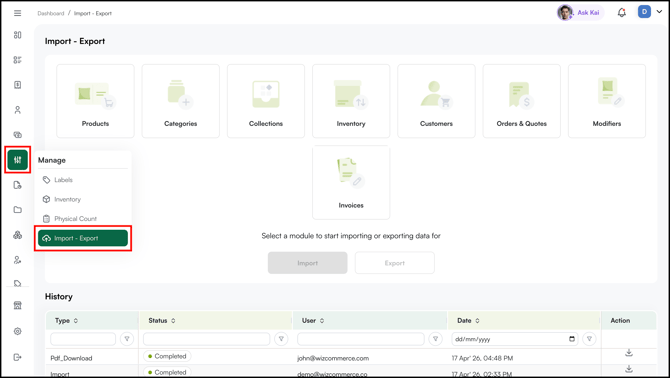
To get there: Manage > Import/Export > Customers > Import
Before You Begin
- This feature is only available for WizShop users.
- Bulk import is handled exclusively by WizCommerce, contact your Customer Success Manager to initiate the process.
- Admins can add users from the WizOrder web portal, but only one user can be added at a time (as bulk import is restricted).
- WizCommerce processes bulk imports in batches of 500 users at a time.
- Only existing WizCommerce users can be imported as Website Users.
A. First-Time Website User Import
Use this when you are setting up Website Users for the first time. WizCommerce will handle the initial bulk import on your behalf. Follow the steps below to prepare your file and submit it.
- Go to Manage in the left navigation and click Import/Export.
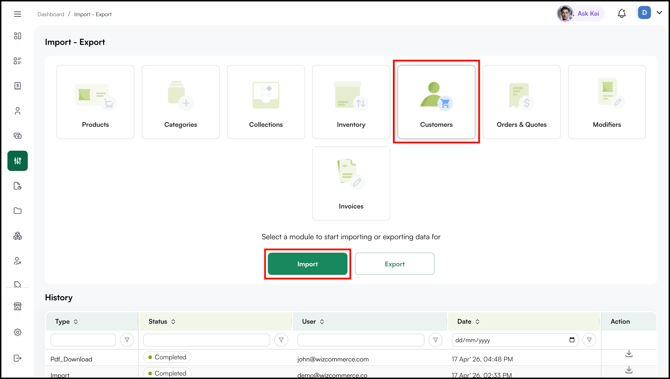
- Click Customers, then select Import.
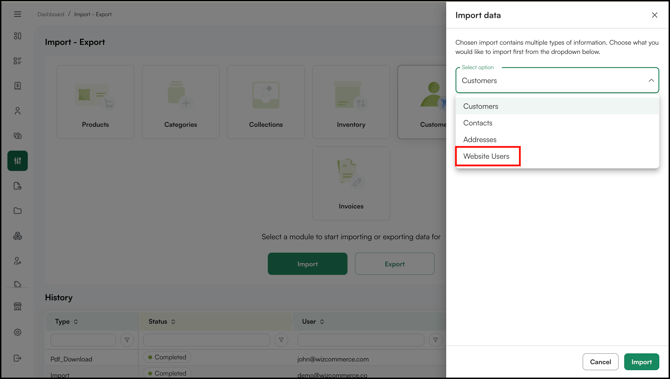
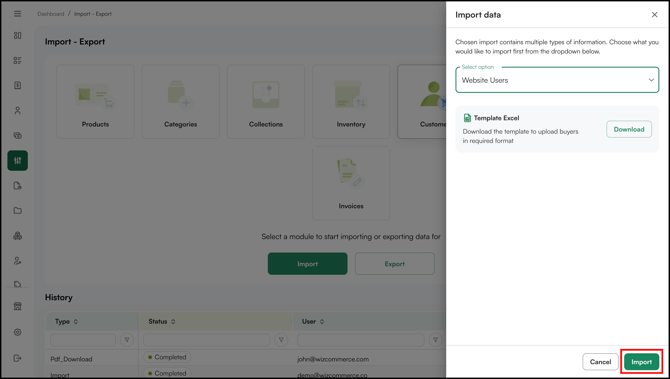
- Select Website Users from the dropdown.
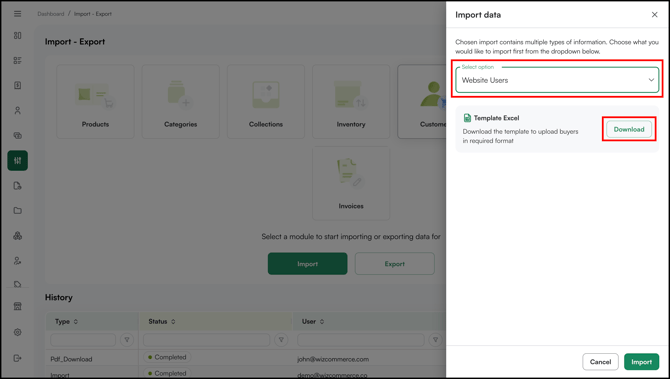
- Click Download to download the template.
- Open the template and map user data to the correct columns. Make sure every row has a valid Email ID — this field is mandatory.
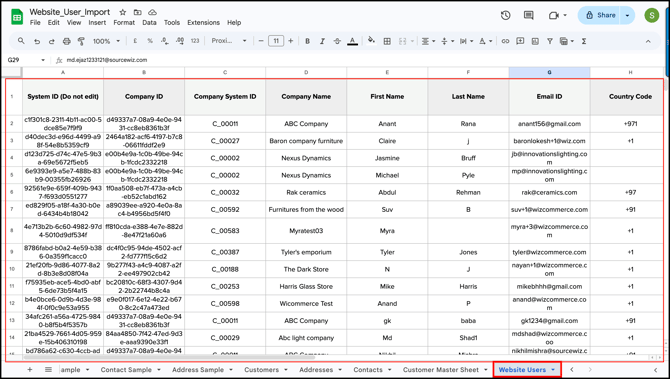
- Save as Excel once all data is mapped correctly.
- Click Import and upload the saved file.
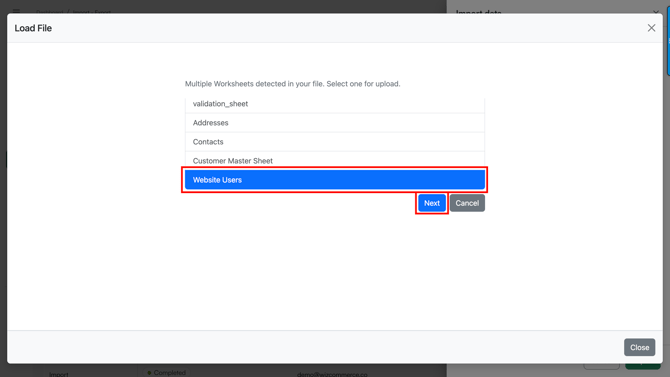
- Select the sheet you want to import and click Next.
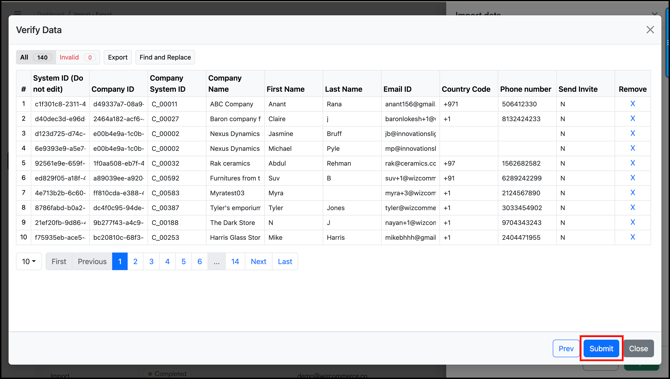
- Review the data on the verification screen to confirm everything looks correct.
- Click Submit.
B. Subsequent Website User Imports
For all subsequent imports, first export the existing data sheet and use it as the base file instead of downloading a new template.
- Go to Manage in the left navigation and click Import/Export.
- Click Customers, then select Export.
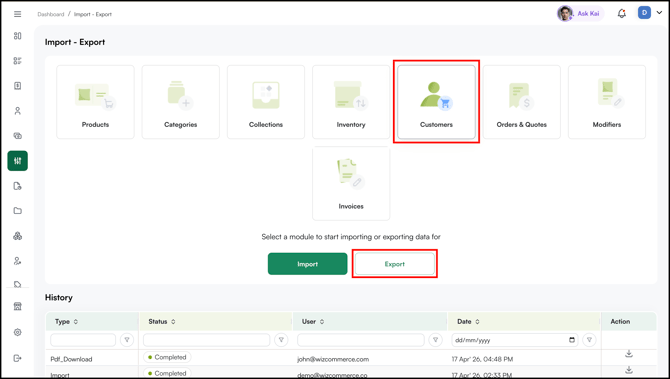
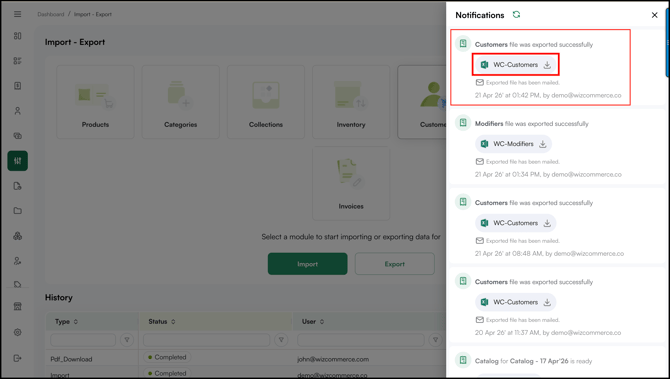
- Open Notifications and download the exported sheet.
- Open the downloaded file and map your new user data to the correct columns. Make sure every row has a valid Email ID — this field is mandatory.
- Save the file once all data is mapped correctly.
- Then click Import.
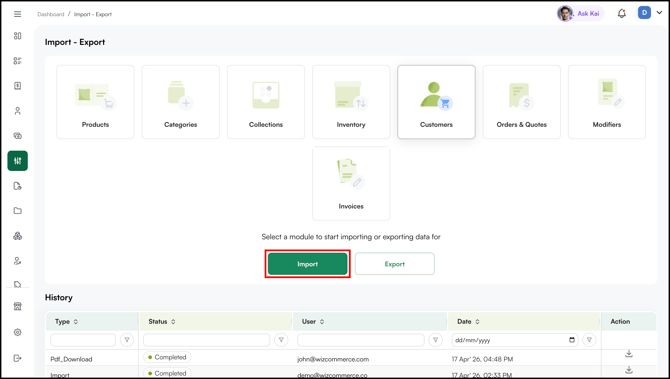
- Select Website Users from the dropdown.
- Click Import and upload the saved file.
- Select the sheet you want to import and click Next.
- Review the data on the verification screen to confirm everything looks correct.
- Click Submit.
Note: WizCommerce processes bulk imports in batches of 500 users at a time. If you have more than 500 users to import, split your file into batches of 500 before uploading.
C. Adding an Individual Website User
Admins can add website users from the WizOrder web portal, but only one user can be added at a time (as bulk import is restricted). Bulk import is handled exclusively by WizCommerce, contact your Customer Success Manager to initiate the process.
There are two ways to add to add a new user:
A. From the Website User Page
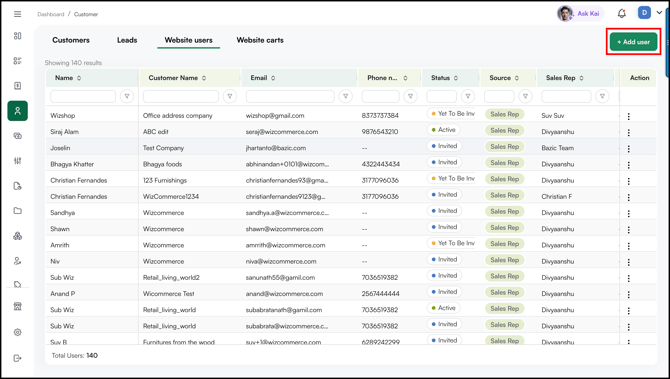
- Go to Customers in the left navigation and click WizShop Users.
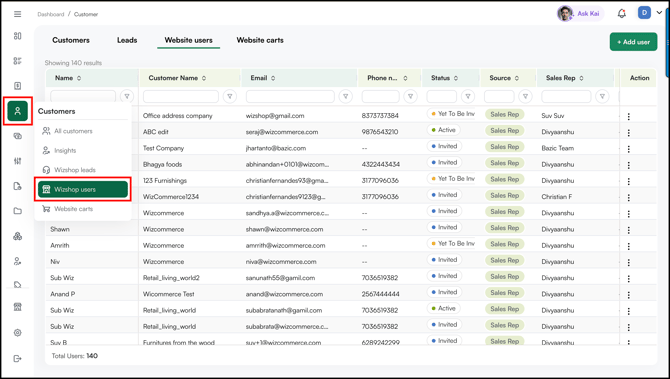
- Click +Add User on the Website Users page.
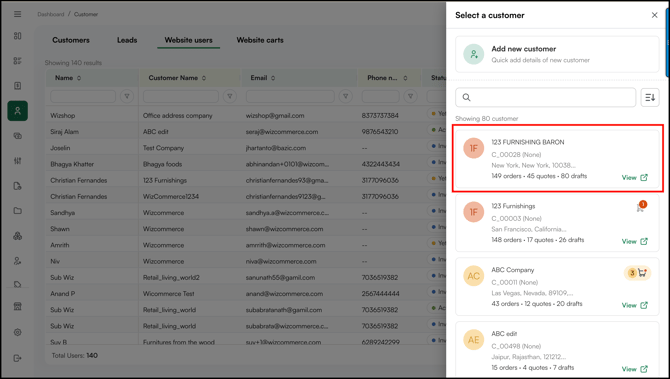
- Select the Customer.
- Fill in the required details, choose whether to send an invite email to the user, and click Save.
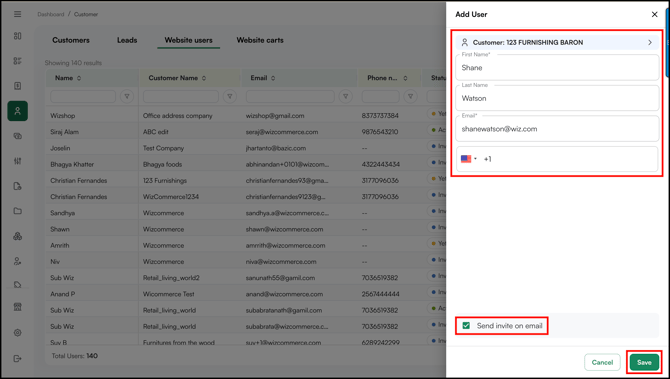
- The user will receive the login credential on the submitted email address.
B. From the Customer Details Page
- Go to Customers in the left navigation and click All Customers.
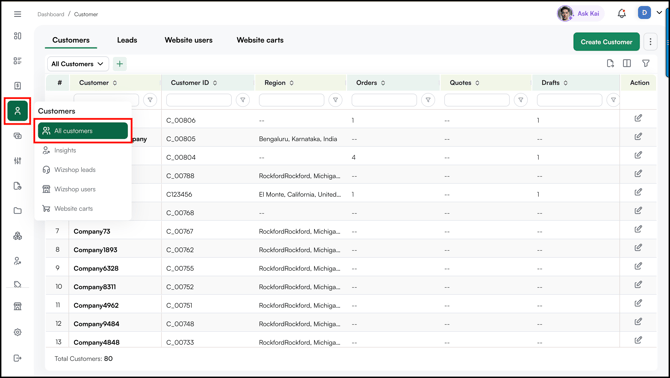
- Select the Customer.
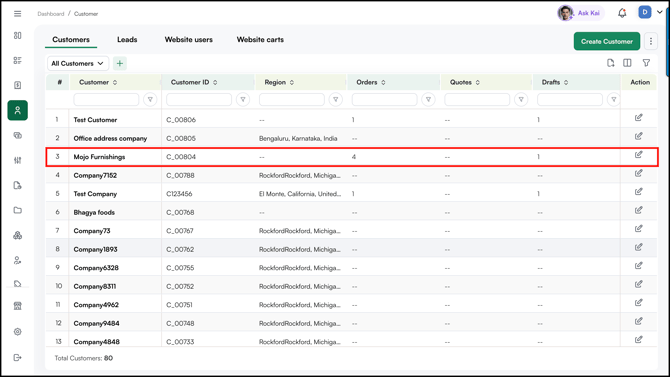
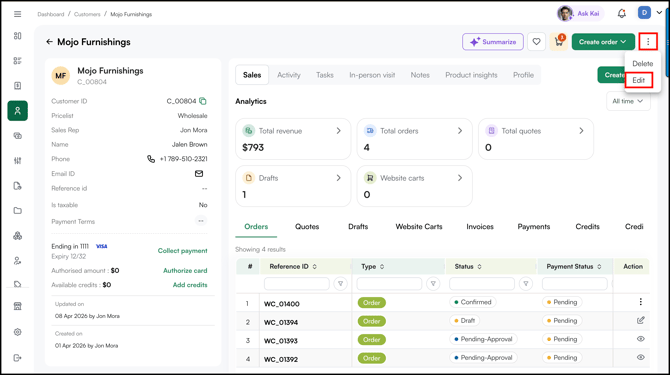
- Go to three dot menu and click Edit.
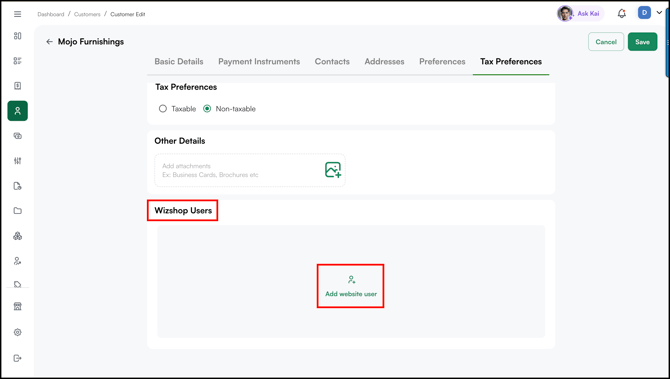
- Scroll down and click Add Website User.
- Fill in the required details, choose whether to send an invite email to the user, and click Save.
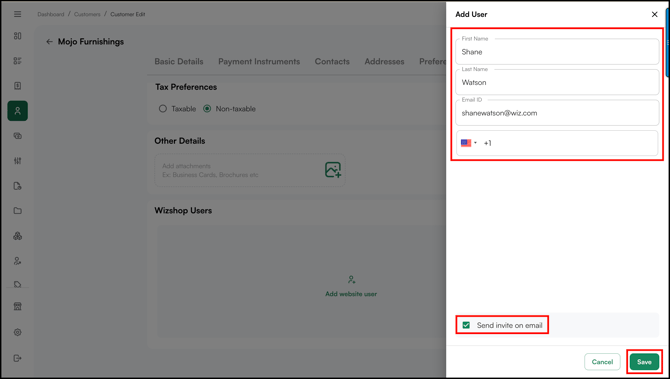
- The user will receive the login credential on the submitted email address.
Note: Individual users can be added directly by admins from the WizOrder web portal at any time without contacting WizCommerce.
FAQs
1. Who handles the first Website User Import?
A. WizCommerce handles the first bulk import on your behalf. Share your completed import file with your Customer Success Manager to get started. From the second import onwards, you can run the process yourself from the WizOrder web portal.
2. Is there a limit to how many users I can import at once?
A. Yes. WizCommerce processes bulk imports in batches of 500 users at a time. If you have more than 500 users, split your file into multiple batches of 500 before uploading.
3. Can I add a Website User without running a bulk import?
A. Yes. Individual users can be added directly from the WizOrder web portal — go to the customer's profile, open the Website Users section, and click Add User. You do not need to contact WizCommerce for individual user additions.
Not finding what you need? Browse the WizCommerce Help Center, reach out to your Customer Success Manager, or contact our support team at help@wizcommerce.com.