
The Asset Library lets you store your products inside WizStudio and reuse them when creating images, so you no longer have to upload the same product or re-enter its category and dimensions every time. This article shows you how to build your library and use it.
Platform: WizStudio | Who is this for: WizStudio users
Table of Contents
| Sections | Topics |
| A | What the Asset Library Stores |
| B | Build Your Library with Bulk Upload |
| C | Save Products While You Create |
| D | Use Products from Asset Library |
| E | FAQs |
Before You Begin
- The Asset Library is available by default to all users on every plan.
- To bulk upload, you need your product catalog in an Excel/CSV file, including a valid image URL for each product.
- Each product must have a unique SKU ID. If a SKU ID already exists in the Asset Library, uploading it again will update the existing product instead of creating a new one.
- You can store one primary image plus up to 10 additional images per product.
A. What the Asset Library Stores
The Assets tab is a library of all your products in WizStudio. For each product you can save:
- A product name
- A SKU ID
- A category and dimensions
- A primary image, plus up to 10 additional images
Saving more than one image per product, such as a side or back angle, helps the AI generate more accurate images.
Note: Each product must have a unique SKU ID in the Asset Library. If you upload a SKU ID that already exists, it will update the existing product instead of adding a new one.
There are two ways to create your library in WizStudio: a bulk Excel upload and saving products as you create images.
B. Build Your Library with Bulk Upload
Use bulk upload to add your full catalog from an Excel file.
- login to WizStudio and go to Assets
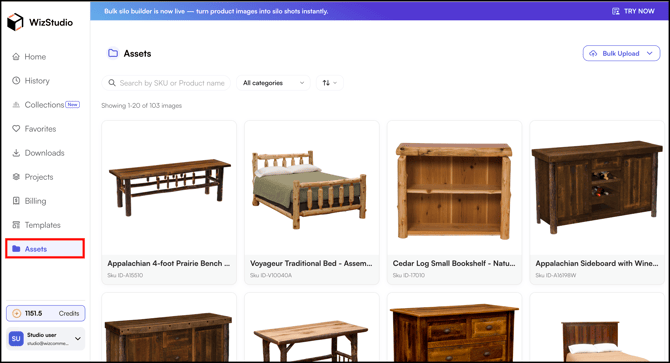
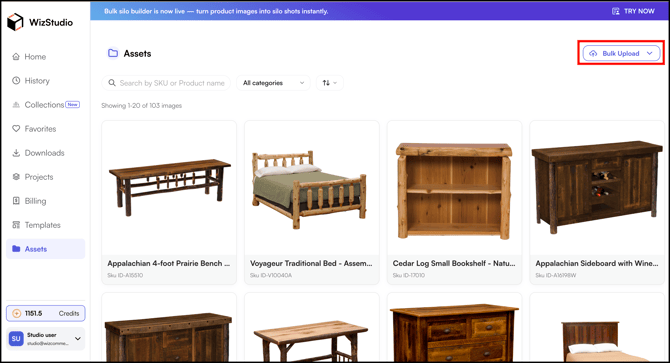
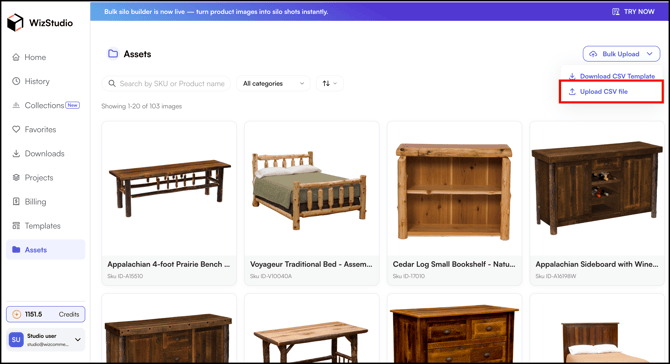
- On the Assets tab, click Bulk Upload in the top-right corner.
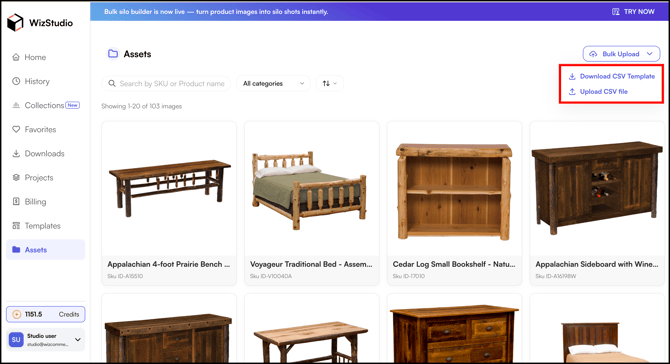
- You will see two options: Download CSV and Upload CSV.
- Click Download CSV to open the template.
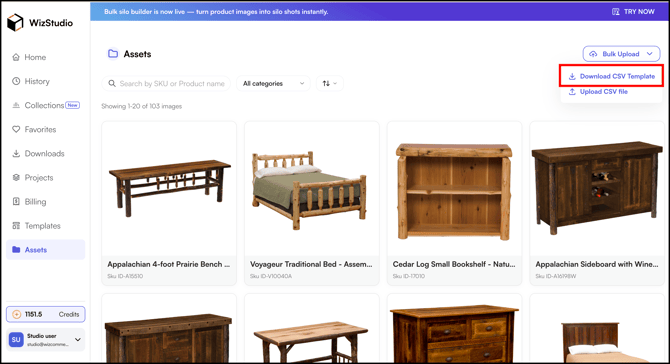
- It contains columns for Name, SKU ID, Category, Dimensions, and Primary Image, plus up to 10 additional product images.
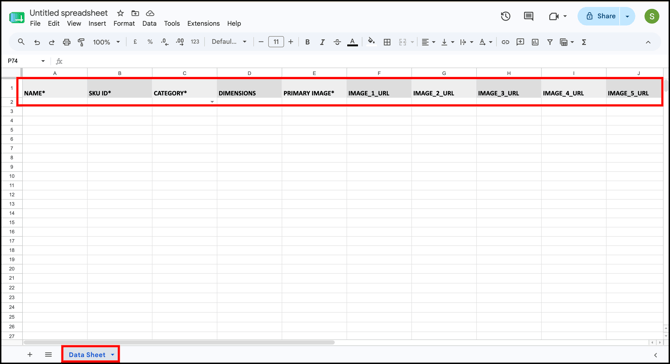
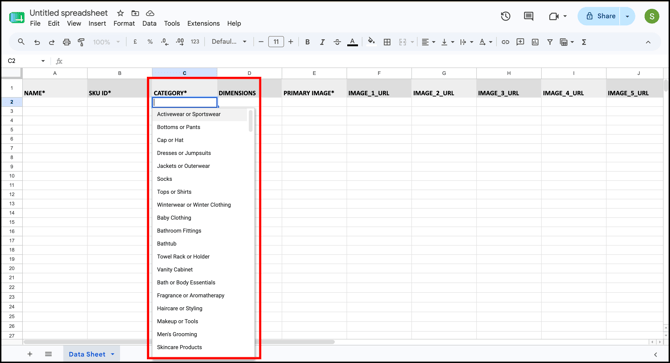
- Fill in your product details. The Category column has a dropdown → choose a category, add your own, or select Others if none match.
- Once your file is ready, click Upload CSV and select your file.
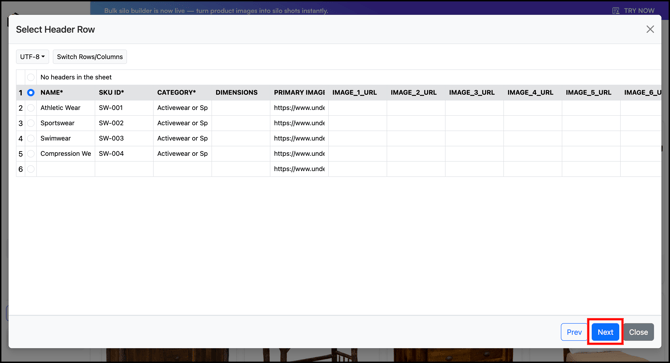
- Click Next and make sure all your columns are correctly mapped.
- Click Submit.
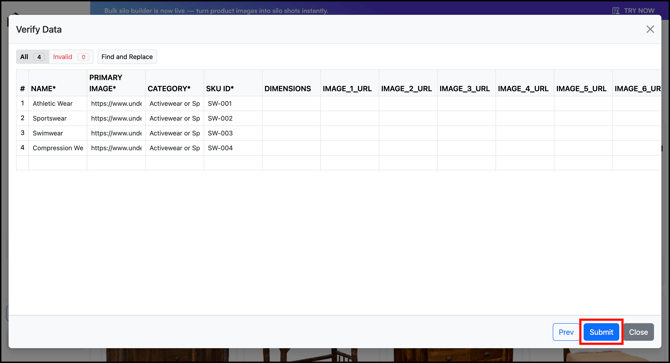
Your file takes a few minutes to upload, and an uploading progress bar appears at the top. Once complete, your products appear in the Assets tab, where you can review all their details.
- Once uploaded, search for a product by SKU, Name, or Filter by Category.
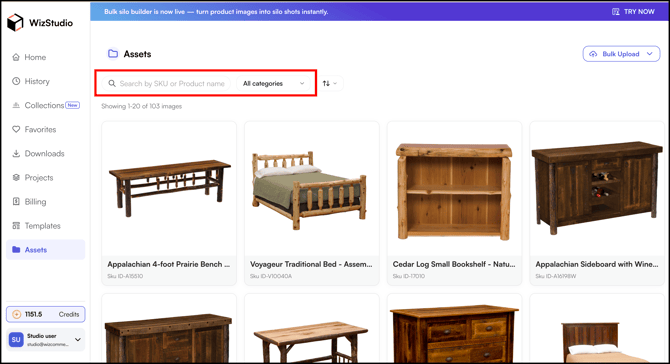
C. Save Products While You Create
You can also add products to your library while creating a lifestyle image, so you do not need to upload them again next time.
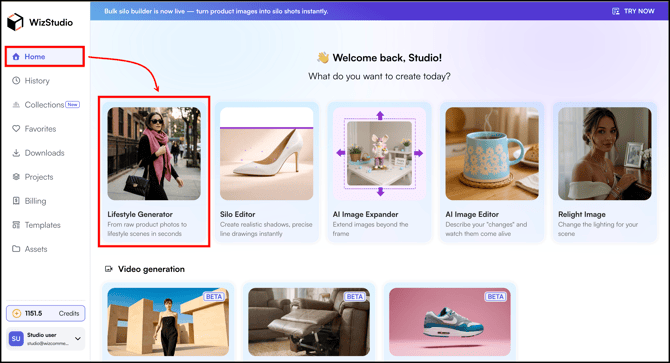
- Go to WizStudio → Home → Lifestyle Generator
- While creating a lifestyle image, check the Save Product to Assets.
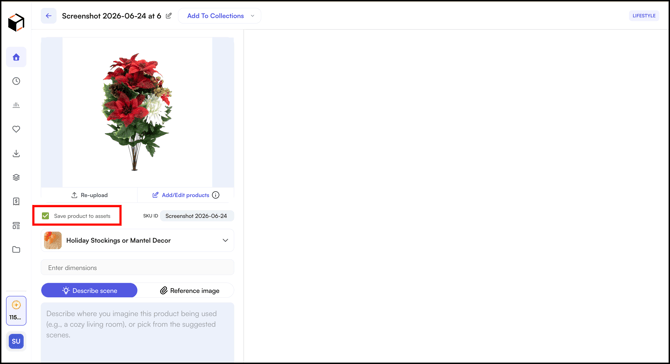
- Select a product category and enter the dimensions as you normally would.
- The product is saved to the Assets section and is ready to reuse for your next image or video.
D. Use Products from Asset Library
When you start a new image, you can pull a product straight from your library instead of uploading it again.
- Begin creating a lifestyle image.
- Select Choose from Assets instead of Upload from device.
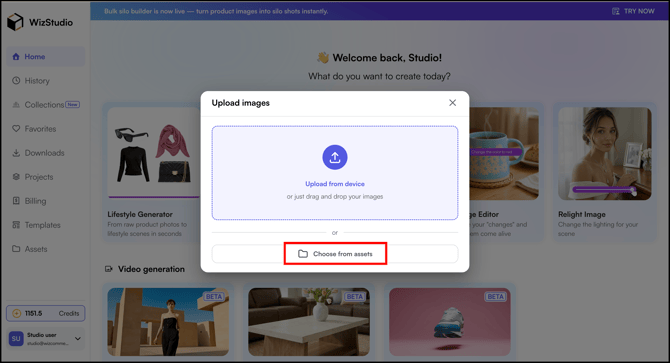
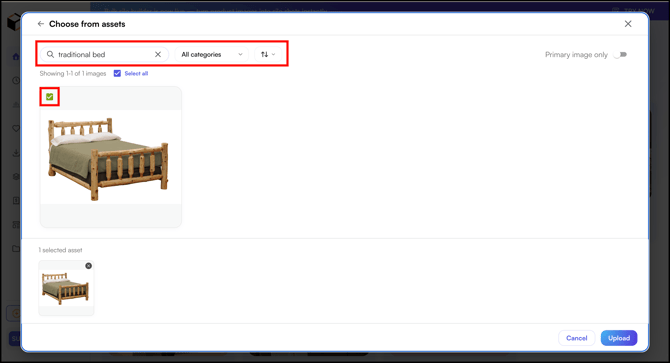
- Search for a product by name, or filter by category, and select it.
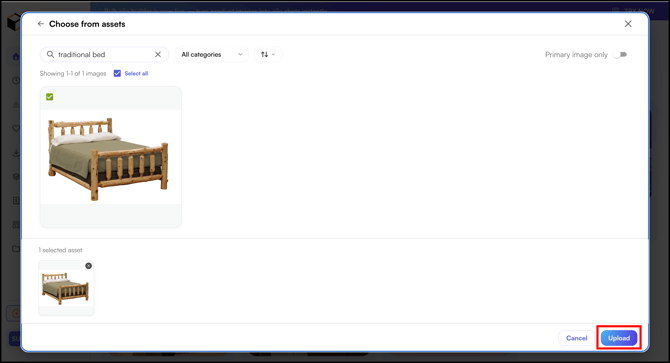
- Click Upload.
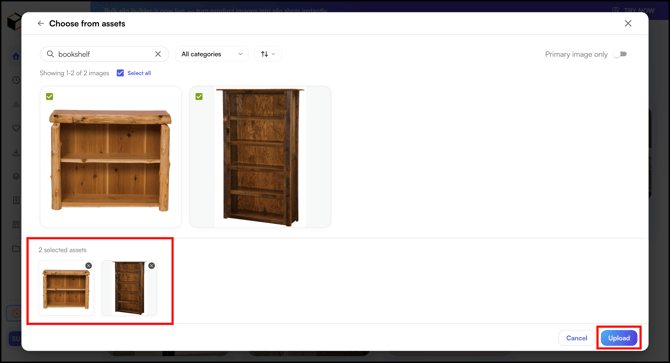
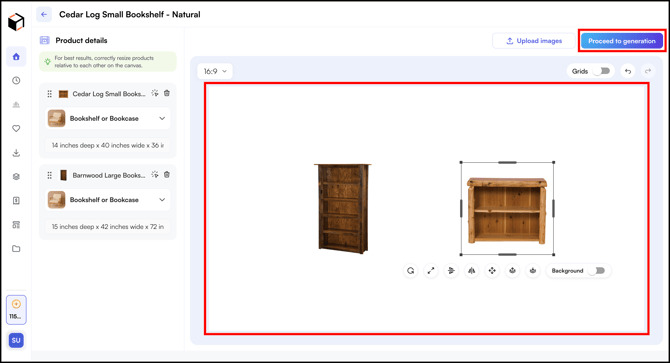
On the multi-product canvas, the category and dimensions for your selected products are pre-filled. Set your layout on the canvas and proceed to generate your images. This is much faster than uploading and entering dimensions manually each time.
For Example:
FAQs
1. Do I need to buy or enable the Asset Library?
A. No. It is available by default for all users on every plan.
2. What happens if I upload a SKU ID that already exists?
A. The existing product is updated with the new details instead of a duplicate being created. The library is unique on SKU ID.
3. How many images can I store per product?
A. One primary image plus up to 10 additional images, such as side or back angles, which help the AI generate more accurate results.
4. How do I stop test uploads from cluttering my library?
A. Leave the save option unchecked while creating an image. Only products you choose to save are added to the Assets tab.
5. My Excel upload failed. What should I check?
A. Confirm all required columns are present and correctly mapped, image URLs are valid, and each SKU ID is unique.
Still need help? Reach out to our support team at help@wizcommerce.com.