
Every customer in WizCommerce needs to be assigned the correct pricelist to ensure they see the right products and pricing in WizOrder and WizShop.
This article covers how to change a pricelist for an individual customer, bulk assign pricelists across multiple accounts using Import/Export, and set a default pricelist for new customers.
Platform: WizOrder & WizShop | Who is this for: Admins
To Get There: Customer Tab > Open Customer Profile > Edit Profile
Table of Contents
| Sections | Topics |
| A | Change Pricelist for an Individual Customer |
| B | Bulk Assign Pricelists to Multiple Customers |
| C | Set a Default Pricelist for New Customers |
| D | FAQs |
Before You Begin
- Ensure you have Admin access before assigning or changing pricelists.
- Always export the current customer list before making any bulk changes. This gives you a clean, correctly formatted template and reduces the risk of import errors.
- Changing a customer's pricelist does not affect existing orders or quotes — those retain the price at the time they were created.
A. Change Pricelist for an Individual Customer
Use this when onboarding a new customer or when a customer needs to be moved to a different pricing tier.
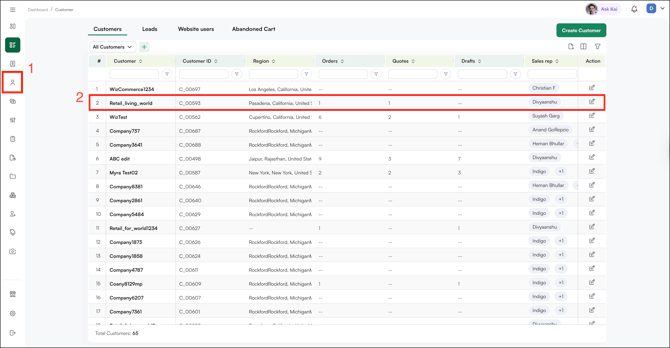
- Go to the Customer tab and open the customer's profile.
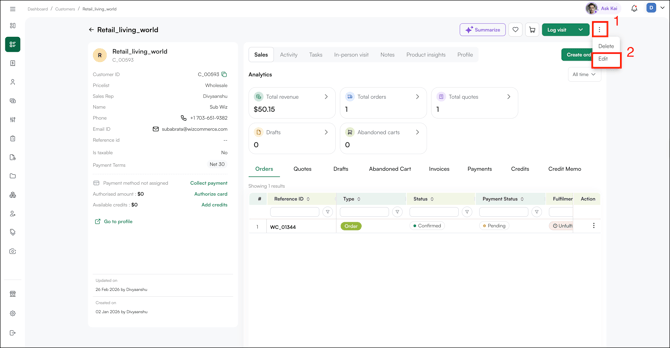
- Click Edit Profile in the customer details page.
- Select the appropriate tier from the pricelist dropdown (e.g., Wholesale, Preferred, or VIP).
- Click Save.
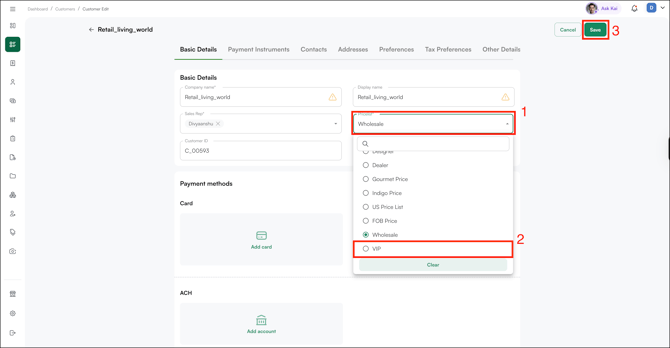
The assignment takes effect immediately — the customer sees their new pricing and product catalog on their next browse or order.
Note: Changing a customer's pricelist does not affect any existing orders or quotes. Those retain the price at the time they were created. If the change is significant, communicate it to the customer directly — WizCommerce does not send an automatic notification.
B. Bulk Assign Pricelists to Multiple Customers
Use this during initial setup or when restructuring your pricing tiers across many customer accounts at once.
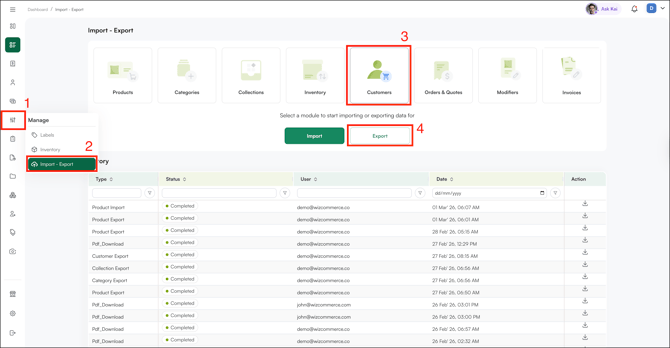
- Go to Manage in the left navigation and click Import/Export.
- Select the Customers tab and click Export to download your current customer list.
- Open the exported file in Excel or Google Sheets. You'll find three tabs: Instructions, Sample, and the data sheets. The exported customer file contains the following sheets, each covering a different aspect of your customer data:
- Customers: The main data sheet for creating or updating company accounts. Contains core business information such as company name, pricelist assignment, and account details.
- Addresses: Add or update multiple shipping and billing addresses for each customer account.
- Contacts: Add or update points of contact (POCs) for each customer account — the people your reps deal with directly.
- Website Users: Manage which contacts have access to your WizShop storefront and their login details.
- Customer Master Sheet: A combined view of all customer data across accounts.
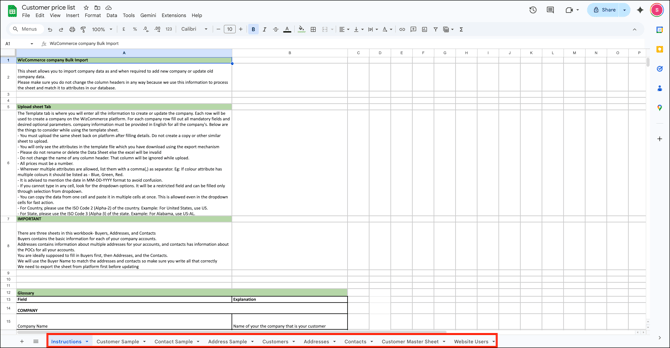
- If this is your first time, read the Instructions tab before making any changes.
- Go to the Customer Sheet and make your updates.
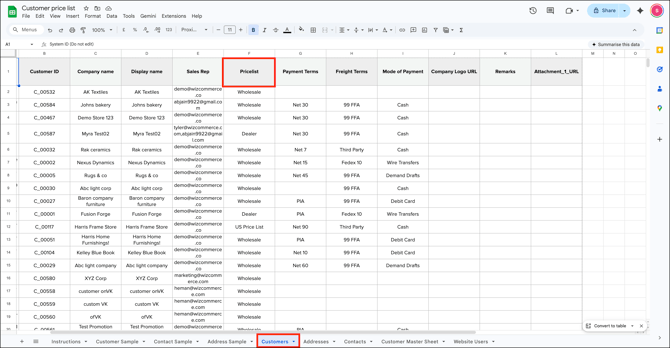
- Save the file once your changes are complete.
- Go back to Import/Export, select the Customers tab, click Import, and upload the updated file.
Note: The same import and export flow works for all sheets — not just pricelist assignments. If you need to bulk update customer addresses, add new contacts, or manage WizShop access for multiple accounts at once, follow the same steps: export the file, make your changes in the relevant sheet, and re-import. If your WizCommerce account is connected to an ERP, customer-to-price-list assignments can also sync automatically from there.
C. Set a Default Pricelist for New Customers
The default pricelist is automatically assigned to any new customer who registers on WizShop, or to guest customers in WizOrder before they are formally added to the system.
- Go to Settings from the left navigation.
- Open Organizational Settings, click General, then open Pricelist.
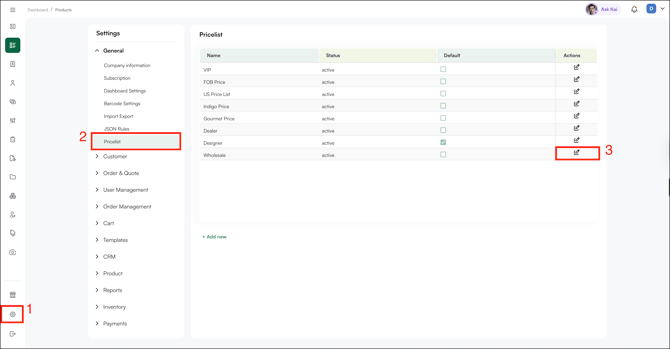
- Find the pricelist you want to set as the default and click the Edit icon.
- Select the tier you want to use as the default (e.g., Wholesale).
- Click Set to Default, then click Save.
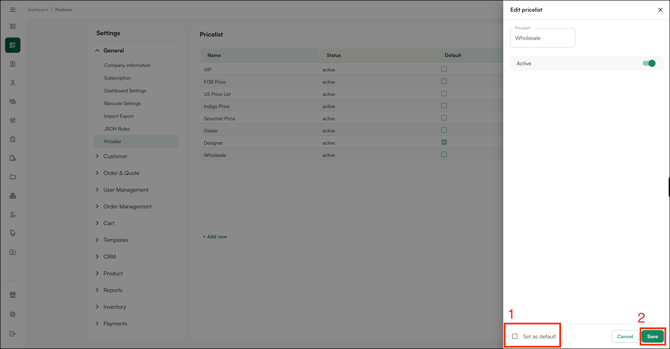
Note: New customers who register on WizShop are assigned this default tier until an admin manually changes it. In WizOrder, guest mode uses the default pricelist when a rep creates an order for a customer not yet in the system.
FAQs
1. What happens if a customer is not assigned to a pricelist?
A. Without a pricelist assignment, the customer won't see any products or pricing — either in WizOrder or on WizShop. Always assign a pricelist when creating or onboarding a new customer.
2. Does changing a customer's pricelist affect their existing orders?
A. No. Existing orders and quotes retain the price at the time they were created. The new pricelist only applies to orders placed after the change is saved.
3. Can I bulk assign pricelists to customers without using Import/Export?
A. No. Bulk assignments must be done through the Import/Export workflow. For individual customers, use the Edit Profile option on the customer's details page.
Not finding what you need? Browse the WizCommerce Help Center, reach out to your Customer Success Manager, or contact our Support Team.