
WizOrder lets sales representatives scan visitor badges at trade shows to capture buyer details instantly. Scanned contacts are stored under Trade Fair Visitors and the right rep is notified automatically based on territory mapping (if enabled).
Platform: WizOrder | Who is this for: Sales Rep & Admin
To get there: WizOrder App > Trade Fair Visitors
Table of Contents
| Sections | Topics |
| A | Scan a Visitor Badge |
| B | Manage Scanned Leads |
| C | Export Lead Data |
| D | FAQs |
Before You Begin
- You must have the WizOrder mobile app installed on your device.
- Confirm with your admin that territory mapping (zip code assignments) is set up and your contact information is current before the event so rep notifications route correctly.
- Badge scanning is available for supported trade show events only. Confirm with your Customer Success Manager that your upcoming event is supported before the show.
- Badge scanning works only during trade shows and requires an internet connection. Badge scanning does not work in Offline Mode.
-
Only one badge scan event can be active at a time. Starting a new event requires the currently active one to be made inactive first.
A. Scan a Visitor Badge
-
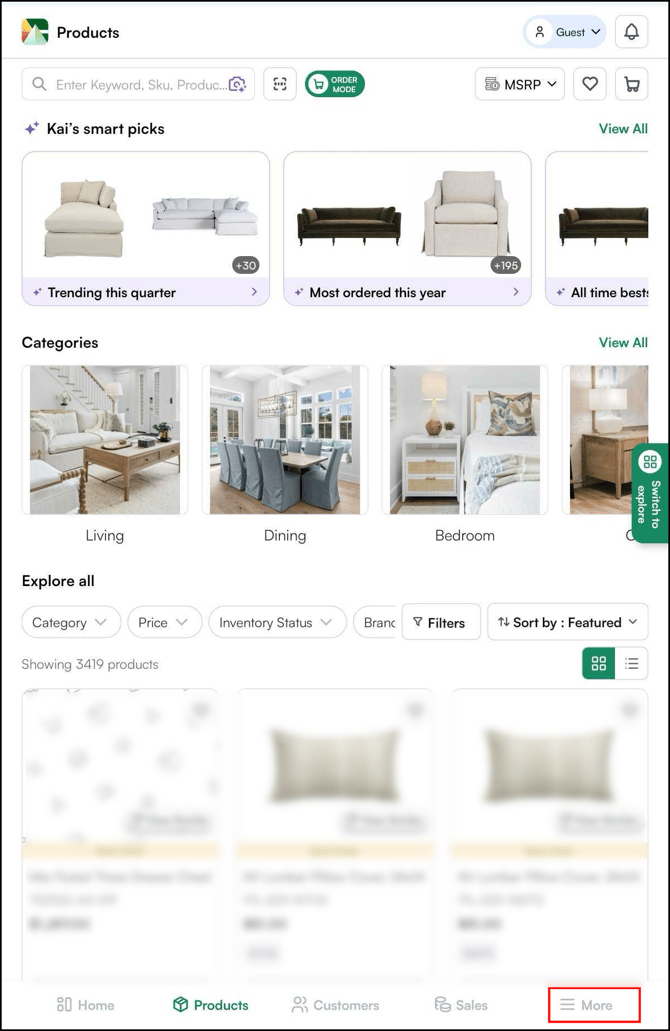
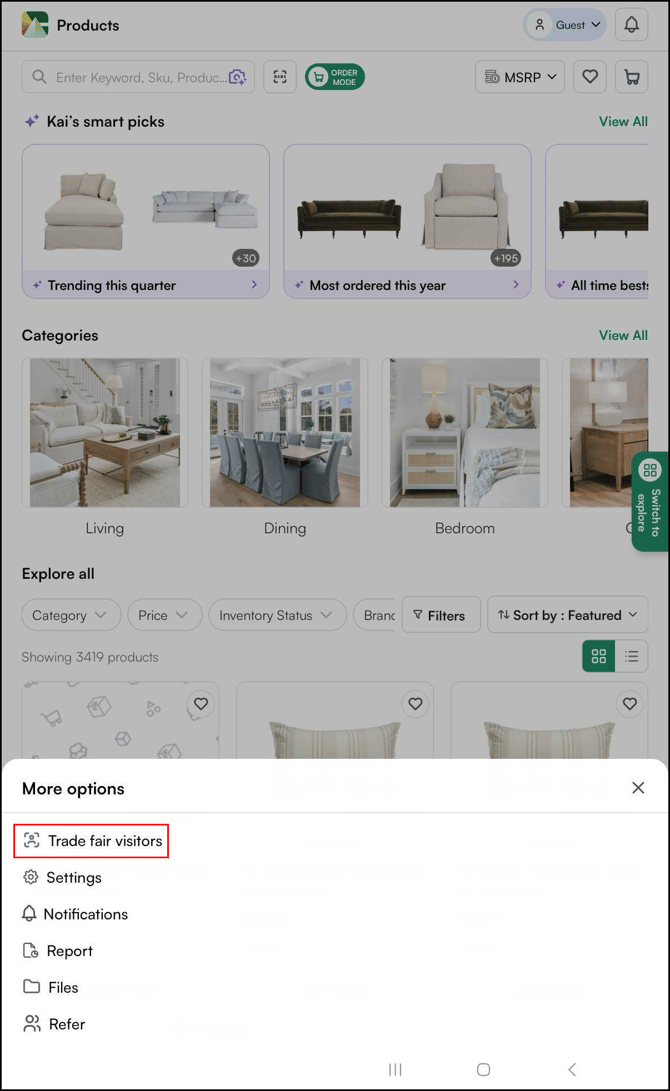
Open the WizOrder app on your mobile device and navigate to More → Trade Fair Visitors.
-
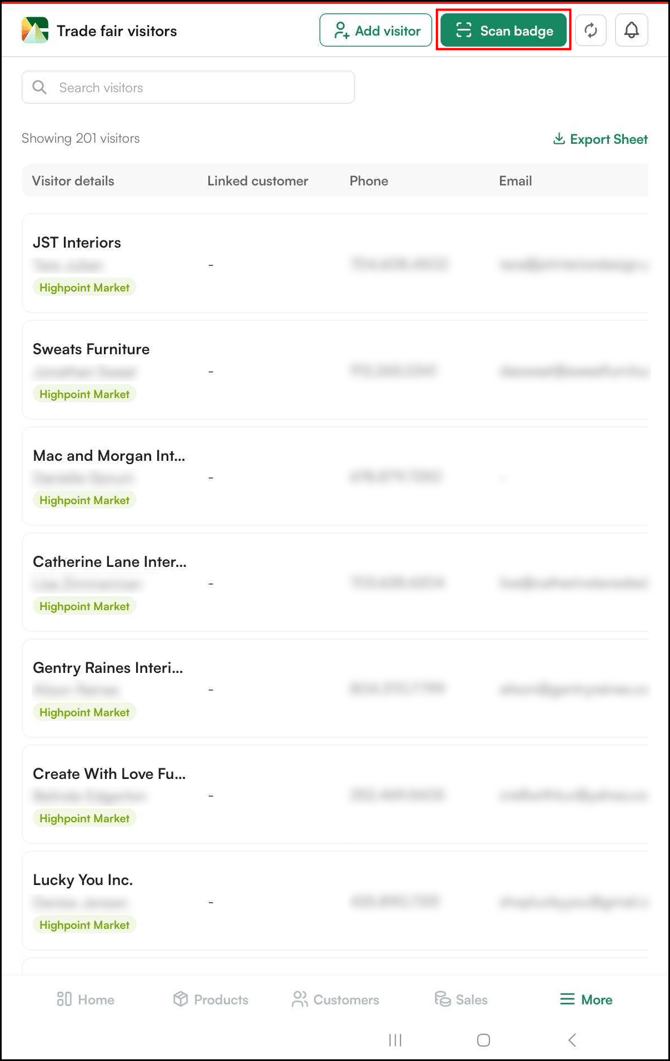
Click Scan Badge.
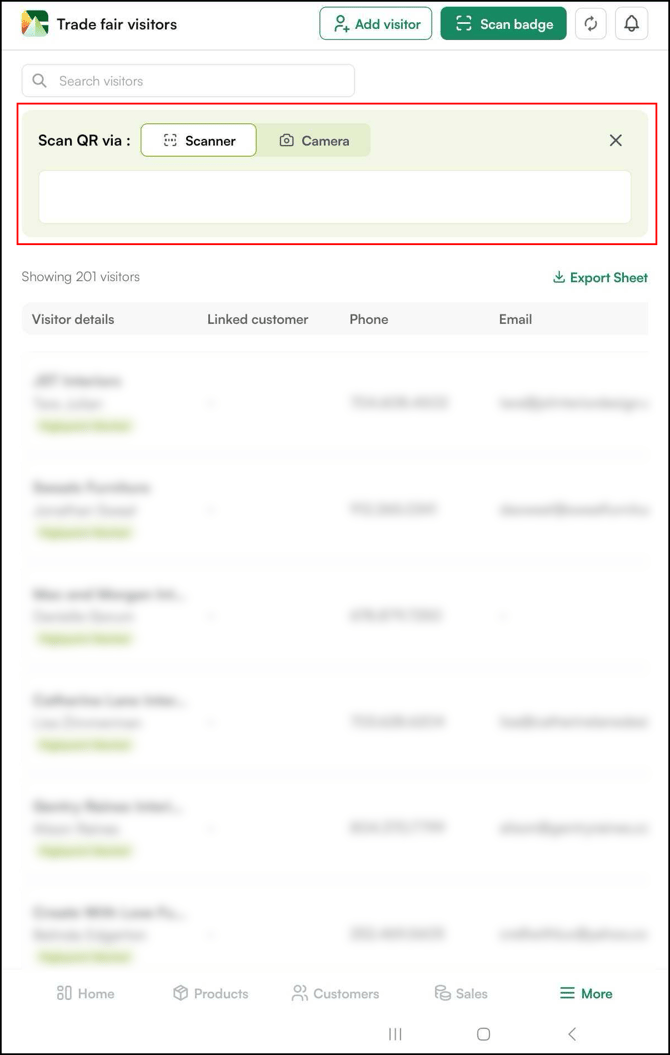
- Point your camera or Bluetooth device at the QR code on the visitor's badge. The app reads it automatically once it's in focus.
-
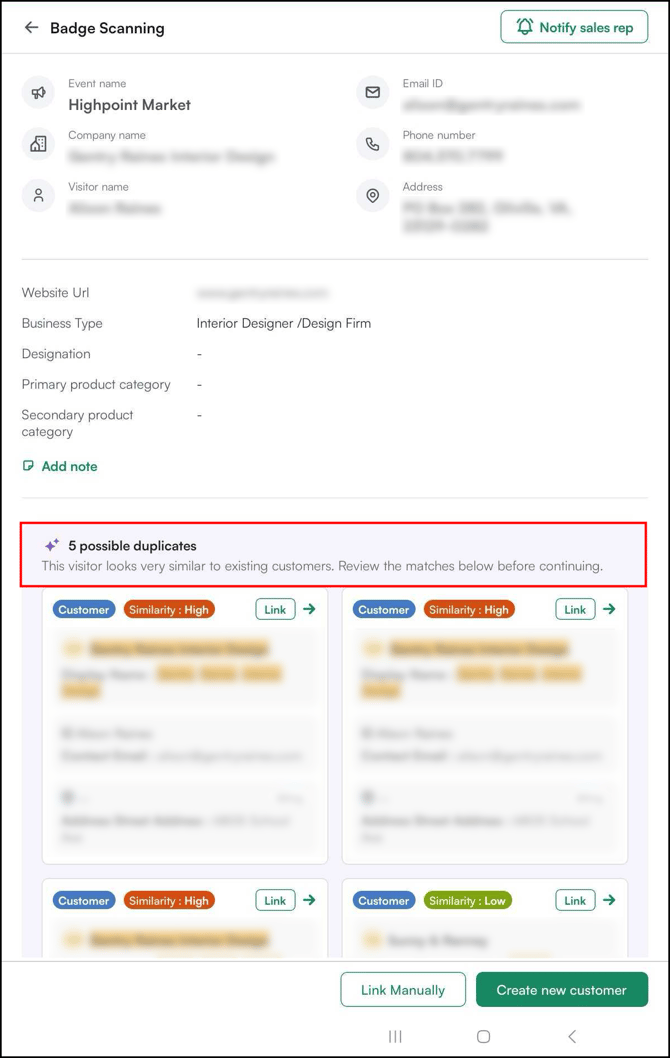
Once scanned, the app performs a duplicate check against your existing customer database.
- Based on the result, choose one of the following:
- If a match is found, the existing customer profile is surfaced. And you have the choice to Link the visitor the existing customer.
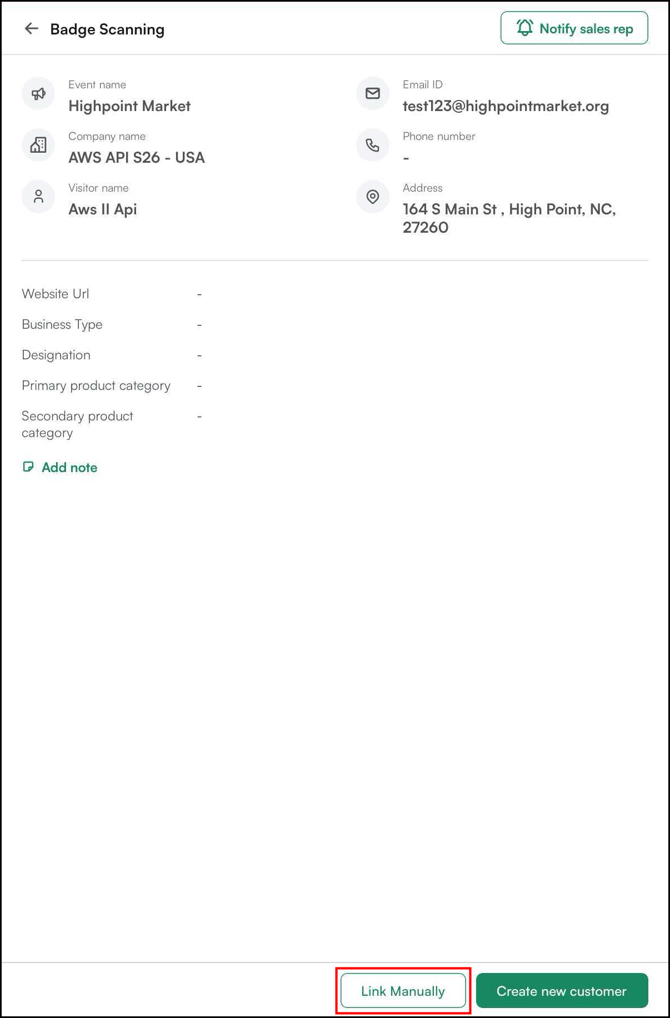
- If no match is found, you have two options,
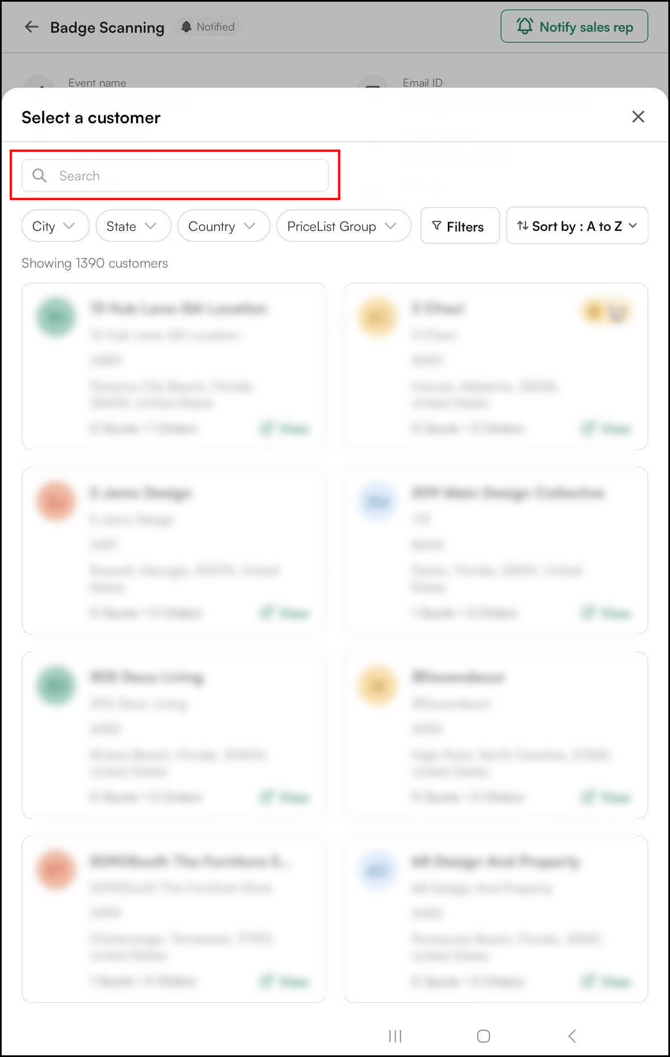
- Click Link Manually if the customer exists but wasn't surfaced. Select the correct customer from your WizOrder data.
- Click Create New Customer if they are completely new.
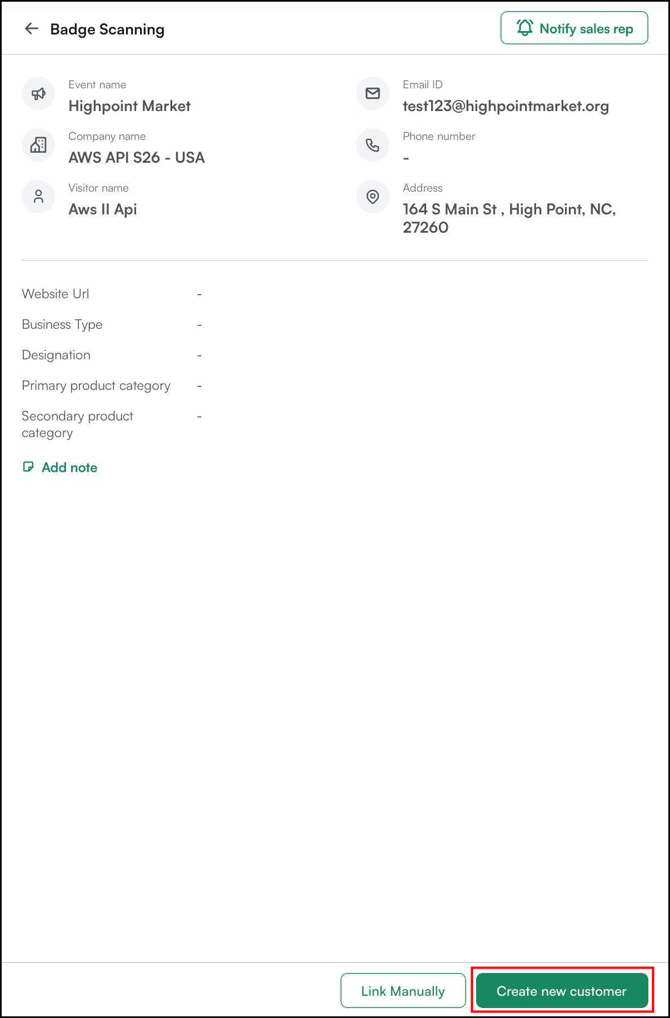
- Fill the required details and click Create New Visitor.
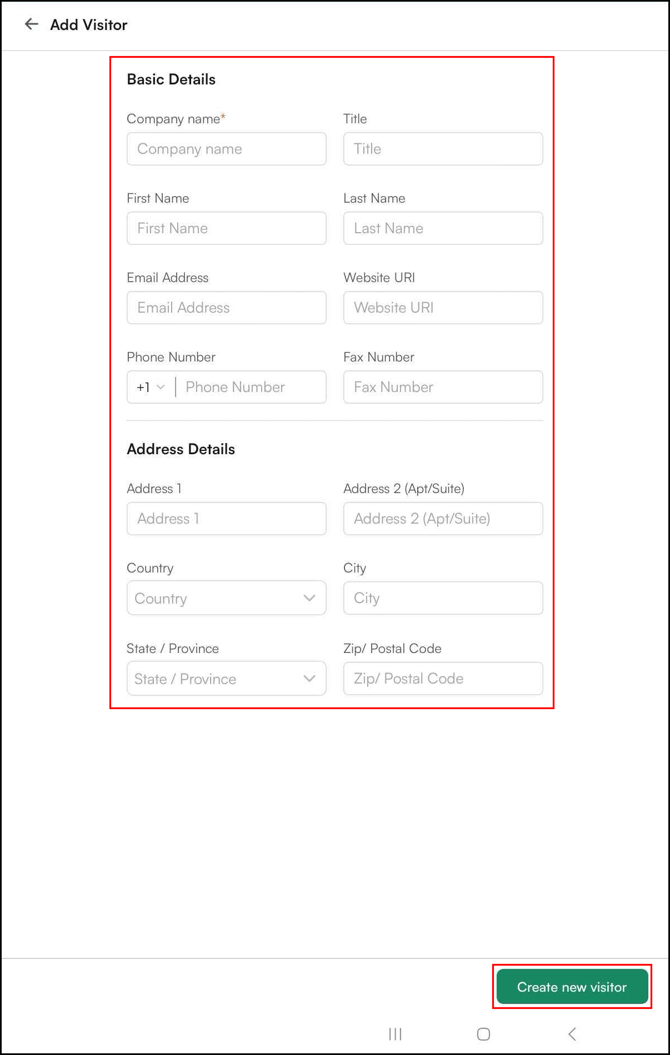
- Click Link Manually if the customer exists but wasn't surfaced. Select the correct customer from your WizOrder data.
- If a match is found, the existing customer profile is surfaced. And you have the choice to Link the visitor the existing customer.
Note: WizCommerce supports QR codes used on market badges such as High Point Market. If a badge QR code is not scanning, check with your Customer Success Manager to confirm that your event's badge format is supported before the show.
B. Manage Scanned Leads
Scanned leads appear in the Trade Fair Visitors section, they are not added directly to your customer list.
-
Click on a lead record to open the lead detail view.
-
Review the contact details pulled from the badge scan: name, company, email, phone, and location.
-
The system notifies the assigned sales representative automatically based on territory mapping (zip code). The rep gets a notification via text and email.
-
To notify manually, click Notify Sales Rep on the lead details page.
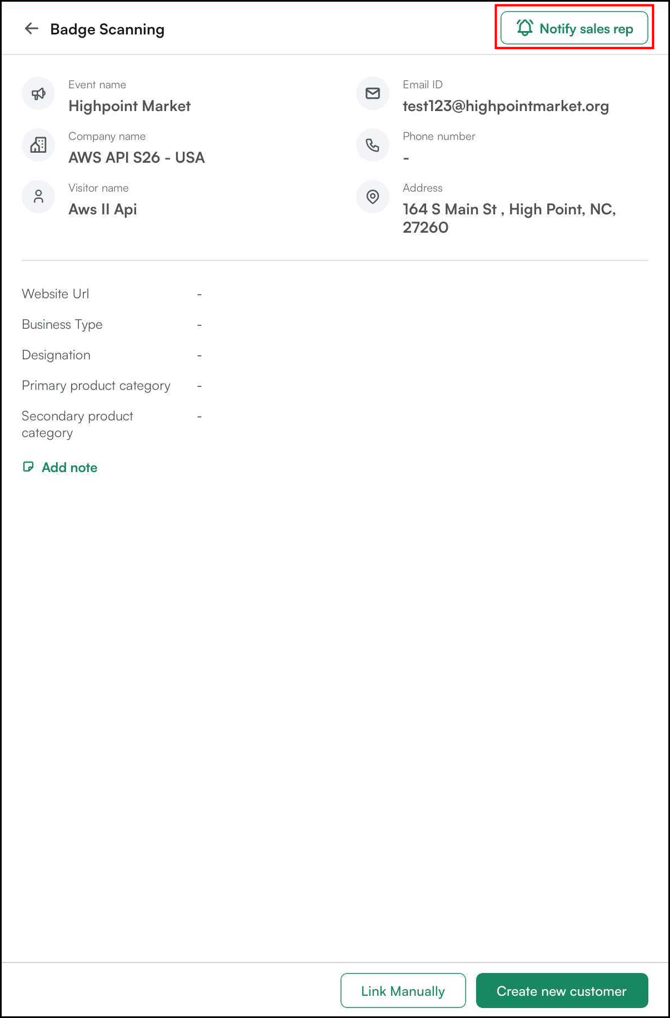
-
Or select it from the three-dot menu on the leads page.
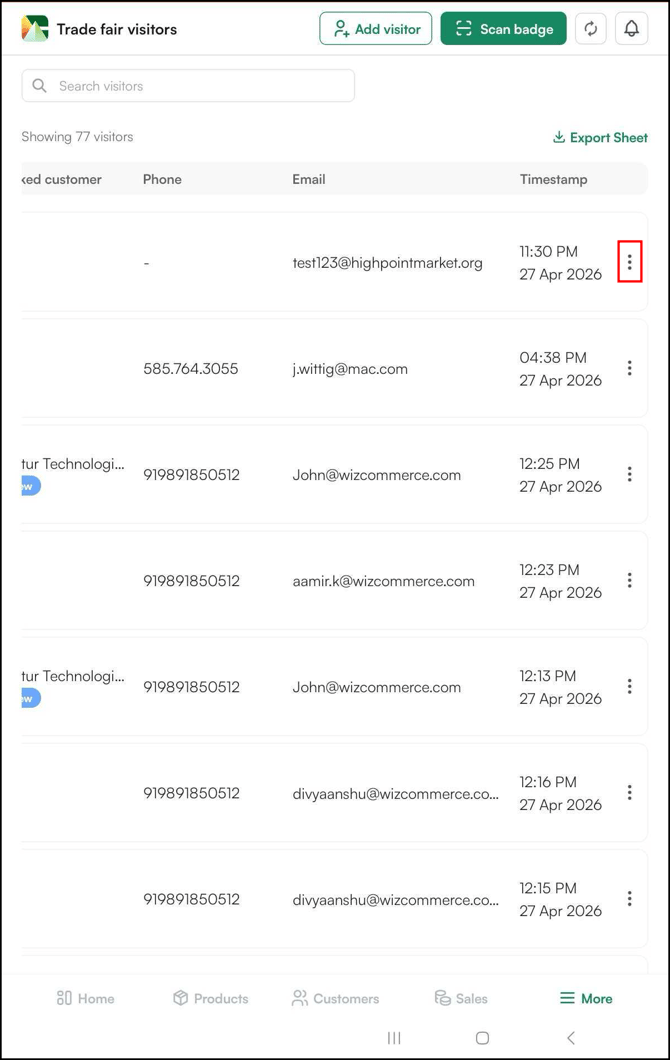
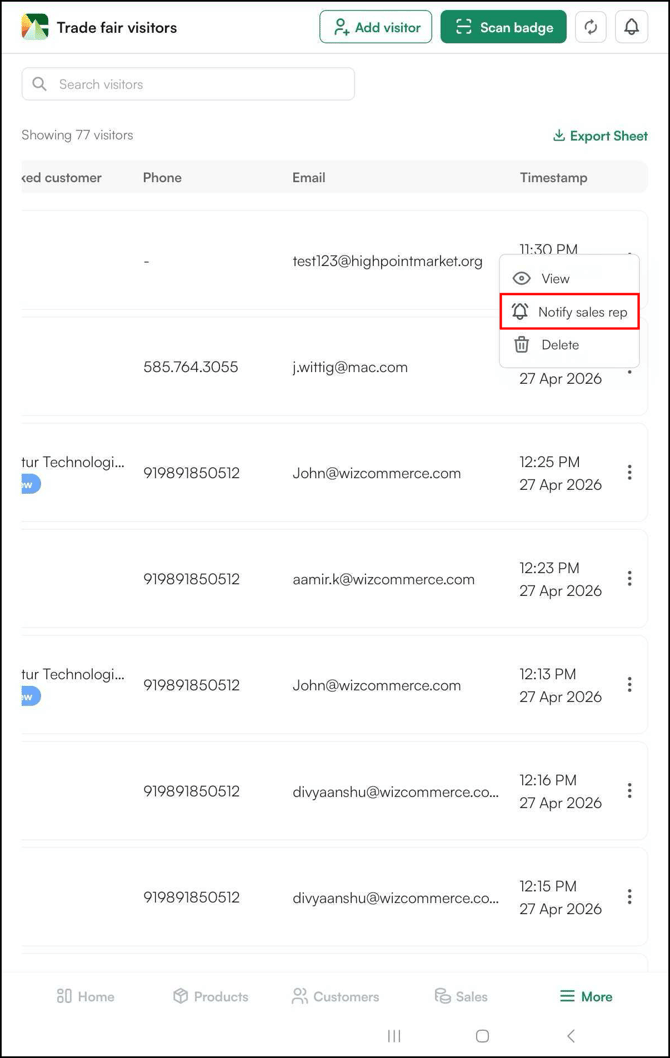
-
Note: Make sure territory zip codes and rep contact information are up to date before the event. Contact your admin to confirm or update the mapping.
Tip: Click Add Note to add a note a scanned lead.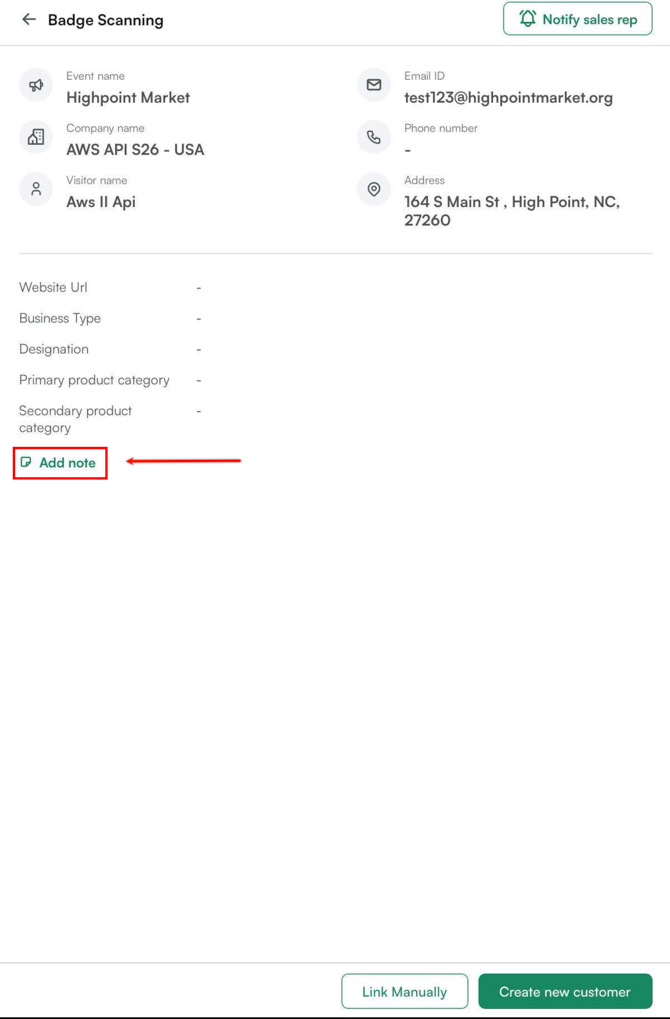
C. Export Lead Data
You can export all lead data collected through badge scanning as a file for further review, reporting, or follow-up.
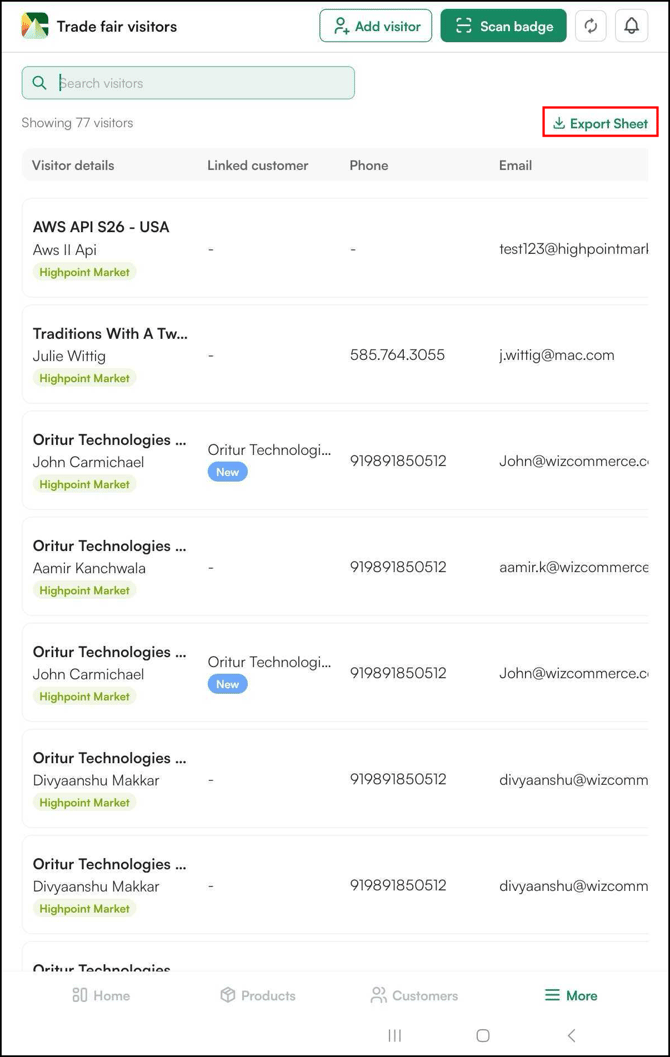
- Click Export Sheet at the top of the badge scanning window to download the visitor or lead data as an Excel file.
FAQs
1. Does WizCommerce charge for badge scanning?
A. No. WizCommerce does not charge for the badge scanning feature itself. You pay the trade show organizer directly for API access. Contact your Customer Success Manager to confirm what information to provide when applying for API access.
2. Why didn’t the badge scan create a new lead or capture customer details?
A. A few things to check:
- If the contact already exists in your customer database, WizCommerce detects the duplicate record instead of creating a new one. Check the Customers page to find the contact.
- Hold the camera or bluetooth device steady so the QR code is fully in focus.
- If the badge still does not scan, manually create the customer using Create New Customer from the scan flow.
3. Who gets notified when a badge is scanned?
A. The system notifies the sales representative mapped to the visitor's territory based on zip code. Make sure your territory mapping and rep contact information are up to date before the event, contact your administrator to confirm.
4. Do scanned leads automatically sync to ERP after the show?
A. No. Scanned leads are stored under Trade Fair Visitors and are not added directly to your customer list, so they do not sync to your ERP automatically. To bring a scanned leads into your customer database (and your ERP), link them to an existing customer or create a new customer record from the scan flow. New customers created this way sync to your customer database in the next cycle, and any order data created against them pushes to your ERP through the standard order sync.
5. How do I move from a scanned badge straight into placing an order?
A. Scanned leads land under Trade Fair Visitors, not directly in your customer list. To place an order for a scanned visitor, first link the lead to a customer record; either by linking to an existing customer or creating a new one from the scan flow. Once the lead is linked or created as a customer, open the Customers tab, select that customer, and place the order as usual.
4. Is badge scanning available at every trade show / market?
A. No. Availability depends on the specific market or trade show. To enable badge scanning, the organizer must support API-based access and your organization must purchase API access directly from that market (this typically includes an API key and a test badge). Once you share those with WizCommerce, we enable badge scanning for your event. Confirm with your Customer Success Manager whether your upcoming market is supported before the show.