
Create professional PDF catalogs directly from the Sales Rep App (WizOrder), select products manually or use filters to build a curated view, customize the layout, and share with customers in minutes.
Platform: WizOrder | Who is this for: Sales Reps & Admins
To Get There: Sales > Catalogs
Table of Content
| Sections | Topics |
| A | How to Access Catalogs |
| B | Create a Catalog by Selecting Products |
| C | Create a Custom Catalog View with Filters |
| D | FAQs |
Before You Begin
- You must have access to WizOrder, on the mobile app or the web portal
- Products must already be in your catalog before you can select them
- Custom filter views (Section B) are only available on the web portal, not the mobile app
A. How to Access Catalogs
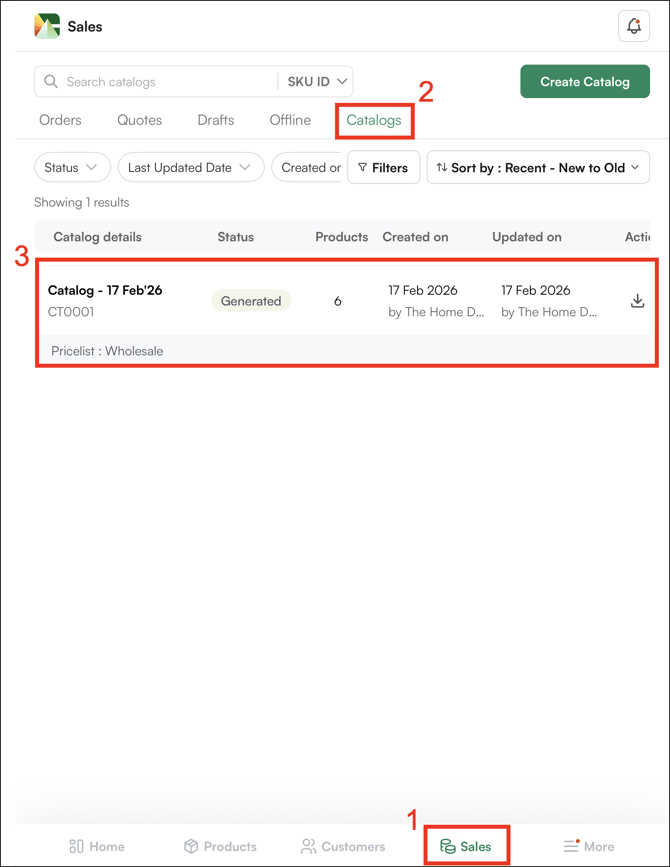
Generated catalogs are stored under the Sales tab. Click Catalogs to view, manage, download, or share all previously created catalogs.
B. Create a Catalog by Selecting Products
Manually select the products and variants you want to include and generate a custom catalog in a few steps.
-
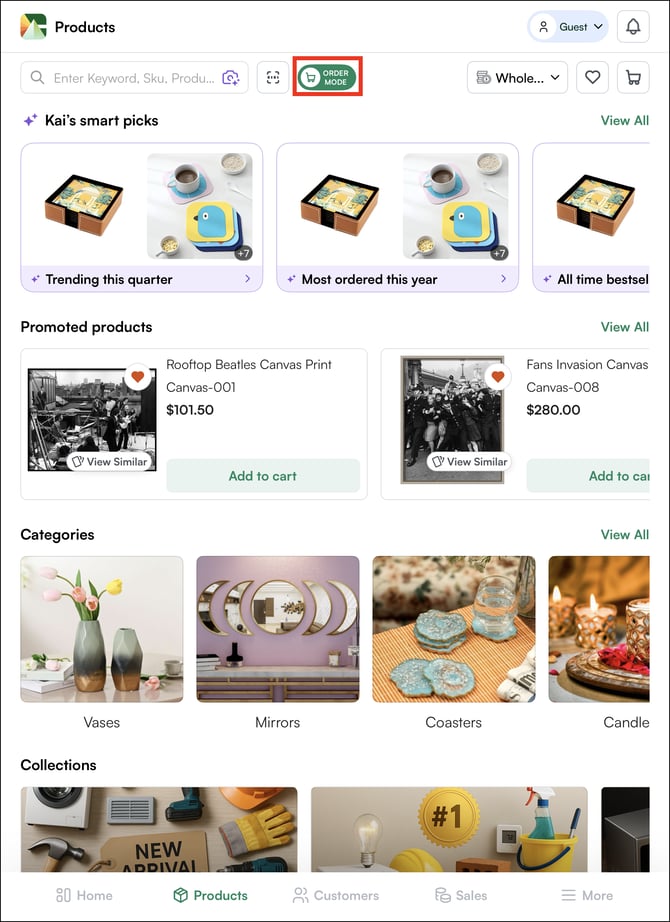
On the Products page, click the Order Mode button to switch to Select Mode. Each product card will now show a selection checkbox.
-
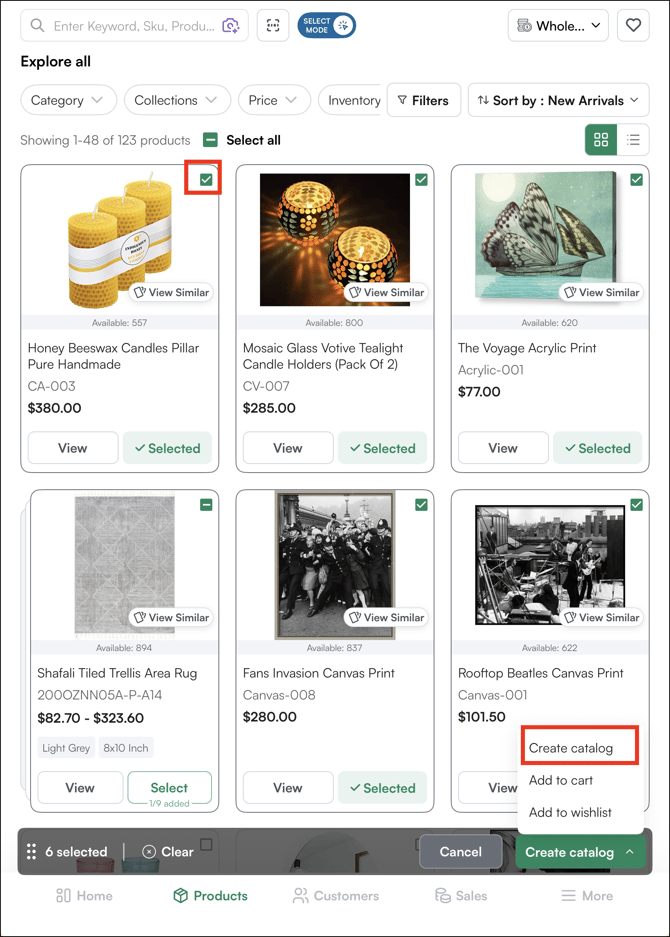
Select the products you want to include by clicking their cards. Click Select All to select everything displayed on the current page.
-
Click Create Catalog in the bottom toolbar.
-
Customize your catalog before generating:
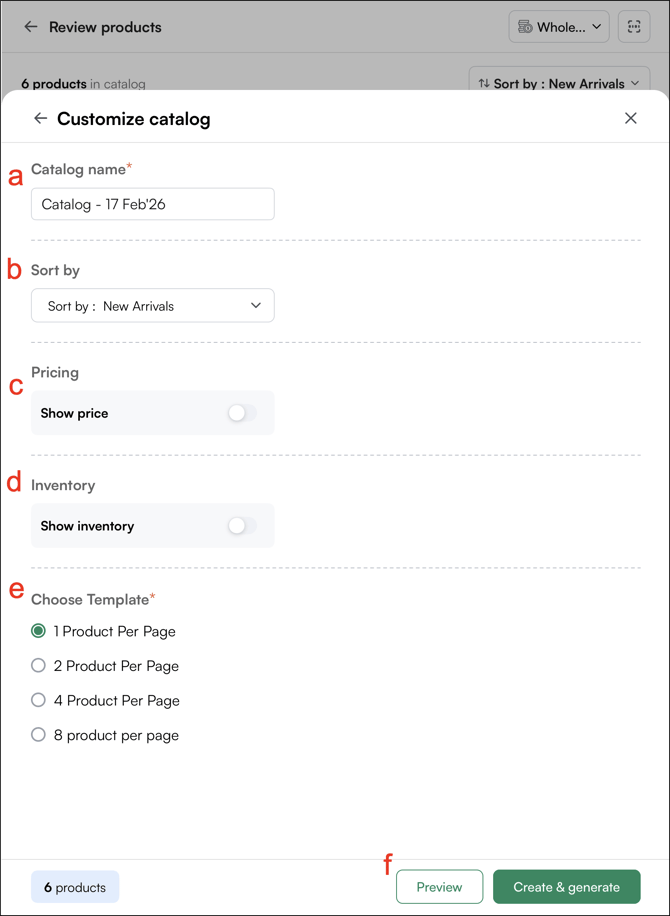
- Catalog Name: Enter a name to identify the catalog (for example, the customer name, event, or date)
- Sort By: Choose how products are arranged (for example, New Arrivals)
- Pricing: Toggle on or off to show or hide product prices
- Inventory: Toggle on or off to show or hide stock availability
- Choose Template: Select your preferred layout (1, 2, 4, or 8 products per page)
- Preview: Review how the catalog will look before generating
-
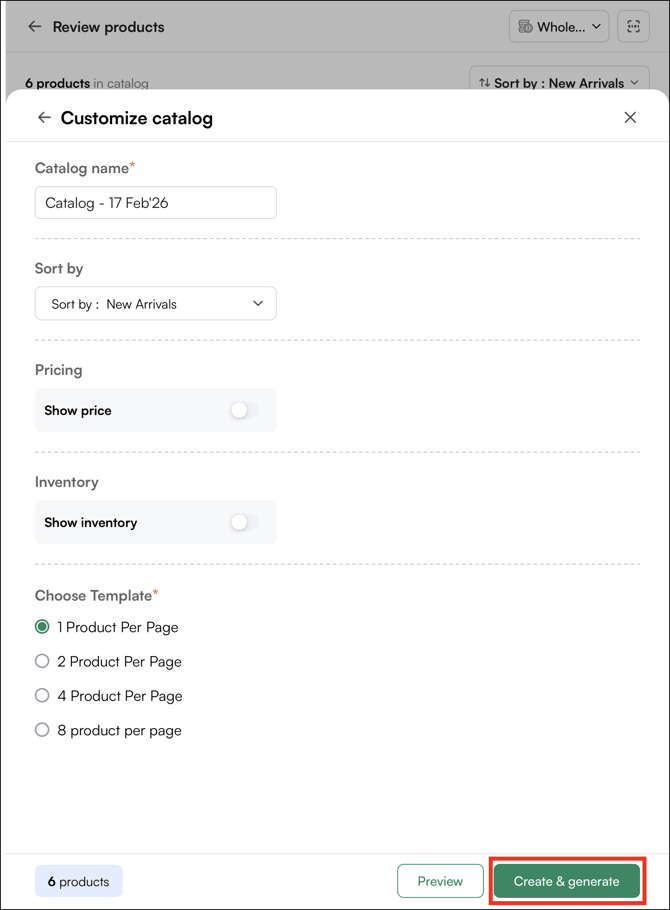
Click Generate to create the catalog PDF.
Note: If a product has variants and you want to include specific ones, click Select on that product to open the variants page. From there, select each variant individually, for example, choosing only the Matte Black and Antique Brass finishes of a lamp rather than all available options.
Once generated, you will be taken to the Catalogs page under the Sales tab, where the new catalog will appear alongside all previously created ones. From here, you can download, manage, or share it as needed.
Note: You can also create a new catalog directly from the Catalog page, click Create Catalog, switch to Select Mode on the product listing page, select your products, and click Generate. 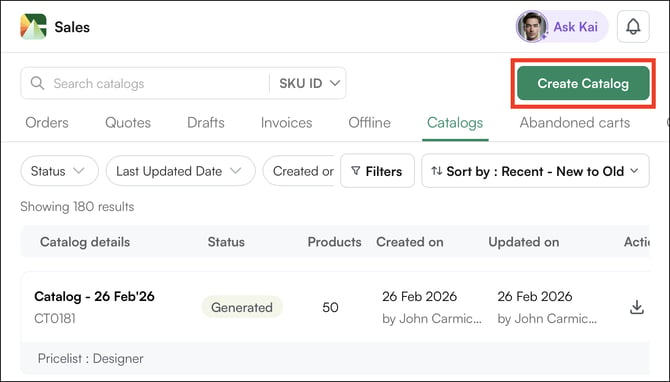
C. Create a Custom Catalog View with Filters
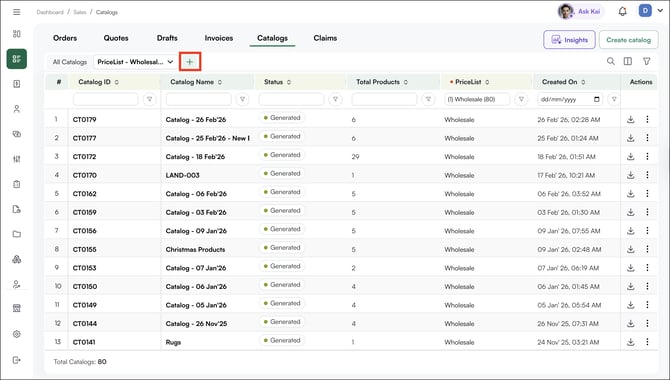
A custom view lets you save a specific filter configuration on the Catalog page, so instead of reapplying the same filters every time, your preferred view is ready whenever you need it.
This is useful when you regularly build catalogs for a specific category, collection, or customer type and want a consistent starting point each time.
- On the Catalog page, click the + icon and give your view a name that reflects what it will show (for example, "Catalogs with 10+ Products")
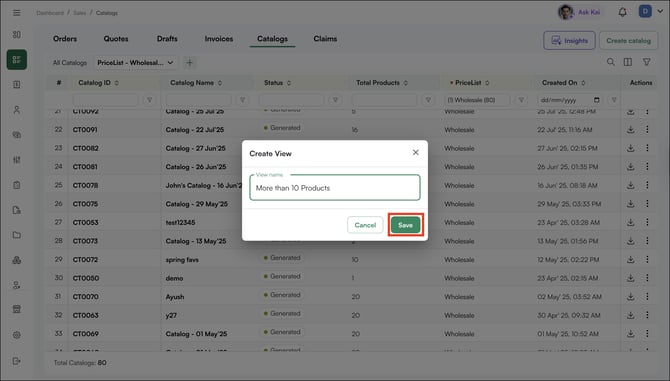
- Click Filter and apply your desired filters, apply your desired filters by category, collection, attributes, or any combination.
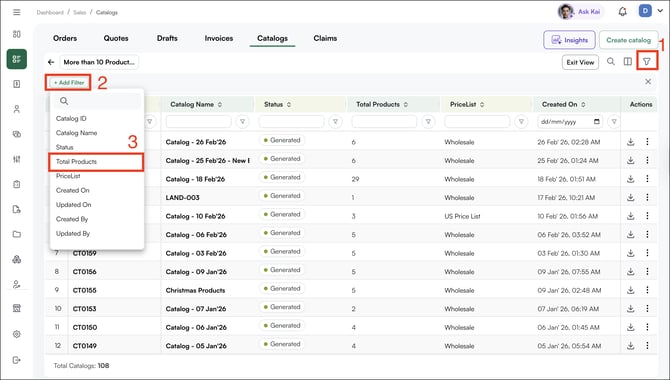
- Your saved view is now stored on the Catalog page for future use. Select it anytime to instantly load your preferred filtered view without reapplying filters from scratch.
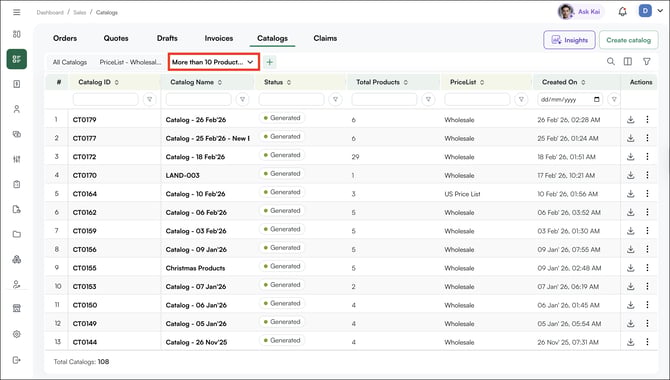
Note: Creating custom filter views is only available on the Web Portal, not the mobile app. The same process applies across Orders, Quotes, Customers, Inventory, and Product pages
FAQs
1. Can I include specific variants of a product rather than all variants?
A. Yes. When selecting products in Select Mode, click Select on any product that has variants to open the variants page. From there, choose only the specific variants you want in the catalog — for example, selected colors or finishes only.
2. Where do I find a catalog after I generate it?
A. All generated catalogs are stored under Sales → Catalogs. From there you can download, manage, or share any previously created catalog.
3. Can I show or hide pricing when sharing a catalog with a customer?
A. Yes. During the customization step before generating, use the Pricing toggle to show or hide product prices. This lets you share the same catalog with different customers while controlling what pricing each one sees.
Not finding what you need? Browse the WizCommerce Help Center, reach out to your Customer Success Manager, or contact our Support Team.