---
title: Bulk Import customers into WizCommerce
description: Learn how to import and update customers, addresses, and contacts in bulk in WizCommerce using CSV or Excel templates.
---
[Skip to content](https://knowledge.wizcommerce.com/bulk-import-customers-into-wizcommerce#main-content)
[](https://wizcommerce.com/)
Open main navigation
Close main navigation
- [Contact us](https://mail.google.com/mail/?view=cm&fs=1&to=help@wizcommerce.com)
[Contact us](https://mail.google.com/mail/?view=cm&fs=1&to=help@wizcommerce.com)
Hi, how can we help?
- There are no suggestions because the search field is empty.
1. [WizCommerce Help Centre](https://knowledge.wizcommerce.com/)
2. [Manage your WizCommerce (Admin)](https://knowledge.wizcommerce.com/manage-your-wizcommerce-admin)
3. [Import / Export](https://knowledge.wizcommerce.com/manage-your-wizcommerce-admin#import-export)
June 4, 2026
# Bulk Import customers into WizCommerce
Use the customer import tool to add or update customer records in bulk. If you are importing customers for the first time, follow the steps in [Part B](https://knowledge.wizcommerce.com/bulk-import-customers-into-wizcommerce#section-b). If your customers already exist in WizCommerce and you want to update or add more data, follow [Part C](https://knowledge.wizcommerce.com/bulk-import-customers-into-wizcommerce#section-c).
**Platform:** WizOrder | **Who is this for:** Admins
**To Get There:** *Customers **\>** Import*
---
#### Table of Contents
| **Section** | **Topics** |
| --- | --- |
| A | [What happens during a customer import](https://knowledge.wizcommerce.com/bulk-import-customers-into-wizcommerce#section-a) |
| B | [Add new customers in bulk](https://knowledge.wizcommerce.com/bulk-import-customers-into-wizcommerce#section-b) |
| C | [Bulk Update existing customers](https://knowledge.wizcommerce.com/bulk-import-customers-into-wizcommerce#section-c) |
| D | [After the Import](https://knowledge.wizcommerce.com/bulk-import-customers-into-wizcommerce#section-d) |
| E | [FAQs](https://knowledge.wizcommerce.com/bulk-import-customers-into-wizcommerce#faqs) |
---
#### Before You Begin
- You must have **Admin access** or **Import permissions** in WizCommerce.
- Have your customer list ready as an **Excel (.xlsx) or CSV (.csv)** file, with a maximum of **5,000** rows per file.
- Set up your **price tiers, payment terms, and sales rep users** in WizCommerce first, or leave those columns blank and fill them in later.
- Always download the **latest template** from the import screen, older templates can cause column-mapping errors.
---
### A. What happens during a customer import
The import tool reads your file, matches each row to either a new or existing customer, and then writes the data into WizCommerce. Before any data is saved, you will see a **dry-run preview** showing exactly what will be created, updated, or skipped.
Every import follows the same four stages:
- **Upload** your file and choose the import mode
- **Map** your file columns to WizCommerce fields
- **Review** the dry-run preview and error report
- **Run** the import and download the final reporT
**Note:** Only one customer import can run at a time per account. Other admins can prepare files in parallel, but cannot click **Run Import** at the same time.
---
### B. Add new customers in bulk
Use this flow the first time you load customers, or any time you are adding a batch of brand-new customers.
#### Import the Customers sheet
**1. Go to the Import - Export page**
- From the left sidebar, click ***Manage Data***.
- Select ***Import - Export*** from the menu.
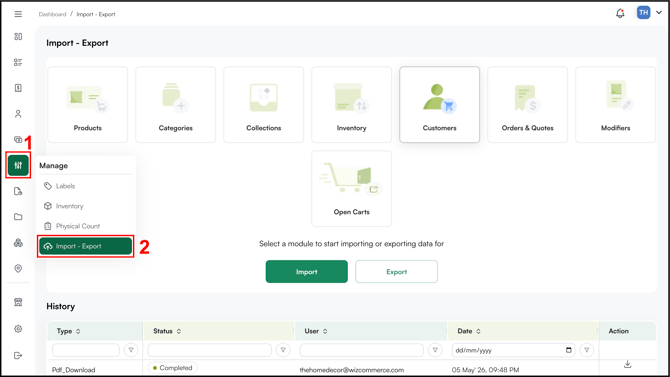
**2. Open the Customer import panel**
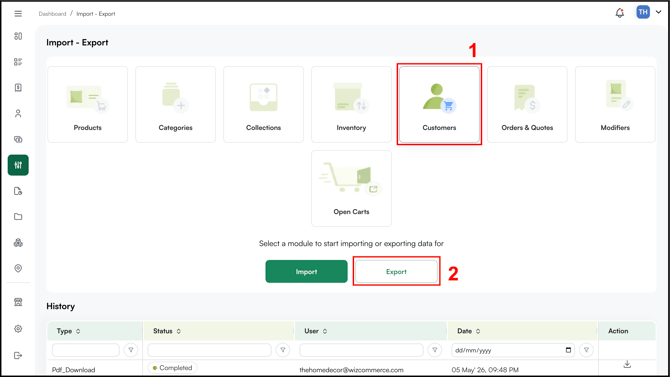
- On the Import - Export page, click the ***Customers*** tile.
- Click the ***Import*** button at the bottom of the page.
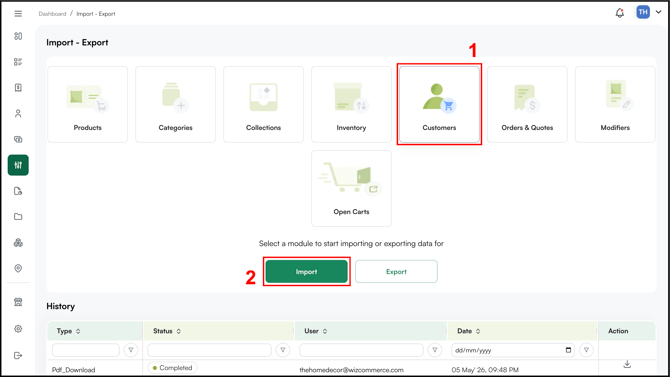
- The ***Import data*** panel opens on the right.
**3. Download the Customers template**
- In the **Select option** dropdown, choose ***Customers***.
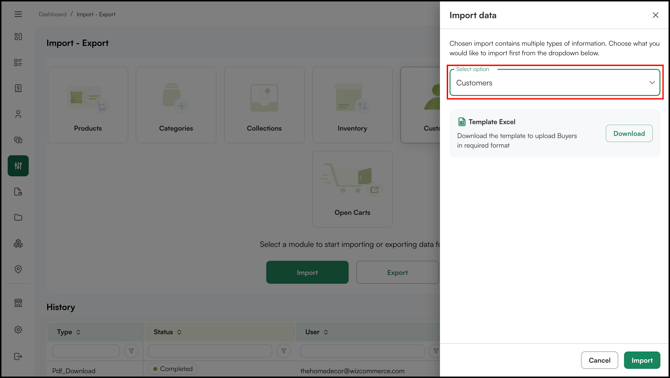
- Under ***Template Excel***, click ***Download*** to save the template to your computer.
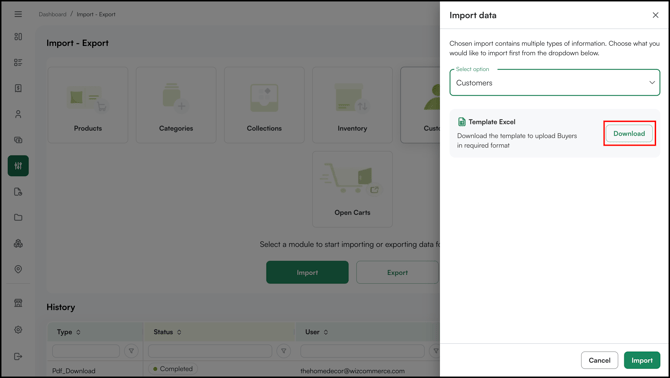
**4. Fill out the Customers template**
Use the ***Instructions*** tab for column-level guidance. Fill out one row per customer using these fields:
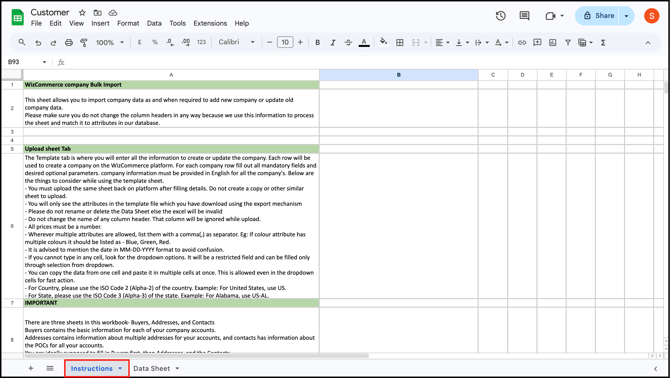
Open the template in Excel or Google Sheets and switch to the ***Data Sheet*** tab.
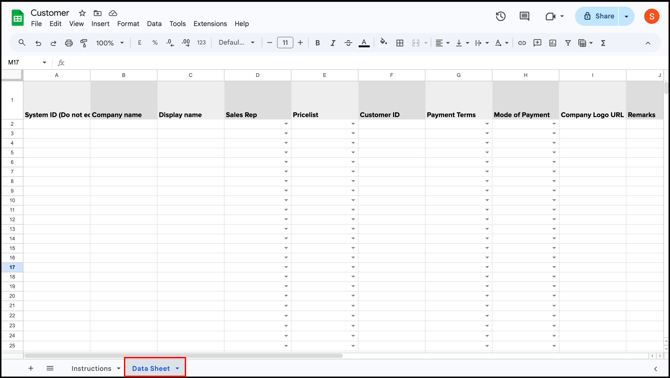
- **System ID:** Leave blank for new customers; WizCommerce generates this automatically
- **Company name:** The business name on the account
- **Display name:** How the customer name appears across WizOrder and WizShop
- **Sales Rep:** Email of the assigned WizCommerce rep; must already exist in your user list
- **Pricelist:** Name of the pricelist assigned to this customer; must already exist
- **Customer ID:** Your internal customer code (for example, CO\_001); this is the key that links Addresses and Contacts to this customer
- **Payment Terms:** Due on Receipt, Net 15, Net 30, Net 60, and so on; must match a configured term
- **Mode of Payment:** Cash, Debit Card, Credit Card, ACH, and so on
- **Company Logo URL:** optional; link to a hosted logo image
- **Remarks:** Optional internal notes
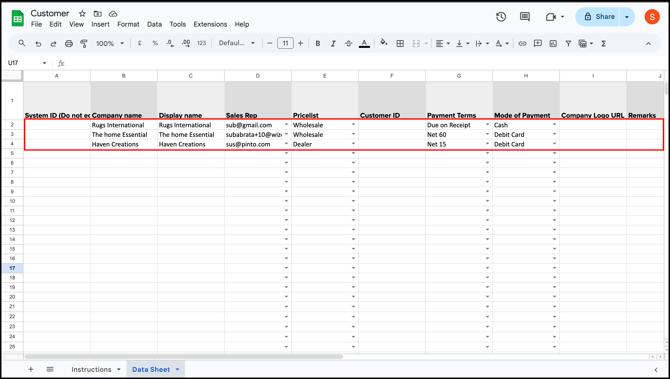
**Note:** A few things to keep in mind for the **Customer ID** and **Company name** columns:
- Both must be unique on every row, duplicate Customer IDs or duplicate Company names will cause the import to fail.
- The Customer ID can be anything you choose (for example, *CO\_001*, *ACME-RETAIL*, or any code that fits your internal system) and does not need to follow a specific format.
- If you leave the Customer ID blank, WizCommerce will auto-assign one.
- Reuse the exact Customer ID value in the Addresses and Contacts sheets to link those records to the right customer.
**5. Upload the Customers file**
1. Go back to ***Manage Data \> Import - Export \> Customers***.
2. Click ***Import***, choose ***Customers*** in the dropdown, then upload your filled template.
3. Click the ***Import*** button at the bottom of the panel.
**6\. Confirm the changes are completed**
- From the left sidebar, open the **Customers** page and confirm your new customers appear in the list. Open a few profiles to spot-check that pricelist, sales rep, and payment terms have applied correctly.
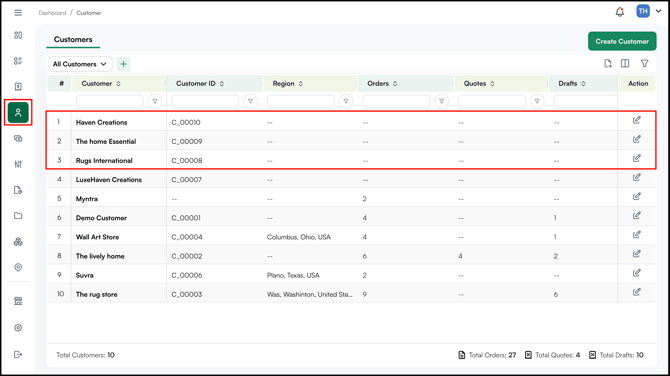
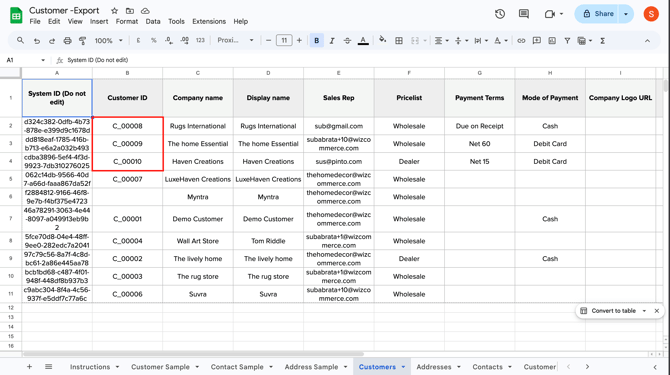
- Go back to **Manage Data \> Import - Export**, click the **Customers** tile, then click **Export** to download a workbook with all your customers, including the **Customer IDs** that WizCommerce assigned during the import.
- Open the exported workbook and switch to the ***Customers*** tab. You will use the ***Customer ID*** values from this file when filling out the Addresses and Contacts templates.
#### Import the Contacts sheet
With your customers in place, you can now attach contacts to them. Each customer can have multiple contacts, typically one primary contact, with additional contacts as needed. Contacts link to customers through the Customer ID you collected from the export in the previous step.
**1. Download the Contacts template**
1. Go to **Manage Data \> Import - Export.
**
2. **Select *Customers* tile and c**lick ***Import
***
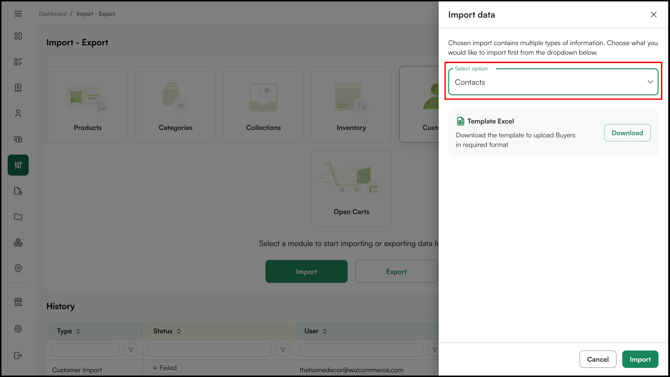
3. Choose ***Contacts*** in the ***Select option*** dropdown.
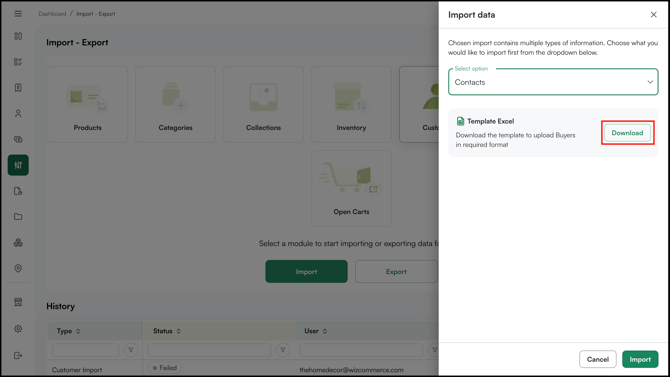
4. Click ***Download*** under ***Template Excel***.
**2. Fill out the Contacts template**
Open the **Data Sheet** tab and fill in one row per contact. Key fields:
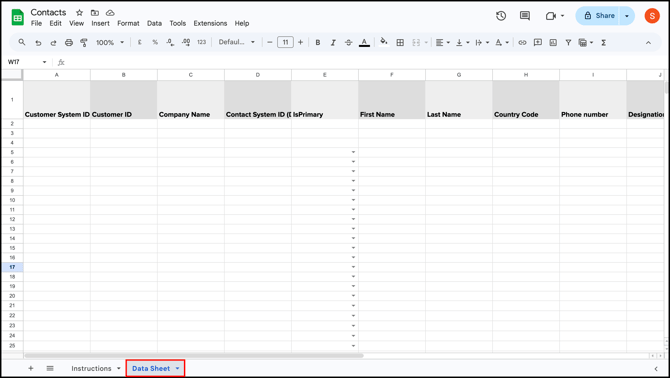
- **Customer System ID:** Leave blank for new customers
- **Customer ID:** Must exactly match the Customer ID from your Customers sheet
- **Company Name:** Same company name used in the Customers sheet
- **Contact System ID:** Leave blank; auto-generated
- **IsPrimary:** Y or N; marks this as the primary contact for the customer
- **First Name, Last Name: C**ontact name
- **Country Code, Phone number:** Contact phone
- **Designation:** Job title or role
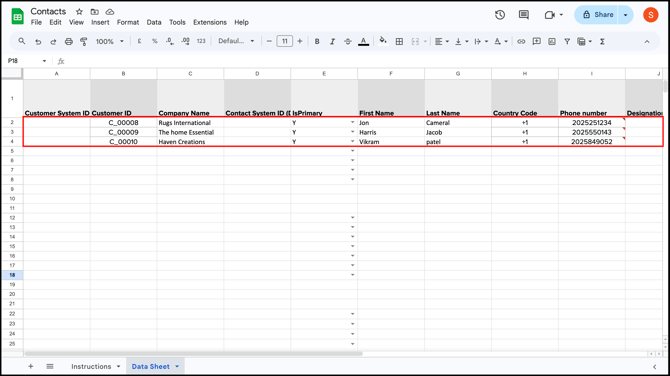
**Note:** A few rules to follow on the Contacts sheet:
- **Every customer needs at least one primary contact.** Mark exactly one row per customer with **IsPrimary = Y**. If a customer has only one contact, that row must still be marked *Y*.
- **Country code cannot be empty** for any row.
- **Email ID must be a valid email address.** Invalid or wrong emails format will cause that row to fail.
**3. Upload the Contacts file**
1. Go back to the Import - Export page and open the Customer import panel.
2. Choose **Contacts** in the dropdown.
3. Upload your filled template and click ***Import***.
#### Import the Addresses sheet
Now that your customers exist in WizCommerce, you can attach addresses to them. Each customer can have multiple addresses, typically one Billing and one Shipping, though you can add more. Addresses link to customers through the *Customer ID* you collected from the export in the previous step.
**1. Download the Addresses template**
1. Go to ***Manage Data \> Import - Export \> Customers**.
*
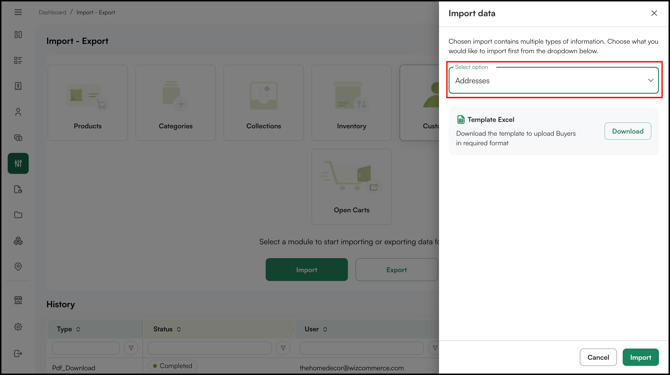
2. Click ***Import***, then choose ***Addresses*** in the ***Select option*** dropdown.

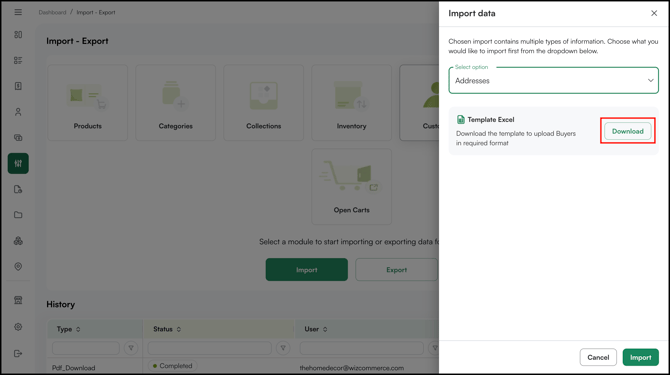
3. Click ***Download*** under ***Template Excel**.
*
**2. Fill out the Addresses template**
Open the ***Data Sheet*** tab and fill in one row per address. Key fields:

- **Customer System ID: L**eave blank for new customers
- **Customer ID:** Must exactly match the Customer ID from your Customers sheet (for example, CO\_001)
- **Company Name: S**ame company name used in the Customers sheet
- **Address System ID:** Leave blank; auto-generated
- **IsDefault:** Y or N; marks this as the default address for the customer
- **First Name, Last Name:** Contact person for this address
- **Country Code, Phone number, Email ID:** Contact details for this address
- **Country, Street Address, Address Line 2, City, State / Region, Zip Code, f**ull address
- **Address Type:** Billing or Shipping
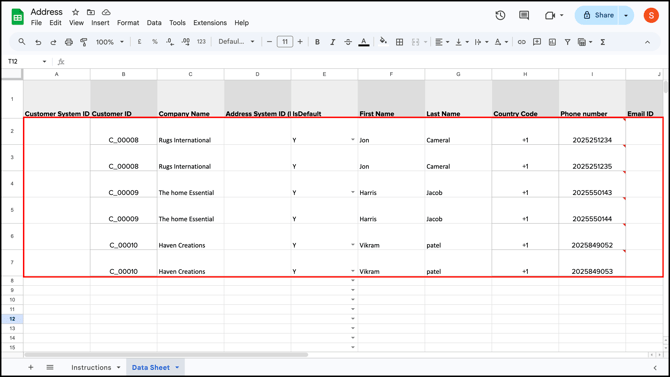
**Note:** To add both a Billing and a Shipping address for the same customer, add two rows with the same **Customer ID,** one row with **Address Type** set to *Billing* and one with *Shipping*.
**3. Upload the Addresses file**
1. Go back to the *Import - Export* page and open the ***Customer*** import panel.
2. Choose ***Addresses*** in the dropdown.
3. Upload your filled template and click ***Import***.
---
### C. Bulk Update Existing Customers
Use this flow when WizCommerce already has your customer data and you want to update records, add new ones, or do both in the same file. Common reasons include refreshing addresses, reassigning sales reps after a territory change, updating credit limits or payment terms in bulk, or marking customers as inactive.
**1. Export your current customer list**
1. Click ***Manage Data***. Select *I**mport - Export*** from the menu.

2. On the Import - Export page, click the ***Customers*** tile and click the ***Export.
***
3. Download the ***Export sheet*** from the notification bar (at top right)
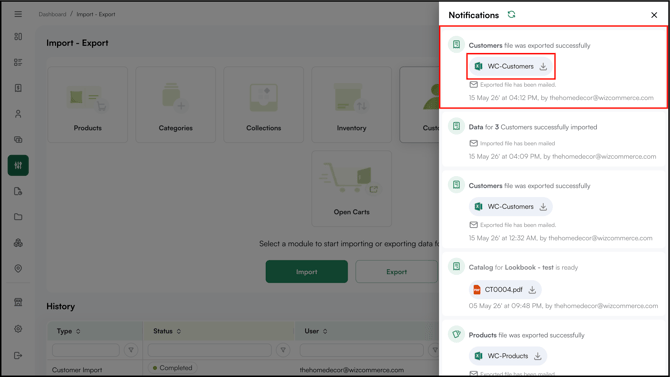
**2. Download the export file**
WizCommerce generates a single workbook containing all your customer data. The file includes the following tabs:
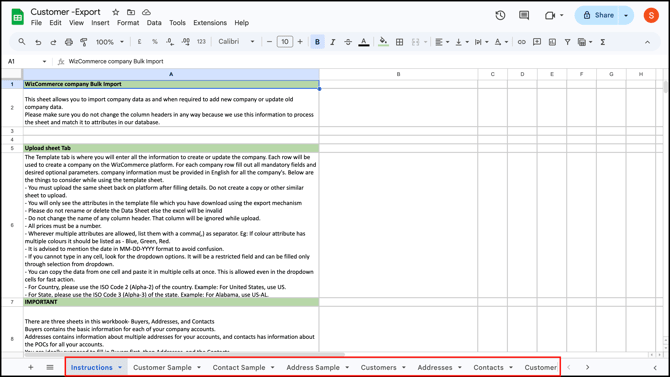
- **Instructions:** Guidance on how to use the workbook
- **Customer Sample, Contact Sample, Address Sample:** Reference rows showing the expected format
- **Customers:** One row per existing customer
- **Addresses:** All addresses across all customers
- **Contacts:** All contacts across all customers
- **Customer Master Sheet:** A unified tab where customer, address, and contact rows for every customer appear together, identified by a Row Type column (Customer, Billing, Shipping, Contact)
**Note:** Any custom fields added to the Customer, Address, or Contact forms in WizCommerce appear as additional columns on their respective tabs. Fill these in the same way as the standard fields.
**3. Edit the file**
You can update your data by editing the relevant importable tabs in the exported workbook. Use the [*Customers*](https://knowledge.wizcommerce.com/bulk-import-customers-into-wizcommerce#customer-sheet), [*Addresses*](https://knowledge.wizcommerce.com/bulk-import-customers-into-wizcommerce#address-sheet), and [*Contacts*](https://knowledge.wizcommerce.com/bulk-import-customers-into-wizcommerce#contact-sheet) tabs depending on the type of information you want to change.
Use this approach when you are making focused edits to one record type. For example, update pricelists, sales reps, or payment terms in the **Customers** tab. Add or revise billing and shipping details in the **Addresses** tab. Add or update customer contact details in the **Contacts** tab.
**Review the Customer Master Sheet**
The **Customer Master Sheet** is provided only to help you review all customer-related information in one place. It combines customer, address, and contact details into a single consolidated view, with a **Row Type** column showing whether each row is a Customer, Billing, Shipping, or Contact record.
Do not use the **Customer Master Sheet** for import. To make changes, update the relevant importable tab: **Customers**, **Addresses**, or **Contacts**.
**Rules that apply to both paths:**
- **Keep the System ID column untouched.** This column is marked *Do not edit* and is how WizCommerce matches your row to the right record. Changing it will either create a duplicate or fail the import.
- **Keep the Customer ID column untouched** on address and contact rows. This links them back to the right customer.
- **Edit only the fields you want to change.** Existing values in fields you leave alone will remain as they are.
- **Add new rows at the bottom** of the tab to create new customers, addresses, or contacts. Leave the **System ID** blank for new rows, WizCommerce will generate one. For new addresses or contacts, fill in the **Customer ID** of an existing customer to attach them.
**Note:** Do not rename or delete any tab in the workbook. Do not rename column headers. The import will fail or skip columns if the structure changes.
**4. Upload and choose update mode**
1. Go to **Customers \> Import**.
2. Choose **Update existing customers (and add new)** as the import mode.
3. Upload your edited file.
4. Pick what should happen when a match is found:
- *Update fields only:* changes only the columns you filled in (recommended)
- *Replace all fields:* overwrites every column, including blank ones
- *Add new only:* ignores matched rows and creates only the new ones
##### Assigning or Reassigning Sales Reps to Customers
To update customer/rep assignments or assign reps to customers, follow these steps:
1. Export the customer file from ***Manage \> Import - Export \> Customers \> Export***.
2. Open the export file and go to the ***Customers*** sheet.
3. In the **Sales Rep** column, assign reps to each customer. You can assign more than one rep to a single customer.
4. If the **Reference ID** (for Integration Accounts) field is enabled for your account, fill it in for each row. It is required when enabled. If it is not enabled, leave it blank.
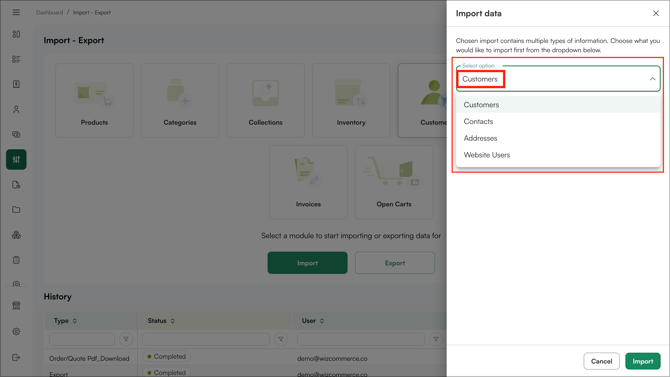
5. Import the updated file back via ***Manage \> Import - Export \> Customers \> Import***.
6. In the ***Select option*** dropdown, choose what you are importing → ***Customers***, ***Contacts***, or ***Addresses***.
**If your export file downloaded as a zip folder** (this happens when there are a large number of records): extract the zip, open each file, update the ***Customers*** tab in each, and import each file individually or consolidate all rows into a single file (within the 5,000-row limit) and import once.
Follow the same steps to update [**addresses**](https://knowledge.wizcommerce.com/bulk-import-customers-into-wizcommerce#address-sheet) or **[contacts](https://knowledge.wizcommerce.com/bulk-import-customers-into-wizcommerce#contact-sheet).** Just open the ***Addresses*** or ***Contacts*** sheets instead of the Customers sheet, make your edits, and import.
**Note:** If you run into any issues, contact our support team at [help@wizcommerce.com](https://mail.google.com/mail/u/0/?fs=1&to=help@wizcommerce.com&tf=cm).
---
### D. After the import
**1. Verify a few records**
1. Open 3 to 5 customers from the list and check the fields you imported.
2. Confirm pricing, payment terms, and sales rep assignments look right.
3. Place a test order for one customer to confirm everything flows end-to-end.
**3. Resolve common errors**
- **Required field missing: Email** fill in the Email column for the flagged row and re-upload.
- **Invalid price tier,** the tier name does not match an existing tier. Check spelling or create the tier under **Settings \> Pricing** first.
- **Sales Rep not found** the rep email is not yet a user. Invite them under **Settings \> Users**, then re-upload.
- **Duplicate customer code** Two rows in your file share the same code. Make each unique.
- **Customer already exists** *(on a from-scratch import):* Switch to the **Update existing customers** flow.
- **File too large:** Split the file into batches of 5,000 rows or fewer.
---
#### FAQs
**1. Can I import contacts (multiple people) for the same customer?**
Yes. Use the **Contacts** import template under **Customers \> Import \> Contacts** after your main customer import is done. Each contact row references the parent Customer Code.
**2. Can I import multiple ship-to addresses per customer?**
Yes. Use the **Ship-To Addresses** template under **Customers \> Import**. Run it after your main customer file is loaded.
**3. Will importing trigger emails to my customers?**
No. Customer creation and updates through import do not send any emails to your customers.
---
**Still need help?** Reach out to our support team at [help@wizcommerce.com](https://mail.google.com/mail/u/0/?fs=1&to=help@wizcommerce.com&tf=cm).
- [Getting started](https://knowledge.wizcommerce.com/getting-started#main-content)
- [Product Overview](https://knowledge.wizcommerce.com/getting-started#product-overview)
- [Key Concepts You Should Know](https://knowledge.wizcommerce.com/getting-started#key-concepts-you-should-know)
- [Product Guides](https://knowledge.wizcommerce.com/getting-started#product-guides)
- [Trade Show Checklist](https://knowledge.wizcommerce.com/getting-started#trade-show-checklist)
- [Product Search & Discovery](https://knowledge.wizcommerce.com/product-search-discovery#main-content)
- [AI Product Recommendations](https://knowledge.wizcommerce.com/product-search-discovery#ai-product-recommendations)
- [Filter and Navigate](https://knowledge.wizcommerce.com/product-search-discovery#filter-and-navigate)
- [Catalog](https://knowledge.wizcommerce.com/product-search-discovery#catalog)
- [Product Selection & Ordering](https://knowledge.wizcommerce.com/product-selection-ordering#main-content)
- [Orders](https://knowledge.wizcommerce.com/product-selection-ordering#orders)
- [Quotes](https://knowledge.wizcommerce.com/product-selection-ordering#quotes)
- [Cart](https://knowledge.wizcommerce.com/product-selection-ordering#cart)
- [Presentations](https://knowledge.wizcommerce.com/product-selection-ordering#presentations)
- [Wishlist](https://knowledge.wizcommerce.com/product-selection-ordering#wishlist)
- [Item History](https://knowledge.wizcommerce.com/product-selection-ordering#item-history)
- [Invoices](https://knowledge.wizcommerce.com/product-selection-ordering#invoices)
- [Customers & Accounts](https://knowledge.wizcommerce.com/customers-accounts#main-content)
- [Customer Relationship Management (CRM)](https://knowledge.wizcommerce.com/customers-accounts#customer-relationship-management-crm)
- [Inventory & Warehousing](https://knowledge.wizcommerce.com/inventory-warehousing#main-content)
- [Inventory availability](https://knowledge.wizcommerce.com/inventory-warehousing#inventory-availability)
- [Payments](https://knowledge.wizcommerce.com/payments#main-content)
- [Payment Dashboard](https://knowledge.wizcommerce.com/payments#payment-dashboard)
- [Pricing & Commercials](https://knowledge.wizcommerce.com/pricing-commercials#main-content)
- [Pricelist](https://knowledge.wizcommerce.com/pricing-commercials#pricelist)
- [Discounts & Promotions](https://knowledge.wizcommerce.com/pricing-commercials#discounts-promotions)
- [Claims & Credits](https://knowledge.wizcommerce.com/pricing-commercials#claims-credits)
- [AI Co-Workers](https://knowledge.wizcommerce.com/ai-co-workers#main-content)
- [Ella - AI Order Entry Assistant](https://knowledge.wizcommerce.com/ai-co-workers#ella-ai-order-entry-assistant)
- [WizPilot - AI Assistant](https://knowledge.wizcommerce.com/ai-co-workers#wizpilot-ai-assistant)
- [WizStudio](https://knowledge.wizcommerce.com/wizstudio#main-content)
- [Creating & Editing Images](https://knowledge.wizcommerce.com/wizstudio#creating-editing-images)
- [Lifestyle Generator](https://knowledge.wizcommerce.com/wizstudio#lifestyle-generator)
- [Silo Editor](https://knowledge.wizcommerce.com/wizstudio#silo-editor)
- [Bulk Silo Editor](https://knowledge.wizcommerce.com/wizstudio#bulk-silo-editor)
- [Asset Library (Assets)](https://knowledge.wizcommerce.com/wizstudio#asset-library-assets)
- [AI Image Expander](https://knowledge.wizcommerce.com/wizstudio#ai-image-expander)
- [Reports & Analytics](https://knowledge.wizcommerce.com/reports-analytics#main-content)
- [Business Reports](https://knowledge.wizcommerce.com/reports-analytics#business-reports)
- [Manage your WizCommerce (Admin)](https://knowledge.wizcommerce.com/manage-your-wizcommerce-admin#main-content)
- [Import / Export](https://knowledge.wizcommerce.com/manage-your-wizcommerce-admin#import-export)
- [Organizational Settings](https://knowledge.wizcommerce.com/manage-your-wizcommerce-admin#organizational-settings)
- [Product Management](https://knowledge.wizcommerce.com/manage-your-wizcommerce-admin#product-management)
- [Managing Your WizShop Website](https://knowledge.wizcommerce.com/manage-your-wizcommerce-admin#managing-your-wizshop-website)
- [Integration & Apps](https://knowledge.wizcommerce.com/integration-apps#main-content)
- [Marketing Integration](https://knowledge.wizcommerce.com/integration-apps#marketing-integration)
- [Integration Dashboard](https://knowledge.wizcommerce.com/integration-apps#integration-dashboard)
- [Help & FAQs](https://knowledge.wizcommerce.com/help-faqs#main-content)
- [Help with Orders](https://knowledge.wizcommerce.com/help-faqs#help-with-orders)
- [Help with Quotes](https://knowledge.wizcommerce.com/help-faqs#help-with-quotes)
- [Help with Presentation](https://knowledge.wizcommerce.com/help-faqs#help-with-presentation)
- [Help with Inventory](https://knowledge.wizcommerce.com/help-faqs#help-with-inventory)
- [Help with User Management](https://knowledge.wizcommerce.com/help-faqs#help-with-user-management)
- [Help with Pricelist & Discounts](https://knowledge.wizcommerce.com/help-faqs#help-with-pricelist-discounts)
- [Help with WizStudio](https://knowledge.wizcommerce.com/help-faqs#help-with-wizstudio)
- [Help with Ella](https://knowledge.wizcommerce.com/help-faqs#help-with-ella)
- [Help with Org Settings (Admin)](https://knowledge.wizcommerce.com/help-faqs#help-with-org-settings-admin)
- [Help with Emails](https://knowledge.wizcommerce.com/help-faqs#help-with-emails)
- [Help with Products](https://knowledge.wizcommerce.com/help-faqs#help-with-products)
- [Help with Import/Export](https://knowledge.wizcommerce.com/help-faqs#help-with-import-export)
- [Help with WizShop](https://knowledge.wizcommerce.com/help-faqs#help-with-wizshop)
- [Help with Integration](https://knowledge.wizcommerce.com/help-faqs#help-with-integration)
- [Help with Categories and Collections](https://knowledge.wizcommerce.com/help-faqs#help-with-categories-and-collections)
- [Help With Customers](https://knowledge.wizcommerce.com/help-faqs#help-with-customers)
- [Help with Trade Show](https://knowledge.wizcommerce.com/help-faqs#help-with-trade-show)
[](https://wizcommerce.com/)
[mailto:help@wizcommerce.com](mailto:help@wizcommerce.com)
Copyright © 2025, WizCommerce
```json
{
"@context" : "https://schema.org",
"@type" : "VideoObject",
"contentUrl" : "https://47455261.fs1.hubspotusercontent-na2.net/hubfs/47455261/video_assets/345077461699/inherited/web_optimized.mp4",
"dateModified" : "2026-05-15T11:15:12.192Z",
"duration" : "PT44S",
"height" : 1568,
"name" : "Screen Recording 2026-05-15 at 4.40.13 PM",
"thumbnailUrl" : "https://47455261.fs1.hubspotusercontent-na2.net/hubfs/47455261/Screen%20Recording%202026-05-15%20at%204.40.13%20PM.mov/medium.jpg",
"uploadDate" : "2026-05-15T11:15:01.872Z",
"width" : 2876
}
```
```json
{
"@context" : "https://schema.org",
"@type" : "VideoObject",
"contentUrl" : "https://47455261.fs1.hubspotusercontent-na2.net/hubfs/47455261/video_assets/345123480251/inherited/web_optimized.mp4",
"dateModified" : "2026-05-15T12:16:44.886Z",
"duration" : "PT50S",
"height" : 1568,
"name" : "Screen Recording 2026-05-15 at 5.07.44 PM",
"thumbnailUrl" : "https://47455261.fs1.hubspotusercontent-na2.net/hubfs/47455261/Screen%20Recording%202026-05-15%20at%205.07.44%20PM.mov/medium.jpg",
"uploadDate" : "2026-05-15T12:16:34.202Z",
"width" : 2876
}
```
```json
{
"@context" : "https://schema.org",
"@type" : "VideoObject",
"contentUrl" : "https://47455261.fs1.hubspotusercontent-na2.net/hubfs/47455261/video_assets/345077535466/inherited/web_optimized.mp4",
"dateModified" : "2026-05-15T11:46:57.905Z",
"duration" : "PT15S",
"height" : 1568,
"name" : "Screen Recording 2026-05-15 at 5.15.45 PM",
"thumbnailUrl" : "https://47455261.fs1.hubspotusercontent-na2.net/hubfs/47455261/Screen%20Recording%202026-05-15%20at%205.15.45%20PM.mov/medium.jpg",
"uploadDate" : "2026-05-15T11:46:50.400Z",
"width" : 2876
}
```
```json
{
"@context" : "https://schema.org",
"@type" : "VideoObject",
"contentUrl" : "https://47455261.fs1.hubspotusercontent-na2.net/hubfs/47455261/video_assets/345123390151/inherited/web_optimized.mp4",
"dateModified" : "2026-05-15T12:56:20.829Z",
"duration" : "PT45S",
"height" : 1568,
"name" : "Screen Recording 2026-05-15 at 6.24.23 PM",
"thumbnailUrl" : "https://47455261.fs1.hubspotusercontent-na2.net/hubfs/47455261/Screen%20Recording%202026-05-15%20at%206.24.23%20PM.mov/medium.jpg",
"uploadDate" : "2026-05-15T12:56:03.135Z",
"width" : 2876
}
```