
Bulk Payment lets a rep in WizOrder or a buyer in WizShop settle several open invoices for the same customer in a single payment, instead of paying one at a time.
Platform: WizOrder & WizShop | Who is this for: Sales Reps, Admins & Buyers
To Get There:
-
WizOrder → WizPay > Transactions > Payments > Bulk Payment
-
WizShop → My Account > Invoices > Make a Payment
Table of Contents
| Sections | Topics |
| A | Bulk Invoice Payment in WizOrder |
| B | Bulk Invoice Payment in WizShop |
| C | FAQs |
Before You Begin
- Only invoices with Pending or Partially Paid status will appear in the list. Fully paid invoices will not be appear in the list. Select the ones you want to include in the bulk payment.
-
You can select up to 20 invoices at a time. Selecting more than 20 will trigger an error.
A. Bulk Invoice Payment in WizOrder
- Go to WizPay > Transactions.
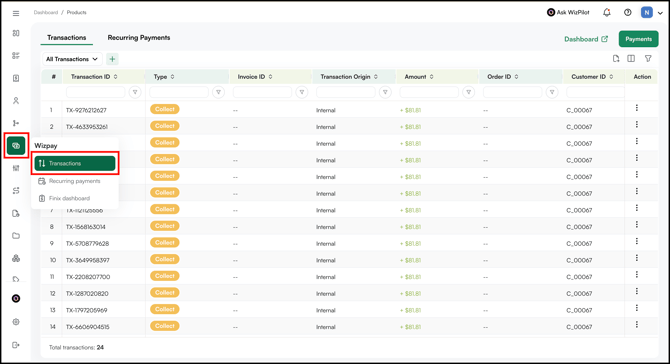
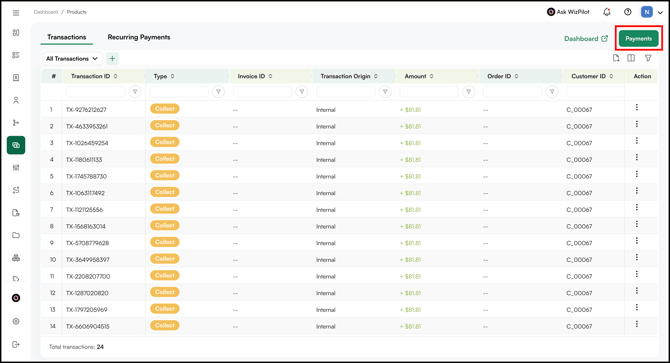
- Click Payments.
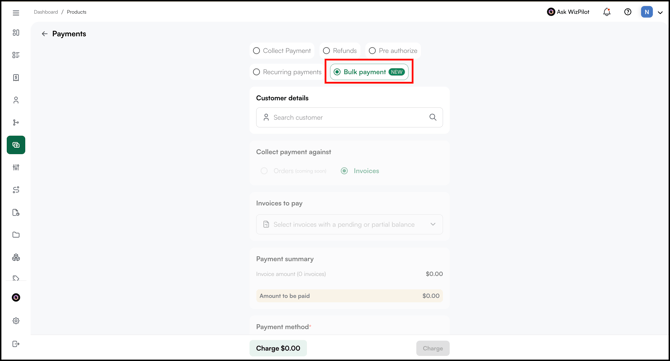
- Click the new Bulk Payment option.
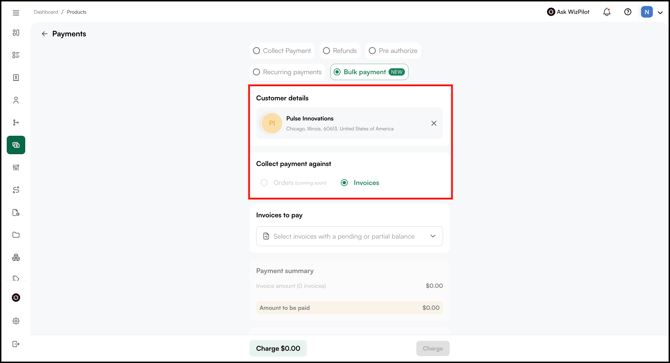
- Search for and select the Customer and then select Invoices under Collect payment against.
- You can select up to 20 invoices per bulk payment. If you select more, only the first 20 will be included.
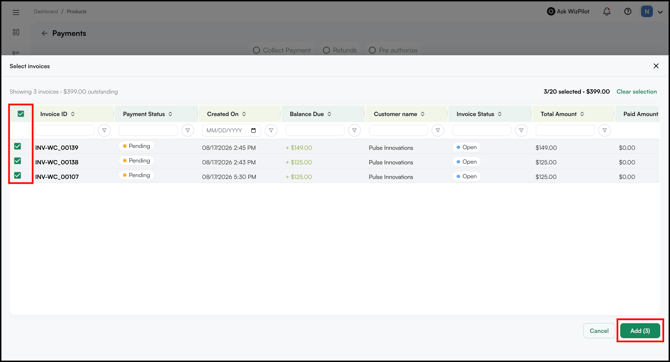
- Select the invoices to include and click Add.
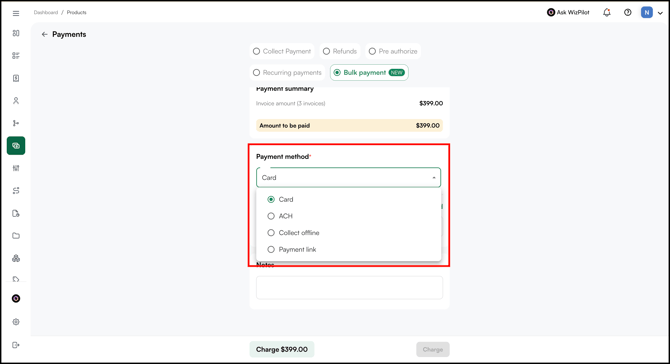
- Select the Payment Method. For example, Card.
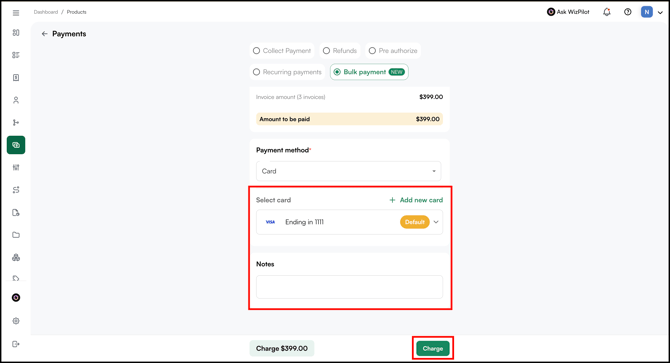
- Enter the Card Details, add Notes (optional), and click Charge.
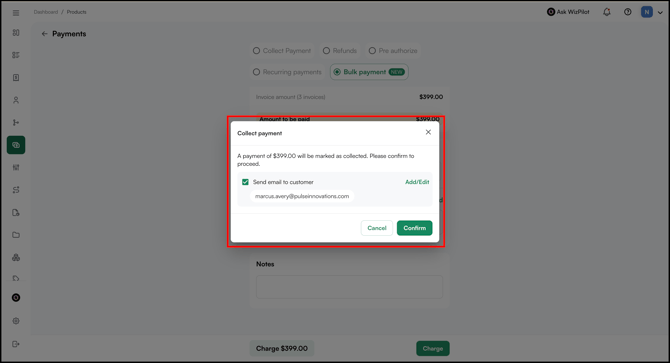
- Once charged, a confirmation email is sent and the invoices are settled.
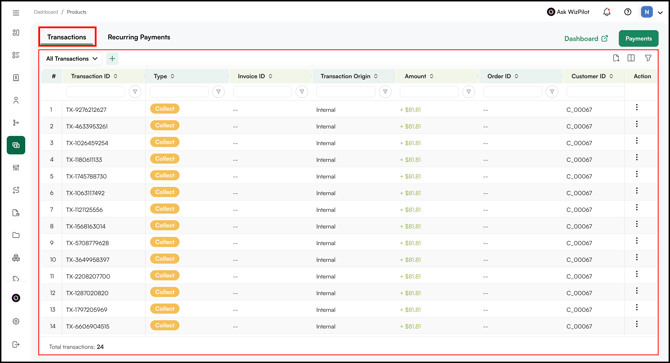
- Go to WizPay → Transactions to see the result. All invoices included in the payment appear together under one transaction record with multiple invoice IDs, instead of one row per invoice.
B. Bulk Invoice Payment in WizShop
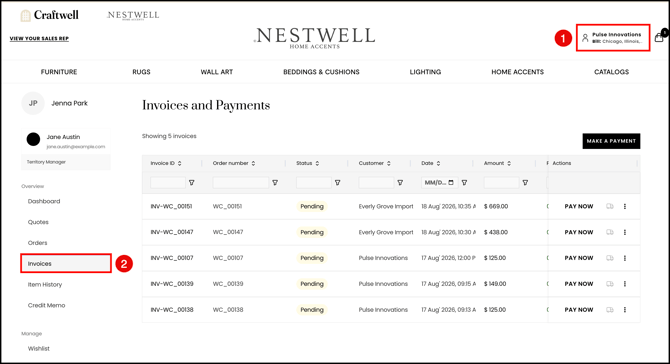
- Sign in to the online storefront and go to My Account > Invoices.
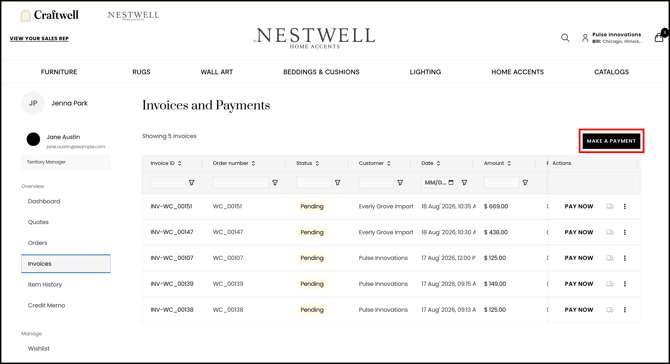
- Click Make a Payment at the top of the page.
- The selection is pre-filtered to Pending or Partially Paid invoices only.
- Select the invoices you want to pay together. You can remove any invoice from the selection before proceeding.
- You can select up to 20 invoices per bulk payment. If you select more, only the first 20 will be included.
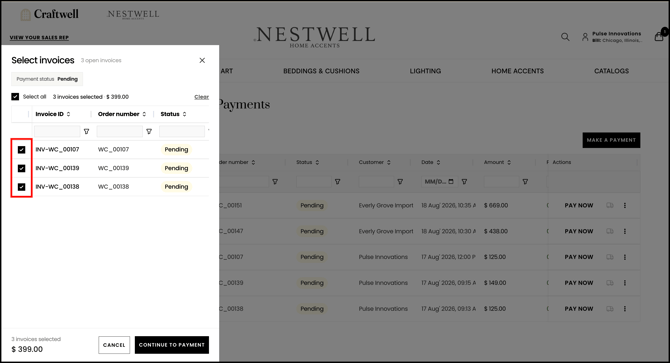
- Click Continue to Payment to proceed.
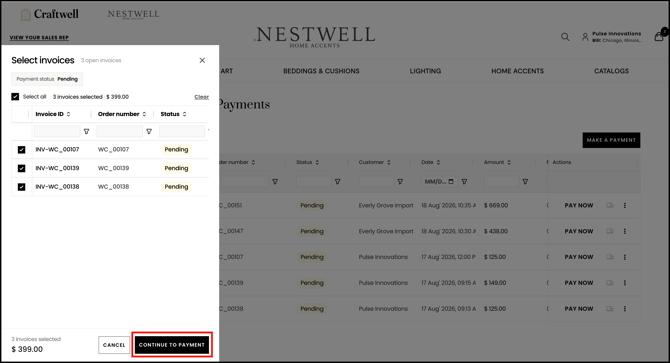
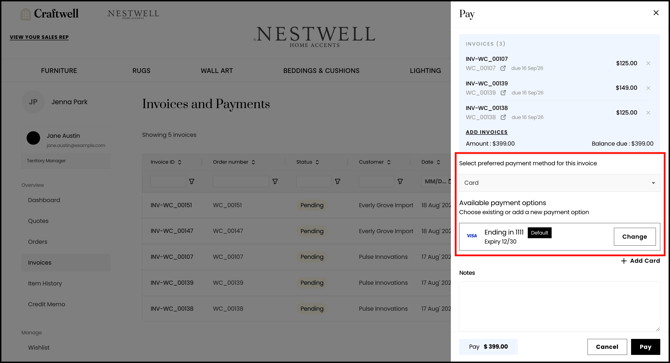
- Choose a payment method — a saved card, if any — then complete the payment.
- You can also add Notes (optional) to mention the reason for the payment or its purpose.
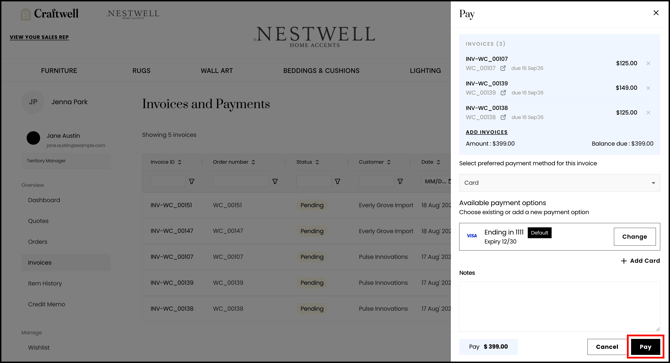
- Then click Pay to complete the bulk payment.
- All selected invoices are settled in a single transaction.
FAQs
1. How many invoices can I include in one bulk payment?
A. Up to 20 invoices, in either WizOrder or WizShop. Selecting more than 20 keeps only the first 20 and shows a message confirming the limit.
2. Why don't all of a customer's invoices show up when I try to select invoices for a bulk payment?
A. Only invoices with a Pending or Partially Paid status are shown. Invoices that are already fully paid don't appear in the picker.
3. Does a bulk payment show up as one transaction or several?
A. One. All invoices included in the payment appear together under a single transaction record, with the multiple invoice IDs listed against it.
4. What happens if a bulk payment fails partway through?
A. Invoices that cleared are settled and appear in the transaction; invoices that didn't clear remain open, so nothing is double-charged or lost.
5. Can I use Bulk Payment for orders instead of invoices?
A. No, Bulk Payment currently covers invoices only; orders aren't included.
6. Can I apply a customer's credit memo during a bulk payment?
A. No, credit memos can't be applied within the Bulk Payment flow.
Still need help? Reach out to our support team at help@wizcommerce.com.