
This article explains how admins can bulk manage product visibility settings on WizShop. Instead of updating each product individually, admins can control the website display settings for multiple products at once. This helps save time and gives admins greater control over what is displayed on the website.
Platform: WizShop | Who is this for: Admins
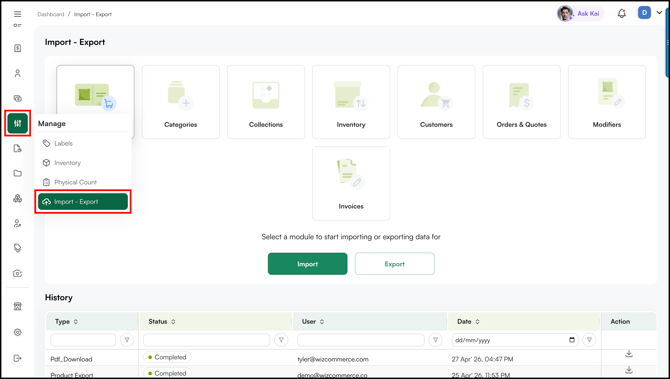
To get there: Manage > Import/Export > Products > Import/Export
Table of Contents
| Sections | Topics |
| A | Website Display Setting |
| B | FAQs |
Before You Begin
- Make sure you have admin access to WizCommerce.
- Make sure the Website Display Setting column is filled in for all rows before re-importing the file.
A. Website Display Setting
Use this when you need to control the display settings for multiple products at once. Simply follow the steps below to apply the changes in bulk.
- Go to Manage in the left navigation and click Import/Export.
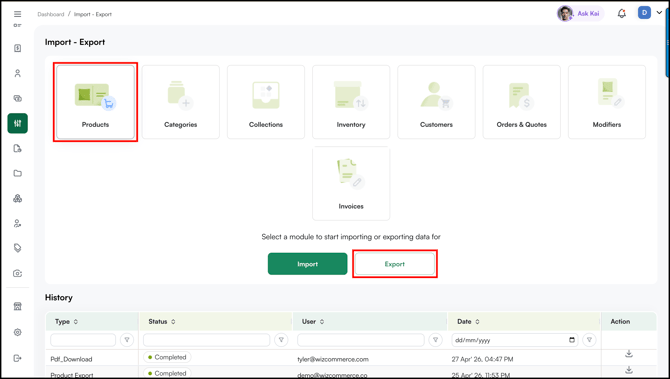
- Select Products and click Export.
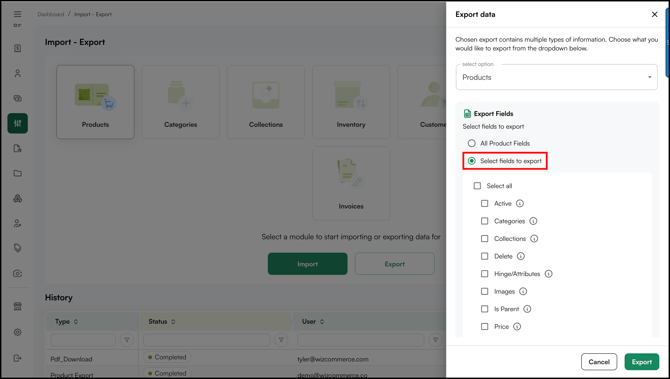
- Click Select Fields to Upload.
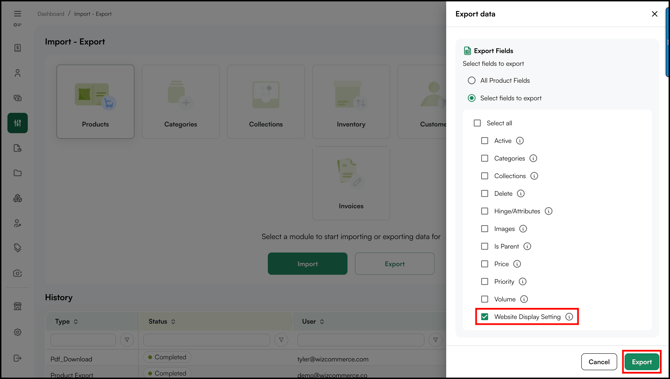
- Scroll down, select Website Display Setting, and click Export.
- Once the export is ready, go to Notifications and download the exported file.
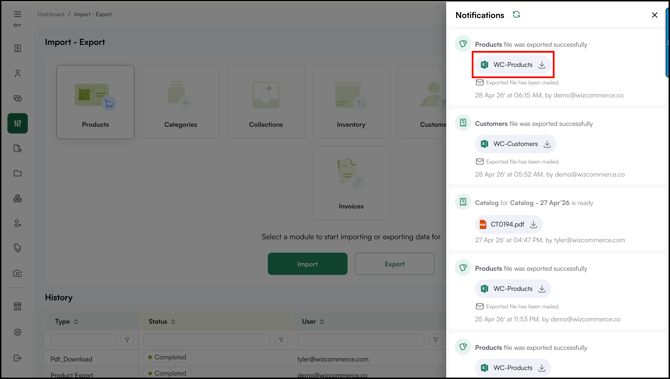
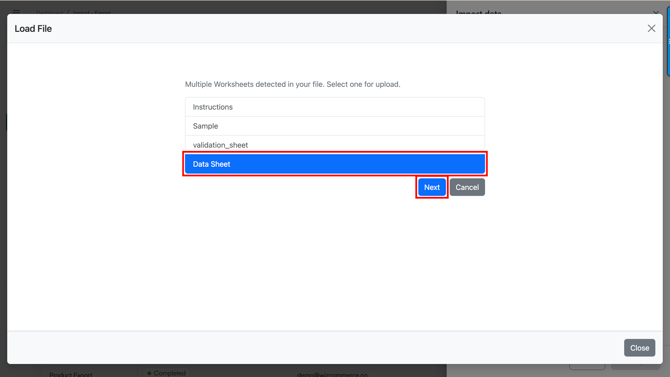
- Open the downloaded file and navigate to the Data Sheet.
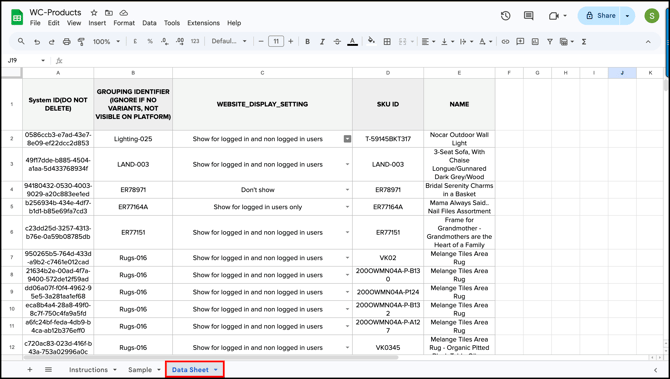
- Locate the Website Display Setting column, each row has a dropdown to set the visibility for that product.
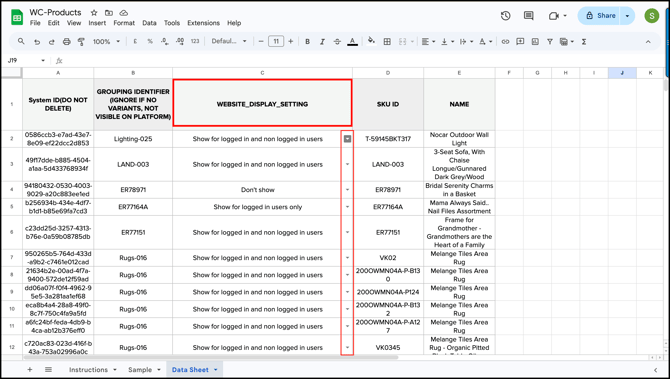
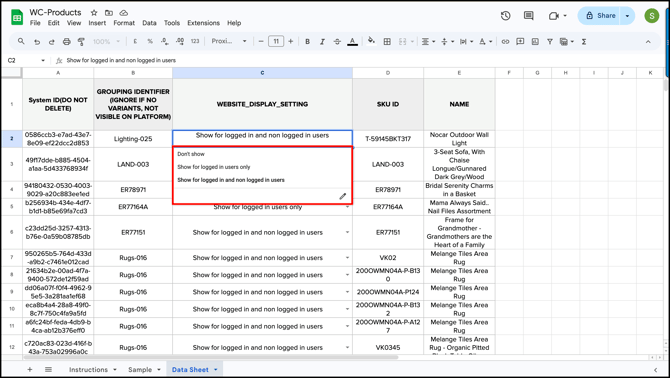
- Click the dropdown for each product and select the appropriate visibility option:
- Don't show: The product will not be visible on the website.
- Show for logged-in users only: The product will only be visible to users who are logged in.
- Show for logged-in and non-logged-in users: The product will be visible to all website visitors.
- Once all changes are made, Save the file.
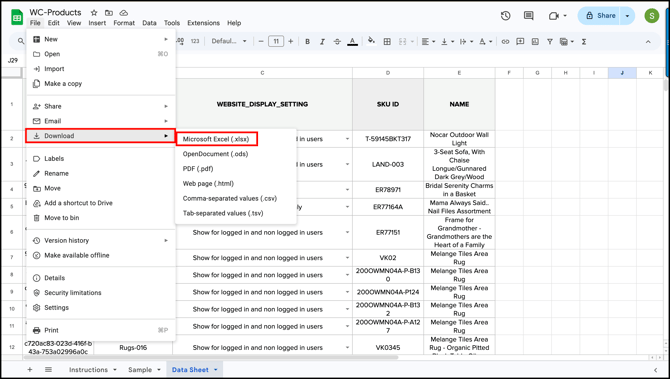
- Go back to Manage in the left navigation and click Import/Export.
- Select Products and click Import.
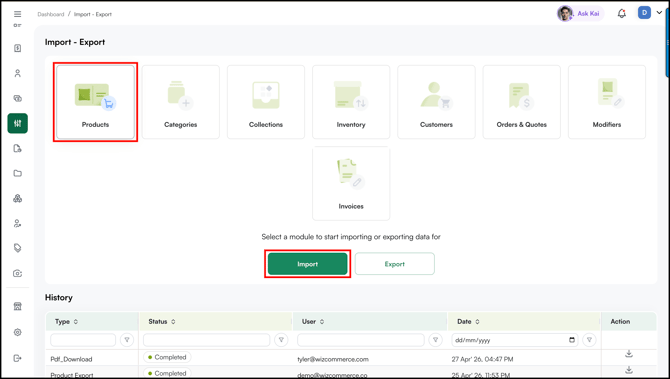
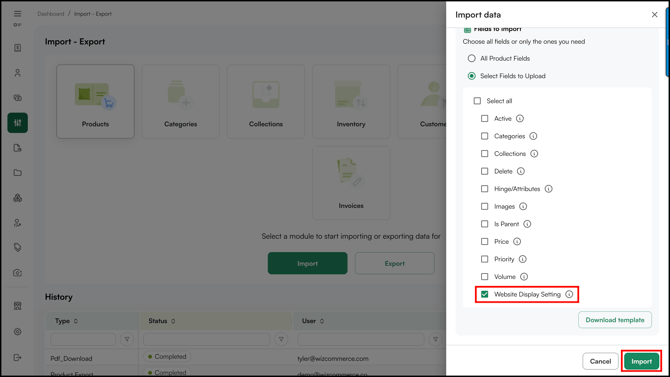
- Click Select Fields to Upload and select Website Display Setting.
- Click Import and upload the saved file.
- Select the sheet you want to import and click Next.
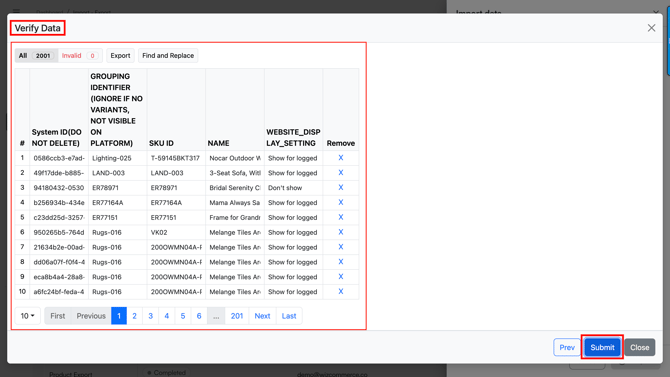
- Review the data on the verification screen to confirm everything looks correct.
- Click Submit.
Note: The price of the products will remain the same as set in WizOrder for that particular customer, regardless of the visibility setting applied.
FAQs
1. Can I update the visibility setting for all products at once?
A. Yes, you can update the visibility settings for multiple products at once using the bulk import/export feature. Simply export the product file, update the Website Display Setting for each product, and re-import the file.
2. Will changing the visibility setting affect the product's price or availability?
A. No, changing the visibility setting only controls how the product appears on the website. It does not affect pricing or availability in any way.
3. What happens if I leave the Website Display Setting column blank for a product?
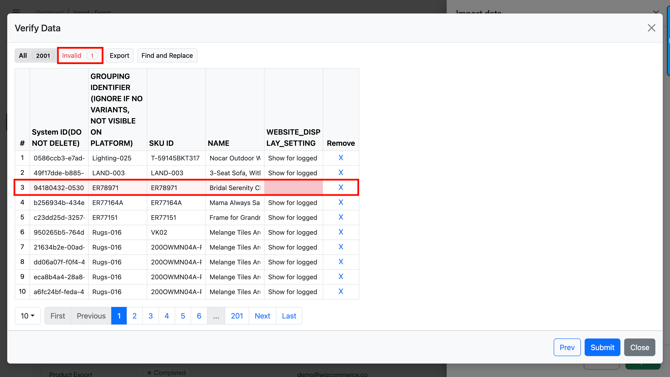
A. If the Website Display Setting column is left blank for any product, you will see an error on the verification screen before submitting the import. Make sure all rows have a visibility option selected to avoid any import errors.
Not finding what you need? Reach out to our support team at help@wizcommerce.com