
Platform: WizOrder & WizShop | Who is this for: All Users
To get there: Products → Catalog
For your information, we have renamed Lookbook to Catalog.
Table of Contents
| Section | Topics |
| A | What is a Catalog? |
| B | Switching Between Explore and Catalog Views |
| C | Using a Catalog |
| D | When to Use a Catalog |
| E | FAQs |
Before You Begin
- Your account must have access to the catalog view. Admins control this under User Management.
- At least one catalog must be published and synced into WizCommerce.
A. What is a Catalog?
A Catalog is your printed product presentation brought to life digitally. You can open it on your iPad, click any product to view its details, and add it to your cart—all without leaving the presentation.
Your admin creates each Catalog in WizOrder or Publitas, a partner tool that integrates with WizOrder. Once published, the Catalog syncs with WizOrder and is ready to use in the field.
Each Catalog has three types of clickable areas:
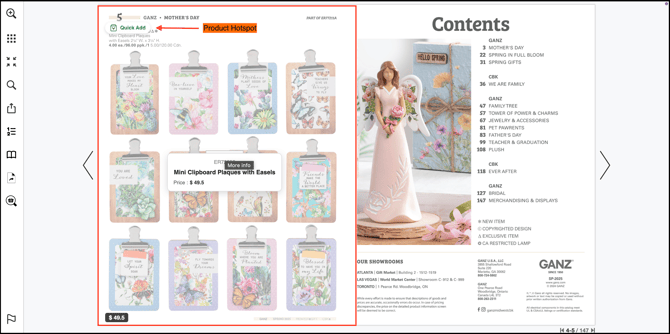
- Product hotspots: Click to open the product, check the price, and add it to a cart.
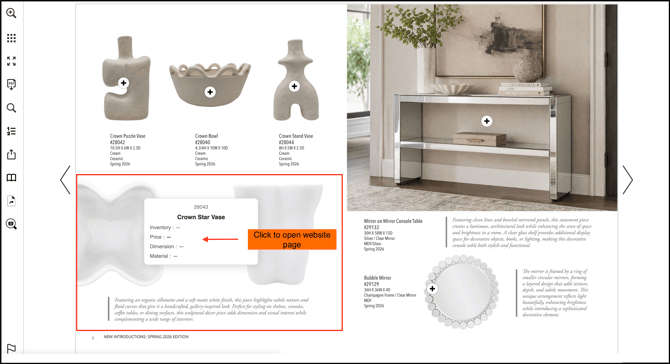
- Link hotspots: Click to open a website page.
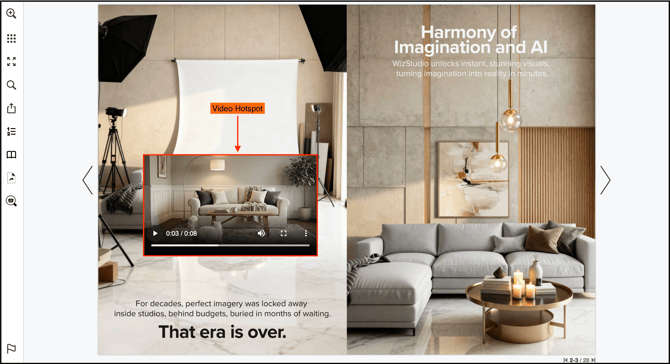
- Video hotspots: Click to play video.
B. Switch Between Explore and Catalog Views
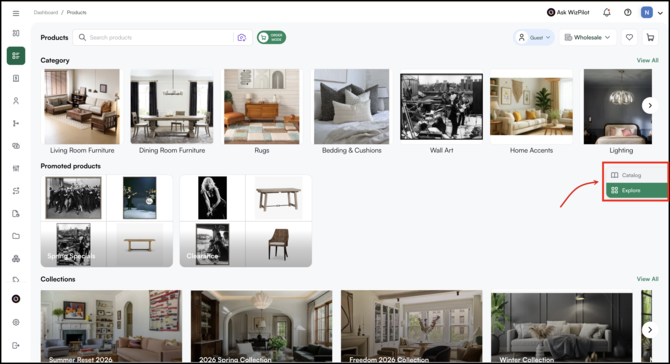
The Products page has two views; Explore and Catalog. Use the toggle on the right to switch between them.
- Open the Products page in WizOrder.
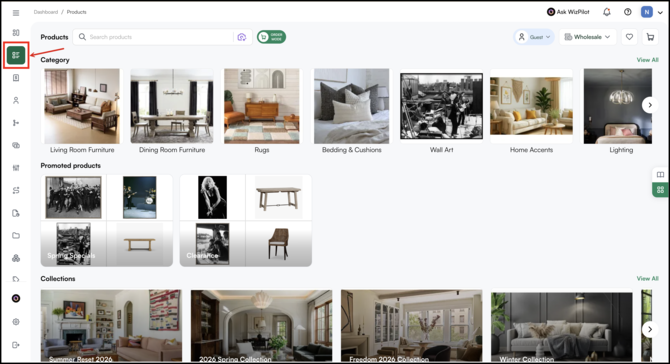
- On the right side of the page, click Catalog or Explore to switch views.
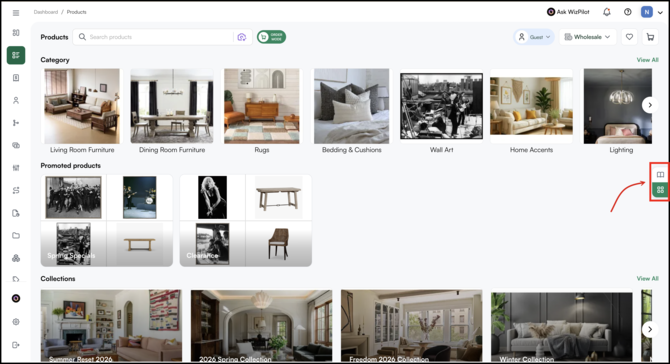
- Here is what each view shows:
- Catalog: All published Catalogs and Catalog folders available to you.
- Explore: The standard product listing page with all active products.
C. Use a Catalog
Once a Catalog is open, you have several tools to navigate it and share it with buyers.
- Click any tagged product to open its details, check the price, or add it to a cart.
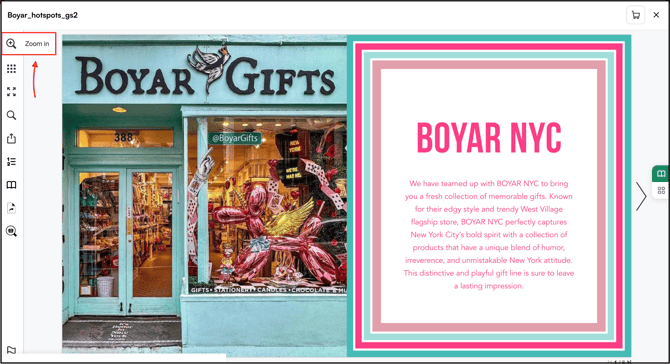
- Zoom (magnifying glass with +): Zoom in on the current page to see product details, fine print, or images more clearly.
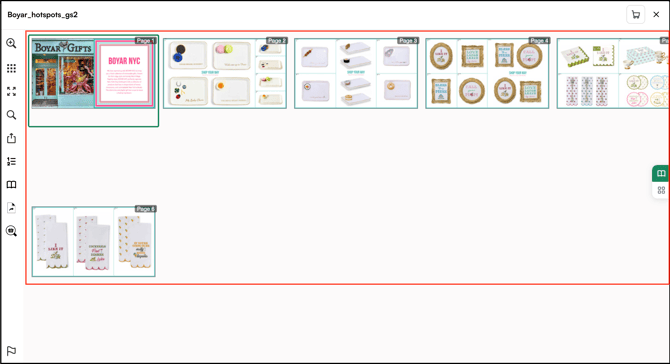
- Open a thumbnail view of all pages so you can scan the entire catalog at a glance and jump to any page.
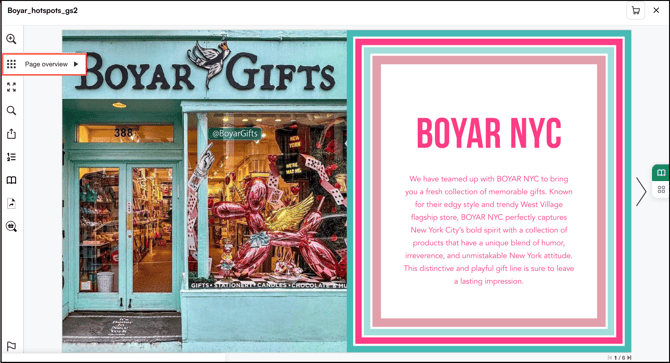
- Thumbnails (grid):
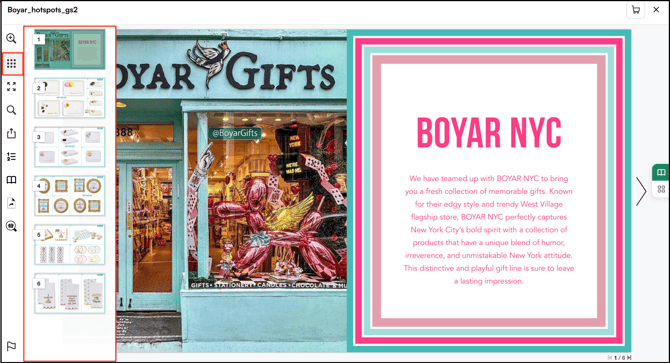
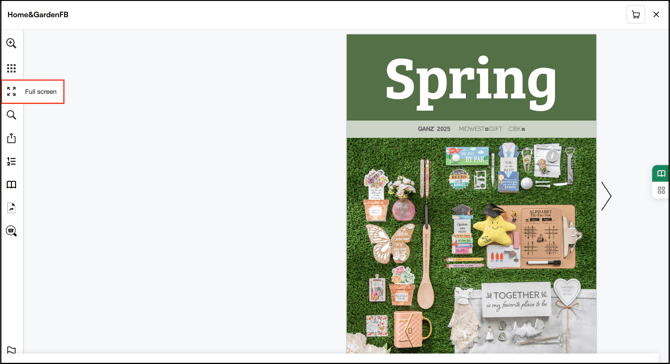
- Click Full Screen to expand the Catalog for a clearer view during a customer conversation.
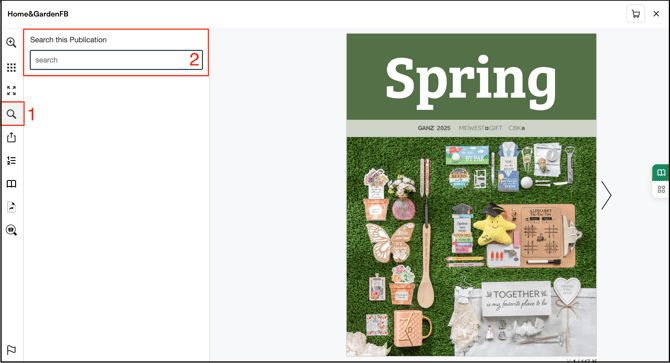
- Click Search to find a product inside the Catalog by SKU.
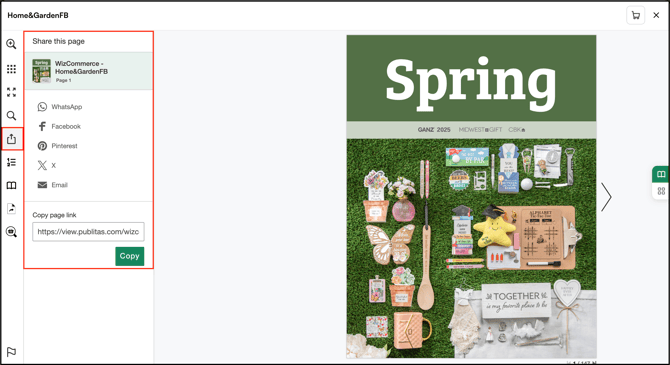
- Click Share to share the link of the Catalog with a buyer.
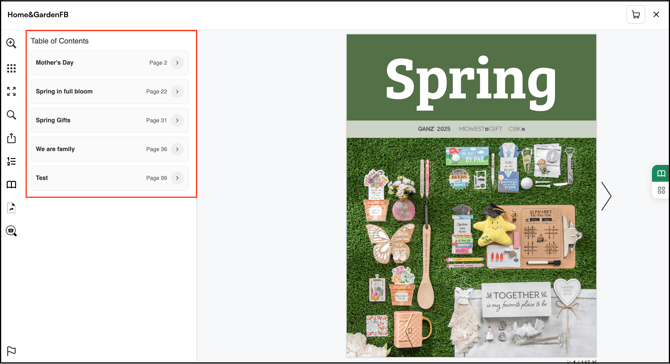
- Use the Table of Contents (if added) to jump straight to a page or section.
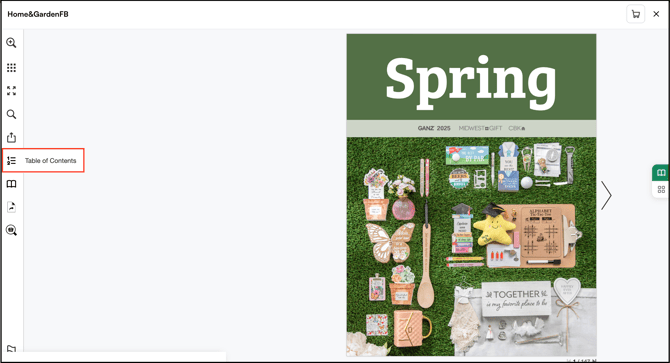
- Table of Contents:
- Switch between single-page and double-page (spread) viewing.
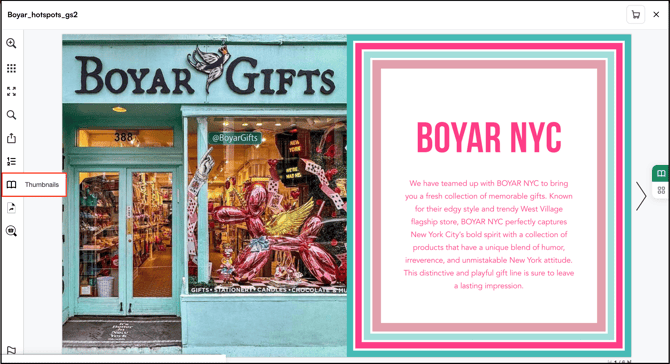
- Page View (book icon):
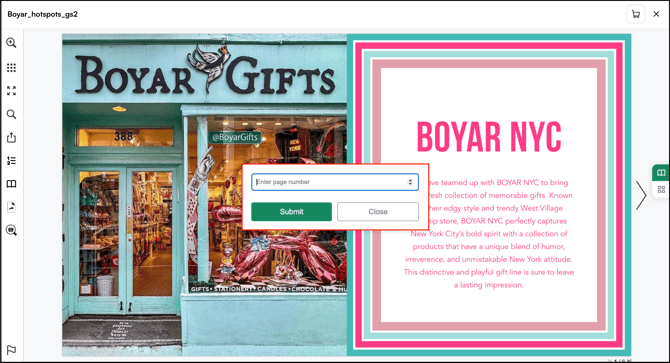
- Jump directly to a specific page number in the Catalog.
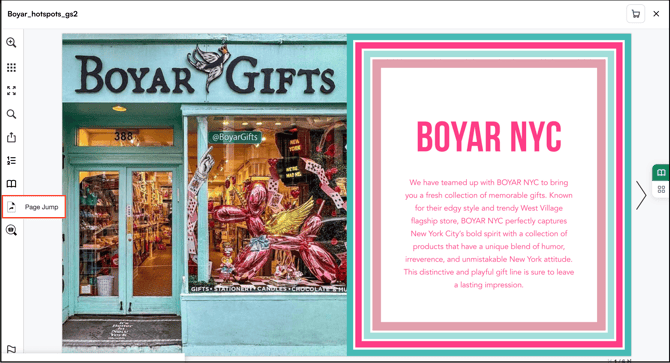
- Page Jump:
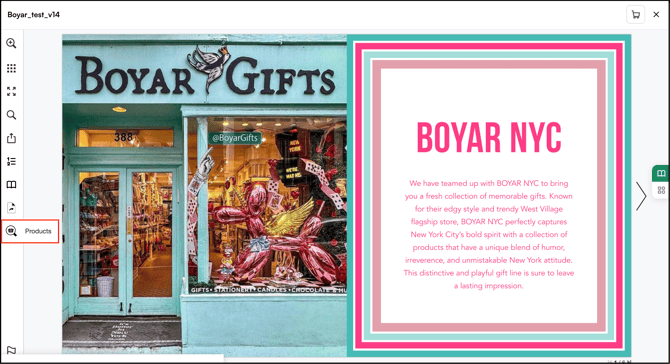
- Products on this Page: See only the products listed on the current page, useful when a buyer asks what's tagged on a specific spread.
D. When to Use a Catalog?
Catalogs work best when you want to show a buyer a specific set of products, not search the full presentation.
Common use cases include:
- Trade shows and showroom visits: Show buyers a seasonal or themed presentation with products ready to add to a cart.
- Showroom visits with limited floor space: Show your full inventory digitally when you can't physically display every product.
- New collection launches: Share a polished, branded presentation instead of a flat PDF.
- Customer-specific presentations: Walk through a presentation built for a buyer segment.
FAQs
1. Why can I see Explore but not Catalog on my Products page?Still need help? Reach out to our support team at help@wizcommerce.com.