
Log a claim when a customer returns, is short-shipped, or receives damaged or wrong product, and you want to document a credit for them. A claim records the products, the reason, and the credit amount, generates a Credit Claim PDF that can be send to the customer, and, unlike a credit memo, needs no ERP connection.
Platform: WizOrder │ Who is this for: Sales Reps / Admins
Table of Contents
Before You Begin
- Claims must be turned on for your account. If you don't see Claims, contact the WizCommerce support team to enable it.
- If you do not see the claims option, please reach out to your Admin for access.
- To claim against an existing order, the order must be Confirmed.
- To claim against a specific order, that order must be in Confirmed status.
A. What is a Claim?
A claim is how you document a credit owed to a customer, for a return, damage, an expired product, or a shortage, and share that record with them.
A claim does two things:
- Records the products, quantities, reason, and amount owed
- Generates a PDF and (optionally) an email so the customer has a copy
A claim does not:
- Move any money or process a refund.
- Apply itself to the customer's next order, you add that amount manually (see Section E)
B. Create Claim From a Confirmed Order
- Open the confirmed order (Sales > Order > Order status > Confirmed ) you are claiming against.
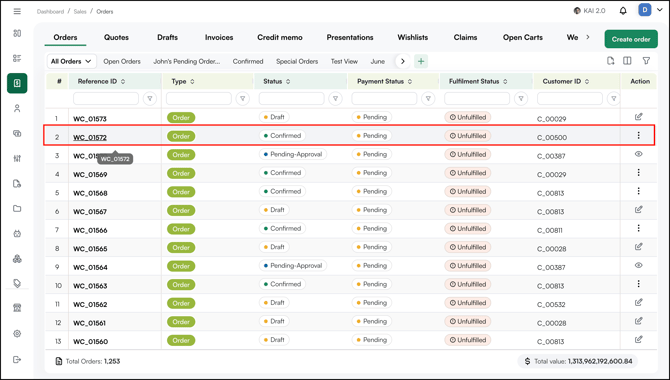
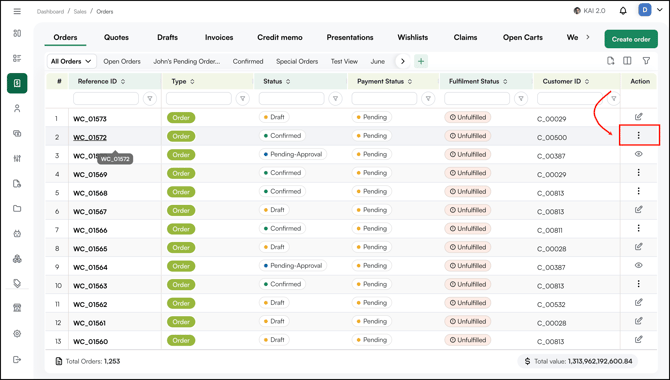
- Click on the three-dot menu on the right.
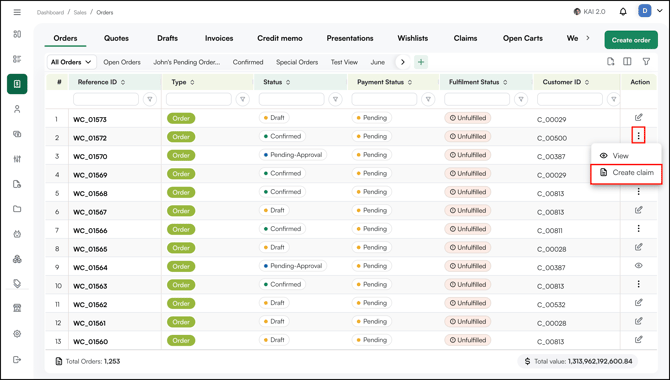
- Select Create Claim. All products from the order are added automatically.
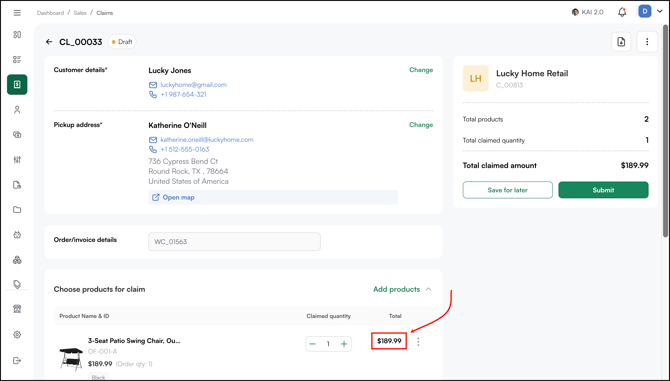
- Enter the quantity for each product you're claiming (by clicking + icon). You can claim individual units, along with full cases.
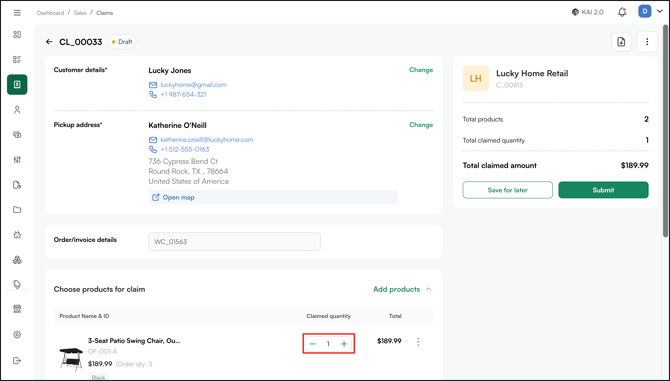
- Check the refund amount. Depending on your account setup this may be pre-filled and editable.
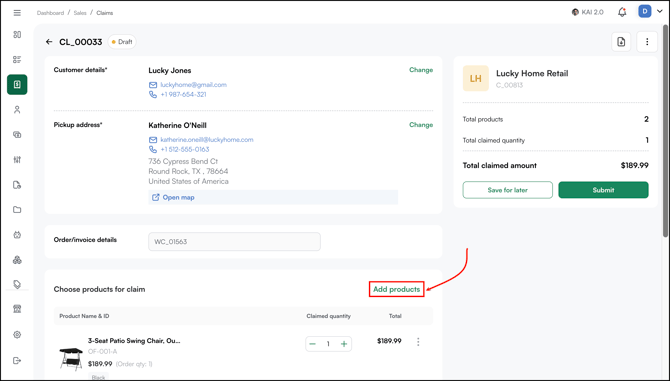
- To add more products to the claim, click Add products.
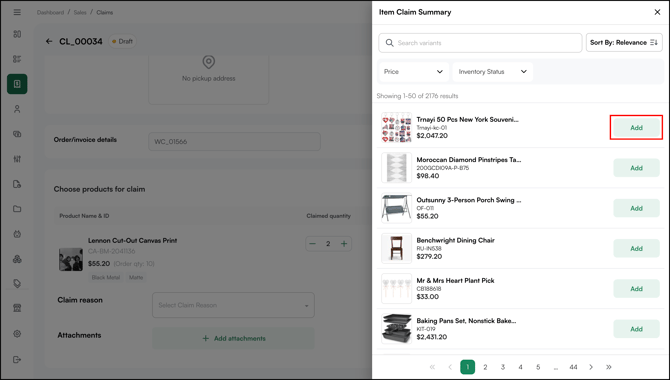
- Select the product(s) you want to raise a claim against.
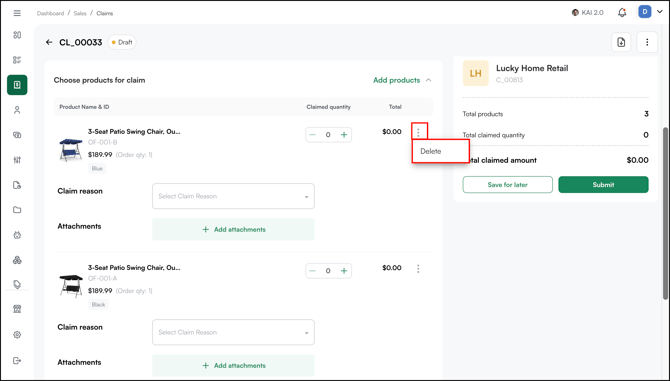
- To remove a product from the claim, click the three dot (⋮) icon on the product row and select Delete.
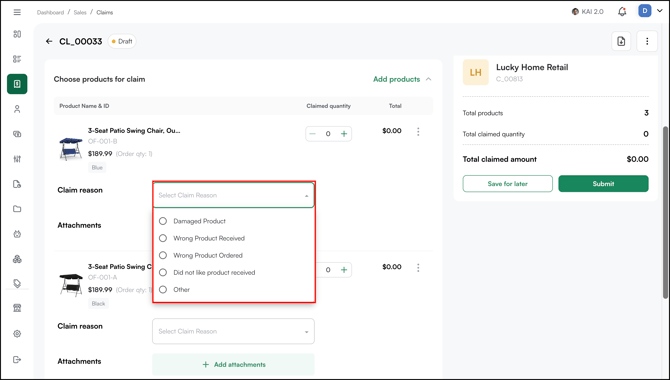
- Select a Claim Reason from the dropdown.
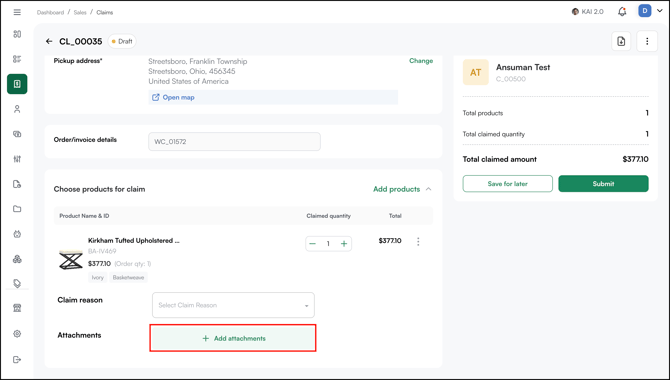
- Add an attachment if the reason requires one (for example, a photo of damaged product).
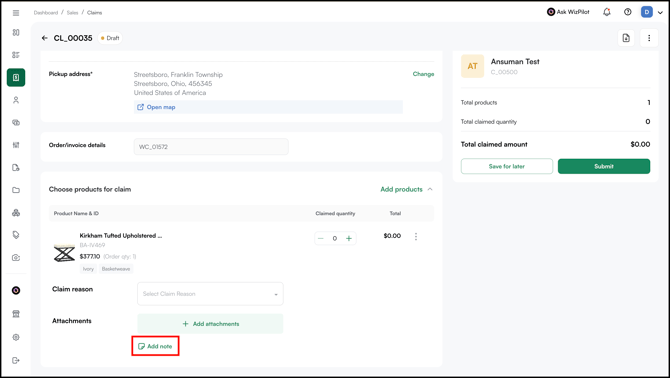
- Click Add Note to add a note for that product.
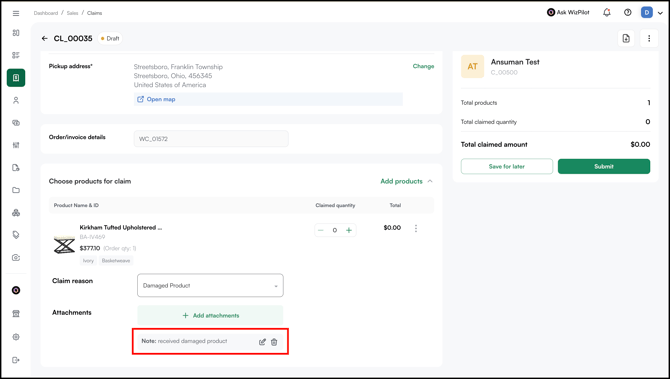
- Click the Delete icon to remove the note.
- When the claim details are complete, click Submit.
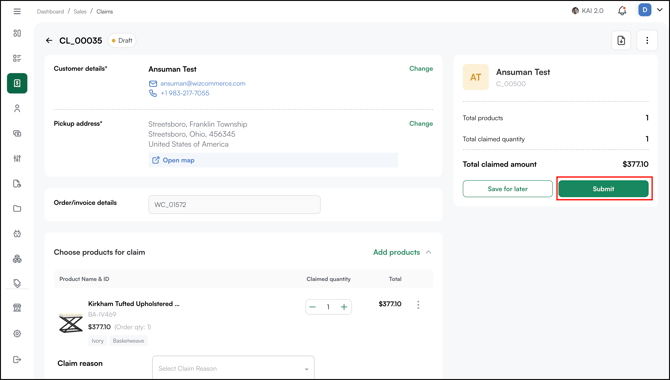
Note: The pickup address fills in automatically from the order's shipping address and can be changed as well. 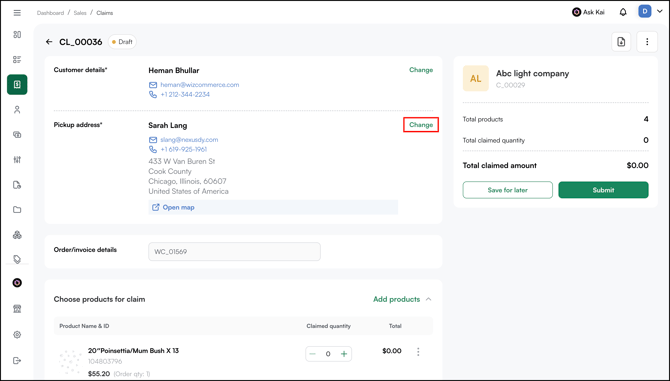
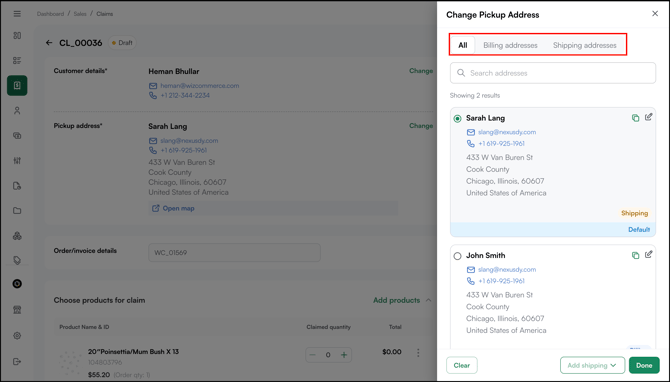
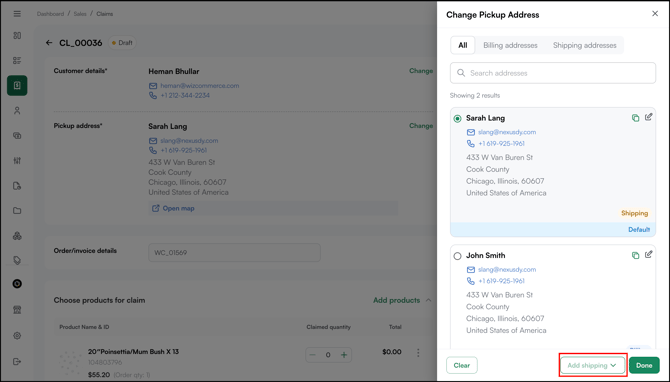
- If the address you need isn't in the list, you can add a new pickup address.
C. Create a Claim Without an Order
Use this when a credit comes up later and you can't easily find the original order.
- Go to Claims.
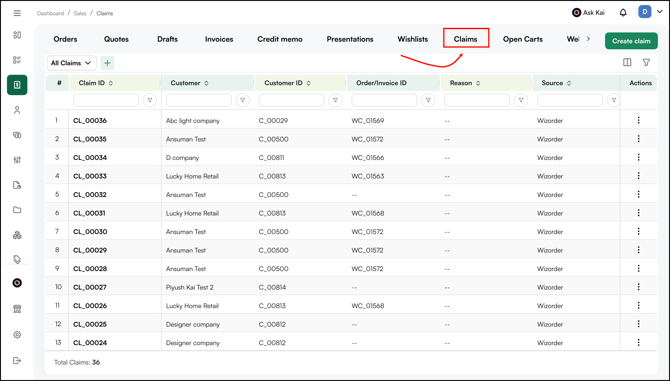
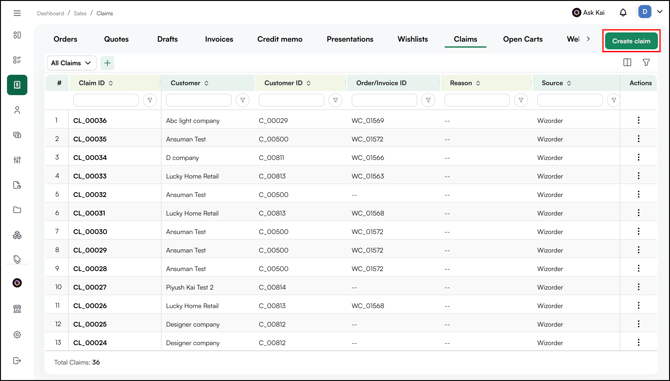
- Click Create claim.
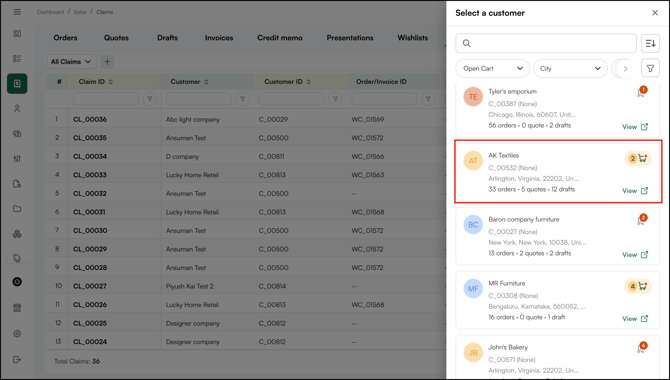
- Select the Customer.
- Add the products manually.
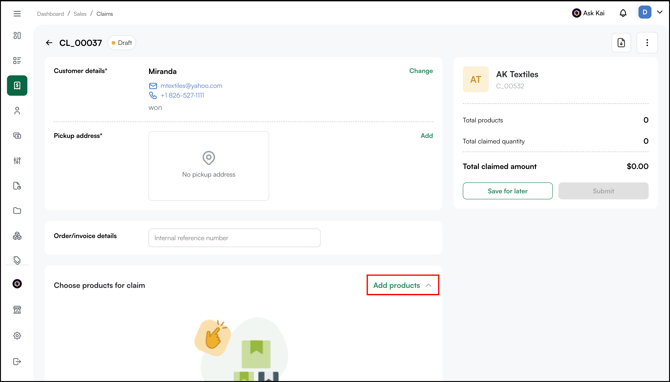
- Complete the same details as in Section B, quantity, refund amount, reason, and any required attachment.
D. Submit and Share the Claim
- Click Save as Draft to finish later, or Submit to complete it.
- On submit, choose whether to email the claim. The recipient list is set up for your account (customer and internal contacts), and the screen shows who will be notified.
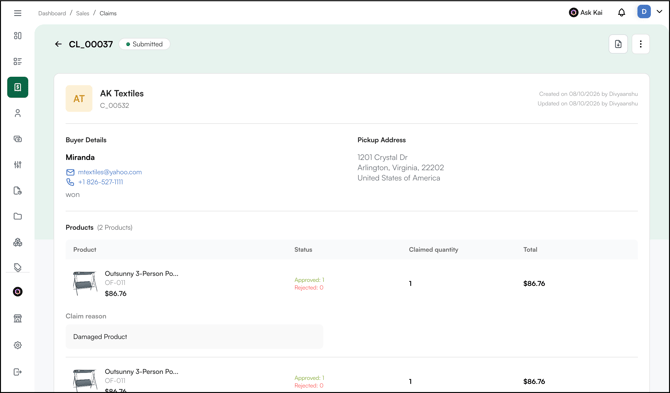
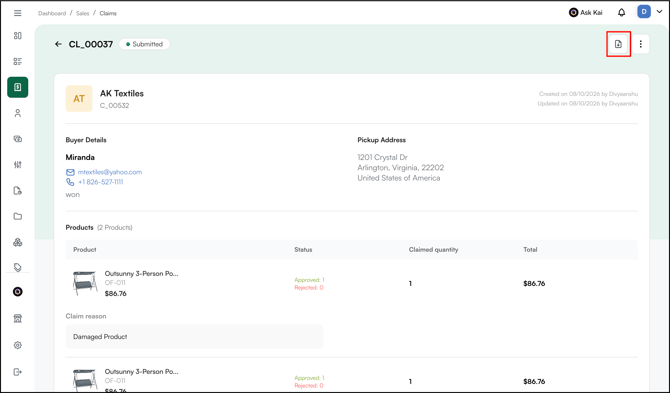
- Submit. The claim status becomes Confirmed, a PDF is attached to the email, and the same PDF can be downloaded from the claim at any time.
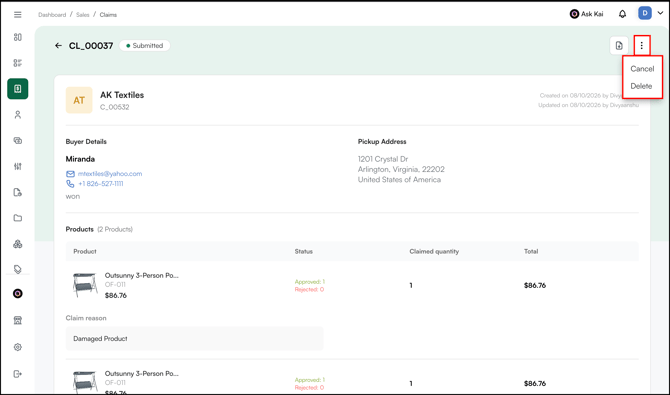
- From the claim confirmation page, click the ⋮ menu, then click Cancel or Delete.
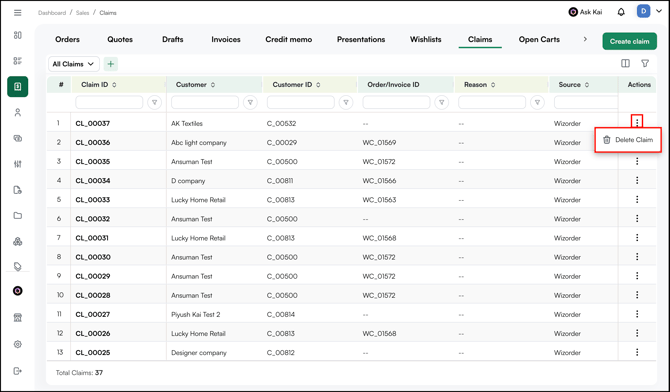
- From the Claims table, find the claim, then in the Action column click Cancel or Delete.
Note: On the customer-facing PDF and email, a claim may appear as "Credit Claim." In WizOrder it stays "Claim." These are the same thing.
E. Apply a Claim to Future Orders
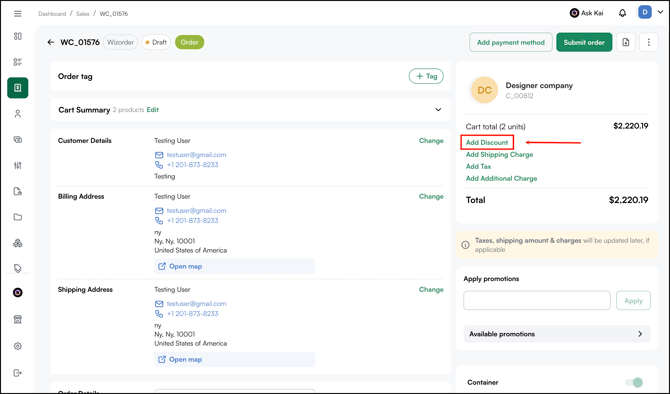
Claims are not applied automatically. When the customer places their next order, apply the credit yourself:
- Open the customer's new order or cart.
- Click Add discount.
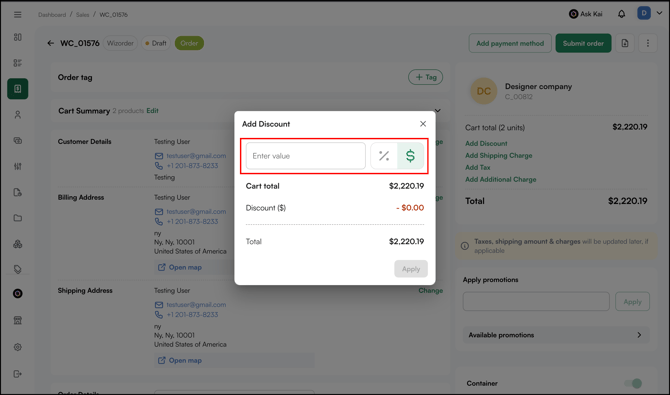
- Enter the claim amount as a dollar-value discount or % value.
- The amount is deducted from the order total.
F. File Claims from WizShop
Buyers can raise a claim on their own, either on its own, or tied to a specific order or invoice, without contacting their rep or support. When a buyer files a claim from an order or invoice, it shows up on that record so they can track it.
» Create a Claim From an Order or Invoice
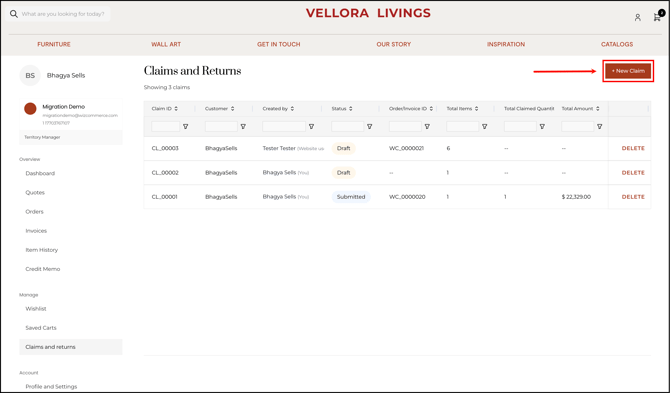
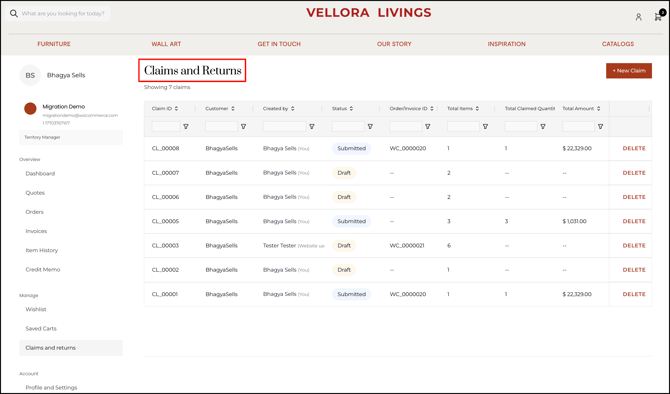
- Go to My Account.
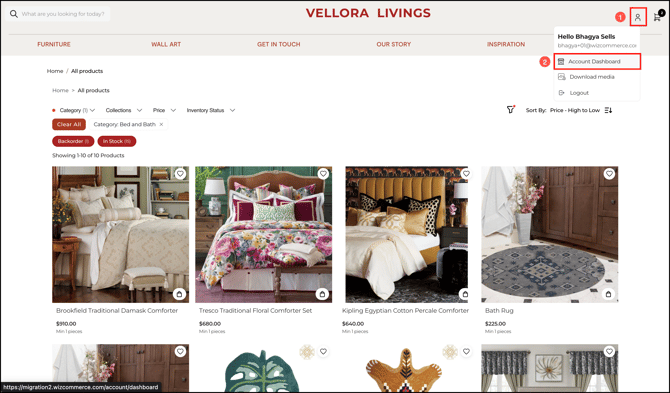
- Click File a Claim to open your claims page.
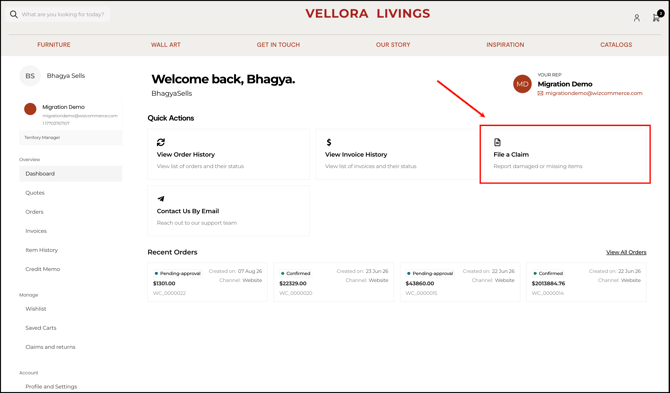
- Click + New Claim to start a fresh one.
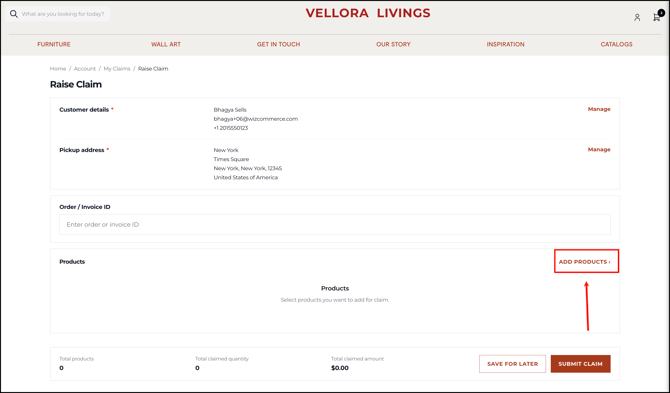
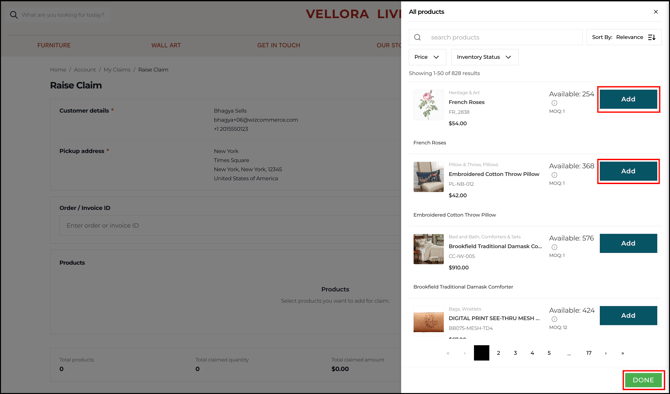
- Pick the products you're claiming for from the catalog.
- Set the quantity for each one, only the units affected.
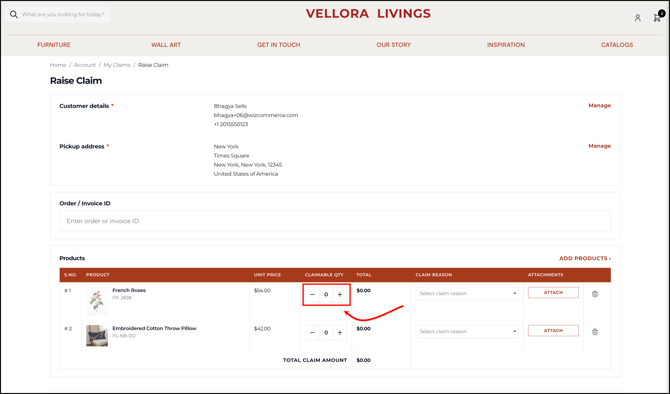
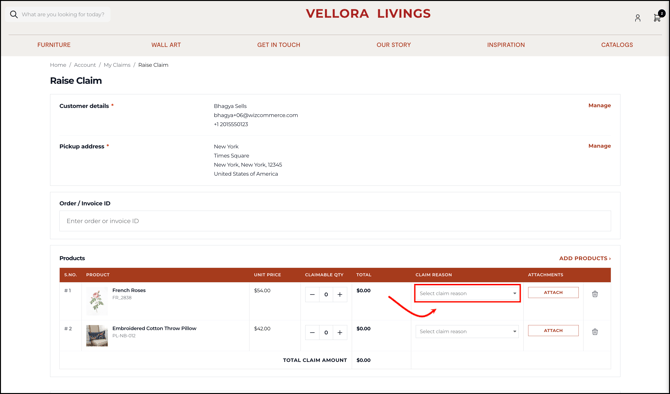
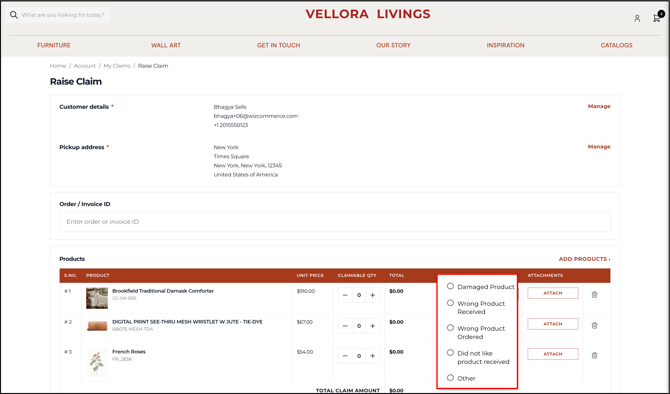
- Choose a reason from the dropdown so we know what went wrong:
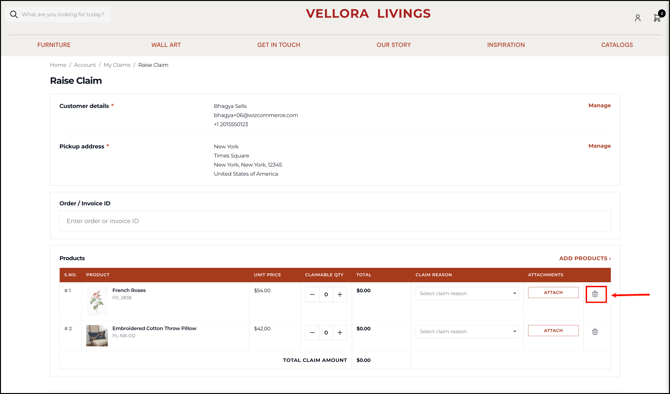
- To delete a product from the claim's list please click on the delete icon.
» File a Claim From an Order
Use this when the issue is tied to a specific purchase. The claim stays attached to that record so you can follow it.
- In the left menu, click Orders.
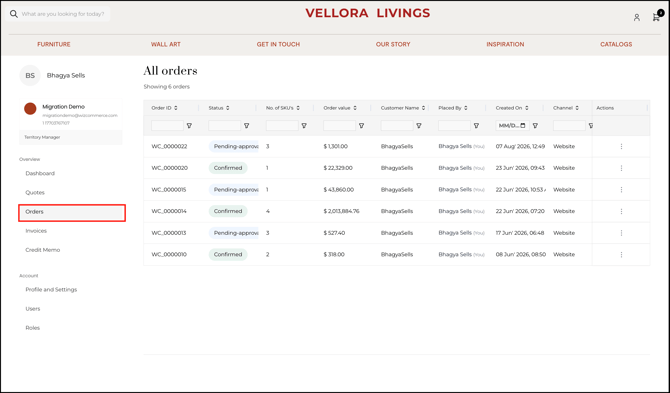
- Find the confirmed order you want to raise a claim against.
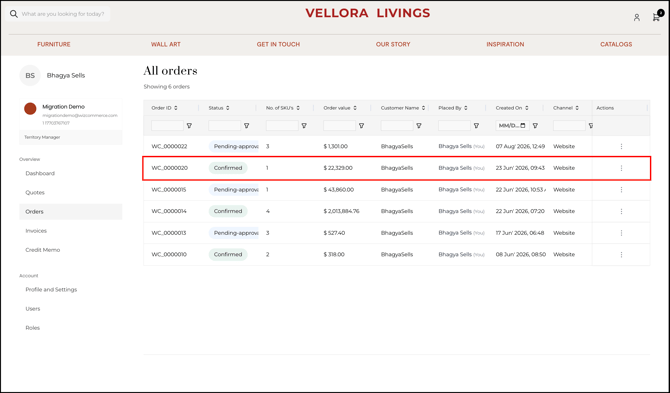
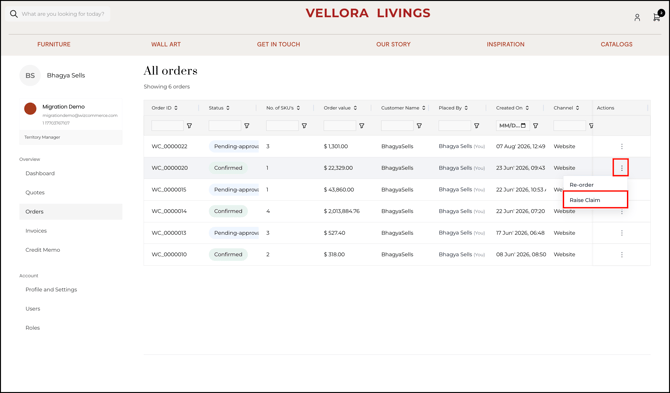
- In the Actions column, click the three-dot (⋮) icon, then click Raise Claim.
- Enter the claim details: quantity, reason, affected items, and any required attachments.
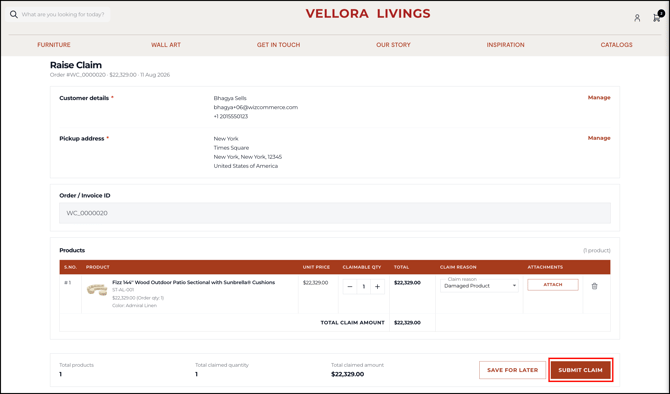
- Submit the claim.
Note: A claim filed from an order or invoice appears on that record. To see all your claims in one place, go to My Account > Claims.
» Track a Claim
- Go to My Account > Claims to see your submitted claims and their status.
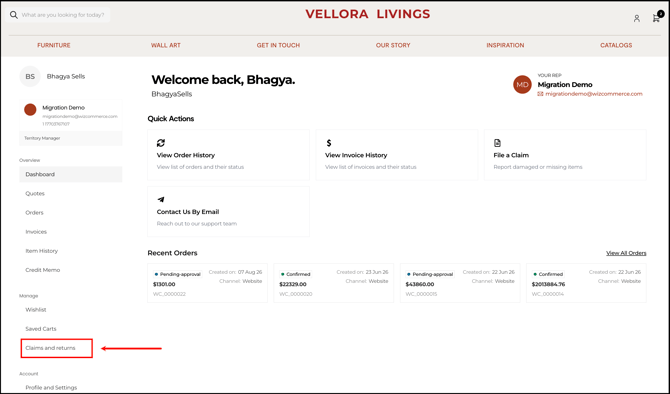
- The claim stays attached to the order it relates to, and you can track all your claims in one place.
FAQs
1. Does a claim automatically credit the customer or come off their next order?
A. No. A claim records the amount and notifies the customer, but it doesn't move money or apply itself. When the customer orders again, add the claim amount as a dollar-value discount on that order.
2. How does a sales rep know a claim was created?
A. WizOrder doesn't send a separate alert when a claim is logged. If your office team creates claims, they should let the rep know directly so the rep can apply the amount on the customer's next order.
3. Why does the PDF say "Credit Claim" when the platform says "Claim"?
A. The wording differs on purpose. The customer-facing PDF and email can show "Credit Claim," while the rep and admin screens in WizOrder use "Claim." They refer to the same thing.
Still need help? Reach out to our support team at help@wizcommerce.com.