
Collections let you group your generation threads into named albums in WizStudio, so you can keep campaigns, catalogs, and projects organized instead of scrolling through a cluttered History. This article shows you how to create a collection, add your work to it, and use focused workspaces.
Platform: WizStudio | Who is this for: WizStudio users
Table of Contents
| Sections | Topics |
| A | What Collections Does |
| B | Create a Collection |
| C | Add Threads to a Collection |
| D | Work in a Collection (Focus Mode) |
| E | Filter Across Collections |
| F | FAQs |
Before You Begin
- Collections is available by default to all users on every plan.
- Collections work at the product-thread level. You add whole generation threads to a collection, not individual images.
- You can add a thread to more than one collection, which lets you filter across collections later.
A. What Collections Does
Collections turns scattered generation threads into focused, organized workspaces, without changing how you already work in WizStudio. There are three things you can do with it:
- Organize: Group your generation threads into named albums, like photo albums, to keep campaigns, catalogs, and projects in one place.
- Focus: Enter any collection to work in a focused workspace. Every generation you do there auto-saves to that collection, and your History, Favorites, and Downloads are scoped to that collection only.
- Manage: Add or remove threads from a collection directly from History, Recent Activity, or from inside any generation thread.
B. Create a Collection
- Go to WizStudio → Collections.
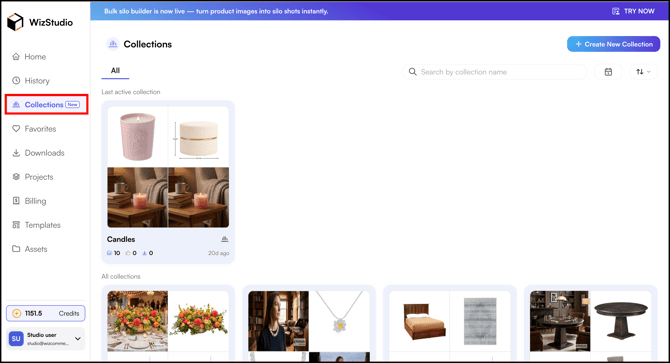
- Click Create New Collection.
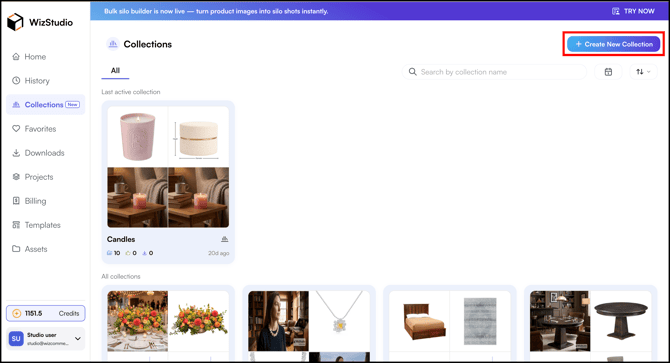
- Enter the Collection Name. For example, Candles.
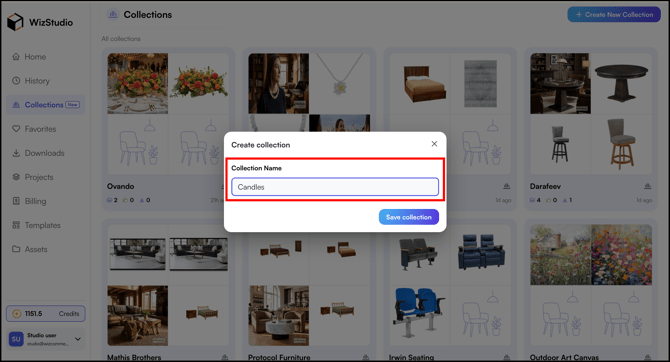
- Click Save Collection.
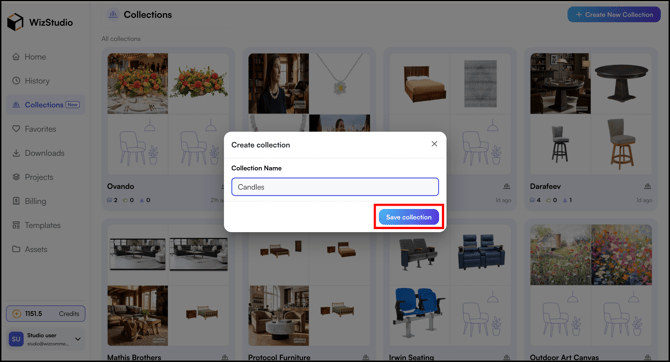
Your new collection is now created and ready to use.
C. Add Threads to a Collection
You can add your generation threads to a collection in several ways.
A. From the History section
- Go to History → Products tab.
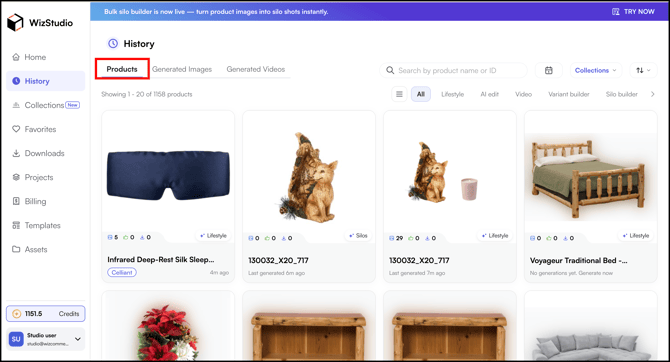
- Click the three-dot menu on the thread you want to add.
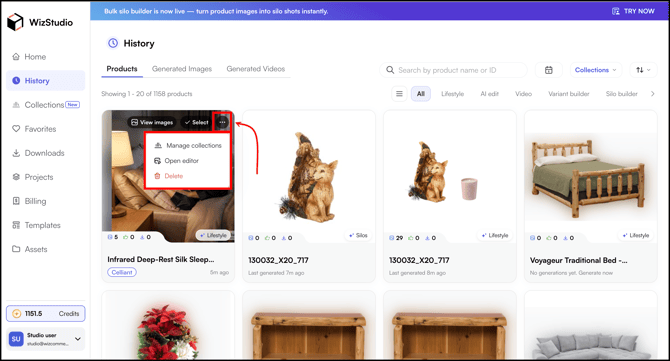
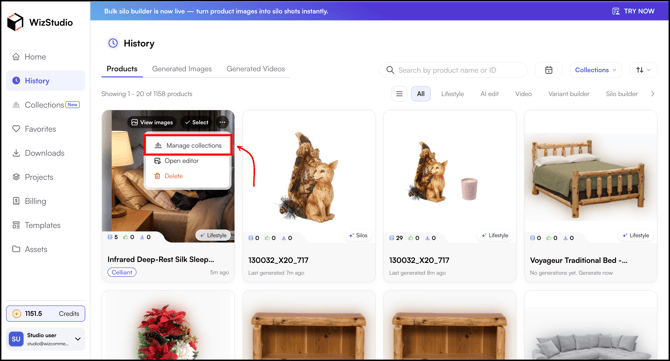
- Click Manage Collections.
- Select the collection you want (or search for the collection).
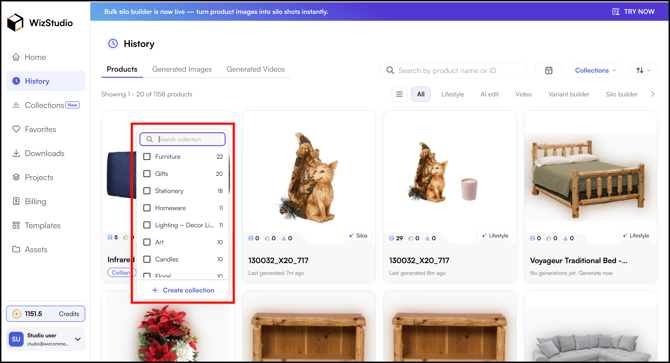
- Or click + Create Collection, enter the Collection Name, and click Save and Add to Collection.
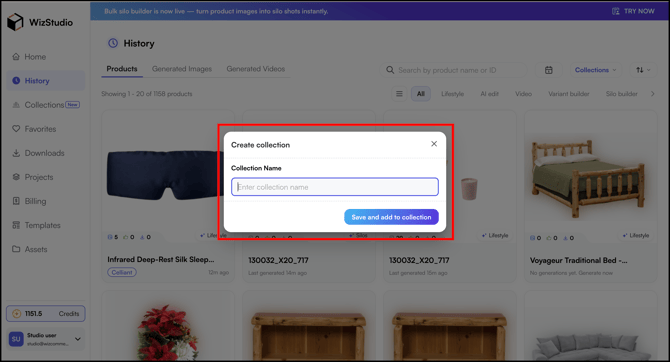
B. From Recent Activity
You can also add a thread to a collection directly from the Recent Activity section.
- Go to Home → Recent Activity (scroll a little bit).
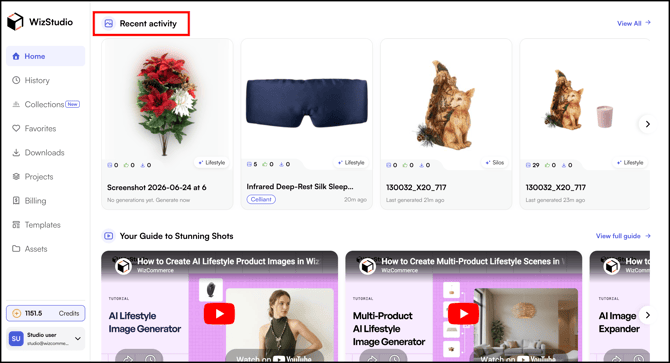
- Click Manage Collections from the action menu.
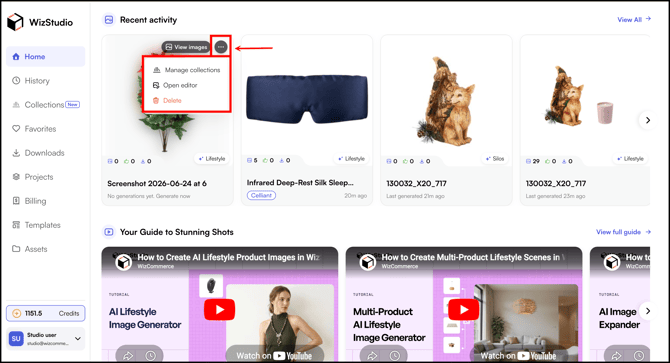
- Select the collection you want (or search for the collection).
- Or click + Create Collection, enter the Collection Name, and click Save and Add to Collection.
C. From Lifestyle Generator
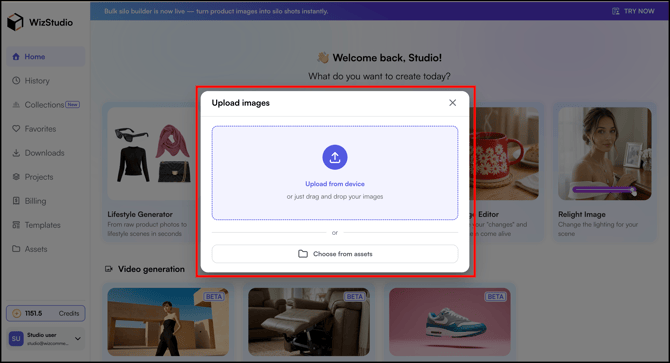
- Go to Home → Lifestyle Generator.
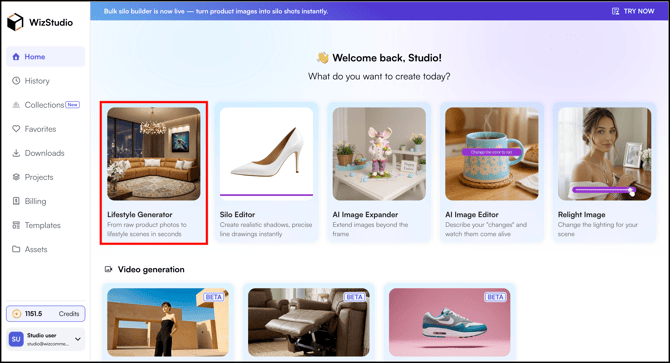
- Upload from Device or Choose from Assets.
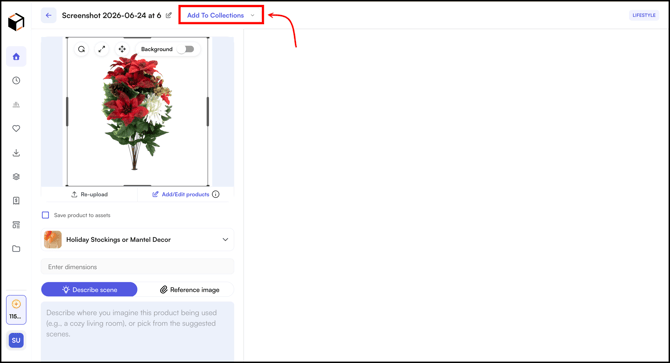
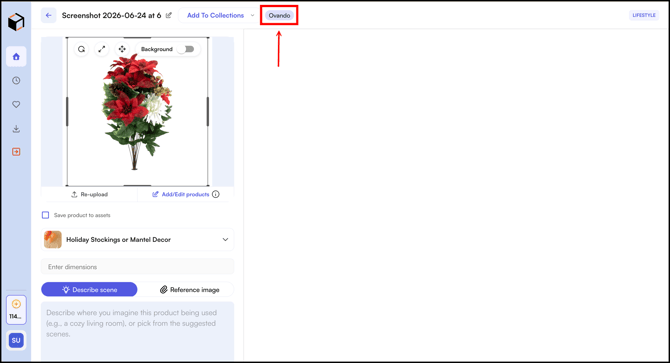
- Click Add to Collections.
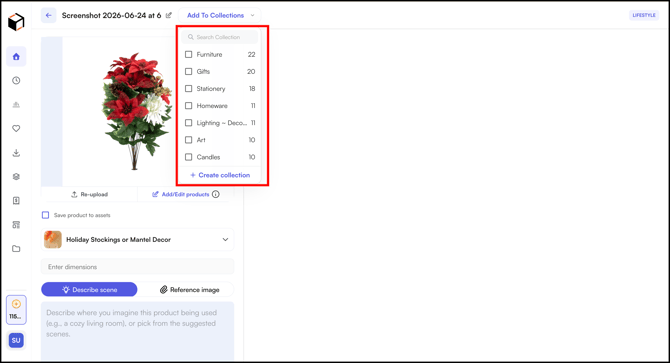
- Select an Existing One or Create a New Collection there.
- The collection chip appears on the thread, showing it has been added.
D. Bulk Add
If your History already has many generated threads, you can add them in bulk.
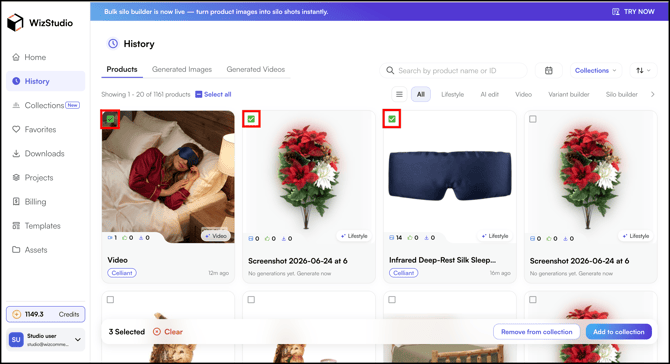
- Go to History → Products tab.
- In the History section, select all the threads you want to add.
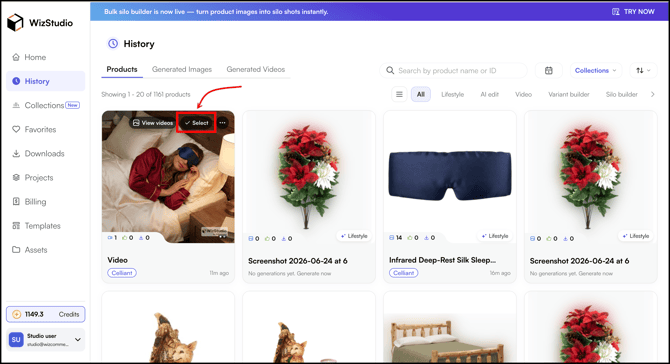
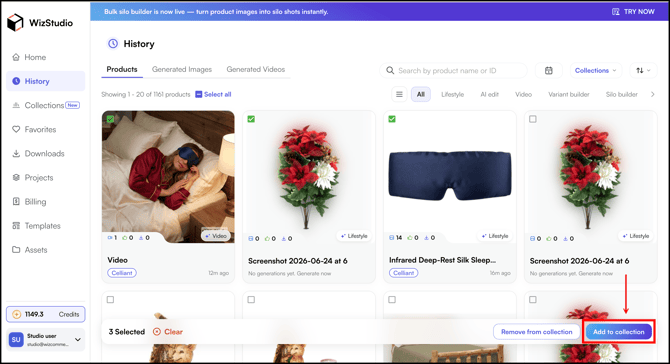
- Click Add to Collection.
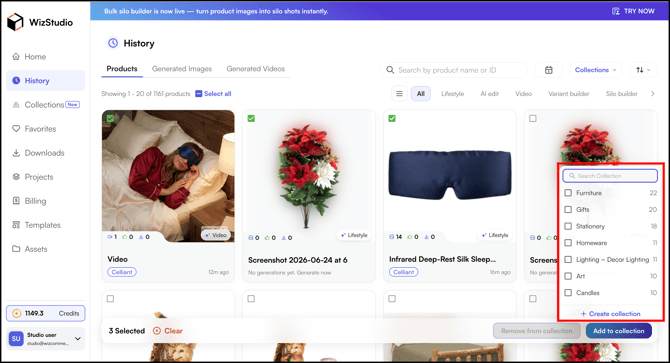
- Choose the collection and all selected threads are added at once.
D. Work in a Collection (Focus Mode)
Opening a collection gives you a focused workspace that mirrors your normal workspace, with everything scoped to that collection.
- Open the Collections tab and click into a collection. For example, Ovando.
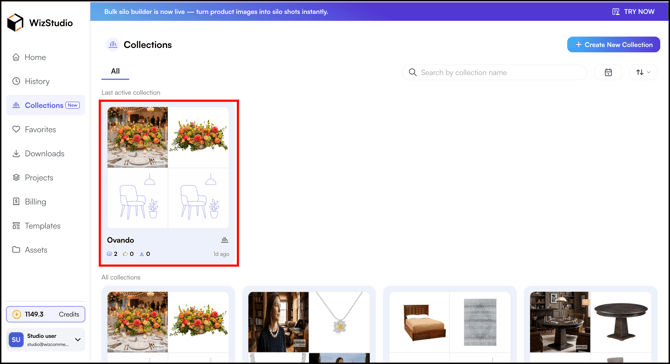
- Focus Mode:
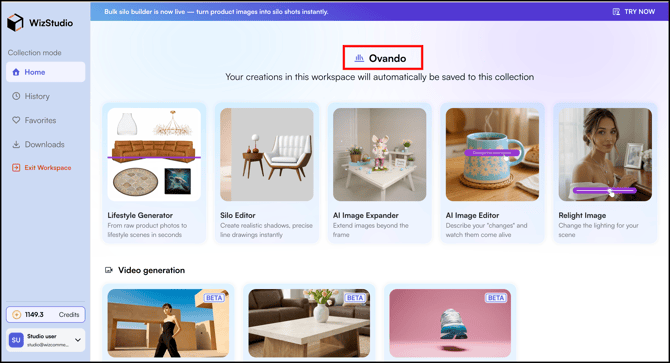
- Create images or videos as you normally would. For example, from the Lifestyle Generator.
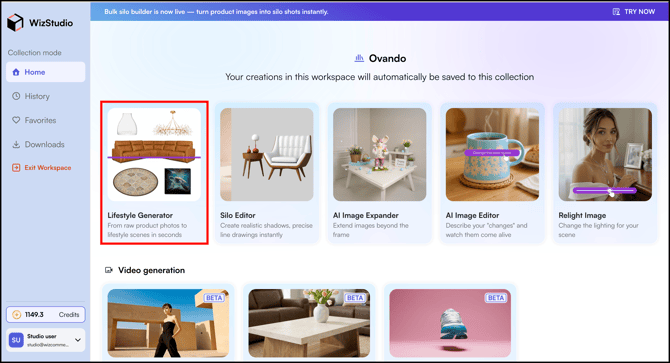
- Upload from Device or Choose from Assets.
- The workspace chip for that collection is already applied, so every generation auto-saves to that collection automatically.
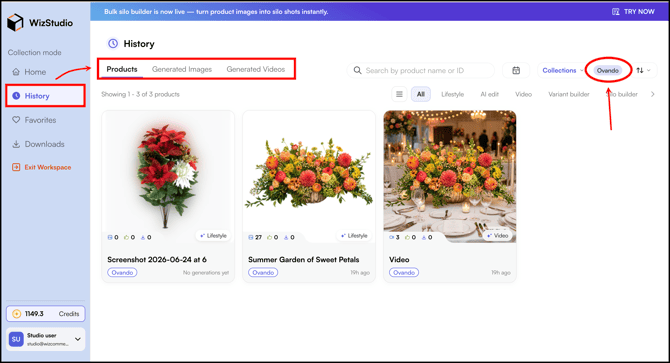
Inside a collection, these sections are all scoped to that collection only:
- History: Shows only the threads in this collection, with collection chips.
- Generated Images: Shows the images generated in this collection, with chips.
- Generated Videos: Shows the videos generated in this collection, with chips.
Collection chips appear in both focus mode and your normal workspace, so you can always see which collection a thread belongs to.
E. Filter Across Collections
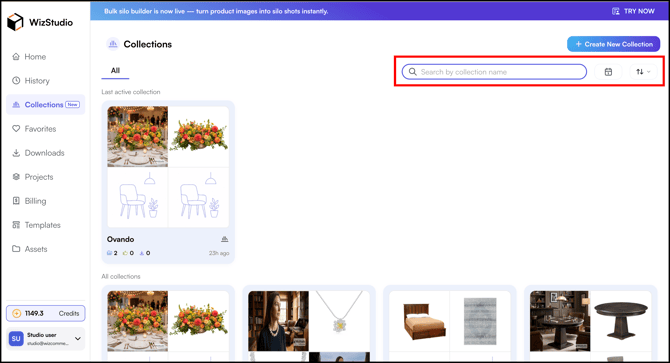
In the Collections section, you can quickly search a collection in a few ways:
- Search: Use the search bar to find a collection by name.
- Filter by Date: Use the date filter to narrow collections to a specific date range.
- Sort: Use the sort control to order collections by name or date, in ascending or descending order.
FAQs
1. Do I need to enable Collections or set anything up?
A. No. Collections is available by default to all users on every plan, with no permissions or prerequisites.
2. Why didn't my new generations appear in the collection?
A. Auto-save only happens when you are working inside a collection's workspace (focus mode). If you generate something in your normal workspace, the thread stays uncollected. Go to the History section and add those threads to the collection.
3. Organizing my old work feels overwhelming. Is there a faster way?
A. Yes. Use the bulk add option in the History section. Select all the threads you want and click Add to Collection to organize them in one step.
4. Can a thread be in more than one collection?
A. Yes. You can add a thread to multiple collections and then filter across them in the History section to find exactly what you need.
5. Does Collections work with any integrations or APIs?
A. No. Collections is a standalone organizational feature with no integrations or API involved.
Still need help? Reach out to our support team at help@wizcommerce.com.