
Product discounts let you control exactly who gets a deal and on what, scoped to specific products, categories, or collections, and targeted to specific customer segments, with thresholds, caps, and usage limits built in.
This article covers how to create and configure a product discount, set eligibility, choose between automatic discounts and promo codes, and define minimum requirements, usage limits, and discount periods.
Platform: WizOrder | Who is this for: Admins
To Get There: Discount Engine > Product Discount
Table of Contents
| Sections | Topics |
| A | Set Up Product Discount |
| B | Edit Product Discount |
| C | Stop Product Discount |
| D | FAQs |
Before You Begin
- Ensure you have Admin access before setting up a product discount.
- If you plan to use customer or product segments, create these before setting up the discount.
- Decide whether you want an automatic discount or a promotion code before you begin.
A. Set Up Product Discount
To set up product discount:
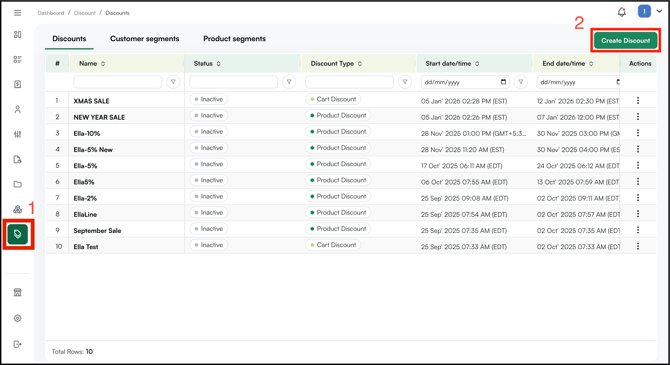
- Log in to your WizOrder web portal and go to Discount Engine in the navigation bar.
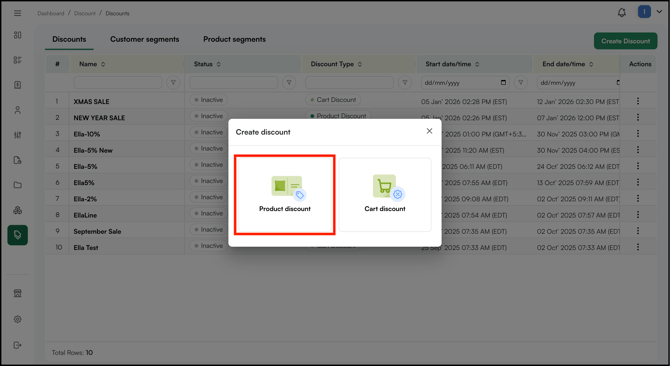
- Click Create Discount and select Product Discount.
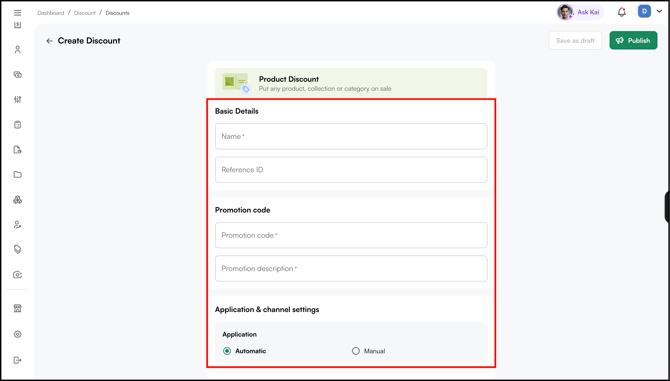
- Fill in the Basic Details:
- Name: Enter a name for the discount
- Promotion Code: Add a promo code if applicable
- Description: Add a description
- Set the Type:
- Automatic: The discount applies automatically when conditions are met. No buyer action required.
- Promotion Code: The buyer or rep must manually enter a promo code at checkout.
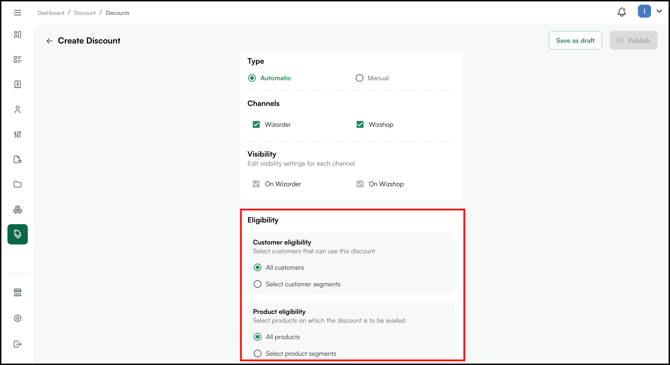
- Set Eligibility — choose which customers and products are eligible. Select from your pre-created segments, or choose All Customers and All Products to apply the discount universally. For example, for a Black Friday sale, select All Customers and All Products.
- Configure the discount:
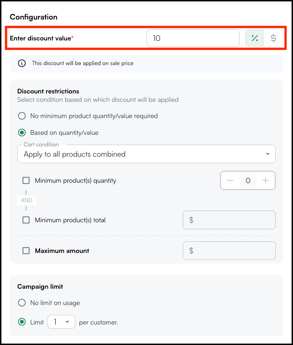
- Choose whether the discount is Percentage-based or Dollar-based.
- Set the minimum requirement for the discount to apply:
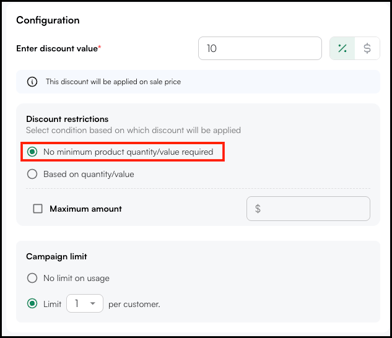
- Select No minimum product quantity/value required if the discount should apply to all orders regardless of size.
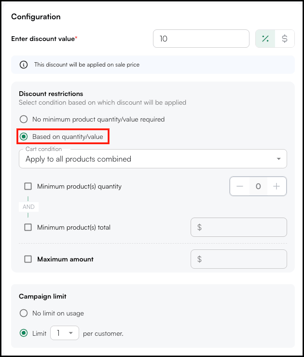
- Select Based on quantity/value if the discount should only apply once a threshold is met.
- Select No minimum product quantity/value required if the discount should apply to all orders regardless of size.
- If you selected a minimum requirement, choose how it is applied:
- All products combined: The threshold applies to the total quantity or value of all products in the cart. For example, if the minimum is set to 5 units, the discount applies once the cart contains 5 or more units across all products.
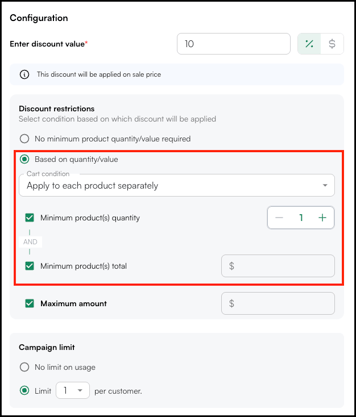
- Each product separately: The threshold applies to each product individually. The discount applies only when a single product in the cart reaches the minimum quantity or value on its own.
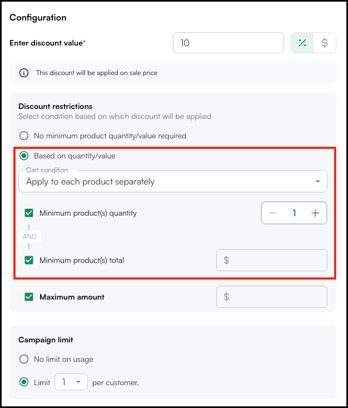
- All products combined: The threshold applies to the total quantity or value of all products in the cart. For example, if the minimum is set to 5 units, the discount applies once the cart contains 5 or more units across all products.
- If required, set the minimum conditions for the discount to apply:
- Enable Minimum product(s) quantity and set the minimum number of units a product must reach before the discount applies.
- Enable Minimum product(s) total and enter the minimum dollar value a product or cart must reach before the discount applies.
- Both conditions can be enabled together — the discount applies only when both the minimum quantity and the minimum value are met.
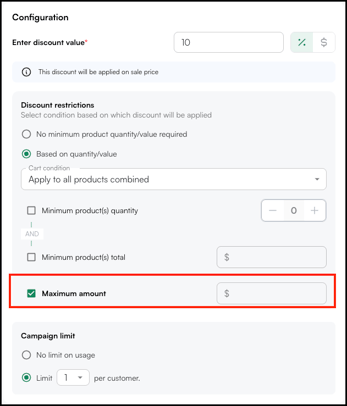
- Set a Maximum Amount to cap the total discount value applied to a single order. For example, a 10% discount with a maximum amount of $50 will never exceed $50 regardless of the order value.
- Set the usage limit under Campaign Limit:
- Select No limit on Usage if the customer can use the discount without restriction.
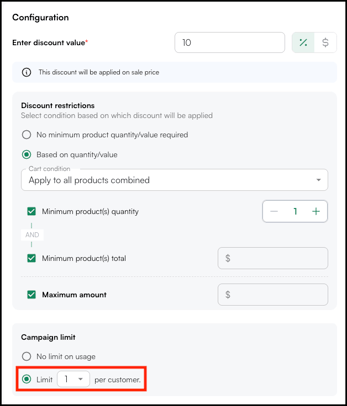
- Set a Custom Limit to specify the number of times the discount can be applied.
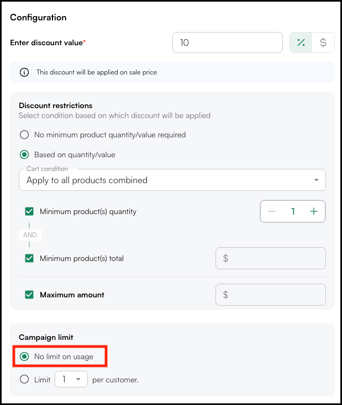
- Select No limit on Usage if the customer can use the discount without restriction.
- Choose whether the discount is Percentage-based or Dollar-based.
- Set the Discount Period — the start and end dates during which the discount will be live. For example, a Black Friday campaign might run for the week leading up to Black Friday.
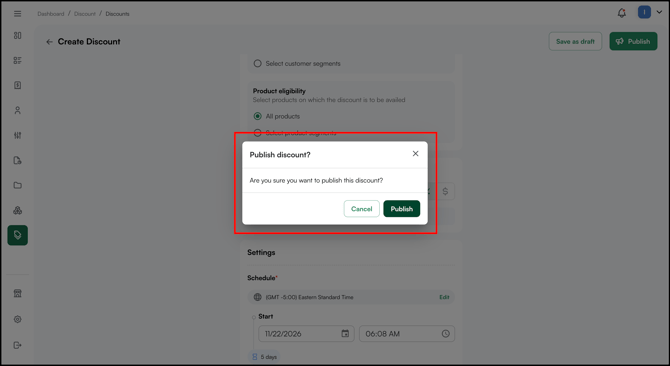
- Click Publish.
Note: To edit an existing discount, click on the discount name in the Name column, or use the three-dot menu under the Action column to make changes.
B. Edit Product Discount
To edit product discount:
- Go to Discount Engine → Discounts
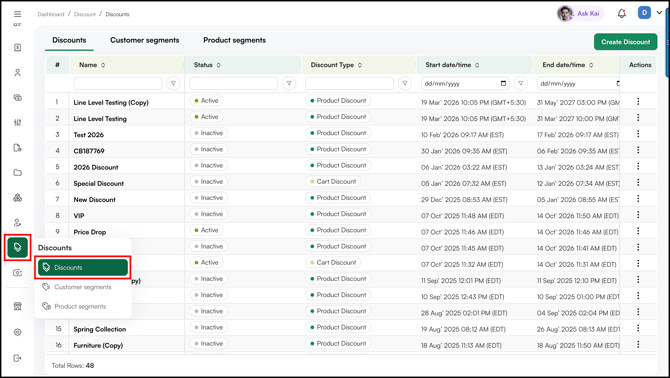
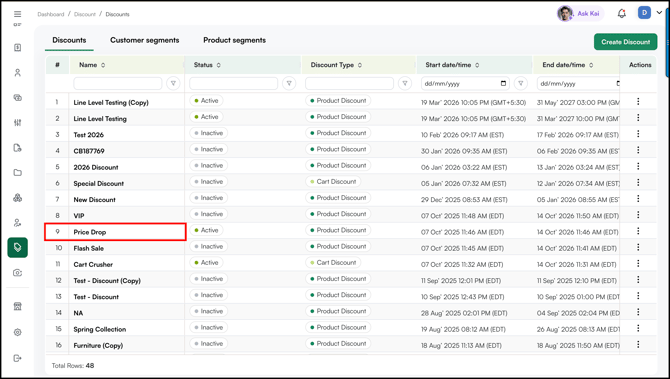
- Select the Discount (name) you want to edit.
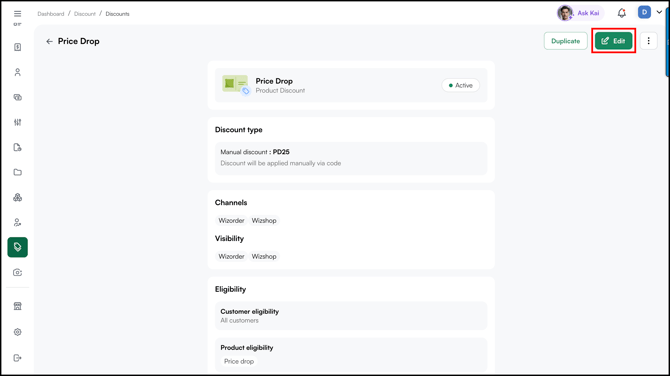
- Click Edit.
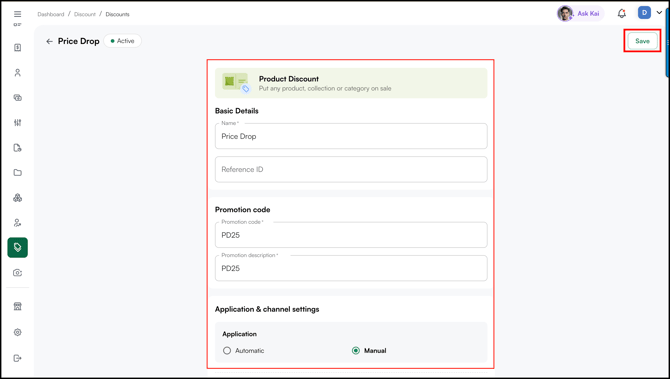
- Make the required changes and click Save.
C. Stop Product Discount
To stop product discount:
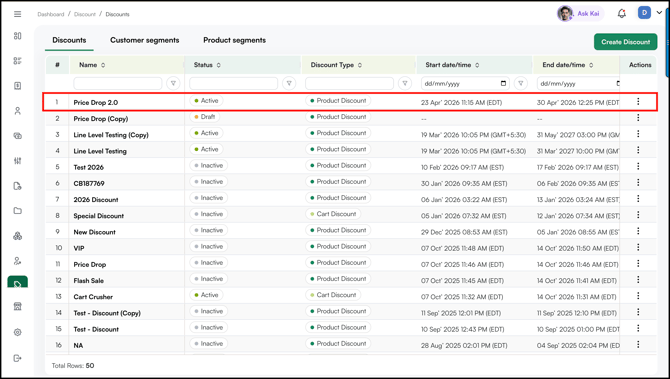
- Select the discount (Discount Name) you want to stop.
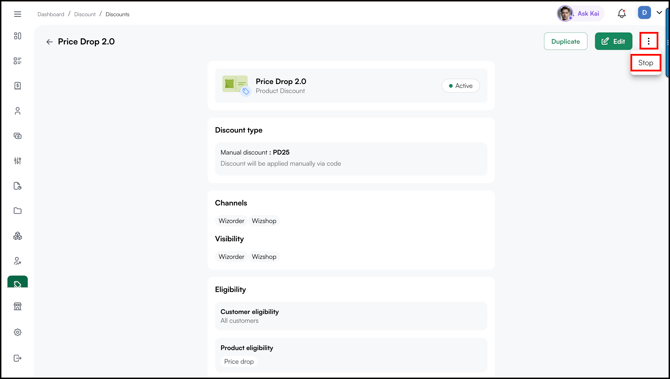
- Go to three-dot menu and click Stop.
FAQs
1. What is the difference between an Automatic discount and a Promotion Code?
A. An Automatic discount applies without any action from the buyer or rep — it activates as soon as the conditions are met. A Promotion Code requires the buyer or rep to manually enter a code at checkout before the discount is applied.
2. Can I set both a minimum quantity and a minimum value for the same discount?
A. Yes. Enable both Minimum product(s) quantity and Minimum product(s) total at the same time. The discount will only apply when both conditions are met.
3. What happens if I set a Maximum Amount on a percentage discount?
A. The discount applies as a percentage up to the maximum amount cap. For example, a 10% discount with a $50 maximum will never exceed $50 in discount value — regardless of how large the order is.
Not finding what you need? Browse the WizCommerce Help Center, reach out to your Customer Success Manager, or contact our support team at help@wizcommerce.com.