
Sales reps and admins use Tasks to log and track follow-ups, calls, emails, and customer visits directly in WizOrder. You can create tasks from a customer profile or the Tasks page and assign them to any rep on your team.
Platform: WizOrder | For: Sales Reps and Admins
Table of Contents
| Sections | Topics |
| A | Create a Task for a Customer |
| B | Manage Tasks on a Customer Profile |
| C | FAQs |
Before You Begin
- You must have access to WizOrder as a Sales Rep or Admin.
- To assign a task to another rep, that rep must already exist as a user in WizOrder.
- Tasks created from a customer profile are linked to that customer automatically.
A. Create a Task for a Customer
Tasks let you track follow-ups, calls, emails, and other actions related to a specific customer. Tasks can be created by the rep or assigned to a rep by an admin or territory manager.
From Customer Profile (Mobile App)
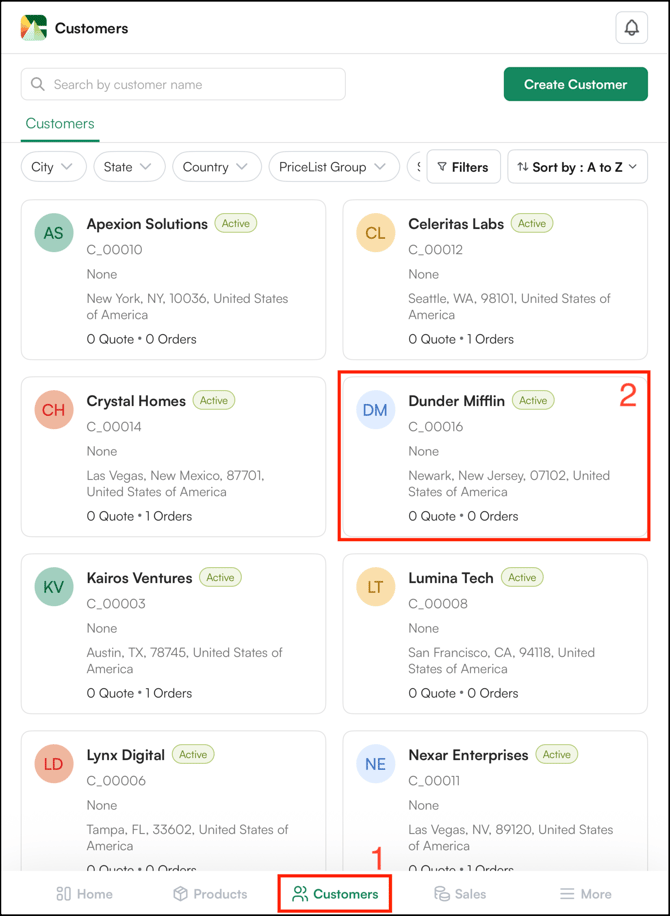
- Click on Customers in the bottom navigation bar
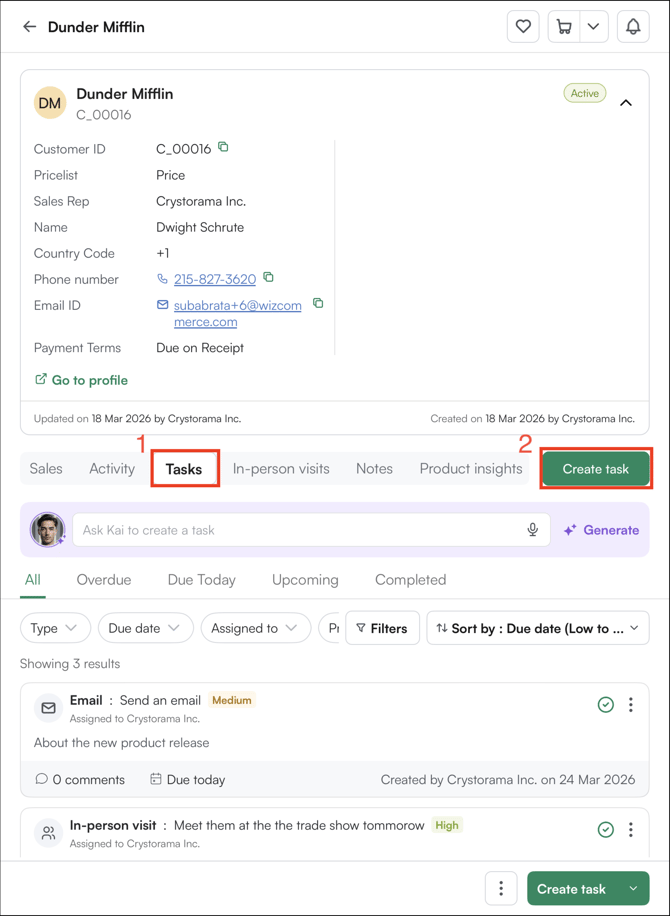
- Open the customer's profile and click the Tasks tab.
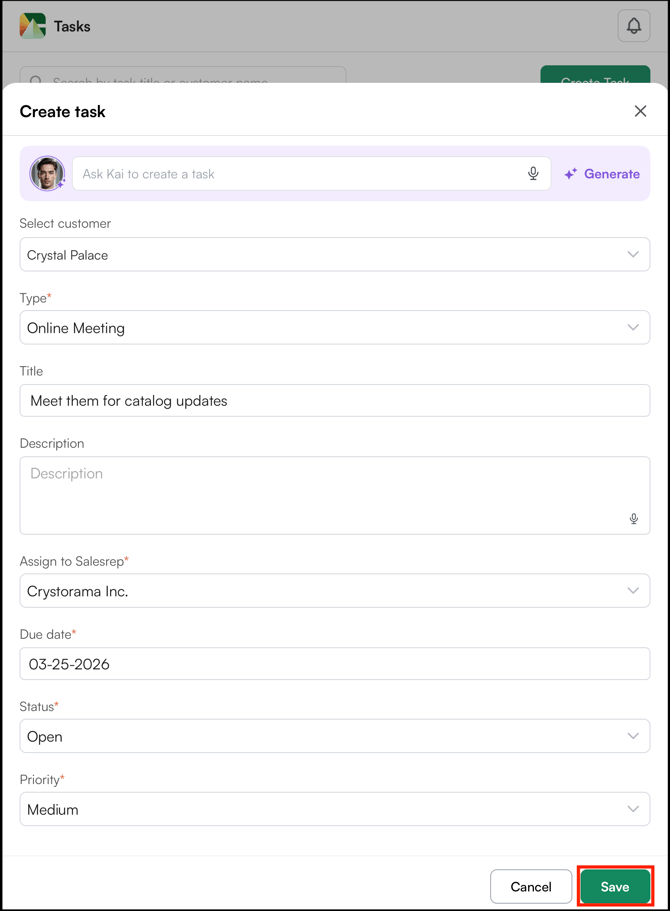
- In the Create task form, fill in the following fields:
.png?width=670&height=916&name=image%20(1).png)
- Type: Select the task type (e.g., Schedule Call, Email, In-person visit)
- Title: Enter a short title for the task
- Description: Add any relevant details
- Assign to Salesrep: Select the sales rep responsible
- Due date: Set the due date
- Status: Set the current status (e.g., Open)
- Priority: Set the priority level (e.g., High, Medium, Low)
- Click Save to create the task.
- Once saved, the task appears in the customer's Tasks list, where you can filter by status, sales rep, priority, and more, as well as view (to add comments), edit, or delete the task.
From Customer Profile (WebPortal)
- Open a customer profile.
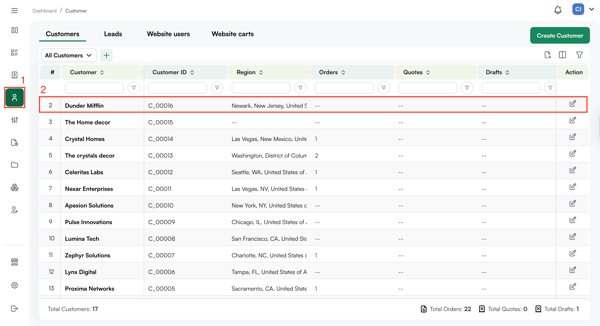
- Click Task from the tab row at the top of the profile. Then click on Create Task.
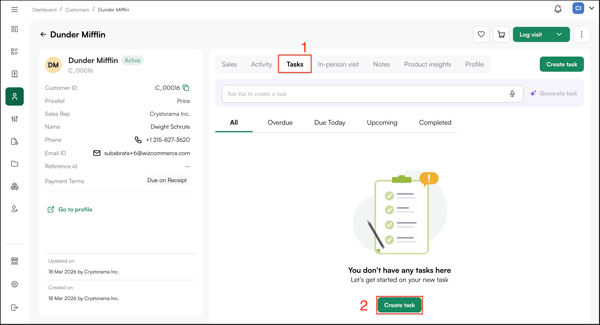
- Fill in the following fields:
- Task Type: Select the type of task, such as to do, call, email, or visit.
- Task Name: Enter a short description of the action required.
- Description: Add any additional notes or context.
- Assign To: Select the sales rep responsible for the task (if the admin is creating the task).
-
- Due Date: Select the date the task should be completed.
- Status: Select the current status of the task: Open, In Progress, On Hold, Completed, or Cancelled.
- Priority: Set the priority level: High, Medium, or Low.
The task is added to the customer profile and also appears in the CRM dashboard.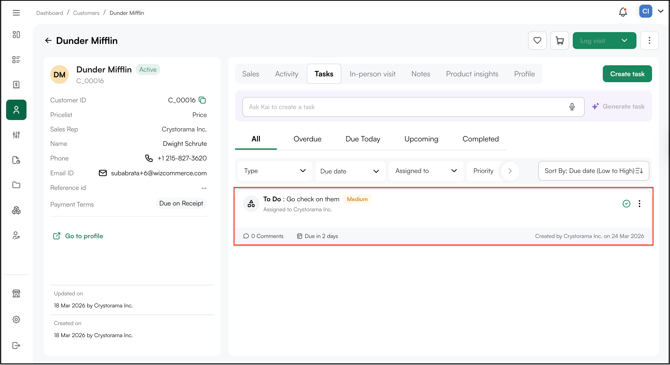
From Left Navigation Bar
- In the navigation sidebar, click the Task icon.
- On the Tasks page, click the Create Task button in the top right corner.
- Fill in the task details in the form:
- Type: Select the task type (e.g., Schedule Call, Email, In-person visit)
- Title: Enter a short title
- Description: Add any relevant details
- Assign to Salesrep: Select the responsible sales rep
- Due date: Set the due date
- Status: Set the current status (e.g., Open, In Progress)
- Priority: Set the priority level (e.g., High, Medium)
- Click Save to create the task.
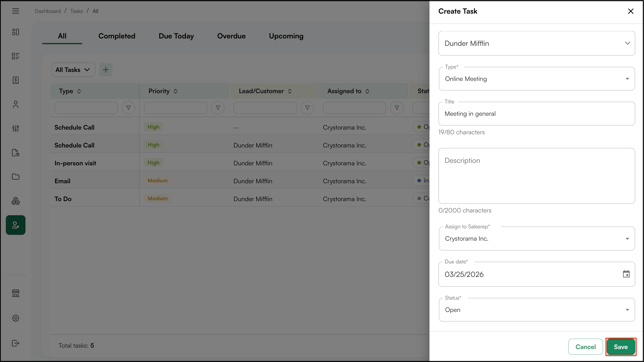
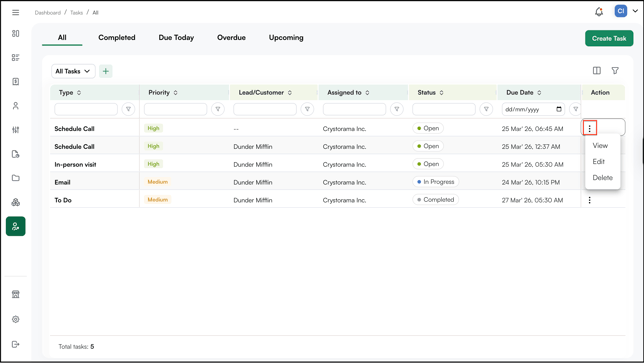
- Once saved, the task appears in the Tasks list and can be tracked by status. You can also filter by type, priority, assigned rep, and due date, or manage tasks using the Action column.
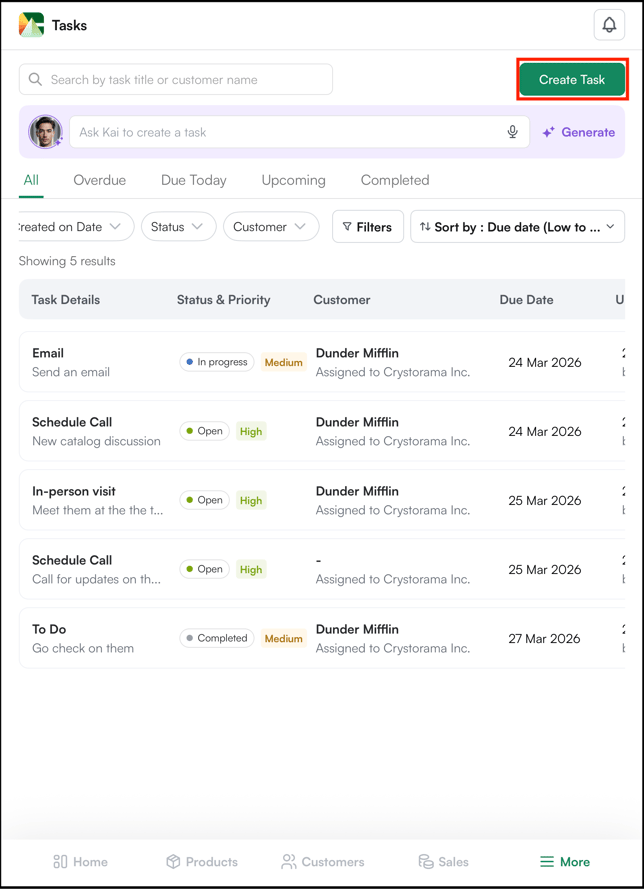
From the Mobile App More Menu
- From the bottom navigation bar, click More.
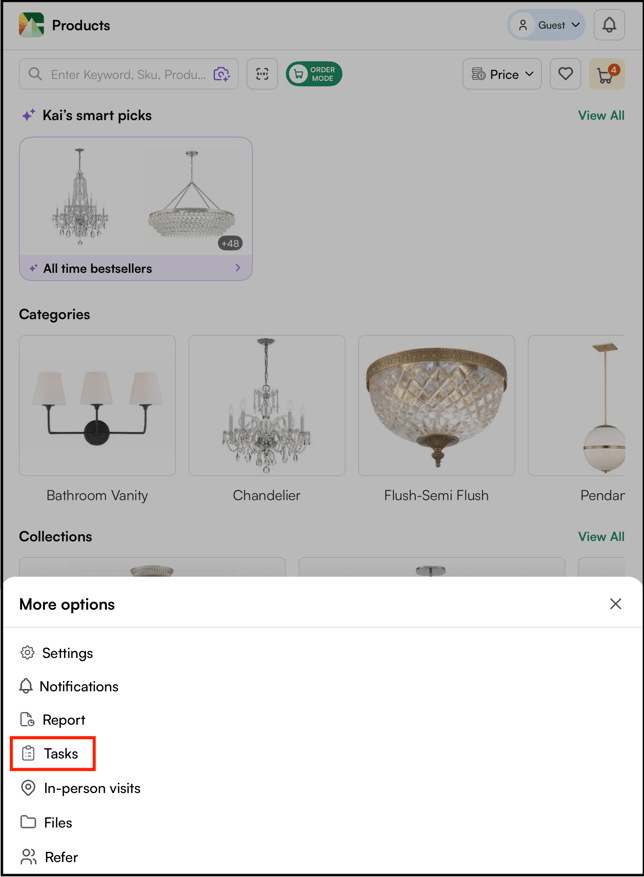
- From the menu, click Tasks to open the task table.
- Click Create Task in the top right corner.
- Fill in the task fields. Refer to Section B for a full description of each field.
- Click Save to add the task to the list.
Tip: WizOrder supports voice input for task creation. Tap the microphone icon on any text field to dictate your input. This is useful when you are on the road and cannot type. However, this feature is still in beta.
B. Manage Tasks on a Customer Profile
Once tasks have been created, you can review and filter them from the customer's Task tab.
To view tasks by status:
Tasks are grouped into the following categories: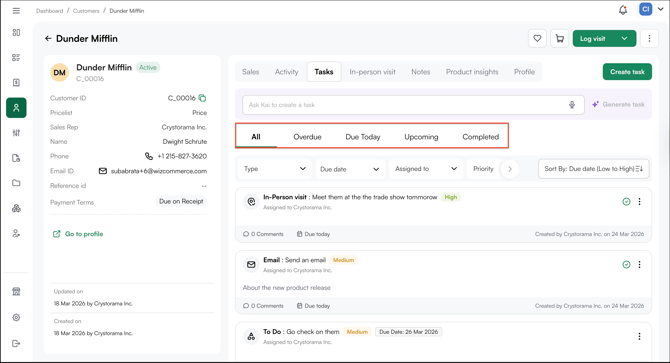
- Overdue: Tasks that have passed their due date and are not yet complete.
- Due Today: Tasks due on the current date.
- Upcoming: Tasks due in the future.
- Completed: Tasks that have been marked as done.
Tap any category to view the tasks within it.
To mark a task as complete:
- Click the task you want to update. Then, click Mark as Complete.
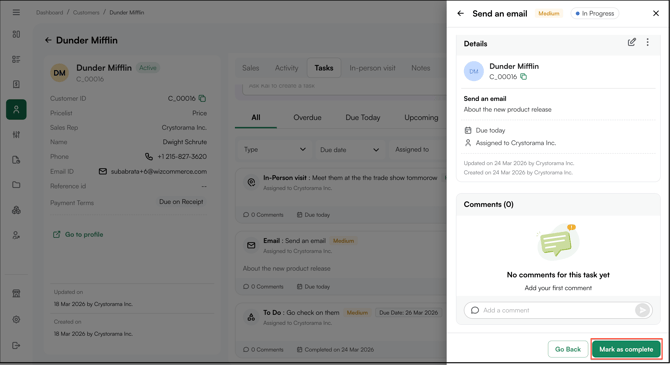
The task moves to the Completed category and is recorded in the customer's activity timeline.
To edit a task:
- Locate the task in the list.
- Click the three-dot menu on the task card.
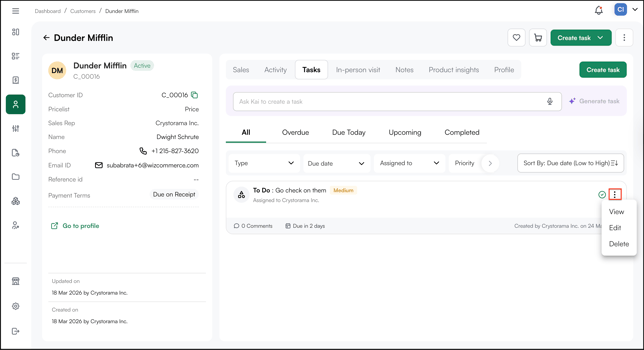
- Click Edit. The edit panel shows up on left.
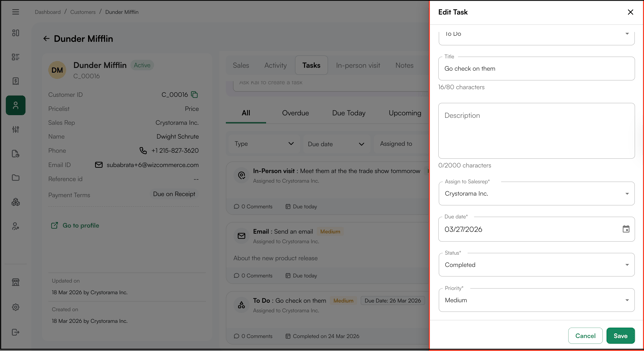
- Update the relevant fields and click Save.
To delete a task:
- Locate the task in the list.
- Click the three-dot menu on the task card.
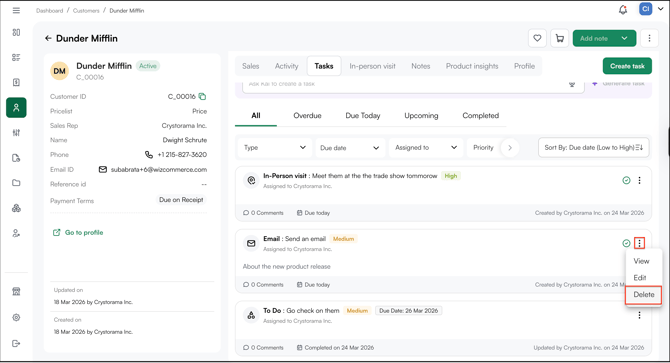
- Click Delete.
To leave a comment on a task:
- Click the three-dot menu on the task card.
- Click View.
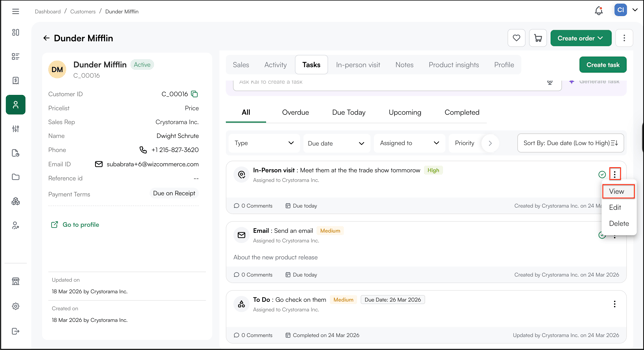
- In the task detail panel, type your comment in the Add a comment field.
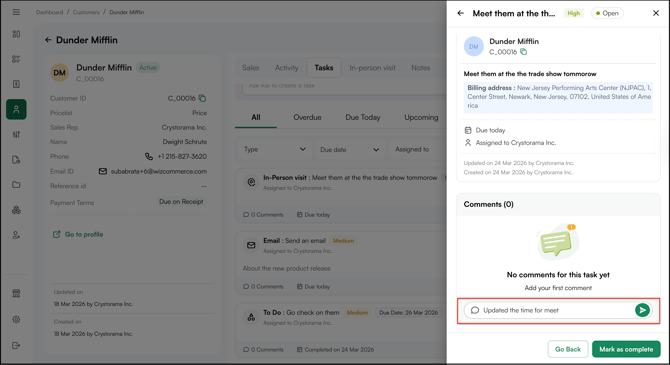
- Click the send icon to post the comment. Once posted, comments can be edited or deleted by clicking the three-dot menu next to the comment.
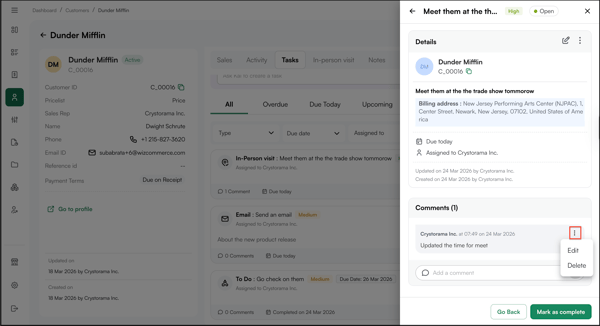
Note: The workflow for managing tasks from the Customer's profile and Task table is the same on both the web portal and the mobile app.
FAQs
1. Can a sales rep create a task for a different rep?
A. Yes. When creating a task, use the Assign to Sales Rep field to select any rep on your team. This is available from both the mobile app and the web portal.
2. Where do I find all tasks across customers in one place?
A. Click the Tasks icon in the left navigation bar to open the full Tasks page. You can filter by type, priority, assigned rep, and due date from here.
3. What happens when a task passes its due date?
A. The task moves to the Overdue category automatically. It remains visible in the customer's Tasks tab until you mark it as complete or update the due date.
Still need help? Reach out to our support team at help@wizcommerce.com.