
Wishlists let you save products directly from the catalog, on the Sales Rep App (WizOrder) or the Online Storefront (WizShop), so nothing gets lost between a customer conversation and an order. Reps can build collections on the go, buyers can save products they are interested in, and admins can publish wishlists as promoted collections to highlight key products across the platform.
This article explains how to create, name, and promote a wishlist so buyers can browse it directly on the storefront.
Platform: WizOrder & WizShop | Who is this for: Sales Reps ,Admins & Buyers
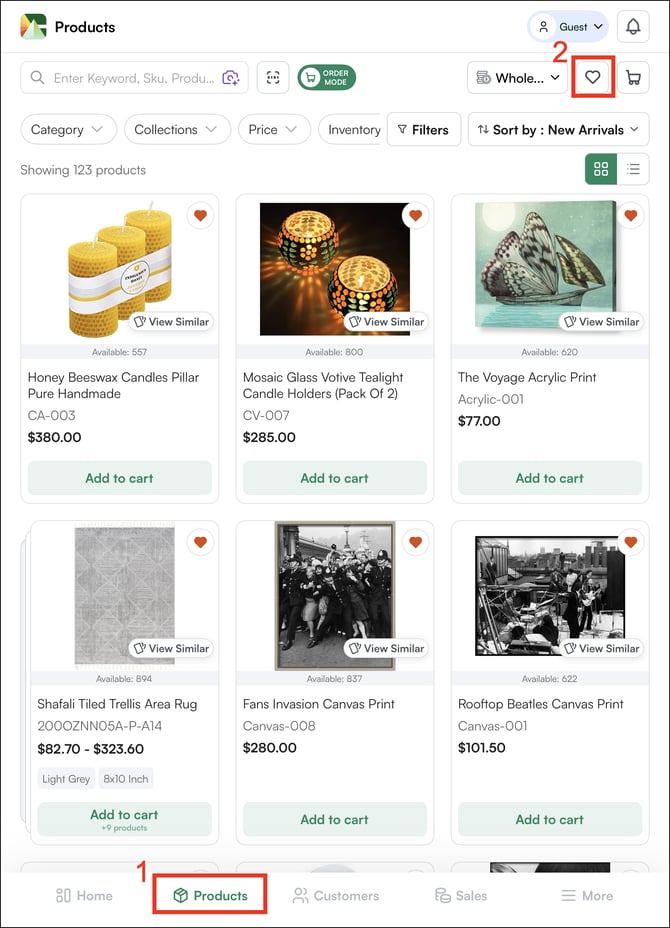
To Get There: Products > Heart icon
Table of Contents
| Section | Topics |
| A | Create a Wishlist |
| B | Publish Wishlists as Promoted Products |
| C | FAQs |
Before You Begin
- Sales representatives and administrators must have access to WizOrder
- Buyers must have access to the WizShop storefront
- To publish a wishlist as promoted products, you must have Admins access in WizOrder
- You can create as many wishlists as needed and add as many products as needed to each one
A. Create a Wishlist
On the Sales Rep App (WizOrder)
-
Browse the Products page and find a product you want to save.
-
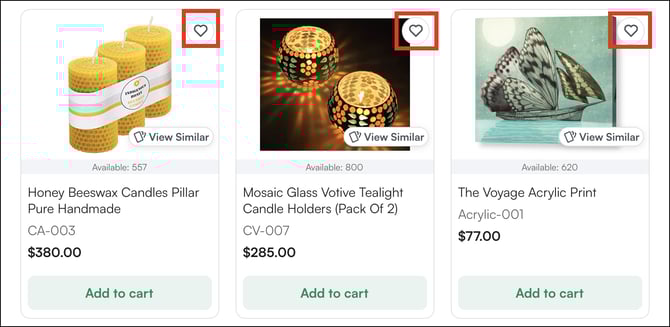
Click the heart icon on the product card or on the Product Detail Page.
-
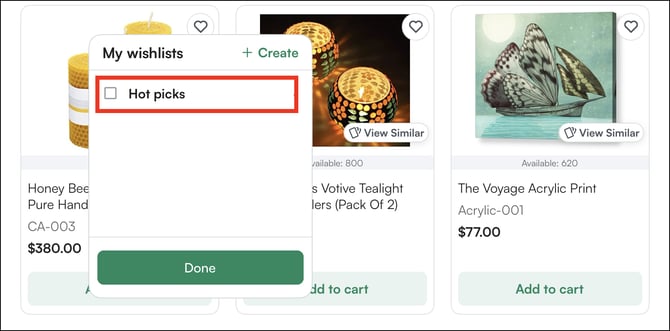
Select an existing wishlist (for example “Hot Picks”) or create a new wishlist.
-
The product is added to the selected wishlist.
You can add as many products as needed to a single wishlist and create as many wishlists as you need. The wishlist icon in the top toolbar provides quick access to all saved collections.
On the Online Storefront (WizShop)
Buyers browsing the Online Storefront (WizShop) can save products to wishlists the same way:
-
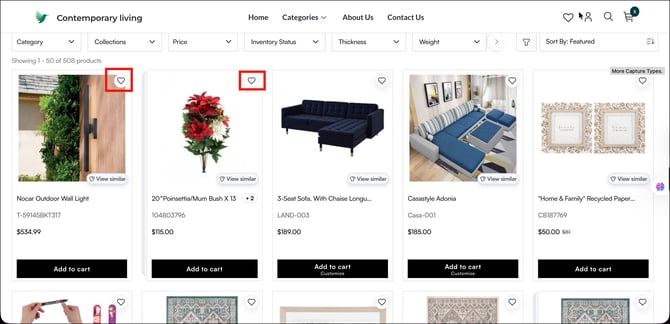
Click the heart icon on any product card or from the PDP.
-
Select a wishlist
-
Select a wishlist, and the product is saved.
Note: Wishlists created by buyers on WizShop are visible to their assigned sales representative in WizOrder. This gives sales representatives insight into customer interests even when the buyer has not yet placed an order.
B. Publish Wishlists as Promoted Products
Admins can publish wishlists so they appear as promoted product collections on the Sales Rep App (WizOrder). This is useful for:
-
Highlighting seasonal collections (e.g., “Holiday Best Sellers”)
-
Featuring new product arrivals
-
Running promotional campaigns around a set of products.
Steps to Promote a Wishlist:
-
Log in to the Sales Rep App (WizOrder) using your admin credentials.
-
Add products to an existing wishlist or create a new wishlist.
-
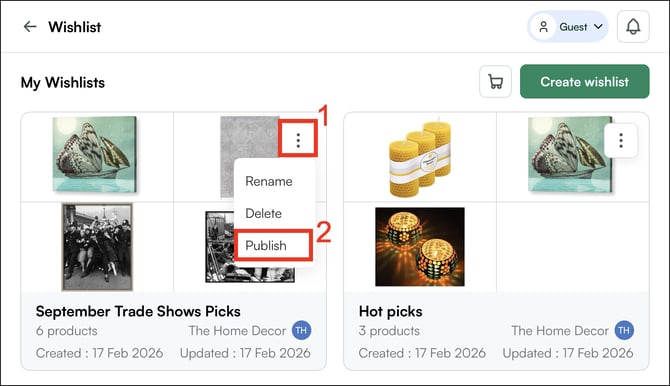
On the Products page, click the heart icon at the top to open your wishlists. Then click the three-dot menu next to the desired wishlist.
-
Select Publish to mark the products in that wishlist as promoted products.
-
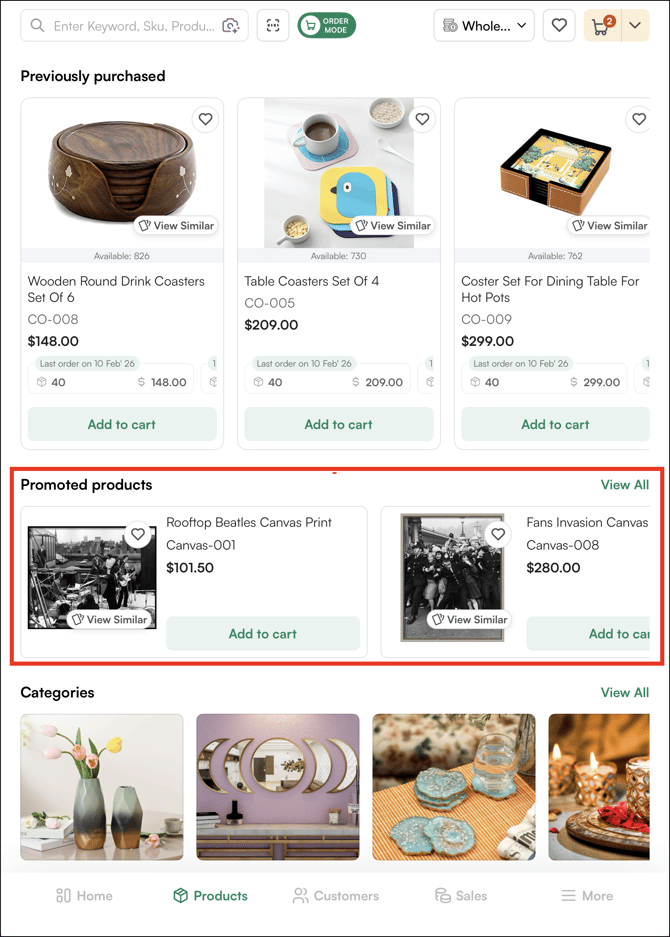
Once published, the Promoted Products section appears at the top of the Products listing page, just above the Categories and Collections sections.
- To remove a published wishlist, go to the Wishlist page, click the three-dot menu next to the published wishlist, and select Unpublish
Note: To promote a wishlist ensure that you are in the Guest Mode.
FAQs
1. Can more than one wishlist be published as promoted products at the same time?
A. Please verify this with the product team before publishing the article does not confirm whether multiple wishlists can be published simultaneously.
2. What happens to the promoted products section when a wishlist is unpublished?
The Promoted Products section is removed from the top of the product list page once a wishlist is unpublished. Products in the wishlist are not deleted, they remain saved in the wishlist for future use.
Not finding what you need? Browse the WizCommerce Help Center, reach out to your Customer Success Manager, or contact our Support Team.