
Buyers on the Online Storefront (WizShop) can create and manage multiple carts at the same time; useful when ordering for different locations, departments, or order types in a single session. This article explains how the cart works on the storefront: adding items, saving and switching between multiple carts with a single click, telling your active cart apart at a glance, and managing or deleting carts you no longer need.
Platform: WizShop | Who is this for: Buyers
To Get There: Online Storefront > Products Details Page
Table of Contents
| Sections | Topics |
| A | Create a New Cart |
| B | Manage Multiple Carts in WizShop |
| C | Manage Carts |
| D | Abandoned Website Carts |
| E | FAQs |
Before You Begin
- You must have access to WizShop.
- Make sure the products you want to order are available in your catalog.
A. Create a New Cart
Create a new cart in WizShop, add products, and proceed to checkout when you're ready to place an order.
- Open your website (WizShop - B2B Salesfront).
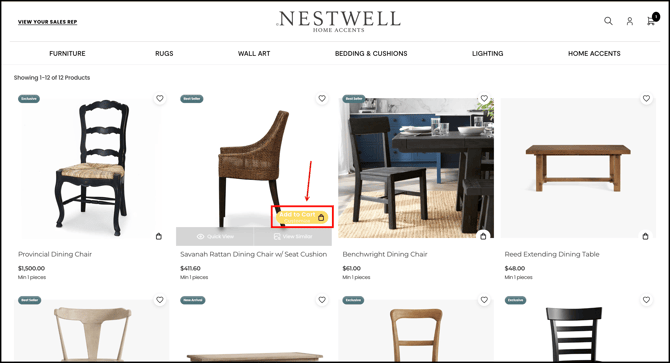
- On any product, click the Bag icon to add it to your current cart.
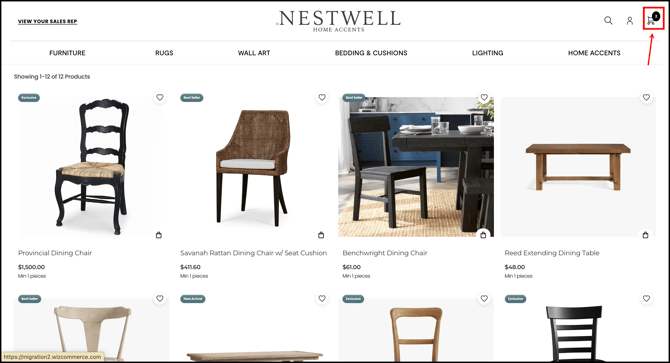
- Click the Cart icon to open your cart.
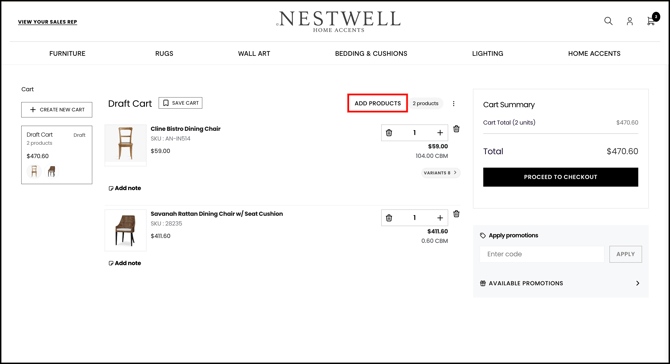
- Click Add Products to add more products in your cart.
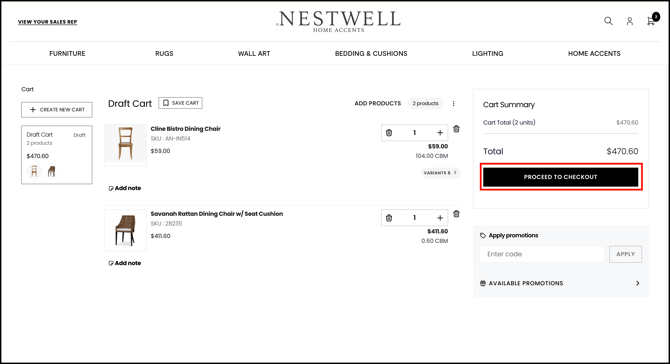
- Review the products in your cart and click Proceed to Checkout.
- Verify the cart details and click Continue.
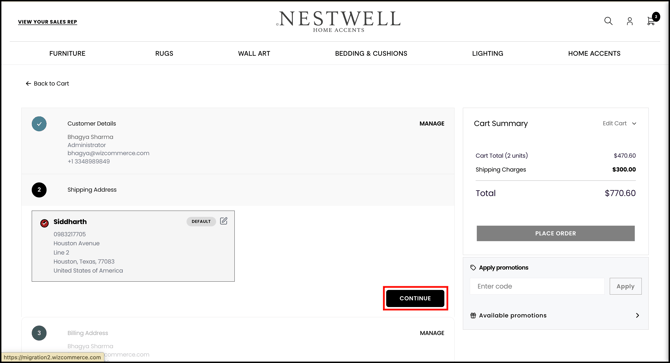
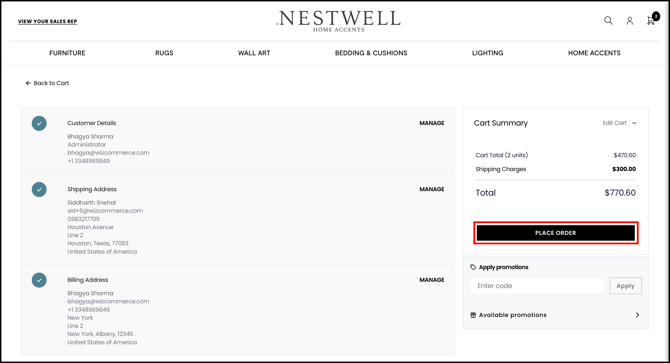
- Once you have verified the details, click Place Order to submit the order.
- To start a new cart, click Create New Cart. What happens next depends on your existing carts.
Your Current Carts What Happens All your existing carts are already saved A new, empty cart opens immediately — no confirmation, no naming prompt You already have one empty, unsaved cart You are taken back into that same cart — a second empty cart is not created Your current cart already has products in it A new cart opens and becomes active. Your previous cart is automatically saved with a default name (for example, Saved Cart 8), and a notification confirms the name. Select it any time to return to that cart. 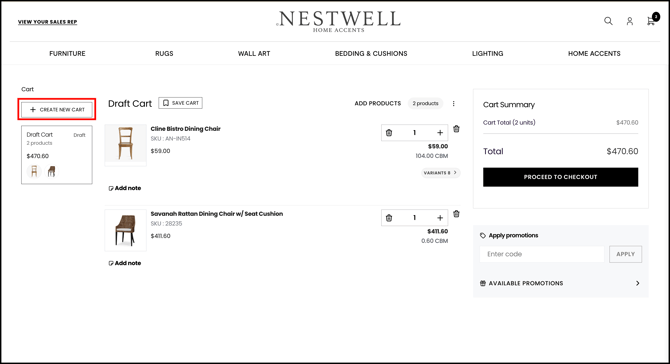
-
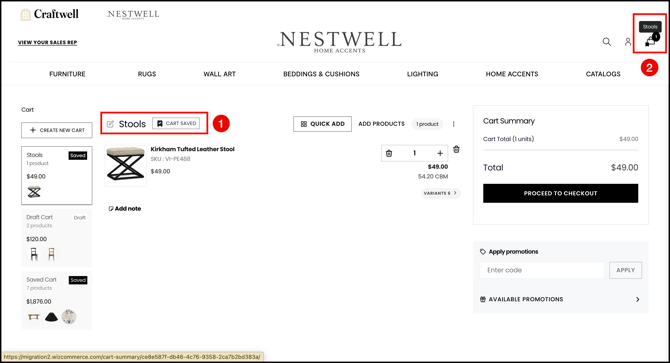
Identify your active cart: The cart icon in the header indicates which type of cart you are currently using:
- A plain cart icon indicates an unsaved draft cart.
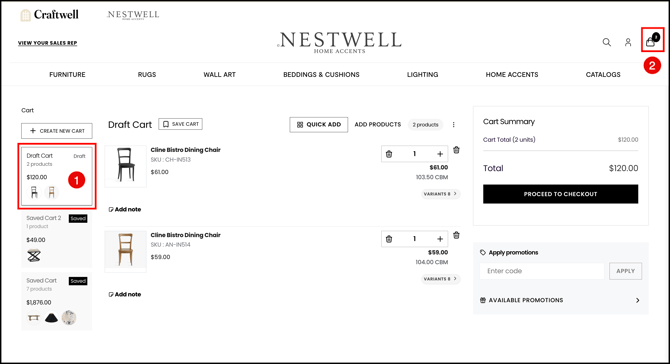
- A bookmark icon indicates a saved cart.
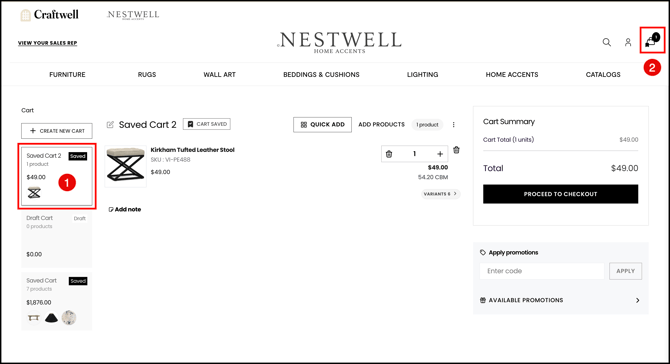
- Hover over the bookmark icon to see the saved cart's name as a tooltip.
- A plain cart icon indicates an unsaved draft cart.
Note: You can't save an empty cart. Add at least one product before it can be kept in your saved carts list.
B. Manage Multiple Carts in WizShop
On WizShop, you can create and save multiple carts at the same time, and Save Cart now works with a single click at every step. Starting a new cart no longer asks you to confirm or name anything, the header cart icon shows at a glance which cart is active, and emptying a saved cart gives you the choice to keep it or delete it, instead of removing it automatically.
- From any cart, select Create New Cart.
- What happens next depends on your current carts, no confirmation or naming prompt appears in any case:
- If all your existing carts are already saved: a new, empty cart opens immediately.
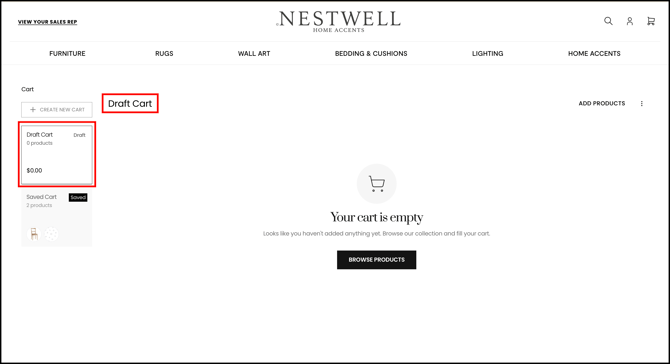
- If you already have one empty, unsaved cart: you are taken back into that same cart instead of a new one being created.
- If your current cart already has products in it: a new cart opens and becomes active, and your previous cart is automatically saved with a default name (for example, Saved Cart, Saved Cart 1, and so on).
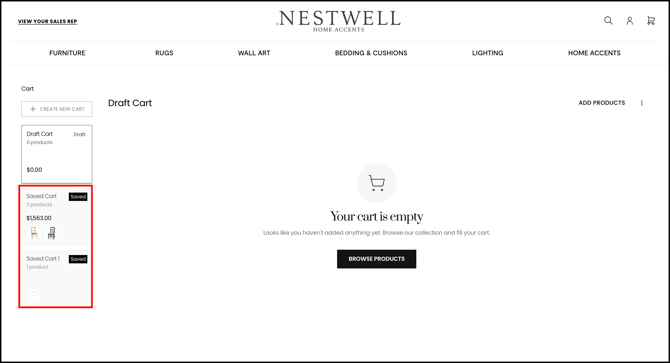
- If all your existing carts are already saved: a new, empty cart opens immediately.
- If your previous cart was auto-saved, a notification confirms the assigned name.
- Select the cart name in the notification at any time to jump straight back to that cart. For example, select Saved Cart 1 to jump back to Saved Cart 1.
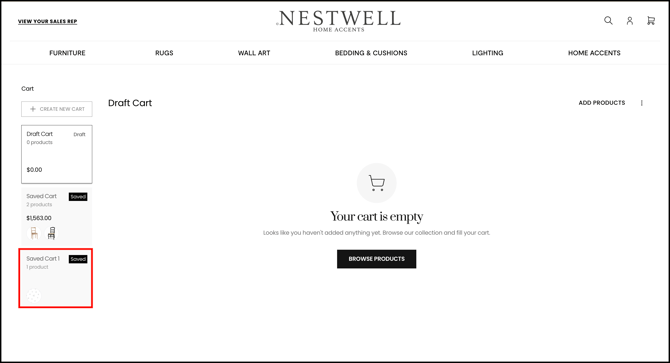
Note: You can't save an empty cart. Add at least one product before it can be kept in your saved carts list.
» Know Which Cart You Are In
- Look at the cart icon in the header at any time.
- A plain cart icon means you are currently in an unsaved draft cart.
- A bookmark icon means you are currently in a saved cart.
- Hover over the bookmark icon to see the saved cart's name as a tooltip.
C. Manage Carts
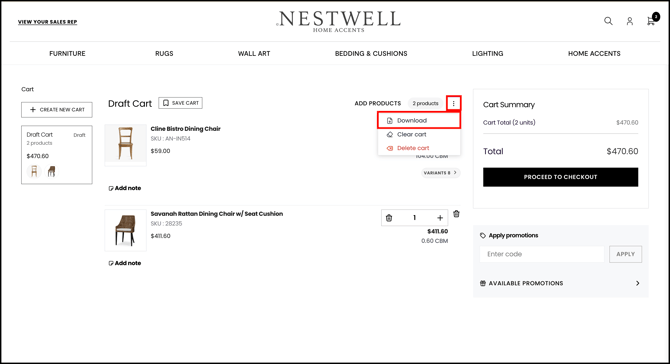
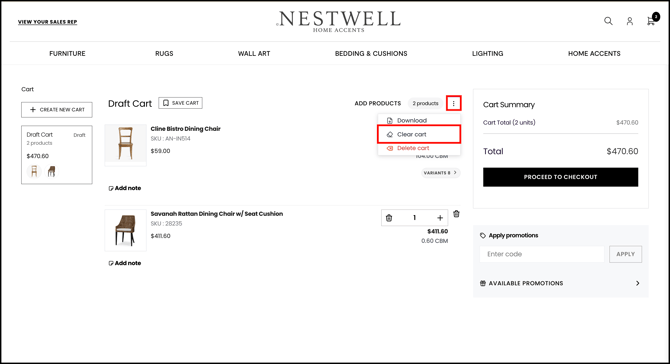
You can download, clear, or delete a cart using the three-dot menu (⋮) at the top of the cart page.
- To download a cart, select the three-dot menu and click Download.
- To clear a cart, select the three-dot menu and click Clear Cart. This removes all products from the cart but keeps the cart itself.
- To delete a cart, select the three-dot menu and click Delete Cart. The cart and all the products will be permanently removed.
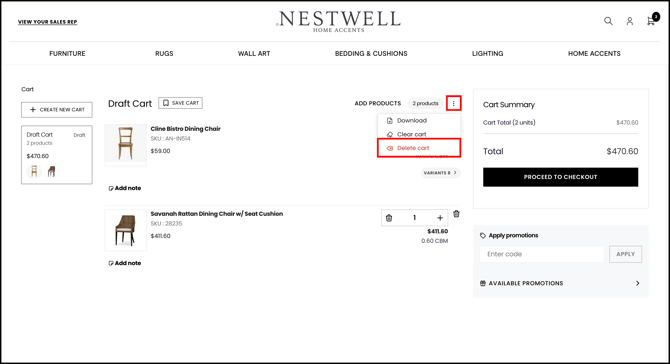
- Click Proceed to delete the cart.
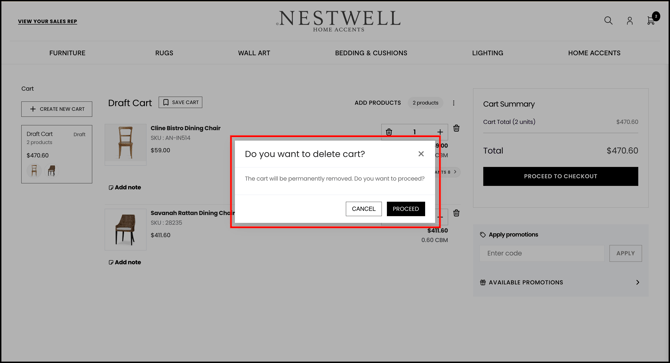
Note: Cart still showing after you delete it? If a deleted cart doesn't clear, contact our support team at help@wizcommerce.com, our team can look into it and remove it if needed.
D. Abandoned Website Carts
When a buyer adds products to their WizShop cart and leaves without placing an order, the cart is saved automatically and appears under the Website Carts tab in WizOrder, after a set time period. Sales representatives can review cart contents, mark carts as viewed, and convert the
» View abandoned carts:
- Click Customers in the left navigation panel on WizOrder
- Click the Website Carts tab, the page lists all open carts across your customers, showing Customer, Status, Cart Value, Total Items, Total Units, and Cart Created On
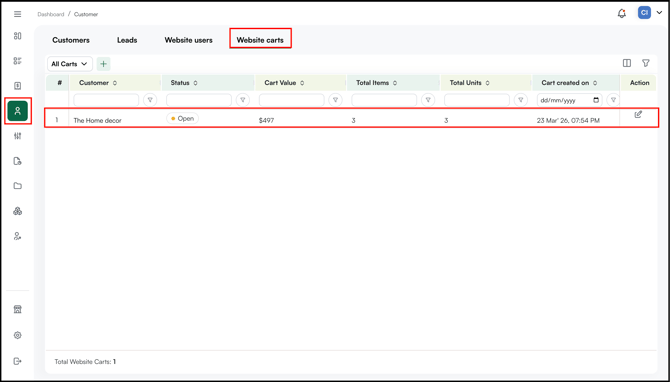
- Click the edit icon in the Action column next to a cart to open the Website Cart Products panel.
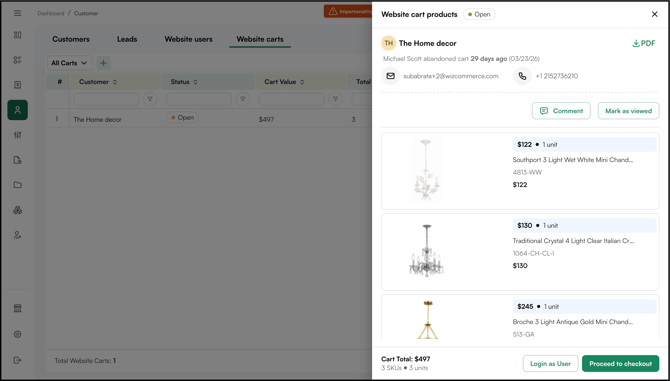
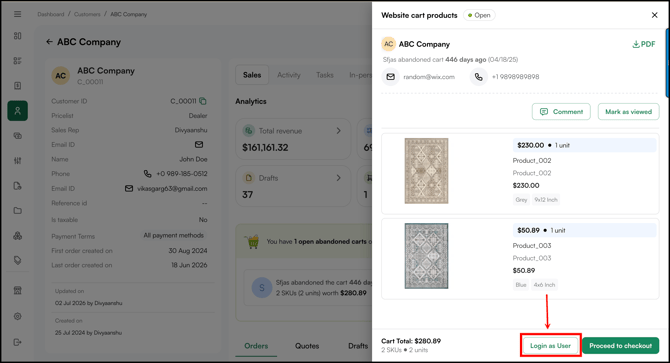
- Review the cart, the panel shows the customer name, how long ago the cart was abandoned, contact details, and a full product breakdown with SKUs, quantities, and prices.
» Mark a Cart as Viewed
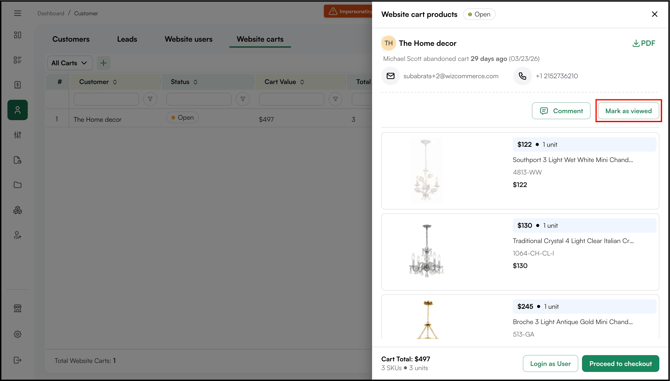
- Open the cart from the Website Carts tab
- Click Mark as Viewed in the cart panel, the cart status updates from Open to Viewed on the list.
» Convert a Cart to an Order
- Open the cart from the Website Carts tab.
- Review the products, quantities, and cart total at the bottom of the panel.
- Choose how you want to proceed:
- Click Proceed to Checkout to convert the cart into an order directly from WizOrder.
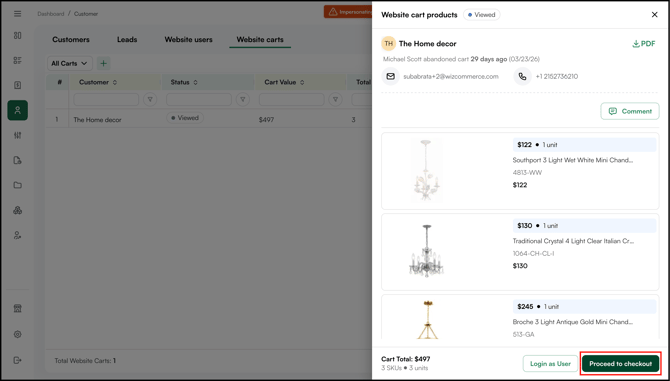
- Click Login as User to open the buyer's WizShop and complete the order from WizShop.
- Click Proceed to Checkout to convert the cart into an order directly from WizOrder.
Note: By default, a WizShop cart is tagged as abandoned after a set number of hours of inactivity. To configure this time period for your account, contact your Customer Success Manager.
» Delete Abandoned Cart
You can clear an abandoned cart by following the steps below:
- Go to CRM → Customers.
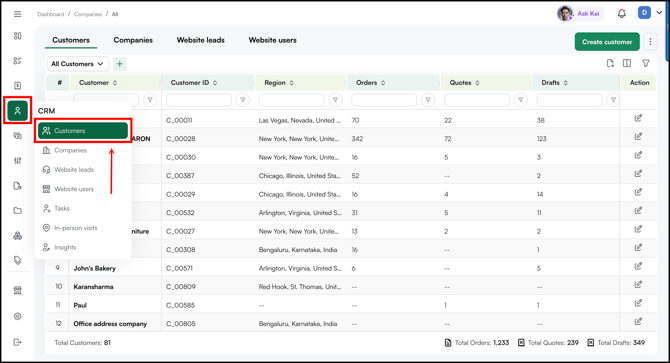
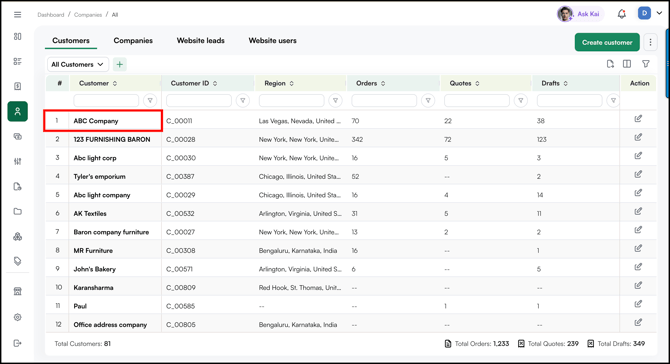
- Select the respective Customer Profile.
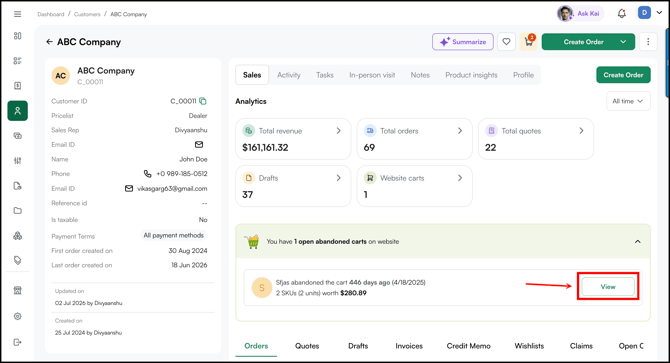
- On the customer profile, you will see a banner showing the number of open abandoned carts on the website. Click the ∨ icon to expand and view the details.
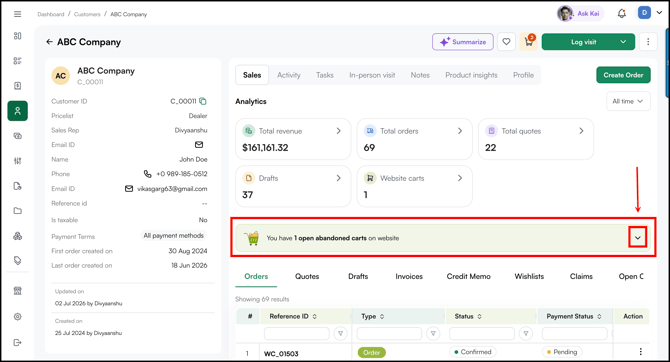
- Click View to see the cart details. If there are multiple carts, select the one you want to delete.
- Click Login as User to access the cart.
FAQs
1. How many carts can I create on WizShop?
A. There is no limit, you can create as many carts as you need within a session.
2. Will my saved carts still be there when I log back in?
A. Yes. Your carts are saved to your account and will be available the next time you log in.
3. Can I transfer products from one cart to another?
A. Yes, you can transfer or move products from one cart to another, read here to know how.
4. Why does my WizShop cart show as abandoned even though the order was placed?
A. This happens when your sales rep places the order directly in WizOrder instead of converting your WizShop cart into an order. Because the WizShop cart was never used to complete the order, WizShop does not recognise it as placed and marks it as abandoned. This is expected behaviour.
5. How do I delete an abandoned cart in WizShop?
A. To delete an abandoned cart, refer to the Delete Abandoned Cart section above for step-by-step instructions. To prevent abandoned carts, your sales rep should always convert the WizShop cart into an order rather than creating a new order in WizOrder.
6. What happens if I click "Create New Cart" while my current cart already has products in it?
A. Your current cart is automatically saved with a default name, and a notification shows you that name with a link back to it. A new, empty cart opens for you to keep working in.
7. Can a saved cart be empty?
A. Yes. If you clear all products from a saved cart and choose "Clear the cart, keep it saved" in the pop-up, the cart stays in your saved carts list, empty, under its existing name — until you decide to delete it.
8. How do I know if I am in a saved cart or a new draft?
A. Check the cart icon in the header. A bookmark symbol means you are in a saved cart, and hovering over it shows the cart's name. No bookmark means you are in an unsaved draft.
Still need help? Reach out to our support team at help@wizcommerce.com.