
Bulk Line Drawings lets you generate technical dimension drawings for up to 20 products at once. Upload your product images, apply a template that defines where dimension lines appear, and add measurements in bulk using a CSV, WizStudio handles the rest. This article covers how to upload products, set up or create a template, add dimension numbers, generate drawings, and review and download your results.
Platform: WizStudio │ Who is this for: Designers & Admins
To Get There: WizStudio > Dimension Lines
Table of Contents
| Sections | Topics |
| A | Create Bulk Line Drawings |
| B | FAQs |
Before You Begin
- You must have an active WizStudio Enterprise plan to access Bulk Line Drawings.
- Prepare your product images before starting. Clear, well-lit images with a single product per image produce the best results.
- If you plan to include measurement numbers on the drawings, have your dimensions ready — height, width, and depth — before you upload.
- You can upload up to 20 product images in one batch.
A. Create Bulk Line Drawings
Step 1: Upload Your Products
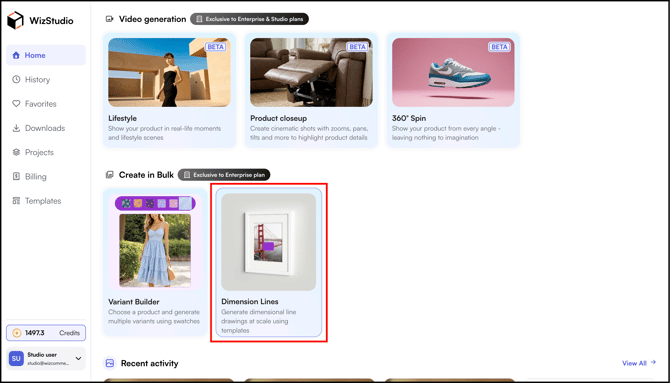
- Click Dimension Lines in WizStudio Homepage.
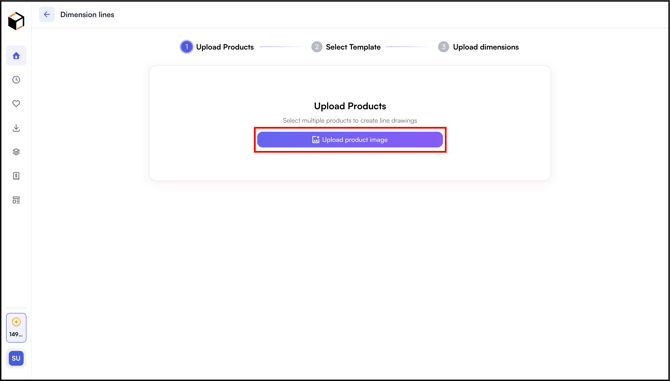
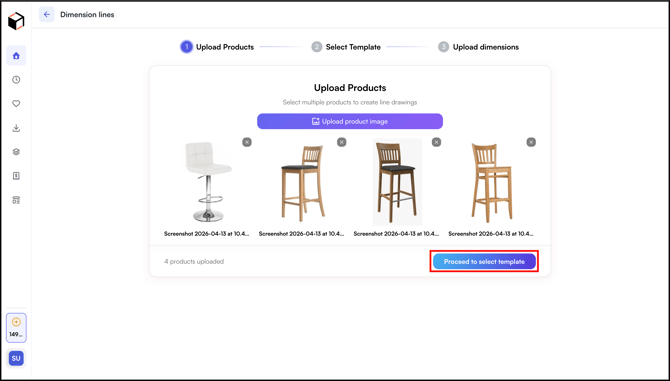
- Click Upload Products, and proceed to Choose a template. You can select up to 20 product images from your system.
Step 2: Select or Create a Template
A template defines where the dimension lines appear and how they are formatted. Every product in your batch follows the same template.
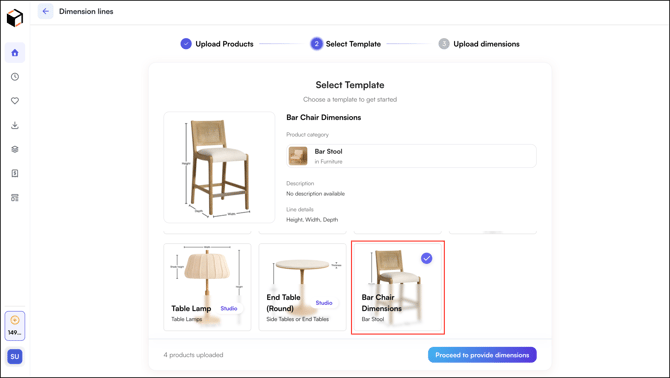
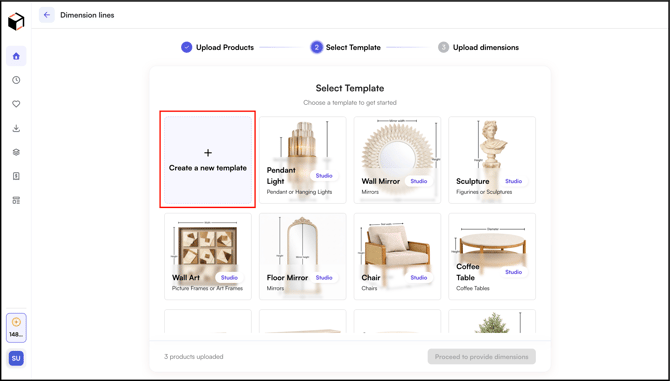
- Review the pre-made templates displayed on screen.
- Click a template to preview how lines will be applied to your product.
- If a pre-made template fits, select it and move to Step 3. For our example, the chair template fits very well.
- If no pre-made template fits, click Create New Template:
- Upload a single product image as your template base.
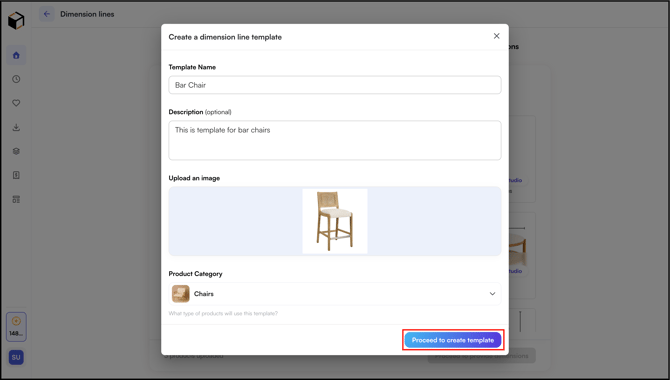
- Upload a single product image as your template base.
-
- Enable Grids and Add dimension lines manually on the canvas, for example, height, width, and depth.
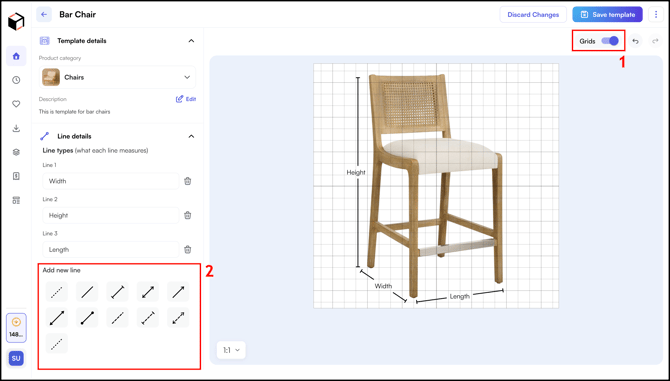
- Label each line (for example, H1, H2, W1).
- The line style, weight, and label placement you set here will apply to all images in the batch.
- Once done, click Save Template.
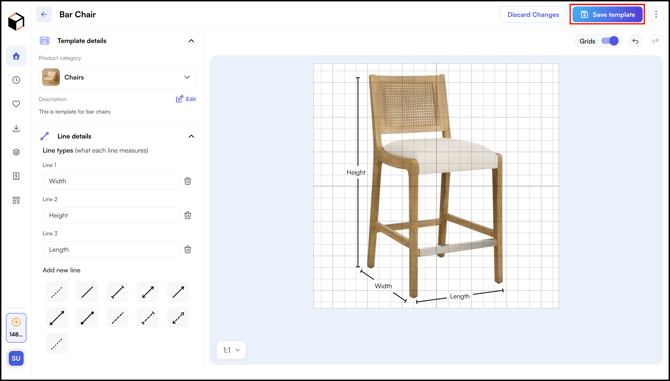
- Enable Grids and Add dimension lines manually on the canvas, for example, height, width, and depth.
Step 3: Add Dimension Numbers (Optional)
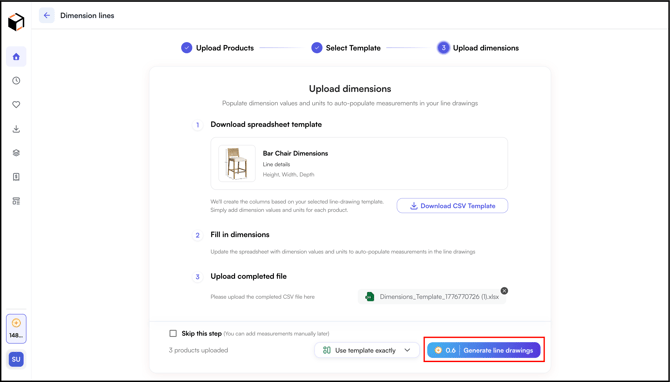
If you want specific measurements displayed on the drawings, add them in bulk using a CSV file.
- Click Download CSV Template. The file includes one row per product and one column per dimension line defined in your template.
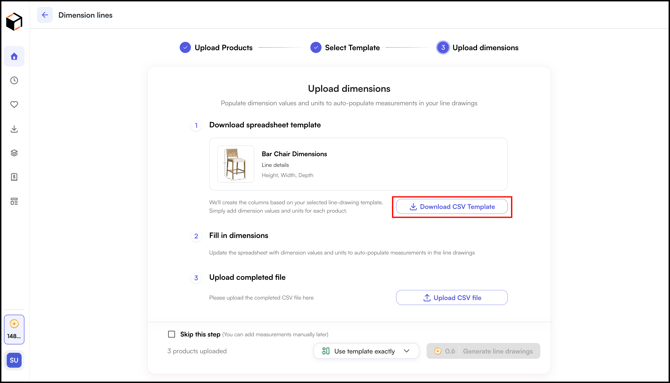
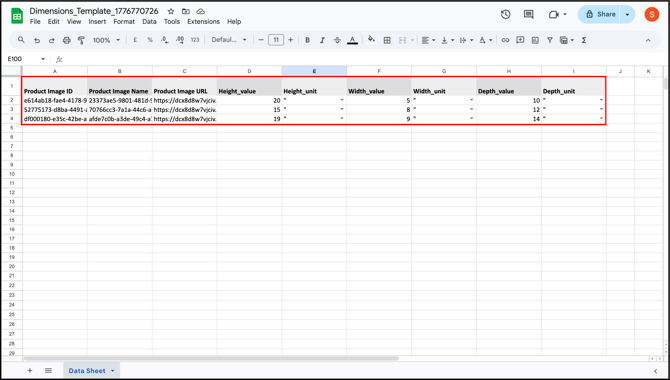
- Open the file in Excel or Google Sheets.
- Enter the measurement for each product and each dimension — for example, 30 in for height, 12 in for width.
- Save the file and click Upload CSV.
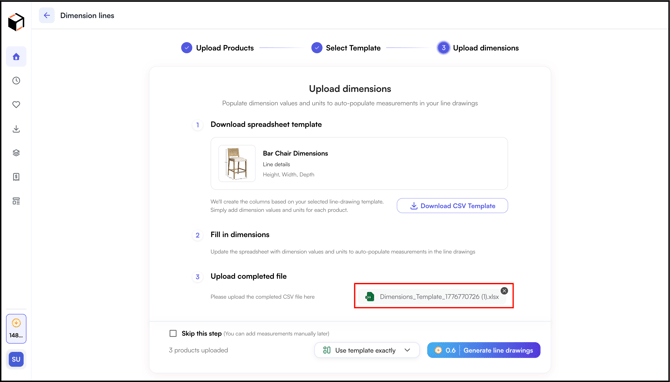
Note: This step is optional. If you skip it, dimension lines will still appear on the drawings without numbers. You can add or edit measurements manually in the editor after generation.
Step 4: Generate Your Line Drawings
- Select one of the two generation options:
- Use Template Exactly: Places lines in the exact position and format as the template. Best when all products share the same shape and camera angle.
- Adapt Template with AI: Adjusts line placement to match each product's actual shape, size, and orientation. Best when products vary in shape or angle.
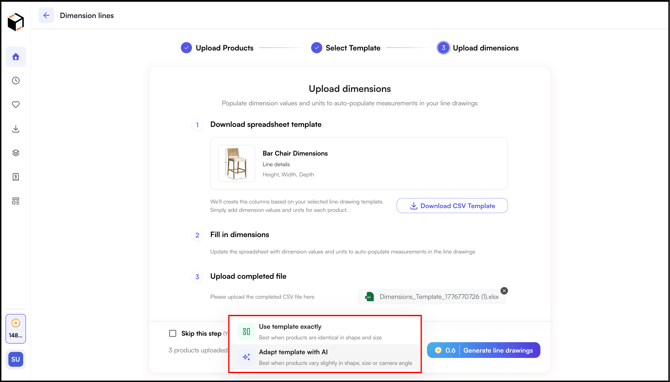
- Click Generate Line drawings.
Step 5: Review and Download
- Open any drawing to review it in the editor.
- To adjust a drawing before downloading:
- Reposition individual lines by dragging them on the canvas.
- Edit dimension numbers directly on the image if they need correction.
- Update line style, weight, or label placement as needed.
- Click Download
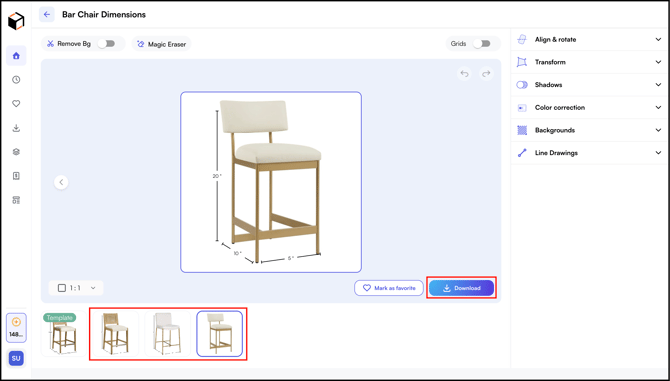
Note: You can create up to 20 product line dimensions, however each image will need to be downloaded individually.
FAQs
1. Can I create line drawings for products not in the standard category list?
A. Yes. If your product category is not listed, type in a custom category before uploading.
2. What happens if I skip the CSV step?
A. Your drawings will still be generated with the correct lines and formatting from your template. Dimension numbers simply will not appear. You can add them manually in the editor after generation.
3. Can I reuse a template across multiple batches?
A. Yes. Any template you create is saved to your account and can be selected again in future batches.
Not finding what you need? Browse the WizCommerce Help Center, reach out to your Customer Success Manager, or contact our support team at help@wizcommerce.com