
Decide which products buyers see first. Custom sorting lets you pin featured products to the top of any category or collection page and set a fallback sort order for everything else, either by hand or in bulk using Excel.
Platform: WizOrder | Who is this for: Admins
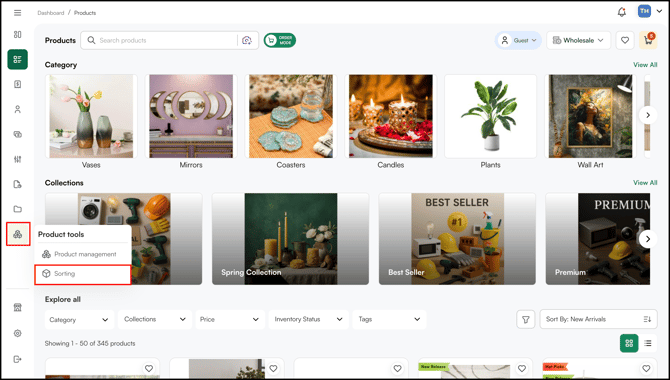
To get there: Product Management > Sorting
Table of Contents
| Sections | Topics |
| A | Set Custom Sorting for a Category or Collection |
| B | Import and Export Custom Sorting Data |
| C | FAQs |
Before You Begin
- You must have Admin access to WizCommerce.
- Identify which categories or collections you want to update before starting.
- For bulk updates, prepare your product SKU list in advance, you'll need it when editing the export file.
A. Set Custom Sorting for a Category or Collection
Custom sorting lets you pin specific products to the top of a category or collection page and control the order everything else appears in.
-
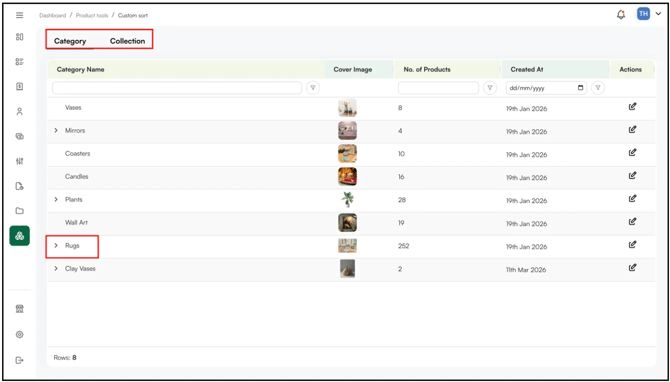
Go to Product Management and click Sorting. The Sorting page opens with two tabs: Category and Collections.
-
Select the Category or Collections tab based on where you want to make changes. From there click the category or collection you want to update, for example, Rugs.
-
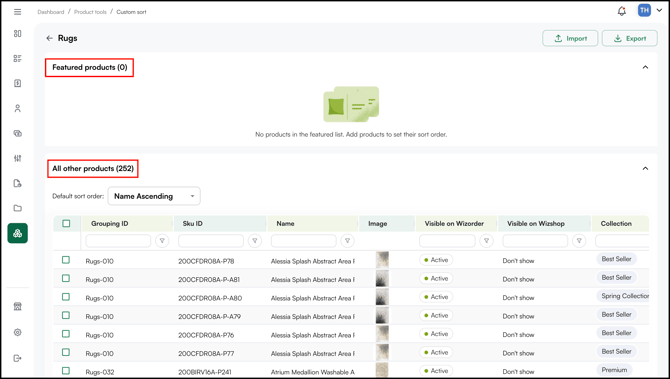
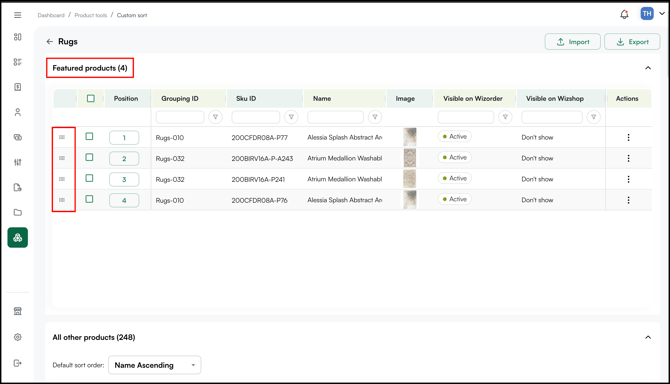
The Category page shows two sections: Featured Products and All Other Product.
-
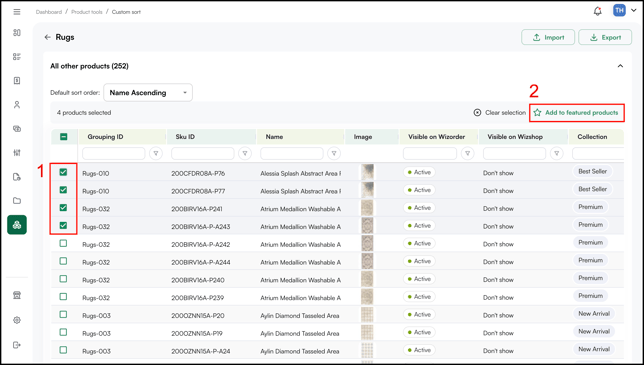
In the All Other Products section, find the product you want to move to the top. Check the box next to that product and click Add to Featured Products.
-
The product moves up to the Featured Products section. In the Featured Products section, drag and drop products to set the exact order you want them to appear in.
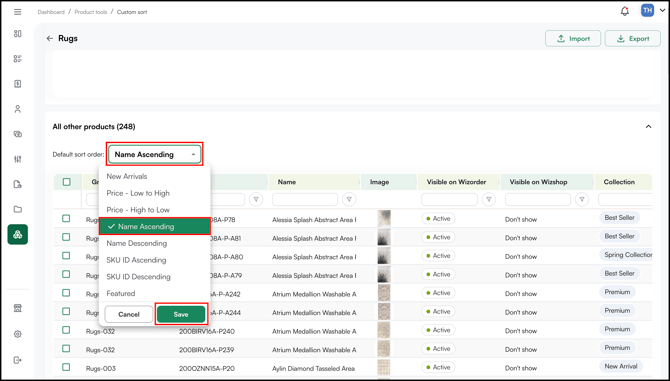
- In the All Other Products section, choose a sorting rule for everything that isn't featured.
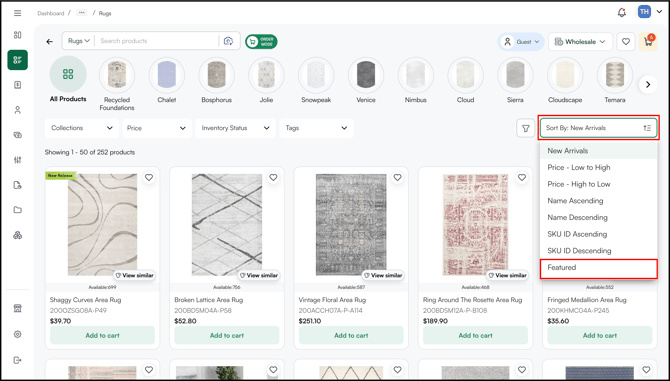
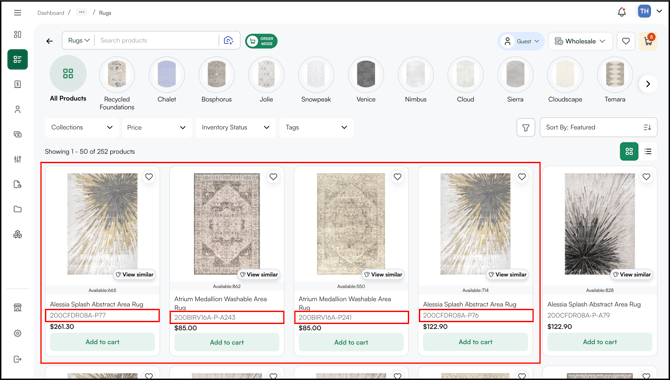
- To confirm your changes are live, go to the relevant category or collection page and select Featured from the Sort By filter. Your featured products should appear at the top in the order you set.
Manage Featured Products
Once products are in the Featured products list, you can change their display order or remove a product from the list at any time.
- Locate the product you want to reposition in the Featured products list.
- Click the Actions icon (⋮) in the rightmost column of that product's row.
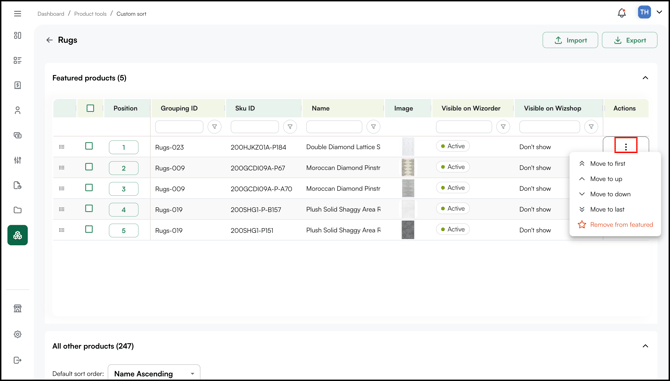
- Select one of the following options from the dropdown:
- Move to first: Moves the product to position 1
- Move up: Moves the product one position higher
- Move down: Moves the product one position lower
- Move to last: Moves the product to the final position in the list
- Remove from featured: Removes the product from the Featured products list entirely
- The Position number updates immediately after any reorder action.
Note: Removing a product from featured does not delete it from your catalog. It moves back into the All other products list and follows the default sort order.
B. Import and Export Custom Sorting Data
Use the import and export feature to manage featured products in bulk across a large catalog. This is faster than configuring each category manually.
-
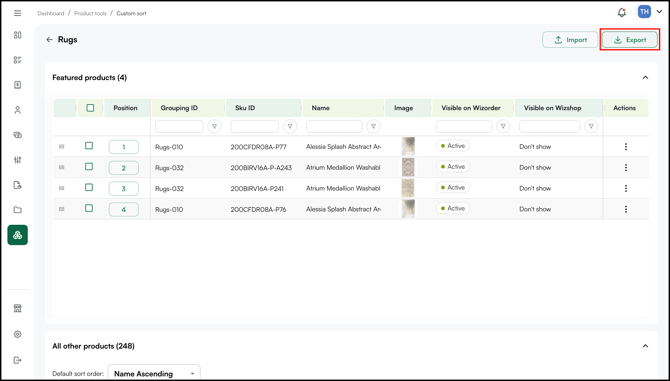
On the category or collection page, click Export. Click the notification icon once the export is ready, then download the file.
-
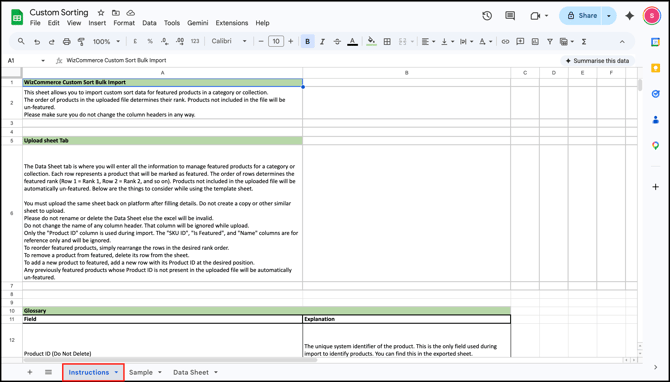
Open the file in Google Sheets or Microsoft Excel. The file contains three tabs: Instruction, Sample, and Data. Review the Instruction tab to understand what each field in the Data sheet means.
-
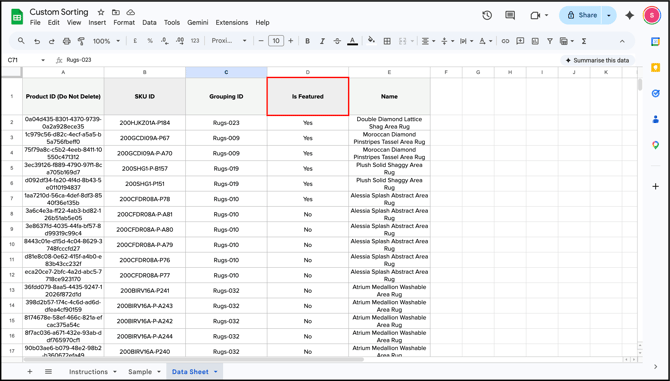
Go to the Data sheet and mark Yes in the Is Featured column for each product SKU you want to feature.
-
Save your updated file as an Excel file (.xlsx). Then return to WizOrder and click Import.
-
Follow the below steps to import the file successfully.
-
Repeat this process for any other category or collection pages you want to update.
FAQs
1. Can I apply custom sorting to both categories and collections?
A. Yes. The Sorting interface includes separate tabs for Category and Collections, you can configure featured products and sorting rules for each independently.
2. Will my featured product order change if I run another import?
A. When you select Add and Update during import, new featured products are added to your existing list. You can adjust the display order manually afterward by dragging and dropping in the Featured Products section.
3. What happens to products that aren't marked as featured?
A. Non-featured products appear below your featured list and follow the sorting rule you set in the All Other Products section, for example, name ascending or price descending.
4. Is there a limit to how many products I can mark as featured?
A. No, there is no limit. You can add as many products as you need to the Featured Products section. Keep in mind that the more products you feature, the more important it is to arrange them in a deliberate order using drag and drop, featured products always appear first on the page.
Not finding what you need? Browse the WizCommerce Help Center, reach out to your Customer Success Manager, or contact our support team at help@wizcommerce.com.