
Platform: WizOrder | For: Sales representatives and administrators.
Table of Contents
Before Your Begin
- You must have access to the Customers page in WizOrder to view, log, or manage activities.
- Activities, tasks, and notes each serve a different purpose, review Section F before deciding which to use.
A. Understanding the Activity Timeline
The Activity tab on a customer profile automatically records all interactions with that customer. Entries are added whenever any of the following occur:
- A task is created, edited, or marked as complete.
- A note is added to the customer profile.
- An in-person visit is logged.
- A manual activity is recorded.
Each entry in the timeline shows the type of interaction, a description, the date, and the team member who carried it out.
B. Log an Activity
Use Log Activity to manually record an interaction that took place outside of WizOrder, such as a phone call, an in-person conversation, or a meeting.
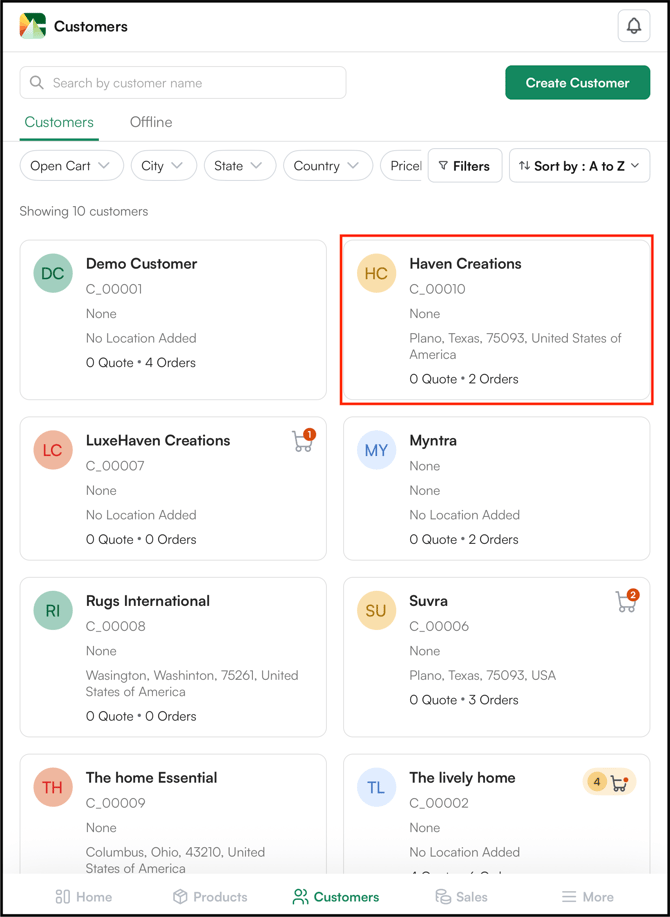
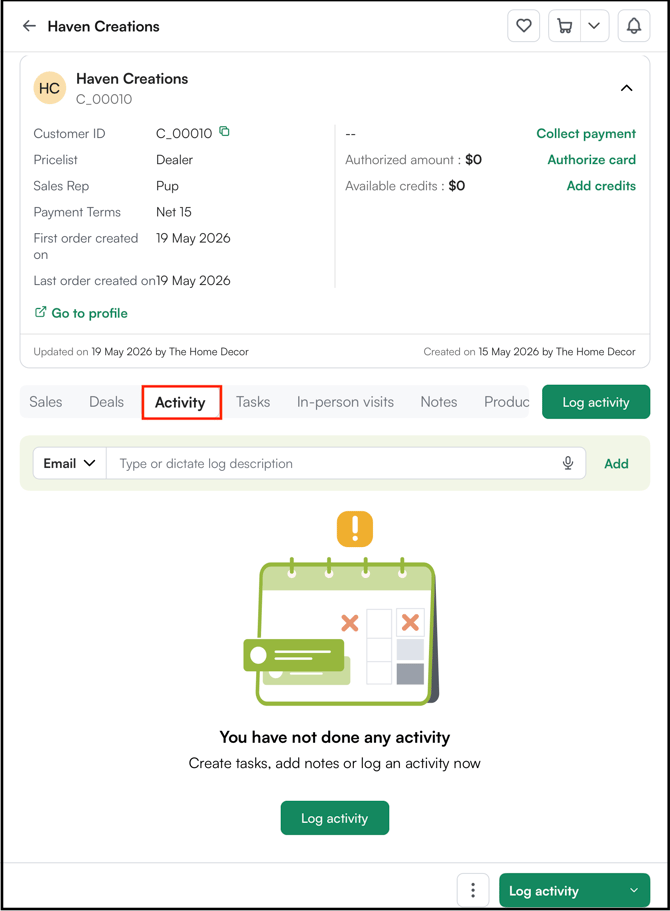
- Open a customer profile and click the Activity tab from the tab row at the top of the profile.
- Click Log Activity in the top right corner.
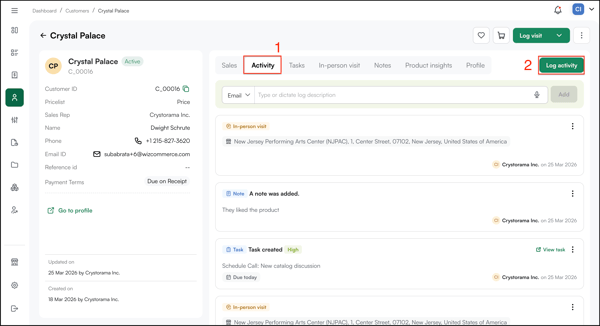
- Fill in the following fields:
- Activity Type: Select the type of activity being logged: Call, Email, In-person visit, Online meeting, Pick up, or Other.
- Description: Enter a summary of the activity. Up to 2,000 characters.
- Completed On: Set the date the activity took place.
- Click Save.
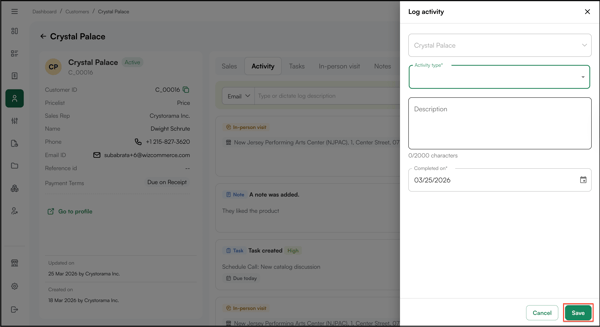
The activity is added to the customer's timeline immediately.
Note: The timeline updates automatically for tasks, notes, and visits. Use Log Activity only for interactions that were not captured through those workflows.
C. Manage Activities
Once an activity has been logged, it can be edited or deleted from the customer's Activity tab.
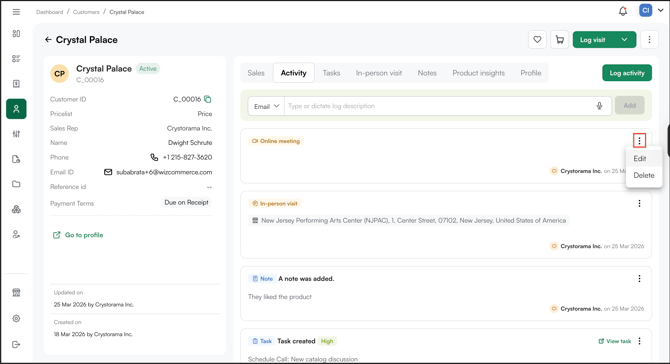
To edit an activity:
- Open a customer profile and click the Activity tab.
- Click the three-dot menu on the activity entry and click Edit.
- Update the relevant fields and click Save.
To delete an activity:
- Open a customer profile and click the Activity tab.
- Click the three-dot menu on the activity entry and click Delete.
D. Log and Manage Activities on the Mobile App
The activity timeline and all activity-logging features work the same way in the WizOrder mobile app as they do on the web portal. Access the Activity tab from any customer profile to view the timeline, log a new activity, or manage existing entries.
Access path: More → Customers → Select a customer → Activity tab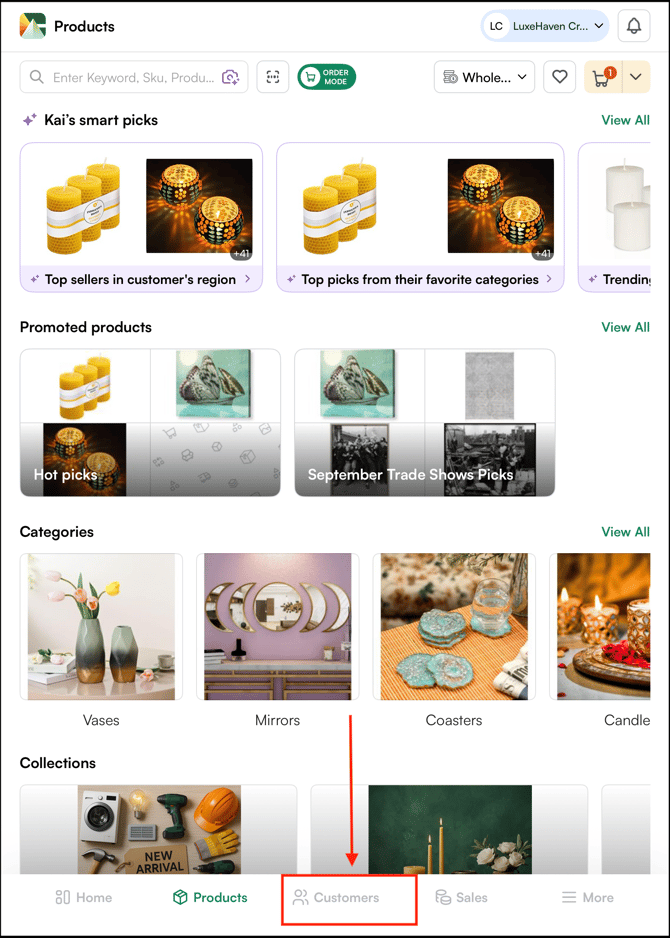
E. Add a Note to Customer Profile.
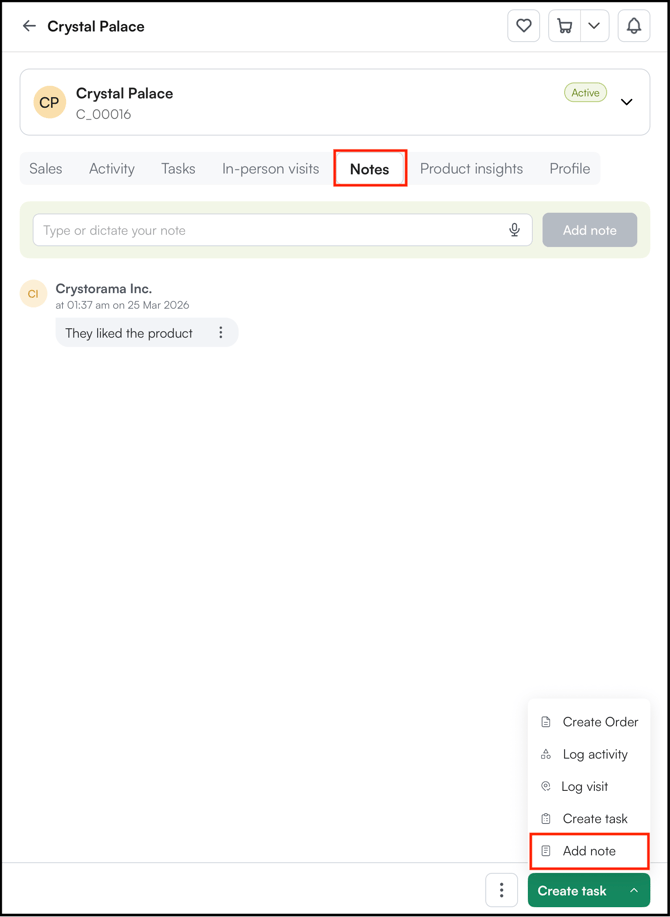
The Notes tab lets you add free-text notes to a customer profile. Use it to record anything relevant to the customer relationship that does not fit a task or activity, such as preferences, context from a conversation, or reminders.
To add a note from the Notes tab:
-
Open a customer profile and click the Notes tab.
-
Type or dictate your note in the Type or dictate your note field.
-
Click Save.
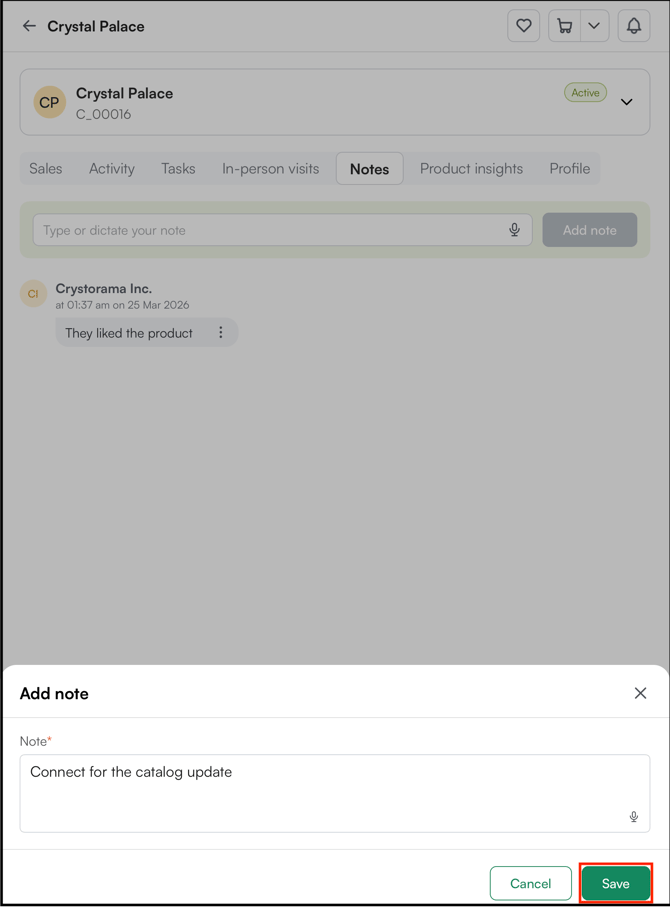
Note: Adding a note to the customer profile works similarly in the WizOrder web portal as well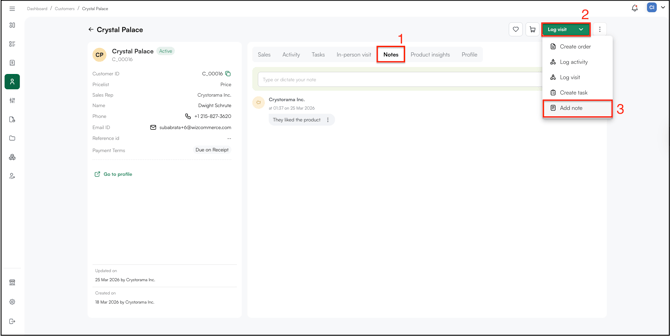
F. Activity vs. Task, What is the Difference?
Activities and tasks are both used to track customer interactions but serve different purposes.
| Activity | Task | |
|---|---|---|
| What it is | A record of something that has already happened | An action that needs to be completed |
| When to use it | To log a past interaction — a call, meeting, or conversation | To track a follow-up, reminder, or scheduled action |
| Assigned to a rep? | No | Yes |
| Has a due date? | No, has a completion date instead | Yes |
| Appears in CRM dashboard? | No, visible on the customer profile only | Yes |
Tip: Use tasks to plan what needs to happen next. Use activities to record what has already taken place. Both appear in the customer's Activity tab timeline.
FAQs
1. Can I log an activity for a phone call that happened before I started using WizOrder?
A. Yes. When logging an activity, the Completed On field lets you set any past date. Enter the date the call or interaction took place and click Save, it will appear in the timeline with the correct date.
2. Will an activity I log appear on the CRM dashboard?
A. No. Logged activities are visible on the customer profile only, under the Activity tab. If you need something to appear on the CRM dashboard, create a task instead.
3. What is the difference between a note and a logged activity?
A. Notes are free-text records stored under the Notes tab, use them for preferences, reminders, or context that does not fit a specific interaction type. Logged activities are stored under the Activity tab and are tied to a specific interaction type such as a call, email, or meeting.
Still need help? Reach out to our support team at help@wizcommerce.com.